

Advice and answers from the Advanced Web Ranking Team
Search for articles
>
>
Meet the new Integrations & Exports hub, and a new home for project connections
AWR's Connectors & API page is now Integrations & Exports, a single hub for every integration, export, and data source. Plus, project connections have moved to the Overview tab in Project Settings.

AWR's integrations and data sources have been reorganized into a brand new redesigned account-level hub. What used to be Connectors & API is now Integrations & Exports, with a card for each integration, its current status shown up front, and setup that happens right there when you expand it. Also in Project Settings, Google Analytics, Search Console, and Bing Webmaster Tools have moved out of their own Connections tab and into the Overview tab, so you see them alongside the rest of the project setup.
What this article covers
How the new Integrations & Exports hub is organized
Programmatic access through the Developer API and MCP Server
Automatic Google Sheets exports, once you're connected
Other export destinations: BigQuery, FTP, and Looker Studio
Which data source accounts are connected, and where each is used
Setting data source preferences from a project's Overview tab
Slack notifications sent to your workspace
Where SMTP sender settings live now
A single hub for every AWR integration
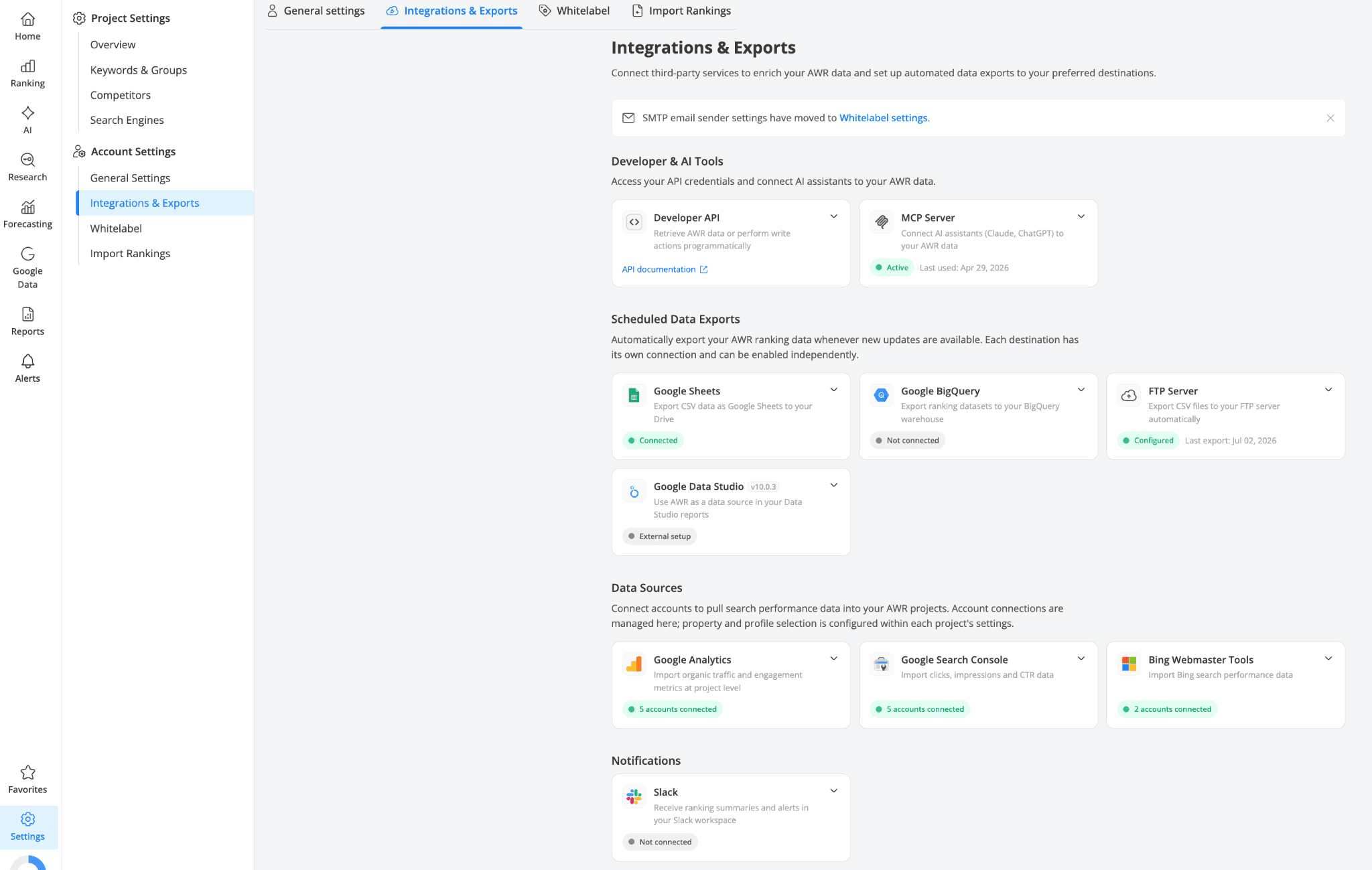
Everything you configure at the account level lives here now, at Account Settings → Integrations & Exports. The page is organized into four functional groups, so you can tell at a glance which cards affect what:
Developer & AI Tools. Your API token and MCP Server endpoint, for programmatic access and for connecting AI assistants like Claude or ChatGPT to your AWR data.
Scheduled Data Exports. Automatic exports of ranking data to Google Sheets, Google BigQuery, or an FTP server. This is also where you find the Google Data Studio card, with the token you need to add AWR as a data source in Looker Studio.
Data Sources. Account-level connections to Google Analytics, Google Search Console, and Bing Webmaster Tools. Connect an account here once, then from the Project Settings pick which property to use for each project.
Notifications. Slack notifications, used for ranking summaries and report notifications sent to your Slack workspace.
Each card shows its current status right on the front (Connected, Not connected, Configured, Active, etc), so you don't need to open them to know whether something is set up or not.
Access AWR programmatically or through AI assistants
The Developer & AI Tools group covers two ways to work with your AWR data programmatically: through direct API calls, or through an AI assistant.
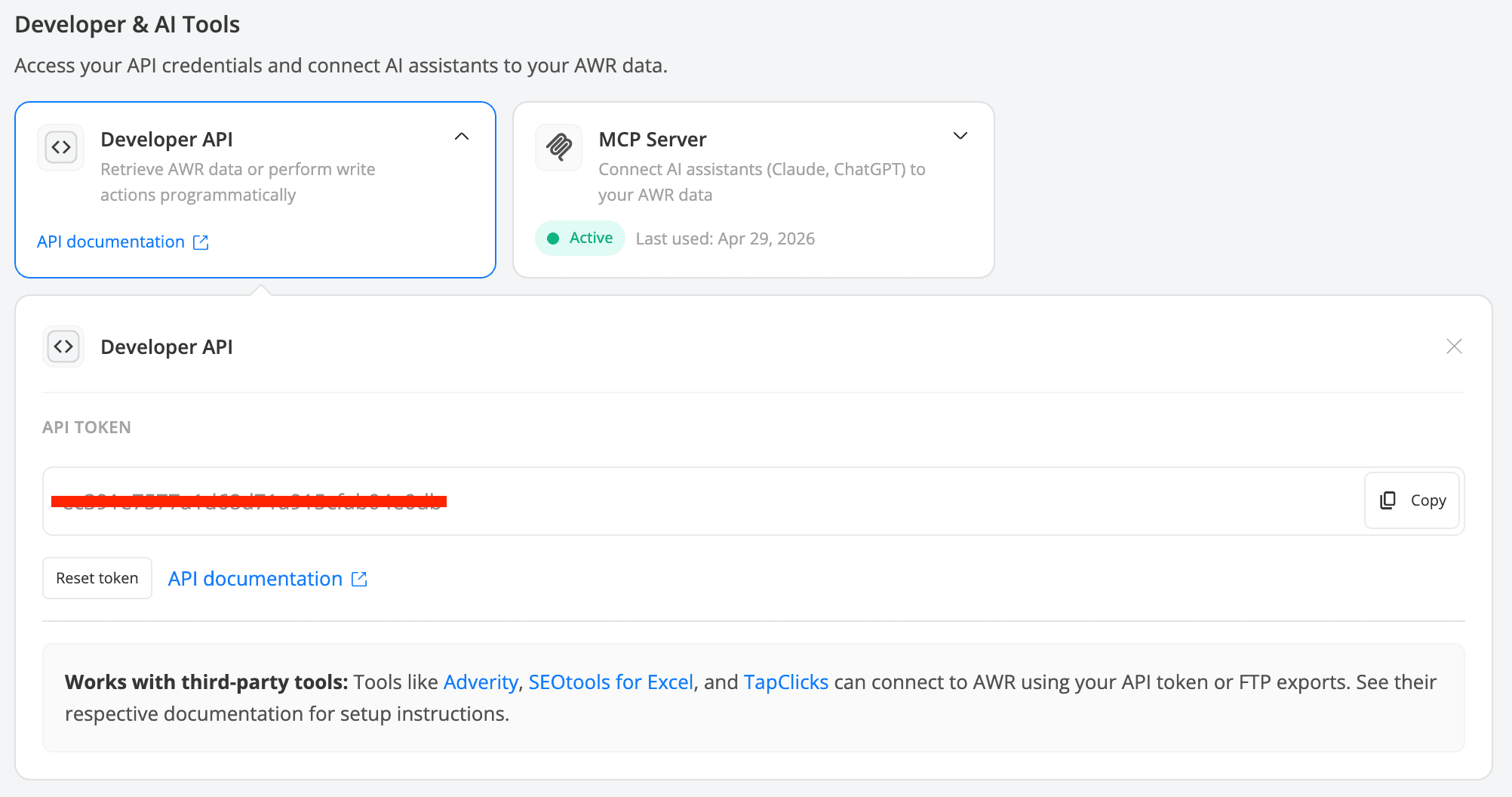
The Developer API card holds your API token, ready to copy for use with third-party tools like Adverity, SEOtools for Excel, or TapClicks. If you ever need to revoke the current token, the Reset button generates a new one on the spot.
For more details on what you can do with the API please see Export and manage AWR data programmatically using the developer API.
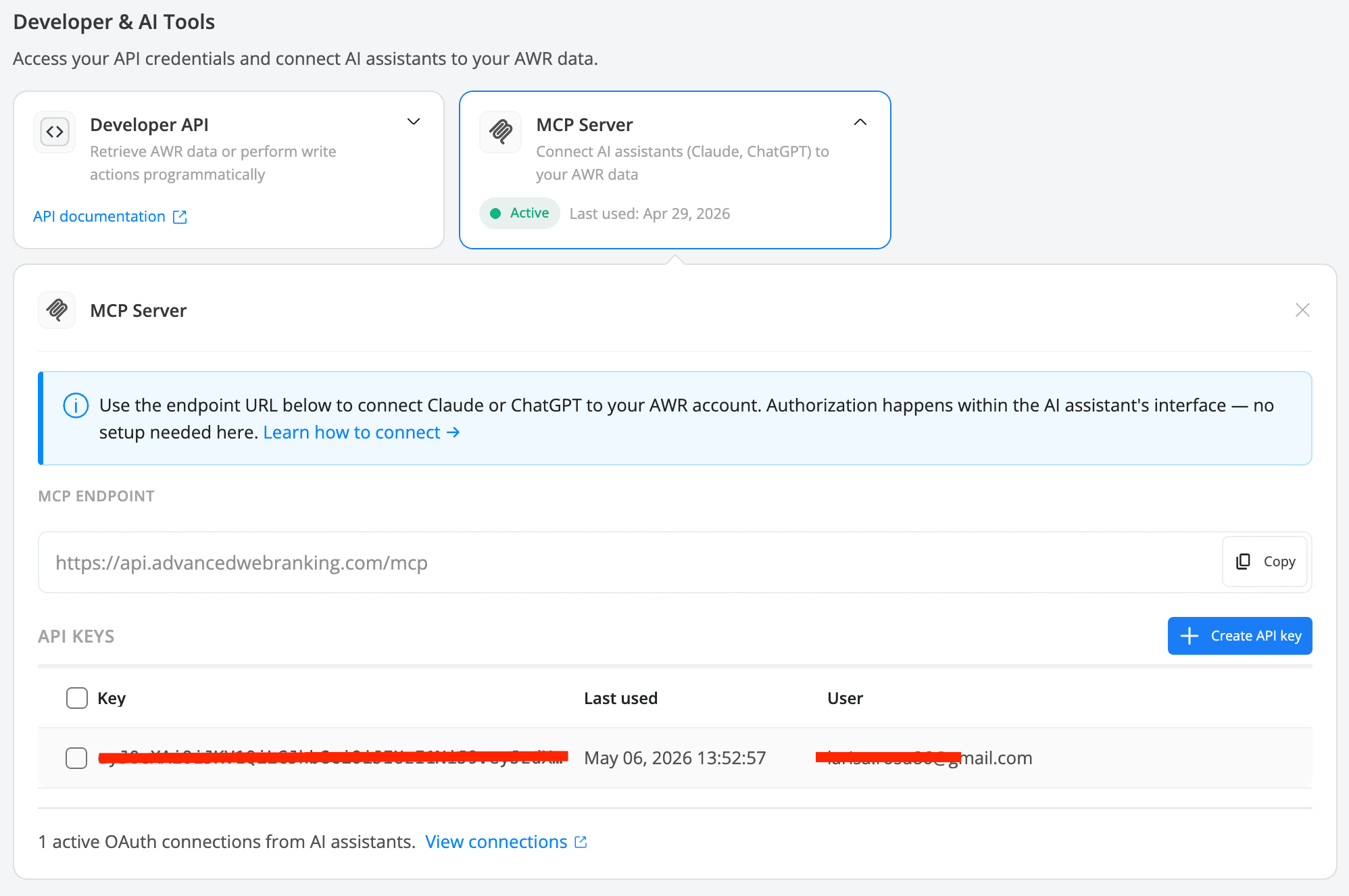
The MCP Server card connects your AWR account to AI assistants like Claude or ChatGPT through a single endpoint URL. You paste the endpoint into the assistant's connectors settings, authorize the connection on the assistant's side, and any active OAuth connections show up in the card so you can revoke access whenever you need to.
For ChatGPT, AWR is also available as a dedicated app inside ChatGPT Apps, which skips the manual MCP setup. Full walkthrough in Use AWR API data in ChatGPT and Claude.
Auto Google Sheets exports
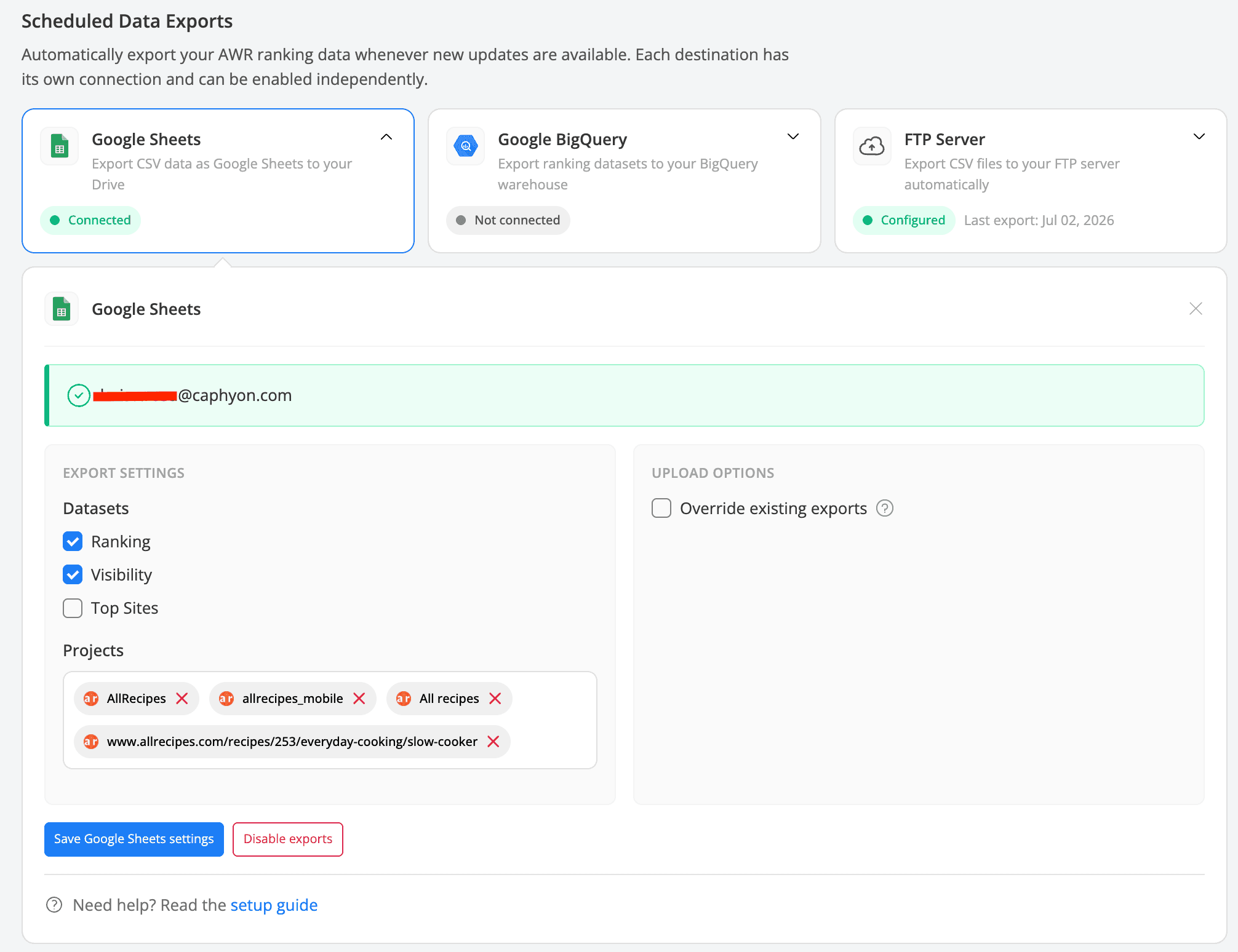
Once you sign in with a Google account under the Google Sheets card, data exports can be uploaded to your Drive automatically with every AWR update. You can control what gets exported (datasets, projects, override behavior) inside the card or disable exports at any time.
For full setup steps please see Streamline data sharing with third-party platforms using Google Drive integration.
Send ranking data to BigQuery, FTP, or Looker Studio
If your workflow lives outside Google Sheets, three more export destinations are available under the same group.
Google BigQuery exports full ranking datasets to your BigQuery warehouse. Handy for teams that already store SEO, paid, and analytics data in one place and want to run cross-source analysis or long-term trend reports.
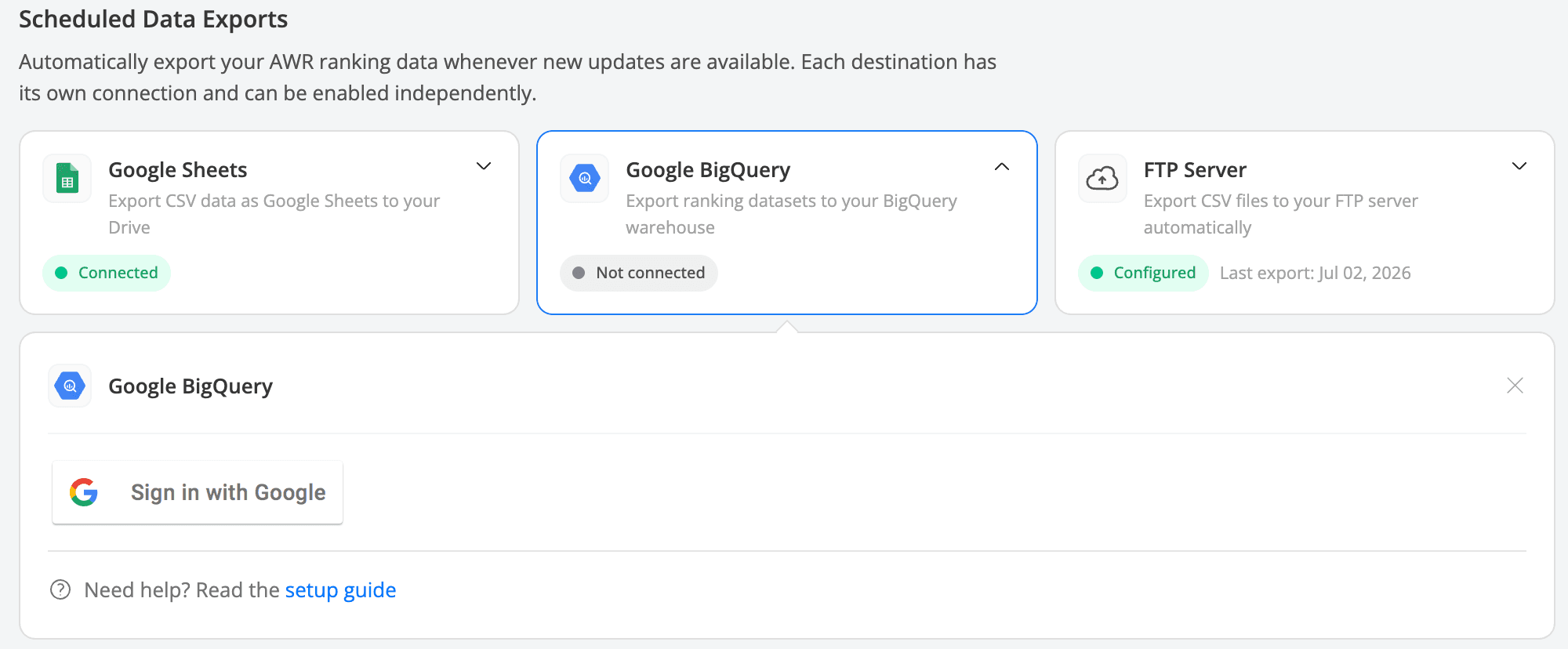
See How to configure AWR for seamless data exports to BigQuery for the full setup.
FTP Server sends CSV exports of ranking, visibility, and market share data to your own FTP server. You can control the datasets exported, whether they're split by keyword groups or search engines, and the target folder. When you no longer need the exports, you can easily disable them.
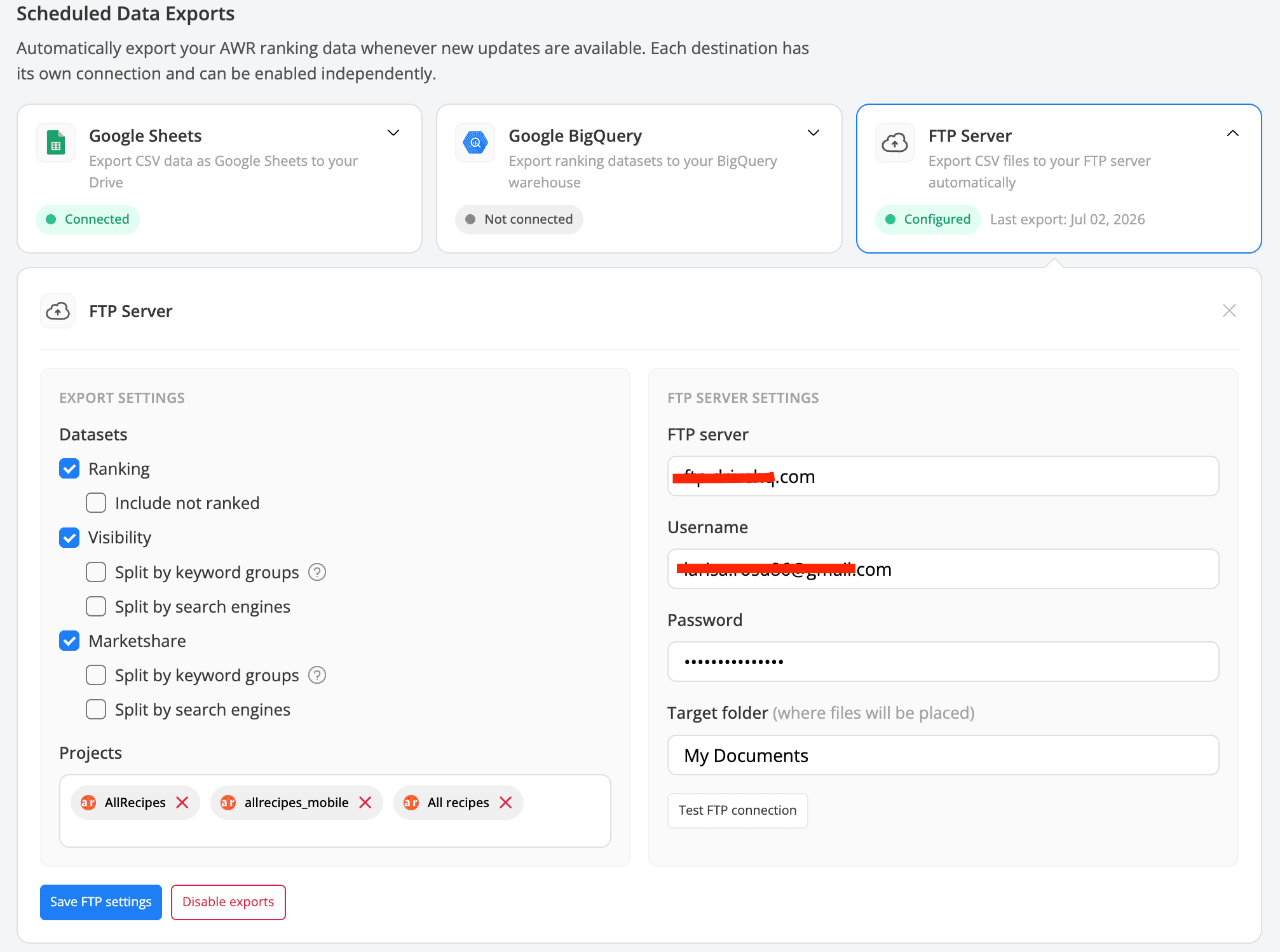
See Automatic exports to FTP for the walkthrough.
Google Data Studio is the only card in this group where the setup happens outside AWR. You need to copy the API token from the card, then paste it inside Data Studio when adding AWR as a data source.
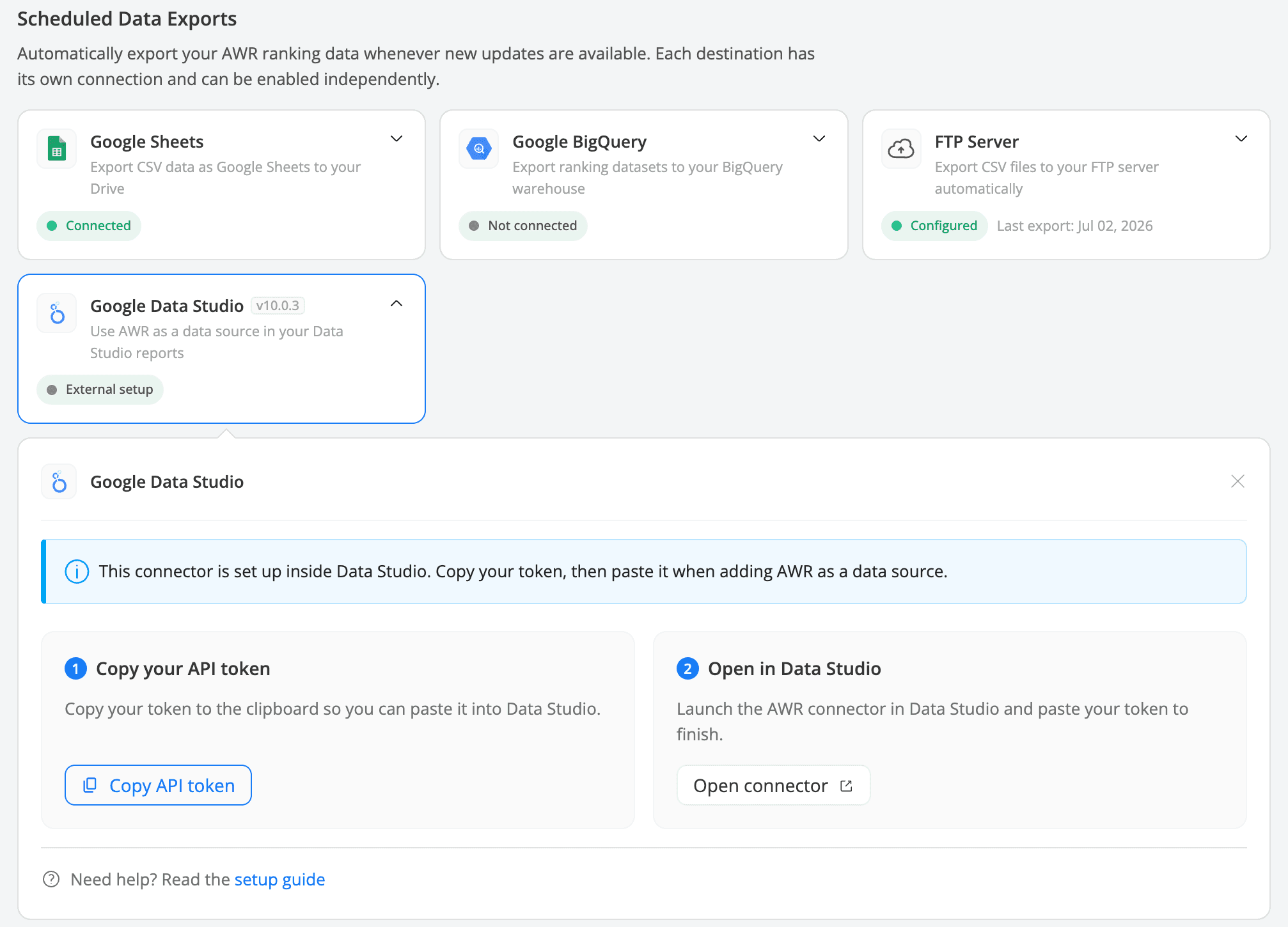
For a step by step guide please check Google Data Studio Data Source Setup.
See every connected account and where it's used
For Google Analytics, Google Search Console, and Bing Webmaster Tools, expanding a card shows every account you've synced, along with how many projects use each one. From there, you can also disconnect an account entirely at the account level, which unlinks it from every project at once.

You can also open the list of projects each account is used in, and remove an account from a single project without breaking the setup in others.

That's the account-level view of what's connected. On the project side, you work with just one account at a time, the one used for a selected project.
For a full walkthrough of setting up each data source, see the dedicated guides: Syncing Google Analytics and Google Search Console with AWR and How to sync Bing Webmaster Tools with AWR.
Manage project connections from Project Settings > Overview
Google Analytics, Search Console, and Bing Webmaster Tools used to have their own Connections tab in Project Settings. That tab is now gone, and instead, all three syncing options appear in the Overview tab, inside the Connections card that sits next to the rest of your project preferences.
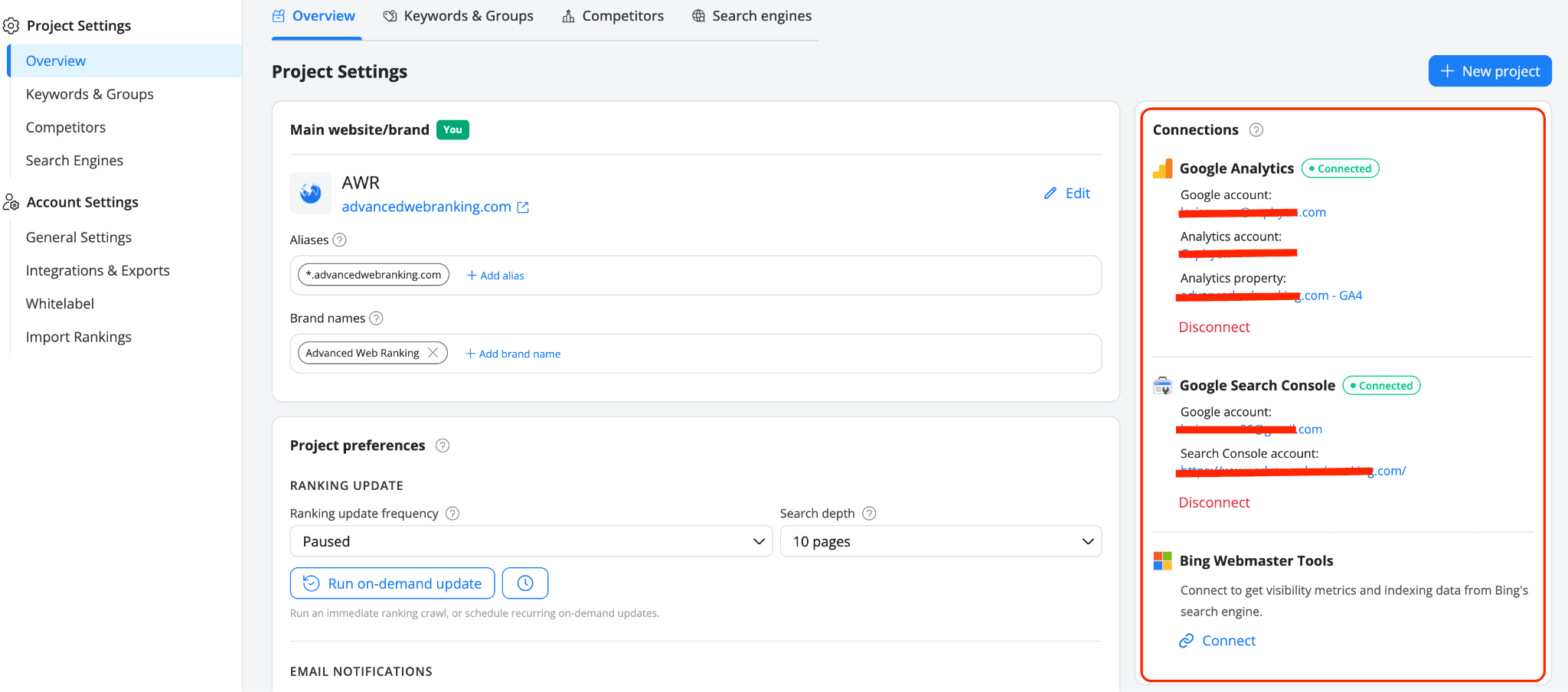
From that card you can pick an existing account already synced at the account level, or connect a new one, or simply disconnect the current one, without affecting other projects that use the same account.
Get AWR updates in your Slack workspace
Connecting Slack lets AWR send notifications to your workspace whenever ranking updates complete, scheduled PDF reports are generated, or Top Sites CSV exports are ready. Once connected, you can pick which notifications to send and filter them down to specific AWR projects, right from the Slack card.
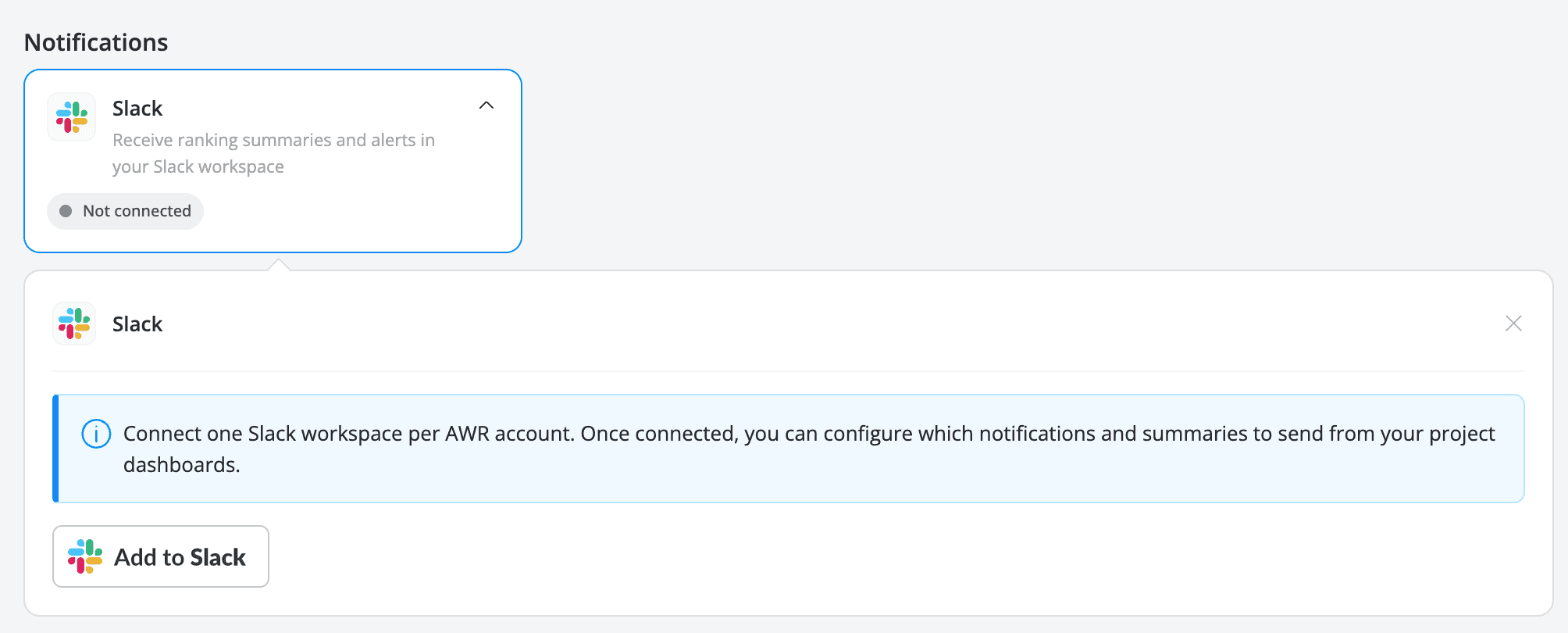
See Integration with Slack for the setup steps.
SMTP sender settings moved to Whitelabe
The Gmail SMTP sender settings, which allow you to send scheduled reports from your own email address, now live under Settings → Whitelabel, next to your logo, custom domain, and other client-facing branding options. Existing setups were preserved during the move, so nothing needs to be reconnected.
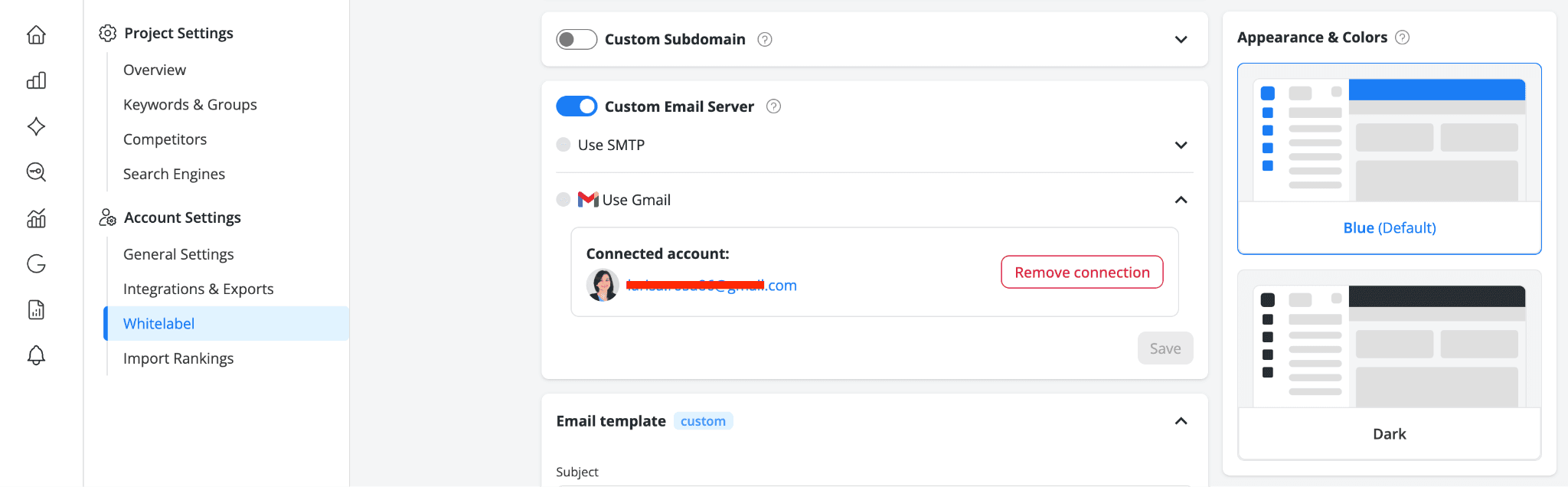
For full setup steps, see Customize the email sender: use Gmail as your SMTP server in AWR.
Quick recap of where to find everything
Not sure where to look for something? Anything you set up once for the whole account, like API access, exports, data source accounts, or Slack, lives under Settings → Integrations & Exports.
Anything tied to a specific project, such as which Analytics property, Search Console site, or Bing site it uses, is in that project's Overview tab.
And your SMTP sender settings now sit with the rest of your branding under Settings → Whitelabel.
stay in the loop