

Advice and answers from the Advanced Web Ranking Team
Search for articles
Customize the email sender: use Gmail as your SMTP server in AWR
How to configure email settings to send reports and user invites from your personal or business address, instead of the default AWR server.

Advanced Web Ranking offers flexible options for customizing how reports and user invites are sent via email. By default, emails are delivered using AWR's server, with the app's name appearing as the sender.
If you prefer a more personalized touch, you can choose to send the emails from your own Gmail or custom mail server. This way, emails will be sent from your personal or business address, enhancing professionalism and ensuring that communications are seamlessly integrated with your brand.
To set this up, go to Settings > Whitelabel and enable the Custom Email Server toggle. Once enabled, choose between the two available methods: Use SMTP (with a custom app password) or Use Gmail (direct sign-in with Google).
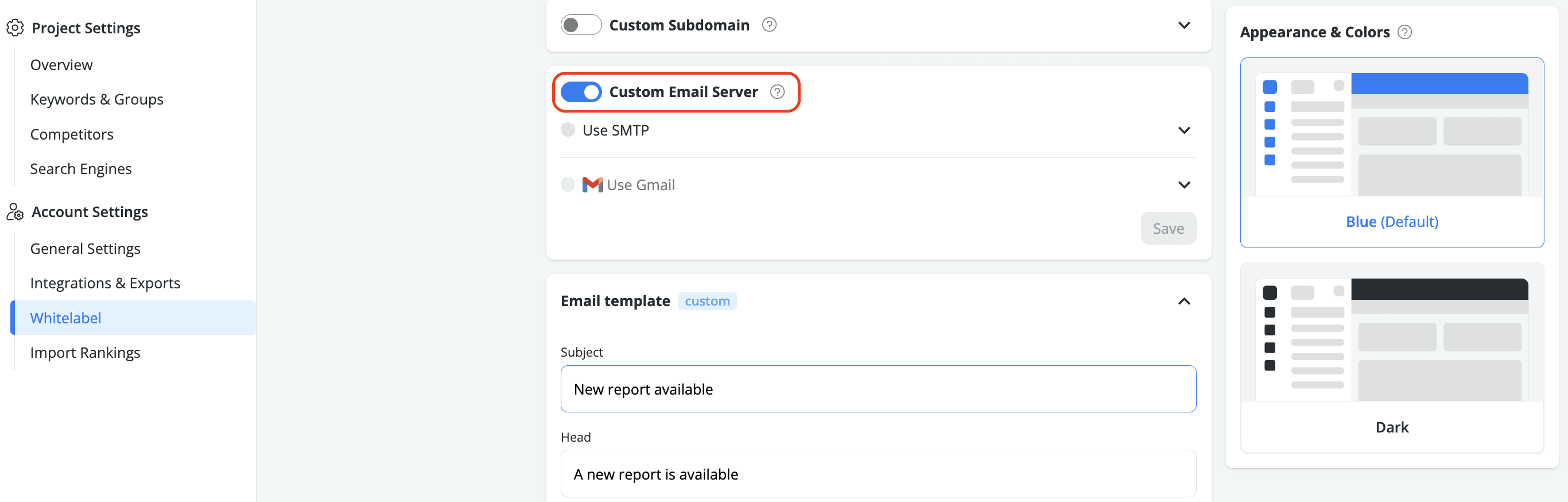
1. Use SMTP with a custom app password
For a seamless integration using your Gmail account, you can configure the SMTP settings with a custom app password. Follow these steps to set up your email delivery:
Generate a
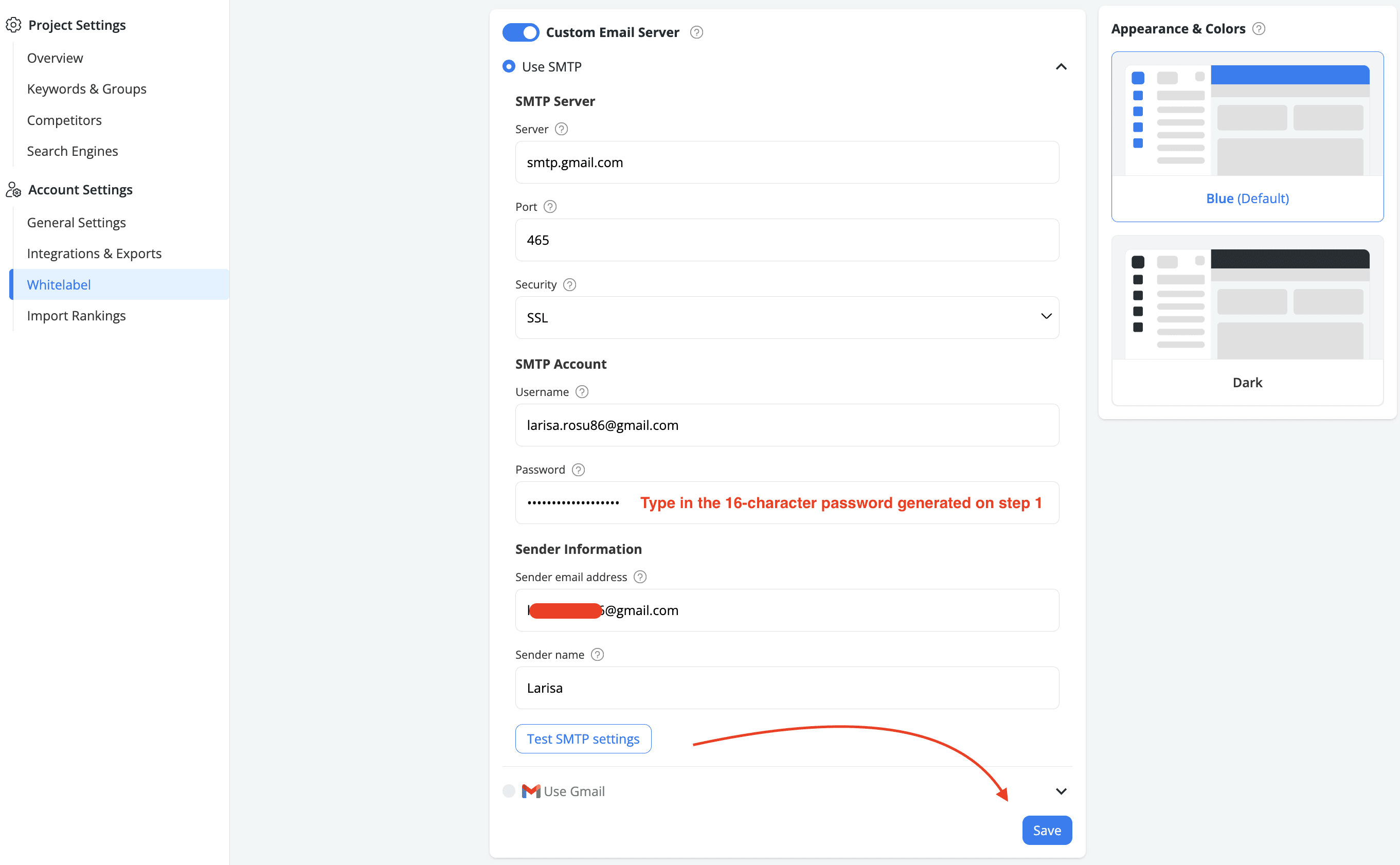
16-character app passwordfrom your Google account. This password is specifically for use with AWR. Detailed instructions on how to create an App Password can be found here.Navigate to Settings > Whitelabel, enable the Custom Email Server toggle, and select Use SMTP. Next, configure the SMTP settings according to the recommended setup:
SMTP Server
Server: smtp.gmail.com
Port: 465
Security: SSL
SMTP Account
Username: your Gmail address
Password: the 16-character password generated in step 1
Sender Information
Sender email address: your Gmail address
Sender name: the name that will appear in the "From" field of emails sent from AWR
Click
Test SMTP settingsto verify the configuration. If the test is successful, clickSave Email settingsto finalize. If the test fails, double-check your configuration and try again.
For more information on Google’s recommended SMTP configuration for third-party apps, you can refer to their documentation.
2. Use Gmail direct authentication
For a more straightforward integration, you can enable direct Gmail authentication. This method allows AWR to automatically use your Google account's SMTP settings.
From Settings > Whitelabel, enable the Custom Email Server toggle, and select Use Gmail. Click the Sign in with Google button and follow the on-screen prompts to authorize AWR to access your Google account and send emails on your behalf.

You can review and manage the permissions you've granted to AWR by visiting the Third-party apps & services page in your Google account settings.
Customize your email templates
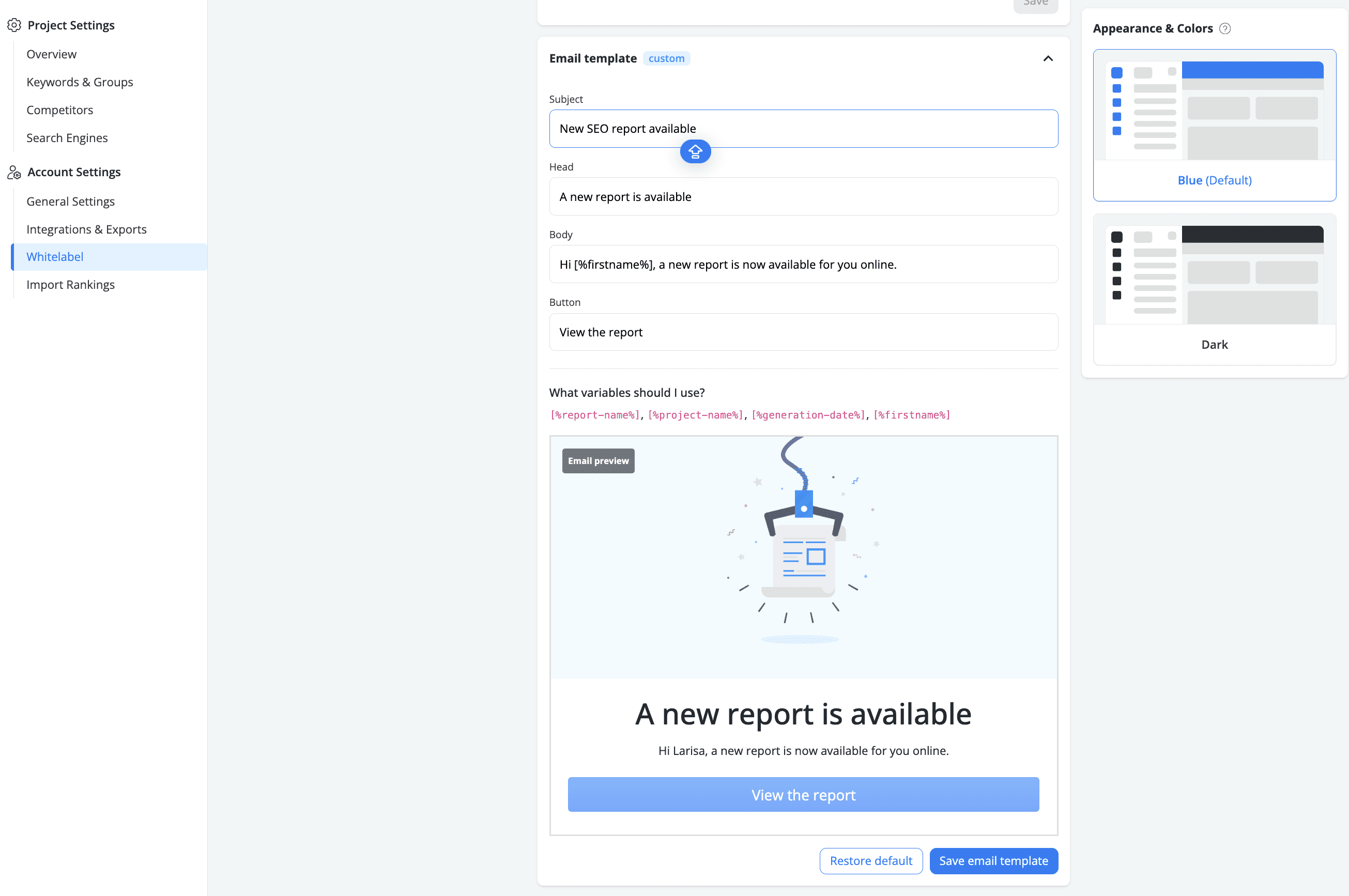
Under the same Settings > Whitelabel page, the Email template section lets you customize the wording of the report notification email AWR sends when reports are delivered. You can edit the following fields to match your brand voice:
Subject: the email subject line
Head: the main heading displayed at the top of the email
Body: the message content sent to the recipient
Button: the label of the call-to-action button that links to the report
If you have any further questions, please feel free to contact our support team.
stay in the loop