

Advice and answers from the Advanced Web Ranking Team
Search for articles
>
>
Meet the New Project Creation Wizard: Same Reliable Tracking, Clearer Steps From Start to Finish
AWR's rebuilt project creation wizard walks you through brand, engines, keywords, prompts, and competitors in four steps, with live keyword unit projections.

Adding a new project to AWR now happens through a guided wizard, in four individual steps. Three of them need your input, while the fourth one, Competitors, is optional, so it's up to you whether you add them while creating the project or later.
Beyond the new layout, which keeps your whole setup accessible as you go, two things have changed. Keywords and prompts each get their own input area, because a two-word keyword and a full question won't get you the same answer out of an AI engine. And your projected unit consumption updates live on screen as you build, so you know what updating that configuration will cost before you commit to it.
What this article covers
How the project summary and resource usage panels keep track of your setup
Every step, from setting up your website and the brand names AWR matches in AI answers, to picking your traditional and AI search engines, adding keywords and prompts, and benchmarking competitors
What changed about the initial update, and why it now consumes units
What's coming next for keyword and prompt tracking
Things worth knowing before you start
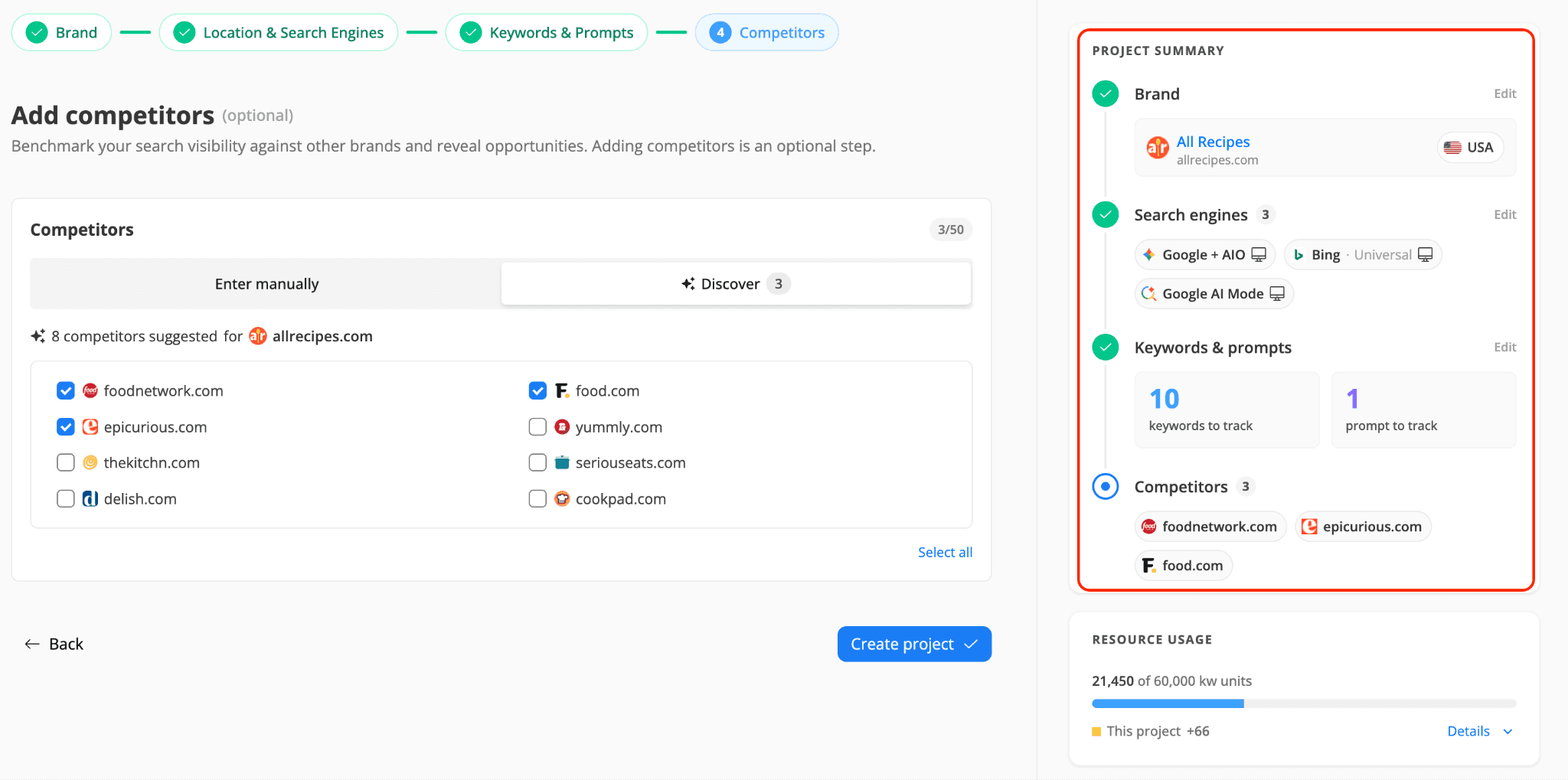
Three things stay the same across all four steps: a summary of what you've set up so far, a live count of the units that setup will consume, and the freedom to go back and change any of the settings you've already picked.
Project summary fills in as you go: your brand and target country, the engines you picked, how many keywords and prompts you're about to track, and your competitors. Every section you finish gets an Edit link, so changing one detail before creating the project doesn't mean walking back through the whole flow.
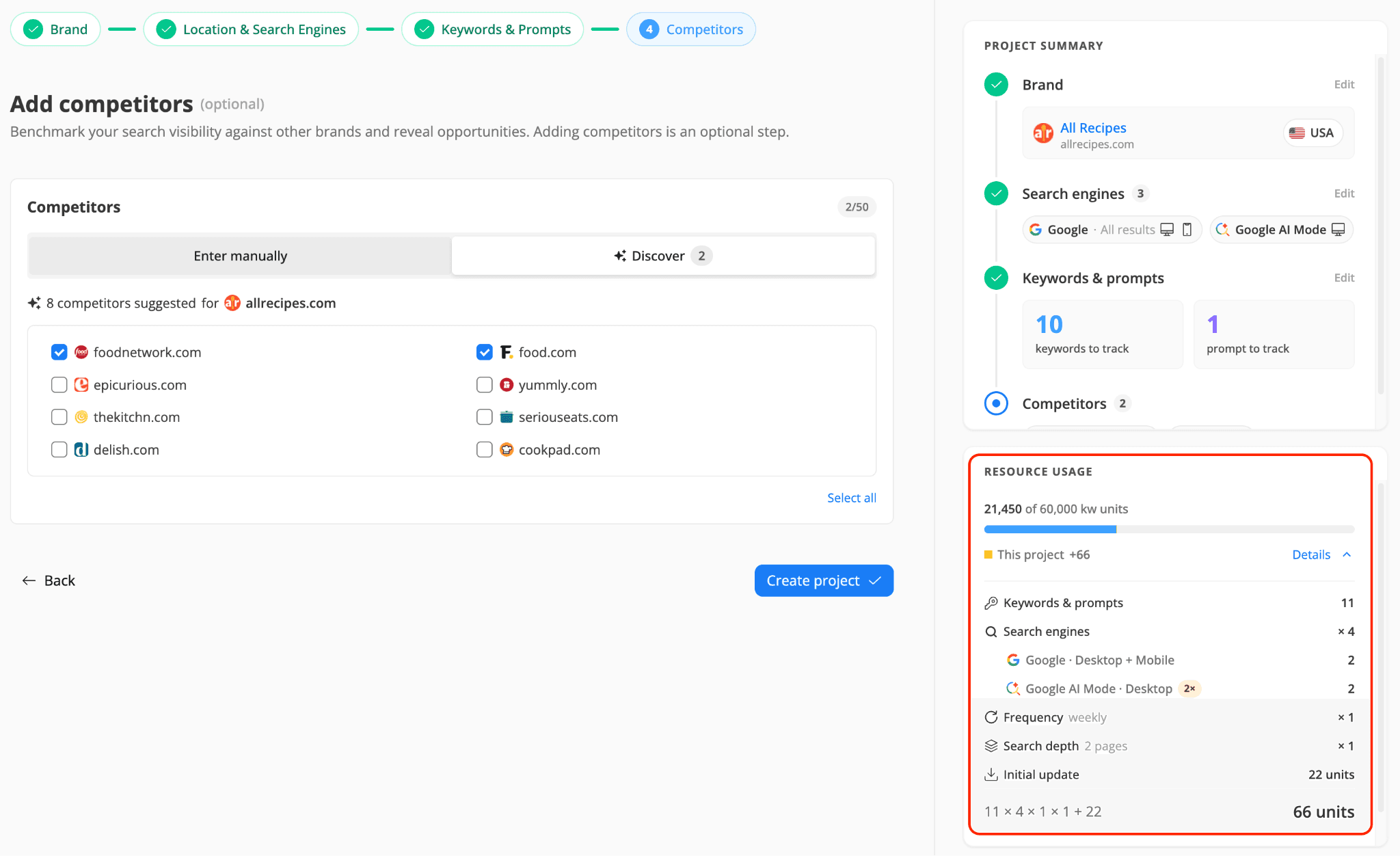
Resource usage shows how many keyword units your project will consume out of your monthly allocation, and it recalculates every time you add engines, keywords, change frequency or search depth. Competitors don't affect this number at all, since AWR pulls competitor positions from the same results pages it already retrieves for your keywords.
The breakdown also shows the cost per search engine, as some cost more than others. Google + AIO and Google AI Mode count 2 units per keyword instead of the single unit standard search engines consume, and Details marks each of them with a 2x badge so the total adds up in front of you. If the number looks higher than you expected, you can see exactly which choice is driving it and adjust before you create the project. For the full picture of how units work, see The Complete Guide to Keyword Units.
Nothing is locked in until you create the project
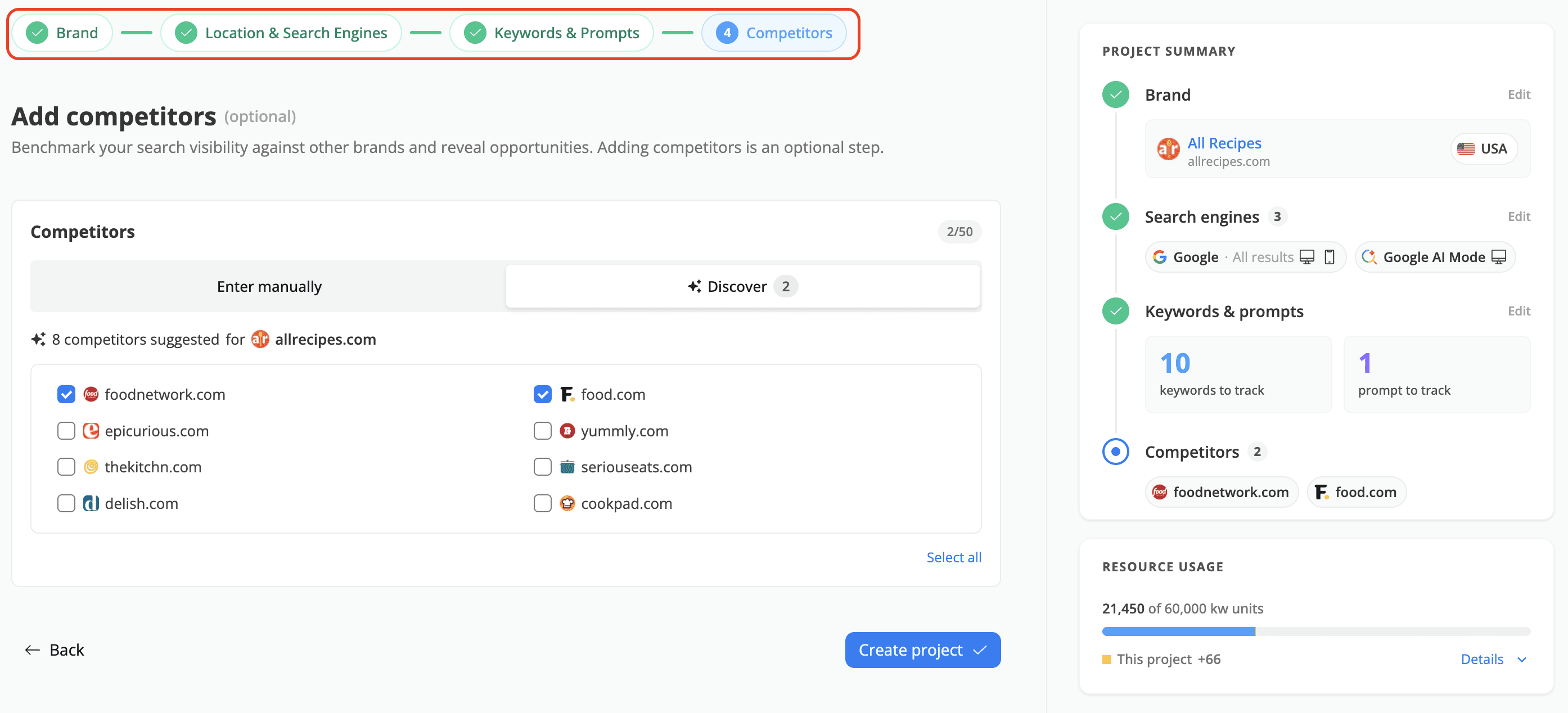
The step names at the top of the wizard are clickable. Go back to step 1 from step 4, check something, and return to where you were. Everything you've entered stays put. Nothing is saved as a project until you hit Create project.
Now let's dive into the four steps. You decide what gets tracked and where, while AWR automatically fills in what it can detect from your domain and suggests the rest.
Step 1: Set up your brand
You type in the site you want to monitor, while AWR validates the domain on the spot, pulls in the favicon, and pre-fills the brand names it recognises for that site.

Using the Track as drop-down menu you tell AWR which part of your site it should report on when it finds you in the results pages it retrieves. Pick the option that best matches your reporting needs:
Entire website - report all pages from the selected domain
Root domain - report the root domain only
Subdomain - report pages on the selected subdomain only
URL starting with - report pages whose URL begins with a path you specify
URL exact match - report only the specific page selected
If you're tracking a whole brand, Entire website is your answer. If you're tracking one campaign landing page and want everything else filtered out, that's what the last two options are for.
Brand names is what AWR uses to detect mentions of you inside AI-generated answers, and it comes pre-filled with the names AWR considers most relevant for the selected domain. Have a look at that list before moving on. If people call your brand something AWR couldn't guess, an abbreviation, a product name, the legal entity, add it yourself, separated by commas. A brand name that isn't in this list won't be counted as a mention.
Project name is optional. Leave it empty and AWR names the project after your brand.
Step 2: Select location and search engines
Pick the country you're targeting, then choose where you want to be tracked. The search engines are now split into two groups:
Traditional search is about where your pages rank in traditional results pages. It runs on keyword queries across major search engines such as Google Organic, Google + AIO, Bing, Amazon, YouTube, and more under the Others option.
AI search is about whether your brand gets cited or mentioned in AI-generated answers. It runs on prompts across Google + AIO, Google AI Mode, ChatGPT, Gemini, and Perplexity AI.
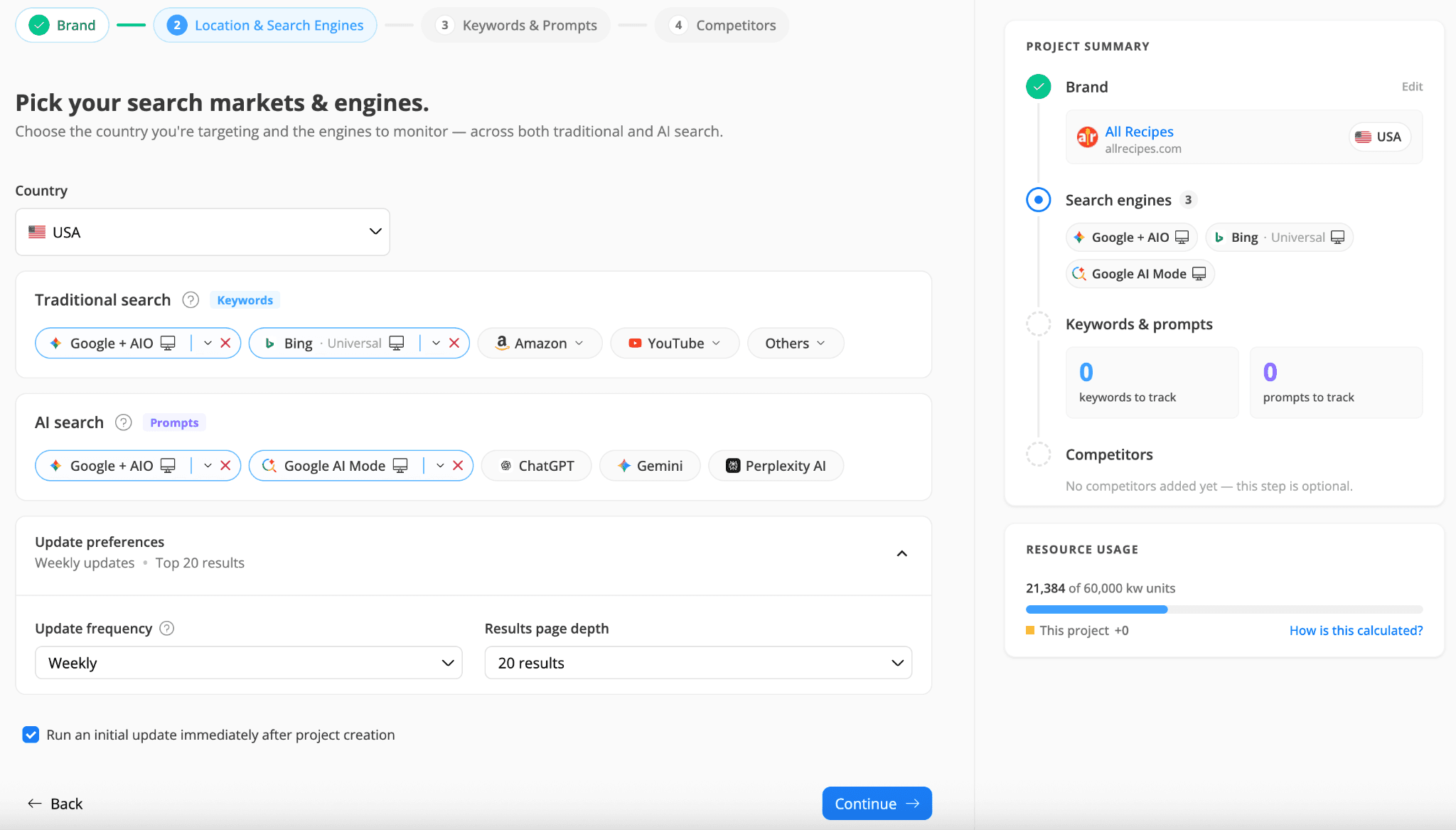
Every search engine you add has its own settings panel, where you set the device, search type, result types, and language.
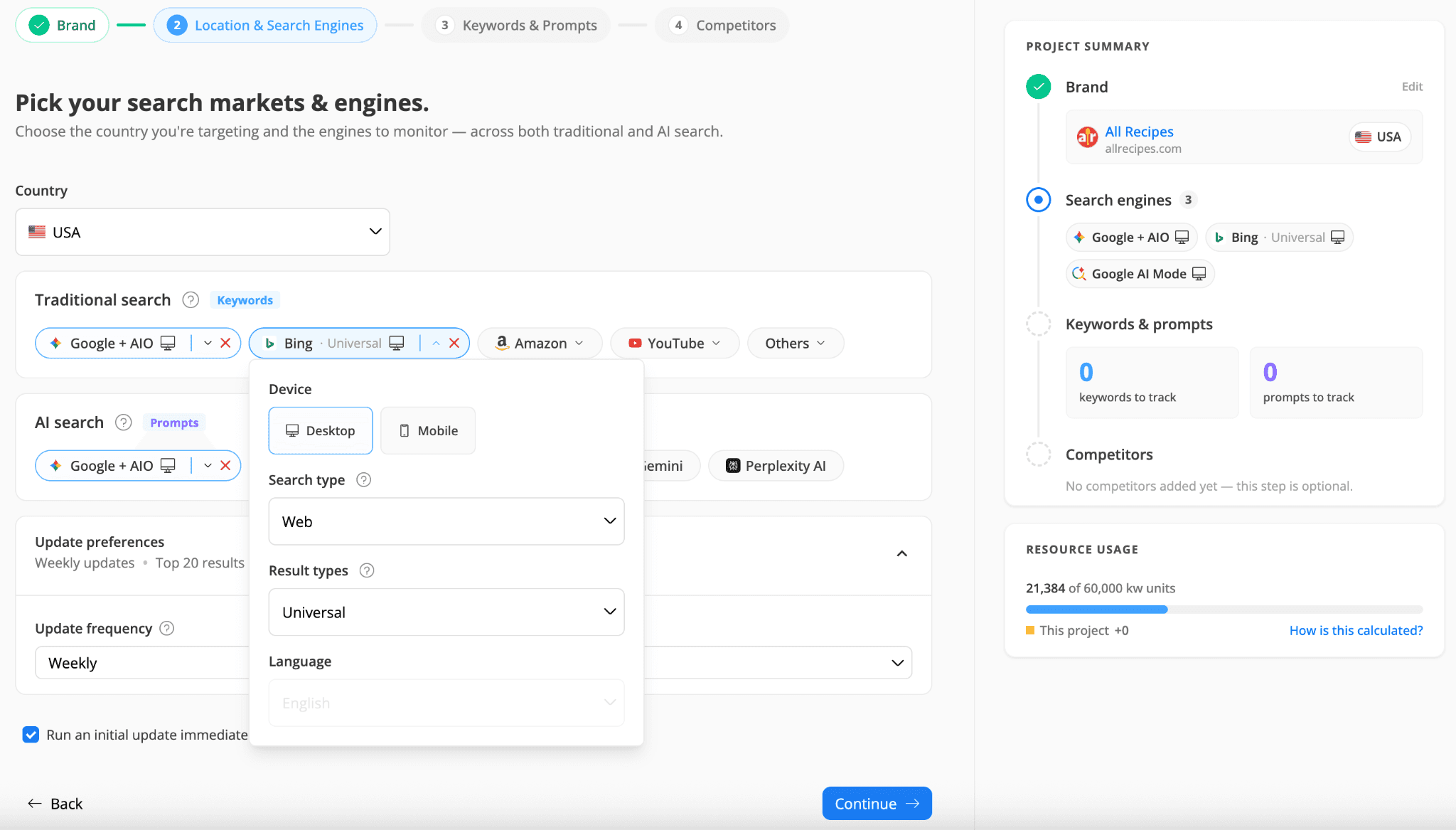
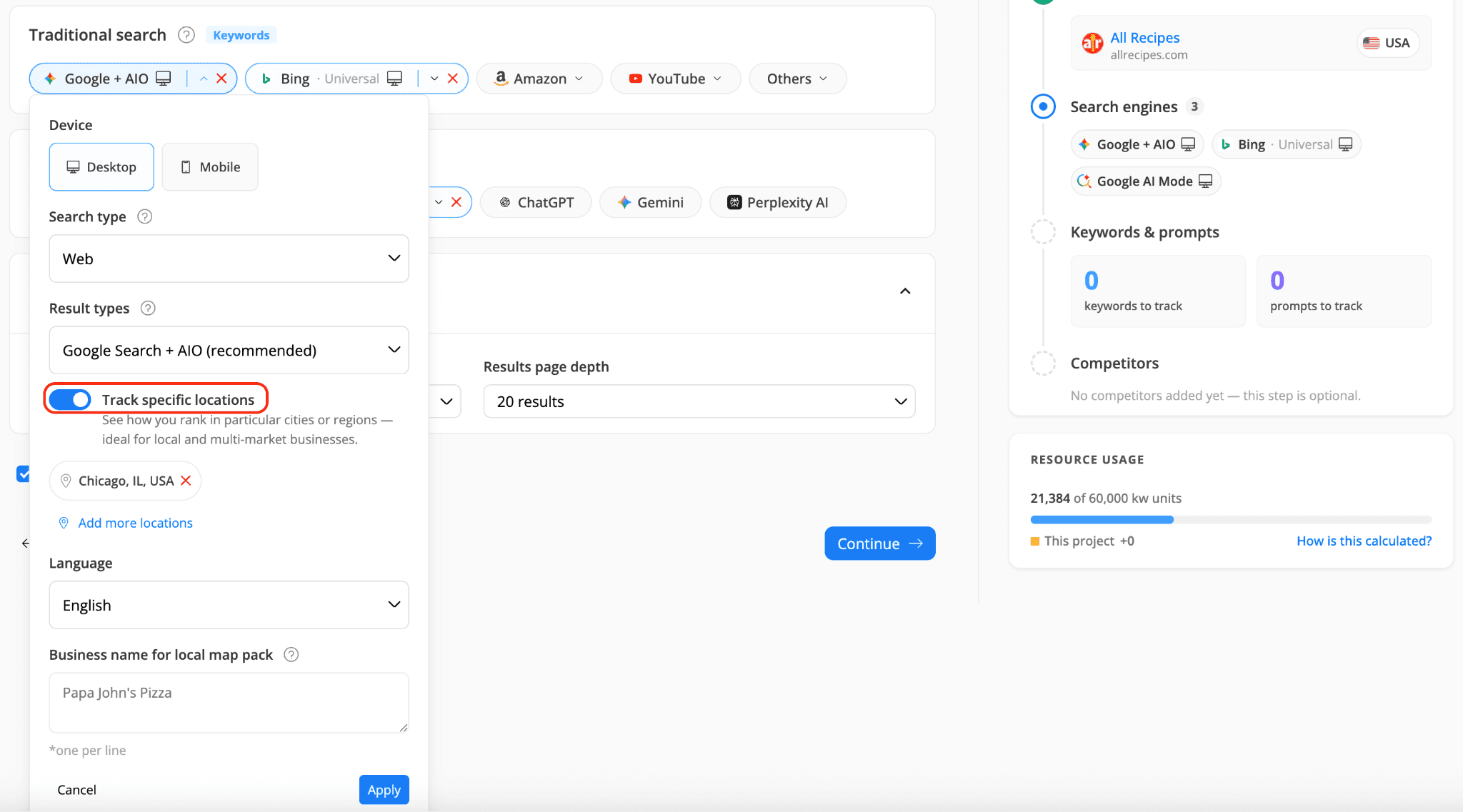
Two things worth knowing:
Track specific locations on Google is off by default. Turn it on when you need city or region level data, which is usually the case for local businesses and anyone selling in several markets inside the same country. You can also list the business names you want AWR to match with the local map pack, one per line.
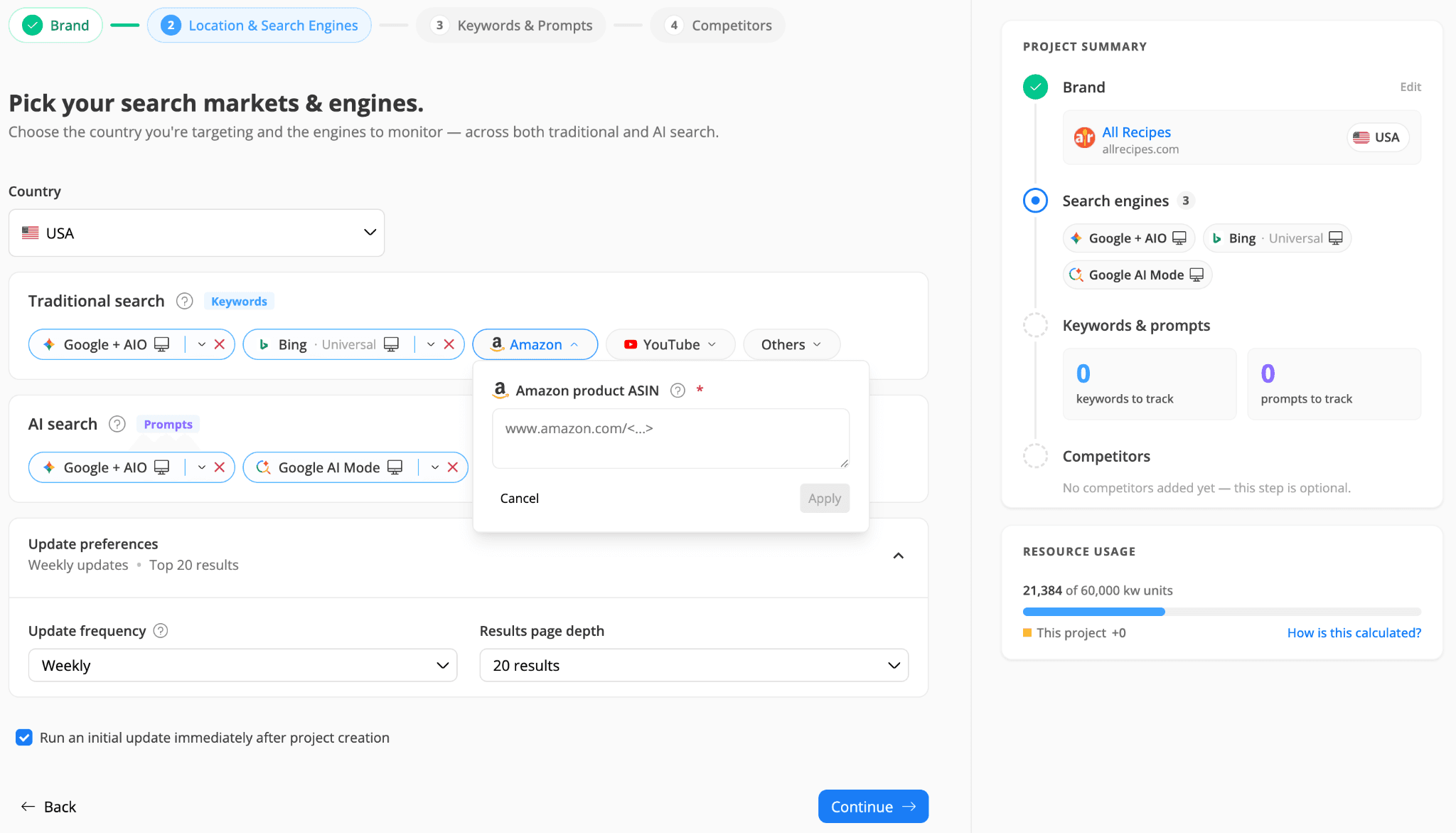
Amazon and YouTube now ask for their alias before you can add them. Unlike a standard website URL, which follows a predictable structure (https://www.advancedwebranking.com/help), Amazon listings and YouTube channels don't reliably identify you in their URL, so the Track as option you picked in step 1 has nothing to match against. These aliases tell AWR which listings or channels are yours, so your rankings are matched correctly from the very first update.
From the Update preferences you can set how often rankings refresh (daily, weekly, biweekly, or monthly) and how deep AWR looks, from the top 10 results up to the top 100.
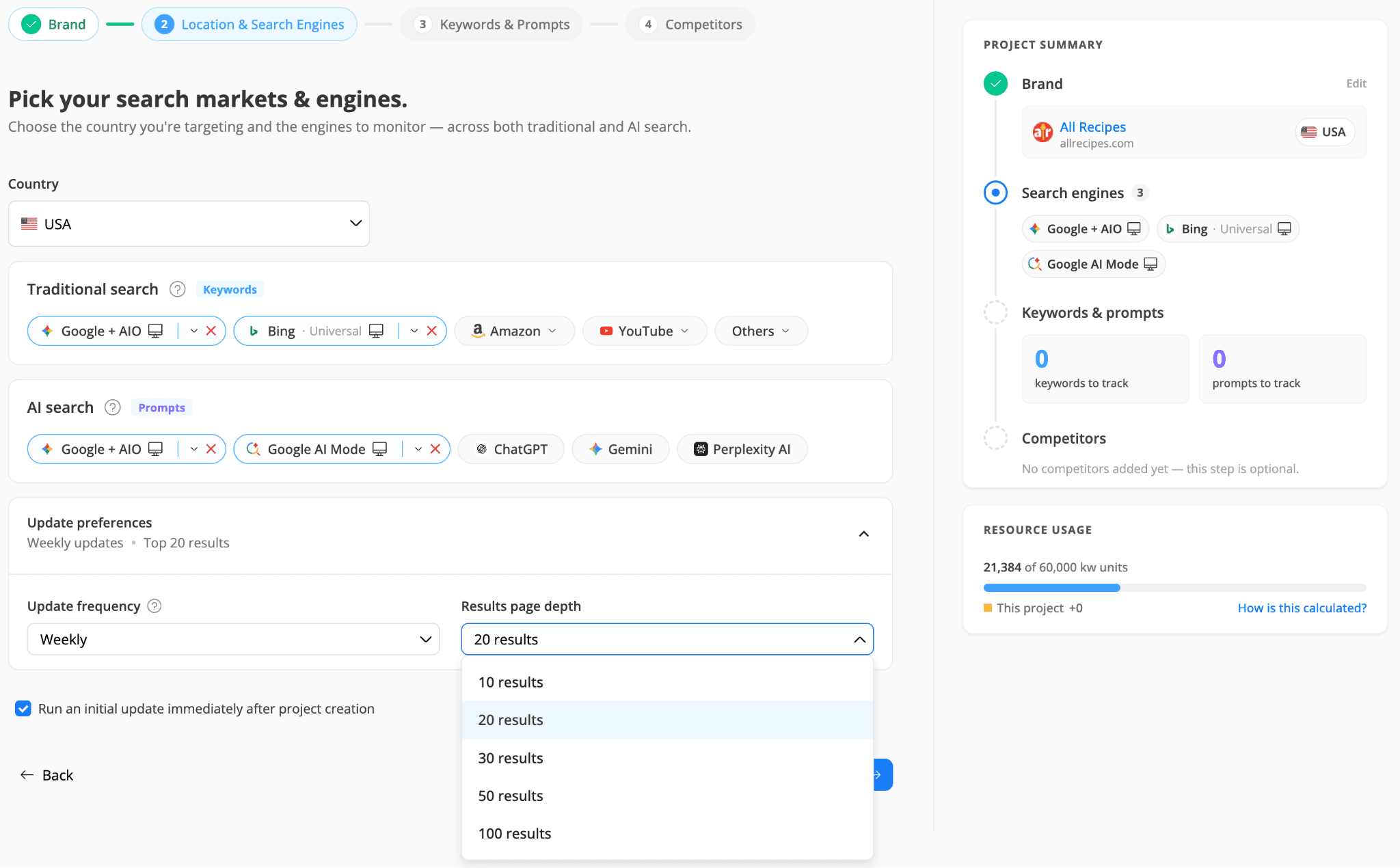
If you set the Update frequency to Paused, the data for the newly created project refreshes only when you run an on-demand update yourself or switch it to one of the scheduled frequencies later on.
💡The initial update is switched on by default, through the Run an initial update immediately after project creation checkbox, and it's still the fastest way to have real ranking data available after your project was created. Each initial update consumes keyword units, at the cost of a 12 hour on-demand update. If you'd rather save those units and wait for the first scheduled refresh, uncheck the box.
Step 3: Add keywords and prompts
Keywords and prompts each get their own block, and each block gives you the same three ways in.
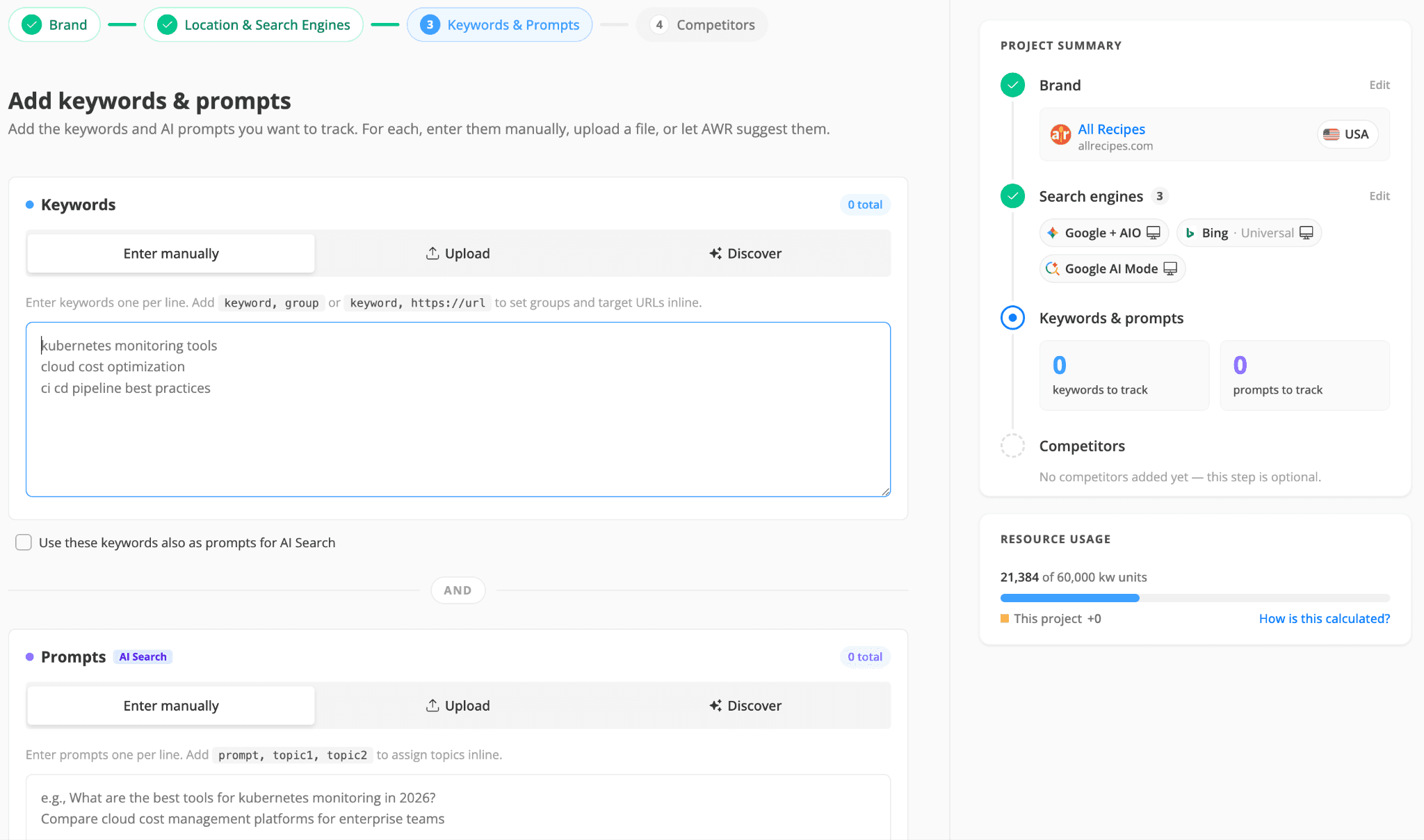
The Enter manually option takes one entry per line. You can add keyword, group or keyword, https://url to set groups and target URLs as you type, and prompt, topic1, topic2 to assign your prompts to topics. While keywords and prompts are mandatory, adding them to groups and topics, or setting target URLs is optional and can be done later on.
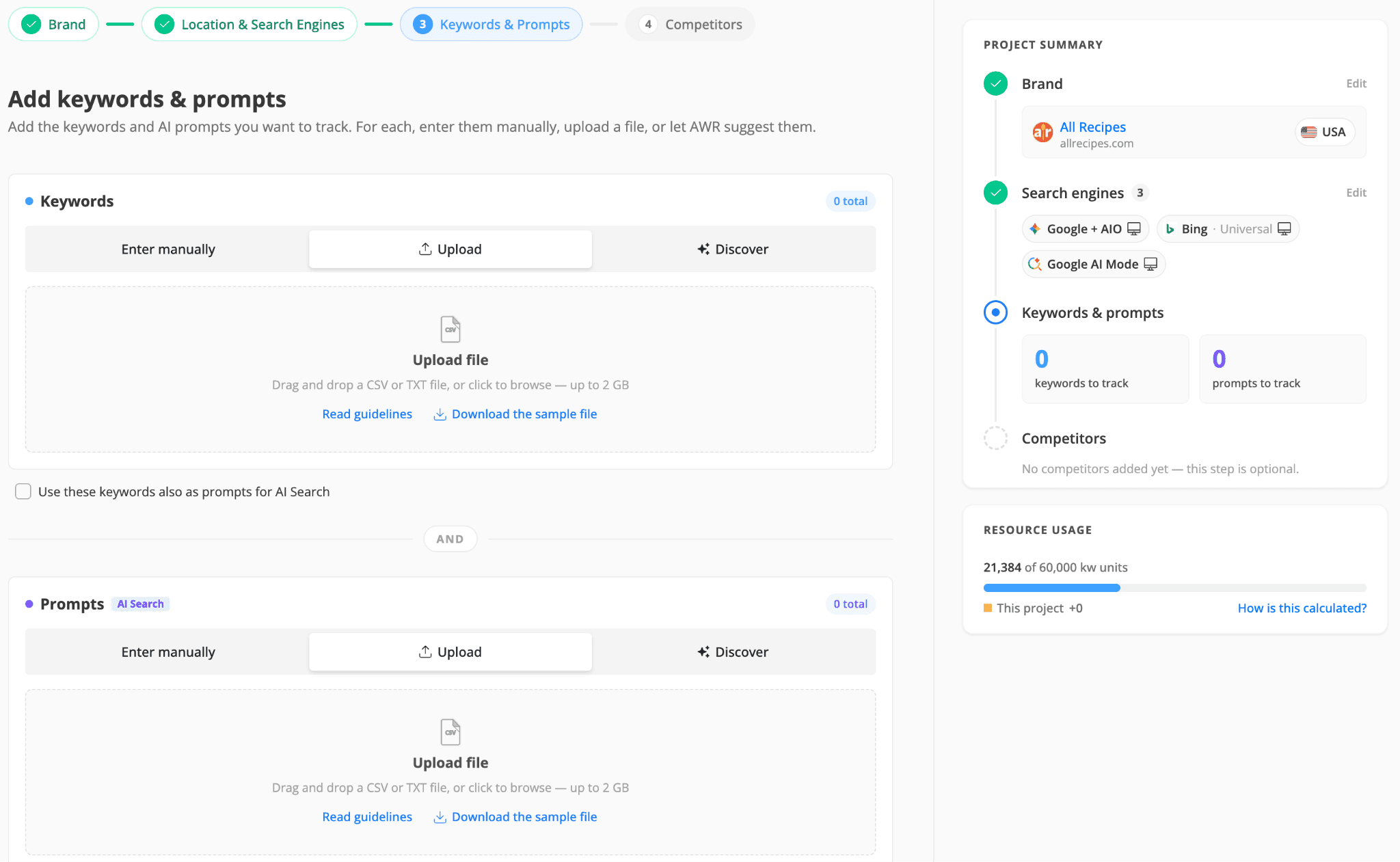
For the Upload option you can use a CSV or TXT file, with the guidelines and a sample file linked right in the drop zone so you can check the format before uploading anything.
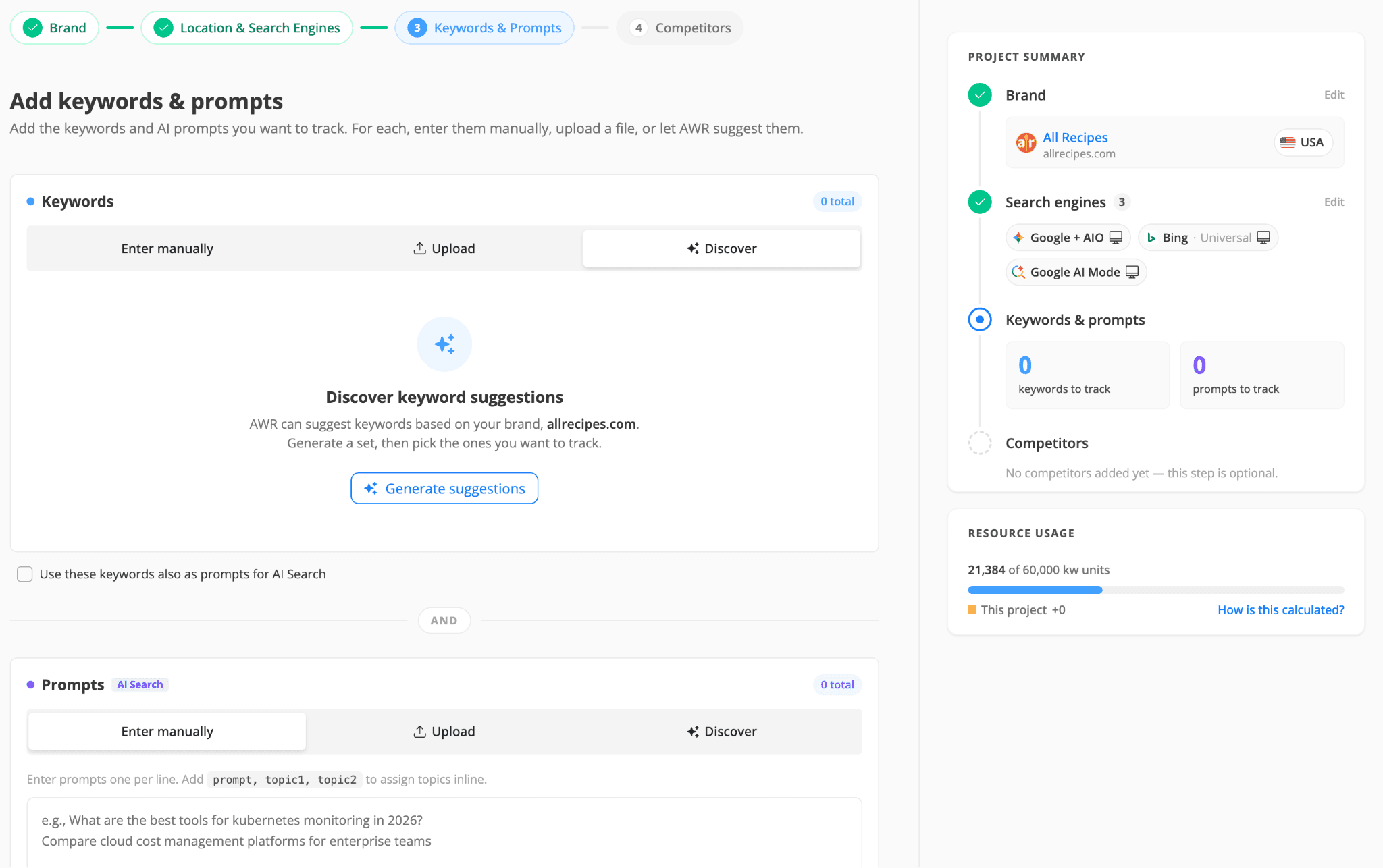
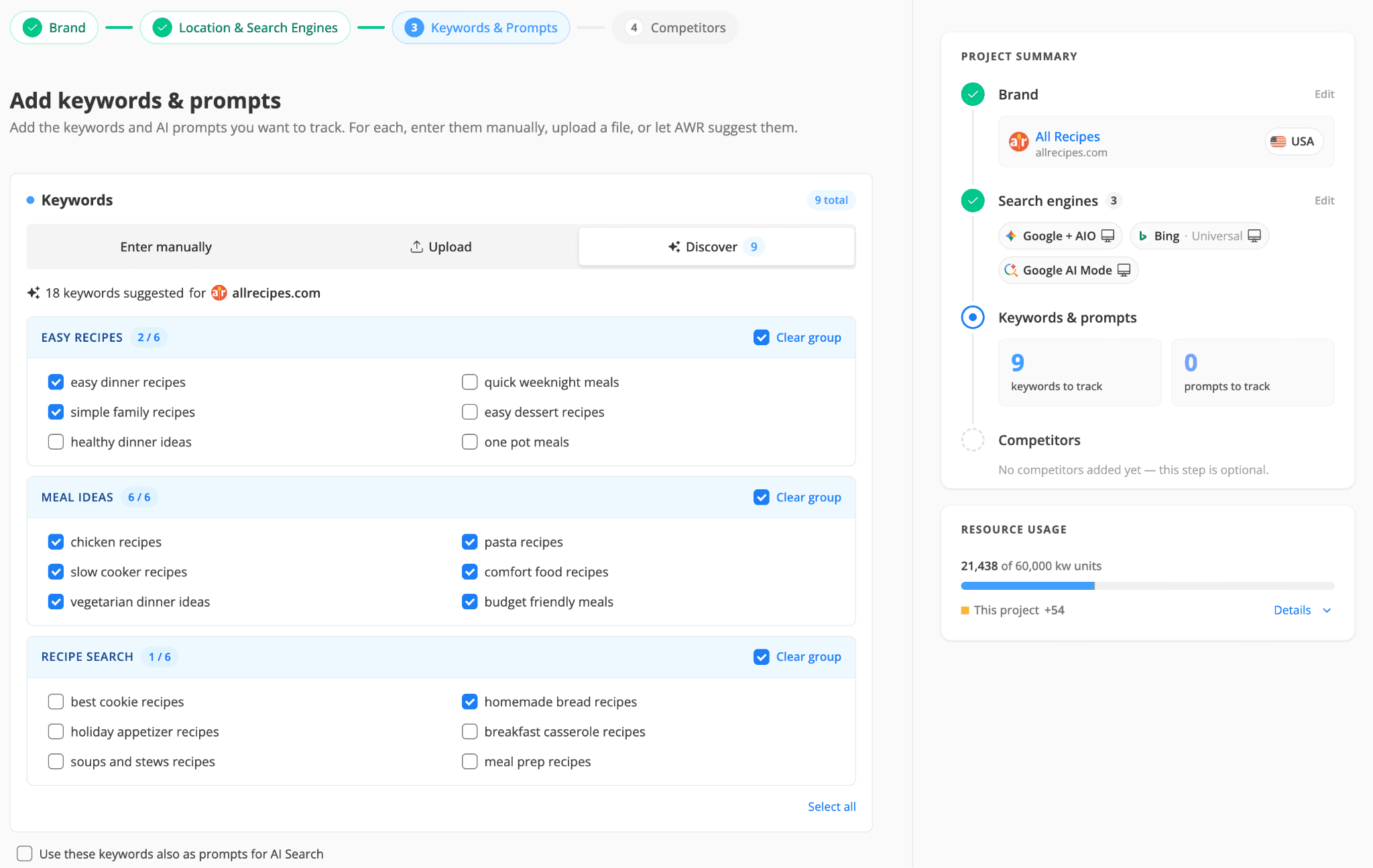
Discover is the one option where AWR does the work. Hit Generate suggestions and it returns a set based on your brand, already sorted into themed groups.
You tick what fits, take a whole theme with Select group, or grab everything with Select all. Useful when you're setting up a pitch project for a new client, or when you want a second opinion on a list you thought was complete.
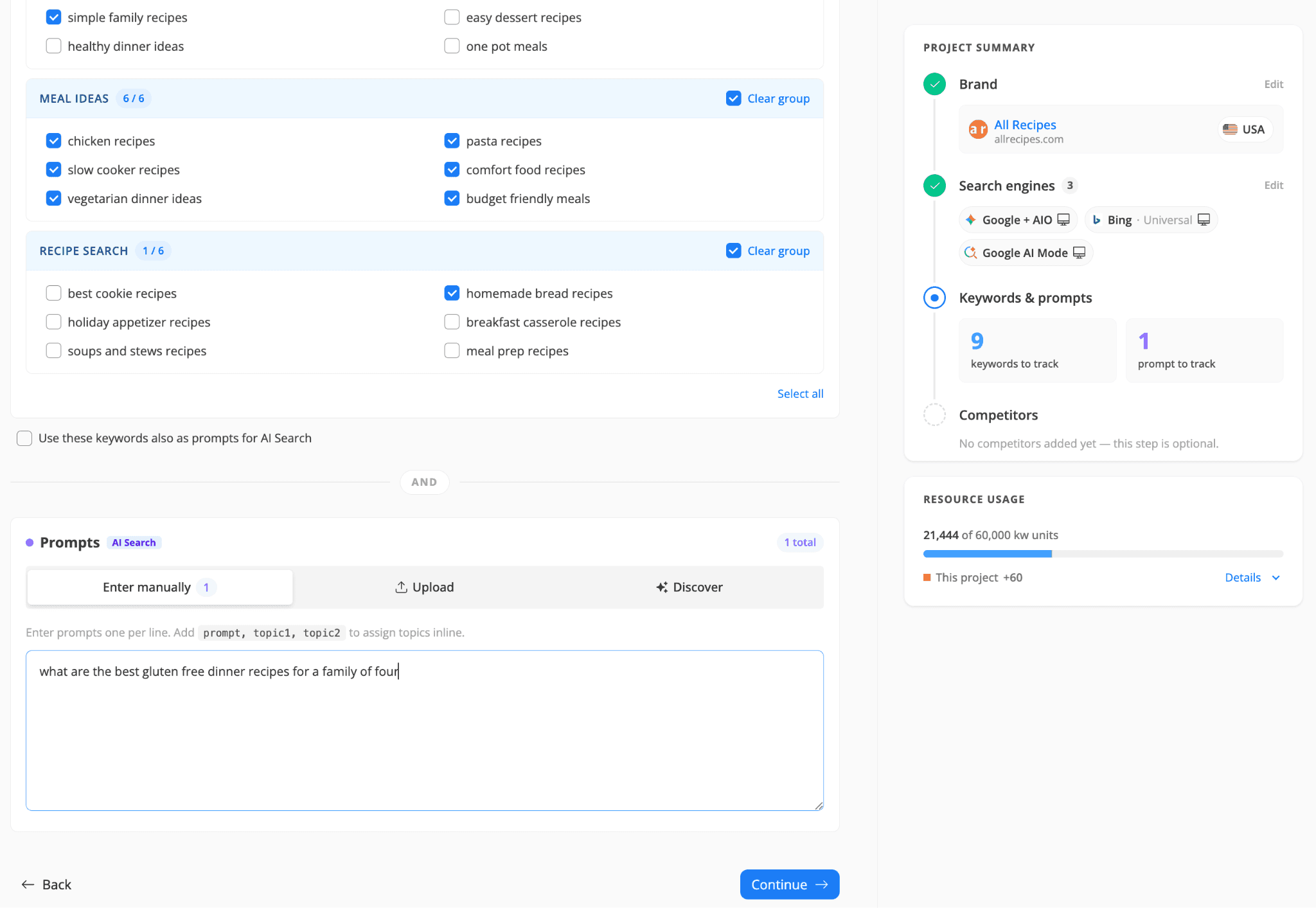
If your keywords also work as AI prompts, tick Use these keywords also as prompts for AI Search and AWR mirrors them into the Prompts block for you.
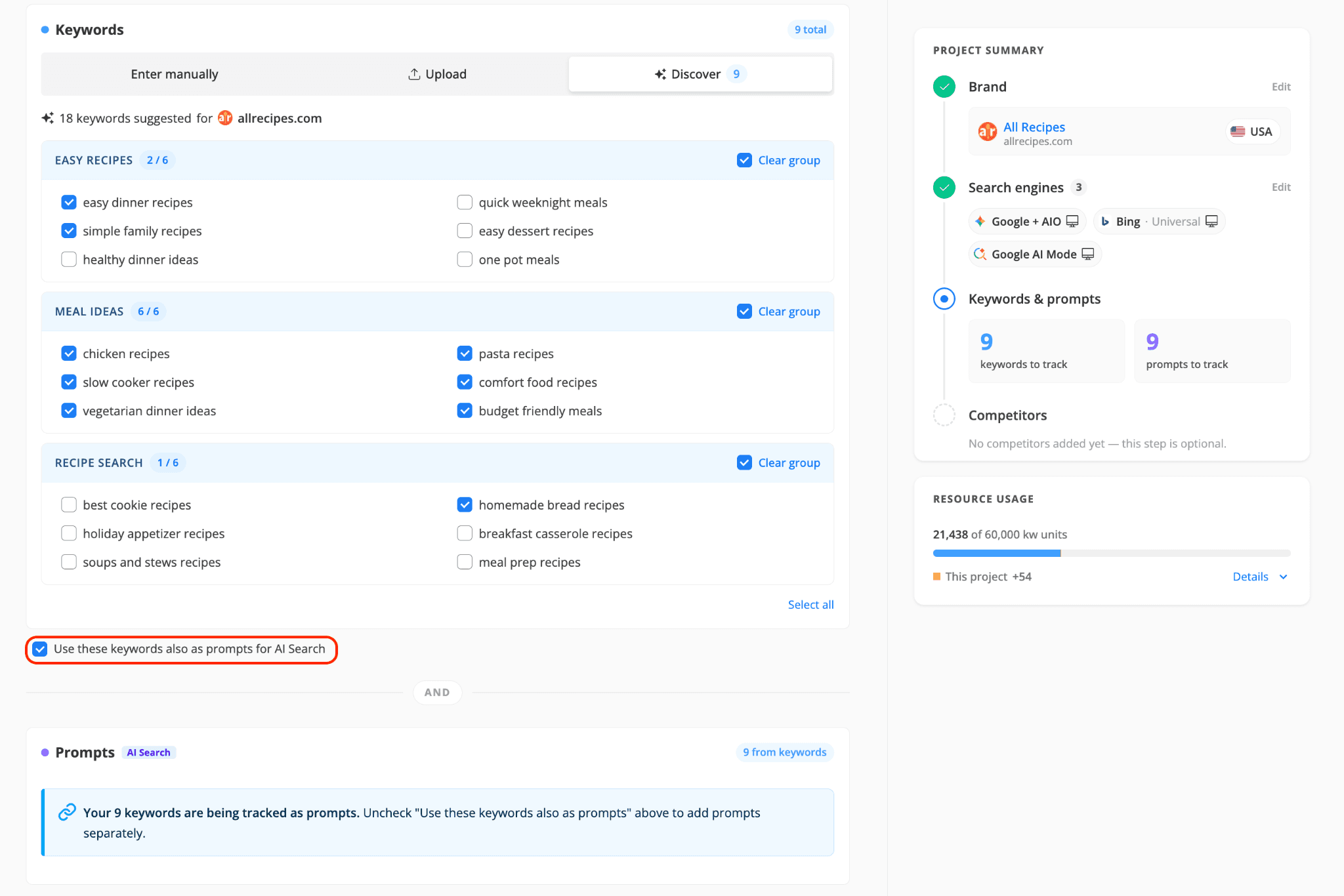
Untick it whenever you want to write prompts separately, and it's worth doing: "gluten free recipes" and "what are the best gluten free dinner recipes for a family of four" are the same topic, but they will probably get very different answers out of an AI engine.
Step 4: Add competitors
Paste up to 50 competitor URLs, one per line, or run Discover and pick from the brands AWR suggests for your site. Everything you add here shows up as a benchmark next to your own visibility, on both the traditional and the AI side, and none of it costs you a single unit.
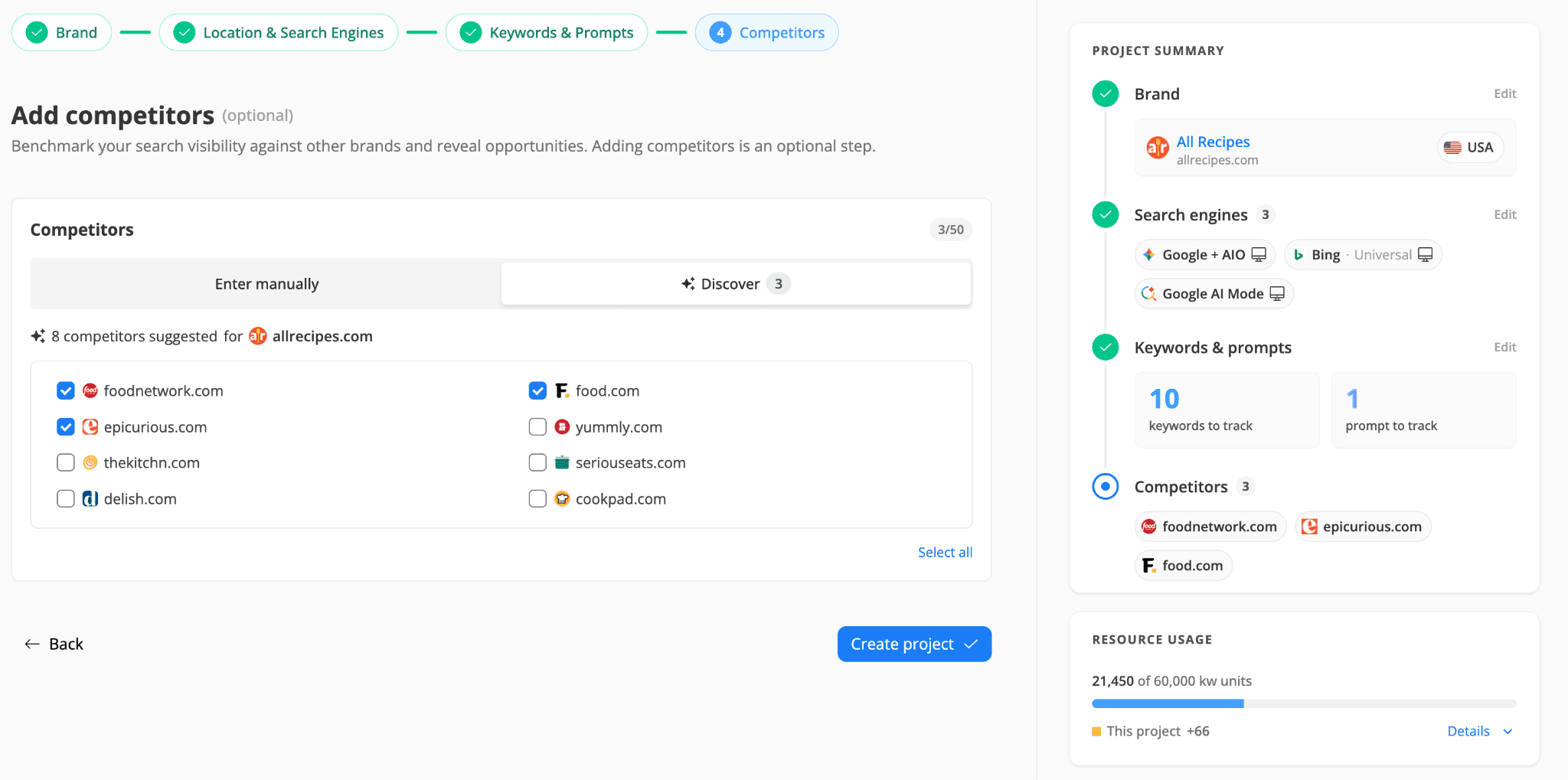
💡 If you skip this step, competitors can be added any time afterwards from the Project Settings > Competitors section of the newly created project.
Then Create project, and you're done.
What is coming next
For now, the split between keywords and prompts lives in the new project setup screen and settings section: you enter them separately, and you decide whether your keywords double as prompts. Sending each set to its own engines is the next piece of work. Once it's live, a single project will be able to run your keywords against traditional search engines and your prompts against AI engines, so you get the right query type in the right place.
Do you have any further questions or need more information about this product update? Don't hesitate to get in touch with our support team.
stay in the loop