

Advice and answers from the Advanced Web Ranking Team
Search for articles
How to sync Bing Webmaster Tools with AWR
Connect Bing Webmaster Tools to Advanced Web Ranking to access valuable performance metrics & insights on your website's visibility on Bing.

To improve your website's overall visibility and performance on SERPs, having accurate and comprehensive data from various search engines is essential. Therefore, in addition to Google Analytics and Google Search Console, Advanced Web Ranking supports synchronization with Bing Webmaster Tools. This integration provides valuable insights into your website's performance within Bing’s search environment.
Depending on your workflow, there are two ways to sync a Bing Webmaster Tools account with AWR:
From within a specific project
From the account-level
Both paths lead to the same result: once a Bing Webmaster Tools account is connected, it becomes available across your entire AWR account, ready to be reused in any project.
Option 1: Sync from within a project
Navigate to Project Settings → Overview and locate the Connections card on the right side of the page. From that card:
Click Connect under Bing Webmaster Tools
Sign in with the email associated with your Bing Webmaster Tools account
Once signed in, return to AWR and select the website you want to use for this project
Save the configuration
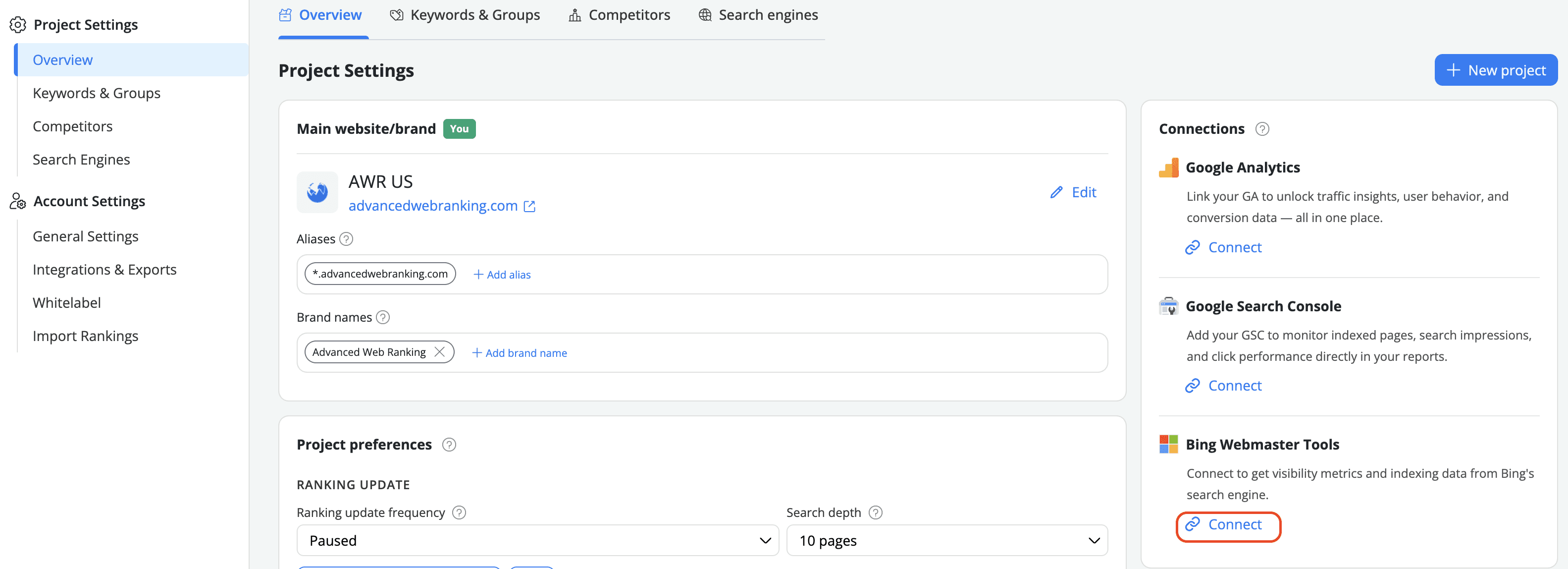
If you've already connected a Bing account elsewhere in AWR (from another project or from the account-level settings), the Connections card will show it as an existing option. You can pick it and just select the relevant website for this project, without going through the sign-in flow again.
Option 2: Sync from account-level
Navigate to Settings → Integrations & Exports and scroll to the Data Sources section. From there:
Click on the Bing Webmaster Tools card to expand it
Click Connect Microsoft account
Sign in with the email associated with your Bing Webmaster Tools account
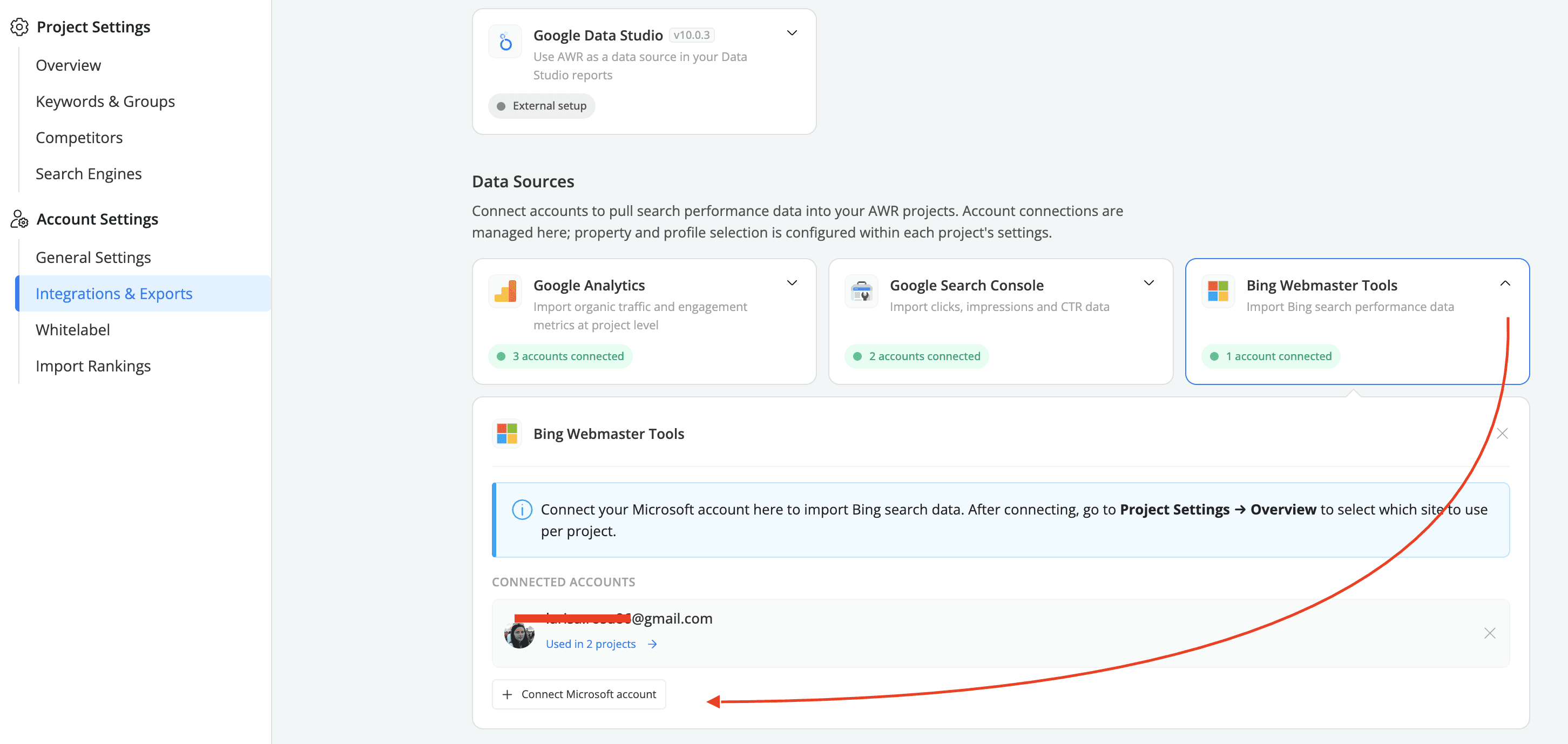
At this point, the account is connected at the account level but not yet linked to any project. To use it in a project, go to Project Settings → Overview and pick the Bing website in the Connections card. Repeat this for each project where you want to use the same Bing account.
You can reuse the same connected Bing account across multiple projects. However, the website must be selected separately for each project.
Right after the sync is saved, AWR will start retrieving data from Bing Webmasters Tools. The initial data retrieval may take up to 24 hours as AWR collects performance metrics from the past 6 months. After the initial data set is pulled, the Bing data will be updated weekly, every Monday, regardless of the ranking update frequency selected for the project.
How to access Bing data in AWR
The Bing stats are available as additional metric columns in the Ranking > Keywords section. They can be added to the report using the Table settings manager.
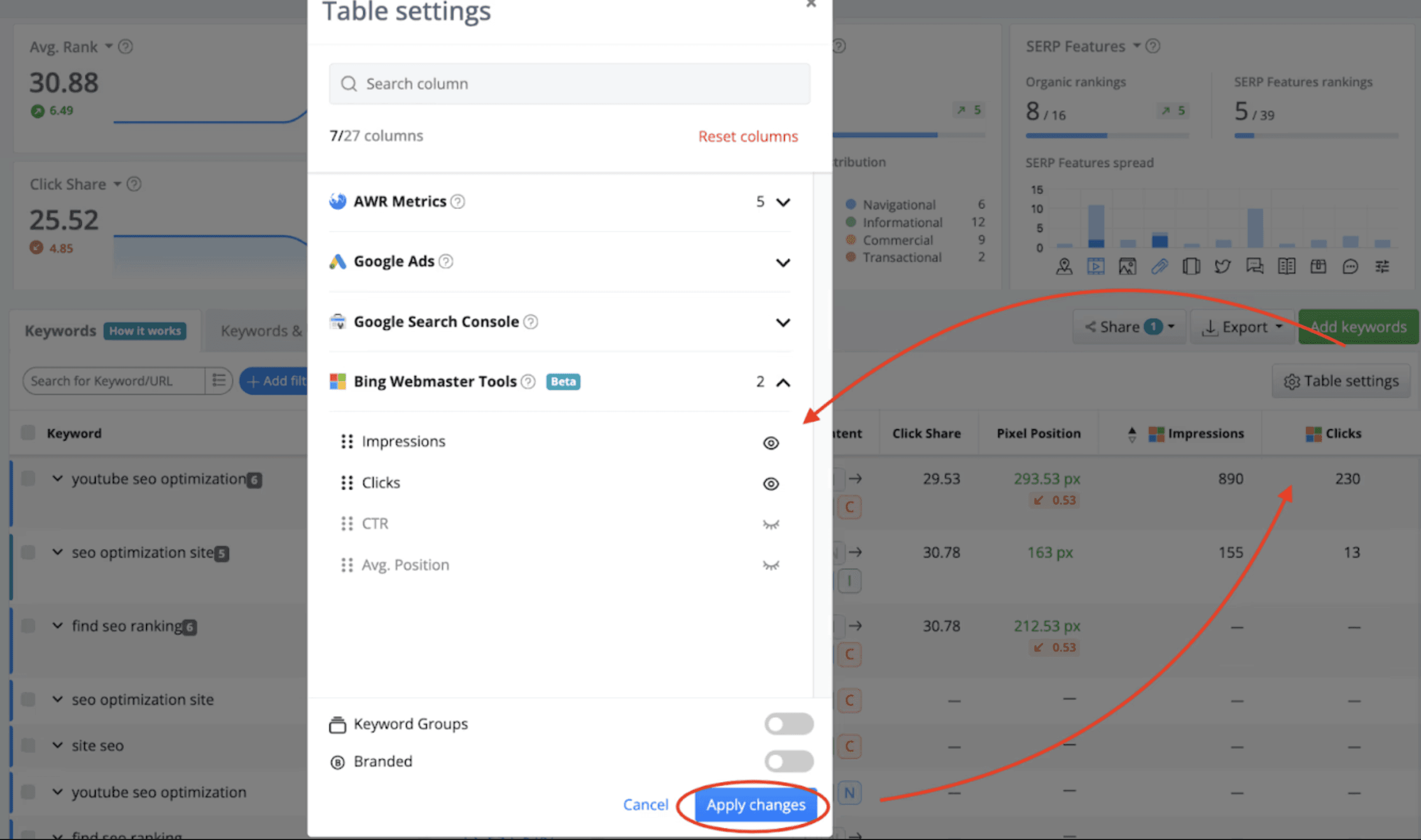
The Impressions column displays the number of times your website appeared in Bing SERPs for each keyword, excluding sponsored search results. This metric indicates how often your website was shown to Bing users.
The Clicks column shows the number of clicks your website received from Bing SERPs for each keyword, excluding clicks from sponsored search results. This metric reflects actual visits to your website through Bing's search results.
The CTR column shows the Click-Through Rate, found as (Clicks/Impressions)*100. This percentage provides insights into how effectively your website attracts clicks from Bing users.
The Avg. Position column displays the average search position where your website has appeared for each keyword. This metric offers a snapshot of your average ranking on Bing, helping assess search visibility and performance.
The data shown in these columns is derived from all Bing Webmaster Tools updates within the selected date range. The Impressions and Clicks are summed, while CTRs and Avg. Positions are averaged.
If you have any further questions, please feel free to contact our support team.
stay in the loop