

Advice and answers from the Advanced Web Ranking Team
Search for articles
Integration with Slack
Send AWR notifications straight to your Slack workspace for ranking updates and report generation, without switching between tools.

Send Advanced Web Ranking notifications straight to your Slack workspace, so your team stays in sync with ranking updates and report generation without switching between tools. You can pick exactly which notifications get sent and filter them down to specific AWR projects.
What this article covers
Notifications you'll receive in Slack
How to connect AWR with Slack
Configure your Slack notifications
How to disconnect Slack
Notifications you'll receive in Slack
Once the integration is active, AWR can send four types of notifications to your Slack channel:
Initial ranking update summary: KPIs for a project after its first ranking update is completed.
New ranking update summary: KPIs following each new ranking update, so you can spot performance changes at a glance.
Scheduled PDF report generation: alerts when a scheduled PDF report is ready.
Top Sites CSV export generation: alerts when a Top Sites CSV export is ready.
You can enable or disable each type independently from the Slack card.
How to connect AWR with Slack
The connection can be set up in a few steps:
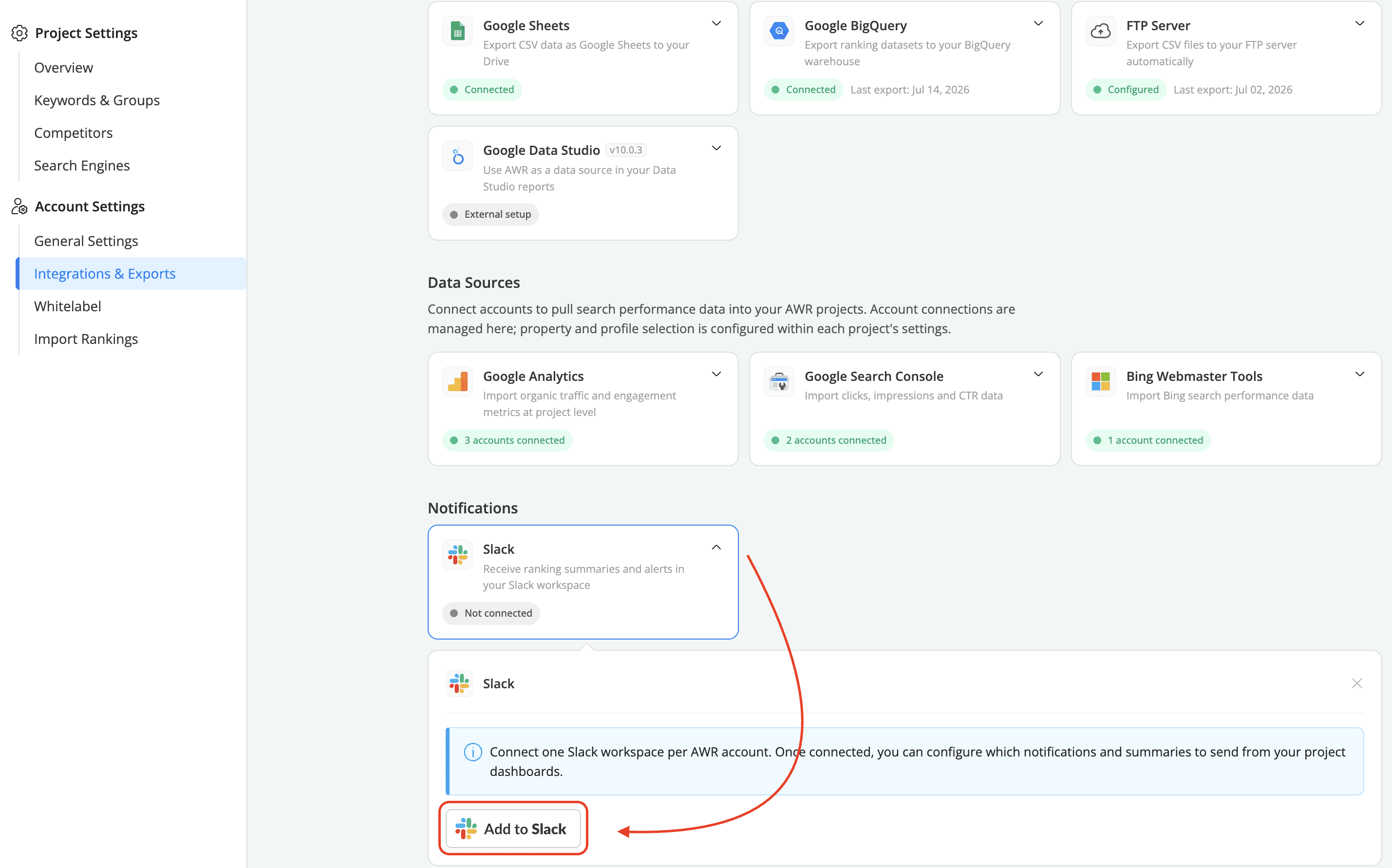
Go to Settings → Integrations & Exports in your AWR account. Under the Notifications group, click the Slack card to expand it.
Click
Add to Slack. You'll be redirected to the Slack authorization page in a new browser tab.
On the Slack authorization page, select the Workspace you want to connect and the Channel where notifications will be sent. You can pick any channel in your workspace, public or private. Click
Allowto confirm.Once authorized, you'll return to AWR. The Slack card now displays the Connected status, along with the connected account, workspace, and channel details.
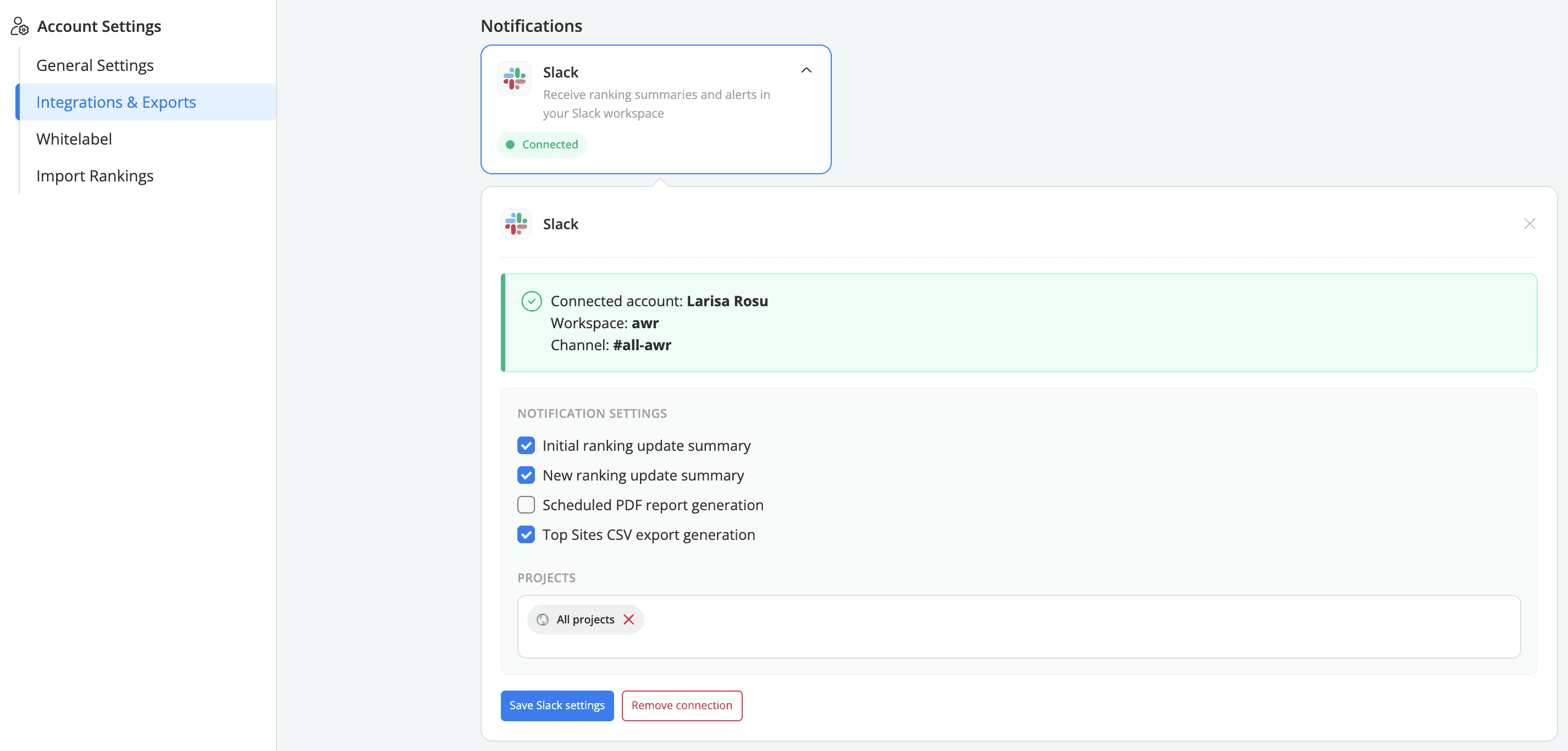
Only one Slack workspace can be connected per AWR account.
💡 Slack is part of the new Integrations & Exports hub at the account level. See Meet the new Integrations & Exports hub, and a new home for project connections for the full overview of what's changed.
Configure your Slack notifications
After connecting Slack, the card expands to reveal the notification settings.
Notification settings
Check the notifications you want AWR to send to your Slack channel:
Initial ranking update summary
New ranking update summary
Scheduled PDF report generation
Top Sites CSV export generation
Projects
Under the Projects section, choose which AWR projects the notifications should apply to. You can select specific projects, or pick All projects to include every project in your account. This is useful when you want to receive Slack alerts only for the projects your team is actively working on.
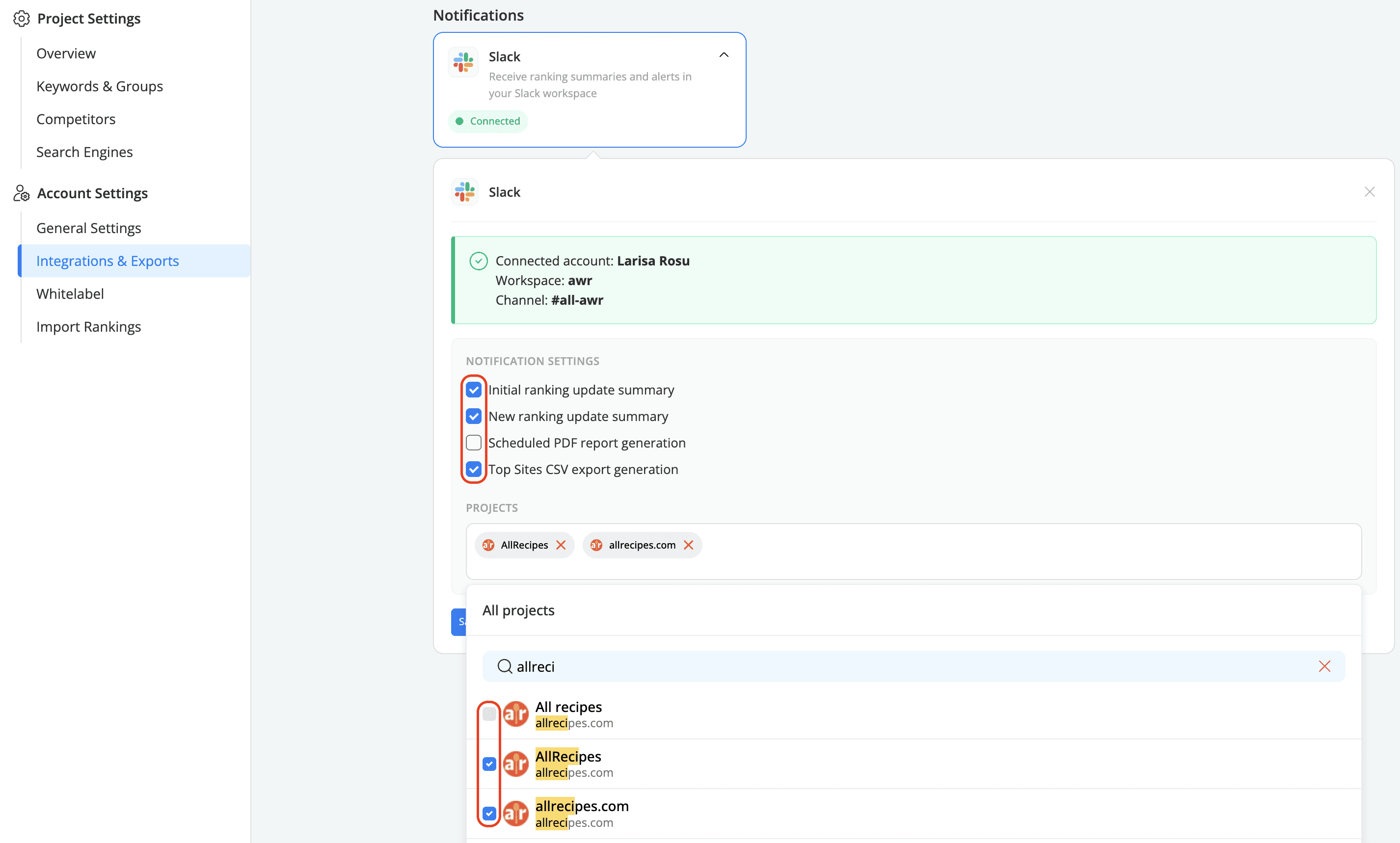
Once you've made your selections, click Save Slack settings.
From that point on, you'll receive the enabled notifications for the selected projects directly in your Slack channel.
How to disconnect Slack
To remove the Slack integration from your AWR account, go back to the Slack card under Settings → Integrations & Exports and click Remove connection. This stops all future notifications from being sent to your Slack workspace.

You can reconnect at any time by following the setup steps above.
Do you have any other questions? Don’t hesitate to get in touch and we will keep building the FAQ.
stay in the loop