

Advice and answers from the Advanced Web Ranking Team
Search for articles
Advanced Web Ranking MCP Server: Connect Your SEO Data to ChatGPT & Claude
Connect ChatGPT and Claude to your AWR account via MCP Server. Use 48 SEO tools for rankings, SERP analysis, competitors and AI visibility, no coding required.

Advanced Web Ranking MCP Server - Overview
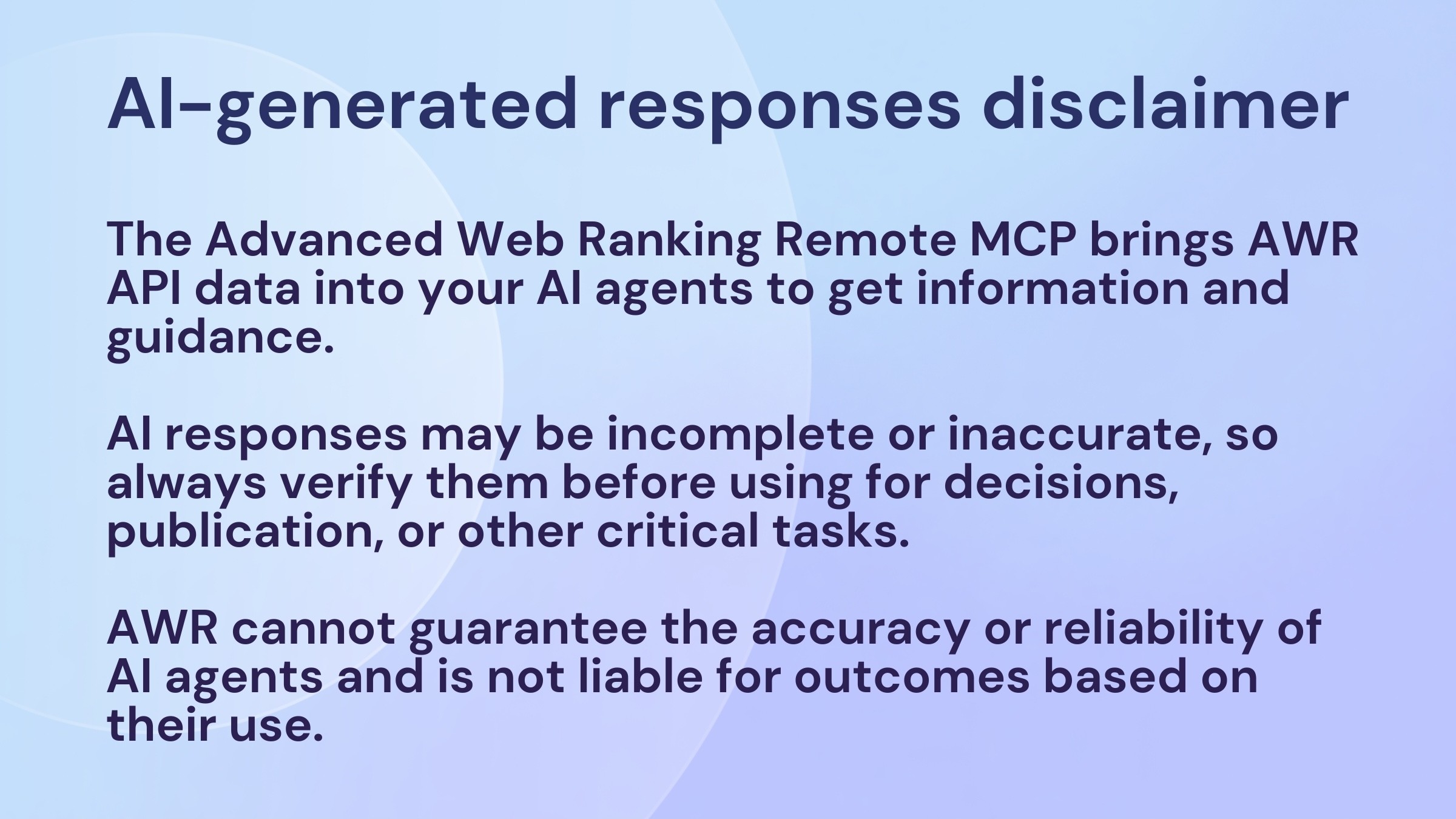
The Advanced Web Ranking MCP Server enables AI agents to securely access the AWR API and enrich their responses with real-time data from your tracked campaigns. By connecting AI assistants directly to your AWR account, you can analyze rankings, identify trends, and generate actionable insights across SEO and AI Search visibility with greater speed and accuracy.
With the launch of AWR’s Remote MCP Server, MCP-enabled assistants such as ChatGPT and Claude can connect to your Advanced Web Ranking data through a secure, managed connection - no coding and no server setup required.
Latest Update - 48 Tools Now Available
The AWR MCP Server has expanded from 22 to 48 tools, giving AI agents significantly deeper access to your SEO data. New capabilities include:
• Granular ranking analysis - track gainers, losers, new and lost keywords, position history, and ranking distribution over time (8 new tools)
• SERP & SERP feature analysis - fetch live SERPs, historical results, SERP volatility, and feature change tracking (5 new tools)
• Competitor & keyword research - discover competitors, research any domain’s keywords and pages (4 new tools)
• Traffic estimation - estimated organic visits and traffic trends (2 new tools)
• Visibility trends - visibility score over time and market share analysis (2 new tools)
• URL & meta data - retrieve page titles and meta descriptions from search results (2 new tools)
New capabilities are marked with 🆕 tags in the tables below.
Why MCP Servers Matter
AI tools are great at reasoning and language, but they lack live, business-critical data. MCP servers bridge that gap by allowing AI assistants to securely retrieve:
Verified analytics data
Client performance metrics
SEO & marketing insights
Internal dashboards
External APIs like AWR
By connecting to these sources, the AI evolves from a general-purpose assistant into a specialized, data-aware expert, powered by real insights from Advanced Web Ranking. It’s like giving ChatGPT or Claude a direct line into your SEO command center.
Use Cases
With the AWR MCP connector, you can pull your tracked SEO data directly into AI assistants and speed up decision-making across every part of your SEO workflow:
Monitor ranking performance - track position changes, spot gainers and losers, find newly acquired or lost keywords, and review ranking history over any date range
Analyze SERPs in depth - fetch live search results for any keyword, track SERP feature ownership (featured snippets, PAA, video carousels), and measure SERP volatility to detect algorithm shifts
Benchmark against competitors - compare visibility, market share, and ranking distribution across your competitive set - or discover new competitors you aren’t tracking yet
Research any domain - look up the keywords, top pages, and competitors for any domain, even outside your tracked projects
Estimate traffic impact - access estimated organic visit data and monitor traffic trends over time
Audit on-page elements - pull title tags and meta descriptions as they appear in search results to spot optimization opportunities
Track AI search visibility - monitor how often your brand is cited in AI-generated answers across ChatGPT, Perplexity, Google AI Overviews, and Google AI Mode
Build reports instantly - ask your AI assistant to summarize performance across projects, compare periods, and surface insights - no dashboard required
MCP Server Access & Limits
Advanced Web Ranking hosts a remote MCP server that allows users with an Agency plan or higher to connect their AWR account to supported AI tools. Once connected, your setup is synced and available to use using the previously set connector selected.
The connector currently supports 48 tools across rankings, visibility, SERP analysis, traffic estimation, competitor and keyword research, landing pages and AI search performance. We’re actively expanding this list with every release.
Plan availability: The AWR MCP server is available on paid plans starting from Agency and higher.
Remote MCP connection URLs: https://api.advancedwebranking.com/mcp
Most popular AI tools support connecting to the remote MCP directly. If you run into issues, check out our step-by-step setup guides:
When you connect Advanced Web Ranking MCP to an AI agent:
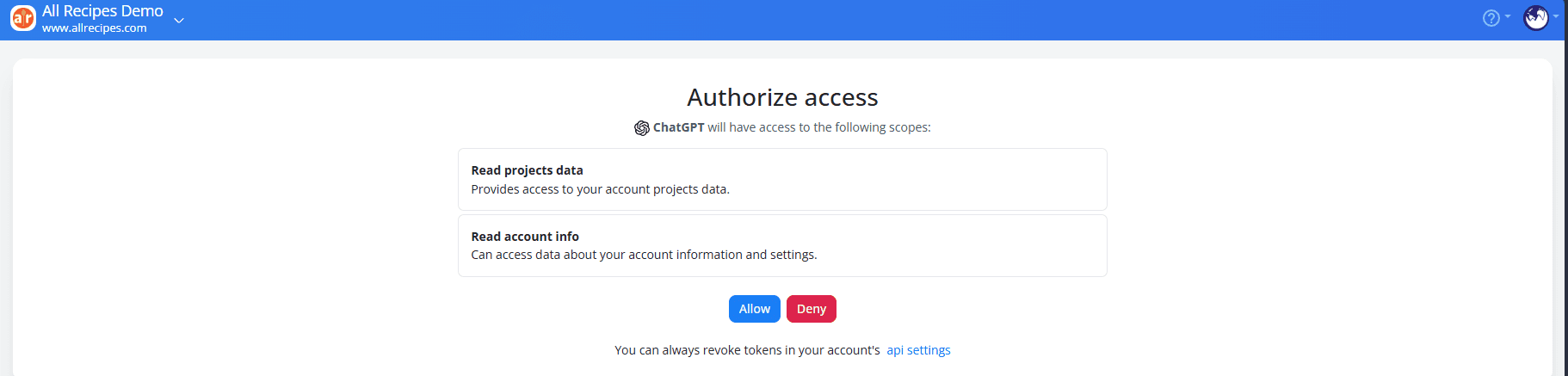
You’ll see an authorization consent screen.
Once approved, the connection will appear in your Connectors & API settings - MCP section, with a dedicated API key (tagged with MCP scope).
You can also manually generate an MCP key in your account and use it in your AI agent’s configuration.
The MCP connection can be revoked at any time.
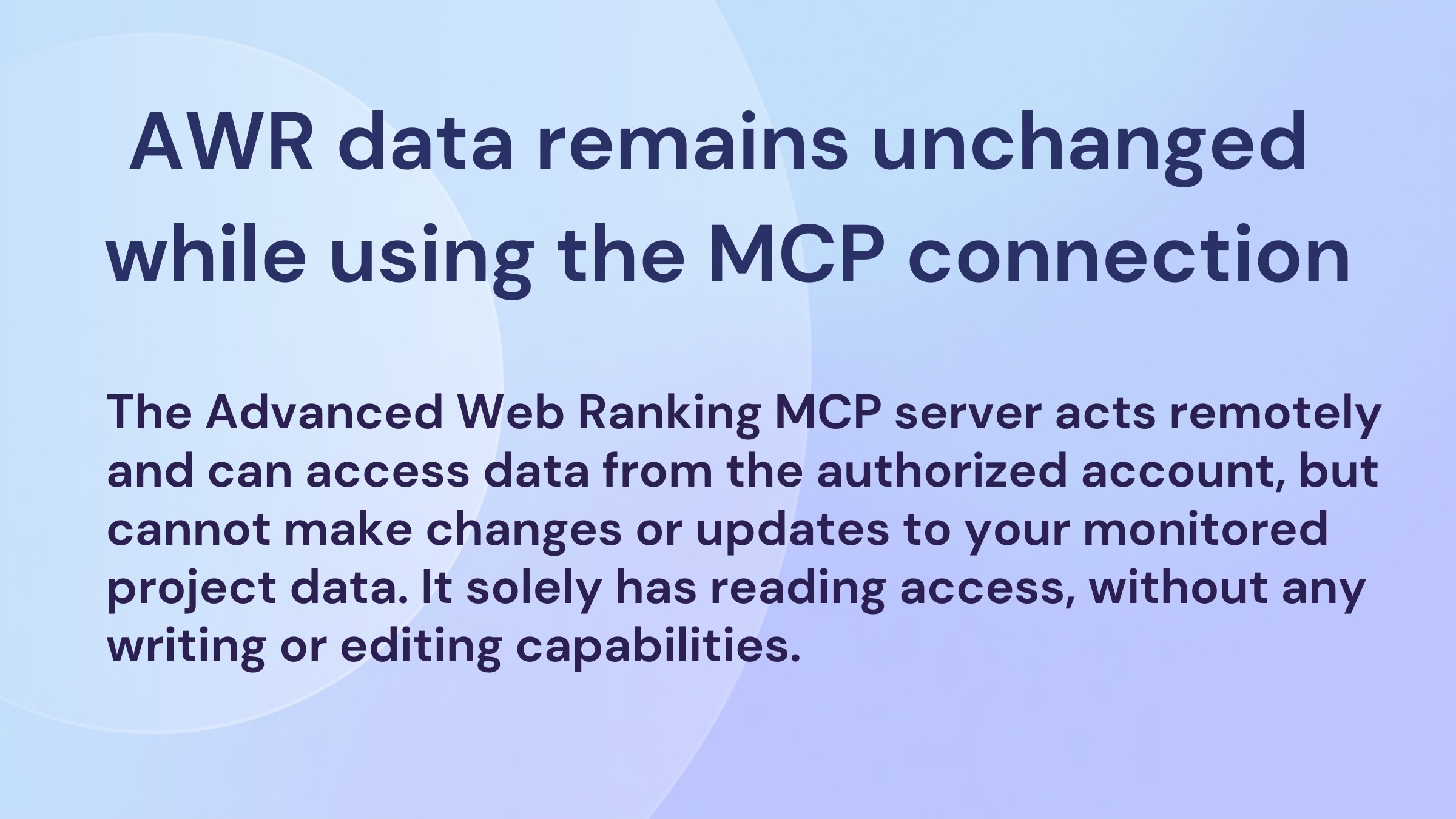
All data is pulled directly from your AWR account in real-time, ensuring you always have access to your latest SEO metrics and insights.
Connection Capabilities
The AWR MCP connector gives AI assistants direct access to your tracked SEO data. Below is a complete overview of what you can do, organized by the type of insight you’re looking for. Each section includes example prompts you can use directly in ChatGPT or Claude.
Project Setup & Configuration
Understand your account structure, what’s being tracked, and how your projects are configured.
What You Can Access | Action | Description | Example Prompts |
|---|---|---|---|
Account Overview | getAccountDetails | View your account details, subscription plan, available resources and active add-ons. | How many keyword units do I have left on my plan? Can I add another project without upgrading? |
Project List | listProjects | See all SEO projects in your account with their basic information and update schedules. | Give me a quick overview of all my projects - which ones update daily vs weekly, and how many keywords does each track? |
Project Configuration | getProjectDetails | Get the full setup for any project: main website, update schedule, keyword count, tracked search engines, and competitors. | Walk me through the full configuration of my “Brand US” project - which search engines are active, how many competitors am I tracking, and when was it last updated? |
Keyword Organization | getKeywords | View all tracked keywords and their associated groups or keyword tags. | Export all keywords in my project grouped by tag. Are there any groups with fewer than 10 keywords that I should consolidate or expand? |
Competitor List | getCompetitors | See which competitor websites are benchmarked against your project. | List my tracked competitors for this project. Based on my keyword groups, am I missing any obvious competitors I should add? |
Update History | getUpdates | View all dates when rankings and difficulty data were collected - useful for selecting date ranges in analysis. | When was the last ranking update for my project? Show me all available update dates for the past 3 months so I can compare performance week-over-week. |
Ranking Performance
From high-level summaries to individual keyword position tracking, this is where you dig into how your rankings are moving.
What You Can Access | Action | Description | Example Prompts |
|---|---|---|---|
Multi-Project Performance | getProjects | Compare performance across all your projects with trends over different time periods (last 2 updates, month, 3 months, or year). | Rank all my projects by visibility growth rate over the last quarter. Which project is improving fastest, and which one should I investigate for issues? |
Keyword Rankings | getRankings | View current and historical search positions for all tracked keywords, including ranking changes, traffic estimates, and SERP features. | Pull my top 50 keywords by estimated traffic and flag any that dropped more than 5 positions since the last update. Which of my keywords trigger a featured snippet, and am I winning it? |
Position Lookup 🆕 | rankGetPosition | Get the current ranking position and URL for a specific keyword, search engine, and website. | What exact position and URL does my site hold for “best crm software” on Google US? Is it the page I expect, or is a different URL ranking? |
Best Historical Position 🆕 | rankGetBest | Find the best ranking a specific URL has ever achieved for a keyword over a date range. | What’s the highest position my /pricing page ever reached for “enterprise crm pricing”, and when did that happen? I want to understand if I’ve regressed from a peak. |
Ranking Distribution Over Time 🆕 | rankGetDistribution | Analyze how your keywords are distributed across position ranges (top 3, top 10, top 20, etc.) over a date range. | Compare my keyword distribution across position buckets today vs. 3 months ago. Are we gaining first-page positions, or are keywords slipping from page 1 to page 2? |
Ranking Gainers 🆕 | rankGetGainers | Identify keywords that improved positions within a date range - spot upward momentum. | Show me the 20 keywords with the biggest position jumps this month. Which of them are now within striking distance of the top 3 and worth prioritizing for content updates? |
Ranking Losers 🆕 | rankGetLosers | Identify keywords that lost positions within a date range - catch drops early. | Which high-traffic keywords dropped the most since last week? Cross-reference with recent Google algorithm updates - are the losses concentrated in a specific keyword group or page type? |
New Rankings 🆕 | rankGetNew | Discover keywords your site started ranking for within a date range. | What new keywords did we enter the SERPs for this month? Match them against our recent blog posts - which content pieces are driving new organic visibility? |
Lost Rankings 🆕 | rankGetLostRankings | Find keywords that fell out of the SERPs entirely within a date range. | Did we lose rankings for any keywords this week? For each, tell me which page was ranking before and what position it held - I need to decide whether to recover or let them go. |
Ranking History 🆕 | rankGetHistory | Get the full ranking timeline for a keyword, URL, and search engine over a date range. | Chart the ranking history for “project management tool” over the past 12 months. Help me spot patterns - do I see seasonal dips or did positions change after specific site updates? |
Cross-Engine Comparison | getSearchEngines | Compare how keywords rank differently across multiple search engines side-by-side. | Compare my top 20 keyword rankings on Google US vs Google UK. Where are the biggest gaps, and which keywords represent easy wins in the underperforming market? |
Visibility & Market Share
Understand your overall organic presence, track it over time, and benchmark against the competition.
What You Can Access | Action | Description | Example Prompts |
|---|---|---|---|
Visibility by Website | getVisibilityPer | Compare SEO visibility between your website and competitors, including visibility scores, market share, and traffic estimates. | How does my visibility score compare to my top 3 competitors this month? Who gained the most ground, and can you identify what keyword groups might be driving their growth? |
Visibility by Search Engine | getVisibilityPer | See how your visibility differs across Google, Bing, and other tracked search engines. | Am I leaving traffic on the table by underperforming on Bing? Compare my visibility across all search engines and tell me where the gap is biggest relative to competitors. |
Visibility by Search Engine | getVisibilityPer | See how your visibility differs across Google, Bing, and other tracked search engines. | Am I leaving traffic on the table by underperforming on Bing? Compare my visibility across all search engines and tell me where the gap is biggest relative to competitors. |
Visibility by Keyword Group | getVisibilityPer | Analyze visibility by keyword category (e.g., brand terms, product keywords, informational queries). | Compare visibility for my “brand” vs “non-brand” keyword groups across all competitors. Is anyone catching up on my branded terms, and are my product keywords growing or stagnating? |
Visibility Trend 🆕 | visibilityGetTrend | Track your visibility score over time for a website, search engine, and date range. | Plot my visibility trend over the last 6 months and highlight any sharp drops or spikes. Do any of them correlate with site migrations, algorithm updates, or content launches? |
Market Share 🆕 | visibilityGetMarket | Analyze your organic search market share compared to competitors over a date range. | Show me the market share trend for all tracked competitors over the past year. Who’s been gaining at my expense, and in which keyword groups is the shift happening? |
Ranking Distribution | getDomainsDistribution | See how many keywords rank in different position ranges (1st place, top 3, top 10, etc.) across all tracked domains. | Build a distribution comparison: how many keywords do I have in positions 1–3, 4–10, and 11–20 vs my main competitor? Where is the biggest opportunity to close the gap? |
SERP Analysis & Features
Inspect what search results actually look like for your keywords - who’s ranking, what features are showing, and how things are changing over time.
What You Can Access | Action | Description | Example Prompts |
|---|---|---|---|
Current SERP 🆕 | serpGetCurrent | Fetch the current top-ranking results and SERP features for any tracked keyword and search engine. | Pull the full SERP for “best project management software” on Google US. Who’s in the top 10, what features are present (PAA, featured snippet, video carousel), and where do I stand relative to the editorial sites? |
SERP History 🆕 | serpGetHistory | View how search results and SERP features have changed over time for a keyword. | Show me how the top 10 for “crm software” has evolved over the past 6 months. Did any new competitors break into the top 5, and have any established players fallen out? |
SERP Volatility 🆕 | serpGetVolatility | Measure how much the search results fluctuate for a keyword over time - useful for detecting algorithm updates or unstable SERPs. | How volatile has the SERP been for “marketing automation” over the last 90 days? If volatility is high, it might explain why my rankings keep bouncing - compare it to a stable keyword as a baseline. |
SERP Features Summary 🆕 | serpFeaturesGet | Get a breakdown of all SERP features your site appears in for a search engine and date range. | Across all my tracked keywords, how many SERP features do I own - featured snippets, PAA boxes, image packs, video carousels? Which feature type drives the most visibility, and where am I underrepresented? |
SERP Features Changes 🆕 | serpFeaturesGet | Track when SERP features are gained or lost for your website over time. | Did I lose any featured snippets or PAA placements this month? For each one lost, tell me which competitor took it over and for which keyword - I want to prioritize recapture. |
SERP Competitive Analysis | getSerpDifficulty | Deep dive into who ranks for a specific keyword with detailed competitor metrics. | Analyze the competitive landscape for “cloud hosting provider” - who’s in the top 10, what are their domain authority and backlink profiles, and what would it realistically take to break into the top 5? |
Traffic Estimates
Access estimated organic traffic data and monitor how visit trends evolve.
What You Can Access | Action | Description | Example Prompts |
|---|---|---|---|
Traffic Metrics 🆕 | trafficGetEstimates | Get estimated traffic metrics for a website, search engine, and date range. | Estimate my total organic traffic for the last month and compare it side-by-side with my top 2 competitors. Who’s capturing the most estimated clicks, and what’s driving the difference? |
Visits Trend 🆕 | trafficGetVisitsTrend | Track estimated organic visits over time for a website and search engine. | Plot my estimated weekly organic visits for the past quarter. Is the growth rate accelerating, flattening, or declining? If declining, overlay it with my visibility trend to see if positions or search volumes are the driver. |
Keyword & Competitor Research
Go beyond your tracked project to discover new competitors, uncover keyword opportunities, and analyze any domain’s organic footprint.
What You Can Access | Action | Description | Example Prompts |
|---|---|---|---|
Keyword Metrics 🆕 | keywordGetMetrics | Get detailed keyword-level metrics: search volume, difficulty, CPC, and competition for tracked keywords. | Pull volume, difficulty, and CPC for all my tracked keywords. Sort by opportunity: high volume + low difficulty - those are perfect targets for content investment. Bonus: flag any with high CPC that I already rank organically for - that’s traffic I’d be paying a premium for in Google Ads. |
Keyword Difficulty | getKeywordsDifficulty | Assess how hard it is to rank for specific keywords with difficulty scores. | For my “product keywords” group, which terms have a difficulty under 40 and monthly volume above 1,000? Those are my low-hanging fruit - I want to prioritize them in next quarter’s content plan. |
Research Competitors 🆕 | researchGetCompetitors | Discover organic competitors for any domain over a date range - beyond your tracked competitor list. | Find organic competitors for my domain that I’m not currently tracking. Have any new players gained significant visibility in the last 3 months that I should add to my project? |
Visibility Competitors 🆕 | visibilityGetCompetitors | Analyze shared keywords and estimated visits between your website and competitors. | Which competitor has the highest keyword overlap with my site? Show me the shared keywords where they outrank me and sort by traffic potential - that’s my priority list for optimization. |
Research Keywords 🆕 | researchGetKeywords | Research what keywords any domain ranks for over a date range. | What keywords does [competitor domain] rank for in the US that I don’t? Filter for terms with 1,000+ monthly volume - I’m looking for content gaps I can fill with new articles or landing pages. |
Research Pages 🆕 | researchGetPages | Discover which pages on a domain generate the most organic visibility. | What are the top 20 pages driving organic traffic to [competitor domain]? I want to reverse-engineer their content strategy and understand which page types (blog, product, comparison) are working best for them. |
Research Countries 🆕 | getResearchCountries | Find out which countries have research data available for a domain. | Which countries can I run keyword research for [competitor domain]? I’m evaluating whether to expand into new markets and want to understand where they already have a presence. |
Landing Pages & URLs
Analyze which pages drive your organic traffic and inspect on-page SEO elements as they appear in search results.
What You Can Access | Action | Description | Example Prompts |
|---|---|---|---|
Landing Page Performance | getLandingPages | Identify which pages rank for which keywords, with traffic estimates and performance metrics. | Which 10 pages on my site drive the most organic traffic? For each one, tell me how many keywords they rank for and flag any cases where multiple pages rank for the same keyword - I want to catch cannibalization early. |
Title & Meta Description 🆕 | urlsGetTitleAndMeta | Get the title tag and meta description for one or more URLs as they appear in search results. | Pull the current title tags and meta descriptions for my top 10 landing pages. Flag any that are truncated in SERPs, missing the primary keyword, or duplicated across pages - those are quick optimization wins. |
Research Pages 🆕 | researchGetPages | Discover which pages on any domain generate the most organic visibility. | Compare the top-performing pages on my domain vs my main competitor. Are they winning with a page type (comparison guides, tools, templates) that I don’t have yet? |
AI Search Performance
Monitor your brand’s presence in AI-generated search results across ChatGPT, Perplexity, Google AI Overviews, and Google AI Mode.
What You Can Access | Action | Description | Example Prompts |
|---|---|---|---|
AI Keywords Performance | getAiKeywordsPerformance | Track your brand’s citations, mentions, and visibility in AI-generated answers across all supported AI search engines. | How visible is my brand in AI-generated results? Show me which keywords trigger AI answers where I’m cited vs where competitors get mentioned instead. Compare my AI visibility across ChatGPT, Perplexity, and Google AI Overviews - which AI engine favors my content the most? |
Set up the Advanced Web Ranking MCP server
MCP server endpoint
This server uses streamable HTTP transport only. The MCP endpoint is: https://api.advancedwebranking.com/mcp
Authentication
Advanced Web Ranking MCP supports two authentication mechanisms:
OAuth. OAuth is the default MCP server authentication approach. No additional configuration or headers are required.
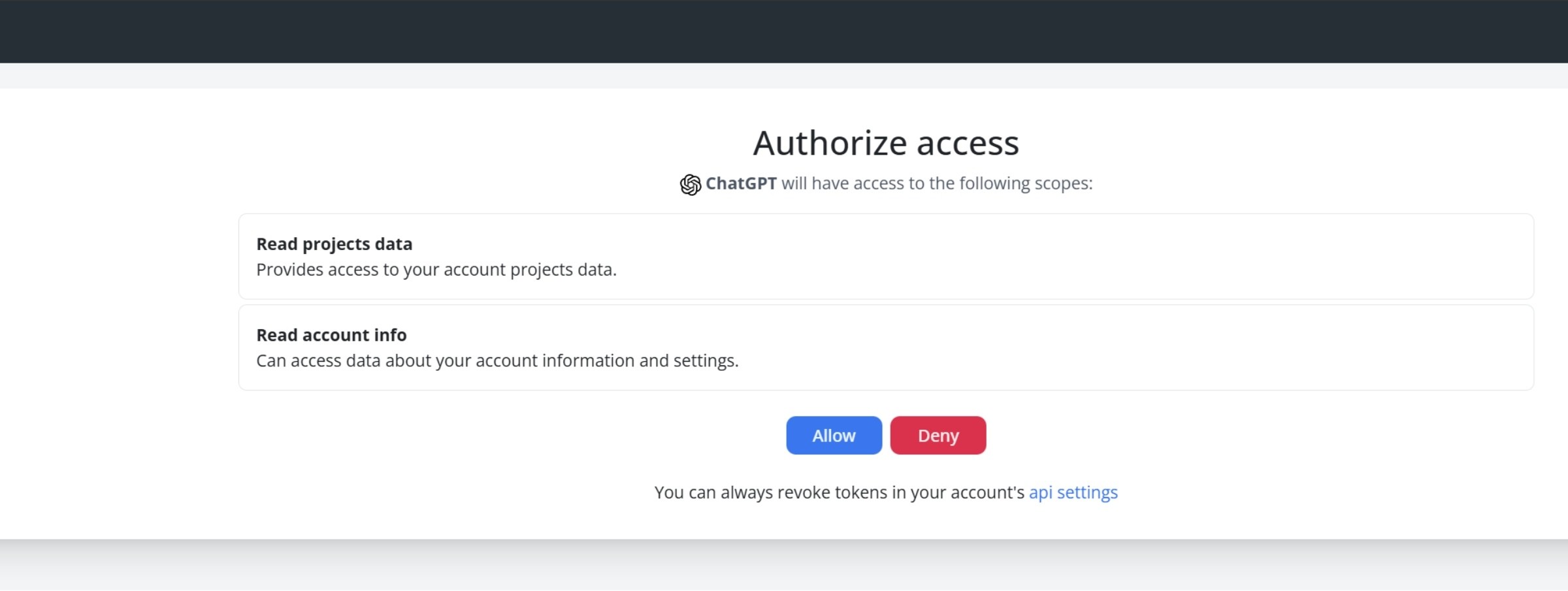
When AWR MCP is connected, the AI agent automatically registers with the OAuth system and redirects you to the AWR account active in browser session or login page to authenticate and allow access.
API key. If your AI agent doesn't support OAuth, you can authenticate using an API key instead.
To generate a new MCP API key for your Advanced Web Ranking account, follow these steps:
Access the Connectors & API section
Click on MCP Server tab at the top of the page or scroll down to the section
Click “Create API key”
This works if you wish to activate the MCP connector manually, using OpenAI or Anthropic API.
Claude Desktop/Web
To enable connectors in Claude, you will need a Pro subscription or higher.
To add the Advanced Web Ranking MCP server to Claude (browser or desktop):
Navigate to Settings → Connectors → Add custom connector.
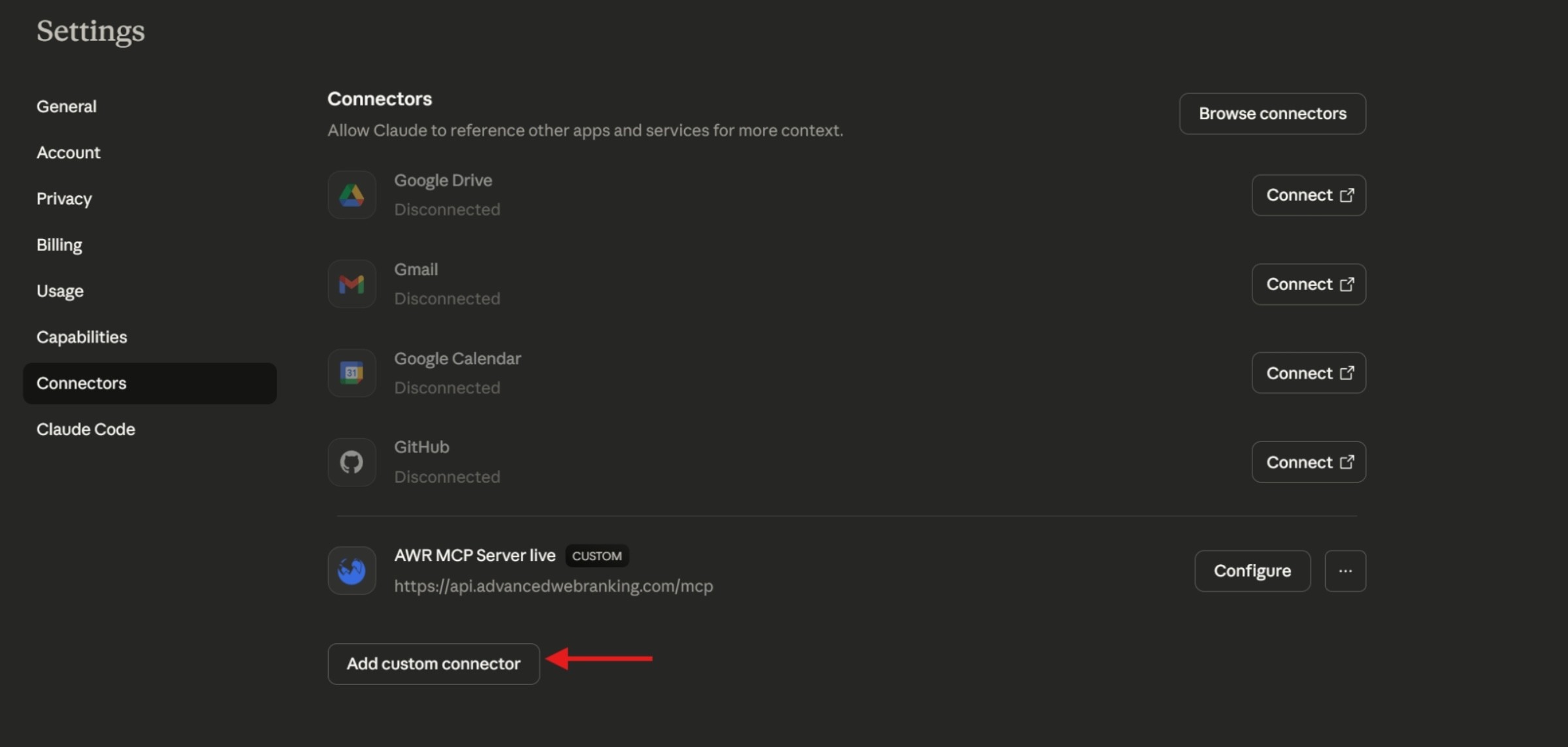
Name the connector and add the AWR MCP server URL: https://api.advancedwebranking.com/mcp
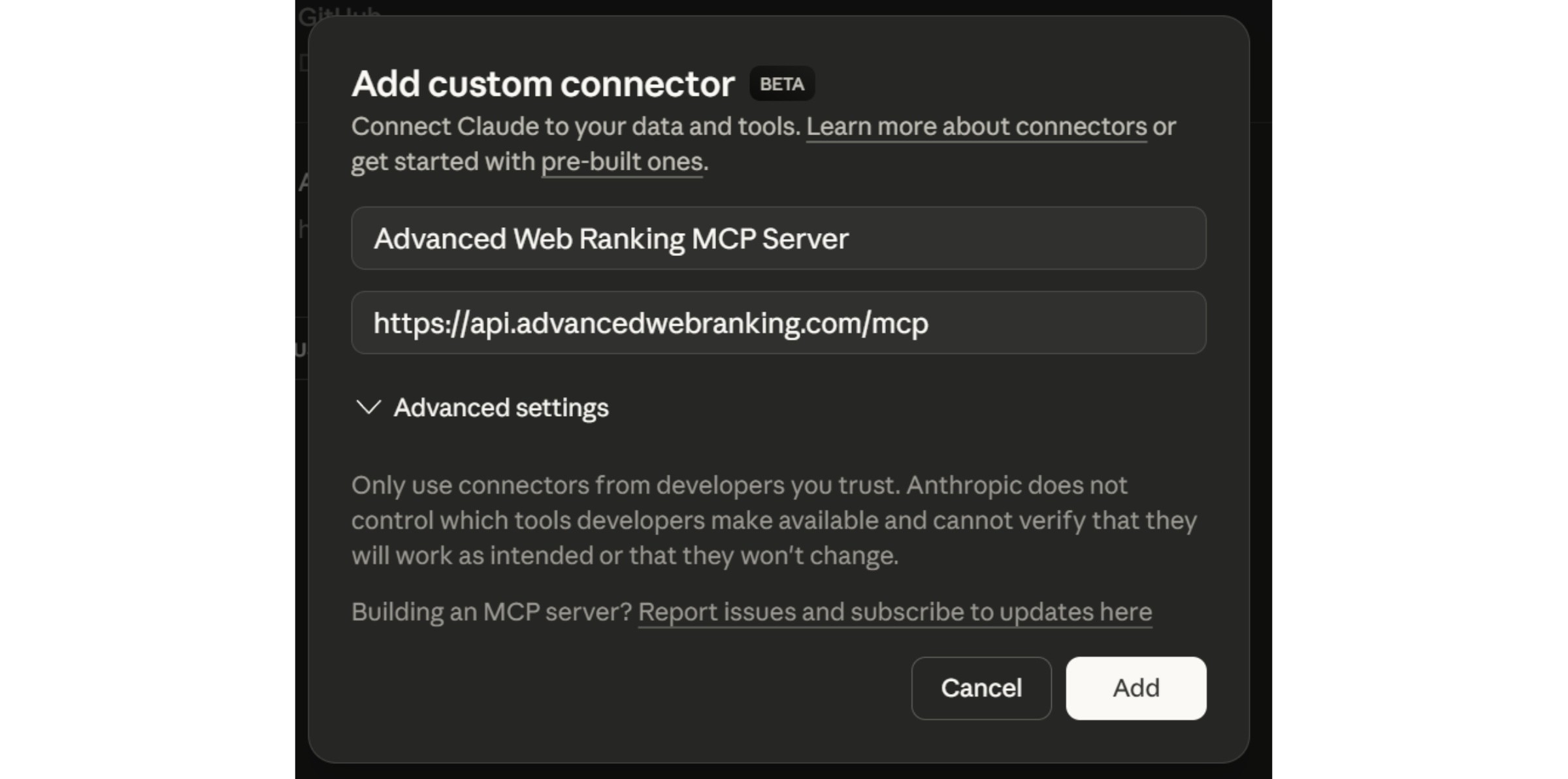
Normally, the OAuth 2.1 authentication process should automatically redirect you to the AWR account active in the browser session or login page to authenticate and allow access to your AWR account & projects data. In case the redirect doesn’t happen, use the custom configuration and grant permission.
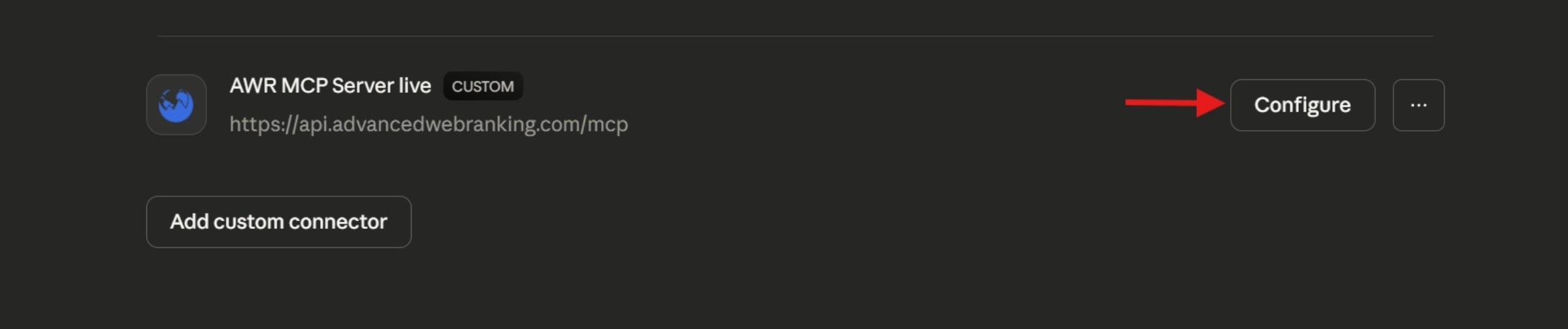
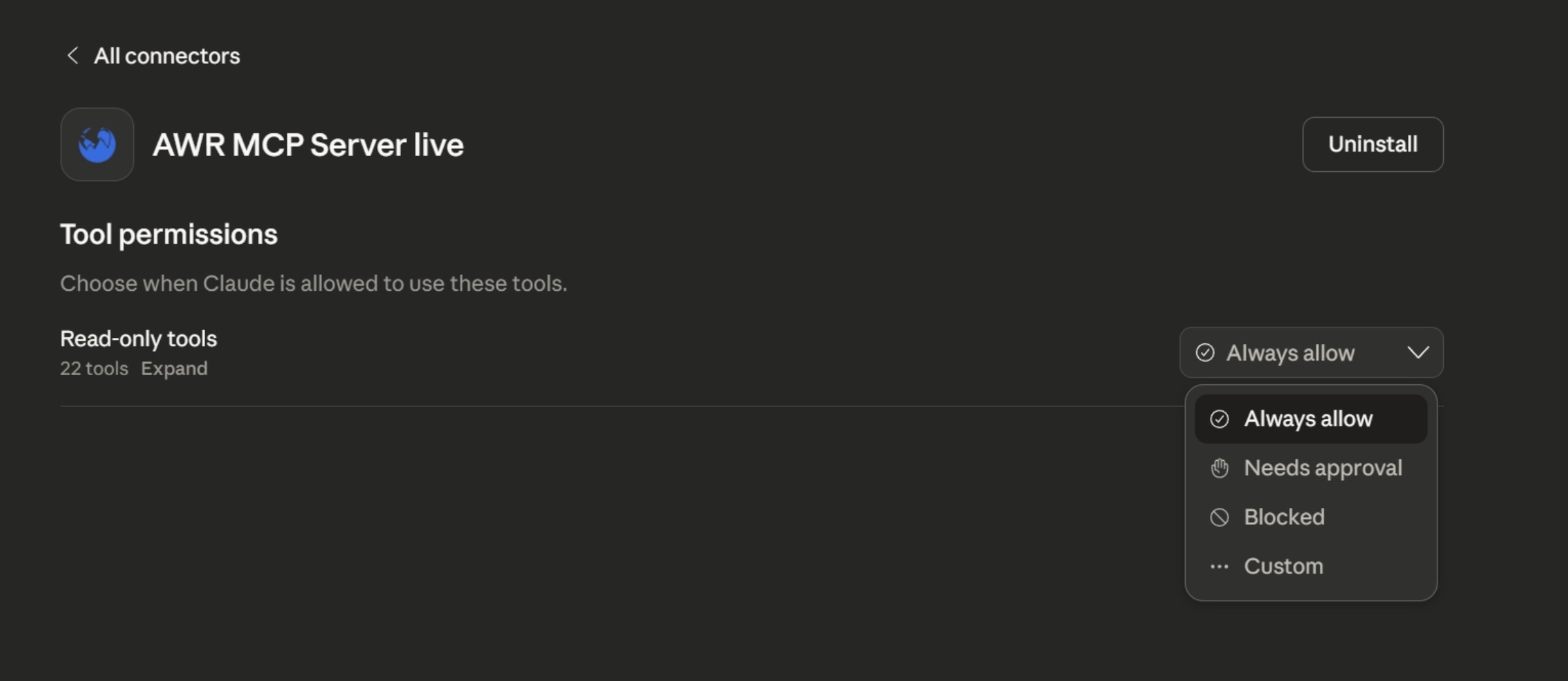
For more information, refer to the official Anthropic documentation.
Claude Code
To add the Advanced Web Ranking endpoint to Claude Code settings, add a remote HTTP server by running the following command:
In the terminal, run this command:
claude mcp add advanced-web-ranking --transport http https://api.advancedwebranking.com/mcp
Launch Claude by writing “claude” in the terminal
Link your Advanced Web Ranking account to Claude Code by running this command:
/mcp connect advanced-web-ranking
Select Authenticate
The OAuth 2.1 authentication process should automatically redirect you to the AWR account active in browser session or login page to authenticate and allow access to your AWR account & projects data
For more details, refer to the official Claude MCP documentation.
ChatGPT
We recommend keeping your prompts as explicit and precise as possible. For best results:
Mention the AWR MCP connector directly
Specify the exact tool or endpoint to use
Indicate which fields should be retrieved and how results should be sorted
Explicitly ask ChatGPT not to use web search
Clear, structured prompts generally produce more accurate and reliable results. For example:
Using the AWR MCP connector and the getRankings action, retrieve the top 10 performing keywords related to ‘seo’ in United States, sorted by search volume.
This is preferred over a vague prompt like:
What are the top keywords related to seo in United States?
For the latest updates and usage guidelines, refer to the official ChatGPT Developer Mode documentation.
Setup guide
Follow these steps to add the Advanced Web Ranking MCP server to ChatGPT Web:
Option 1: Dedicated Advanced Web Ranking Tool
Advanced Web Ranking now offers a dedicated tool built directly into ChatGPT Apps, available for all ChatGPT accounts, with no manual MCP server configuration required.
This provides a faster, simpler setup and a more seamless way to access AWR data inside ChatGPT.
Steps to use the dedicated AWR tool:
Go to More > Apps on the left side of the screen in ChatGPT
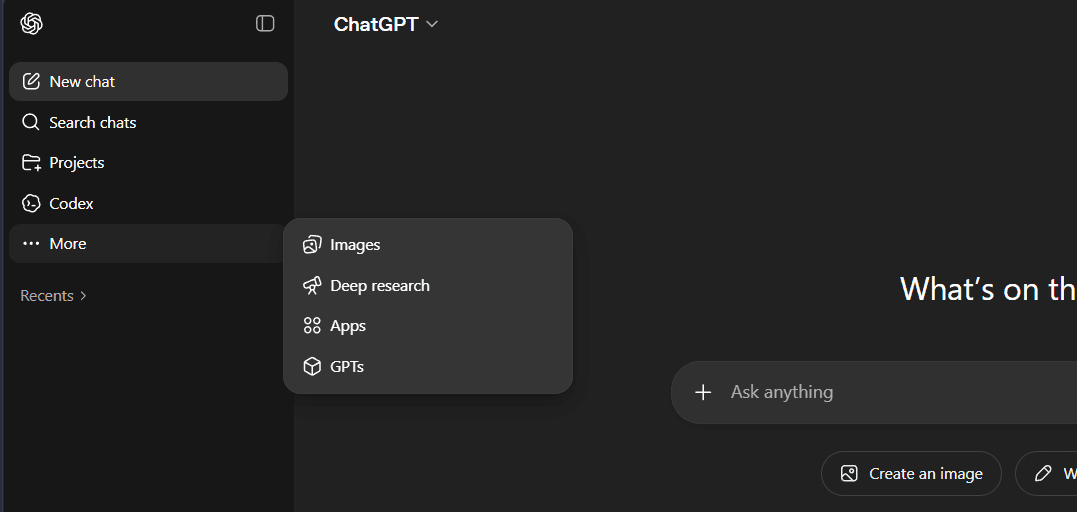
Find Advanced Web Ranking and click Connect
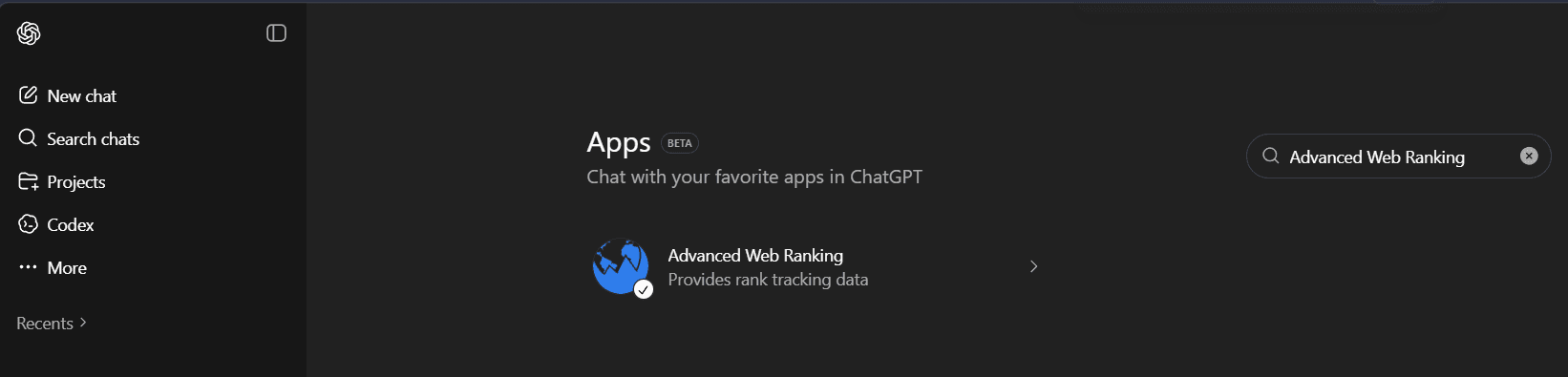
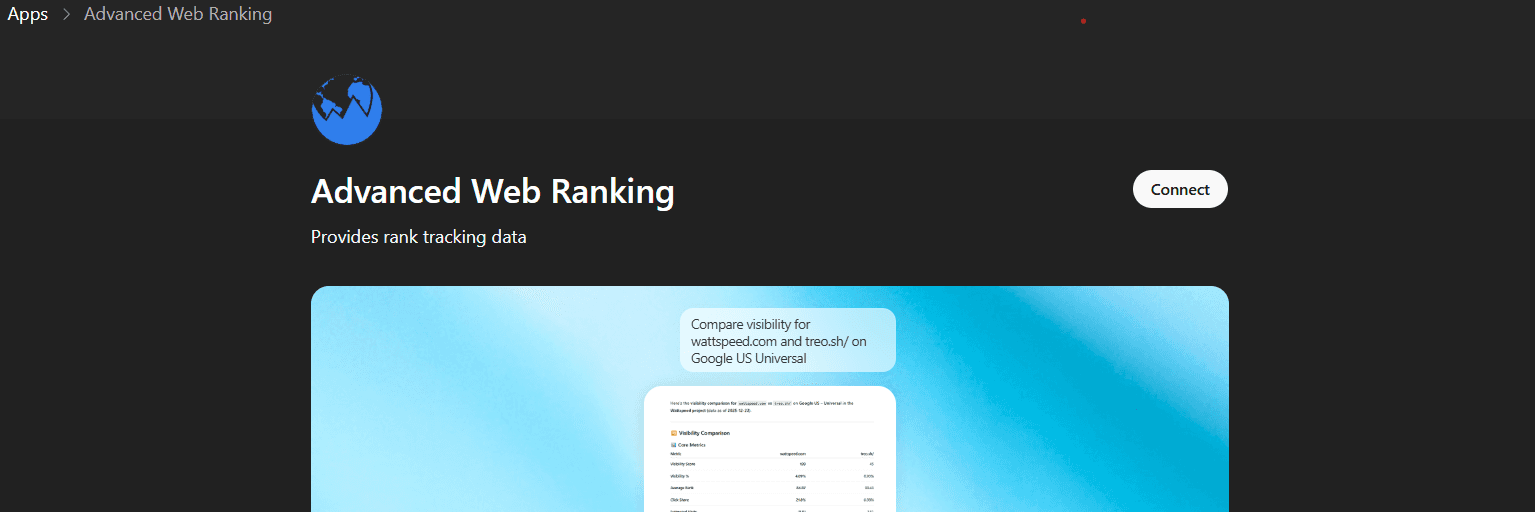
Complete authentication when prompted: OAuth 2.1 will automatically redirect you to your active AWR account or login page to authenticate and grant ChatGPT access to your AWR account and project data.
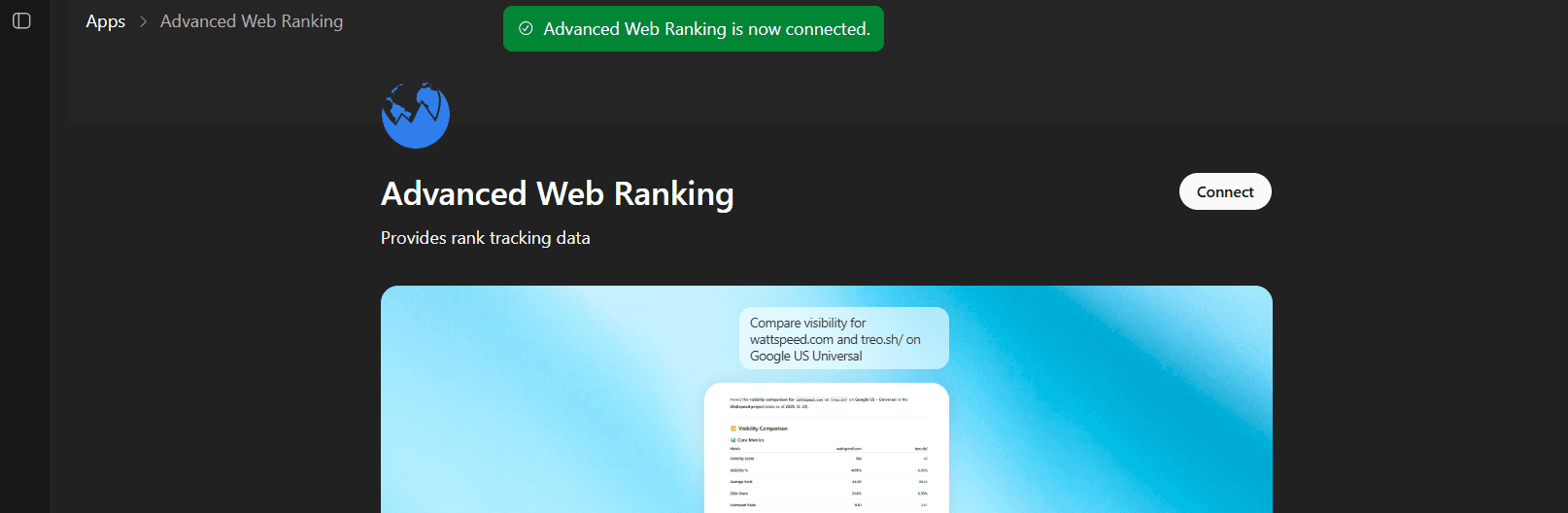
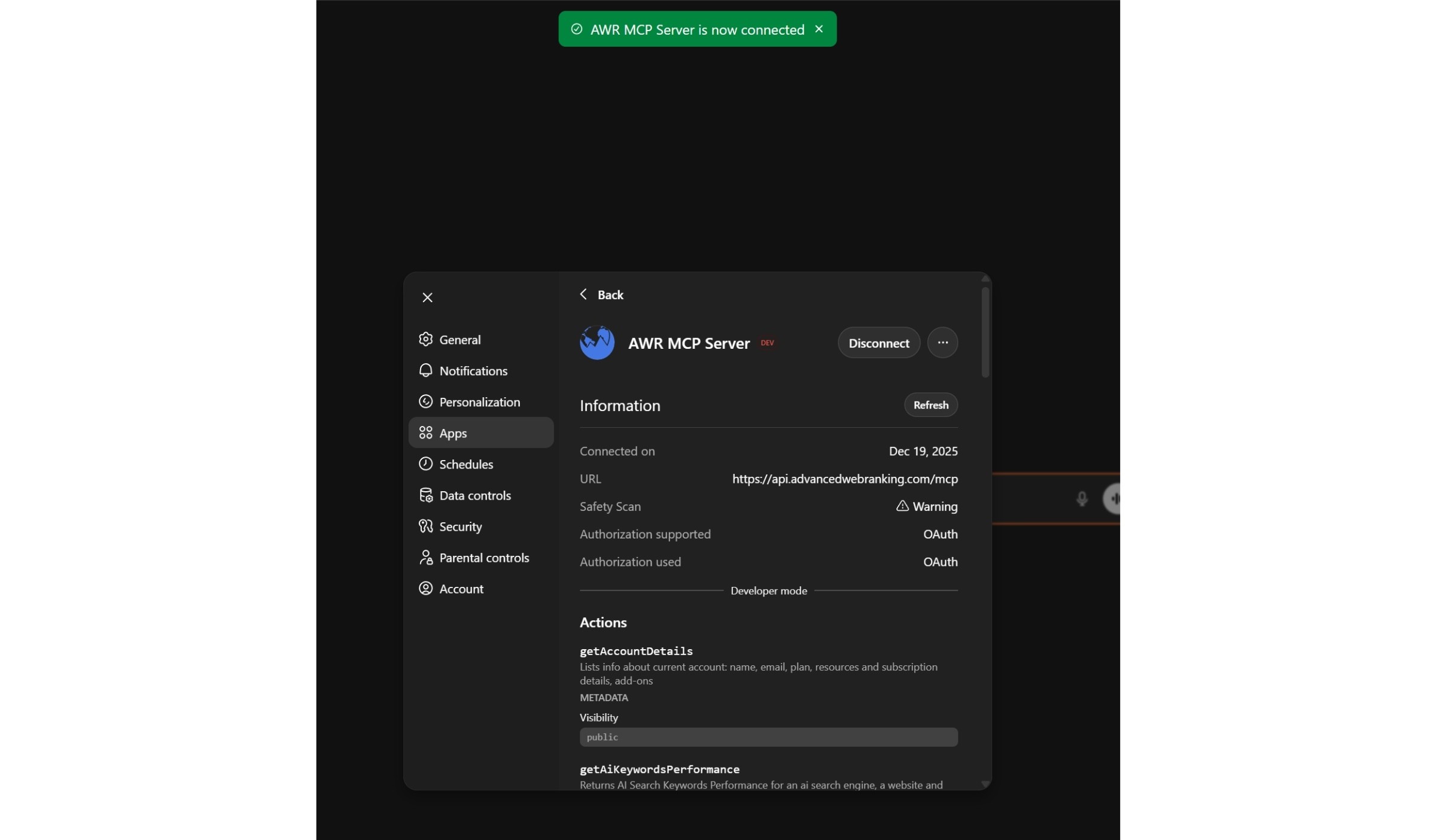
Confirm the connector shows as successfully connected in ChatGPT
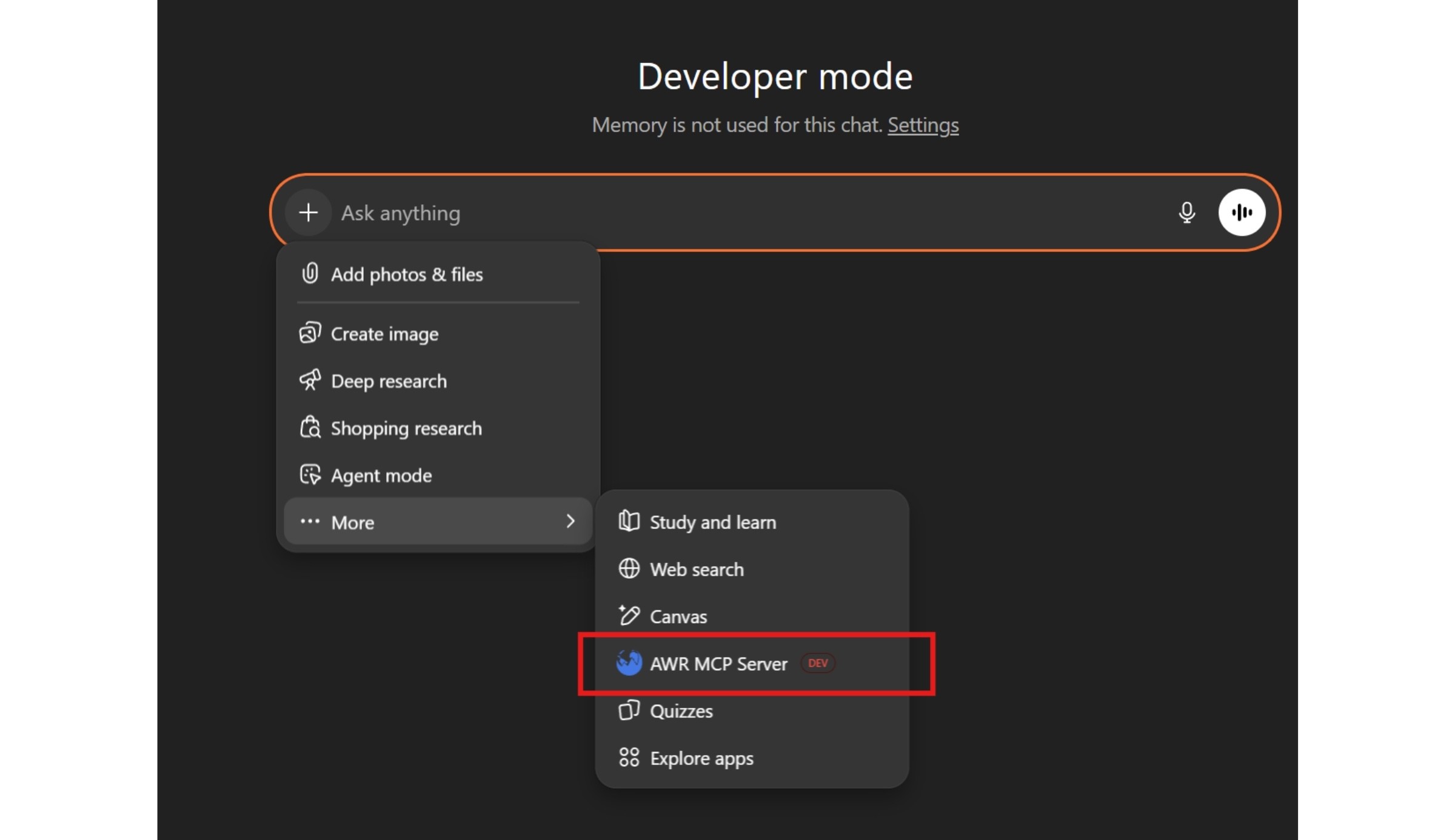
Before starting the query, enable the AWR tool in chat by clicking “+” > More, then selecting Advanced Web Ranking.

Option 2: MCP Connector Setup
If you prefer or need MCP server configuration, this option is available in Developer mode for Pro and Plus ChatGPT accounts. To set this up:
Go to Settings → Apps and look for Advanced settings
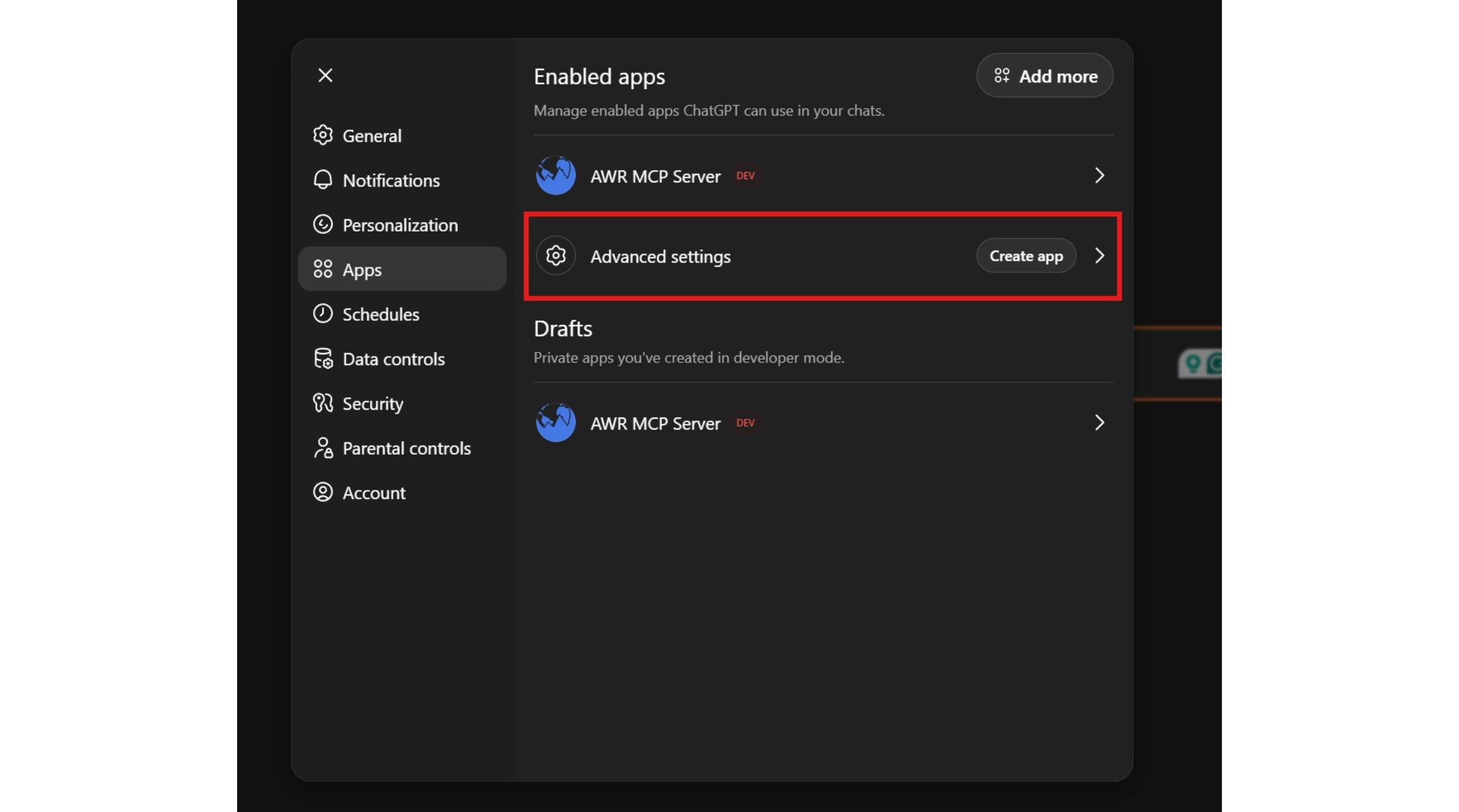
Enable the "Developer mode"
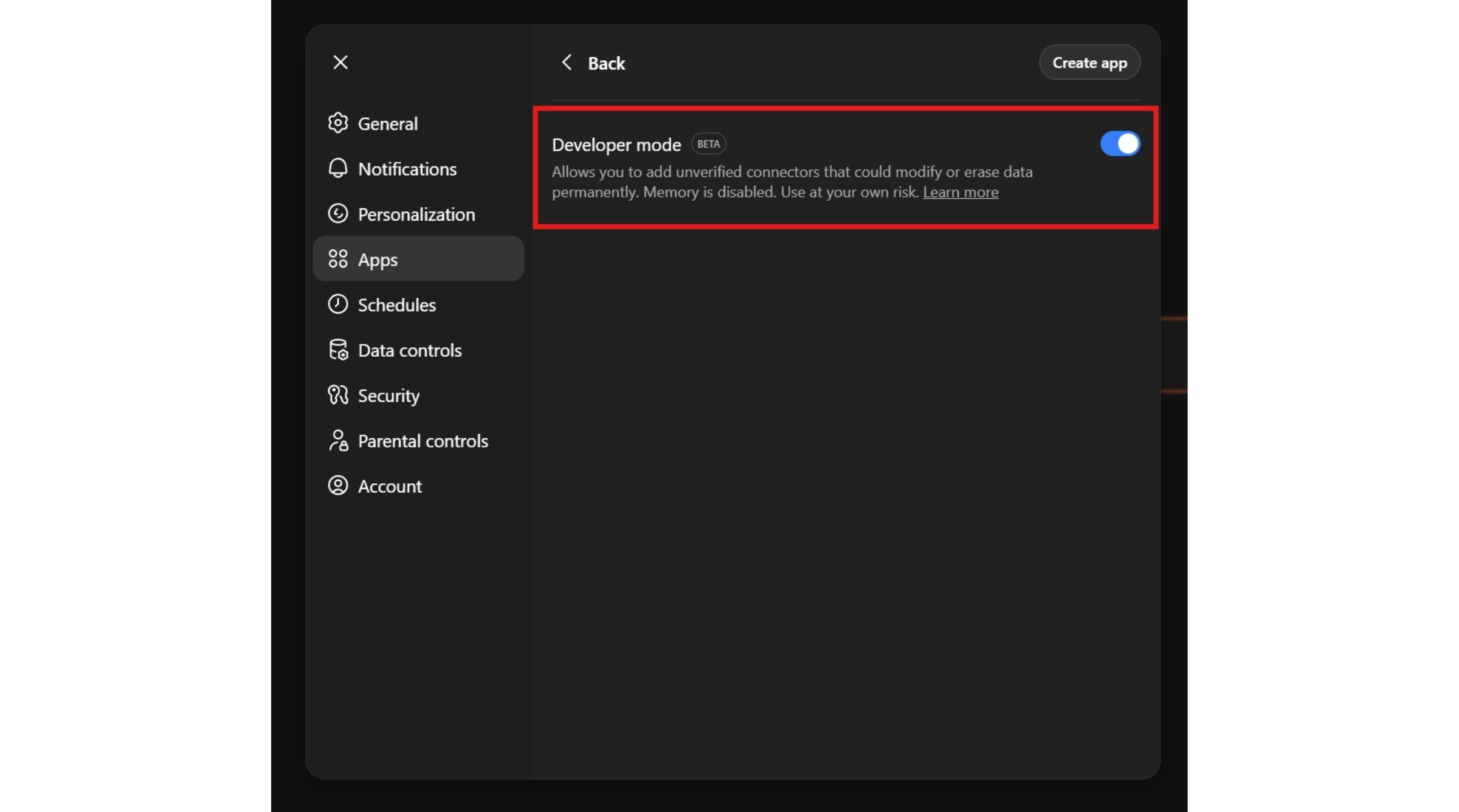
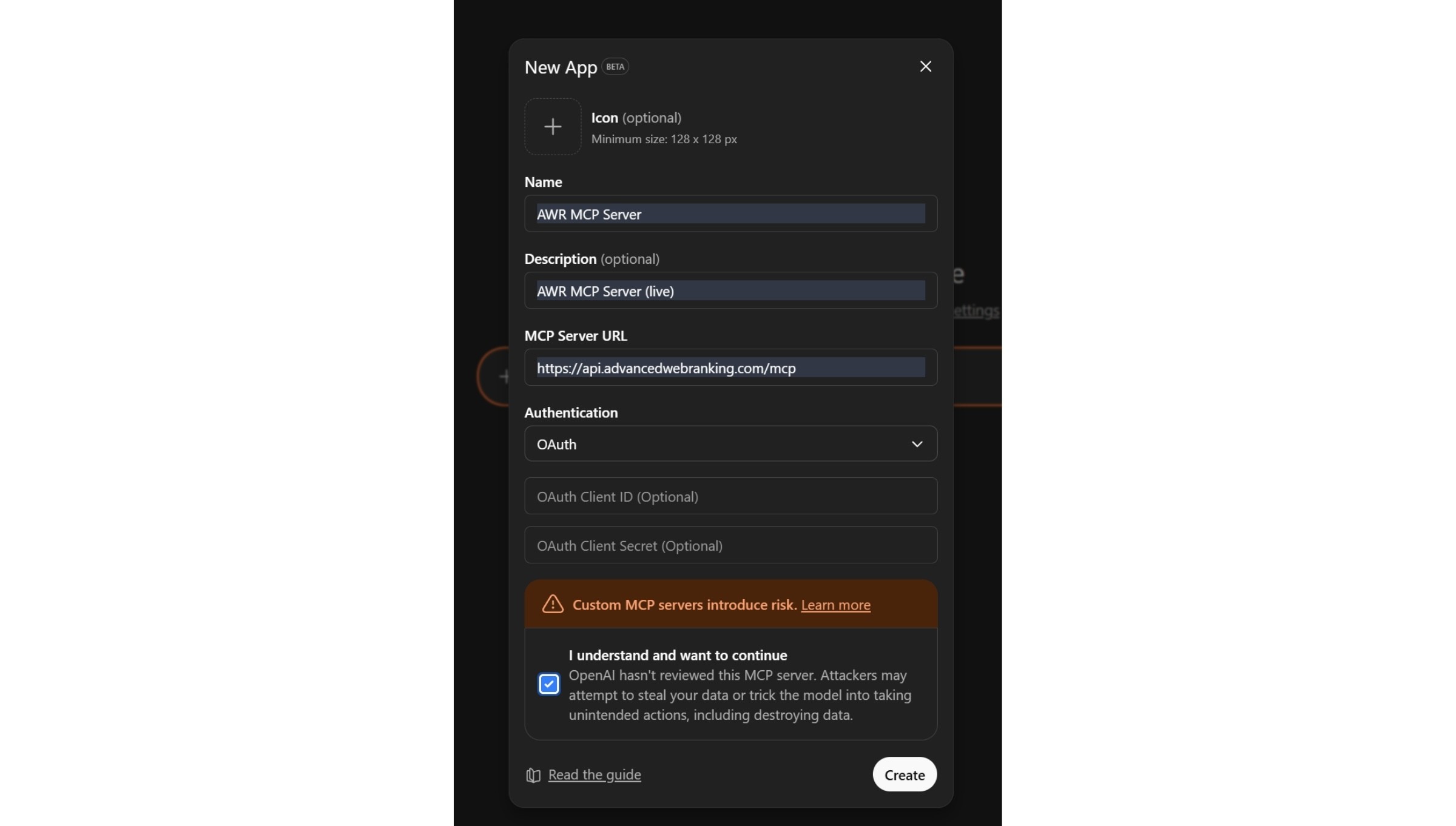
Click the "Create app" button
Fill in the new Connector details:
Add your preferred connector name (such as Advanced Web Ranking MCP)
MCP server URL: https://api.advancedwebranking.com/mcp
Authentication: OAuth
Select the option “I trust this application” and click the "Create" button.
The OAuth 2.1 authentication process should automatically redirect you to the AWR account active in the browser session or login page to authenticate and allow access to your AWR account & projects data.
Check that the connector in ChatGPT is successfully connected
Activate the AWR connector in the chat before starting the query:
Click on the “+” sign → More → Developer mode
Select the connector you created earlier
Do you have any other questions? Don’t hesitate to get in touch and we will keep building the FAQ.
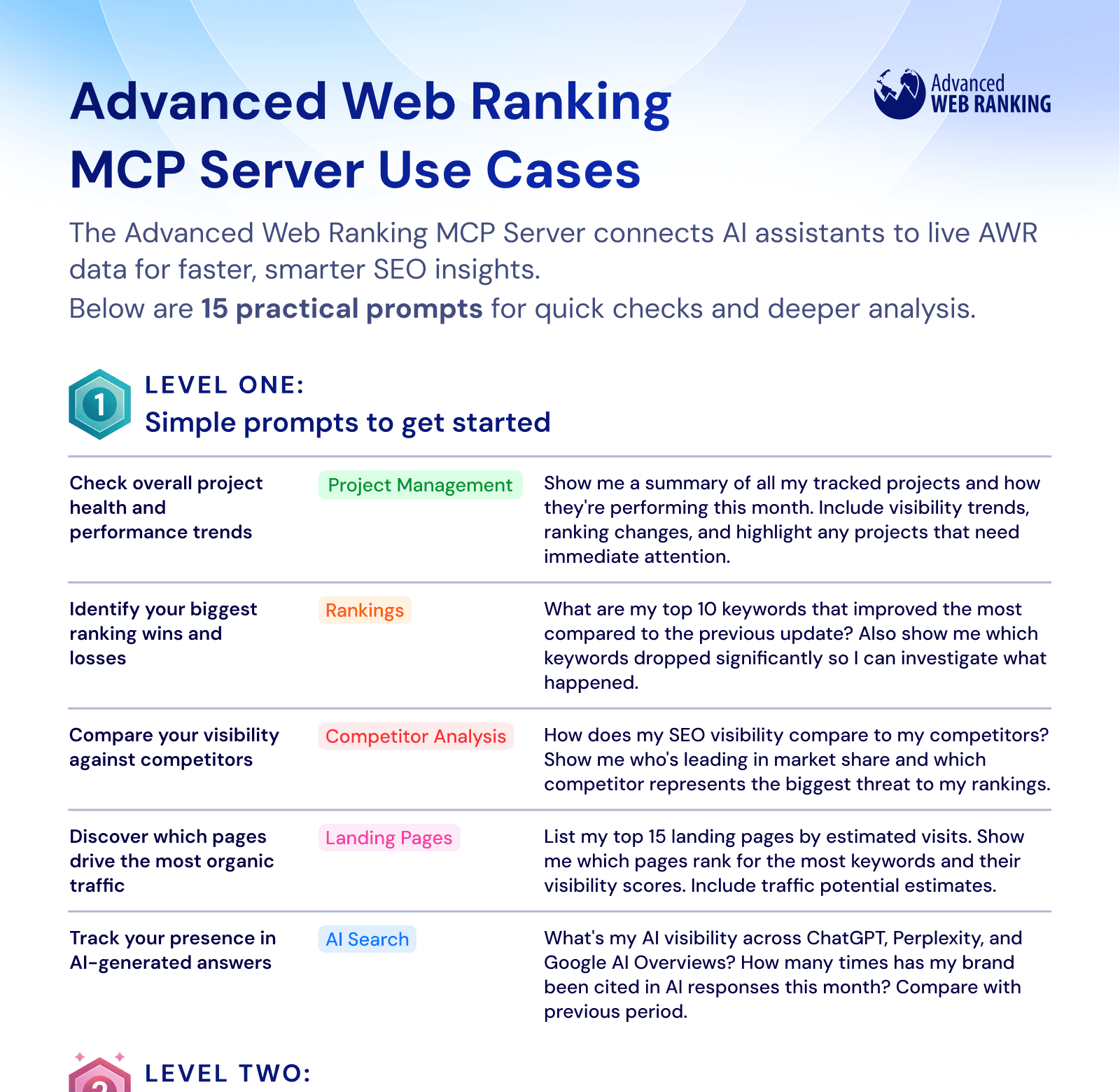
Download Our Prompt Cheat Sheet
Explore 15 practical prompts for SEOs and digital marketers, from quick performance checks to deeper insights.
stay in the loop