

Advice and answers from the Advanced Web Ranking Team
Search for articles
>
>
Three new AWR updates: Smart Update Summary emails, API support for AI search engines, and async API downloads for AI responses
Turn ranking updates into AI-generated email summaries, add AI search engines to your projects programmatically, and pull large AI response exports without timeouts. Here's what's new in AWR.

A few improvements shipped across AWR recently, too small to warrant standalone announcements, but too useful to slip past you. One catches meaningful ranking shifts before you'd even think to check for them. Another opens up AI search engine tracking to automation. And the third makes large-scale AI response exports even more reliable.
Smart Update Summary: get AI ranking recaps delivered to your inbox
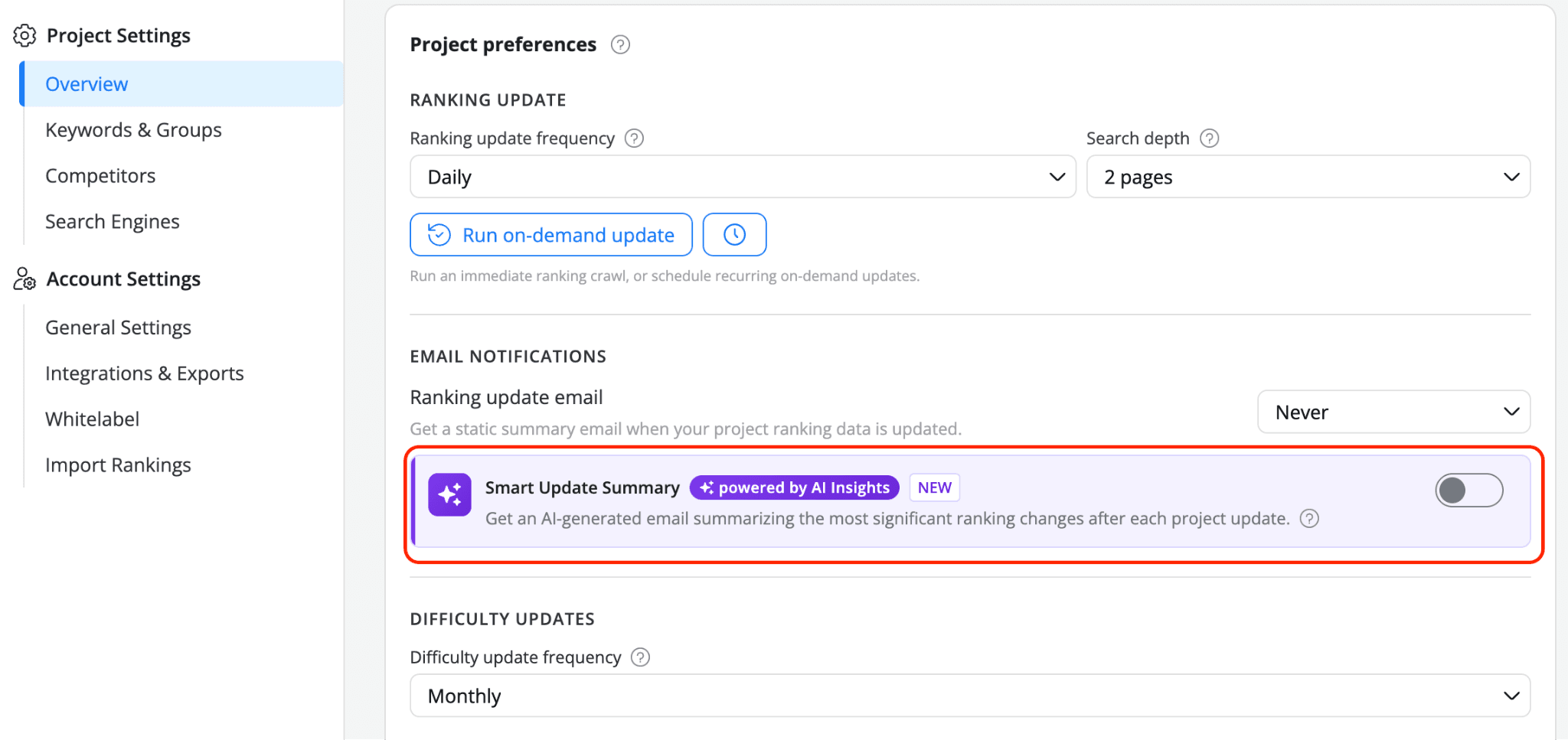
Smart Update Summary is a new type of email notification, powered by the AI Insights feature, that recaps the most significant ranking changes from your project after each update. Think of it as a scheduled Insight answering one question: "What actually changed since the last update that I need to know about?"
You'll find it in Project Settings > Overview, under the Email Notifications section:
What the summary email may contain
Each summary is built from the latest completed update and compared against the previous one for the project where the Smart Update Summary is enabled. The AI evaluates what actually changed and includes only the sections that carry meaningful signals, so a quiet period can generate a shorter email while a volatile one may surface in more detail. You'll always get a headline, and beyond that the structure adapts to the update.
A full summary can include:
A short opening statement describing the overall direction of the update (visits gained, keywords improved, top-tier wins, and so on)
Portfolio Snapshot: the key project-level KPIs at a glance (keywords improved, declined, newly ranked, lost from SERPs, estimated visits, traffic value, visibility score, visibility percent, ranked keywords, average position, on first page, top 10)
Tier Boundary Crossings: keywords that moved across meaningful position thresholds, like entering #1, reaching Page 1, or slipping out of Top 3, with the position, change, and impact for each
Notable Movers: individual keywords with the biggest gains or losses in the update, with context on search volume and query type
AI Overview Performance: a summary of your project's brand mentions and citation positioning across the AI-enabled search engines you track (Google AIO, AI Mode, ChatGPT, Perplexity). Only shown if the project tracks an AI-capable engine and something changed
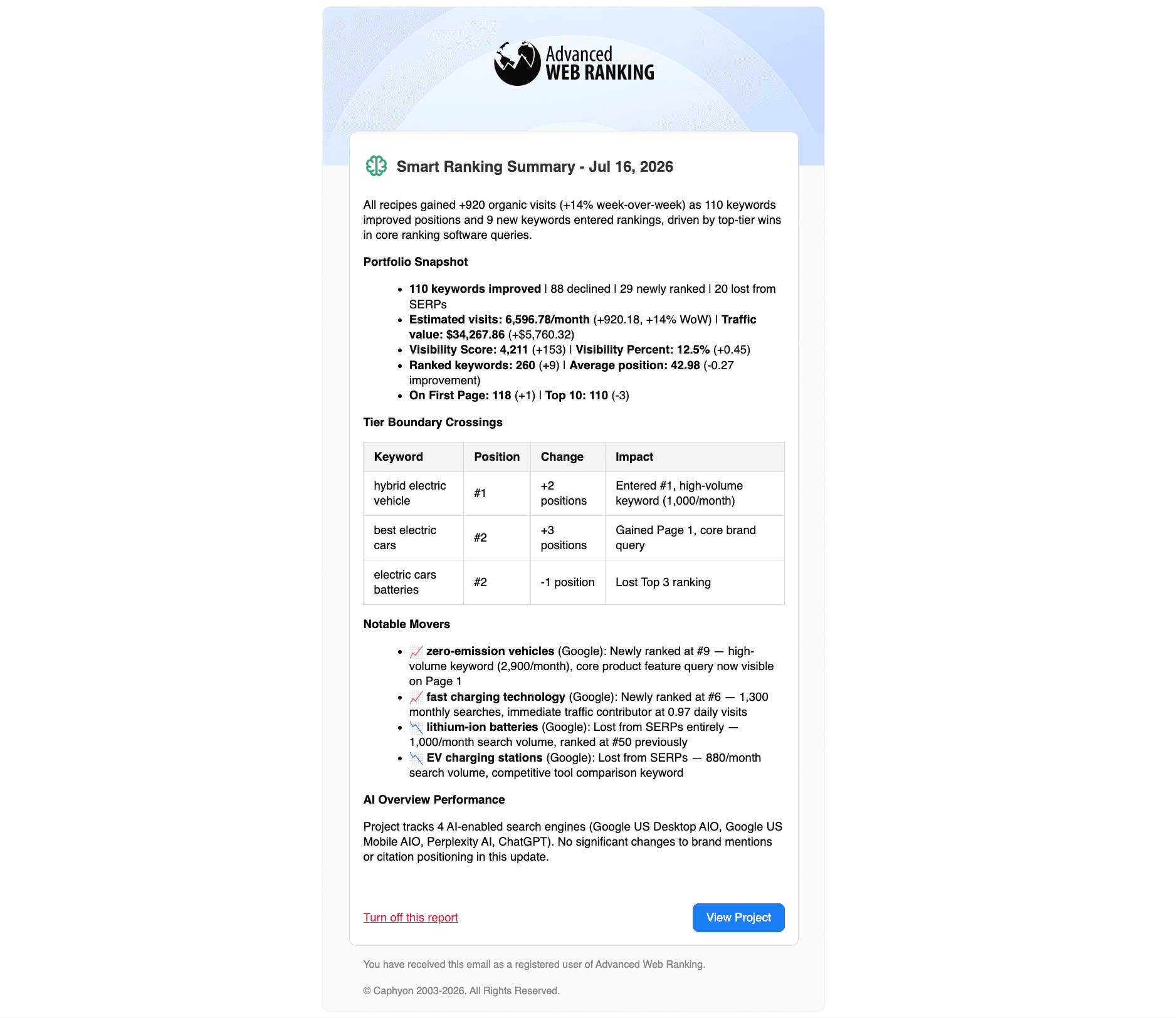
Every recipient you add receives the same email. At the bottom, each summary includes a View Project button that opens the project directly in AWR, and a Turn off this report link that leads to Project Settings, where the report can be disabled. Both actions require an AWR account with access to that project, so while the email itself lands in any inbox you add, only account owners and admins can open it in the app or turn the report off from there.
How to turn on the AI summaries
💡The Smart Update Summary feature is available to account owners and admins.
In Project Settings > Overview, scroll to the Email Notifications section and toggle on Smart Update Summary. This opens the Smart Update Summary options modal, where you configure the report before it goes live:
Review the delivery schedule. Frequency follows your project's ranking update frequency, so if the project updates daily, you'll get a daily summary. If it updates weekly, you'll get a weekly one, and so on.
Your account email is pre-filled by default, but you can add multiple recipients so team members, clients, or stakeholders receive the summary directly. Each recipient sees the same email.
Add custom instructions to steer the AI toward the content, style, or tone you want. You can use up to 500 characters. A few examples: "Focus on top 10 movers, keep the tone concise", "Highlight branded keyword changes and any Top 3 shifts", etc.
Send a preview before saving, so you can get an idea of what the email summary may look like.
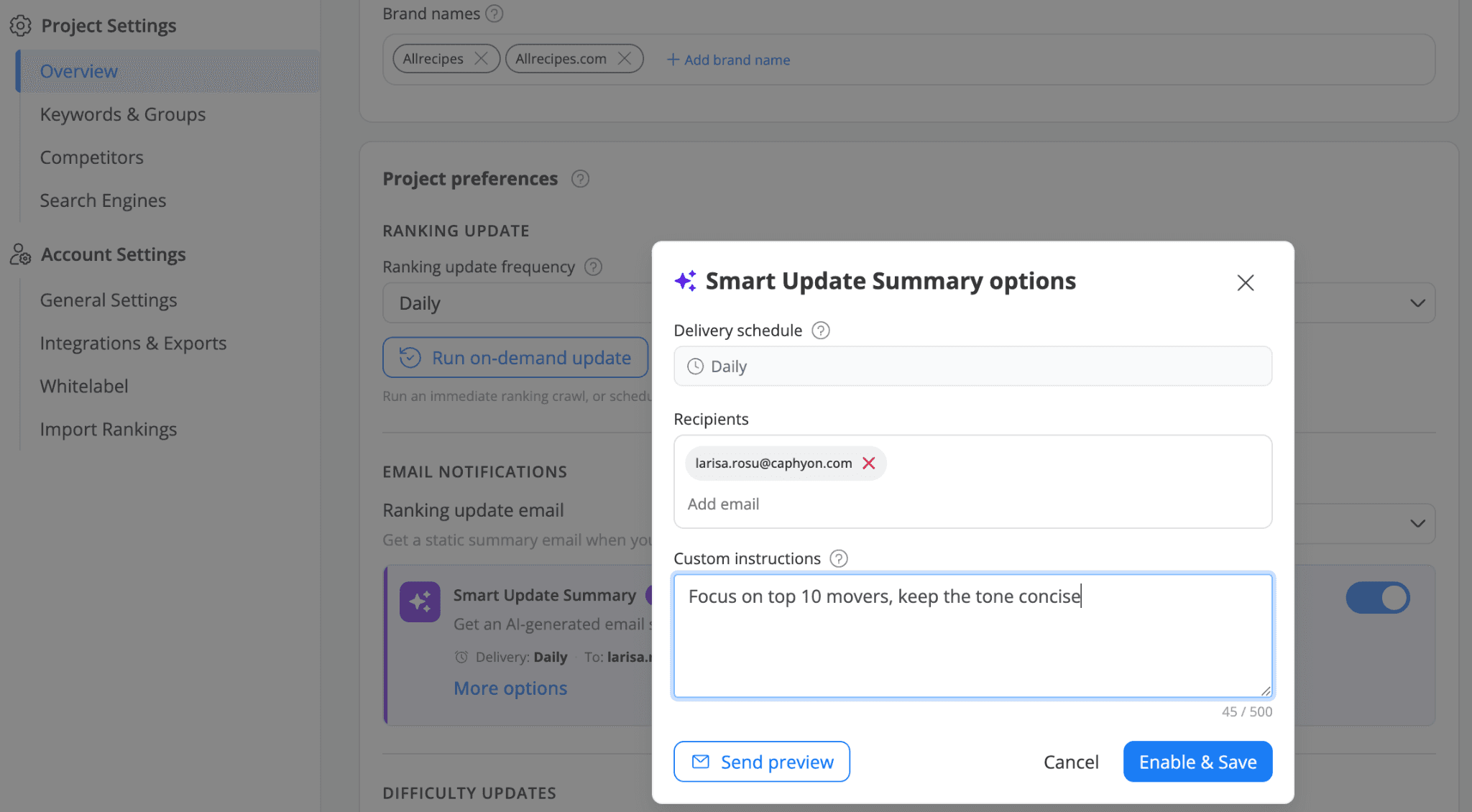
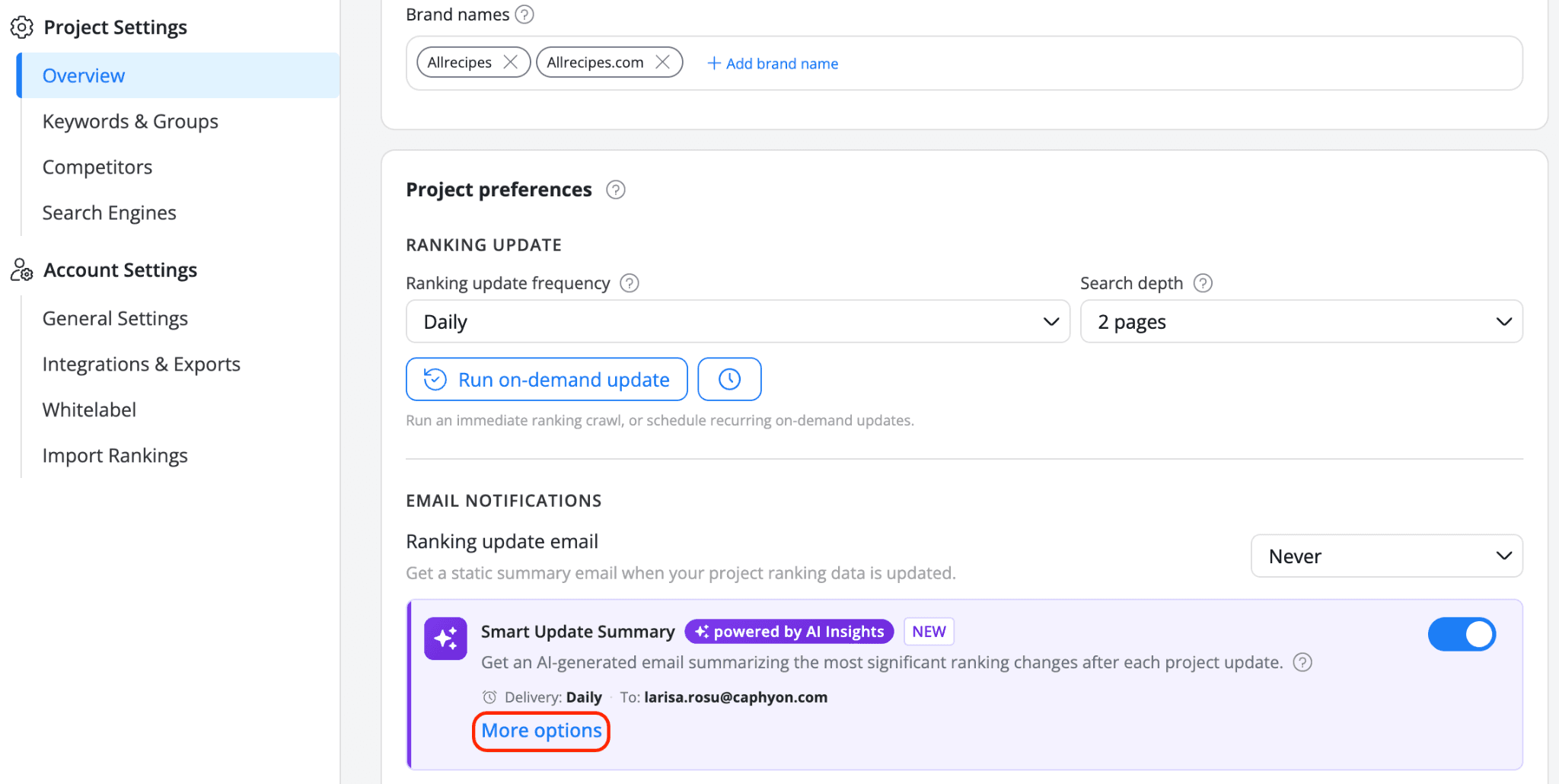
Click Enable & Save to activate the email summaries. If you want to adjust the settings later, the Smart Update Summary card in Project Settings will show a More options link that reopens the same modal.
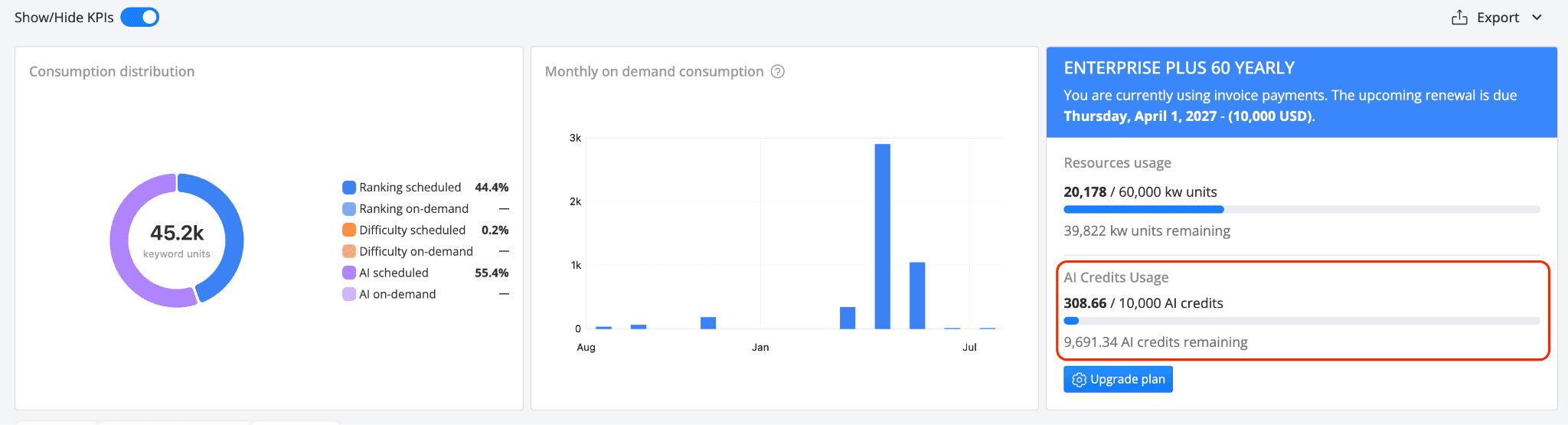
💡 Each email run consumes approximately 80 to 120 AI Credits. Credits come from your existing AI Credits balance, the same pool used for manual Insights sessions, so make sure your balance covers the delivery frequency.
Good to know
Paused projects: No emails are sent while a project is paused. The schedule is suspended and resumes automatically when the project becomes active again.
On-demand updates: If you trigger a manual on-demand update outside the project’s scheduled frequency, the summary is generated and sent once the update completes, regardless of the scheduled delivery day of that project.
Changing update frequency: If you change your project's ranking update frequency, the email schedule adjusts automatically on the next cycle.
How to add AI search engines to your project via API
Adding search engines through the AWR API isn't new, but until now it covered only the traditional ones. AI-powered engines had to be configured from the app. That gap is now closed for the full range: Google's AI-powered engines (Google Search + AIO and Google AI Mode, on both desktop and mobile) as well as non-Google AI engines like Perplexity, ChatGPT, and Gemini.
Whichever engine you want to add, the workflow depends on which family it belongs to:
Google-native AI engines (Search + AIO and AI Mode) go under the searchengines.google object, configured by name, country, language, and search engine vertical (se_type).

Non-Google AI engines (Perplexity, ChatGPT, Gemini, and others) go under the searchengines.other array, identified by their awr_id.
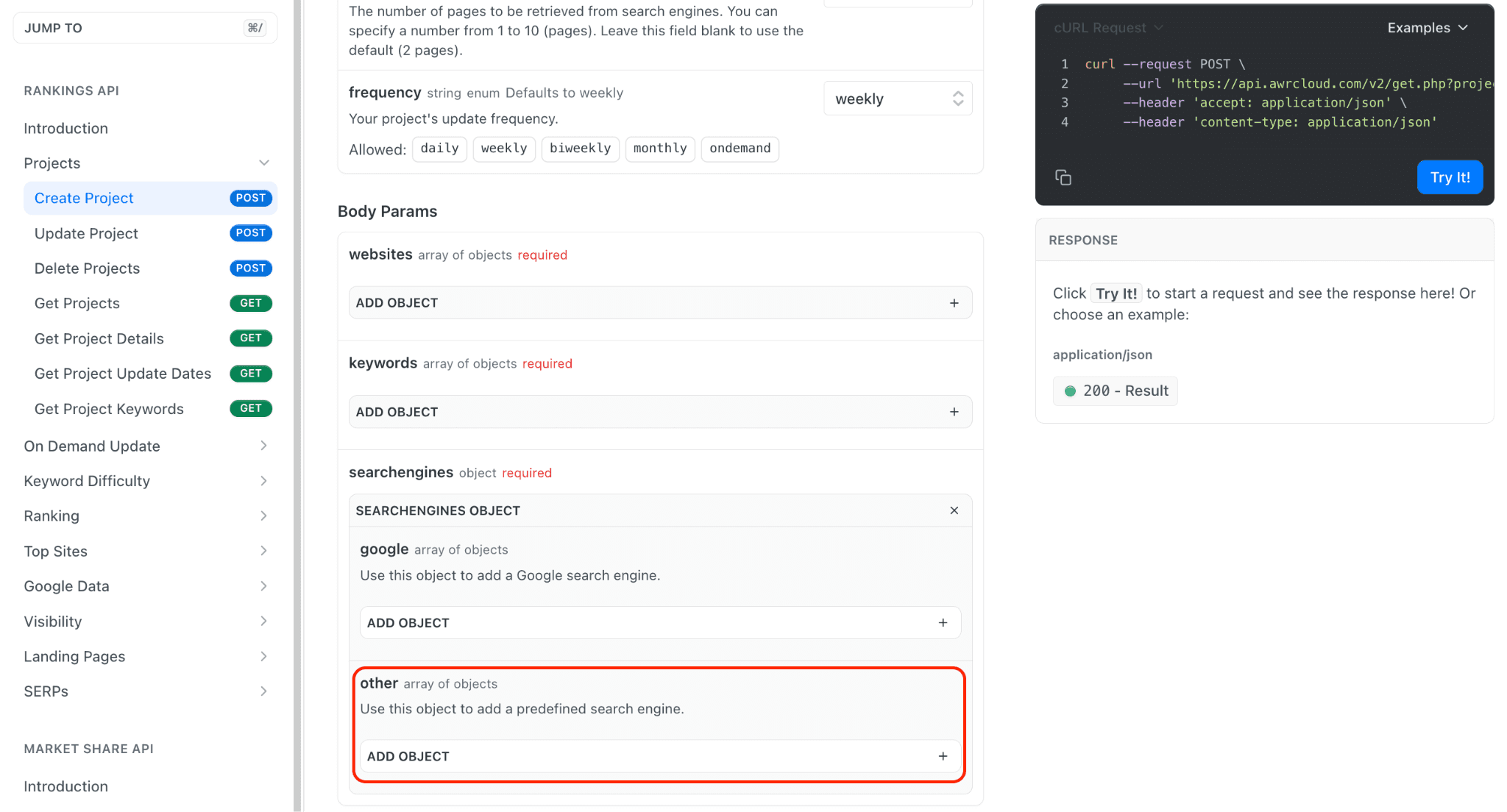
💡 The Developer API feature is accessible starting with the Agency monthly plans and all yearly subscriptions.
How to add Google AI engines when creating a new AWR project
Head over to the Create Project reference and fill in the required parameters.
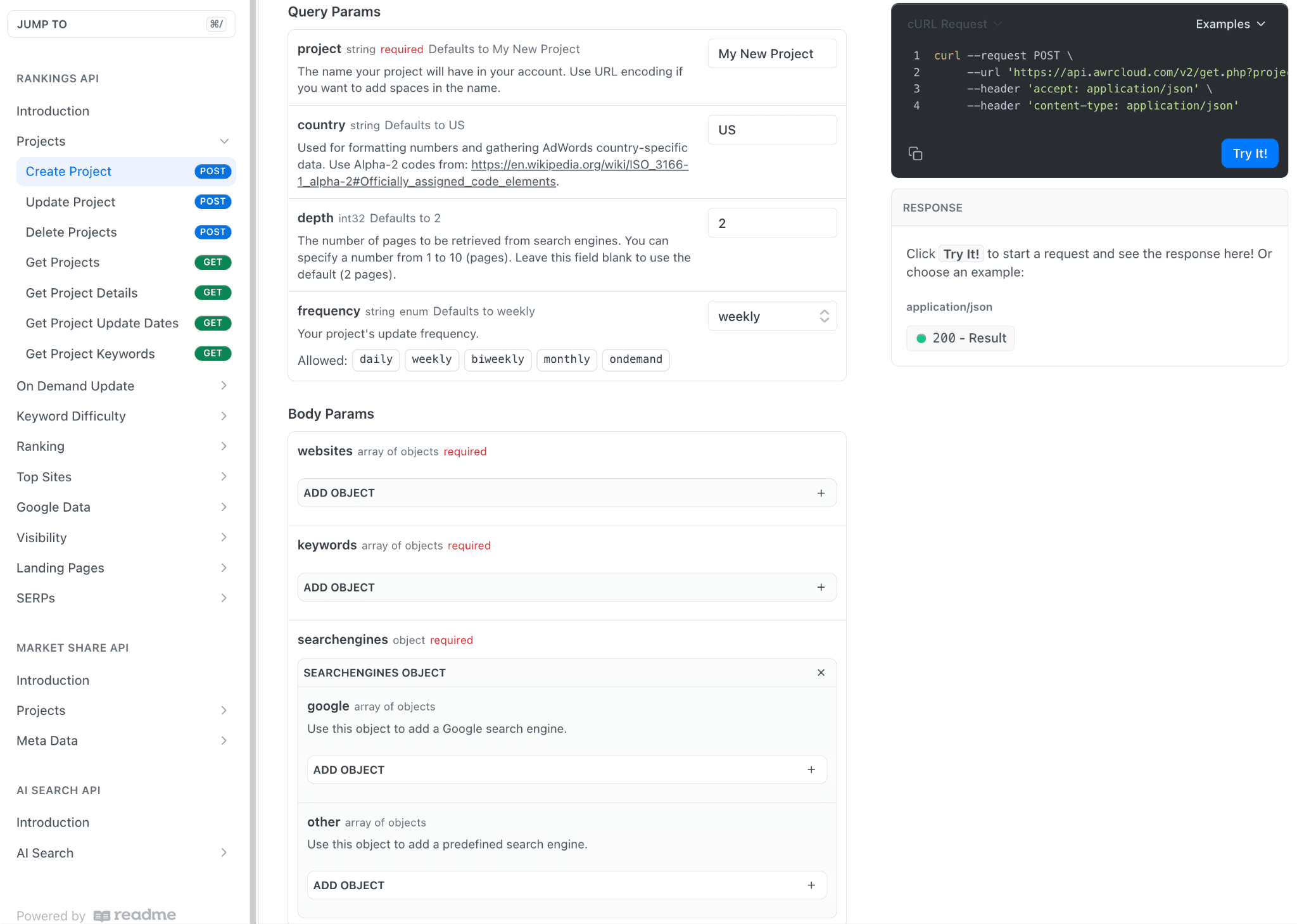
When you reach the searchengines object in the request body click on it, then expand google by clicking on the associated Add Object button. Each Google search engine you wish to add to your AWR project takes four fields:
name: currently onlyGoogleis supportedcountry: two-letter country code (for example,US,DE,FR). The full list is linked for reference.language: two-letter language code (for example,en,de). The full list is linked for reference.se_type: the search engine vertical. Allows you to select the Google search engine from which the ranking positions will be retrieved during the update. For more details, please check Which countries and search engines does Advanced Web Ranking cover? and Which AI Search Engines and Countries Are Supported in Advanced Web Ranking?
For AI-powered tracking, the values you'll want are:
desktop universal aio- Google Search + AIO on desktopdesktop ai mode- Google AI Mode on desktopmobile universal aio- Google Search + AIO on mobilemobile ai mode- Google AI Mode on mobile
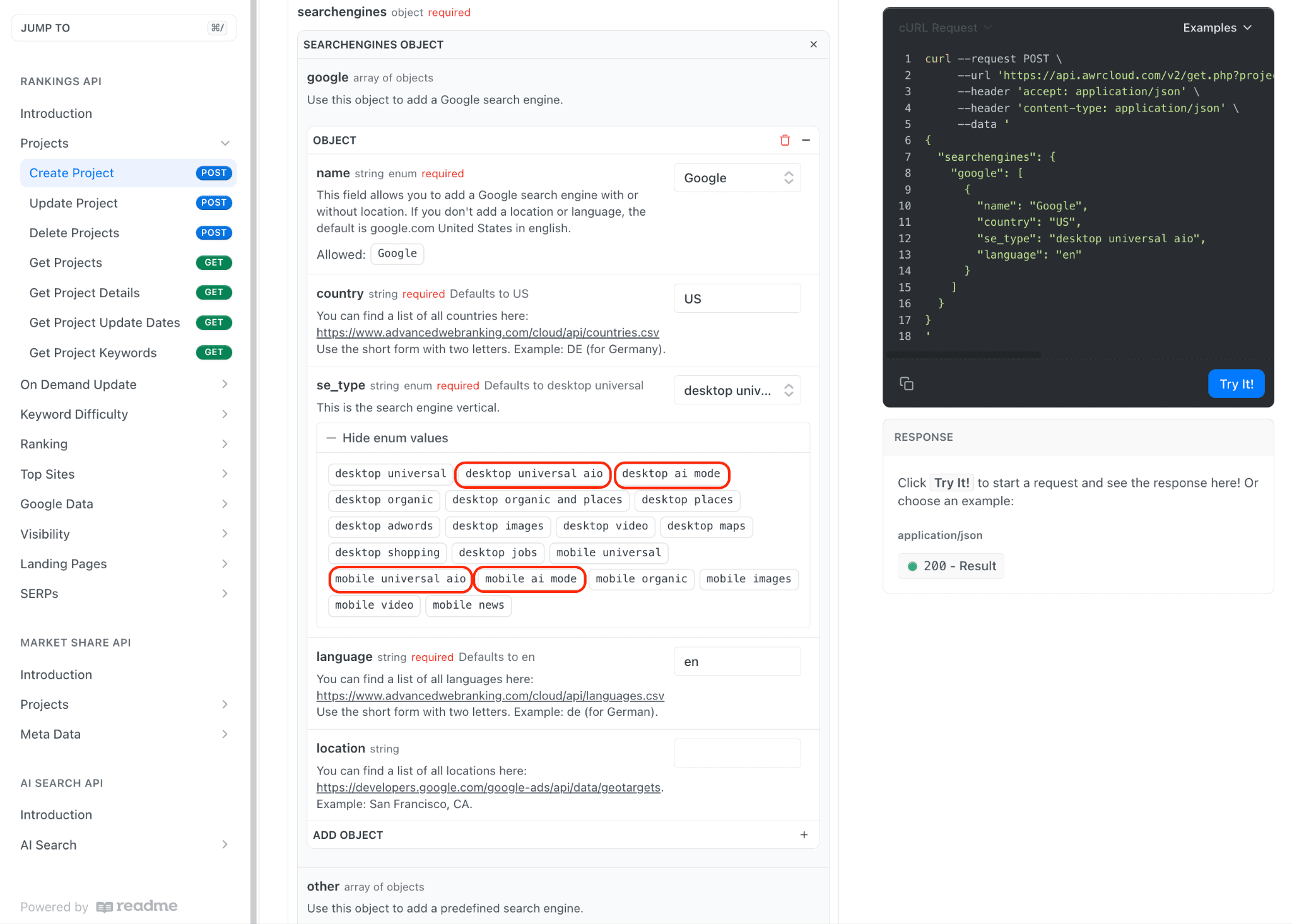
When you're done filling in the parameters, paste your API key in the Credentials field on the right and hit Try It!.
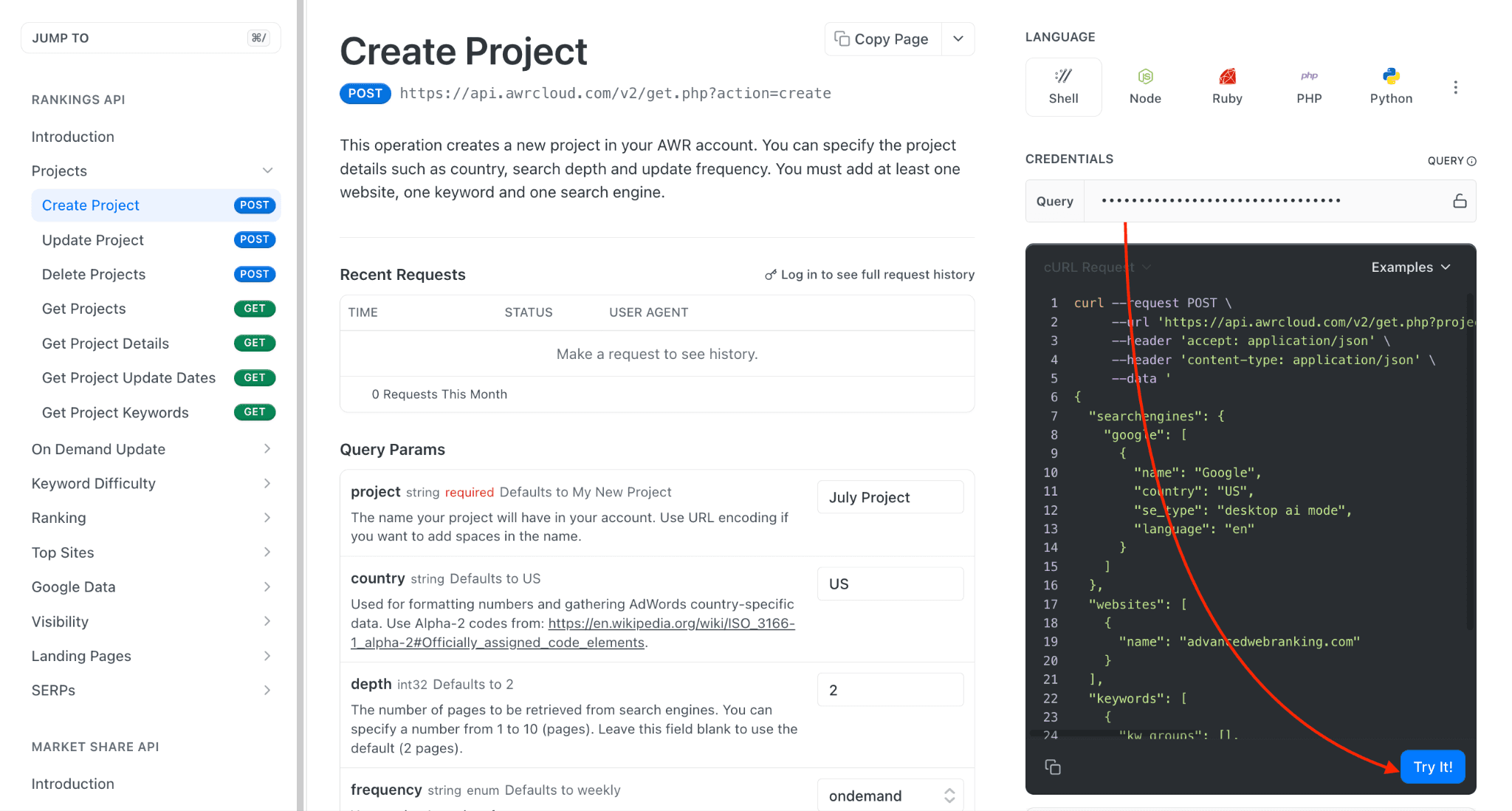
If the response comes back successfully, your project was created and you should be able to access it from your AWR account. If not, check the error message returned in the response, revise your parameters, and try again.
Alternatively, you can run the same call programmatically from your own environment. The top-right of the reference page shows ready-made code snippets in Shell, Node, Ruby, PHP, and Python. Copy the one that matches your setup and run it directly.
How to add non-Google AI engines when creating a new AWR project
Non-Google AI engines, such as Perplexity, ChatGPT, and Gemini go under the searchengines.other array. Each object takes a single field: awr_id.
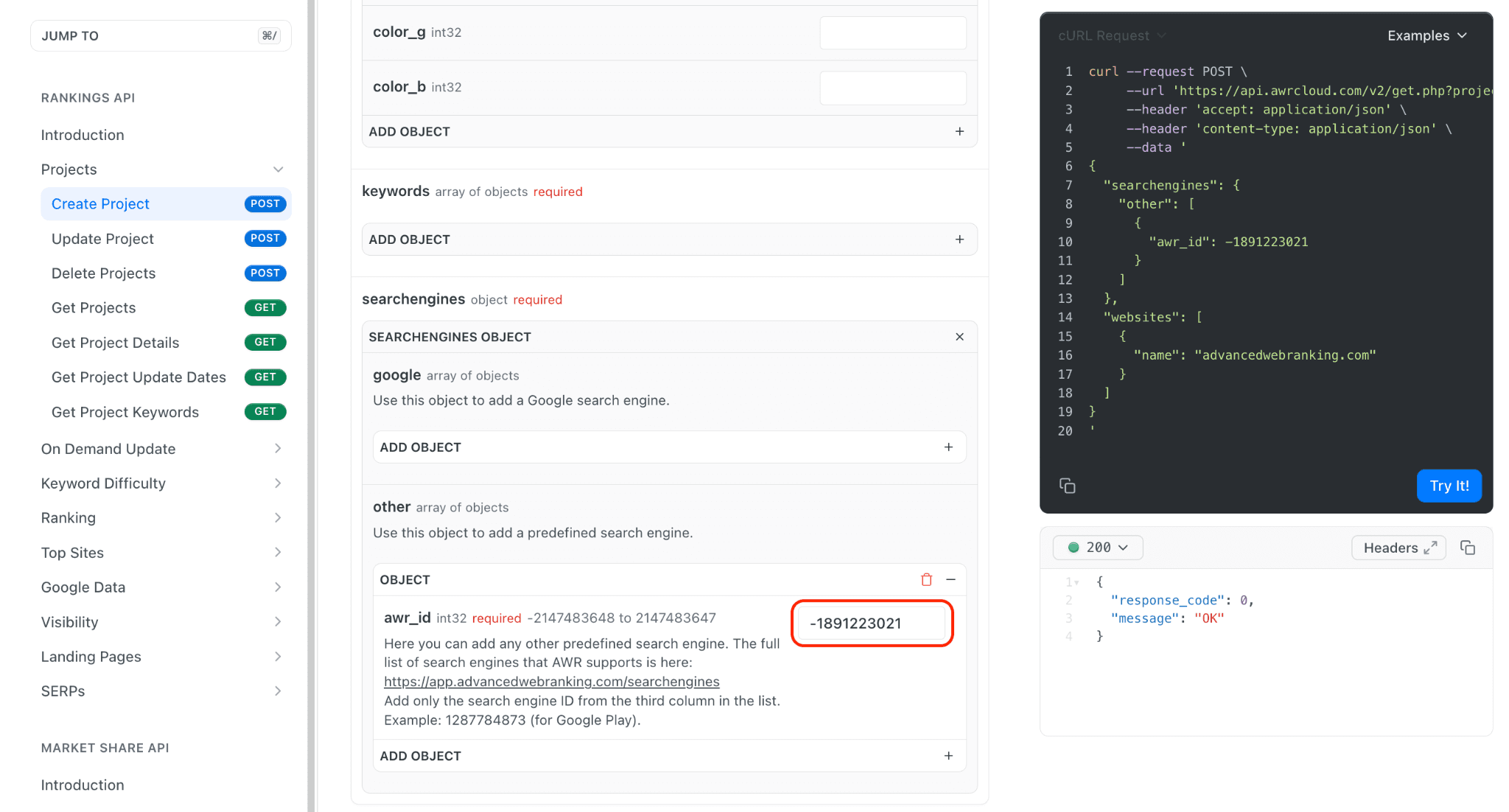
The awr_id field description includes a direct link to the full list of search engines AWR supports, grouped by country. Copy the ID from the third column of the row you need.
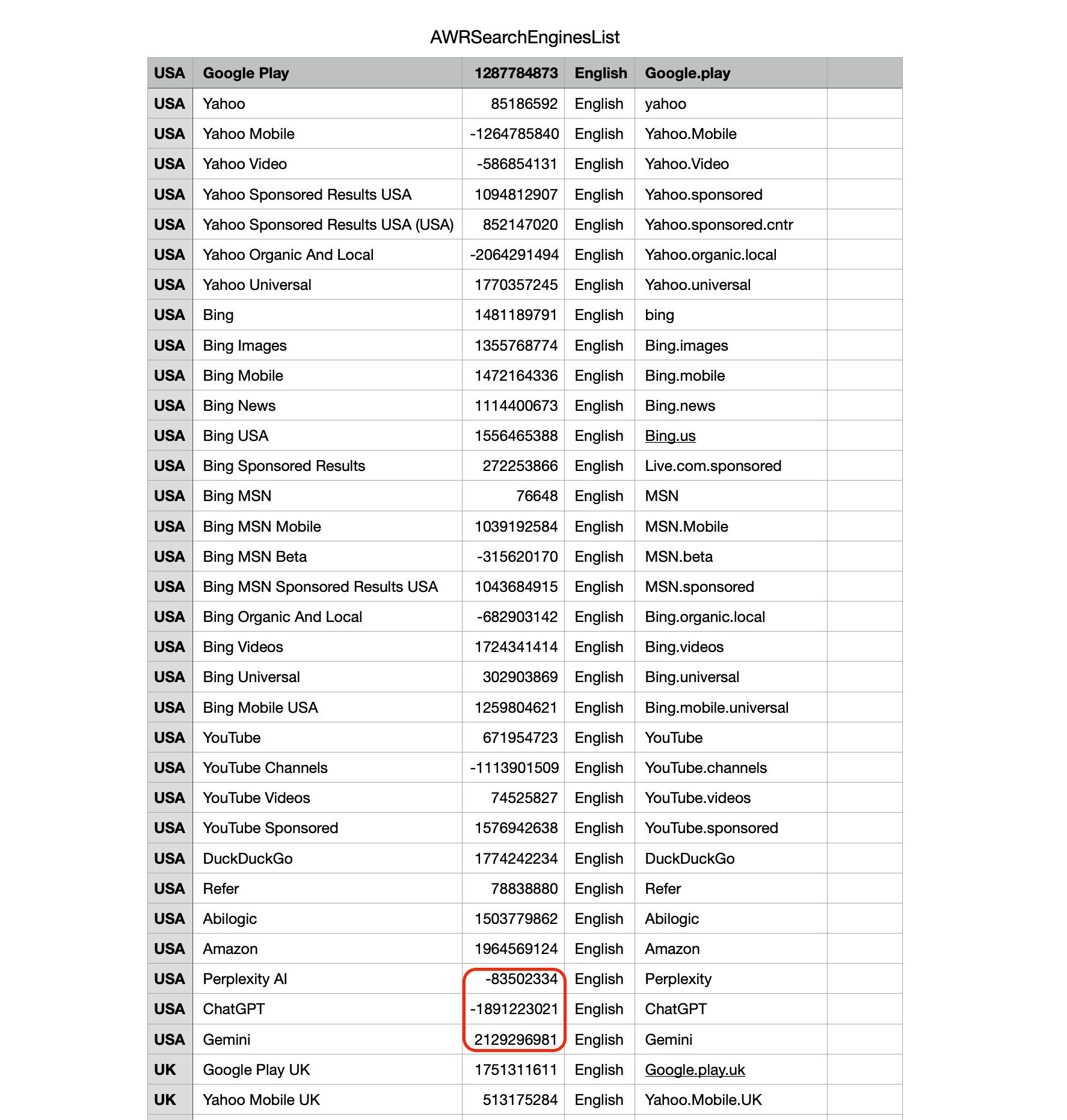
Some IDs are negative integers. Pass them as-is.
You can combine Google engines and non-Google engines in the same call by populating both searchengines.google and searchengines.other arrays.
The final step which creates the project applies also here: run the call using the Try It! button, or use one of the code snippets from the top-right of the page.
How to add AI engines to an existing AWR project
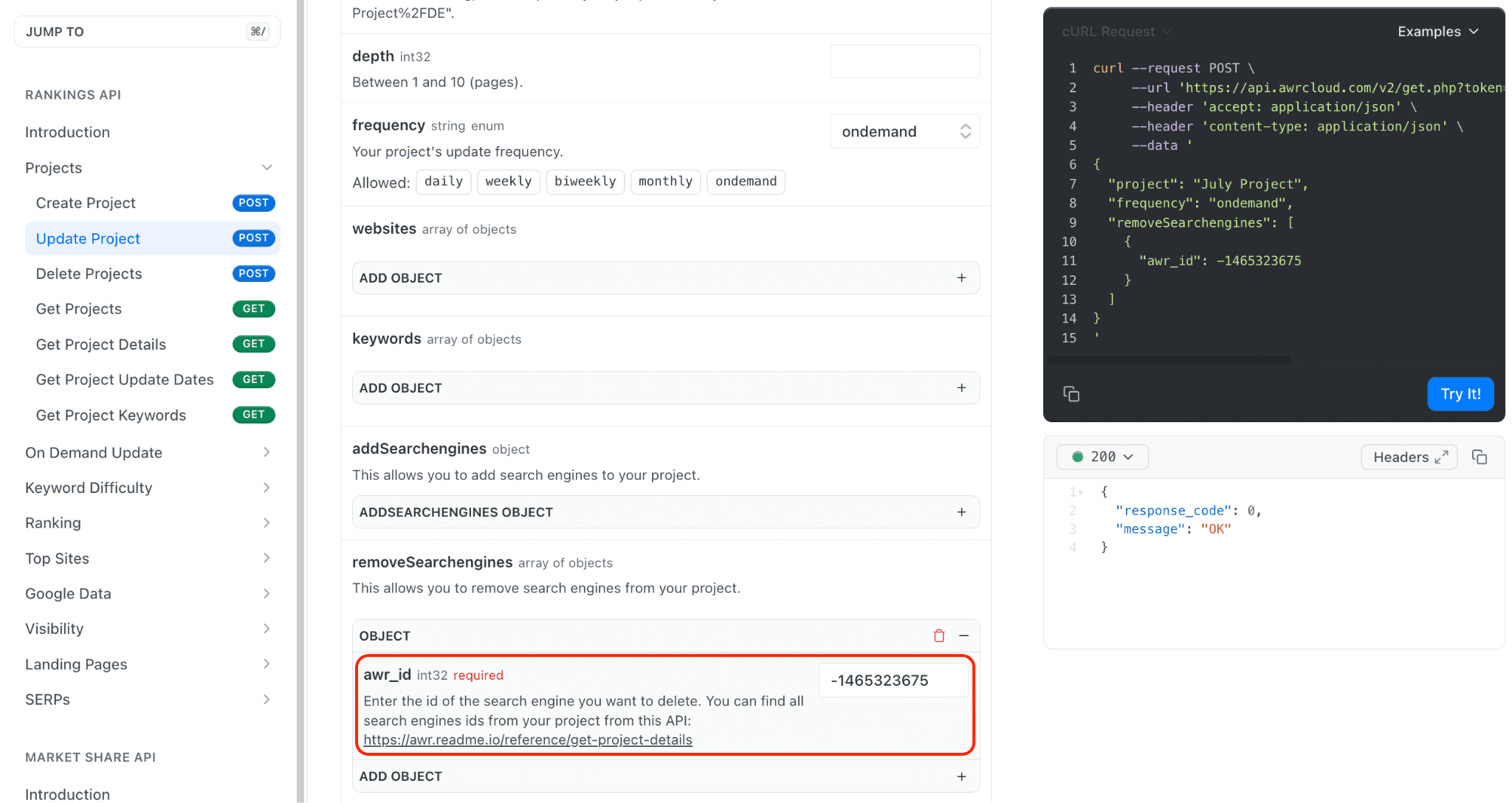
For projects that are already set up, use the Update Project API call instead. The flow is nearly identical, with one difference in the payload: engines go under the addSearchengines object, keeping the same split between google and other.
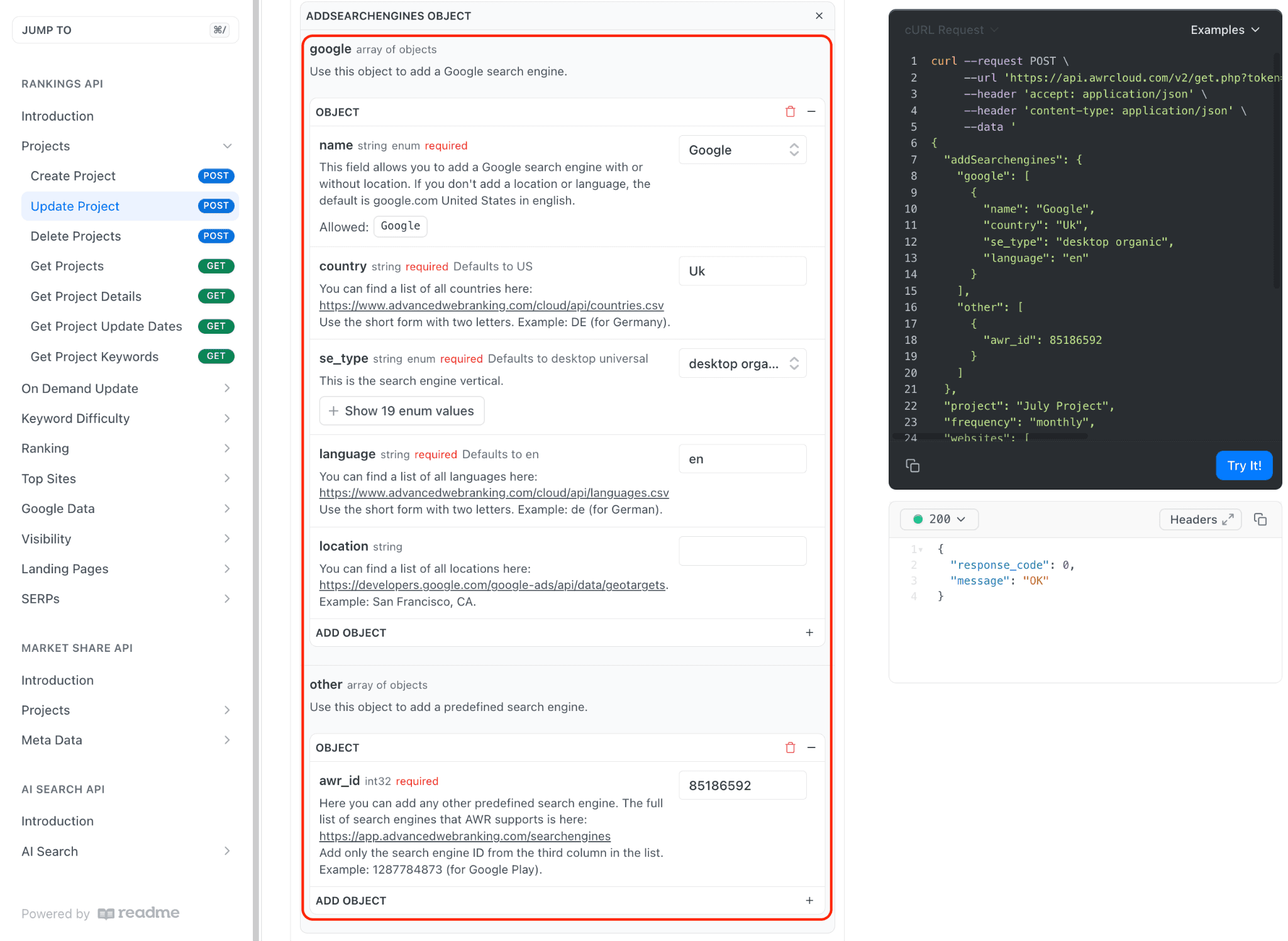
Same as with Create Project, the field descriptions link out to the country list, language list, and full search engine list. After completing all the fields, to have your project updated accordingly, run the call with Try It!, or copy one of the code snippets from the top-right of the page.
How to remove an AI search engine from an AWR project
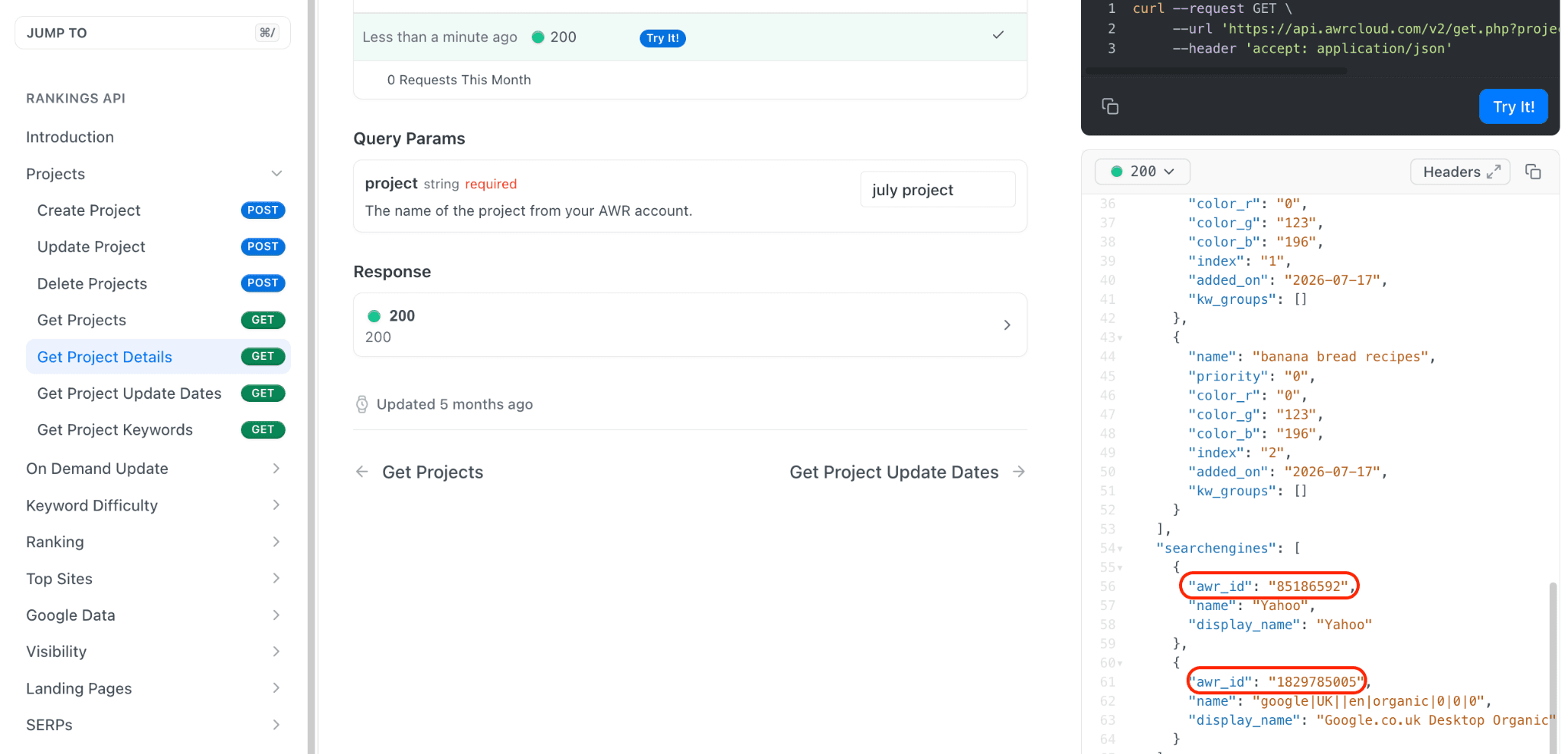
The Update Project endpoint also supports deletion of search engines through the removeSearchengines array. Each entry needs the awr_id of the engine you want to take out, whether it's a Google-native engine or a non-Google one.
To check the IDs of search engines tracked in a given AWR project, use the Get Project Details API call first. The response lists every active search engine along with its awr_id.
How to download AI response data at scale using async mode
The get-ai-responses endpoint returns the AI response snippets that AWR captures from AI Overviews and LLM engines like ChatGPT, Perplexity, and Gemini. It's a key API call for anyone doing AI visibility analysis at scale, but on large accounts with tens or hundreds of thousands of keys, a single request could take long enough to hit the timeout ceiling before the full response finished downloading.
To fix that, the endpoint now supports an asynchronous flow through the new mode parameter.
What asynchronous vs. synchronous means, and why it matters
By default, get-ai-responses works synchronously: you run the API call, the server keeps the connection open while it prepares the data, and you receive everything in the response. This works fine for smaller requests, but if the data set is large, the request can time out before it finishes.
The new asynchronous flow splits that single call in two:
First, you tell AWR to start preparing the export in the background. You get back a link you can use to grab the file once it's ready, without waiting for the data itself.
Later, you use that link to download the file.
Because you're not holding a connection open while the export is being prepared, there's no timeout to worry about.
The three modes of get-ai-responses API call
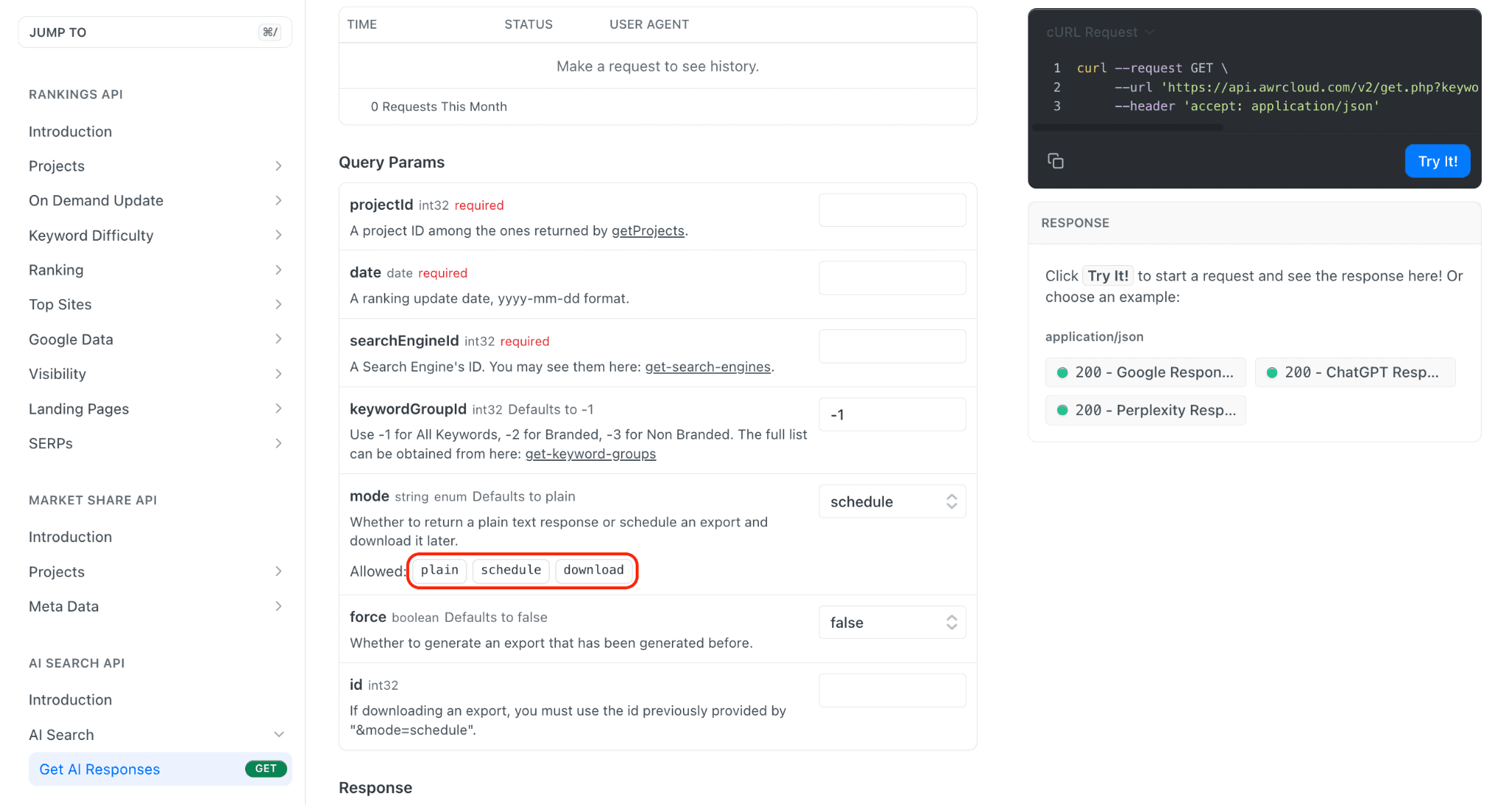
The get-ai-responses endpoint now accepts three values for the mode parameter:
plain (default): synchronous behavior, same as before. Returns the AI response data directly in the response, in JSON format. Existing integrations keep working without changes.
schedule: triggers an asynchronous export in the background. Returns a ready-to-use download link, without the data itself.
download: retrieves the export file prepared by a previous
schedulecall, using its export ID.
How to use the async flow: the simple way
Head over to the get-ai-responses reference and fill in the required parameters (projectId, date, searchEngineId, and any optional filters like keywordGroupId).
Set mode to schedule, paste your API key in the Credentials field on the right, and hit Try It!. The response returns a full download URL in the details field:
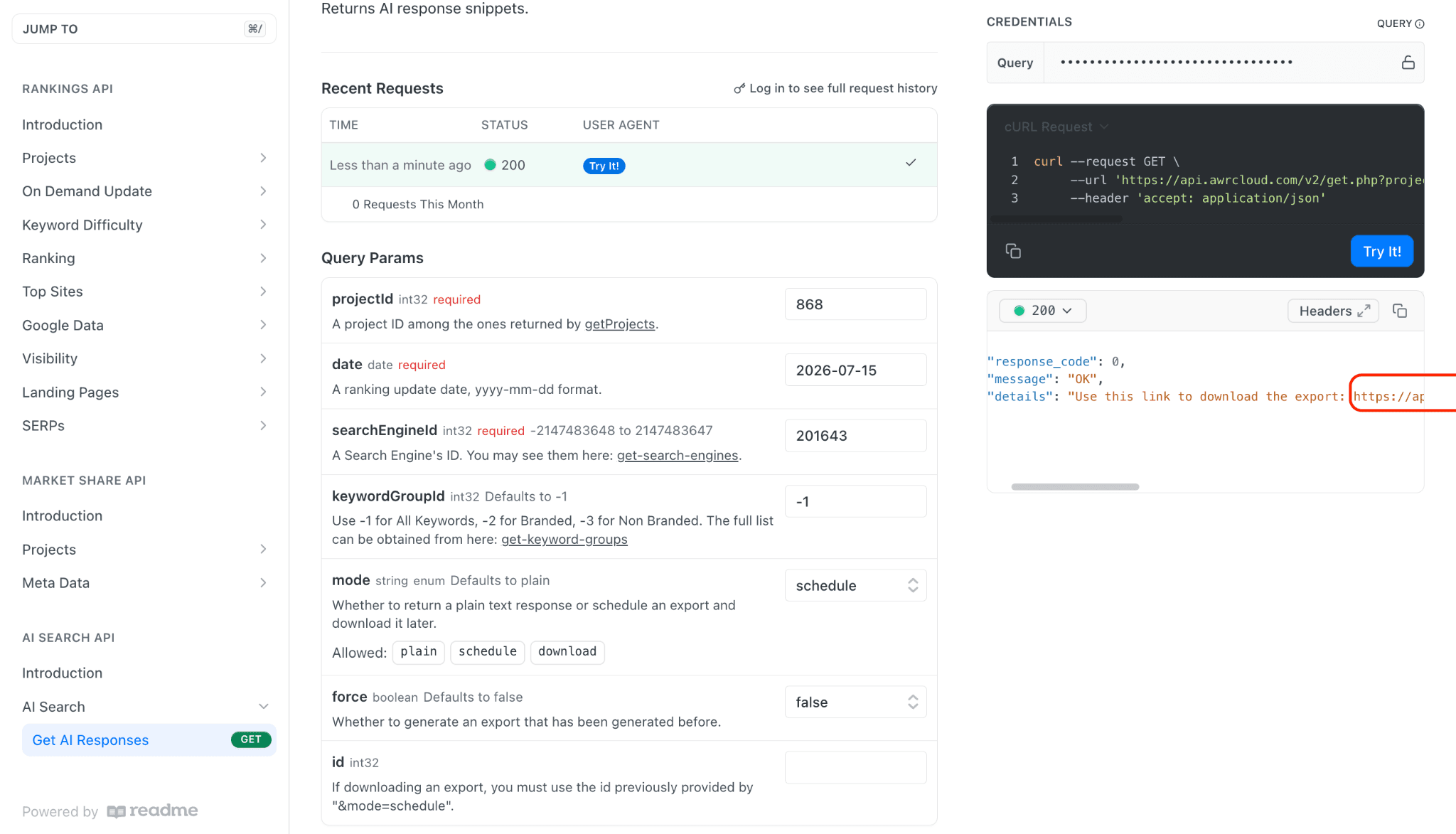
Paste that link into your browser and the export file will download automatically. That's it.
Because the download call returns a raw file, testing it directly from the reference page with Try It! will show unreadable binary characters in the response panel. That's expected, not an error.
How to use the async flow: the programmatic way
If you're building an automation and can't rely on manually clicking a link, split the flow into two calls:
Call
get-ai-responseswithmode=scheduleas described above. Instead of opening the link, extract theidvalue from the URL returned indetails.Call
get-ai-responsesagain, this time withmode=downloadand theidfrom Step 1. The response is the export file itself.
For actual programmatic access, use one of the code snippets in Shell, Node, Ruby, PHP, or Python from the top-right of the reference page.
How to regenerate an export
If you've already scheduled an export for a given combination of parameters and want a fresh version instead of returning the cached one, add force=true to the schedule call. This tells AWR to skip the existing export and prepare a new one from scratch.
By default, force is set to false, so repeat calls with the same parameters return the export you already scheduled.
💡 When to switch to async: If your current calls to get-ai-responses are running into timeouts, or if you're pulling AI response data for large keyword sets, use mode=schedule and download from the link it returns. The async flow bypasses the timeout ceiling entirely.
Do you have any further questions or need more information about these product updates? Don't hesitate to get in touch with our support team.
stay in the loop