

Advice and answers from the Advanced Web Ranking Team
Search for articles
How to connect n8n to your AWR data
Connect n8n to AWR’s MCP Server to query your SEO data with AI. Step-by-step setup, OAuth authentication, and workflow import guide.

This tutorial helps you create an n8n workflow that will connect to the AWR MCP Server and allow you to query your AWR data with the help of an AI model.
Requirements:
You need to have an AWR account.
You need to have an n8n account.
Initial setup
Download the example n8n workflow to your computer.
In your n8n account, click on Create Workflow.
From the … menu on the top right, select “Import from file…”
Choose the file you downloaded in step 1.
Your n8n workflow should now be created and all you need to do is authenticate with your AWR account.
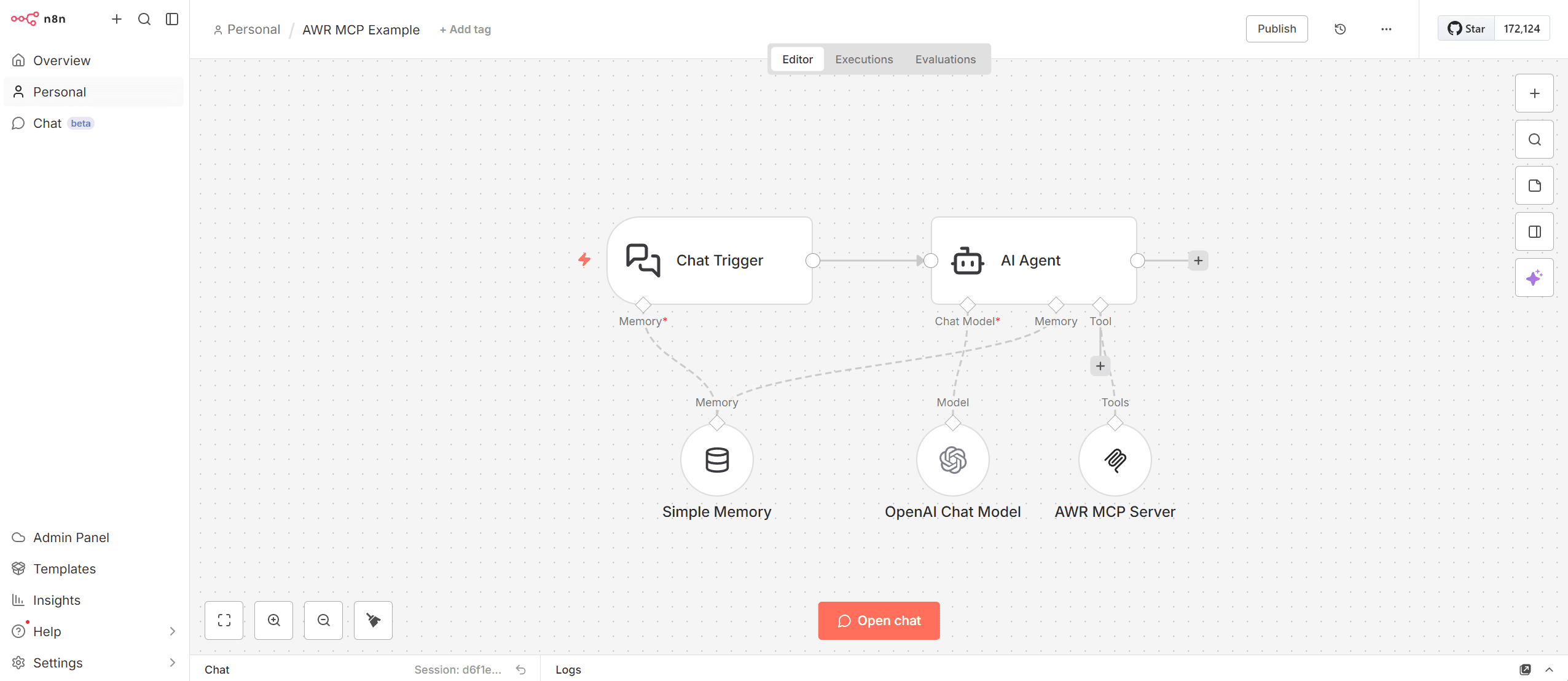
Authentication
Make sure you are logged in to your AWR account.
Double click on the AWR MCP Server node in the n8n workflow you just created.
Click on “Select Credential” in the Credential for MCP OAuth2 API dropdown.
Click on “+ Create new credential”. This will open a popup window.
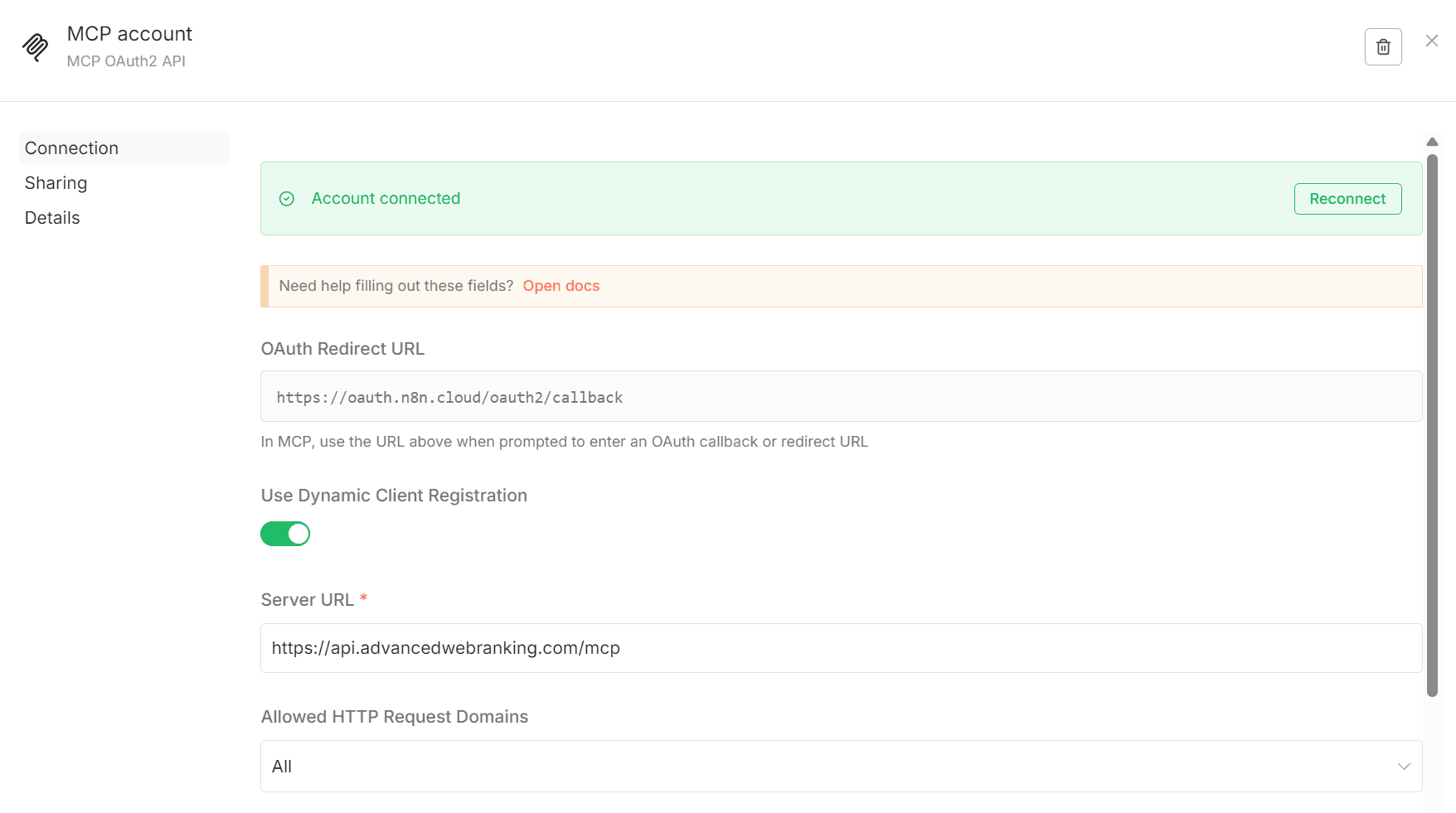
Add https://api.advancedwebranking.com/mcp in the Server URL field.
Click on the “Connect my account” button. Another popup will appear.
Click on “Allow” to allow n8n to read your AWR data.
Your MCP account poput should display “Account connected” in green. You can all the popup windows now.
Once you closed all the popup windows and you are back in the n8n Editor, you can click on the “Open chat” button and start your conversation with the AI about your AWR data.
Here are some examples of how to use the AWR MCP Server to get insights into your AWR data.
If you no longer wish give n8n access to your AWR data, you can always revoke its access from the Connectors & API settings in AWR.
stay in the loop