

Advice and answers from the Advanced Web Ranking Team
Search for articles
>
>
How to Identify Keywords That Trigger AI Overview Answers Using AWR
Learn which keywords trigger AI-generated answers to stay ahead in SEO, as Google’s AI Overviews reshape results, impacting traffic and visibility.

Understanding which keywords trigger AI-generated answers means realizing that SEO is no longer just about rankings, but about how your content is surfaced and presented in AI-driven results, where clear, helpful information can put your brand directly in front of users.
This article walks you through how to find those keywords using Advanced Web Ranking and how to interpret the data for actionable insights.
TL;DR: Identifying AIO-Triggering Keywords in AWR
AI Overview-triggering keywords are searches where Google shows an AI-generated summary, giving you a quick and easy overview of the topic right on the results page.
In AWR, you can identify these by filtering for the AI Overview SERP feature in the Keyword Ranking report, where you can also review search intent.
You can then use the AI Keyword Performance report to see whether your site or competitors are included, what keywords they appear for in AIOs, and how you can improve your chances of outperforming them.
From there, expand your research with the Keyword Research add-on, use the Keyword Gap report to uncover new opportunities and explore People Also Ask results to find new keyword ideas.
What Are AI Overview-triggering Keywords?
AI Overview-triggering keywords are searches that prompt Google to show an AI-generated summary directly within the SERP, giving users a quick and simple way to understand the topic at a glance, without having to click into multiple results.
These are usually:
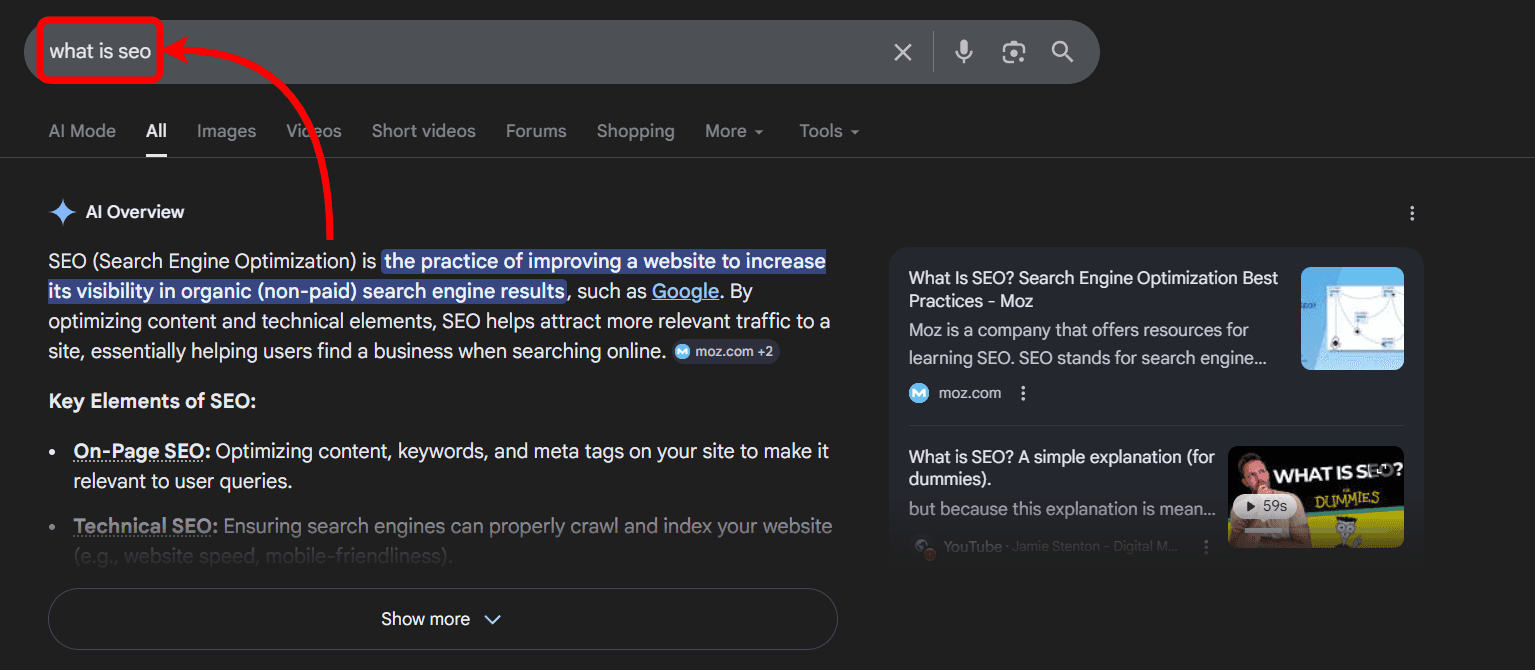
Questions or informational searches (e.g.: “what is seo”)
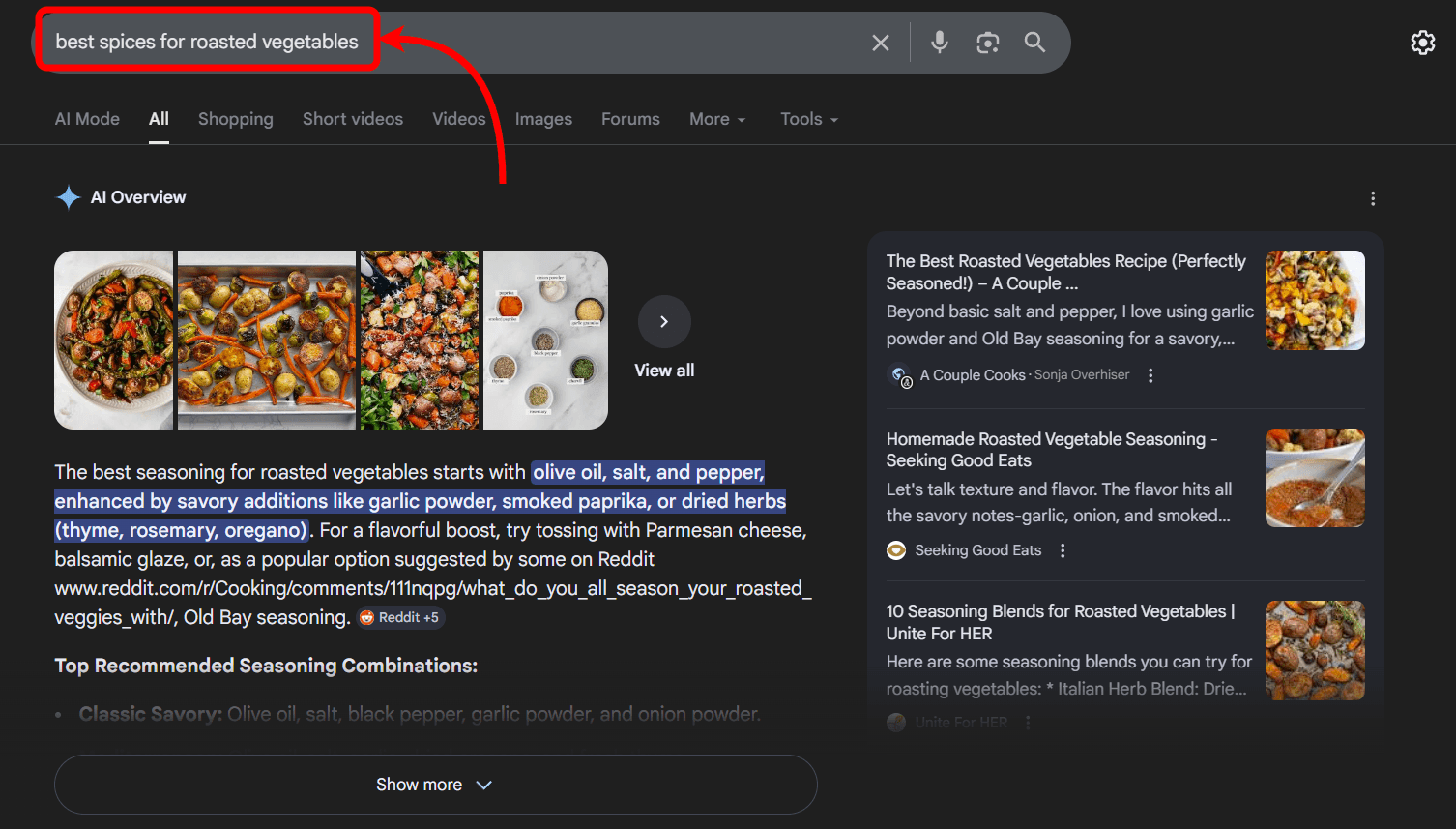
Longer, more specific phrases (e.g.: “best spices for roasted vegetables”)
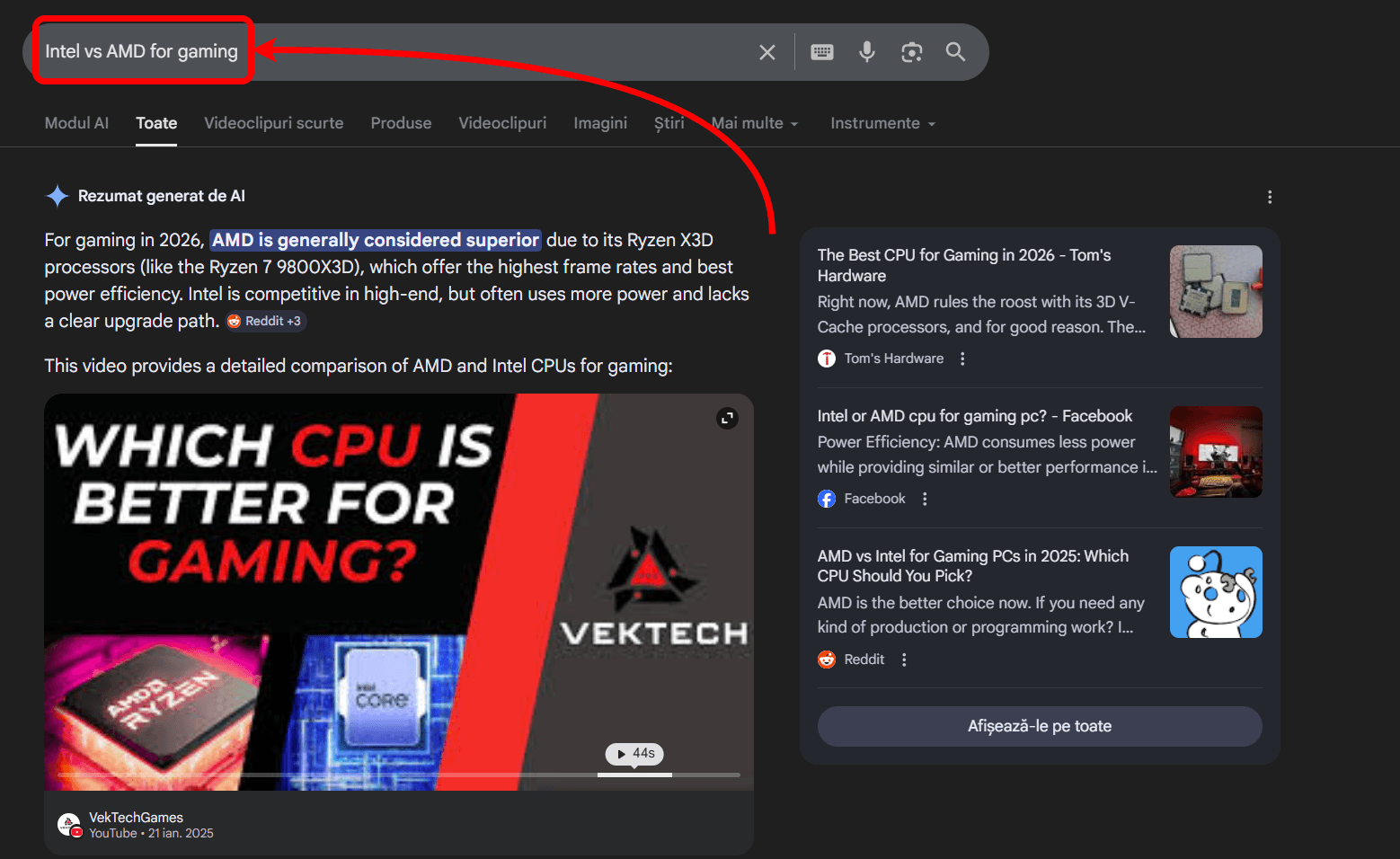
Queries looking for explanations, comparisons, or how-to answers (e.g.: “Intel vs AMD for gaming”)
AI Overviews combine information from multiple sources and present it as a single answer, often reducing traffic to traditional results.
Why Identifying These Keywords Matters
Tracking AIO-triggering keywords helps you:
Spot visibility changes: AI Overviews can push regular results down, affecting clicks and traffic.
Understand search intent: These queries show what kind of content Google prefers to summarize.
Optimize for visibility in AI results: It’s no longer just about ranking #1, but also showing up in AI-generated answers.
Get clearer performance insights: Comparing keywords with and without AI Overviews helps you better understand traffic changes and trends.
How to find keywords that trigger AI Overviews in AWR
AWR detects and reports AI Overviews in the Keyword Ranking report for the keywords in your project that trigger them within the SERP, helping you:
See when they appear in the SERP by looking for the AI Overview icon in the SERP Features column:
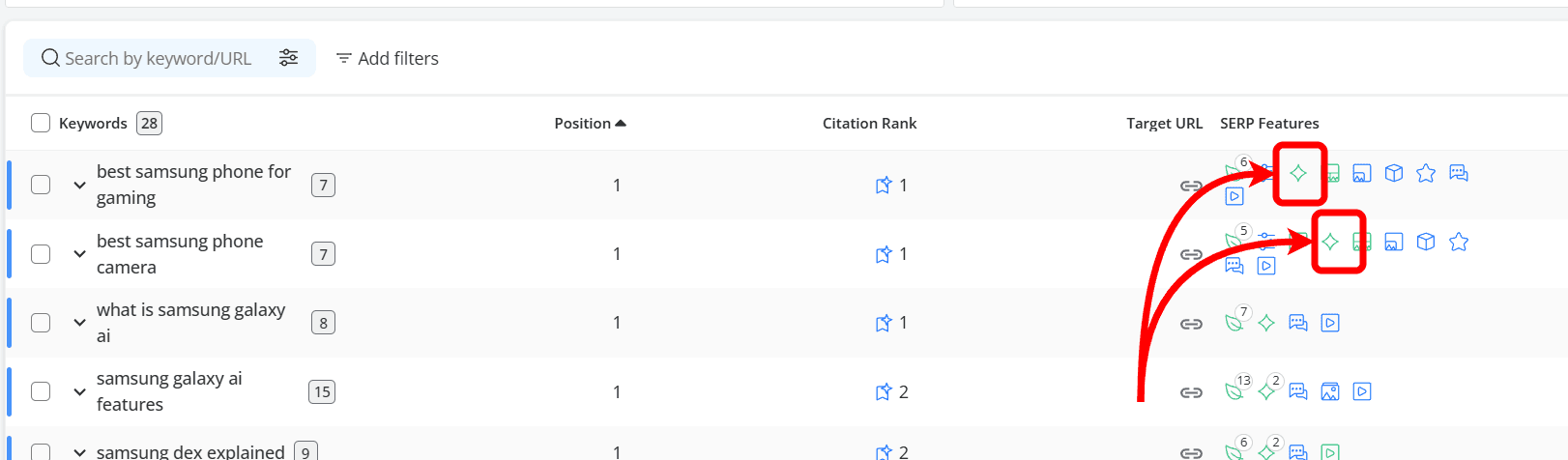
See if your site appears in the AI Overview, with green indicating it ranks:
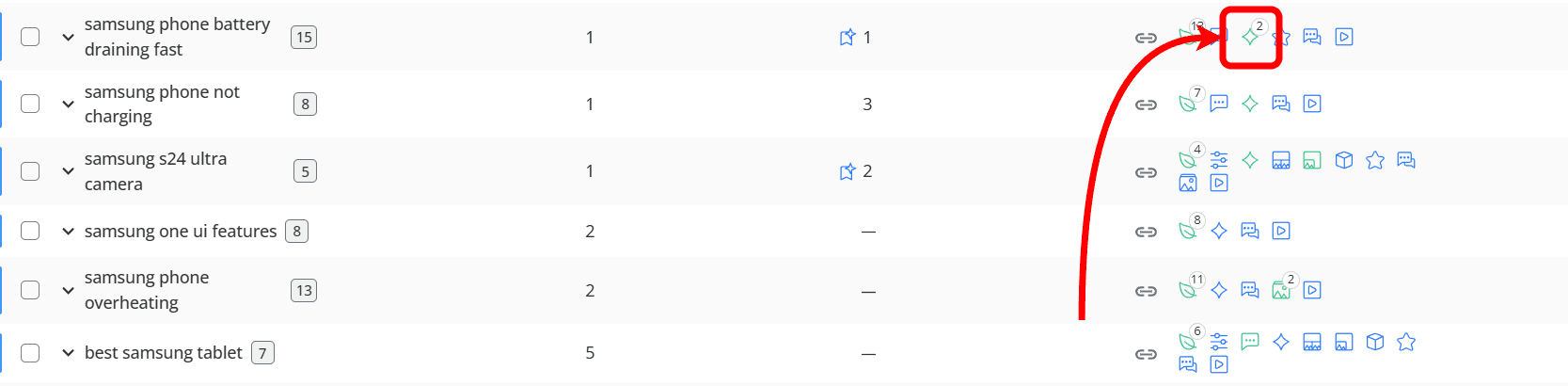
..and blue indicating it doesn't: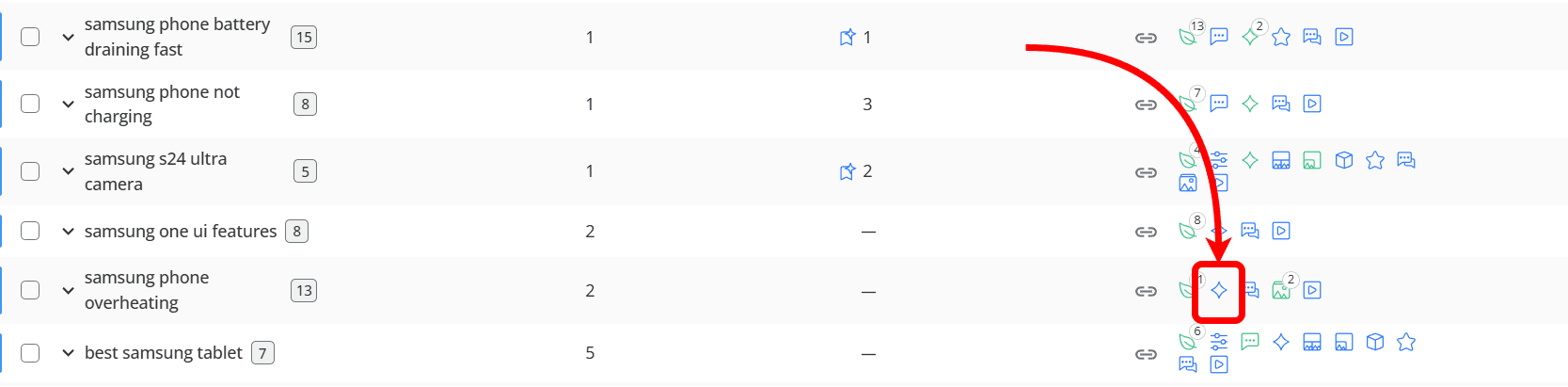
Find the keywords that trigger them by filtering for AI Overviews under SERP Features:
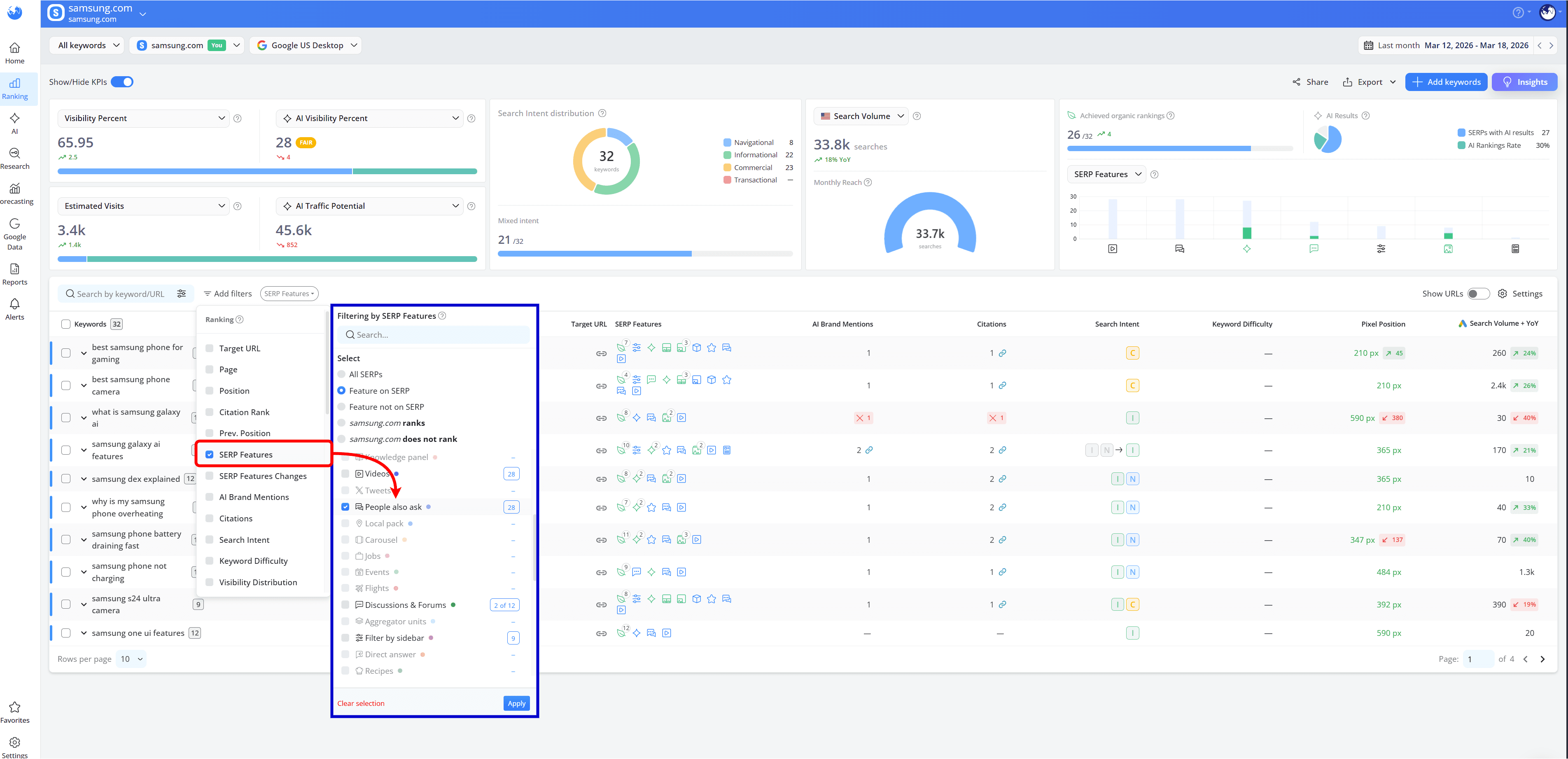
You can view the list of keywords where your website appears in AI Overviews by selecting the “[website name] ranks” option from the SERP Features filter dropdown:
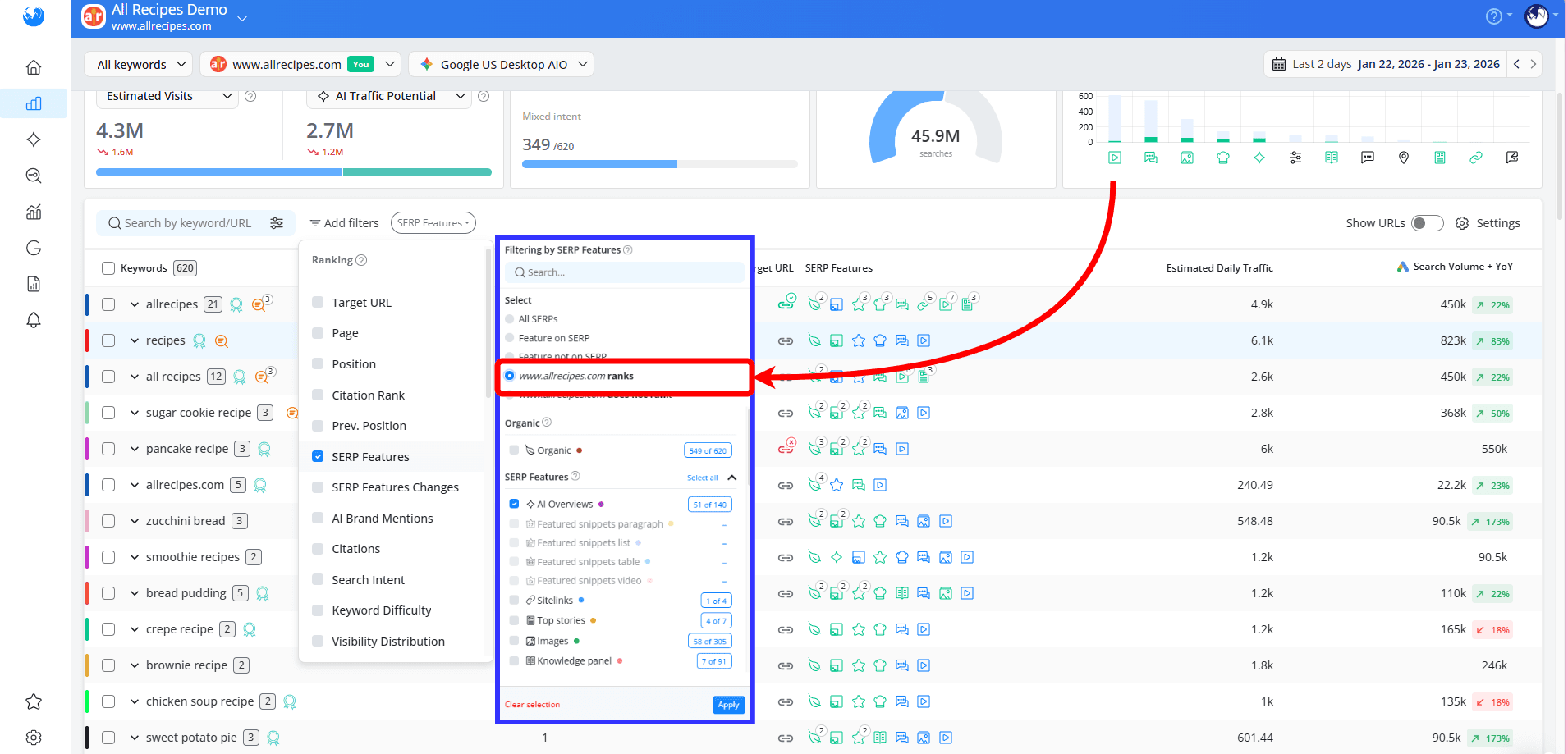
No need to dig around or guess; it’s all right there in your reports.
How to Spot Keywords That Trigger AI Overviews
AI Overviews don’t appear randomly; they tend to show up for specific types of queries. Here’s how you can use AWR to identify them:
Discover AI Overview-Triggering Keywords with the Keyword Research Add-on
The easiest way to expand beyond your current keyword list is to use the Keyword Research add-on. It helps you analyze all the keywords a domain ranks for, including ones you may not be tracking yet.
Enter your domain or a competitor’s, explore the full keyword list, and apply the SERP Features > AI Overviews filter to find queries that trigger AI-generated answers:
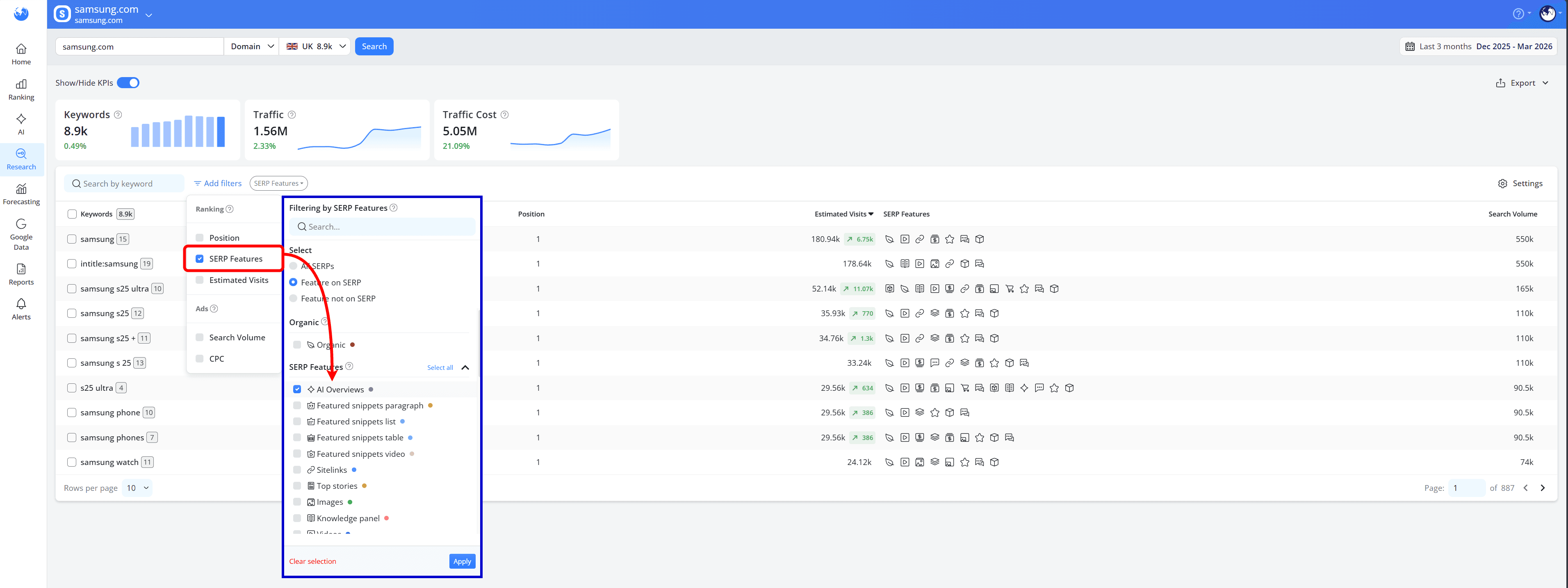
This helps you quickly discover new opportunities, spot where competitors appear in AIOs and build a more complete keyword strategy:
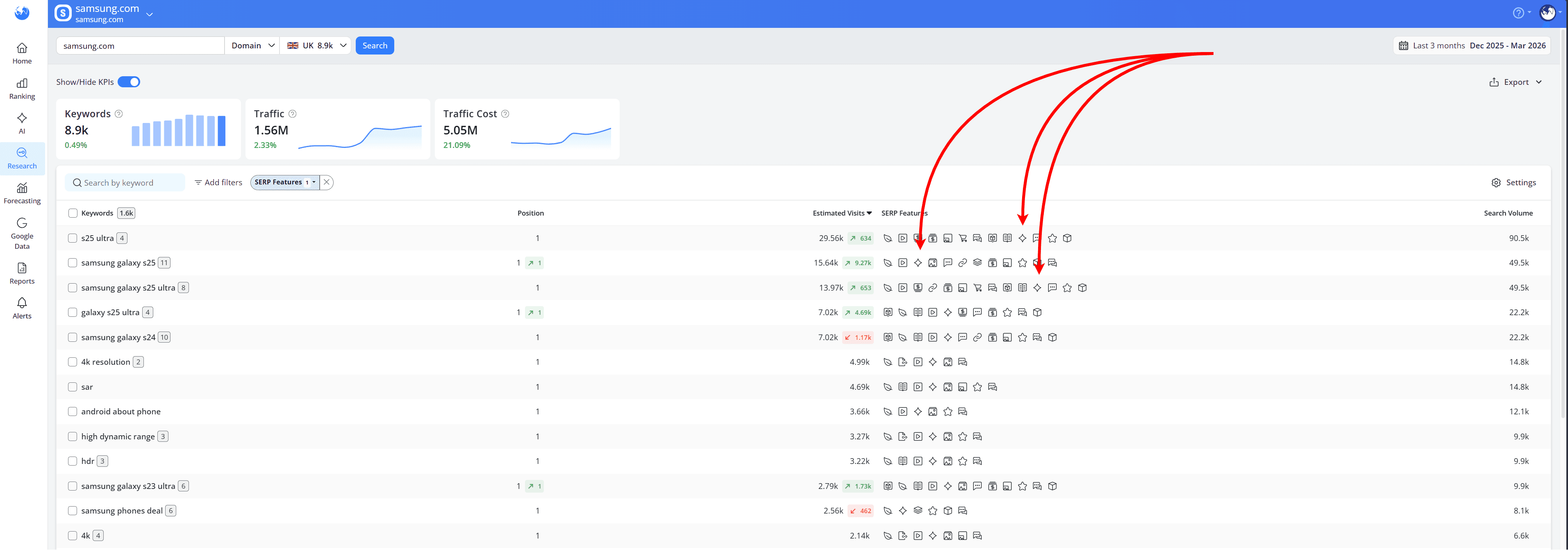
Keyword Research is available as an add-on across Pro, Agency, and Enterprise plans, and is included by default starting with Enterprise Plus plans and higher.
While only the account owner and admins can enable it, once activated, it becomes available to all users in the account.
Use competitors as a shortcut
Another quick way to find AIO-triggering keywords is to look at what your competitors already rank for. If they appear in AI Overviews, those keywords are already confirmed to trigger AI answers.
This is where the Keyword Gap report becomes useful. It lets you compare your website’s keyword profile with up to five competitors and identify whether they are present in AI Overviews.
You can explore this using these intersection tabs in the Keywords Table, which highlight the overlap between your keyword profile and your competitors’:
Absent: keywords where all selected competitors rank, but your website does not
Unexplored: keywords where at least one competitor ranks, but your website does not
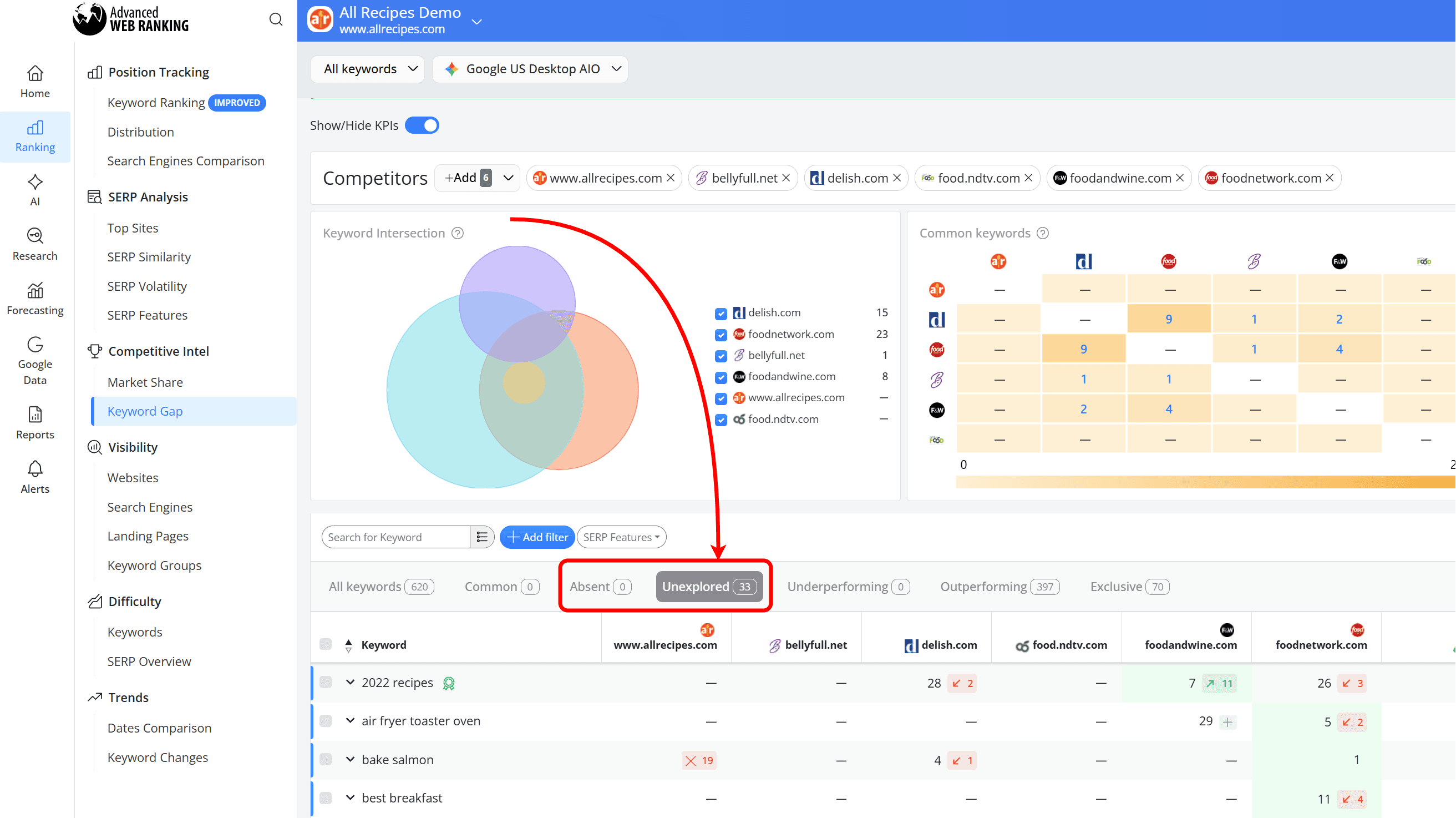
These sections highlight potential opportunities you may be missing.
From there, apply the SERP Features > AI Overviews filter to narrow the list down to keywords that both trigger AI Overviews and are already driving visibility for your competitors.
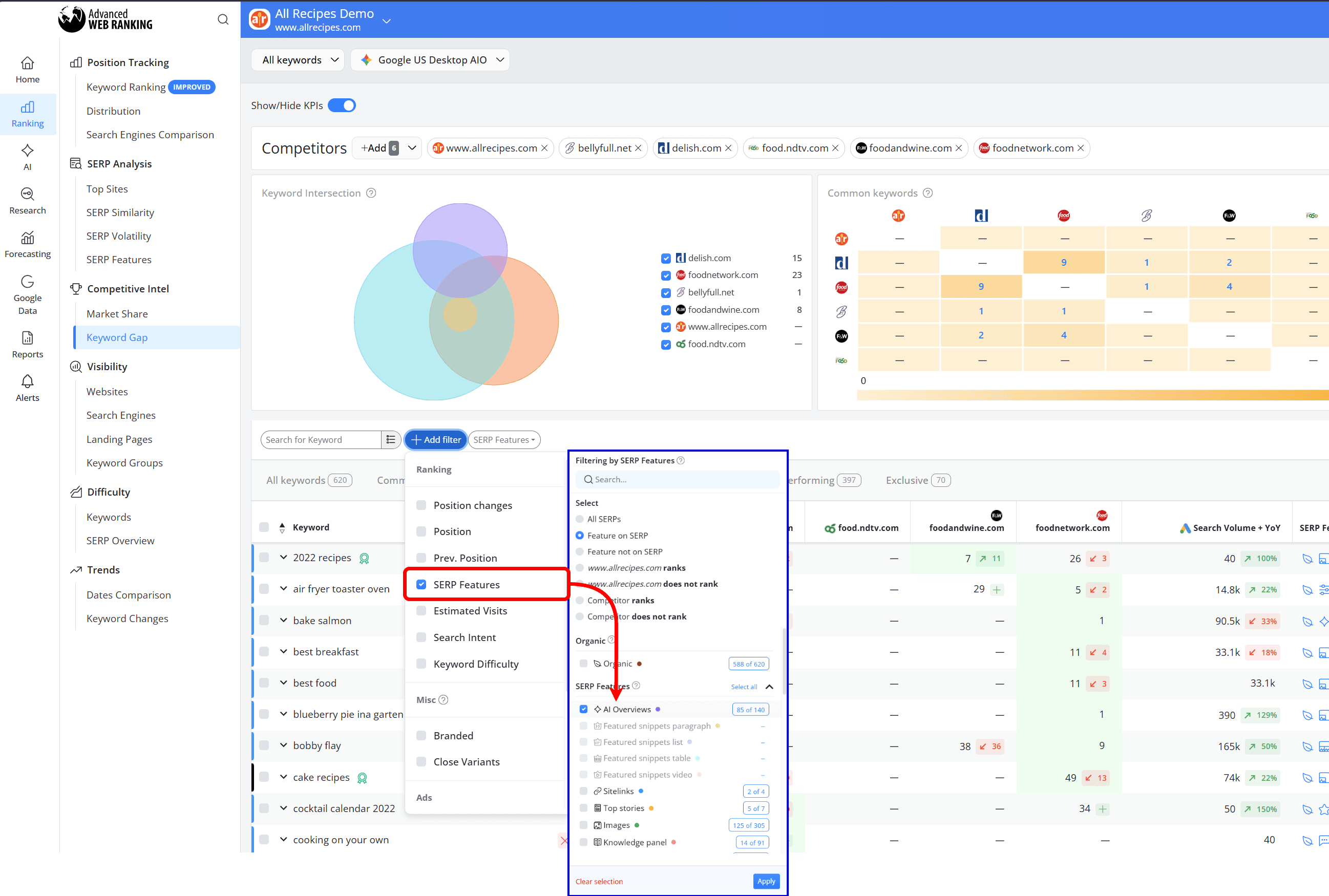
That way, you can take a closer look at how your competitors appear in AI Overviews for those keywords: what kind of content they use, how they structure their answers, and what you can improve so your website appears in the AIO instead of them.
Review Search Intent for Existing AI Overview Keywords
Review the keywords in your project that already trigger AI Overviews and look at the intent behind them. Most will be informational, often focused on explaining, comparing, or solving a specific problem:
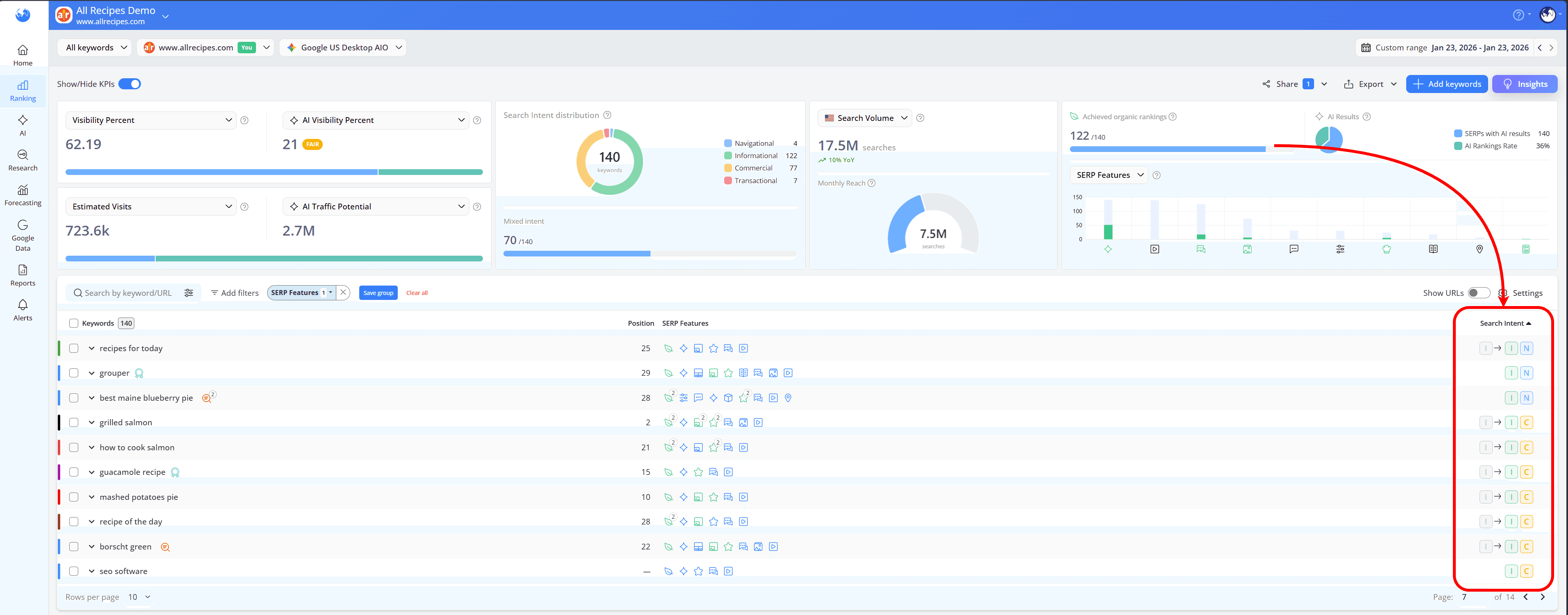
Pay attention to how these queries are phrased and what kind of answers they expect. This makes it easier to understand why they trigger AI Overviews and what type of content is more likely to be included.
You can also compare how your content answers these queries versus competitors that show up in the AIO. This helps you spot gaps; whether it’s clarity, structure, or missing information.
From there, you can improve your existing pages or create new content that better matches what users are looking for, increasing your chances of appearing in AI-generated answers.
Use People Also Ask for Additional Keyword Ideas
People Also Ask (PAA) questions are a useful way to find additional keywords related to AI Overview-triggering queries. They show how users actually phrase their questions and usually follow the same kind of intent.
You can use them to expand your keyword list, explore related topics, and get a clearer idea of what kind of answers people are looking for.
To do this in AWR, apply the SERP Features filter and select People also ask to see which keywords in your project trigger this type of result.
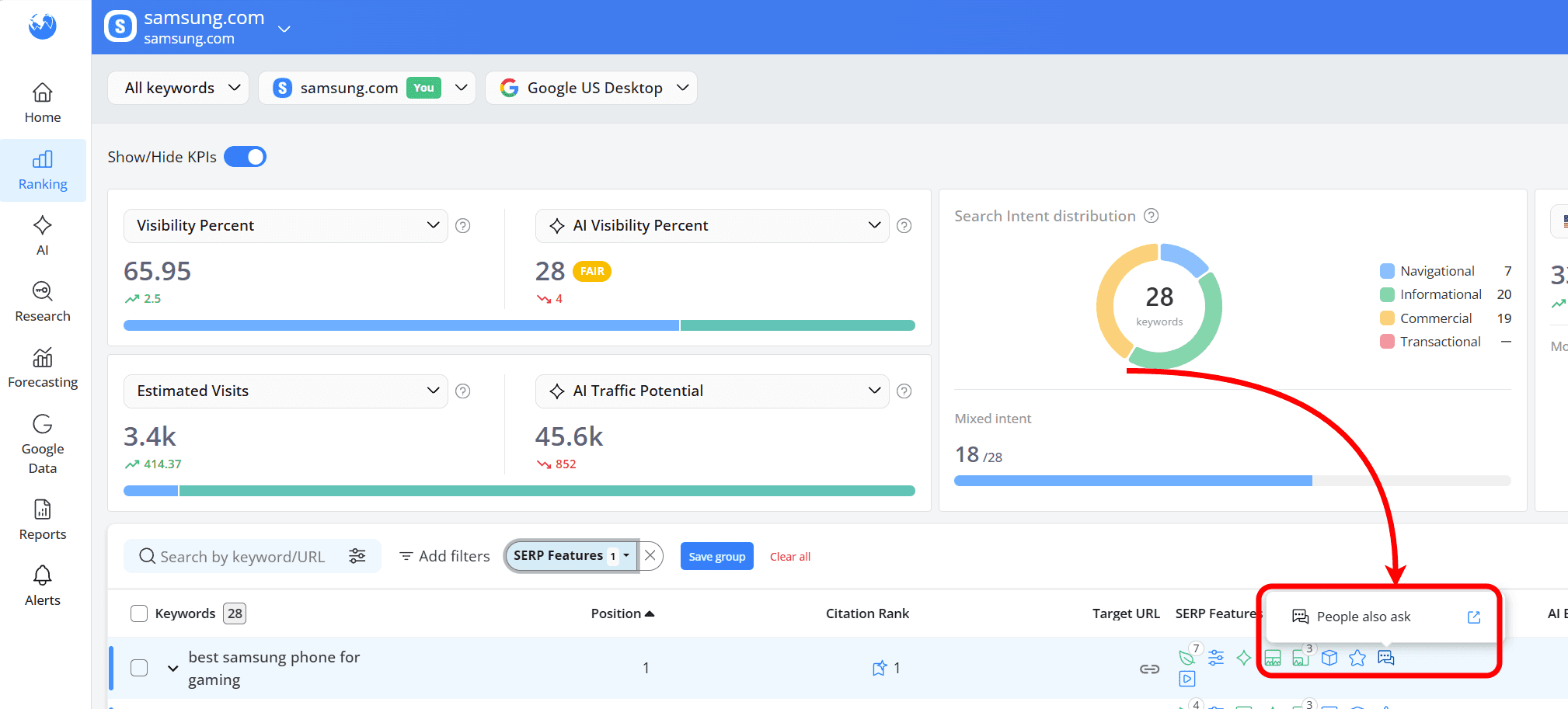
Then, click the PAA icon to open the SERP and view the actual questions Google shows for that query:
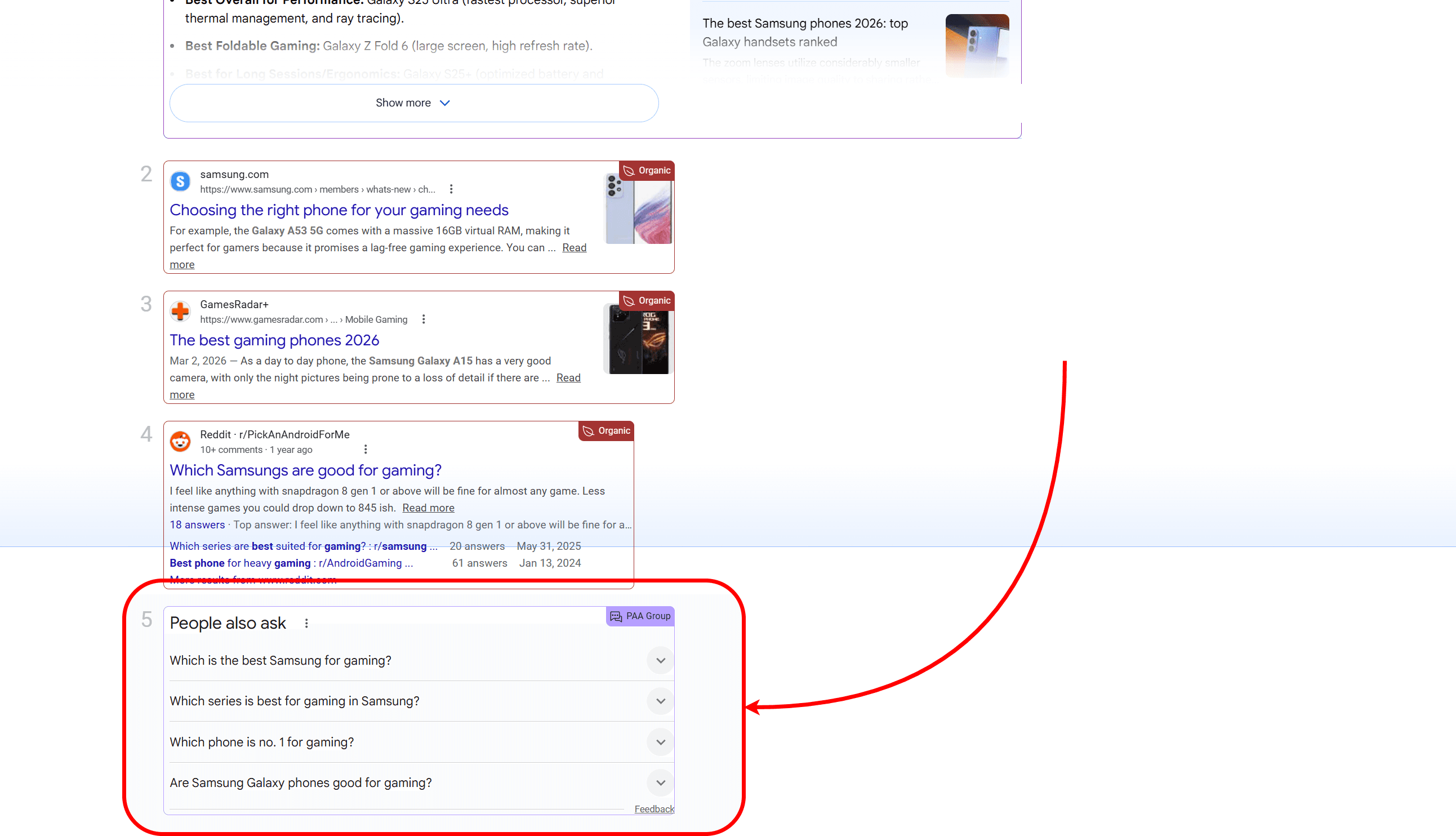
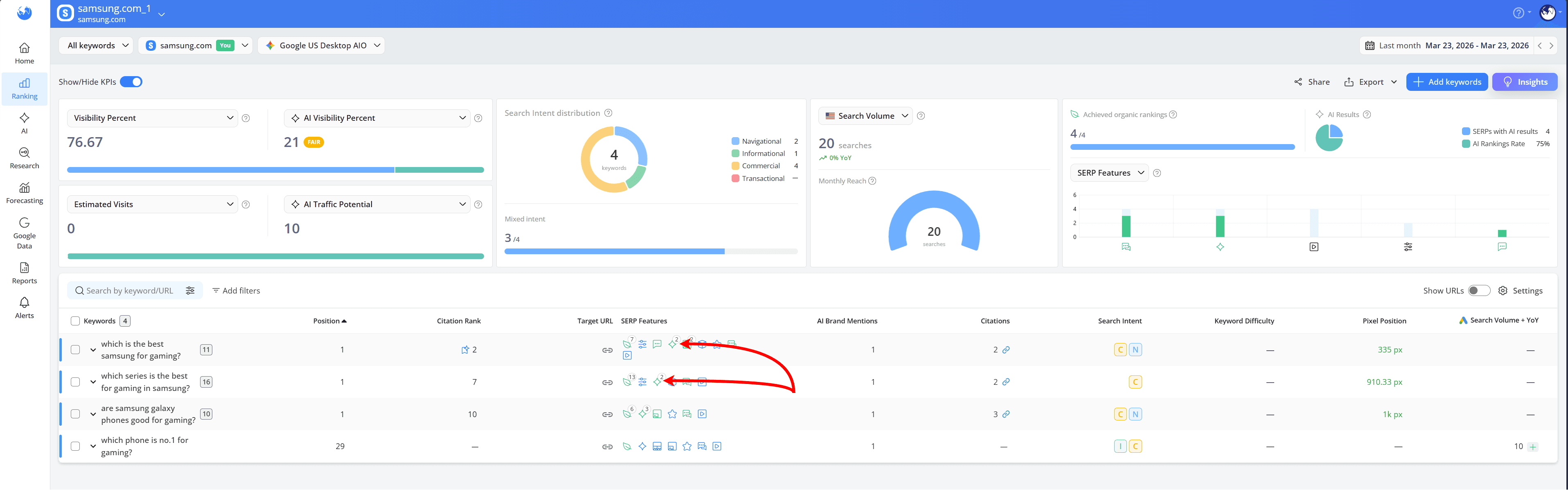
From there, you can add those questions to your project, track how they perform, and use them to structure your content more naturally.
Over time, PAA insights can help you spot new opportunities and create content that better matches queries that trigger AI Overviews.
How to Optimize Your Content to Appear in AI Overviews
Once you’ve identified the keywords that trigger AI Overviews in AWR, the next step is understanding why certain pages get picked and using those insights to improve your own content.
Look at how pages that appear in the AIO are structured: In AWR, you can see which competitors are included. Check whether they are being mentioned or cited, review their content, and notice how they format their answers and what sections they include.
For a more detailed view, the AI Keyword Performance report helps you go deeper by showing exactly which pages are cited in AI Overviews and how your visibility compares to competitors, making it easier to understand what works and where you can improve.
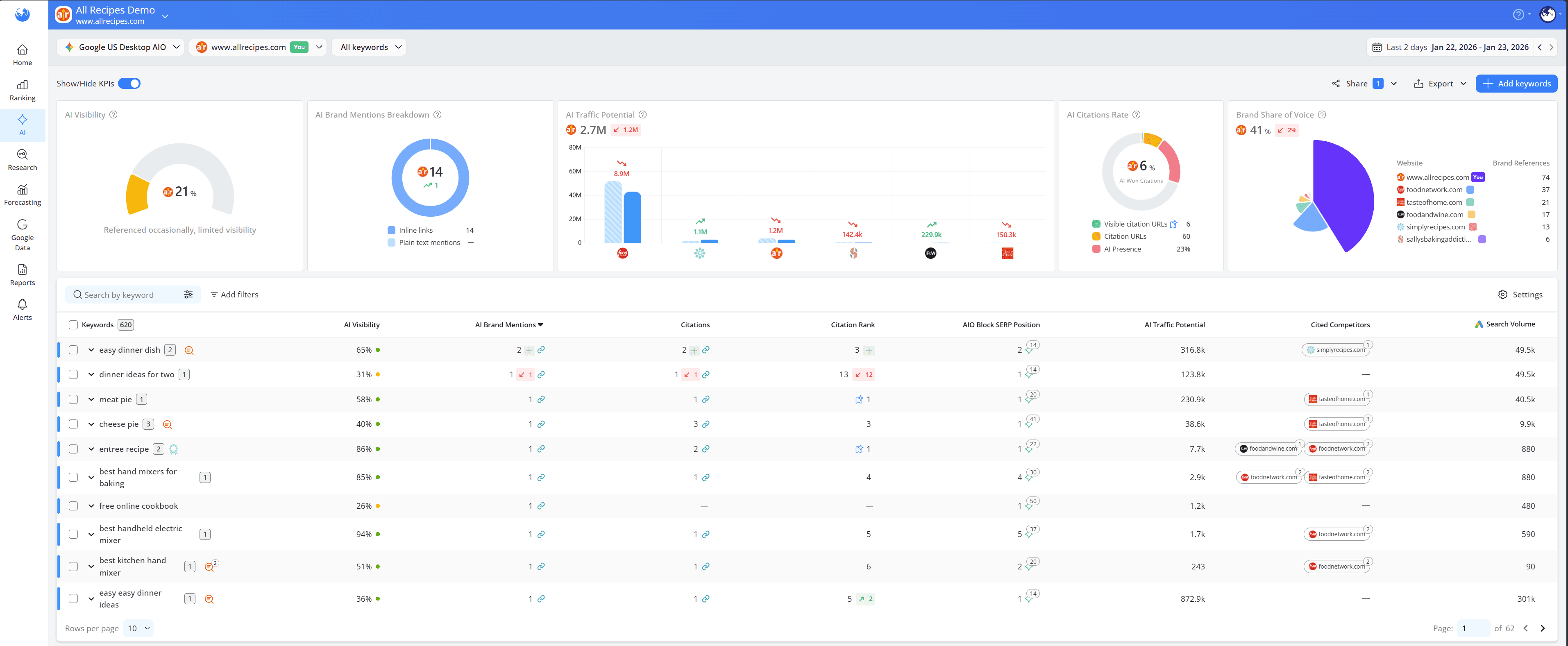
Want to learn how to get the most out of this report? Check out our detailed article here.
Align with the intent you’ve already identified: From your AWR data, you’ll already know what kind of queries trigger AIOs (informational, comparison, how-to). Make sure your content fully matches that intent.
Improve clarity and structure: If competitors are appearing in AIOs and you’re not, look for gaps. Your content might be less structured, less direct, or harder to extract answers from.
Expand around the topic: Use the keywords and variations you discovered in AWR to cover related questions and subtopics. This helps position your content as a more complete source.
Do you have any other questions? Don’t hesitate to get in touch and we will keep building the FAQ.
stay in the loop