

Advice and answers from the Advanced Web Ranking Team
Search for articles
Everything You Need to Know About Different Types of Ranking Updates
Find out how initial, scheduled, partial and on-demand ranking updates work in AWR and how to check their status.

Wondering whether your update actually finished or why a progress bar seems frozen? AWR runs multiple types of updates and each one shows its status a little differently. This article walks you through where to check on each one, so you always know what's happening with your data.
What this article covers:
In this article, you’ll learn:
How the initial ranking update works, how long it takes, why it may appear stuck, and how to tell when it’s finished
How scheduled updates work and where to check the last and next scheduled update for a project
The differences between partial, on demand, and scheduled on demand updates, and how to check the status of each
Initial ranking update
When you create a new project, you can choose whether to run an initial ranking update to collect the first set of ranking data for your keywords.
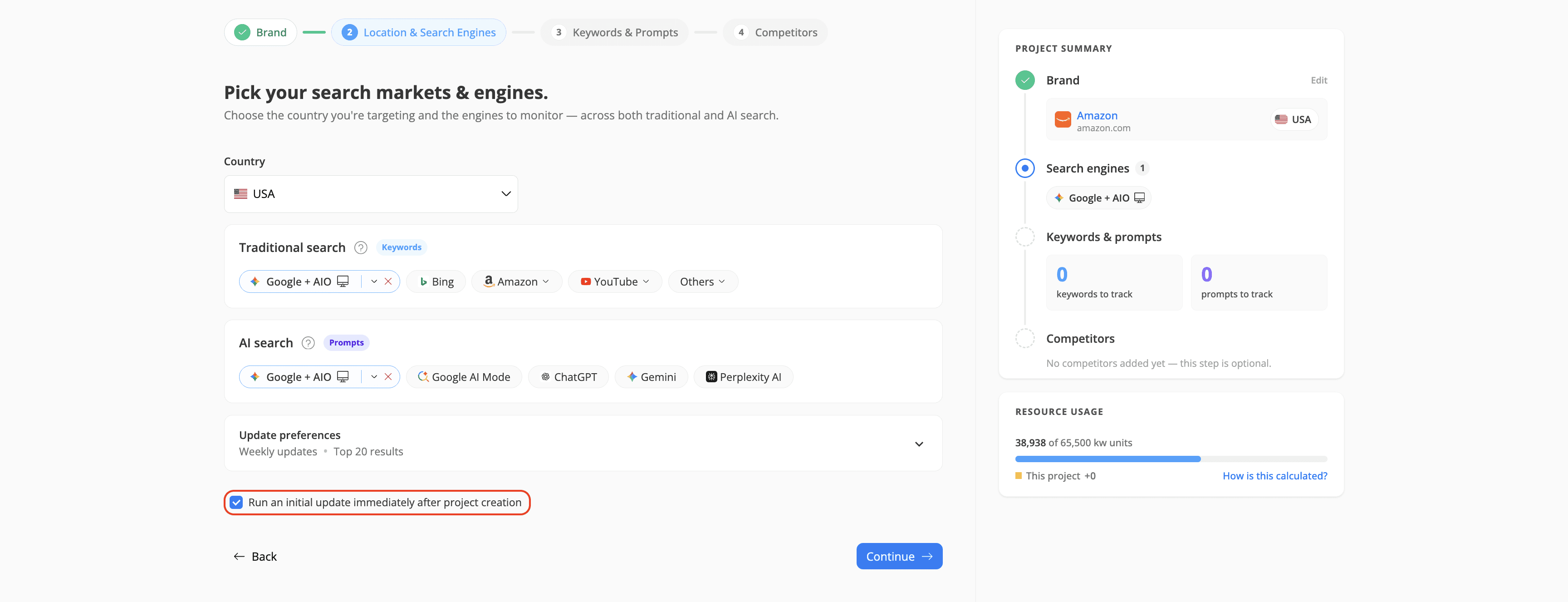
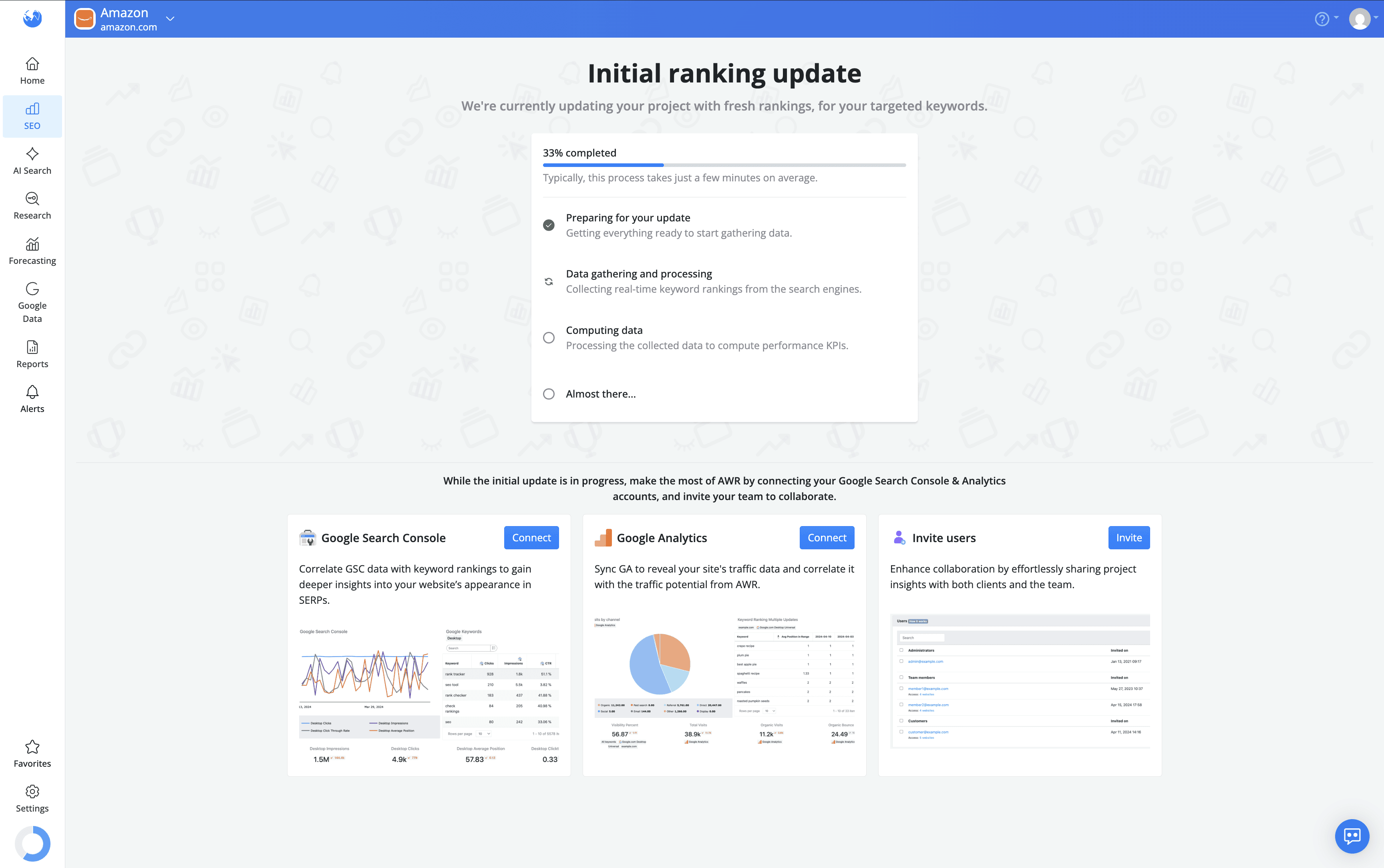
If you choose to run it, the initial ranking update wizard displays a clear progress bar, guiding you from 0% to 100% completion.
If you choose not to run the initial update, your first ranking update will run on your first scheduled update, if you have scheduled ranking updates set up.
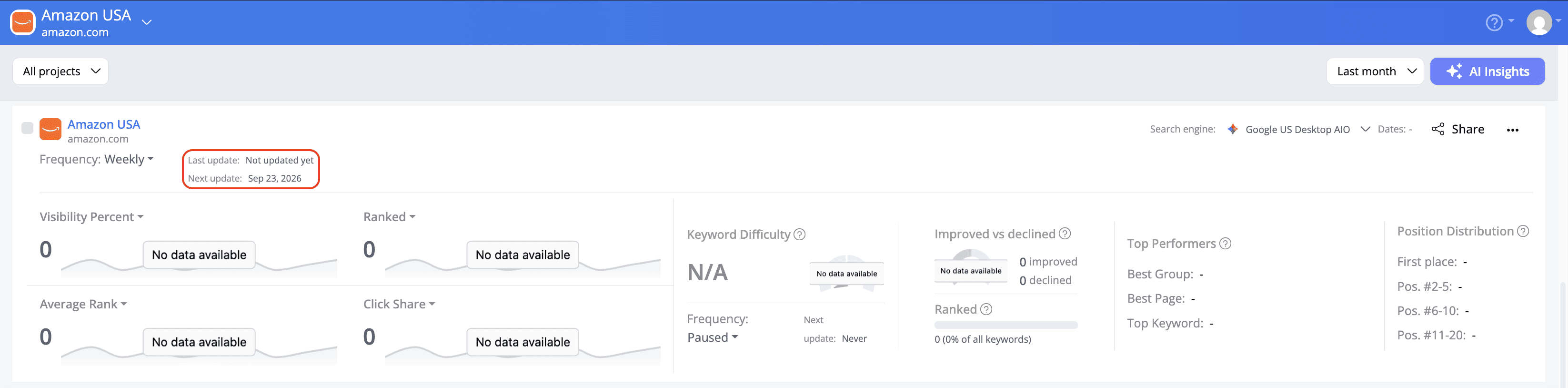
If your project is set to Paused, you will need to run the first update on demand.
How long does the initial ranking update take?
There's no fixed duration. It depends on your project's data. The more keywords and search engines you're tracking, the more complex the project, and the longer the initial update takes. Smaller projects can finish in just a few minutes, while larger, more complex ones can take several hours.
Why does the initial ranking update look stuck?
If it looks like it's stuck in one stage, it's usually still working, not frozen. Larger, more complex projects can spend more time on a single stage, like data gathering, simply because there's more to collect and process. As long as a stage shows a spinning icon, the update is still running
How do you know when the initial ranking update is finished?
Once the progress bar reaches 100% and all stages show a completed checkmark, the initial update is done. The wizard closes automatically and the report loads with your first set of ranking data.
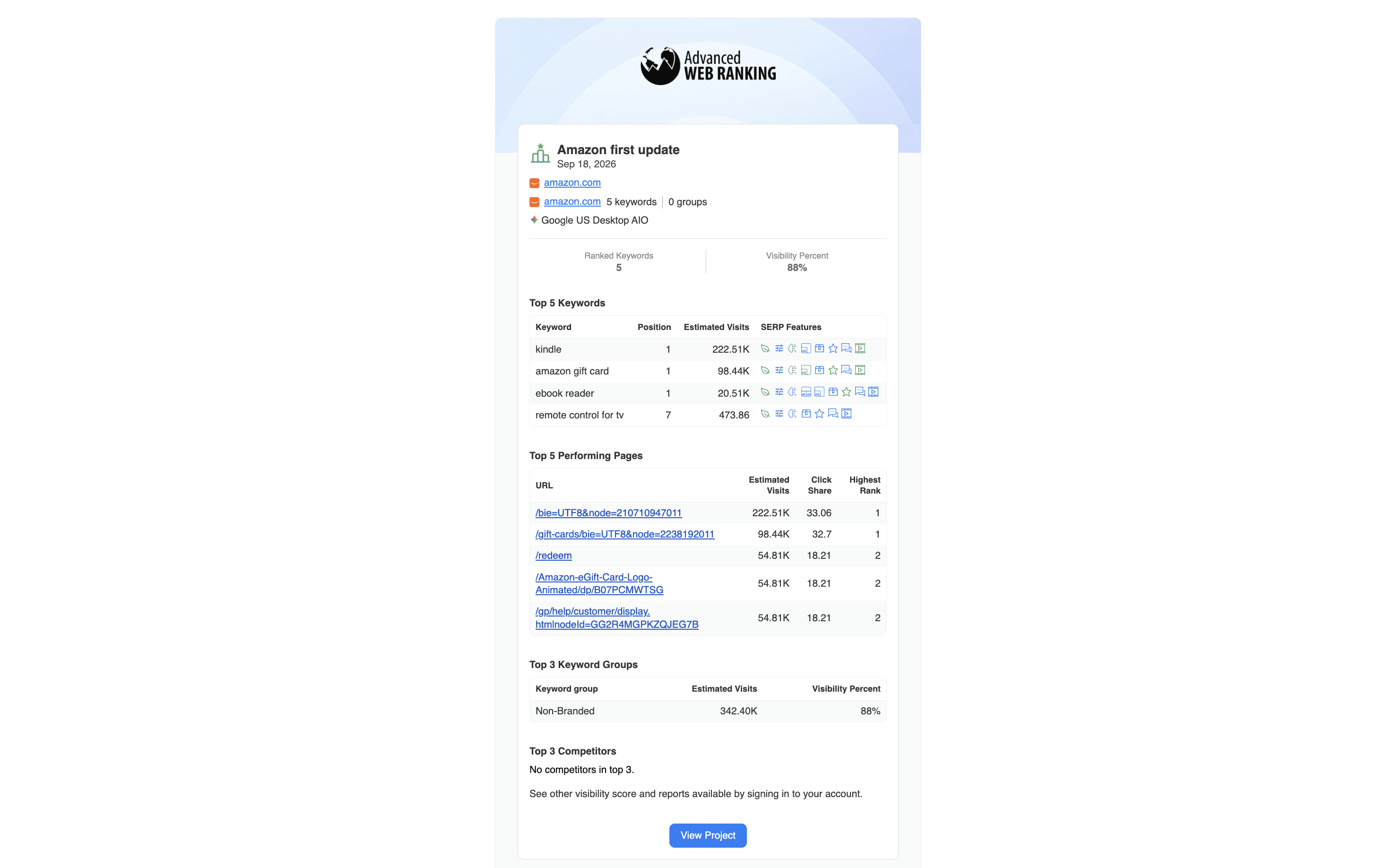
You'll also receive an email confirming the update is ready with an overview of your project.
Scheduled updates
Scheduled updates run automatically, based on the frequency you've set for a project (Daily, Weekly, Biweekly, Monthly, or Paused). You don't need to trigger anything manually, but you can always check where a project stands.
Head to Home and look at the project card. Each project card shows:
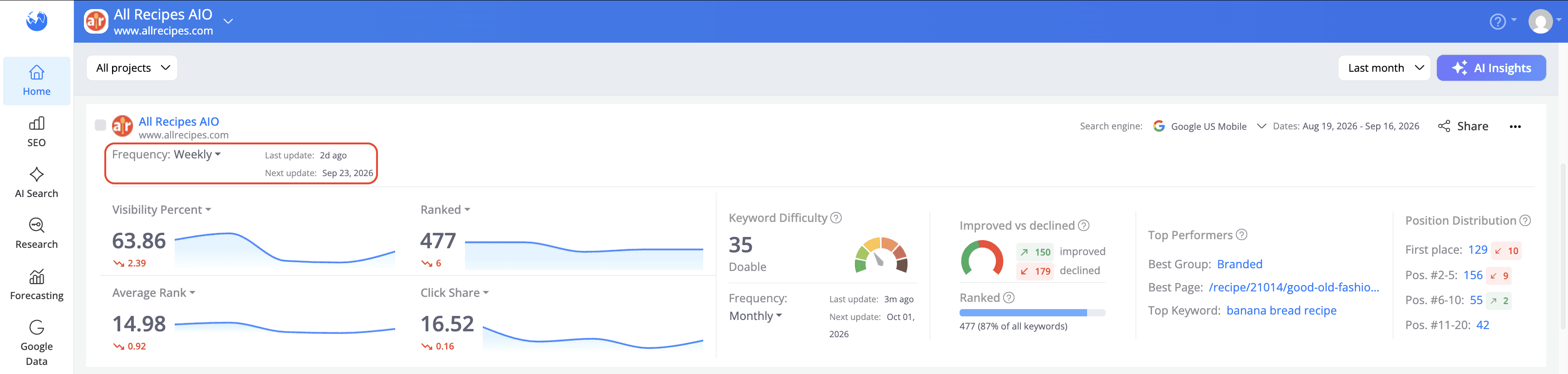
Frequency — how often the updates run
Last update — how long ago the most recent update ran (e.g., "5d ago," "Today")
Next update — the date of the next scheduled run or "Never" if the project is paused
How do you know if the scheduled update was delivered?
Once "Last update" reflects a recent timestamp and your rankings have refreshed in the UI reports, the update has been delivered.
The exact day your weekly, biweekly or monthly updates are delivered depends on your Scheduled updates preferences, found under Account Settings > General Settings.
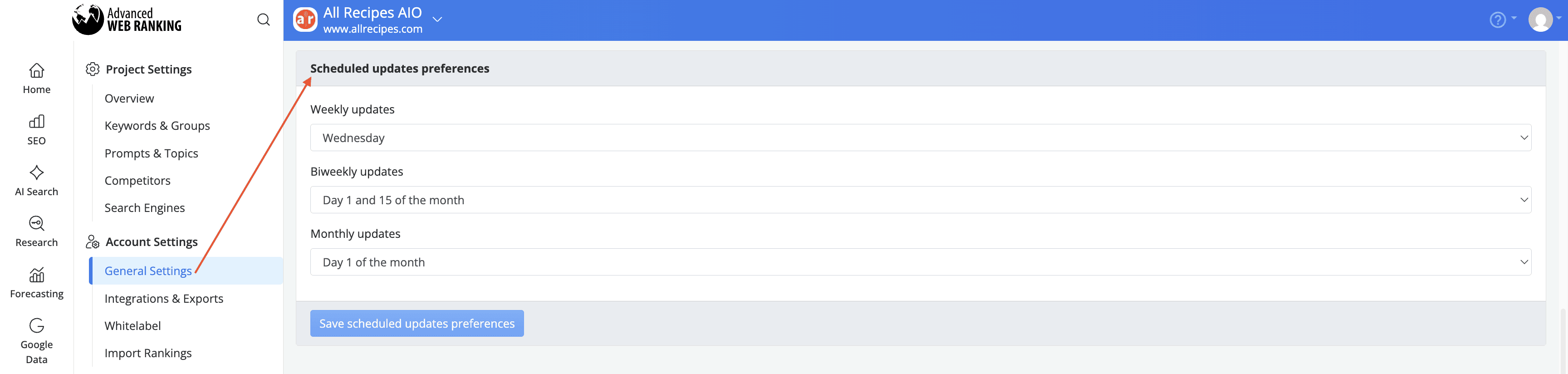
There you can set, for example, Weekly updates to run every Monday, Biweekly updates on the 1st and 15th of the month or Monthly updates on the 1st.
These preferences apply account-wide, so they determine the update day across your projects rather than per project.
Partial updates and on-demand updates
Partial and on-demand updates both let you get fresh ranking data outside your regular schedule, but they're designed for different situations.
What's the difference between a partial update and an on-demand update?
Partial updates are meant for when you add new keywords or search engines to a project between scheduled updates. Running a partial update retrieves ranking data for those new additions only for the latest ranking update, without waiting for the next scheduled update. They're not meant to refresh rankings for keywords you're already tracking.
On-demand updates are meant for refreshing rankings on keywords you're already tracking, whenever you need updated data between scheduled runs or when a project's updates are paused. When you run an on-demand update, you choose how long you want it to take: 1 hour, 12 hours, or 48 hours.
How do you know when a partial update is done?
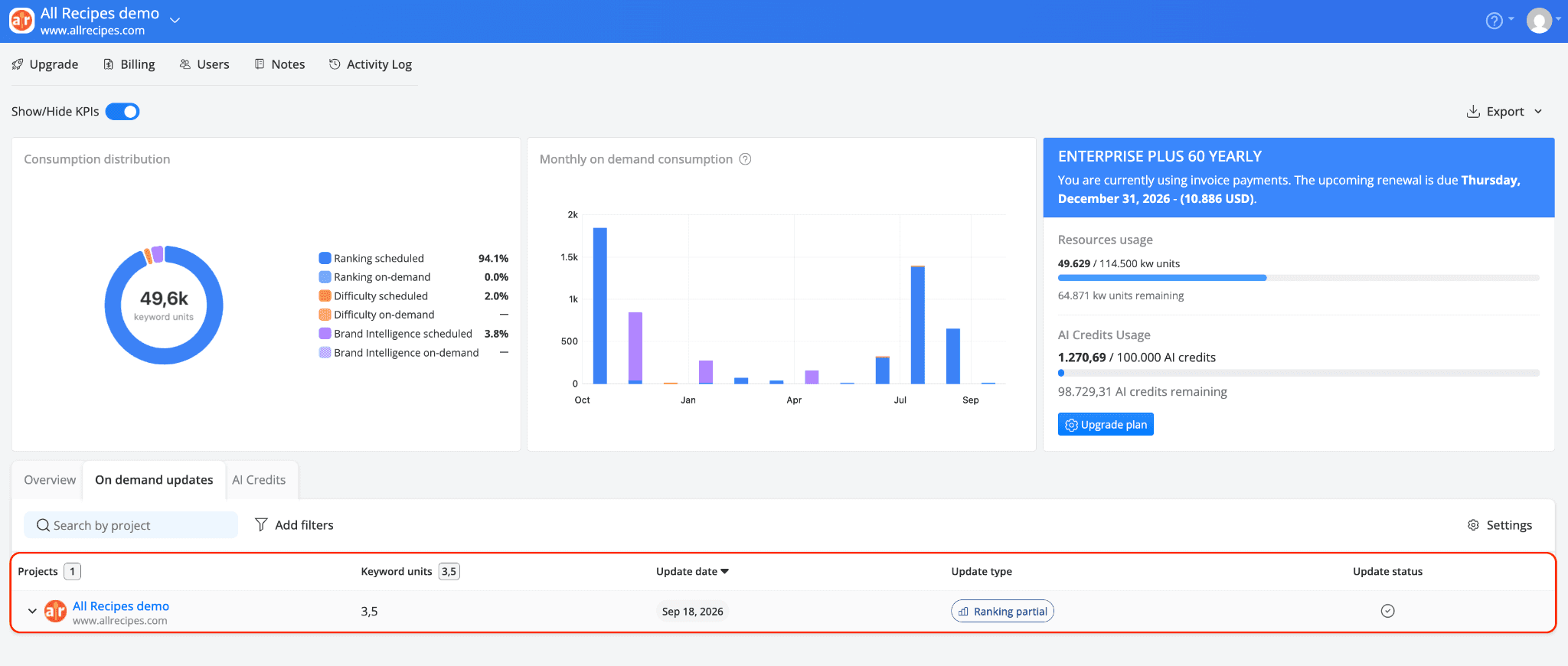
To see the status of a partial update, you can check out the Resources section, the On-demand updates tab. It lists every partial update you've run, along with the project, keyword units used, update date and status: a green checkmark once it's finished or a spinning icon while it's still running.
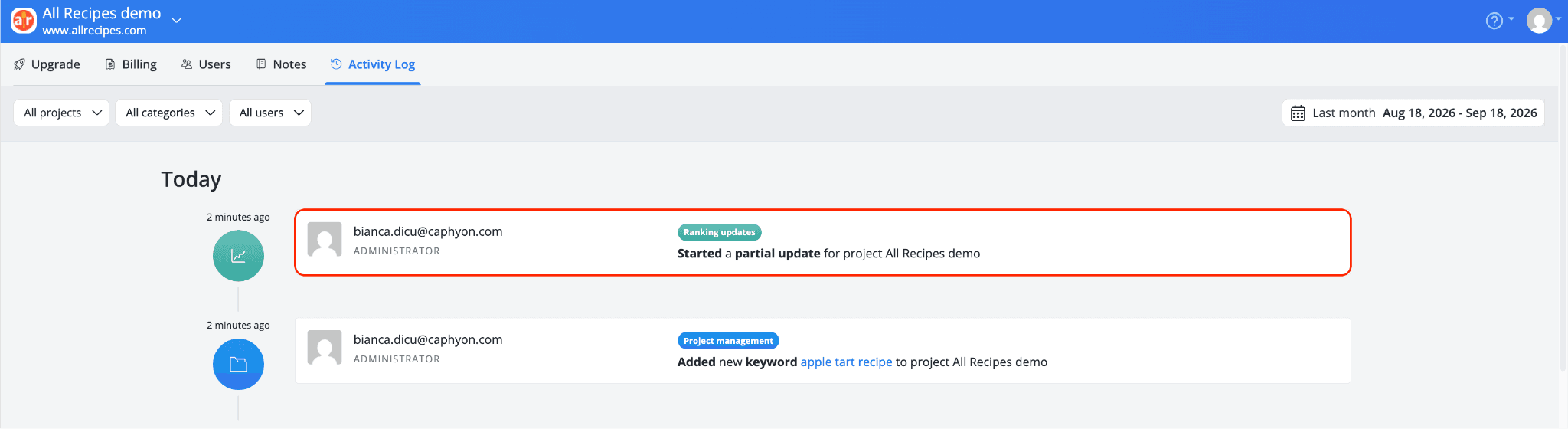
The Activity Log can also confirm a partial update was started, with an entry like "Started a partial update for project [name]," though it doesn't tell you when the update actually finishes.
How do you know when an on-demand update is done?
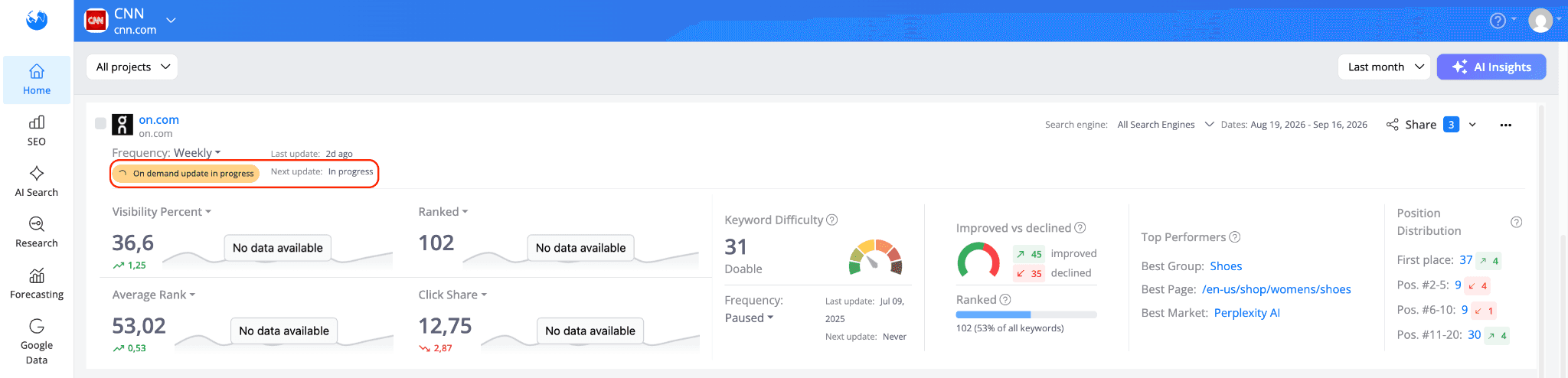
On the Projects page, a project running an on-demand update shows an "On demand update in progress" badge and "Next update" switches to "In progress" as well.
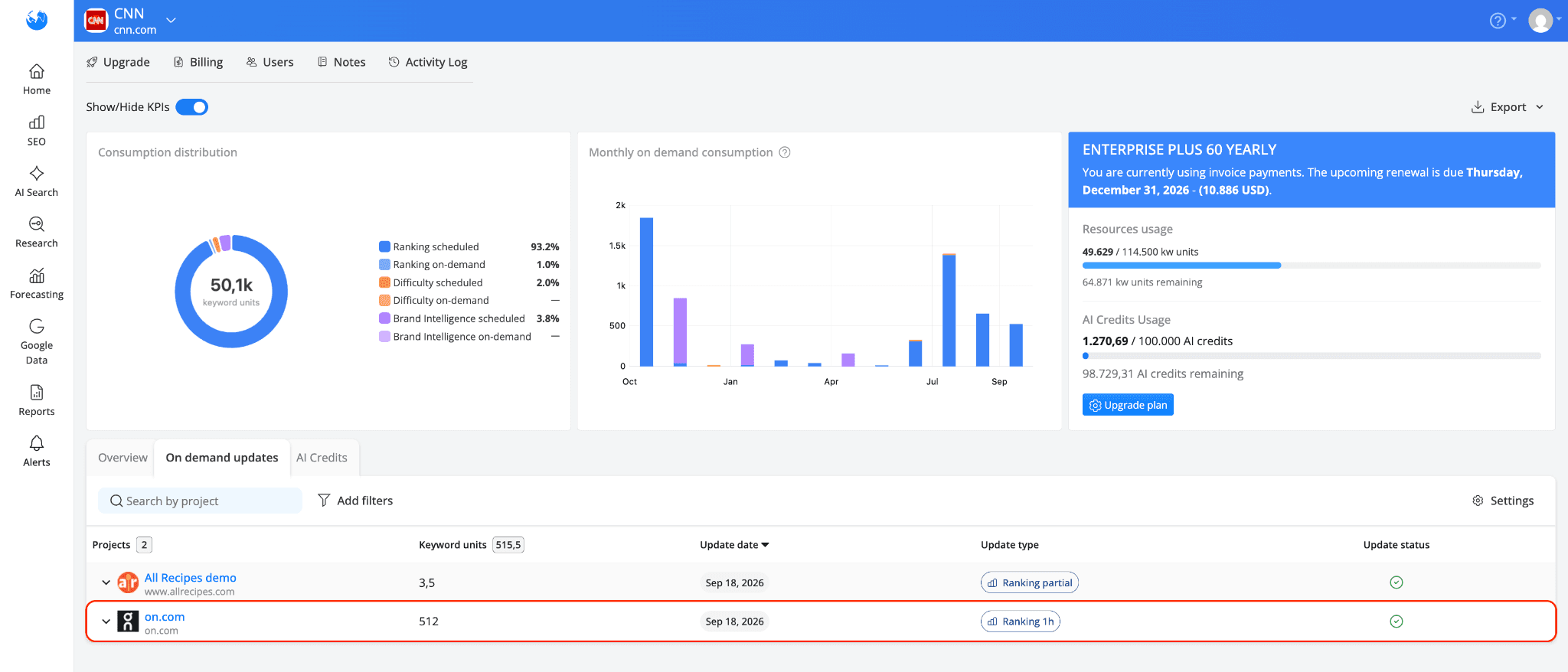
For more details, head to Resources > On-demand updates. It lists every on-demand update you've run, with the project, keyword units used, update date, on-demand update type (e.g., "Ranking 1h") and status: a green checkmark once it's finished or a spinning icon while it's running.
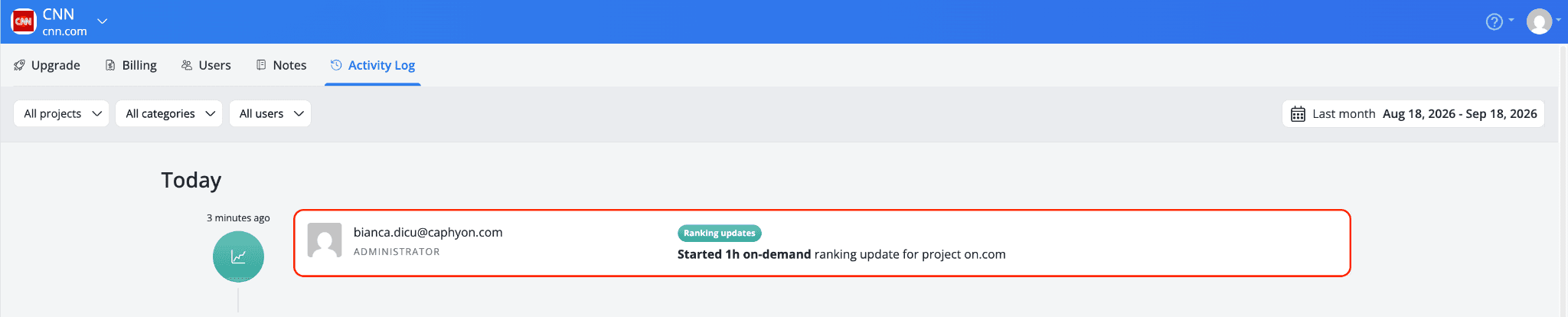
The Activity Log will also show that the update started, with an entry like "Started 1h on-demand ranking update for project [name]," though again, it only confirms the start, not completion.
How do scheduled on-demand updates work?
If you don't want to trigger on-demand updates manually every time, you can schedule them to run automatically at your preferred time and frequency.
You can set it to run once, at a specific date and time, or on a recurring basis (weekly, biweekly, or monthly), with an optional end date or a limit on the number of occurrences.

You can schedule on-demand ranking updates for both projects set for scheduled updates and for the Paused ones.
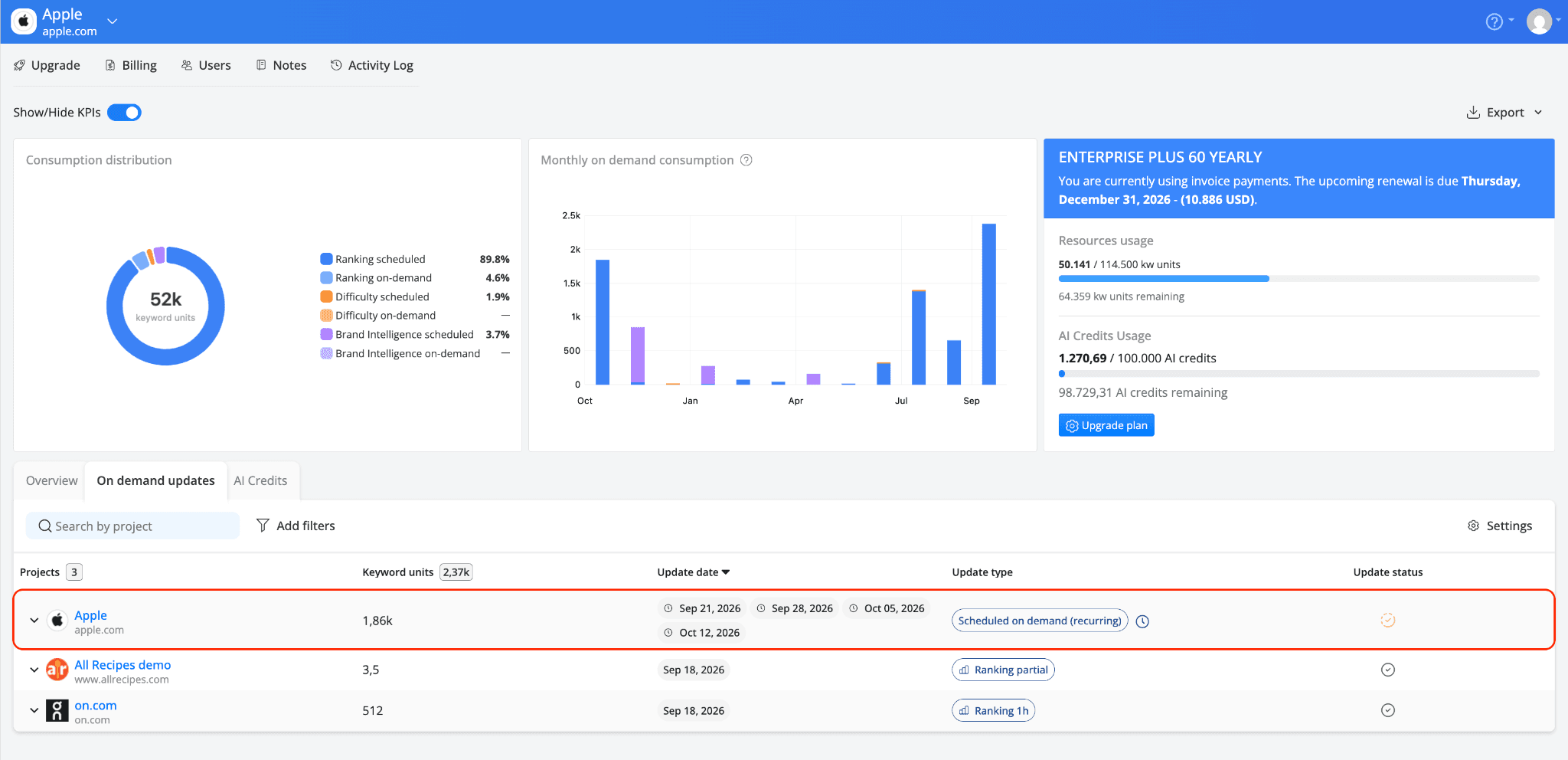
Once you've set one up, the project card on Home shows a "Scheduled on demand" label, with "Next update" reflecting the upcoming run date.

The system automatically reserves the required keyword units for each scheduled on demand update.
Depending on your settings, you can view the scheduled update dates in the Resources > On demand updates tab.
The Activity Log also records when you create or disable an on-demand scheduler for a project.
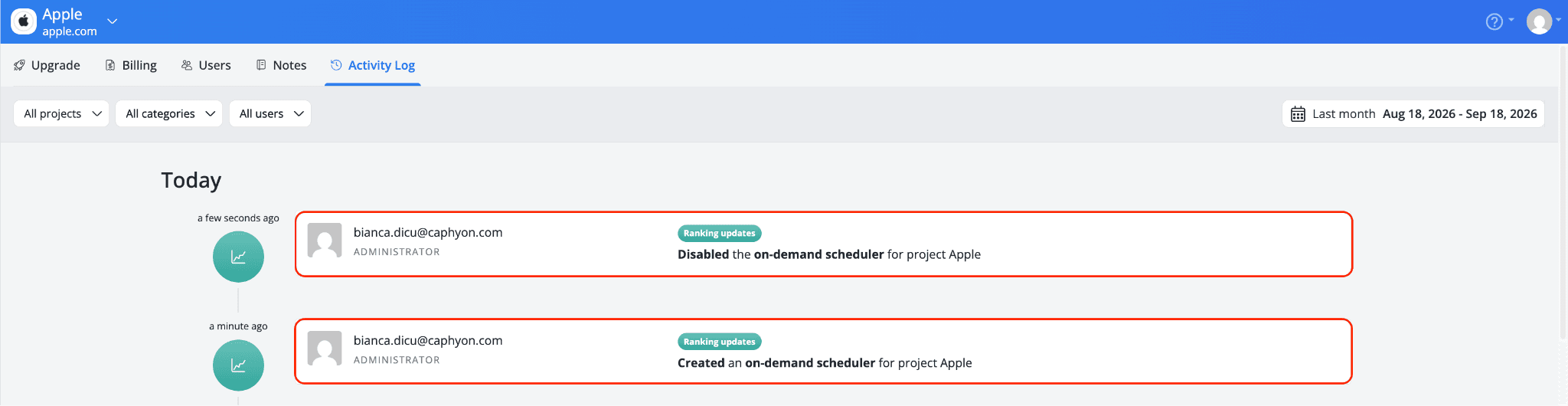
This feature is available on Enterprise and higher-tier plans, with up to 10 active scheduled tasks per account.
Do you have any questions? Don’t hesitate to get in touch and we will keep building the FAQ.
Frequently Asked Questions
My progress bar is stuck at 0%. What's wrong?
Where can I see all the updates I've run?
stay in the loop