Advice and answers from the Advanced Web Ranking Team

Search for articles

How to Set Up Your First AWR Project and Start Tracking Rankings

A complete guide to setting up your first AWR project. Add keywords, configure search engines, track competitors and start monitoring your rankings in minutes.

Welcome aboard! Happy to see you around! 👋

You're just a few steps away from tracking your website's rankings, monitoring competitors, and uncovering new opportunities. Let's set up your first project!

Here is what we will cover

Choosing how to get started

When you first log in to AWR, you will be greeted with a welcome modal that gives you three options depending on what you want to do first.

welcome-wizard-when-creating-a-newp-project

See a Demo Project 

This is the recommended starting point if you want to explore AWR before setting up your own tracking. The demo project comes pre-filled with real data so you can see exactly how the reports work, what the data looks like and how everything is organized. It is a great way to get familiar with AWR without any setup required.

Create Your First Project

This is where you start if you are ready to track your own website. Clicking this button takes you through the project creation wizard, which we will walk through step by step in the sections below.

Keyword Research & Competitive Analysis

If you want to explore keyword opportunities and see what your competitors are ranking for before setting up a project, this option takes you directly to the Keyword Research tool.

Let's now go through each step of the project creation process to make sure you get everything right.

Setting up your project details

setting-up-project-details-for-a-new-project

Once you click Create Your First Project, you will be taken to the project creation wizard. The first section is Project Details, where you define the basics of your tracking setup:

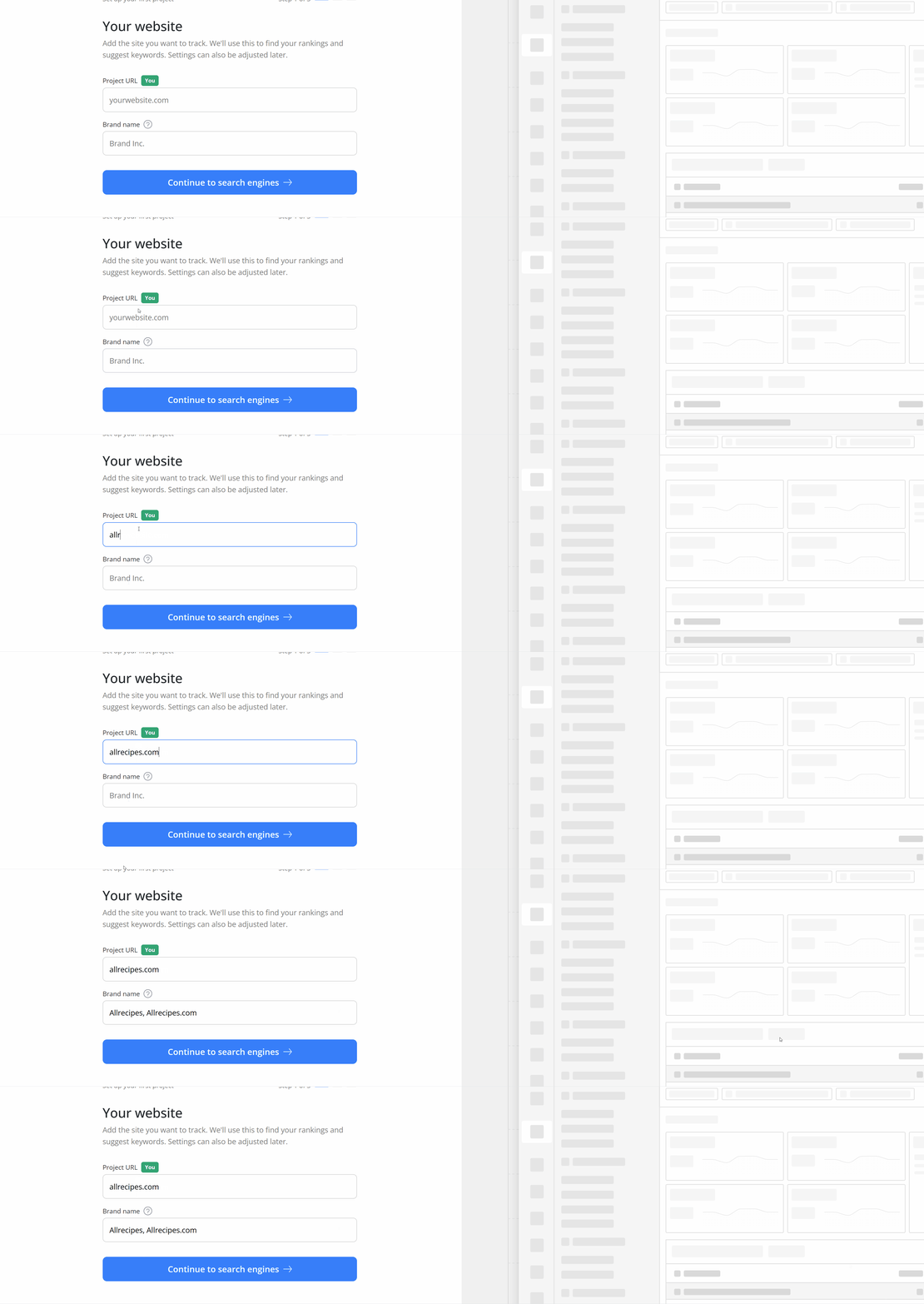
  • URL - This will be the main tracked client domain or targeted page. Adding the domain URL (e.g., "website.tld") instructs the application to report the rankings for any page of the selected domain if found in the SERPs retrieved from the selected search engines.

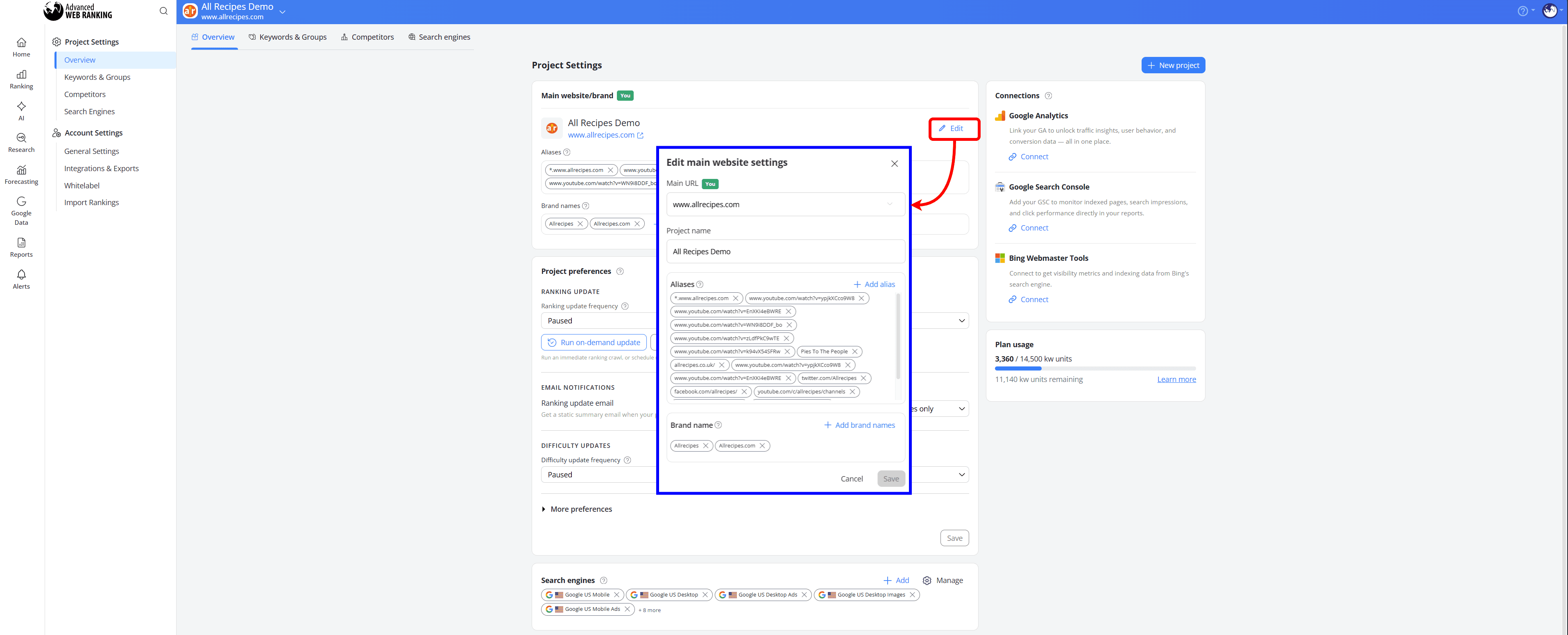
  • Name - By default, AWR uses your domain as the project name. You can change this to anything that makes sense for your workflow, for example your client's brand name or a campaign name. You can also edit it later from your Project Settings.

  • Brand Reference - Add your brand name here to make sure AWR tracks not just the URLs cited in AI-generated responses, but also the plain text mentions of your brand name.

AWR will automatically generate brand references when you add a new project. You can also add additional variations or aliases yourself, one per line, or use the built-in AI-powered suggestion tool to get recommendations based on your website.

You are not limited to just your company name. You can also add product names or other important entities from your organization that matter for visibility. 

For example, a company like Apple might add iPhone, MacBook, or Apple Watch as references alongside the main brand name. 

This way, you will get a fuller picture of how not only your brand but also your key products show up in AI results.

  • Country - The country selection impacts the default market for collecting search metrics from Google Ads such as search volume, CPC and Competition data. It also influences the predefined search engine selection when you add your project.

  • Results page depth — The number of pages downloaded from the search engines when performing ranking updates. You can choose between 1 page for the top 10 results, 2 pages for the top 20, 3 pages for the top 30, 5 pages for the top 50, or 10 pages for the top 100. The more pages you select, the deeper AWR looks into the search results for each keyword.

A results page depth of 10 pages consumes more keyword units than tracking 1, 2, 3, or 5 pages. 

In practice, most actionable SEO insights live in the first 2 to 3 pages of results, so unless you have a specific reason to track deeper, starting with 2 or 3pages is a good default for most projects.

Ranking updates frequency - Select how frequently you want AWR to retrieve fresh rankings for your tracked keywords:

  • Daily - data set is refreshed on a 24h basis

  • Weekly - new updates are performed every Monday or Wednesday

  • Biweekly - rankings are updated twice a month, on the 1st and 15th of each month or on the first and third Wednesday.

  • Monthly - results are refreshed on the first day of each month or on the first Wednesday.

  • Paused - no further scheduled updates will be performed.

Weekly units are used as reference when calculating the number of resources required to update each project. You can find a complete guide on keyword units consumption here.

You can select how your Weekly/Biweekly/Monthly ranking updates are to be delivered from the Account Settings > General Settings section. These settings will apply to all of your scheduled projects using that particular type of frequency.

how-to-edit-configuration-of-ranking-updates

When choosing Paused as the preferred option for updates, the initial update is no longer performed. No rankings are delivered for the newly created project unless you either trigger an on-demand update or change the update frequency from the Project Settings.

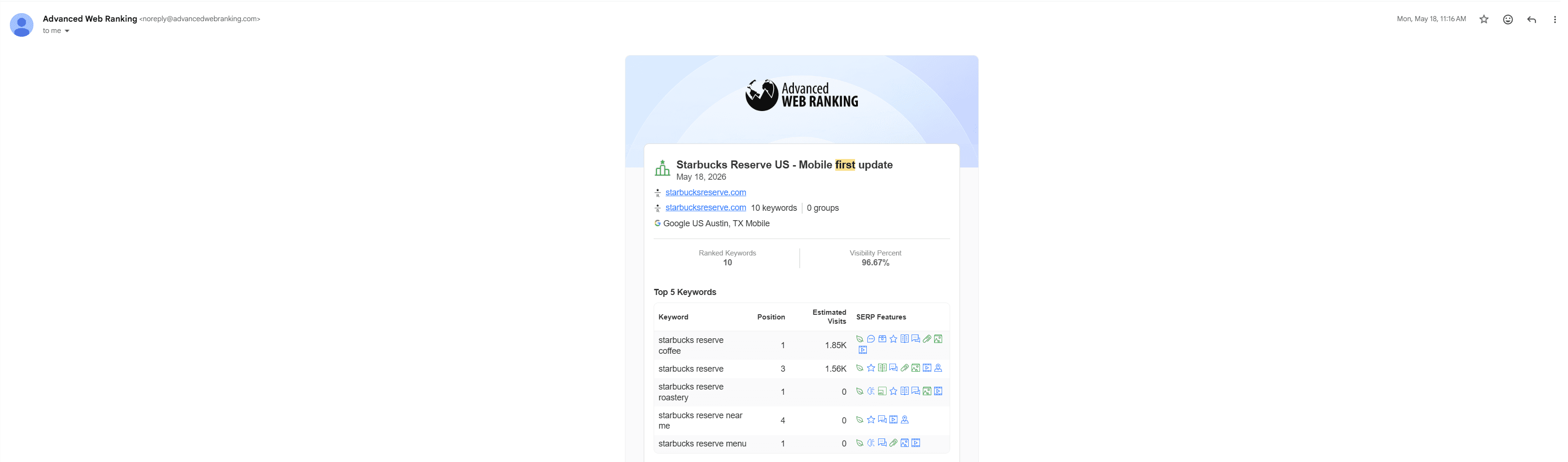
  • Receive email updates - If you want to be up-to-date with your projects’ performance, you can opt to receive email updates containing the latest rankings stats, according to your preferred set frequency.

  • Difficulty Updates - You can choose to run keyword difficulty updates alongside your ranking updates on a weekly, monthly, or one-time basis. These updates offer valuable insights for identifying low-competition keywords, allowing you to optimize and improve their visibility on the first page.

Keyword Difficulty updates reveal how hard it is to compete with the top 10 websites based on their domain, URL and content difficulty scores. 

This way, you can find out what Google prioritizes when choosing which websites to rank in the top 10 and whether it focuses more on the authority of domains, the strength of individual URLs or the content approach of the websites currently ranking in that range.

Useful links

Adding your keywords

adding-the-keywords-you-want-to-track-in-your-project

The Keywords section is where you add the terms you want to track. You can type or paste them directly into the text field, one per line, and AWR will start tracking rankings for each of them once your project is created.

You can monitor keywords in any language or alphabet recognized by Google Search, with full support for special characters.

If you prefer not to type them manually, there are several other ways to add keywords to your project. Click the Import from button to see your options:

  • CSV or TXT file -  Upload a file with your keywords, one per line. You can also include keyword group names in the file to organize your keywords into groups from the start. This is the fastest option if you already have a keyword set prepared.

  • Keyword Suggestions - Not sure what to track? AWR can generate keyword suggestions based on URLs or specific keywords in real time. The suggestions come with search volume data so you can prioritize the most relevant terms before adding them to your project.

  • Another AWR project - If you have already set up other projects in AWR, you can pull keywords directly from them. This option is not relevant for your first project, but comes in handy when you are setting up additional projects and want to reuse a keyword set you have already built.

  • Google Search Console - Connect your GSC account and import the keywords your website is already ranking for. This is a great starting point if you want to track terms that are already driving traffic.

A keyword unit is the basic resource currency in AWR. Every subscription plan includes a predefined number of keyword units, allocated on a monthly billing cycle. 

Keywords are the search terms you track in your project, and the more you add, the more units your project consumes. Everything else, including the number of search engines, update frequency, and results page depth, scales from this number. 

You can always check your projected consumption at the top of the project creation page before finalizing your setup.

check-your-keyword-units-consumption-based-on-configuration

Configuring search engines

configuring-the-search-engines-you-want-to-track-in-your-project

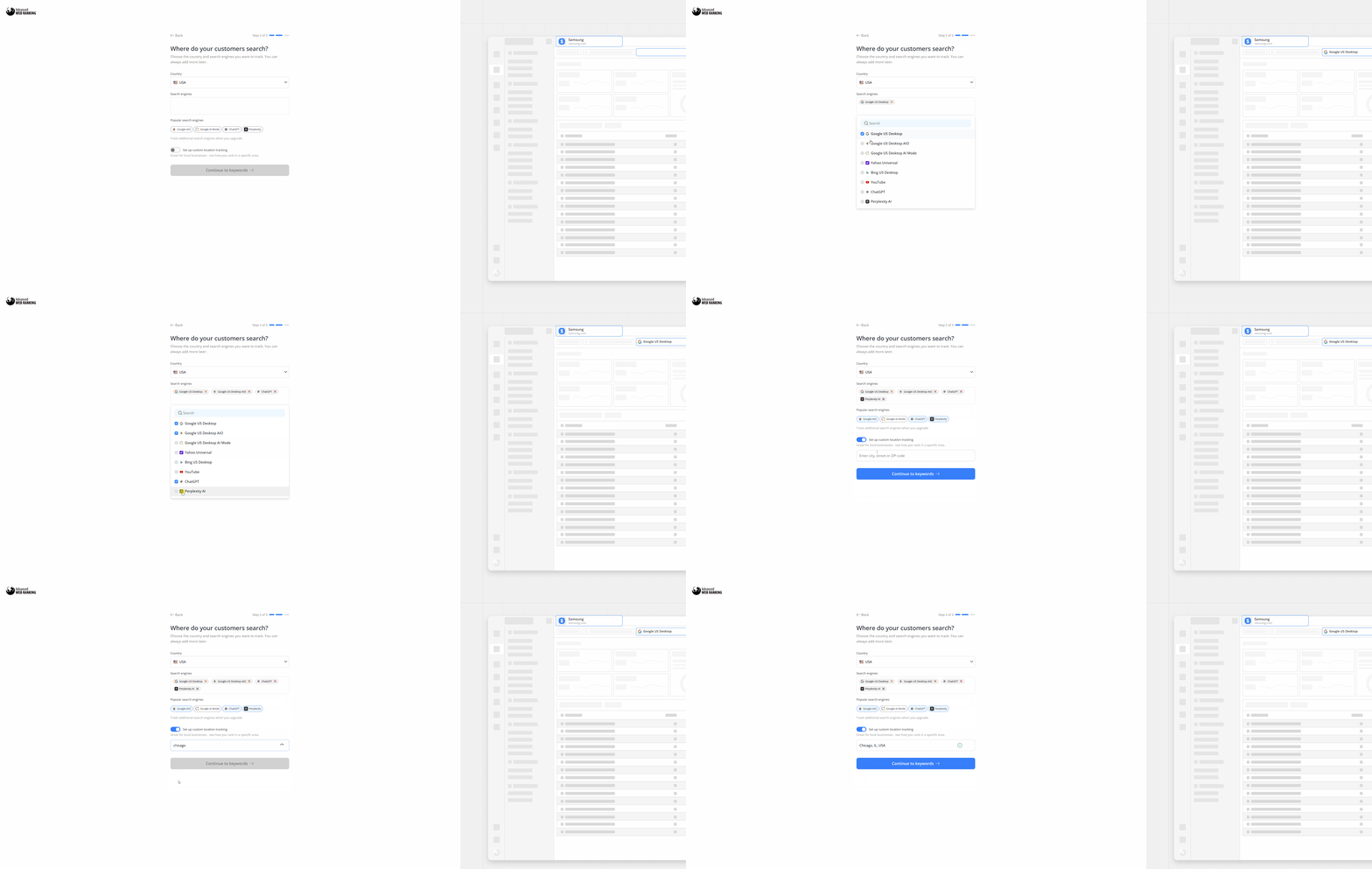
This is one of the most important steps in your project setup. AWR gives you a high level of flexibility when it comes to where and how you track your rankings, so your data reflects what your audience actually sees in search.

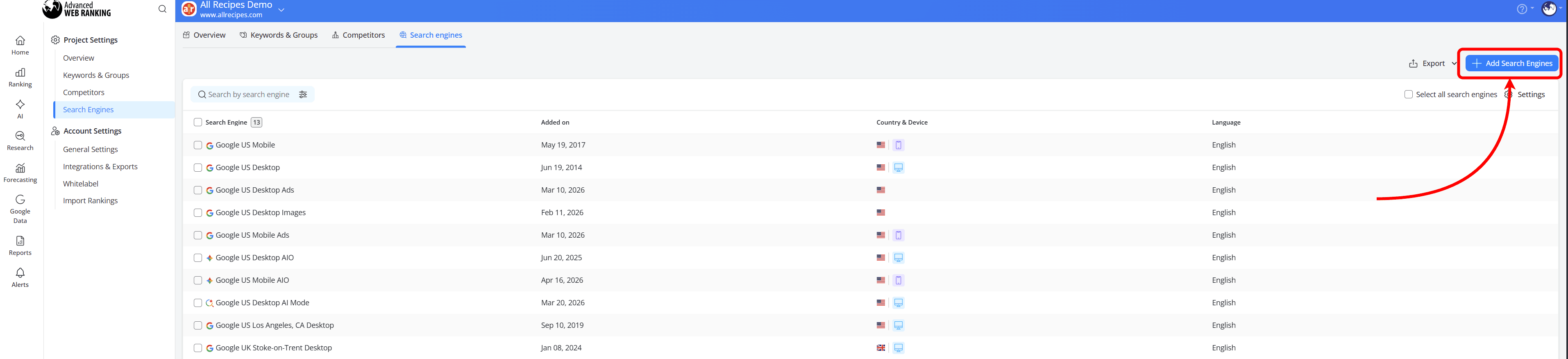
By default, AWR adds Google Desktop Universal as your starting search engine. You can keep this, remove it or add more by clicking the Add search engines button. 

This will open the Add search engine wizard where you can configure every detail of your tracking setup:

search-engines-configuration-wizard


  • Country - allows you to select the country from which the ranking data will be retrieved. AWR supports over 170 countries.

  • Search engine - allows selecting the search engine that will be queried using the keywords added to the project. Google is selected by default, but you can also track Bing, Yahoo, YouTube, AI-powered search engines like ChatGPT and Perplexity or country-specific ones.

  • Device - allows you to retrieve rankings for searches performed on either Desktop or Mobile devices.

  • Search type – It is available for search engines like Google, Yahoo and Bing, with the most options available for Google. For Google, you can choose to track rankings from:

    • Google AI Mode - track ranking positions in Google's AI-powered search experience

    • General search - track the regular web search results

    • Images, Videos, Maps, Shopping, News, Jobs - track rankings in specific Google verticals

For other search engines and country-specific ones, the available search type options vary.

  • Search features - When setting up a Google, Bing, or Yahoo search engine to track pages from the regular web search, you can choose which types of SERP results should be taken into account when computing ranking positions. 

For Google, the available options are:

tracking-different-results-from-google-using-advanced-web-ranking
  • Location - This setting determines the geographic level at which AWR tracks your rankings. You have two options:

    • Country - Rankings are tracked at the country level. This is the default option and works well if you want a broad view of your visibility in a given market.

    • Custom location - Rankings are tracked at a more granular level, down to the region, state, city, or zip code. This is particularly useful if your business operates in specific markets and you want to understand exactly what your audience sees in search results from those locations.

  • Language - Allows you to filter search results and retrieve rankings only from searches performed in the selected language. The keyword queries added to your project should match the language selected at the search engine level.

  • Business name for local map pack - To accurately track results from Local Pack listings, other SERP features and the Maps vertical, enter your Google My Business name in this field. This needs to be the exact full name of your business as it appears in your Google My Business account. Even a small difference in spelling or formatting will prevent AWR from matching the result correctly.

Once a search engine configuration is saved, the monitoring preferences can no longer be edited from the user’s end. If you need to make changes, please contact the AWR support team.

Tracking scenarios and how to set them up

AWR gives you full flexibility when it comes to configuring your search engines. You can add as many search engine configurations as you need, and each one can be tailored to a specific location, device, language, or search type. The key thing to remember is that each use case requires a separate search engine configuration.

use-cases-for-different-needs-of-tracking
Useful links

Adding competitors

adding-the-competitors-you-want-to-track-in-your-project

The Competitors section is where you add the websites you want to track alongside yours. AWR allows you to add up to 50 competitors per project at no additional cost, all tracked for the same set of keywords and search engines.

You can add both domains and specific URLs, one per line. If you are not sure who to add, click Show Suggestions and AWR will recommend relevant competitors based on your website or any other website you enter.

You do not have to add all your competitors right from the start. AWR will help you discover relevant ones along the way, so your competitive tracking can evolve as your knowledge of the market deepens.

Once you are happy with your setup, click the Add Project button at the bottom of the page and your project will be created. Your first ranking update will start automatically.

saving-the-project-configurations

The initial ranking update

The rankings are not instantly delivered because AWR sends real keyword queries to the search engines you have defined. We don't display the ranking positions from databases or from a third-party application.

The initial update typically takes just a few minutes, though it may extend to a few hours for projects with a large number of keywords and search engines. You can follow the progress in real time in the Initial ranking update wizard.

While the update is in progress, this is a great time to connect your Google Search Console and Google Analytics accounts to enrich your ranking data with traffic insights or to invite your team members to collaborate on the project.

What's next: making the most of AWR

Your project is set up and your first rankings are in. Here is a quick tour of the features and reports you should explore next:

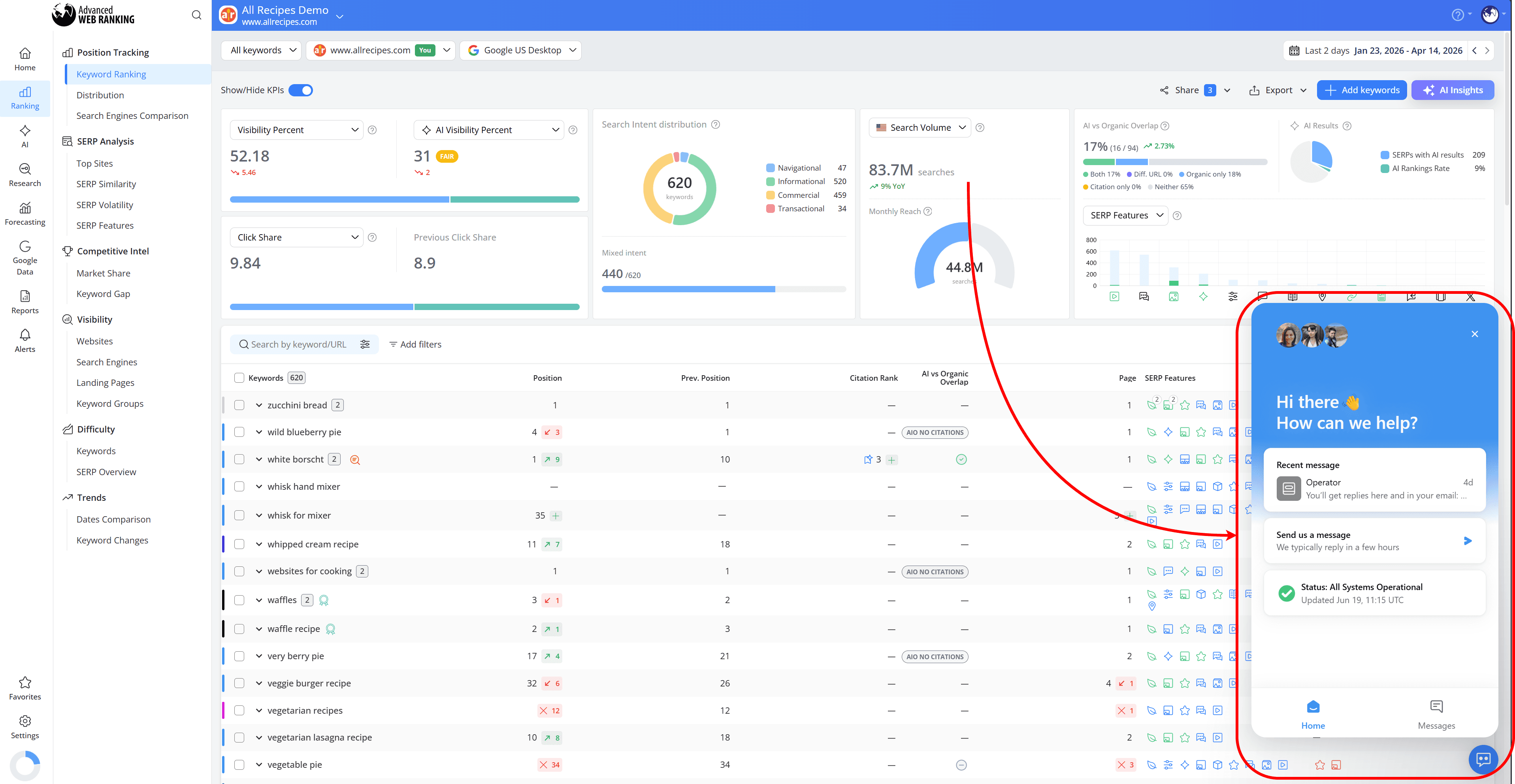
Keyword Ranking

get-full-insights-on-your-websites-rankings-in-search-results

The Keyword Ranking report is your baseline. It shows you the position your website or a competitor achieves for each tracked keyword across every search engine you monitor in your AWR project. Alongside ranking positions, you can also track a range of additional metrics such as the SERP features achieved, Click Share, Search Intent and much more.

Top Sites

explore-a-breadown-of-all-results-from-a-serp

The Top Sites report gives you a detailed breakdown of the SERP for each tracked keyword, updated with every ranking update. It helps you identify your real competitors in search by showing exactly which URLs are ranking and what type of result each one owns, whether that is an organic listing, a featured snippet, a People Also Ask box, a Local Pack result or any other SERP feature.

It is also a great way to discover new competitors you may not have been aware of. You can add any domain or specific URL directly from this report to your project as a competitor.

Market Share

get-insights-on-the-competitors-with-which-you-share-the-search-results

The Market Share report shows you exactly how much of the total traffic opportunity your website owns and how that compares to the other websites appearing in the same search results. 

The domains included in this report are not limited to the ones you have added. Any website appearing in the SERPs for your tracked keywords will show up, making it a powerful tool for discovering competitors you may not have been aware of.

You can analyze Market Share data for all keywords in your project or narrow it down to a specific keyword group and switch between search engines to see how the competitive landscape shifts across each one.

AI Search Keyword Performance

discover-your-websites-performance-in-ai-search

The AI Search Keyword Performance report takes you beyond traditional ranking positions and focuses on how your brand shows up inside AI-generated results. It shows you whether AI models are citing your website, mentioning your brand or linking to your content inline, and how that compares to your competitors. If understanding your presence in AI search is a priority, this is a valuable report for you.

AI Brand Visibility

get-insights-on-your-brand-visibility-in-ai-search

With the AI Brand Visibility feature, you can see the topics most often associated with your brand's niche, who else is getting mentioned alongside you, which websites and publications refer to your brand and how often and how visible and relevant your brand appears across four of the most widely used AI search engines: ChatGPT, Perplexity, Claude, and Gemini.

Keyword Gap

get-a-full-comparison-between-your-websites-and-competitors-rankings

The Keyword Gap report shows you where you and your competitors overlap in search, and where they have an advantage over you. You can quickly see which keywords are bringing them more traffic than you and which ones you are already winning. A great starting point for finding new opportunities to grow your visibility.

Keyword Difficulty

check-what-it-takes-for-your-keywords-to-rank-in-top-10-with-keyword-difficulty

After identifying new opportunities to go after, the Keyword Difficulty report helps you understand how hard it is to rank in the top 10 for each of your tracked keywords. It evaluates the strength of the websites currently occupying those positions based on their domain, URL, and content scores, so you can prioritize the keywords where you have the best chance of making an impact and avoid investing time in battles that are harder to win.

Dashboards

create-dashboards-for-your-seo-workflows

Using AWR's Dashboards, you can create custom reporting views that fit your unique needs. Highlight the metrics that matter most to you, arrange widgets with a simple drag and drop, combine data from multiple projects in one place, and share your dashboards with your team to keep everyone informed and aligned.

Adding new users

AWR makes it easy to collaborate with your team or share access with clients. You can invite unlimited users to your account at no extra cost directly from the Users section. 

AWR supports multiple user roles with different permission levels, so you can control exactly what each person can see and do within your projects.

Exporting data

export-awr-data-and-use-it-in-your-reports

You can export reports directly from the UI in a range of formats depending on the report, such as CSV, PDF or Excel, making it easy to share insights with clients or incorporate data into your own reporting workflows.

For larger amounts of data or more advanced integrations, AWR also offers an API available on select plans.

This is just the beginning. AWR has a lot more to offer and the best way to discover it is to start exploring. 

For more guidance, our Help Center and YouTube channel are packed with resources to help you get the most out of the platform. If you would rather have someone walk you through it, you can book a demo with one of our colleagues. And if you ever get stuck or have a question, our support team is always just a message away.

Frequently Asked Questions

What is a SERP?
What is the difference between a keyword and a keyword unit?
How does AWR retrieve the rankings of keywords?
How long does the initial ranking update take?
How often are rankings updated?
How many projects can you add to your AWR account?
How many users can you add to your AWR account?
How many competitors can you track?
Does exporting data or generating reports use keyword units?
Can I change the update frequency after my project has been created?

stay in the loop

Subscribe for more inspiration.