

Advice and answers from the Advanced Web Ranking Team
Search for articles
>
>
SERP Features Tracking in AWR: A Complete Guide to Monitoring Your Search Presence
Discover which SERP features AWR tracks, how to see which ones your website and competitors rank for and how to turn that data into actionable ranking opportunities.

SERP features play an important role in how users interact with search results. Features such as AI Overviews, Featured Snippets, People Also Ask, Local Packs, Videos, and Image results can occupy prominent positions on the page, attract attention and influence click behavior.
Tracking rankings alone is no longer enough to fully understand your search visibility. You also need to know which SERP features appear for your target keywords, whether your website is included in them and which opportunities are being captured by competitors.
Advanced Web Ranking helps you monitor SERP features across supported search engines, track ownership for your website and competitors and analyze how these features impact your search presence.
This guide explains how SERP feature tracking works in AWR and how to use it to uncover new opportunities, monitor competitors, and get a more complete picture of your SEO performance.
What this article covers
This guide covers everything you need to know about SERP features tracking in Advanced Web Ranking:
What SERP features are and why they matter for SEO
Which SERP features you can track in AWR
Which search engines support SERP features tracking
How to check which SERP features appear for your tracked keywords
How to see which SERP features your website ranks for
How to see which SERP features your competitors rank for
How to compare SERP feature performance across your website and competitors
How to find new SERP feature ranking opportunities
What are SERP features?
SERP features are any elements on a search results page that go beyond the standard organic listings. They are additional result formats that appear based on the search query and are designed to present information in a more direct or structured way.
Rather than showing only a ranked list of webpages, search engines may display enhanced elements that highlight specific answers, data or sources in a variety of formats.
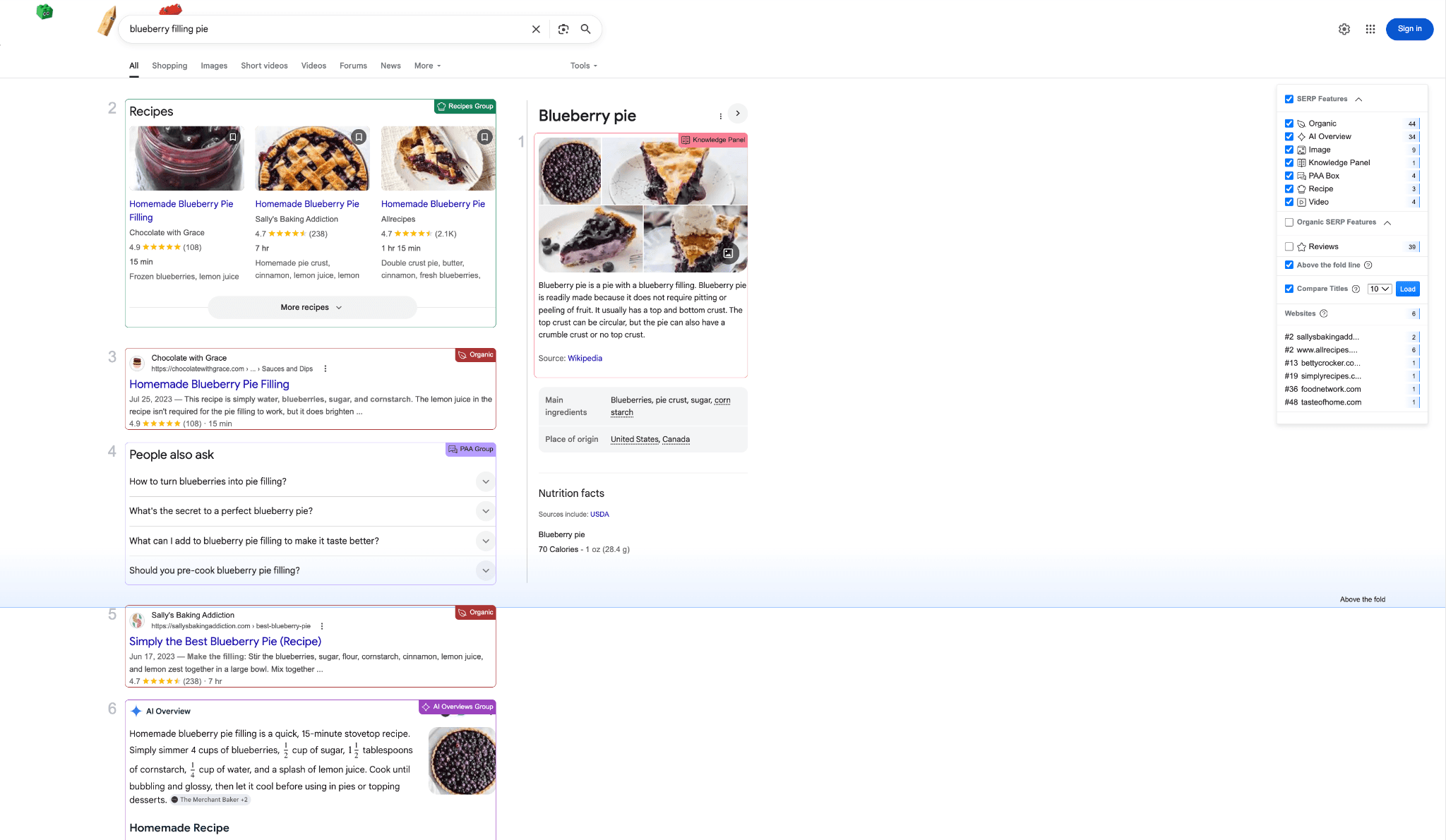
These elements are dynamically generated and vary depending on the search intent, meaning they are not guaranteed to appear for every keyword or search engine.
In SEO analysis, SERP features are important because they can influence how visibility is distributed on the results page and how users interact with search results. A keyword that triggers multiple SERP features may generate very different click patterns than one that returns only organic listings, even if the ranking positions are the same.
What SERP Features You Can Track in AWR
Advanced Web Ranking allows you to track a wide range of SERP features across supported search engines, helping you understand what search elements are present in the search results for your tracked keywords.
Here is an overview of all the SERP features available for tracking in AWR, along with their corresponding icons:
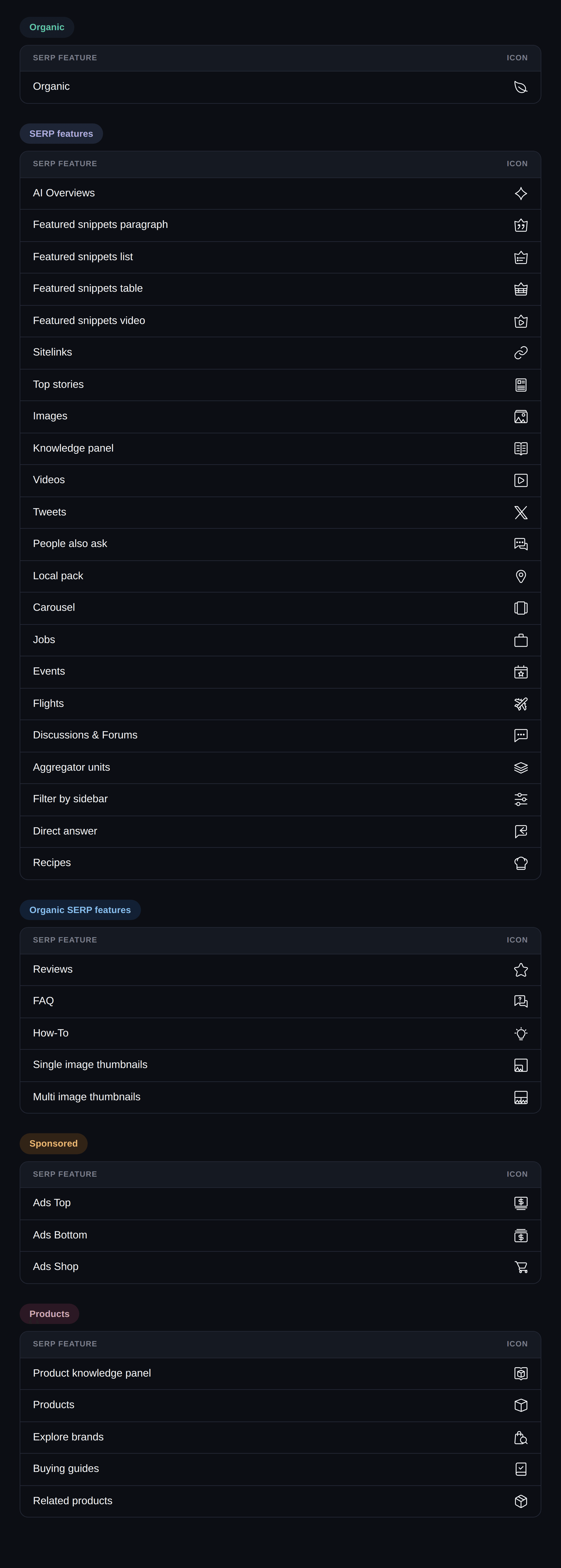
The availability of specific features varies depending on the search engine and device, so not all features will appear for every keyword or tracking configuration. This gives you a more accurate and complete picture of how search results are structured for your tracked keywords.
Which Search Engines Support SERP Features Tracking?
SERP feature tracking is available across multiple Google search engine configurations in Advanced Web Ranking. However, the types of SERP features that can be tracked depend on the search engine you have selected.
Some search engines support tracking for all available SERP features, while others focus on specific result types such as Organic results or Local Packs. Even when a SERP feature is not tracked for rankings, AWR can still detect its presence and display it in the SERP features column.
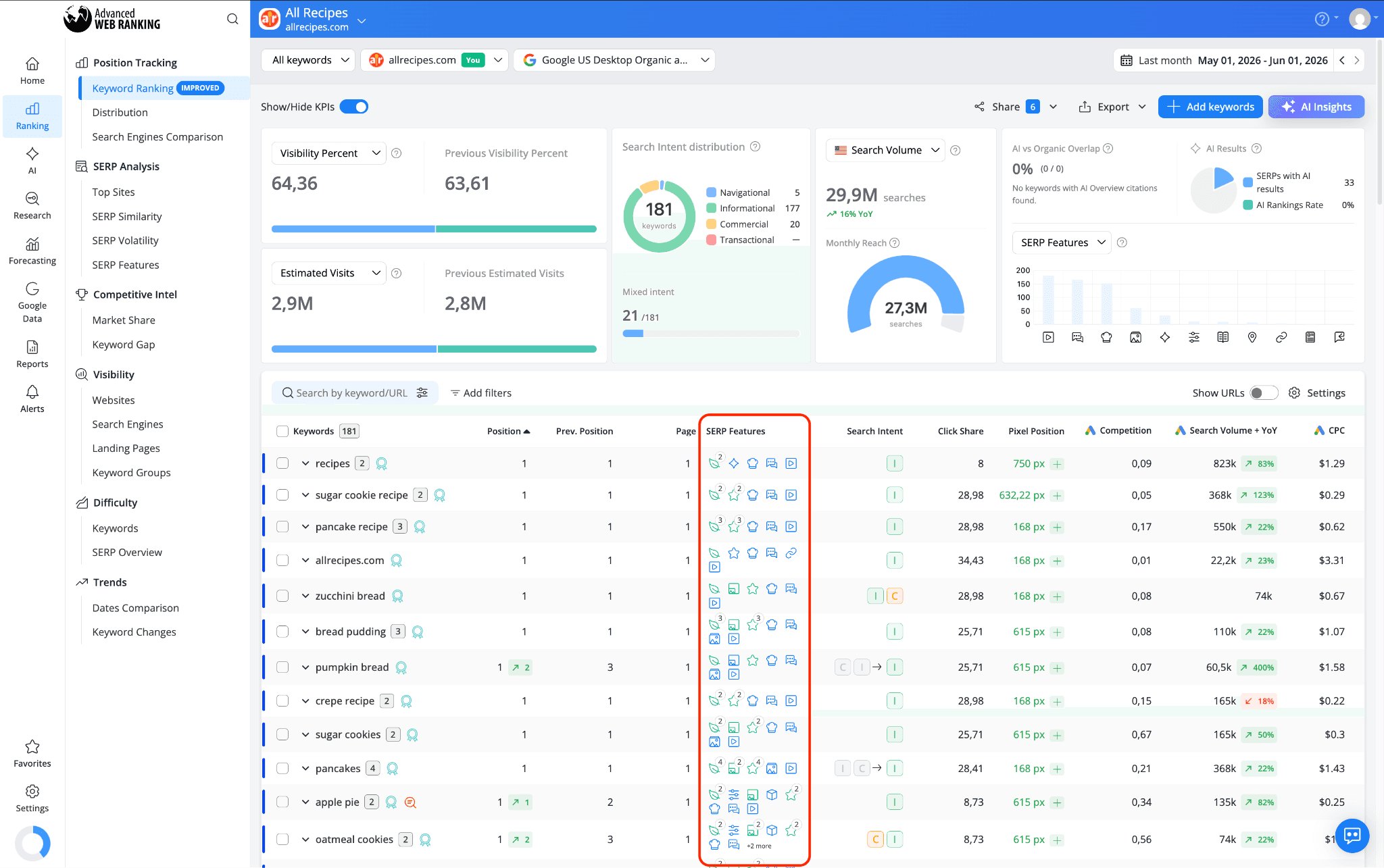
These are the SERP features that can be tracked for each Google search engine configuration:
Search engine | Tracked SERP features | SERP features excluded from tracking | Notes |
|---|---|---|---|
Google Universal (All Results) | All SERP features | Ads | Ads are detected as a presence indicator but ranking within them is not tracked. |
Google Search + AIO | All SERP features | Ads | Enhanced tracking of AI Overviews. Ads are detected as a presence indicator but ranking within them is not tracked. |
Google Organic | Organic SERP features | Ads and non-Organic SERP features | Ads and excluded SERP features are detected as presence indicators only. |
Google Organic and Places | Organic SERP features | Ads and all other non-Organic SERP features | Ads and excluded SERP features are detected as presence indicators only. |
What the SERP Feature Icon Colors Mean
In the SERP Features column, icon colors help you understand how your website is performing for each feature:
A green icon means your website is ranking for that SERP feature for the tracked keyword.
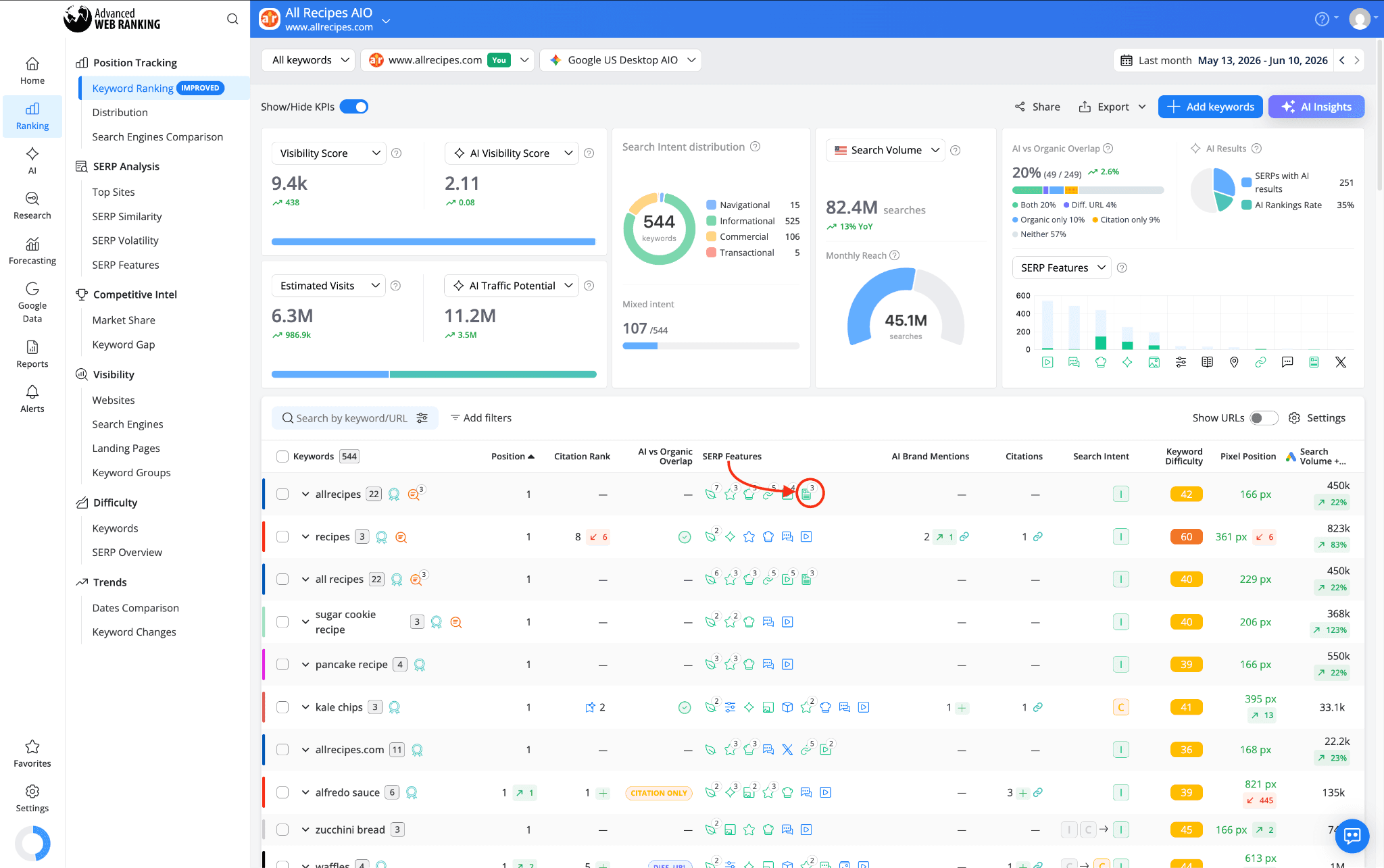
A blue icon means the SERP feature is present on the results page, but your website is not included in it.
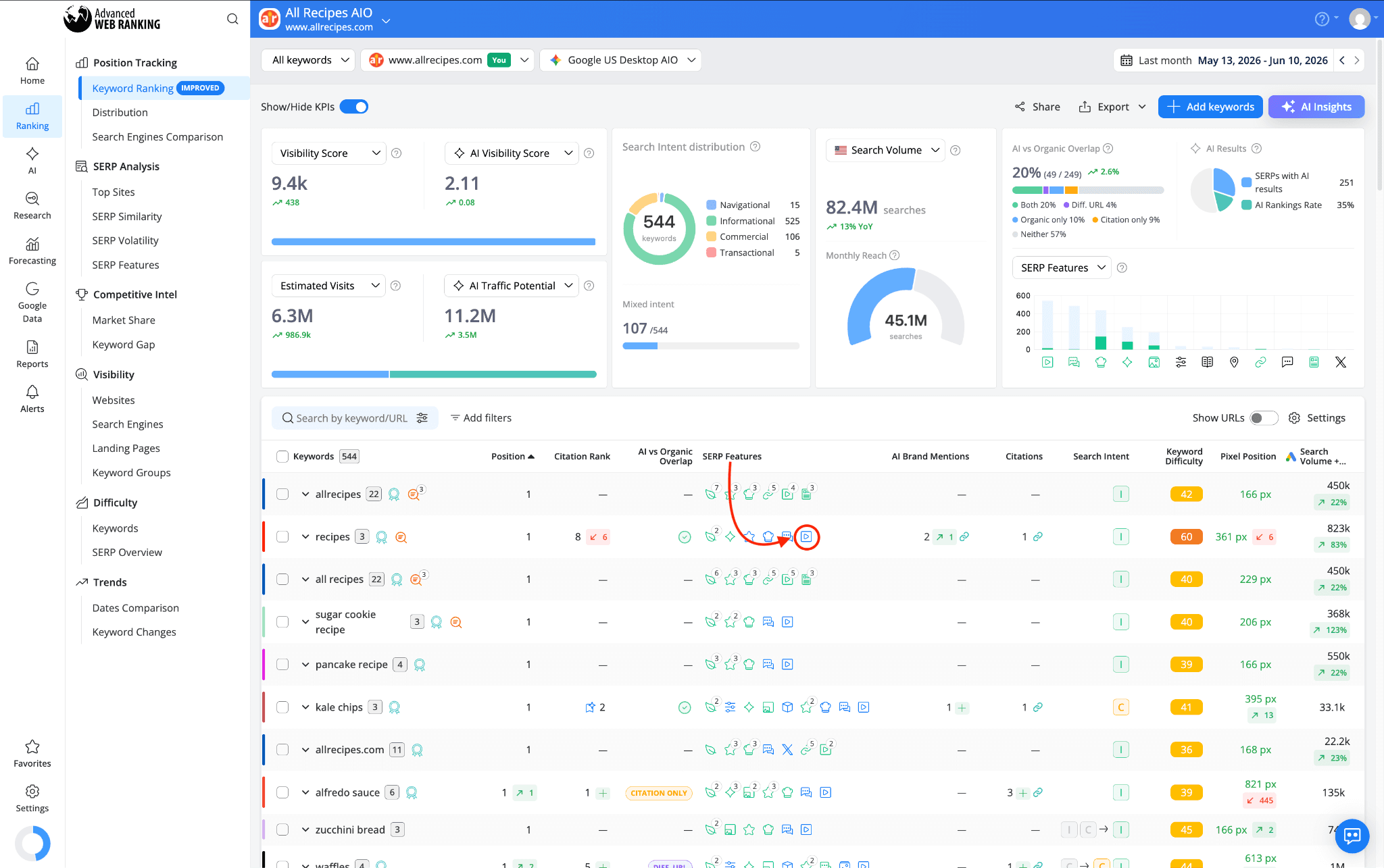
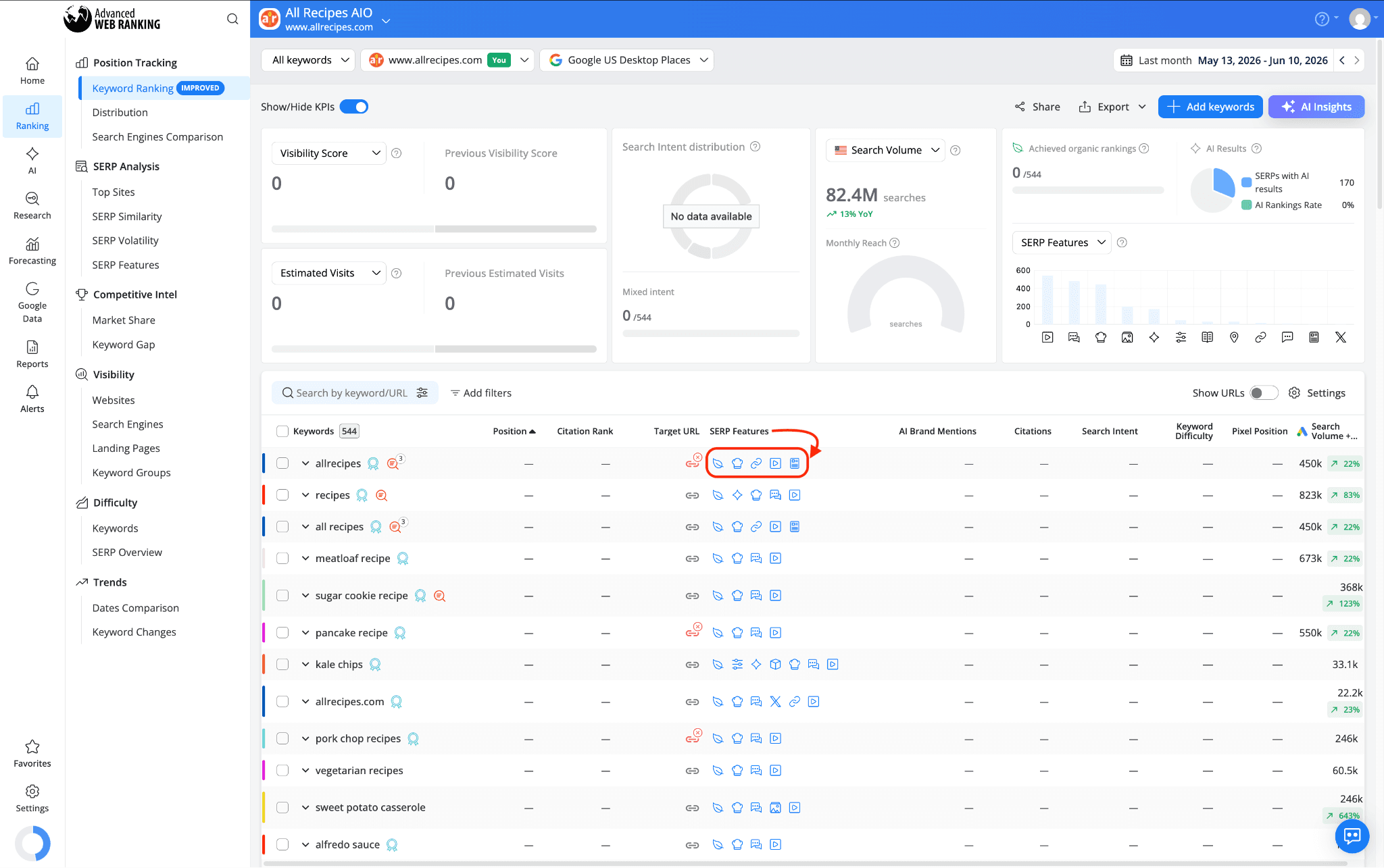
In cases where only SERP feature presence is shown without ranking tracking, all icons will appear in blue. This applies to search engines that detect SERP features on the results page but do not track your website's performance within them. In these cases, a blue icon indicates that the feature is present on the SERP for that keyword, but no data is available on whether your website appears within it.
How to Check Which SERP Features Appear for Your Tracked Keywords
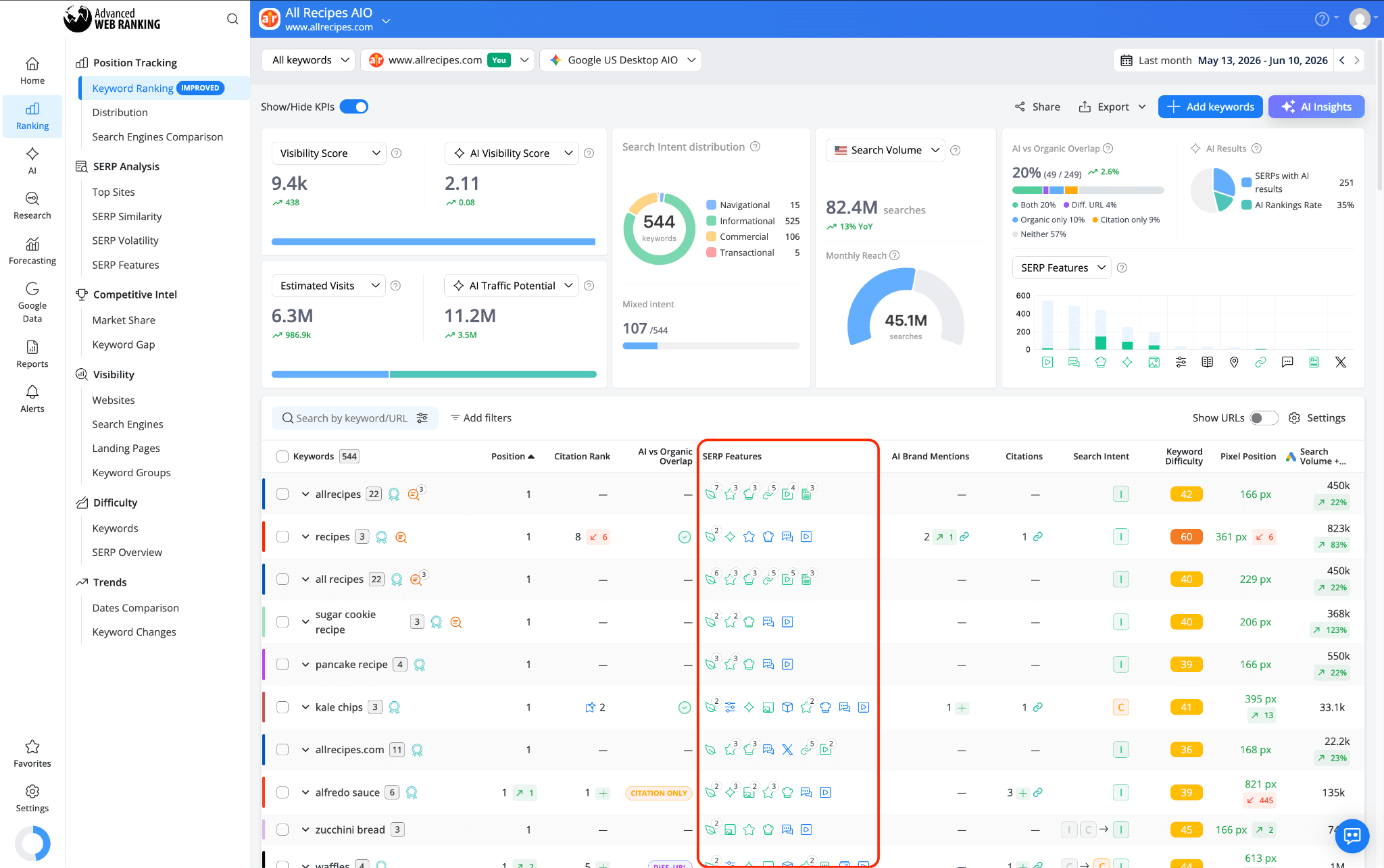
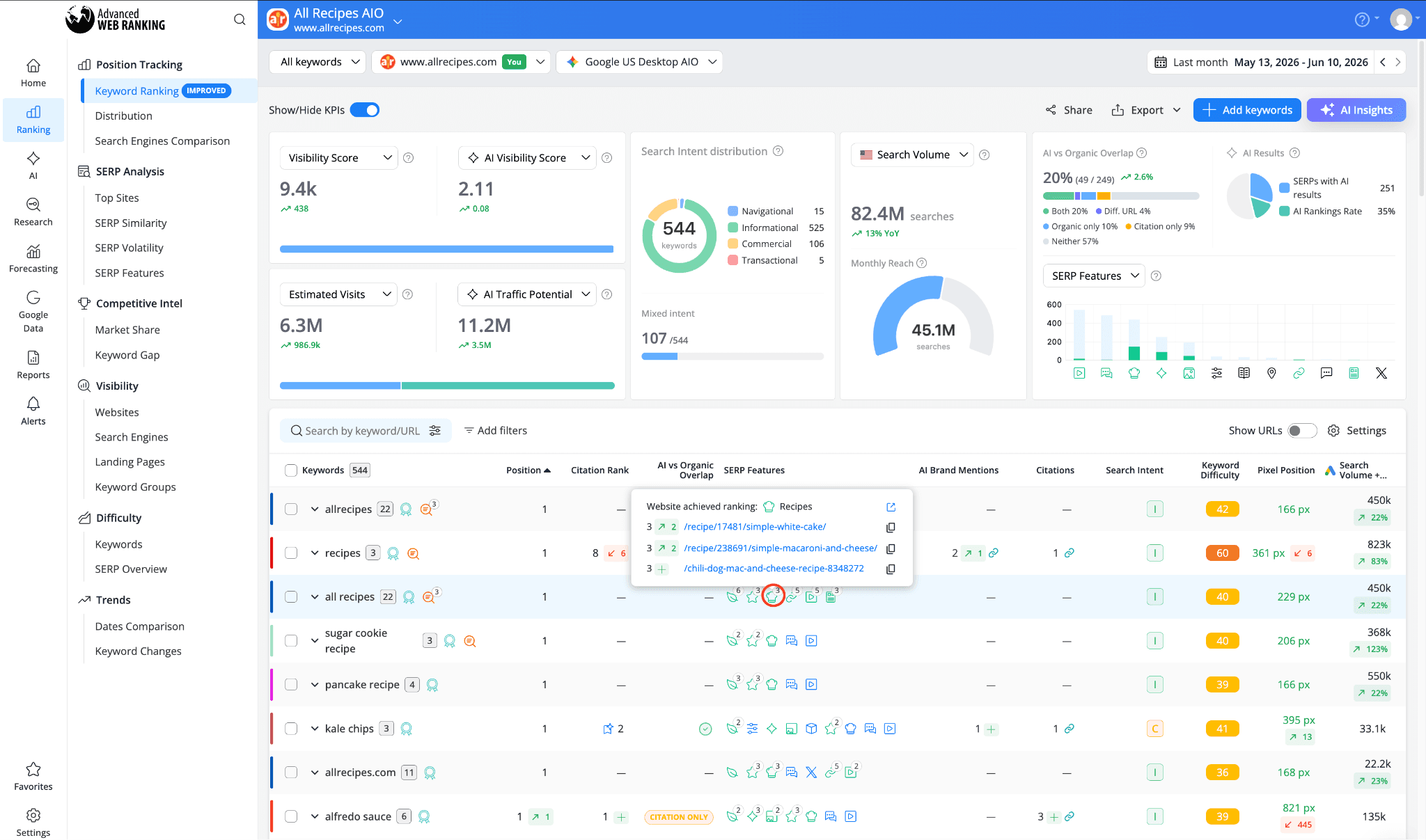
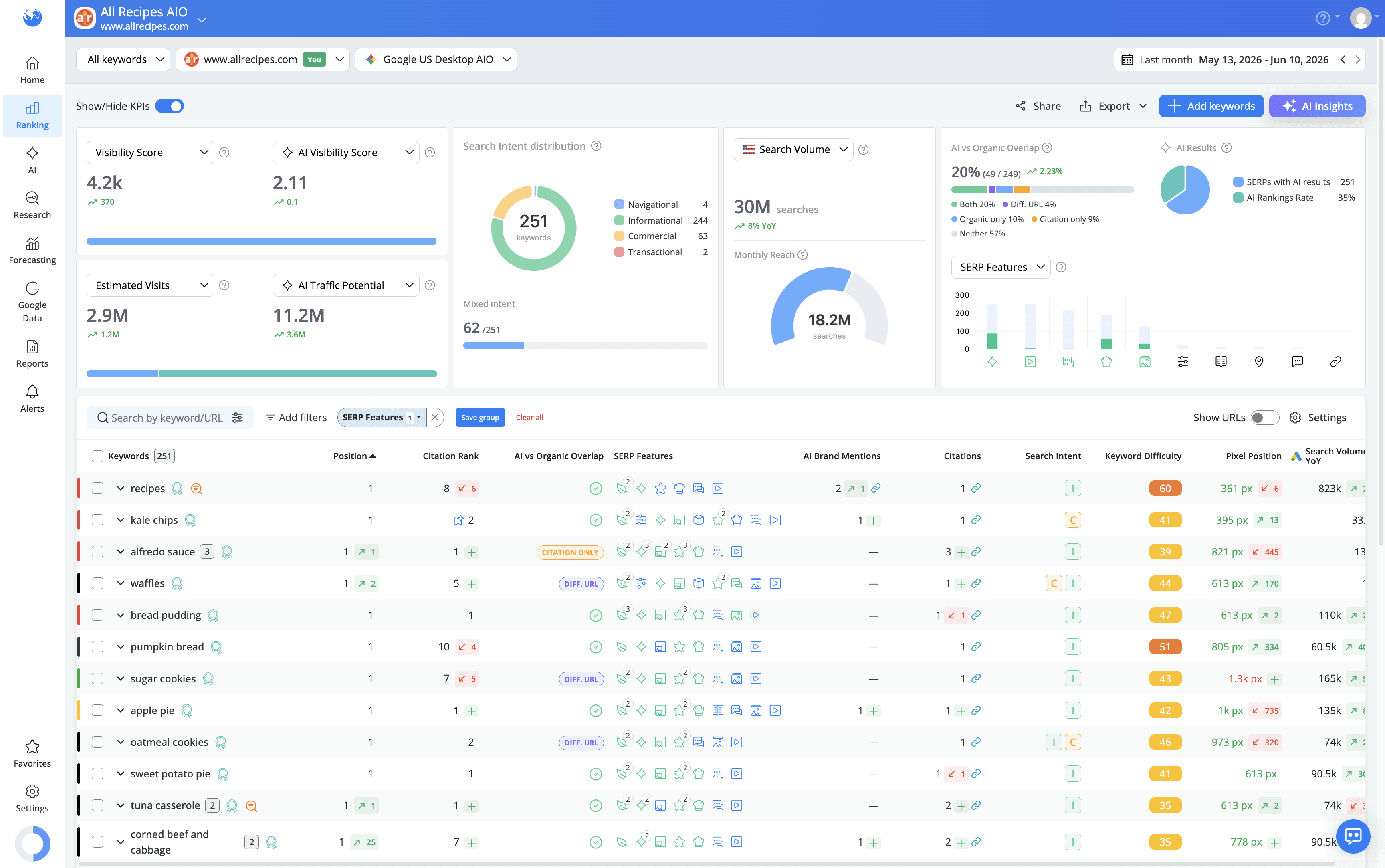
To see which SERP features are triggered for your tracked keywords, navigate to the Keyword Ranking report and look at the SERP Features column. For each keyword, this column displays the icons of all the SERP features found on the results page at the time of the latest ranking update.
If your website ranks within a SERP feature, you can hover over its icon to see more details: the URL that is ranking, its position and whether there has been any position change since the previous update.
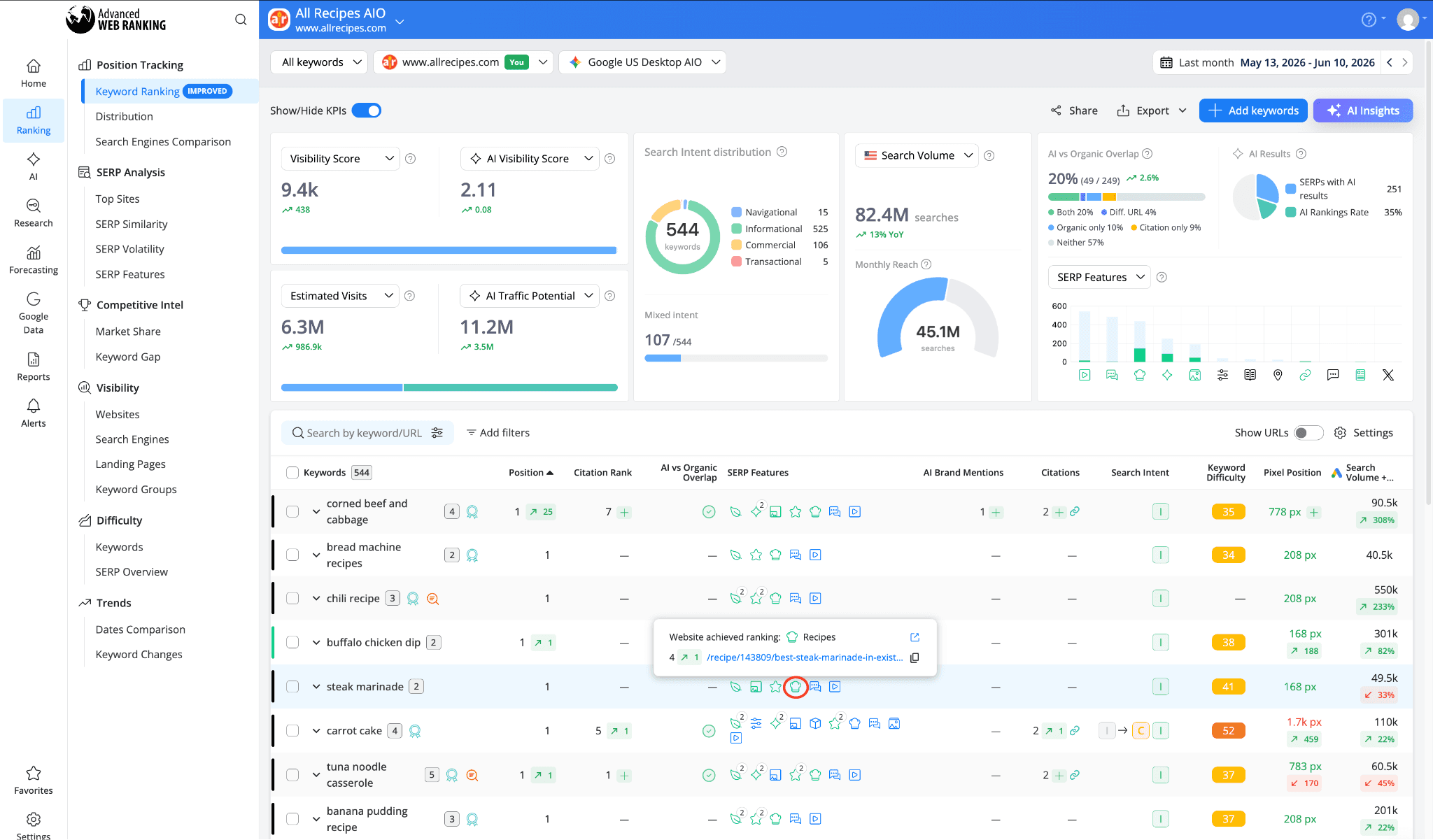
If multiple URLs from your website are ranking within the same feature, all of them will be shown.
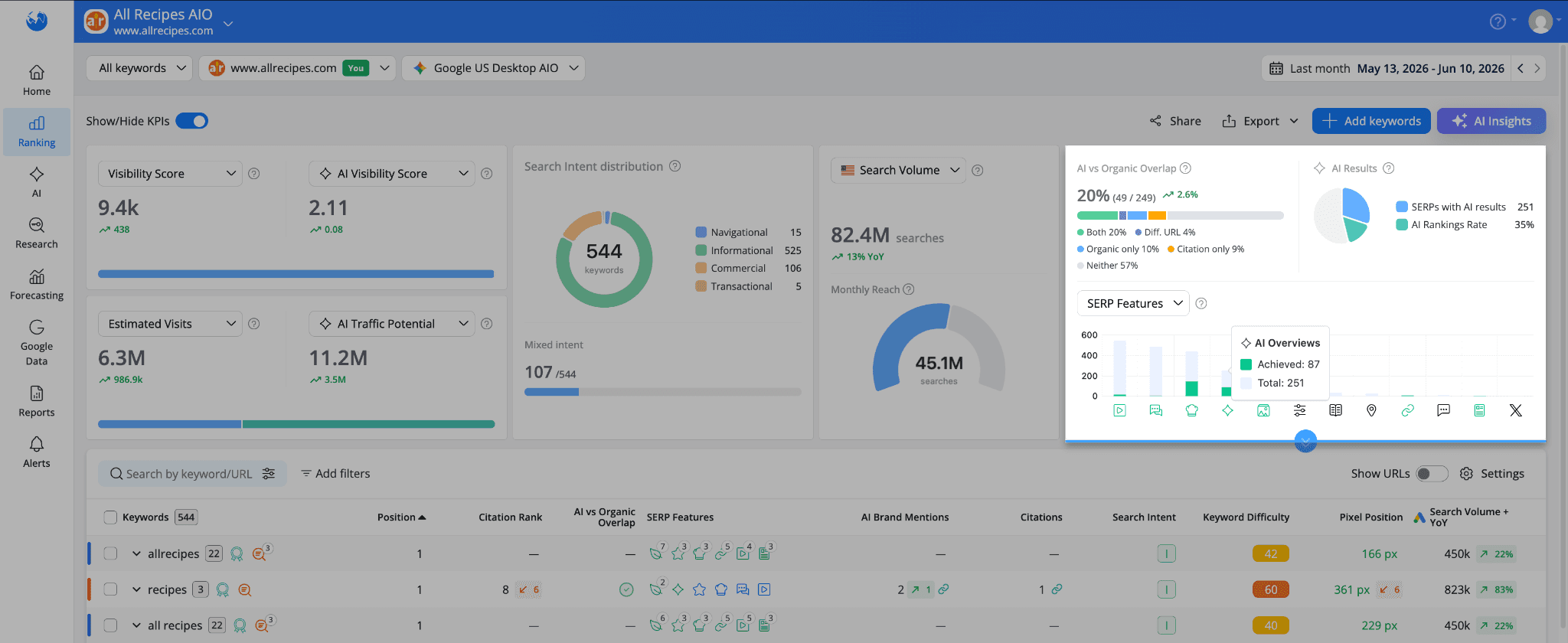
At the top of the Keyword Ranking report, the SERP Features KPI gives you a high-level summary of how SERP features are distributed across your tracked keywords. For each feature type, you can see the total number of SERPs containing that feature alongside the number of keywords for which your website ranks within it.
Clicking on any SERP feature in the KPI expands a chart that shows the evolution of three key data points over time:
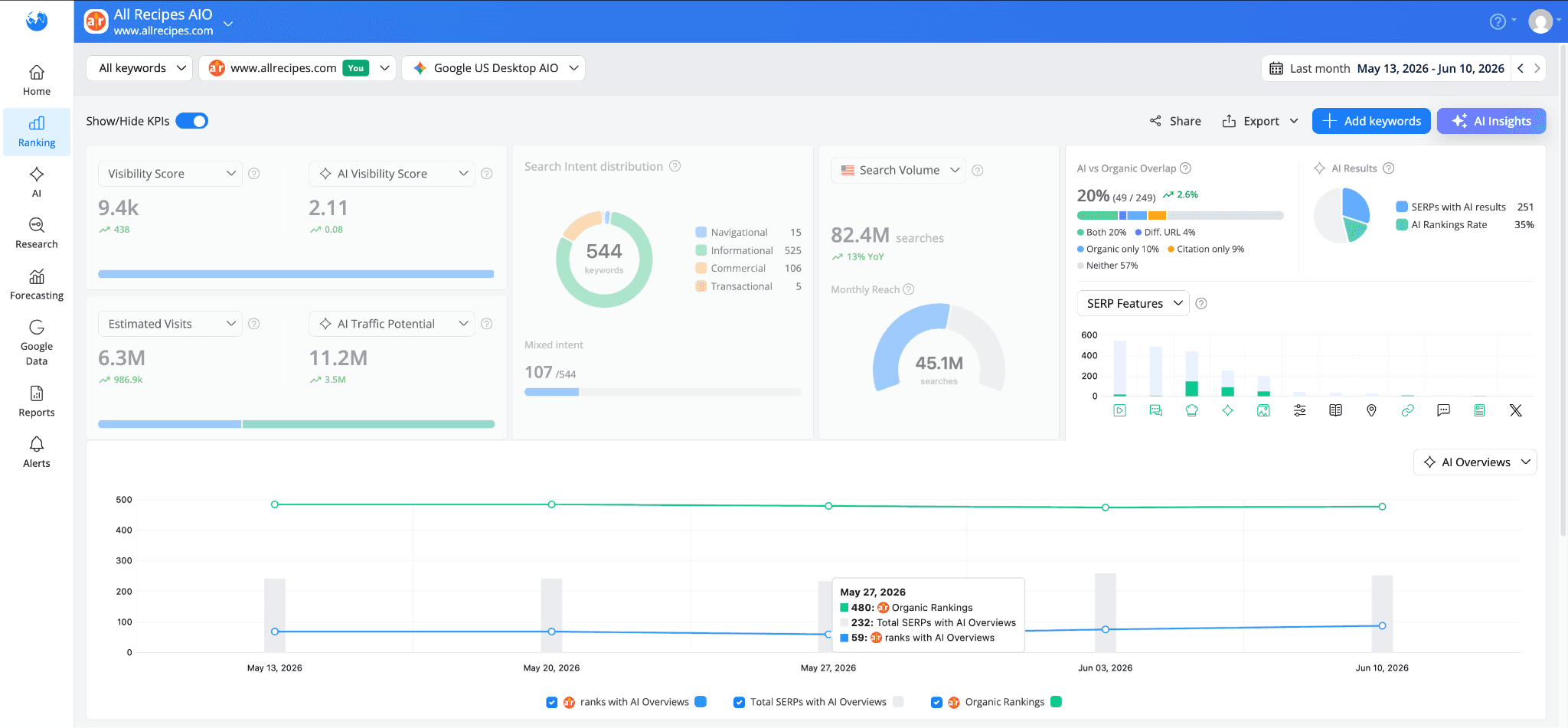
The number of tracked keywords that rank organically
The number of tracked keywords that rank both organically and within that SERP feature
The total number of tracked keywords that trigger that SERP feature
This gives you a clear picture of how a specific feature has evolved across your keyword set between updates, helping you spot trends and assess whether your presence within it is growing or declining over time.
Filtering keywords by SERP feature presence
If you want to narrow down your keyword list to only the keywords where a specific SERP feature is present on the results page, use the SERP features filter and choose the “Feature on SERP” option.
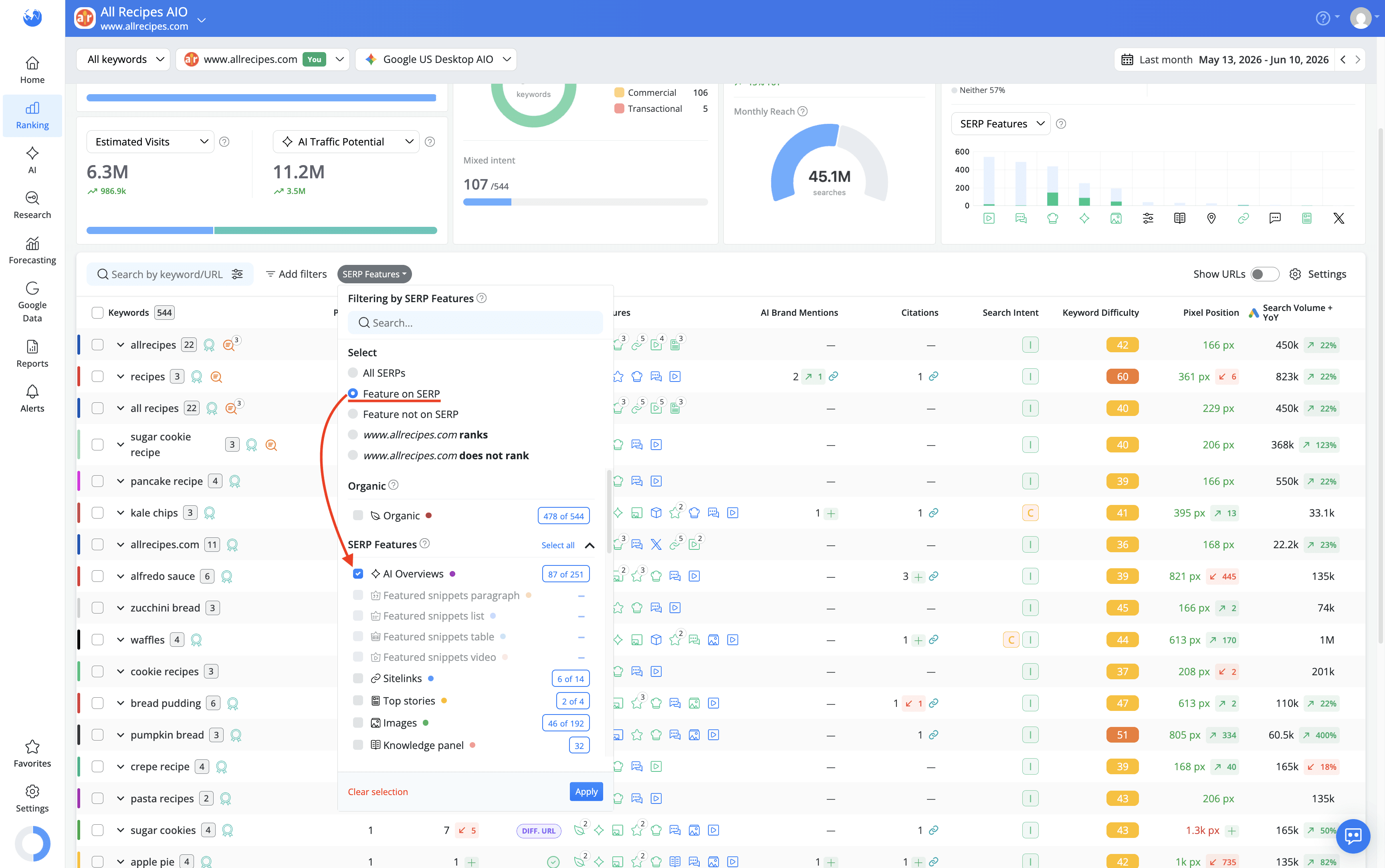
This will filter the table to show only the keywords for which that feature was found on the SERP, making it easy to spot patterns, such as a particular feature dominating a specific topic cluster or intent type within your keyword set.
How to See For Which Keywords Your Website Ranks for a Specific SERP Feature
To see only the keywords where your website is ranking for a specific SERP feature, use the SERP features filter in the Keyword Ranking report and select the "www.example.com ranks" option.
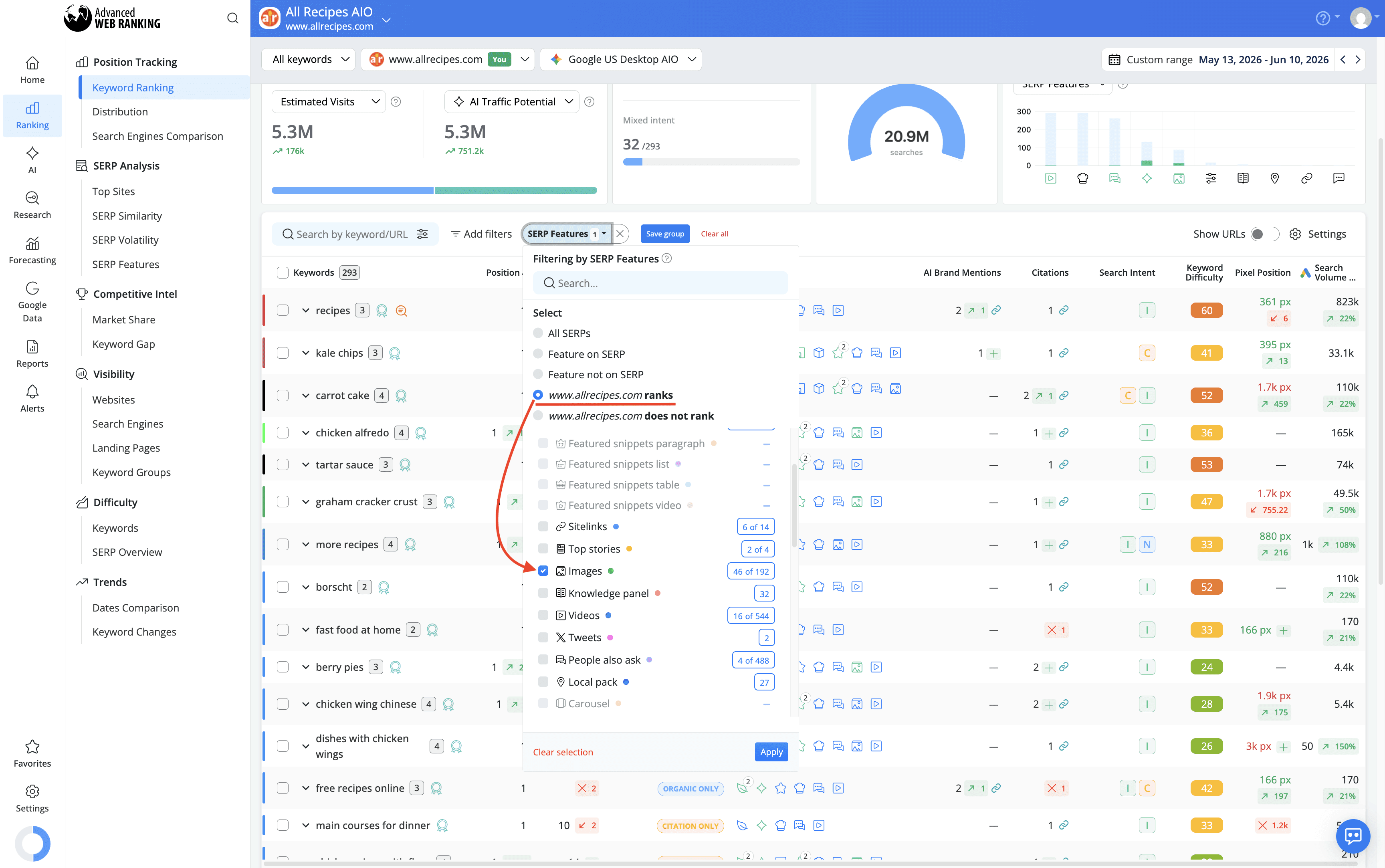
This will filter the table to show only the keywords where your website has achieved a ranking position within that feature.
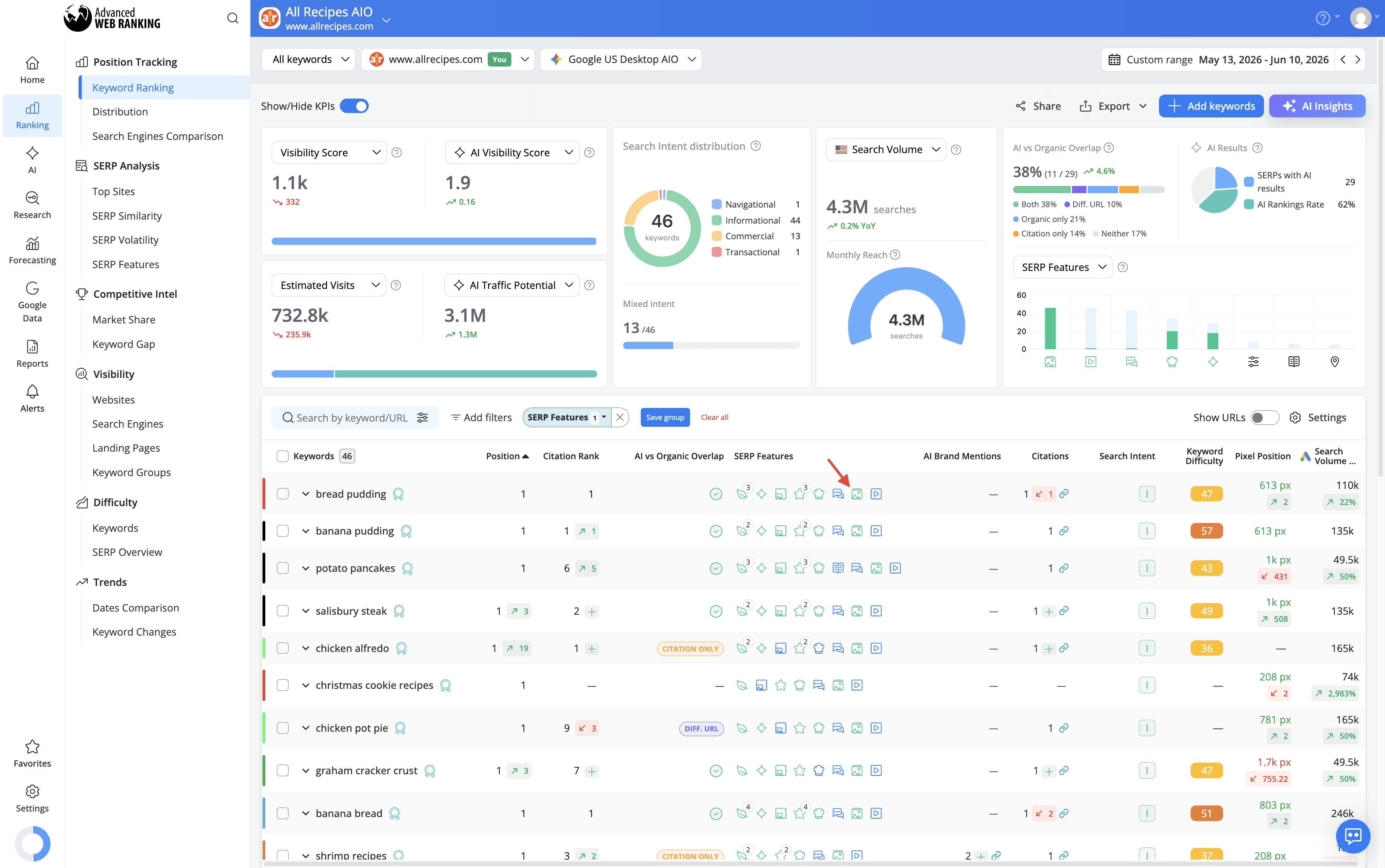
This is particularly useful for understanding which SERP features your website is already present in and how consistently you appear across your keyword set for each one.
Tracking your website's performance in AI Overviews
In the SERP Features column, AI Overviews are represented by a sparkle-shaped icon, similar to the one used by Google.
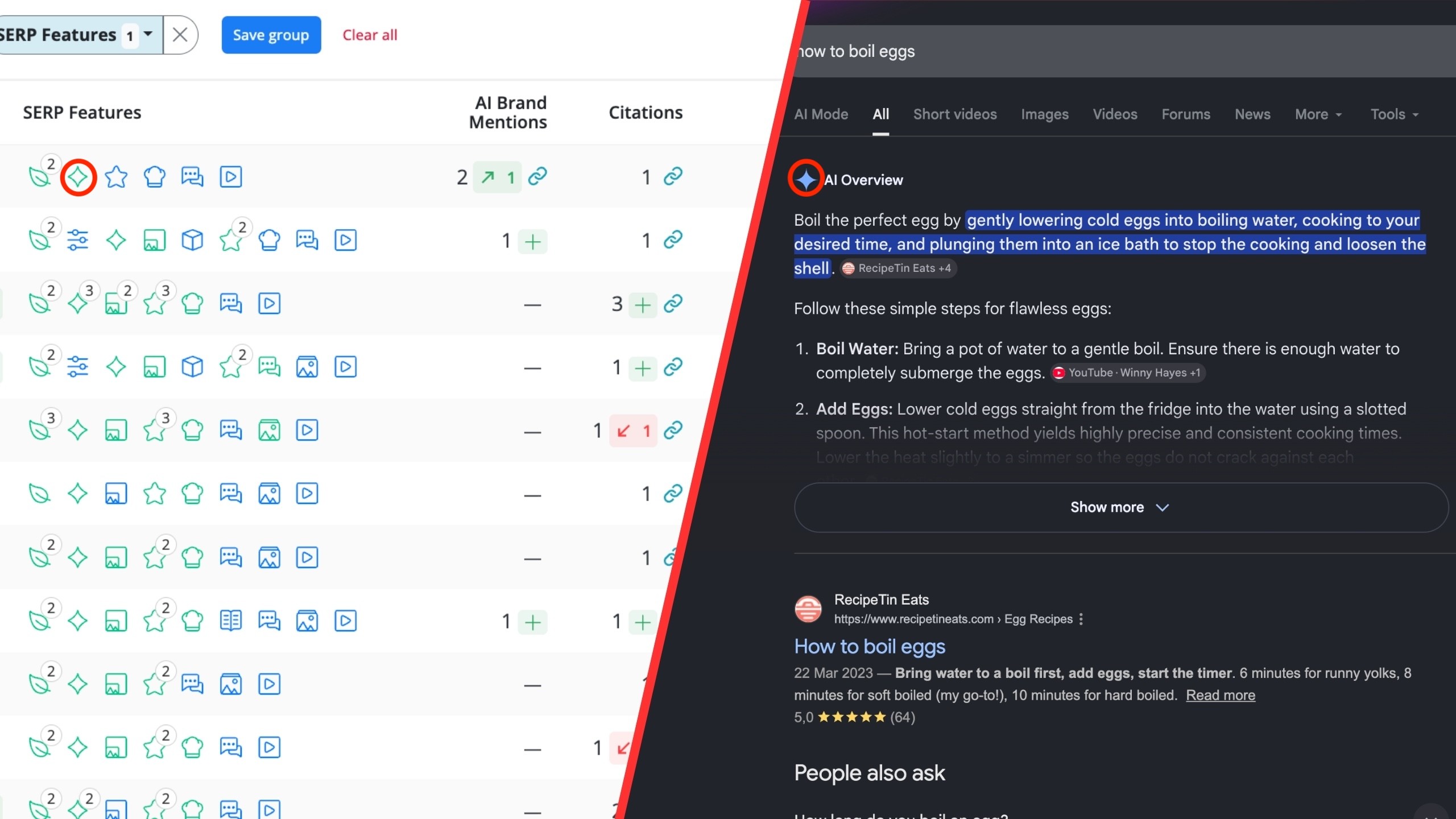
AI Overviews are one of the most impactful SERP features to track and AWR goes beyond simply detecting their presence. When your website appears in an AI Overview, AWR captures additional data that gives you a more complete picture of how your brand is represented within it.
For each keyword that triggers an AI Overview, you can see:
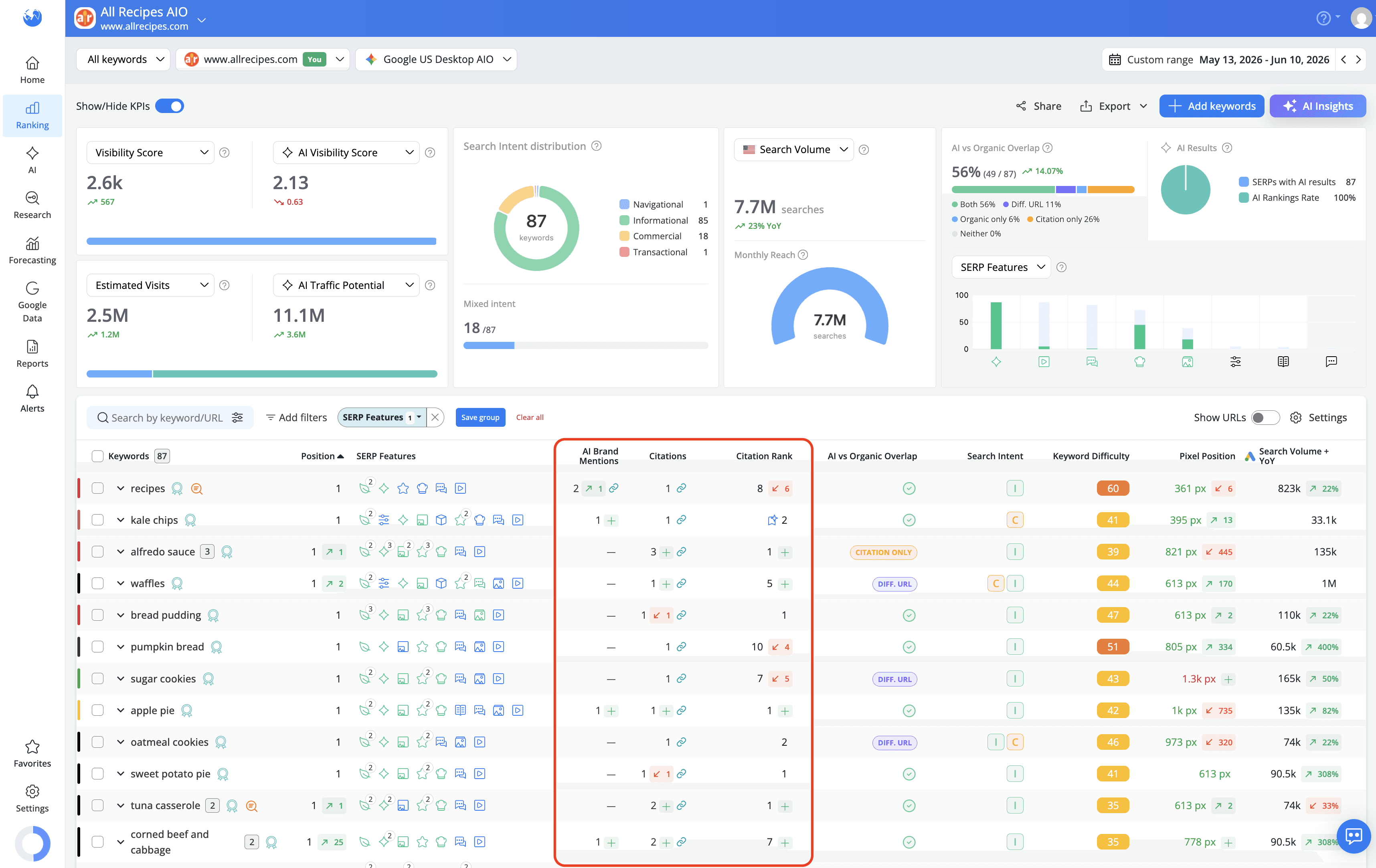
AI Brand Mentions — whether your brand is mentioned by name within the AI-generated answer, even when your website is not directly cited as a source
Citations — whether your website is referenced as a cited source within the AI Overview
Citation Rank — the position your website holds within the citation group inside the AI Overview
You can also check out the AI vs Organic Overlap metric, which answers a strategic question for every keyword you track: does your URL appear both in the organic top 10 and as a citation inside the AI Overview? In other words, how much overlap exists between the URLs ranking organically and the URLs contributing to your AI visibility.
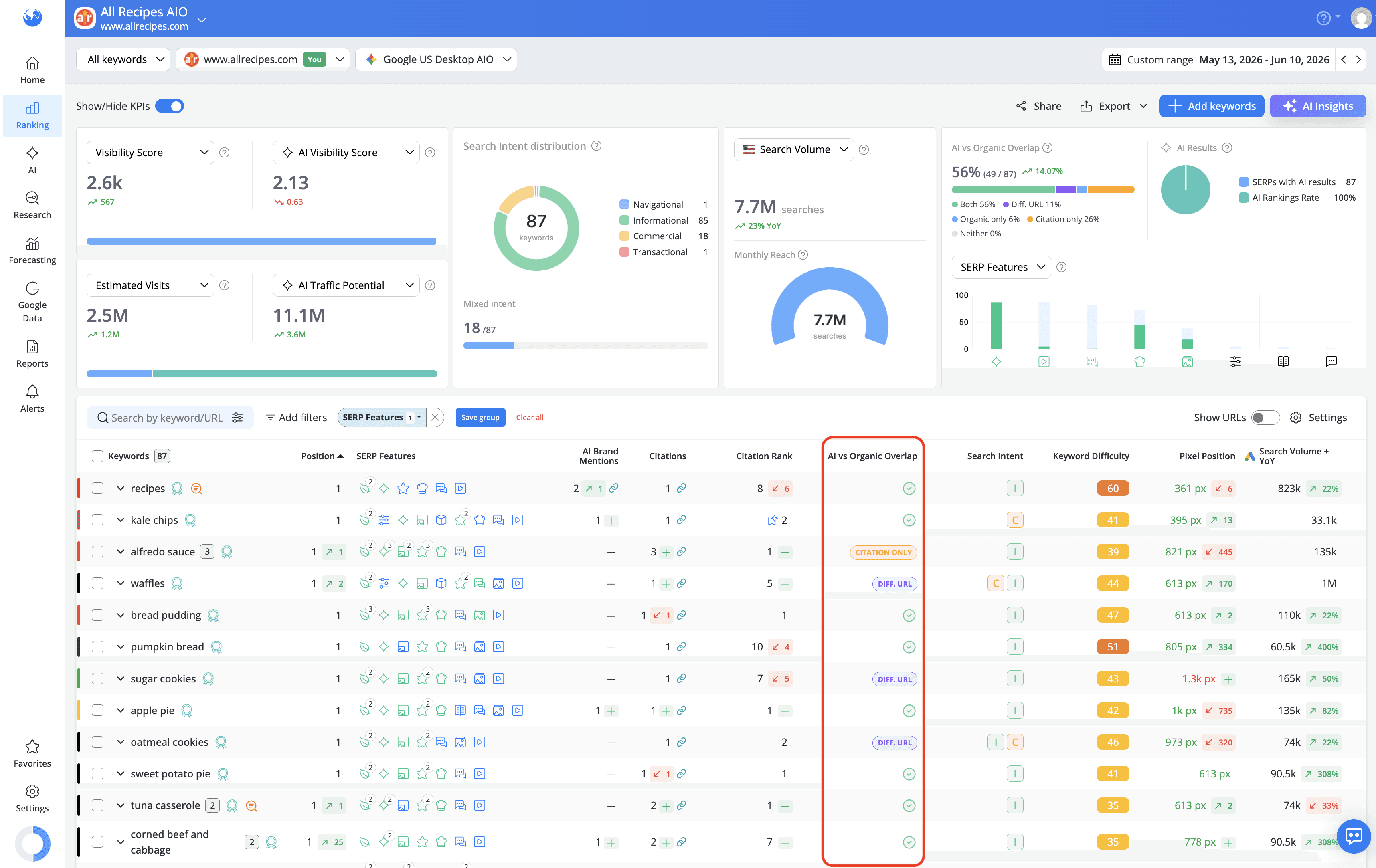
This tells you at a glance where your content is performing across both traditional and AI-powered search and where there is a gap between your organic visibility and your AI Overview presence.
You can track AI Overviews using either Google Universal or Google Search + AIO types of search engine.
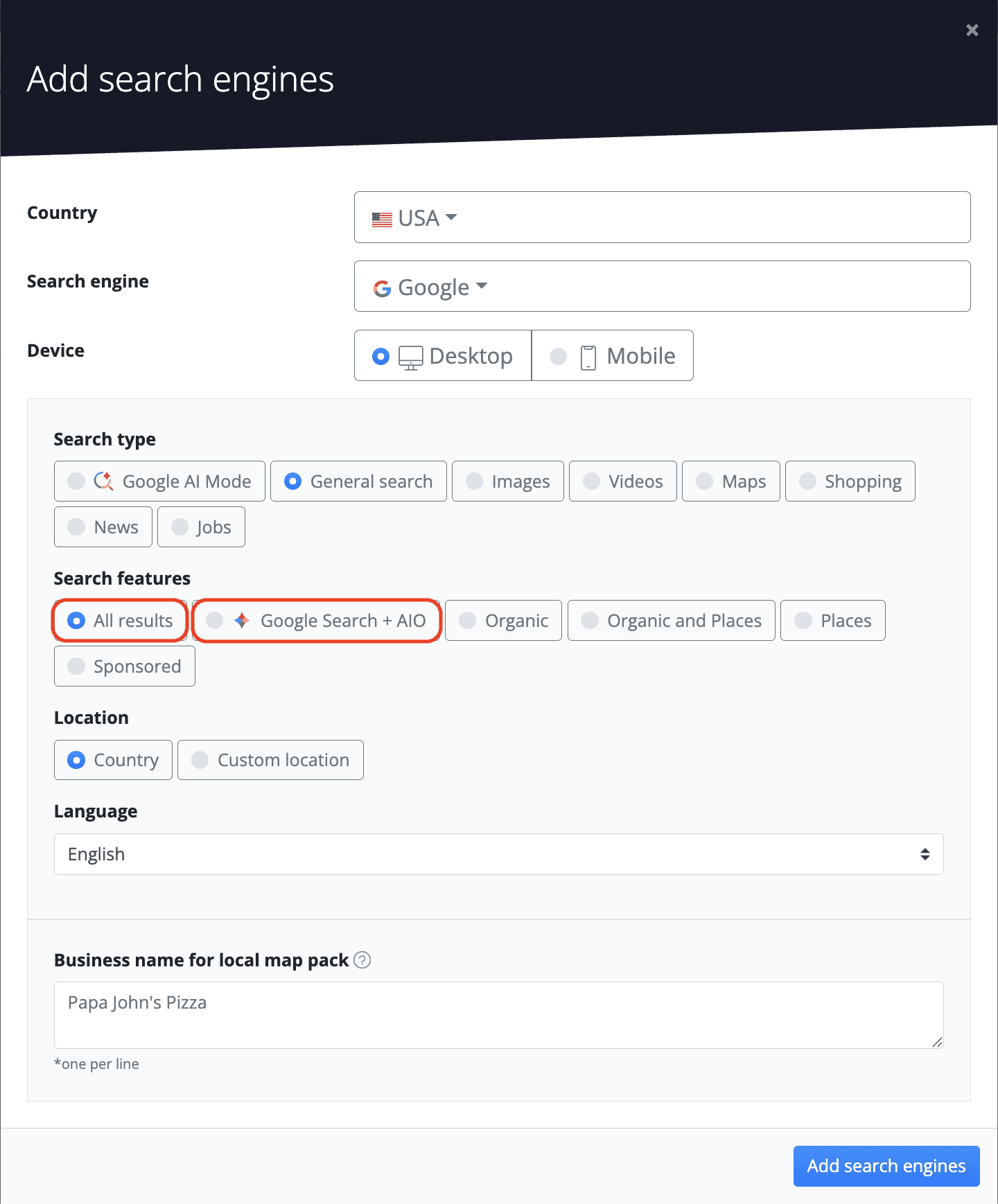
For more accurate and consistent results, Google Search + AIO is the recommended option. It uses a dedicated scraping mechanism that ensures more reliable retrieval of AI Overview data, whereas Google Universal may occasionally return incomplete or missing source URLs.
Viewing the SERP snapshot
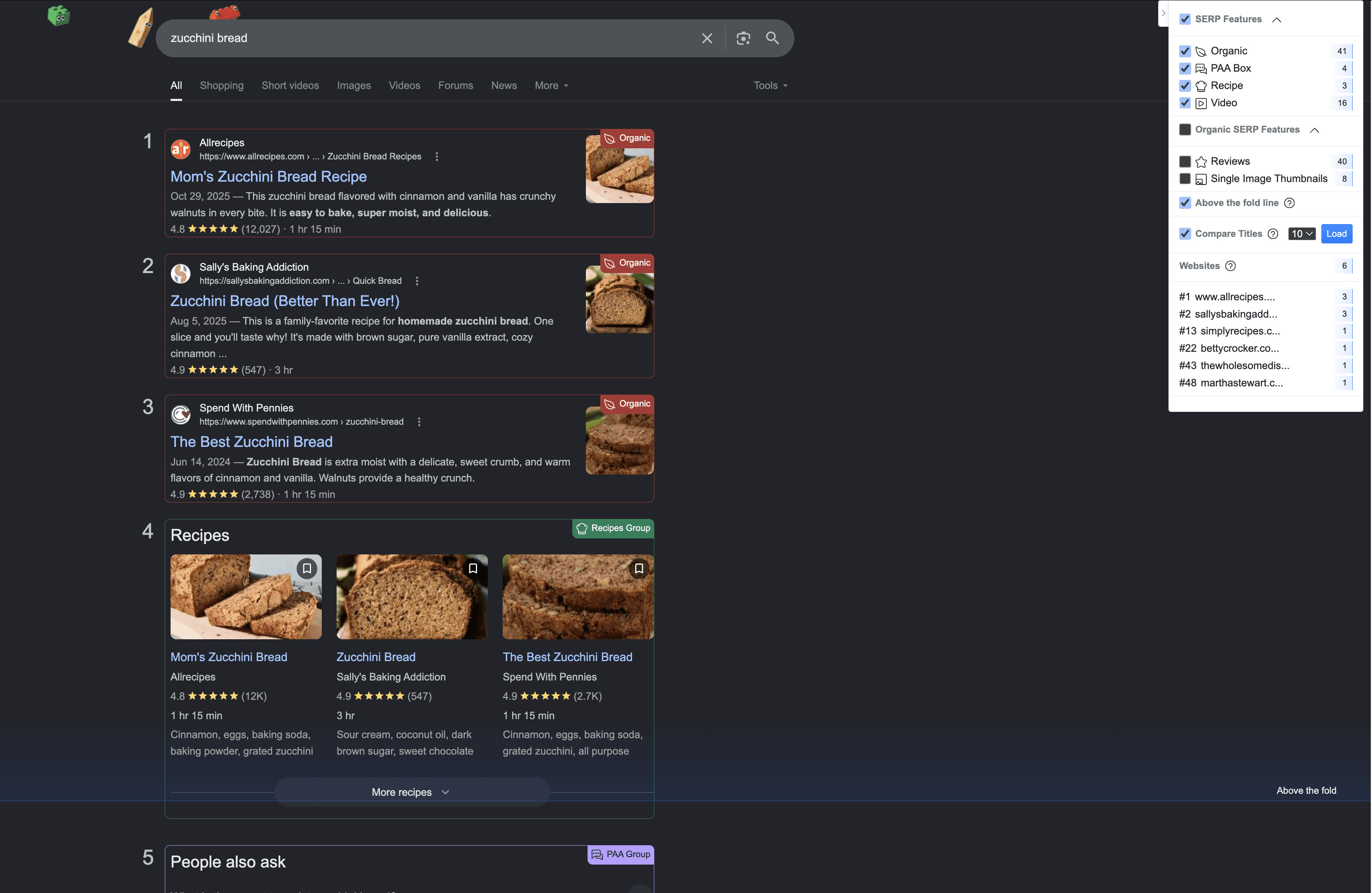
To see exactly how a SERP feature looks and how your content is displayed within it, click on any SERP feature icon in the column.
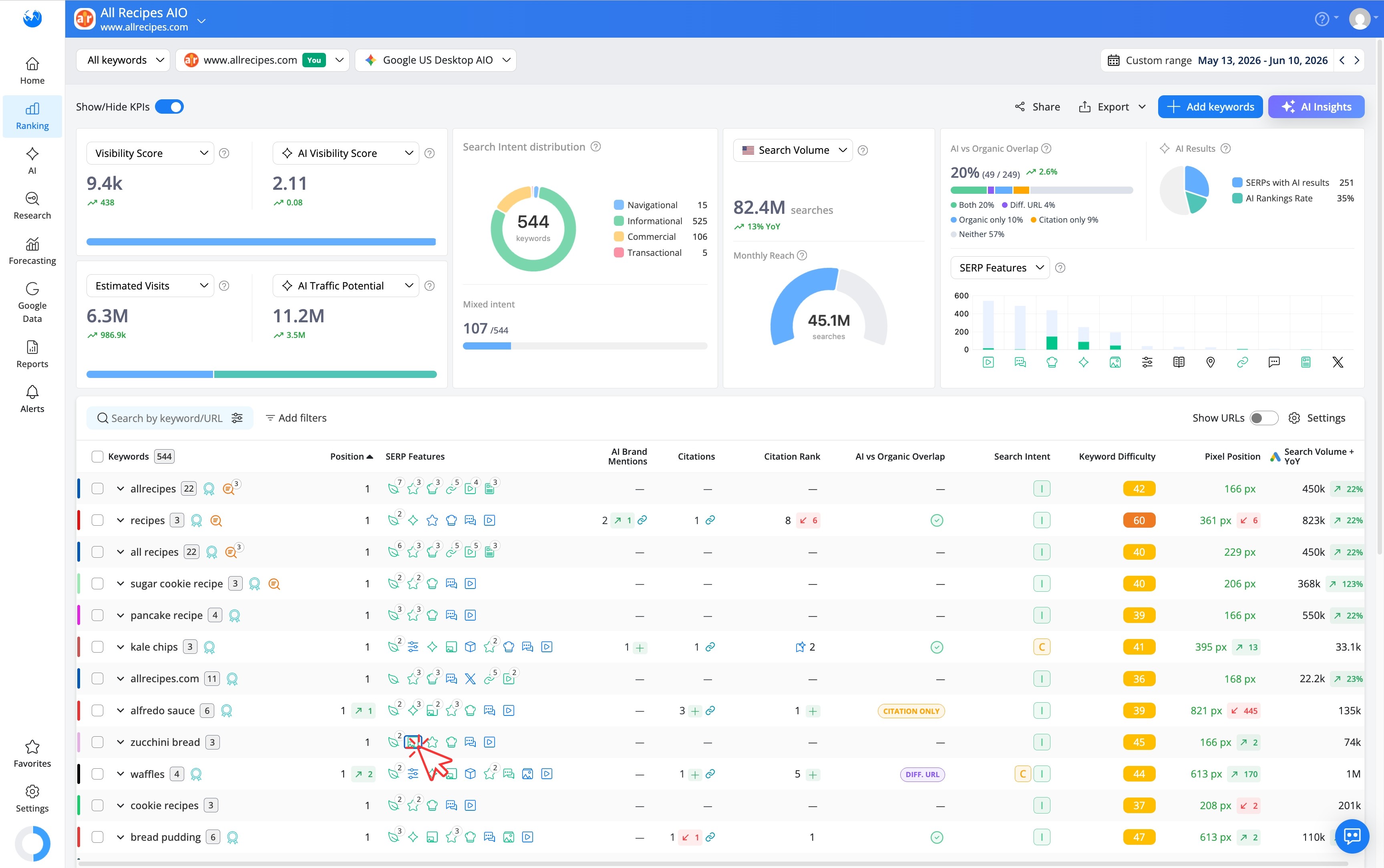
This opens a snapshot of the actual results page as it appeared at the time of the latest ranking update, giving you a visual view of the full SERP including all the features present for that keyword.
How to See For Which Keywords Your Competitors Rank for a Specific SERP Feature
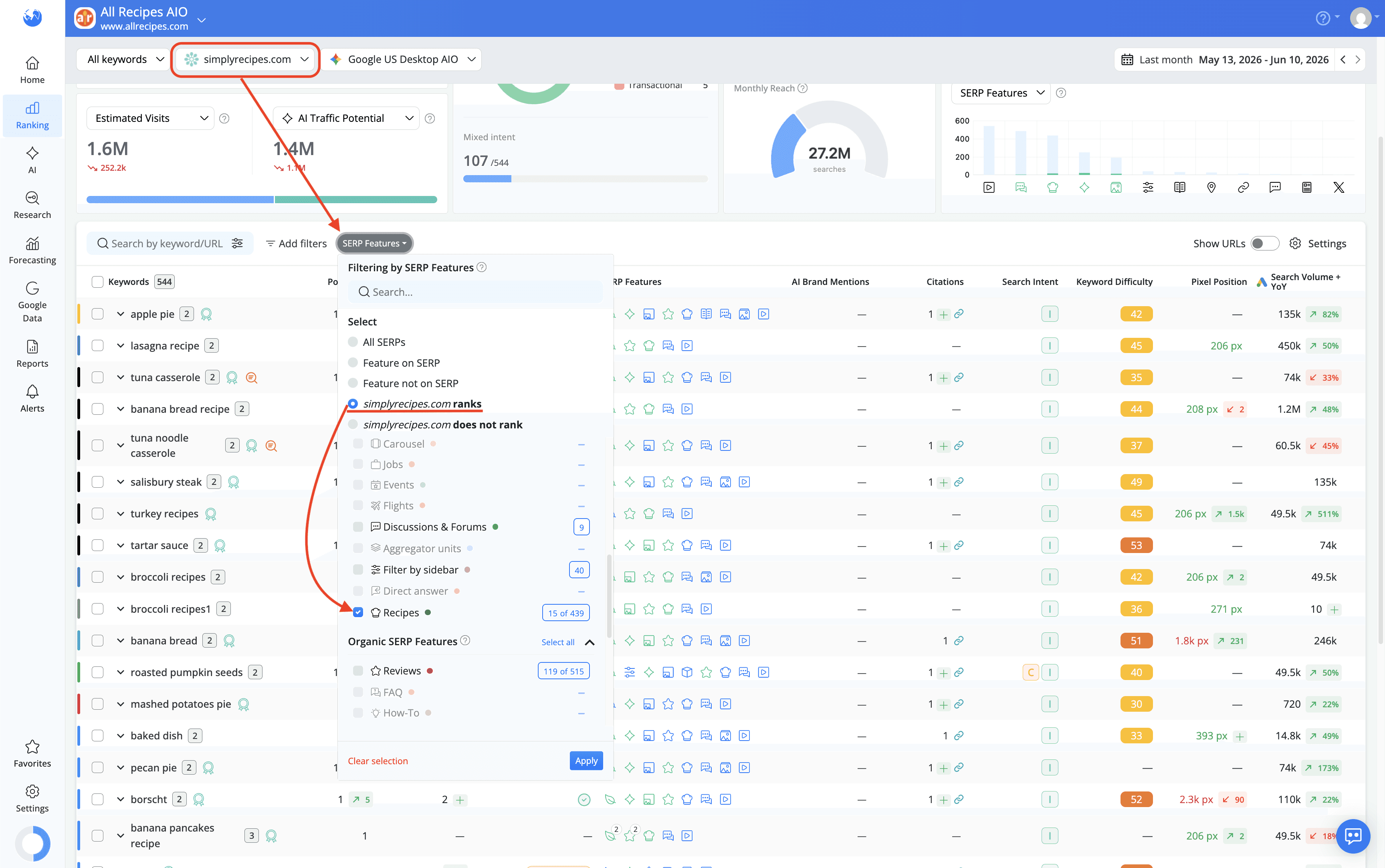
To check which SERP features your competitors are ranking for, use the Websites drop-down at the top of the Keyword Ranking report to switch to a competitor's website. Then apply the SERP features filter and select the ranks option.
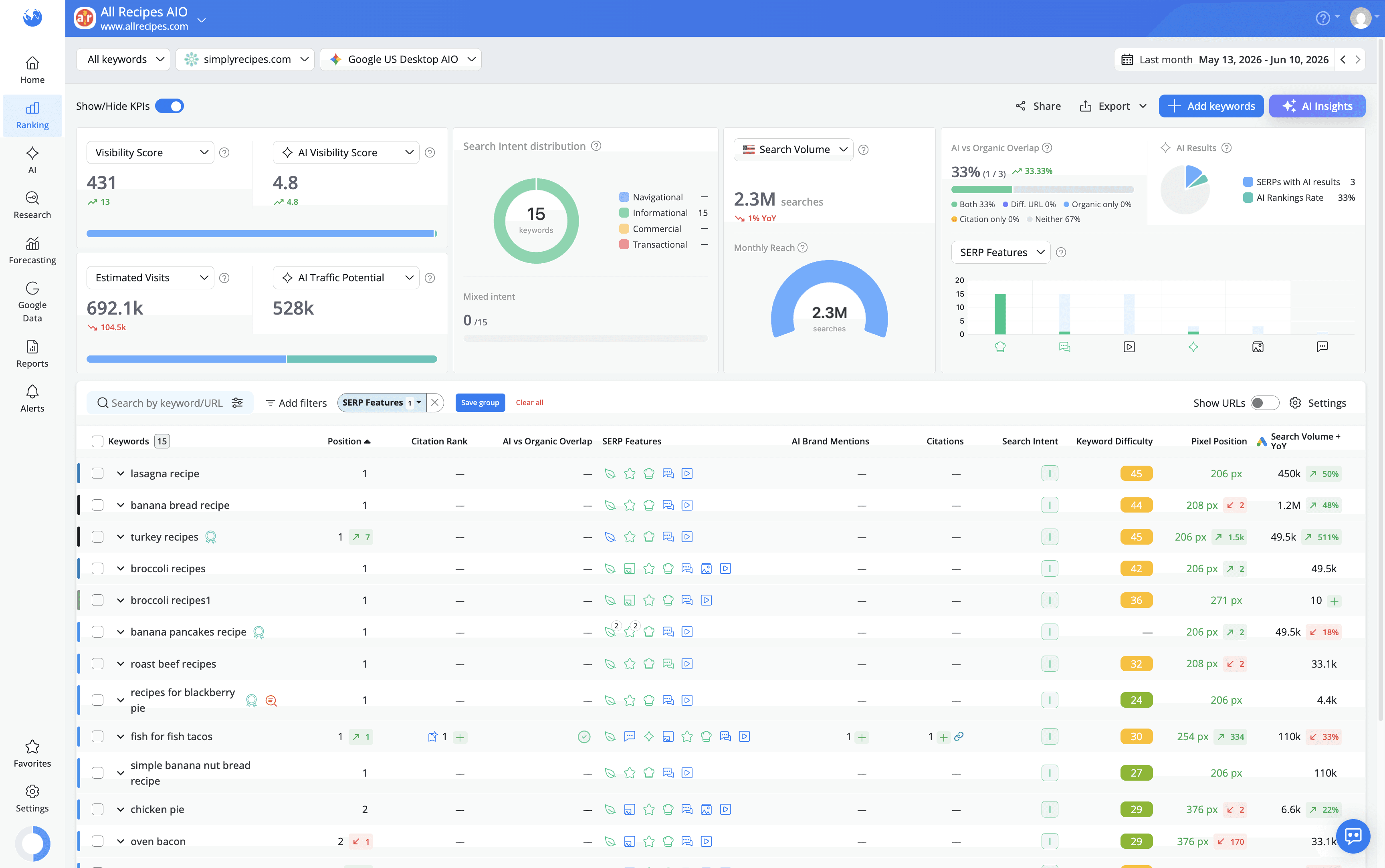
This lets you see exactly which SERP features each competitor is present in across your tracked keywords, making it easy to spot where they are gaining additional visibility that you are not capturing yet and identify the features worth prioritizing in your own SEO strategy.
Comparing SERP Feature Distribution Across Your Website and Competitors
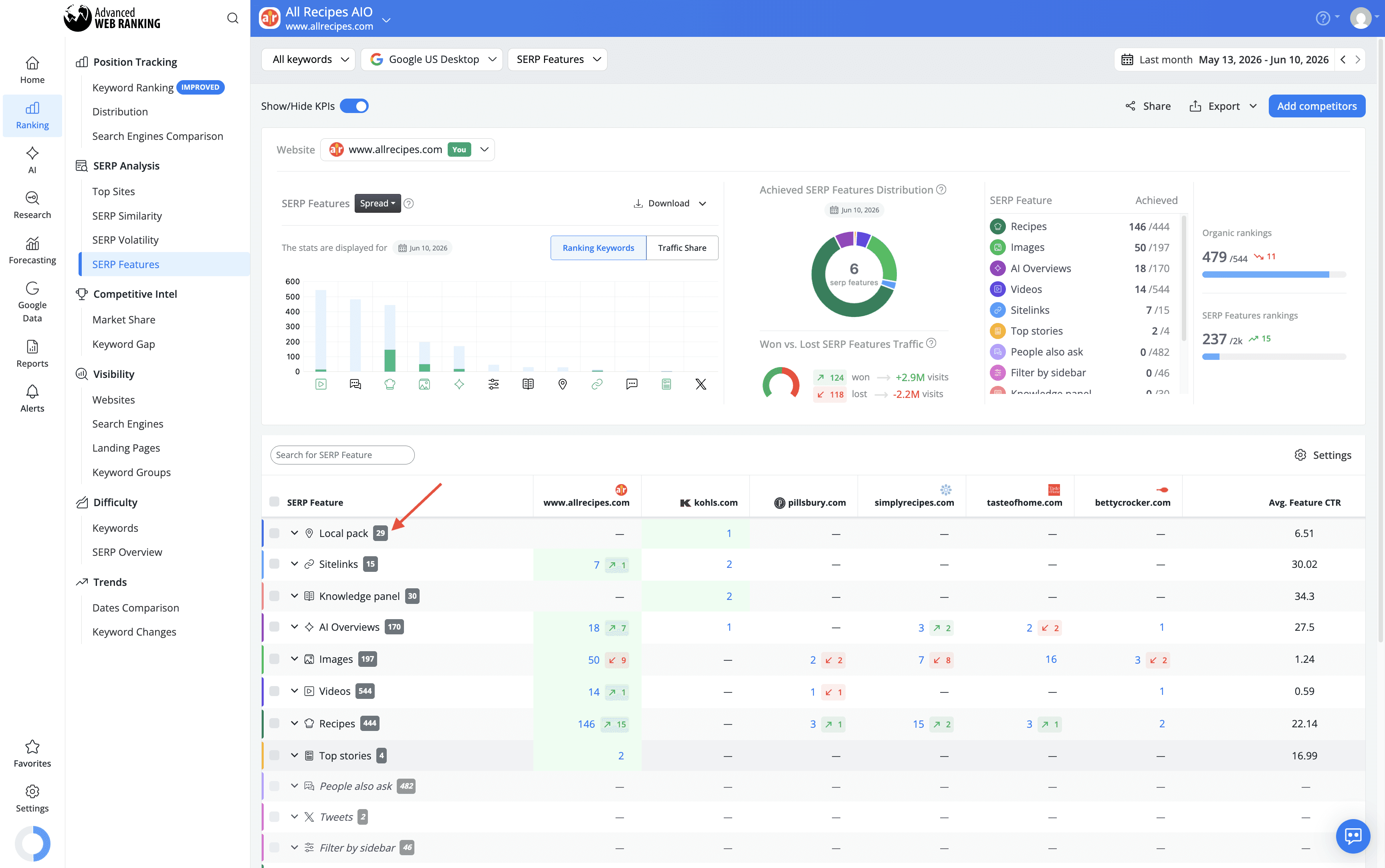
For a broader view of how your website and competitors perform across each SERP feature type, head to the SERP Analysis>SERP Features report. This report shows a side-by-side comparison of the number of SERP features achieved by your website and each tracked competitor, organized by feature type.
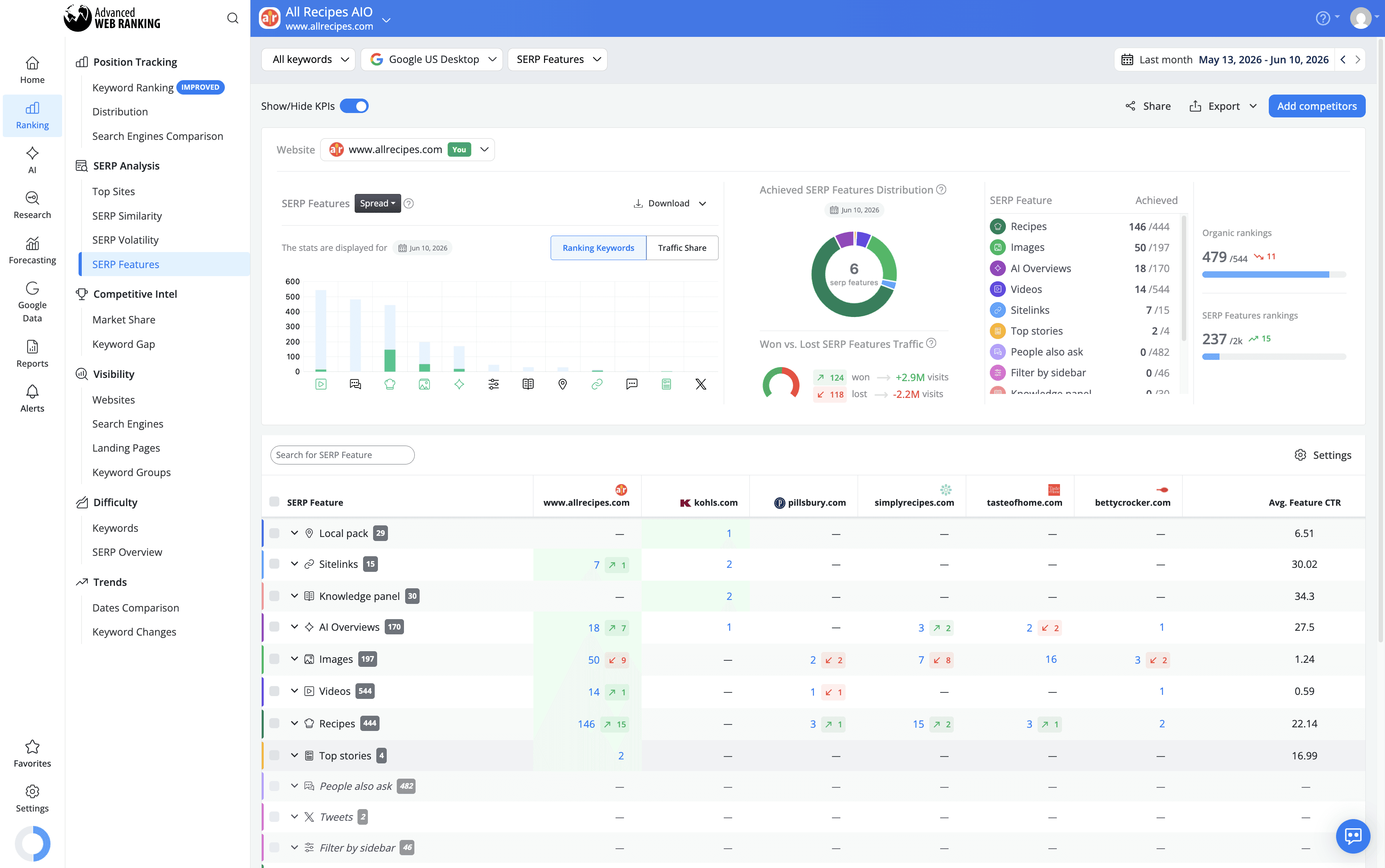
Next to each SERP feature, you will see the total number of SERPs containing that feature out of all your tracked keywords, giving you a clear picture of how prevalent each feature is across your keyword set and how your website's presence within it compares to competitors.
How to Find New SERP Feature Ranking Opportunities
A SERP feature appearing for a keyword where your website is not included is an opportunity worth looking into. To surface these gaps, use the SERP features filter in the Keyword Ranking report and select the "www.example.com does not rank" option. This filters the table to show only the keywords where that specific feature is present on the SERP but your website has not yet achieved a ranking within it.

This gives you a focused list of keywords where a ranking opportunity exists for a specific feature type.
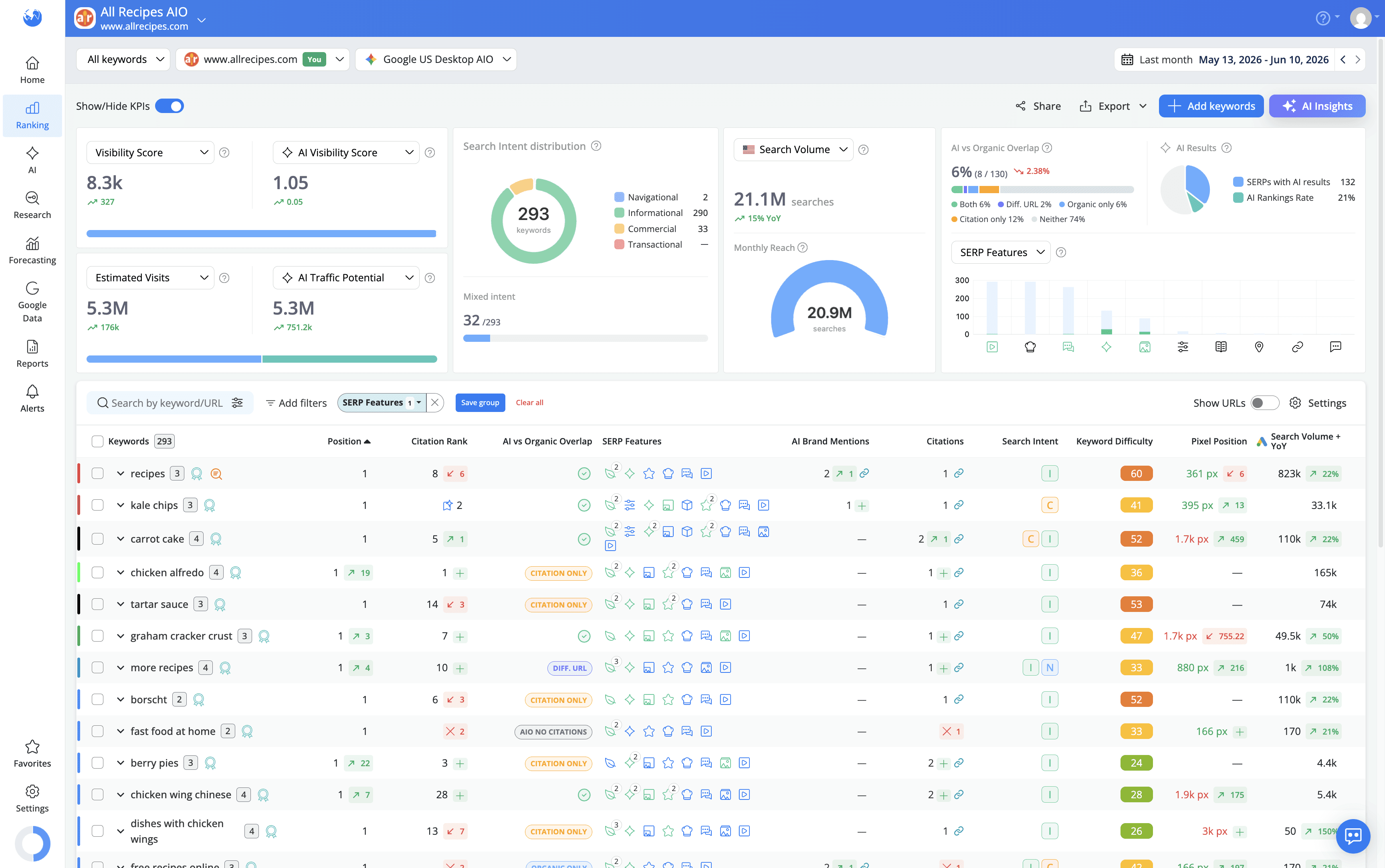
You can then evaluate which keywords are most relevant to your content and decide where optimizing for that feature would have the most impact.
Conclusion
SERP features are an important part of the search landscape and tracking them gives you a more complete picture of how your website performs beyond traditional organic rankings. By monitoring which features appear for your keywords, where your website is present within them and where competitors are gaining ground, you can make more informed decisions about where to focus your SEO efforts.
For a deeper look at how specific SERP features work and how to track them in AWR, make sure to check the SERP Features Tracking section of the AWR Help Center, where you will find dedicated articles for each SERP feature type.
Do you have any other questions? Don’t hesitate to get in touch and we will keep building the FAQ.
Frequently Asked Questions
What is the difference between a SERP feature and an organic search result?
How do SERP features impact organic click-through rates?
Why do some keywords trigger SERP features and others do not?
Can a website rank in a SERP feature without ranking in the top 10 organically?
How do SERP features affect organic traffic?
Do SERP features replace organic results or complement them?
Why are SERP features important for SEO?
stay in the loop