

Advice and answers from the Advanced Web Ranking Team
Search for articles
Running Large-Scale SEO Campaigns? Export the Data You Need, All at Once
Reporting for large SEO clients means more data. Learn how to export rankings at scale across projects and build your reports.

When you’re managing larger clients, you may need to look back at years of ranking data across thousands of keywords and multiple projects to show how their SEO performance has changed over time.
For your regular reporting needs, you can export ranking data directly from AWR’s interface. But when you’re dealing with larger datasets, you may need a faster way to get all the data you need.
TL;DR: Handle more client data with less manual work
Working with large SEO clients usually comes with more projects, more keywords and a lot more data to handle. AWR lets you download what you need directly from the interface or automate the process when manual exports no longer make sense.
You can send fresh data to Google Drive or FTP, keep larger datasets in BigQuery or use the Developer API when you need more control over what you pull and how it fits into your agency’s workflow.
If client-facing reports are taking up your team’s time, you can schedule those too, so each client receives their own report without your team having to prepare it manually every time.
How to export ranking data manually from the interface
For your regular reporting needs, you can export ranking data directly from AWR’s interface and generate a file you can download and use right away.
From any report, click “Export” button in the upper-right corner and choose the format that works best for you.
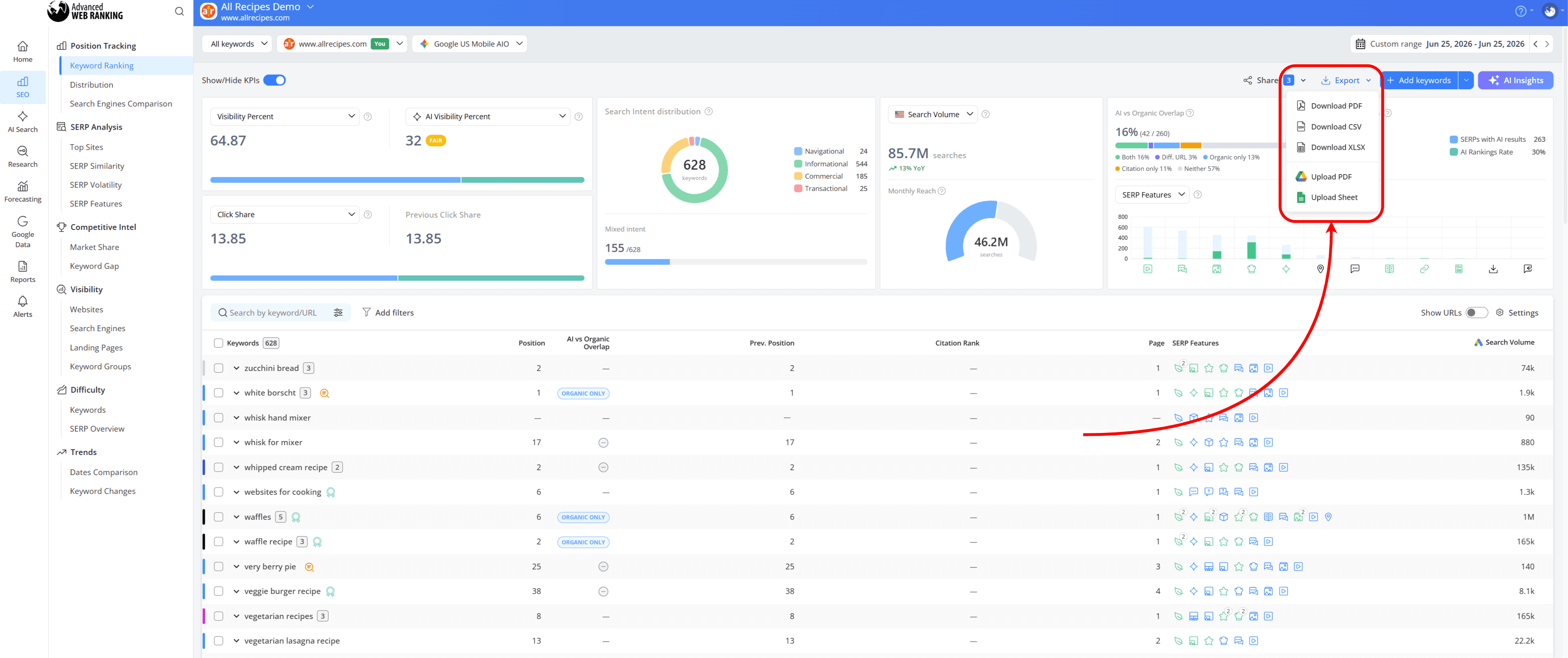
If you need a client ready report without spending time on formatting, you can export your AWR data as a PDF. The report is visually structured and ready to share, so you can present the results without having to build it yourself.

Or, if you’d rather work with the data yourself, choose CSV or XLSX. You can export up to 20,000 rows per file and use the data in your own reporting workflows.
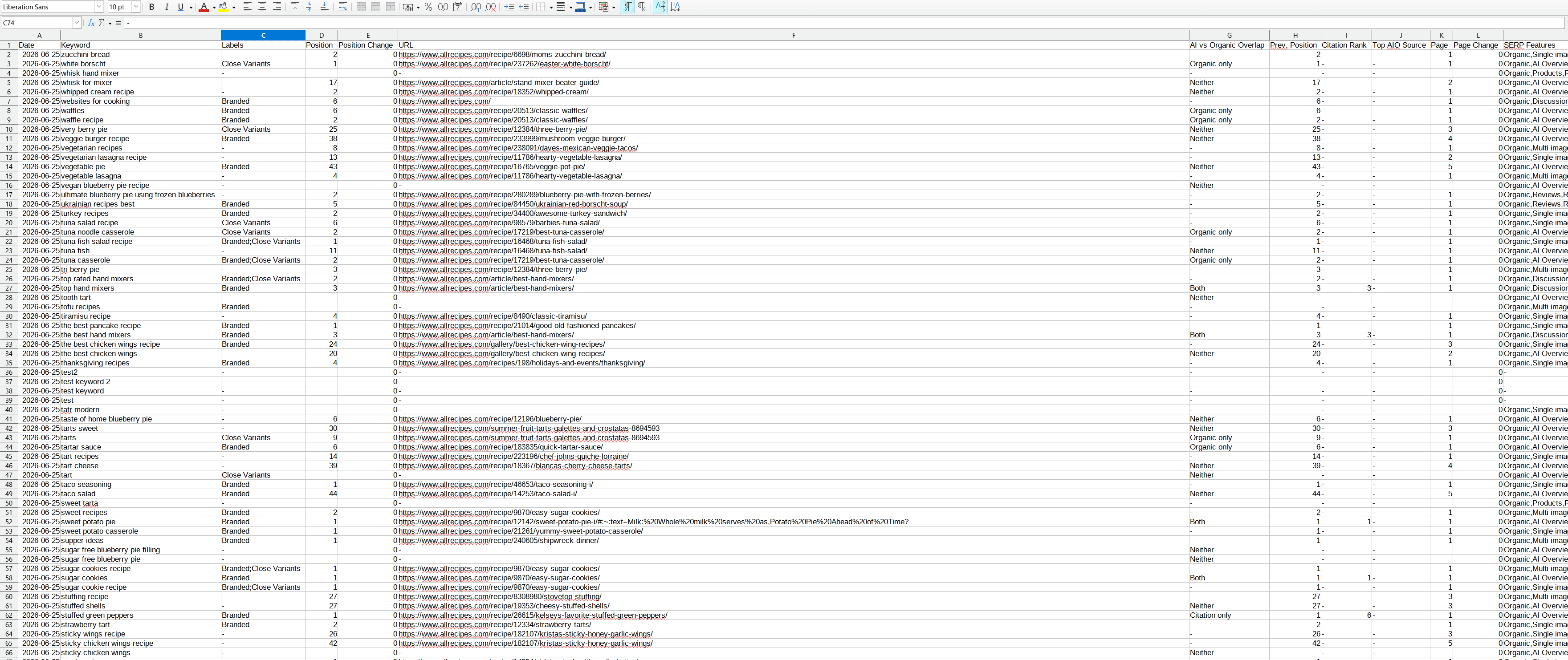
You can also feed these exports into your AI agents to analyze ranking trends, spot opportunities and uncover changes that might be easy to miss manually.
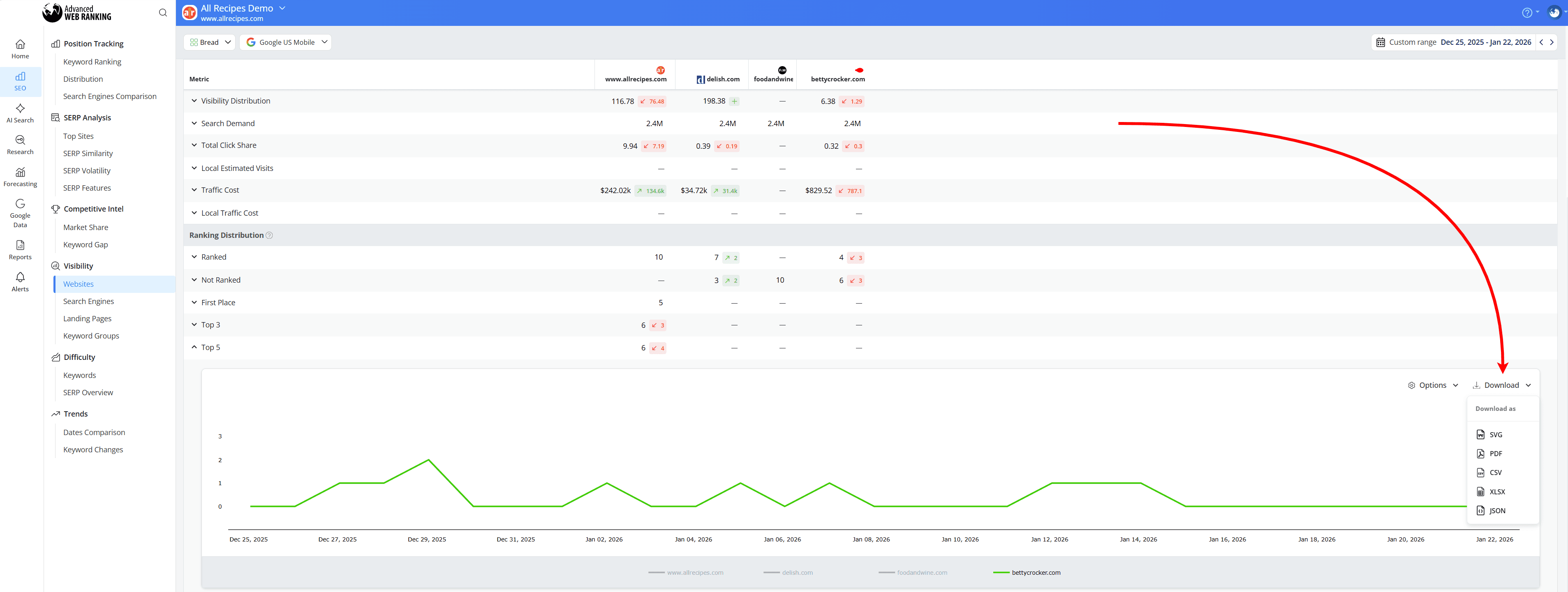
If there’s a chart or KPI your clients would find useful, you can export its data too. Simply expand the chart or KPI you want, click “Download” and choose your preferred export format.
After choosing the format that works best for you, you can take things a step further by sending your reports directly to Google Drive, making them easier to organize, access and share.
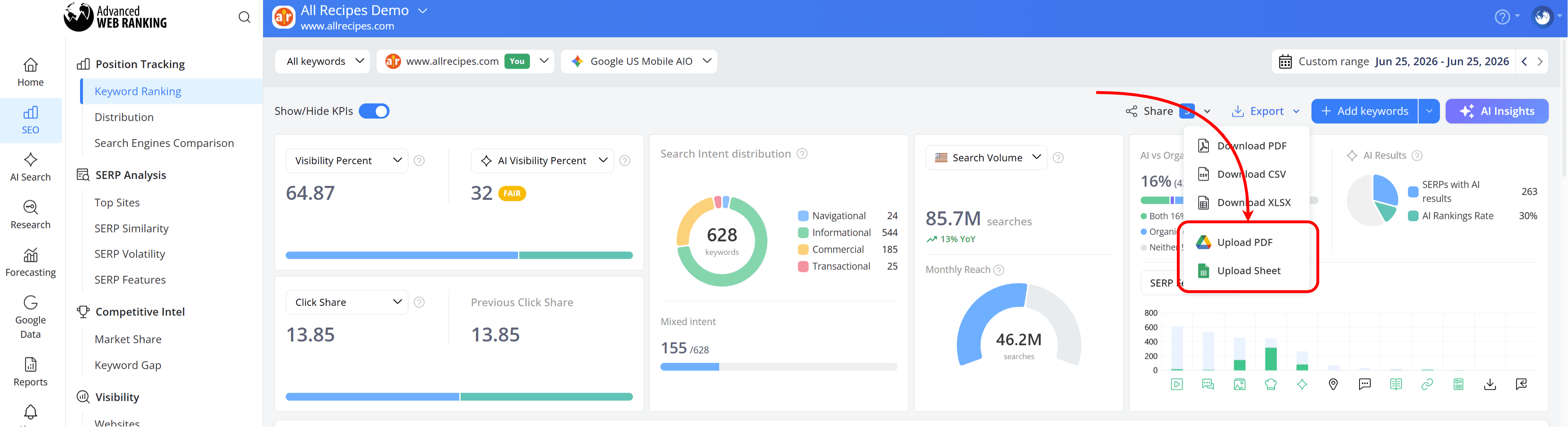
Save PDF reports to Drive for easy sharing with clients or upload your ranking data to Google Sheets so your team can collaborate and continue working with the data outside AWR.
Before AWR can upload reports or data to your Google Drive, you’ll need to sync your Google Drive account with AWR. Follow the steps in this article to set up the connection.
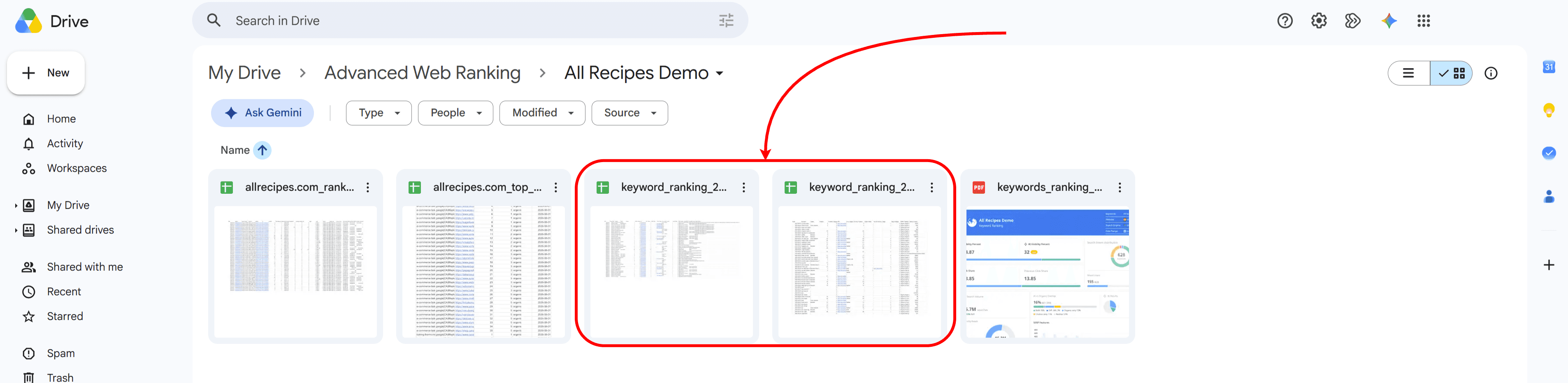
You’ll be able to find your reports in the Advanced Web Ranking folder in your Google Drive account that’s created after you trigger a report upload.
Once you trigger a report, AWR creates an Advanced Web Ranking folder in your Google Drive account, where you’ll find your uploaded reports.

Once uploaded, your files will be easy to identify in Google Drive, as AWR names them based on the report and data included:
PDF reports uploaded to Drive will be named using the following format: [exported report name]_[date]
Ranking data uploaded into Google Sheets will follow this naming format: [exported report name]_[date]_[search engine]_[project name]
How to automate your data exports
If exporting data is part of your regular reporting routine, you don’t have to download and move files manually every time. AWR gives you several ways to automatically send your data to the tools you already use.
Send your ranking data to Google Drive
If your team already works in Google Drive, you can set up automatic exports in the Integrations & Exports section to keep your AWR data within the same workflow. This makes it easier to share data with your team or clients without having to download and upload files yourself
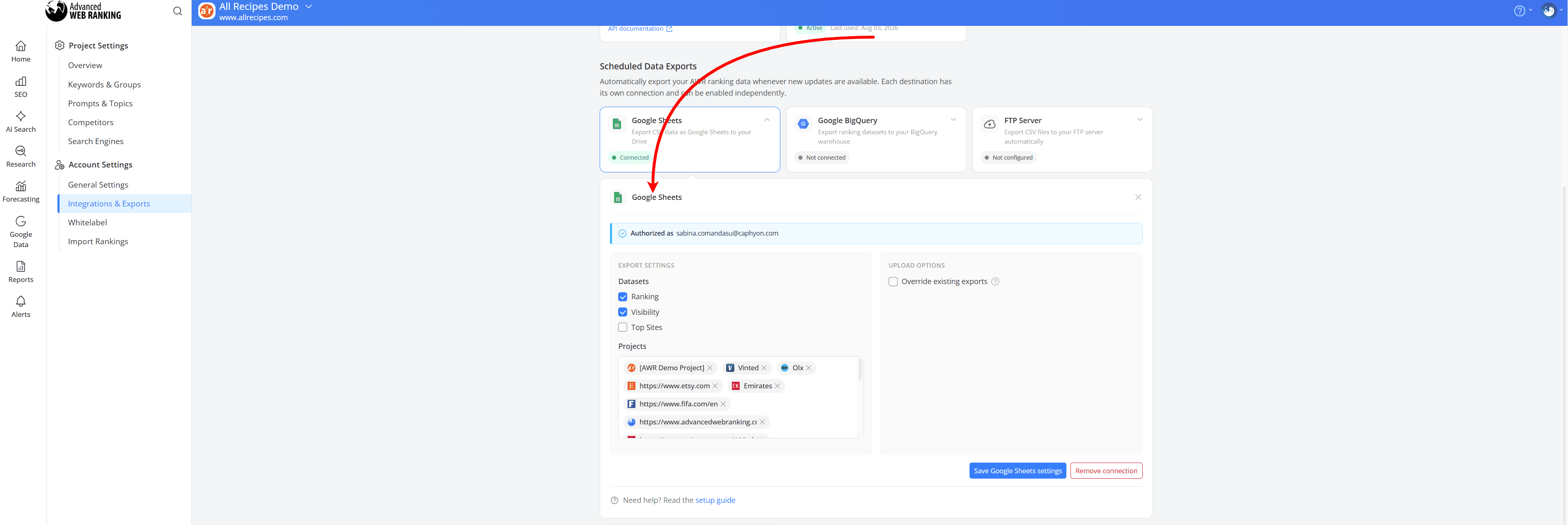
You can see which datasets are available for export and follow the setup instructions in this Google Drive integration guide.
The Google Drive integration is available with Agency plans and higher, as well as all yearly plans.
Once automatic uploads are enabled, AWR will send your data to Google Drive once the next ranking update for each project you’ve selected has completed.
From then on, uploads will follow each project’s ranking update frequency. Daily projects will upload daily, while weekly projects will upload once a week.
Depending on the dataset you choose, the files uploaded to Google Drive will follow this naming format: [project name]_[dataset]_[file].
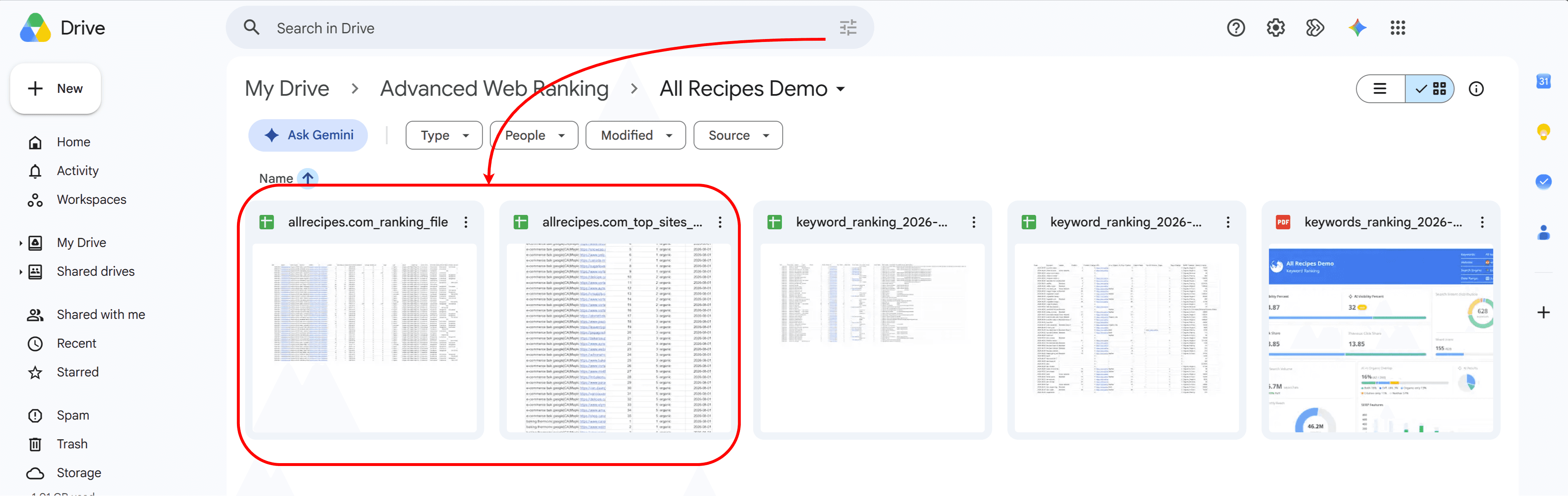
This makes it easy to tell which project file belongs to directly from your Google Drive folder.
Send automatic exports to FTP
If your team uses its own reporting platform, database or internal tools, FTP exports can help get AWR ranking data there automatically. AWR sends the files directly to your FTP server, where they can be picked up and used as part of your existing reporting workflow.
From the Integrations & Exports section, select FTP Server under Scheduled Data Exports. Select the datasets and projects you want to export, then enter your FTP server details and the folder where you want AWR to place the files.
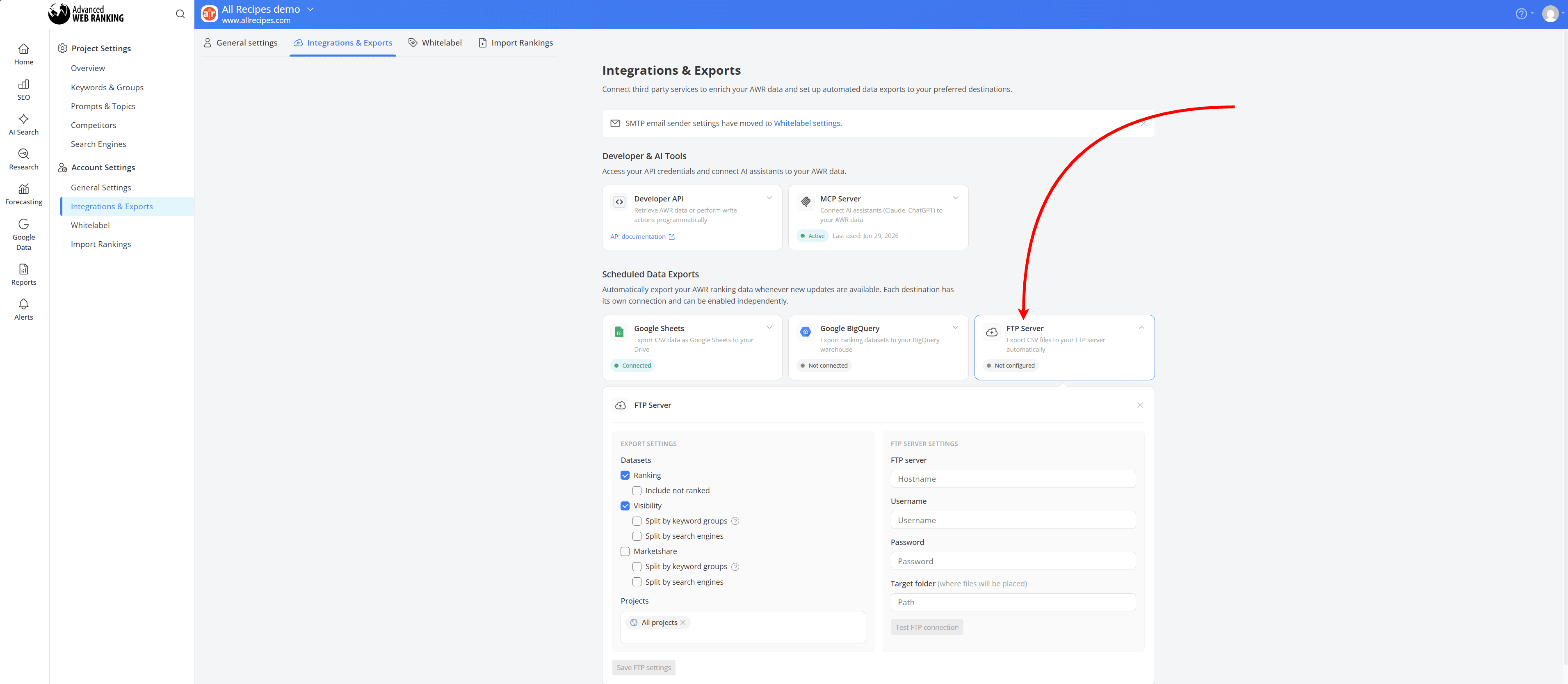
Once set up, AWR will automatically generate and upload CSV files to your FTP location each day, as long as at least one of the selected projects has received a new ranking update.
Your exports will be organized into separate folders using the following naming format: [report]-[date].This makes it easier to identify each export and keep your data organized by date.
Learn more on how to configure automatic exports to FTP here.
FTP exports are available with Enterprise plans and higher, as well as all yearly plans.
Send your AWR data to BigQuery
Working with large amounts of SEO data or bringing data from different sources together? Connect AWR to Google BigQuery to automatically send your Ranking, Visibility and Market Share data to your own data warehouse.
From the Integrations & Exports section, select Google BigQuery under Scheduled Data Exports and sign in with the Google account linked to your Google Cloud project.
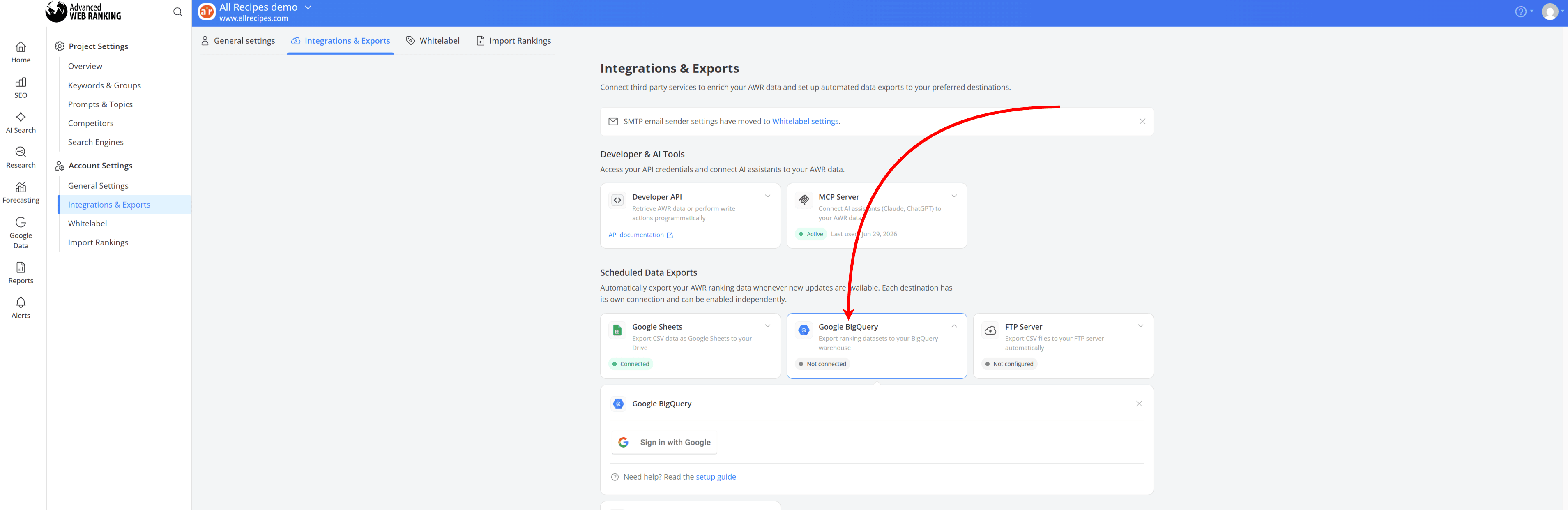
You can then choose which datasets and AWR projects you want to send to BigQuery.
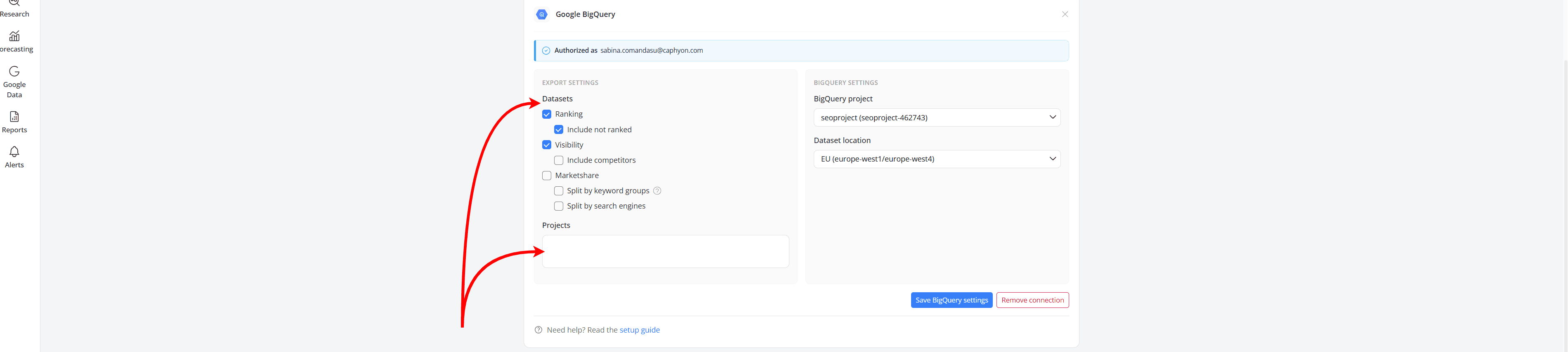
Once connected, AWR creates an awr dataset in your selected BigQuery project, with separate tables for the data you've chosen to export. Your first batch of data will be uploaded within the next few hours.
After that, new data is added automatically once per day when new ranking updates are available. If you run an on-demand ranking update, the latest data will also be sent to BigQuery once the update is complete.
You can see the full setup process and available datasets in our BigQuery export guide.
BigQuery exports are available with Enterprise plans and higher, as well as all yearly plans.
Build your own workflow with the Developer API
If you need more flexibility than the exports available in the interface, the AWR Developer API gives you direct access to your AWR data, so you can retrieve and manage it programmatically instead of working with exports manually.
It can become part of your existing workflow, with scripts or internal tools automatically pulling AWR data and passing it on to your reporting platforms, databases, dashboards or other systems. You can also combine AWR data with information from other sources to build your own reports and solutions.
Once you’ve entered your unique API token, available in the Integrations & Exports section of your account and filled in your project parameters, click “Try It” to automatically generate the download URL for your request.
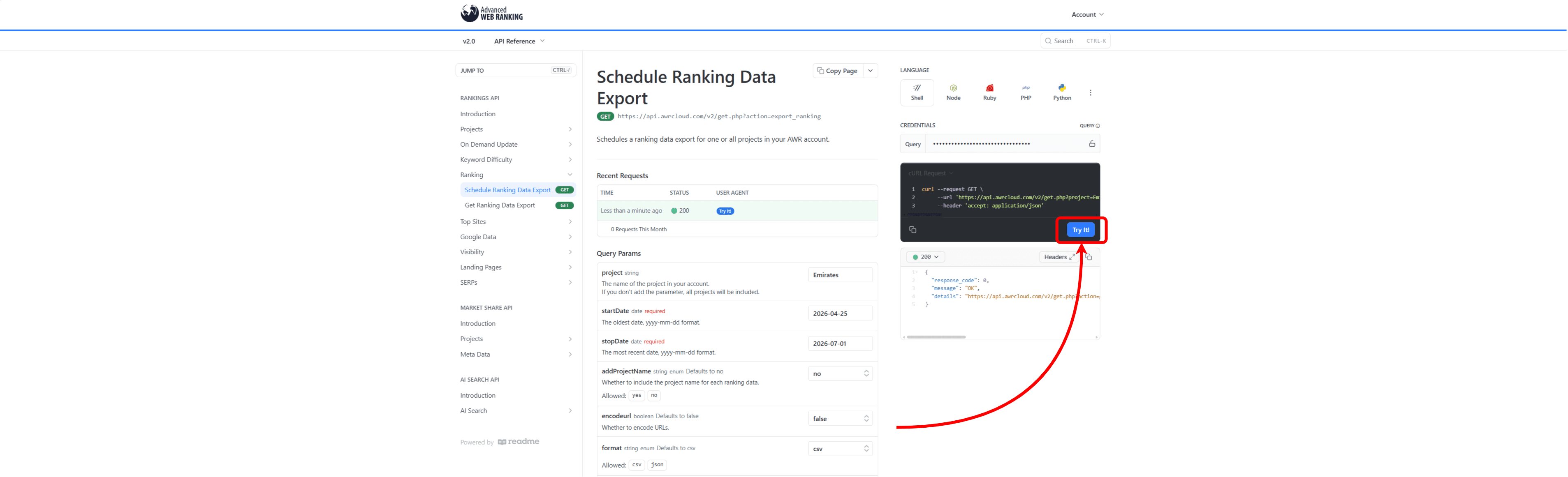
You can either use the request in your code, choosing the programming language you prefer to retrieve the generated URL:
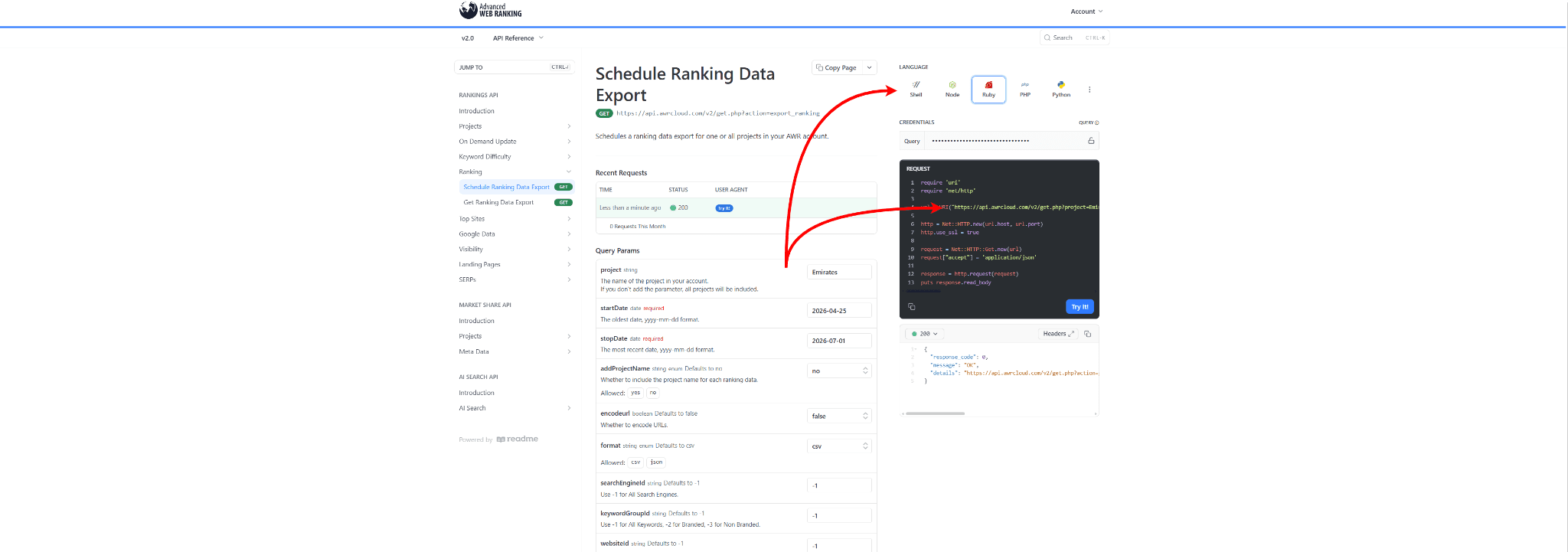
Or, simply paste the generated URL into your browser to get the download link, just as you would when running the request directly from the API documentation:

The API can also handle project management tasks, such as creating or updating projects and requesting on-demand ranking updates.
And if the 20,000 rows of ranking data you can download through the interface aren't enough, you can use the Developer API to generate a larger ranking export.
One of the available endpoints is the Schedule Ranking Data Export API call, which helps you export your ranking data. You can use it to export data for a single project or pull rankings from all the projects in your AWR account at once.
Want all your historical ranking data across every project in your account in one export? Set up your request as follows:
Leave the project parameter blank to include all projects in your account.
Set startDate and stopDate to the date range you want to pull data from.
Set addProjectName to “yes” to include the project name in your exported data.
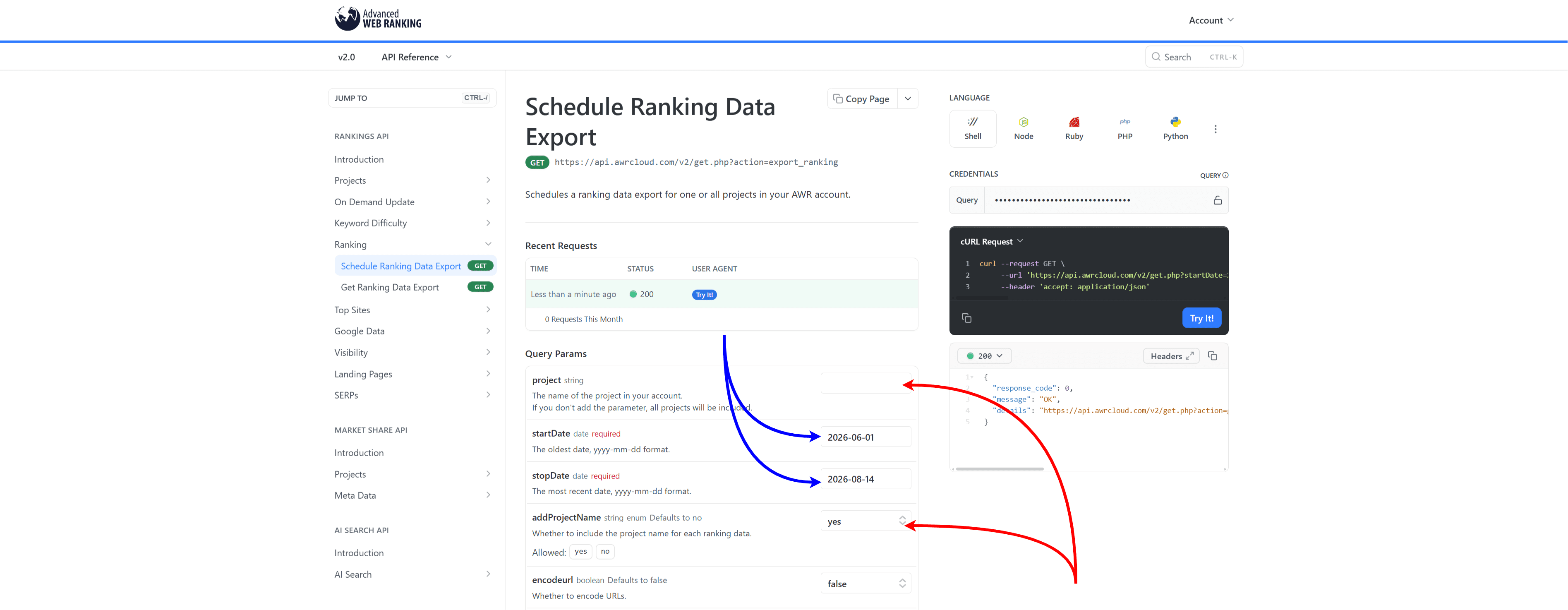
Once you’ve made the request and used the download URL, an archive containing the historical ranking data for all projects in your account in separate files will be downloaded.
Take some time to explore the API documentation and try out the different endpoints to see which ones fit best into your workflow.
Depending on what you’re building, you can pull specific ranking and visibility data, work with keywords and search engines, manage projects or trigger ranking updates. Try different calls and parameters to find the combination that gives your team the data it needs, in the way it needs it.
Access to the Developer API is available with Agency plans and higher, as well as all yearly plans.
Getting more from AWR exports across your agency
When you’re managing a few clients, downloading a report whenever you need one is easy enough. But when you have dozens of clients, thousands of keywords and several projects for each account, those downloads can quickly turn into a lot of manual work.
Here are a few ways you can make that data work for your agency.
Get client reports ready with no manual work
If your team prepares reports for dozens of clients every month, you don’t want someone opening every AWR project just to download the latest data.
Set up automatic exports to Google Drive and have fresh data sent there as your projects update. This way, your reporting team knows where to find the latest files when it’s time to put the reports together.
And if you want to take the manual work out of the client-facing side too, you can set up scheduled Dashboard reports.
Start by going to Dashboards and creating your report template. You can use one of AWR’s existing templates or start from scratch and choose the widgets and data you want your clients to see.

Once your report is ready, click “Save” and select the client projects you want to use the template for. AWR will apply each project’s own data to the template, giving every client their own version of the report without having to build each one separately.
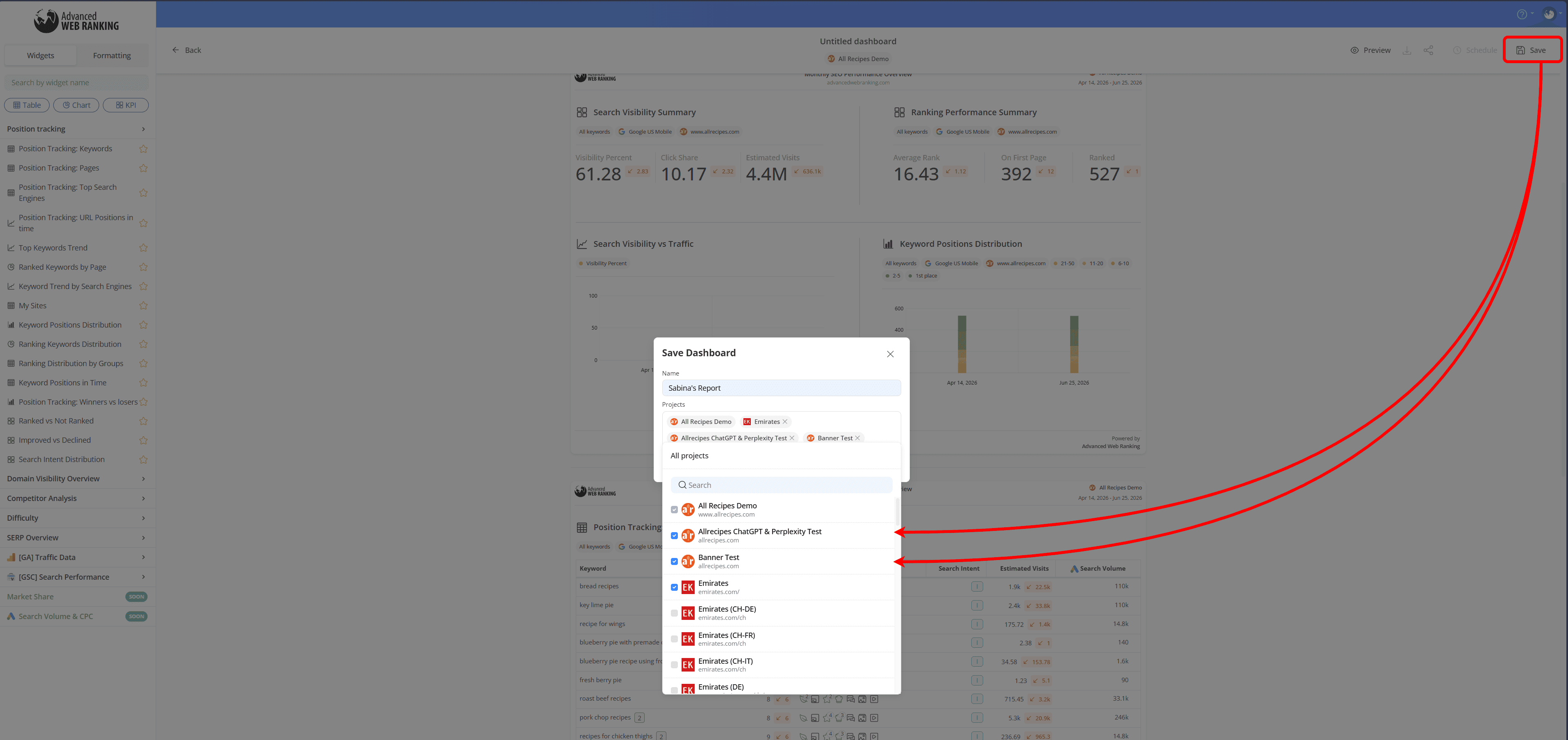
To have the report delivered directly to your clients’ inboxes, save your changes, click “Schedule” and then select “New scheduler”.
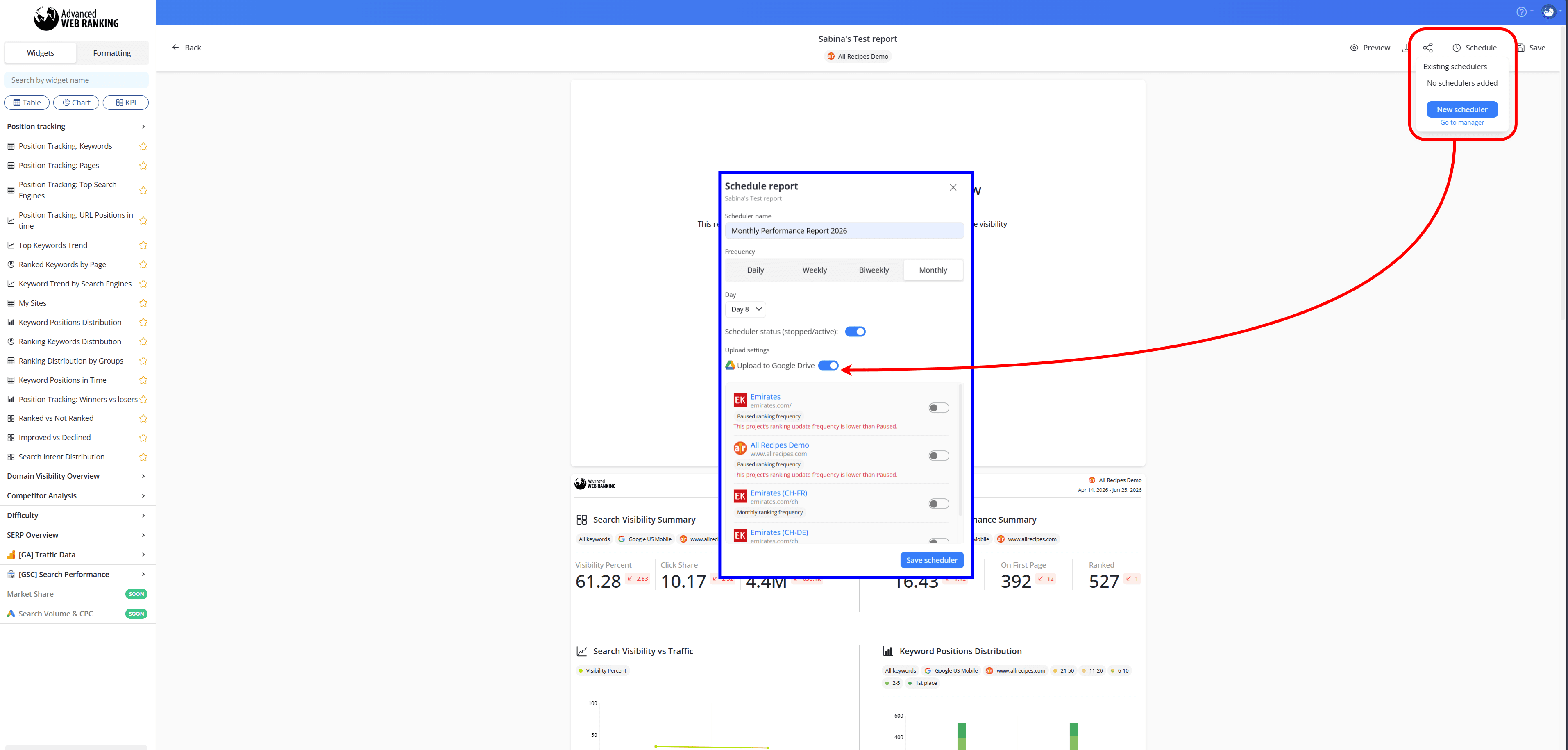
Choose how often you want the report to be sent and the day you want it delivered. You can also upload a copy to your own Google Drive, so you can easily keep track of exactly what was sent to each client.
Then, enable which projects you want to send reports for and add each client’s email address in the corresponding field.

After clicking “Save scheduler,” you’re all set. AWR will automatically generate and send each client their own report based on the schedule you’ve chosen, so your team doesn’t have to prepare and send them manually every time.
Onboard a large international client without setting everything up manually
You’ve just landed a large international client tracking thousands of keywords across different countries and languages.
Setting everything up manually means adding their keywords, configuring search engines for each location and choosing the right update frequency, which takes a lot of time for a large account.
Instead, you can use the Create Project API call to build the project programmatically and add the websites, keywords, search engines and update settings you need as part of your onboarding workflow.
Once you’ve created your request, you can adapt it to each new client project’s setup, including country, language, search engines and keywords and run it as part of your own script.
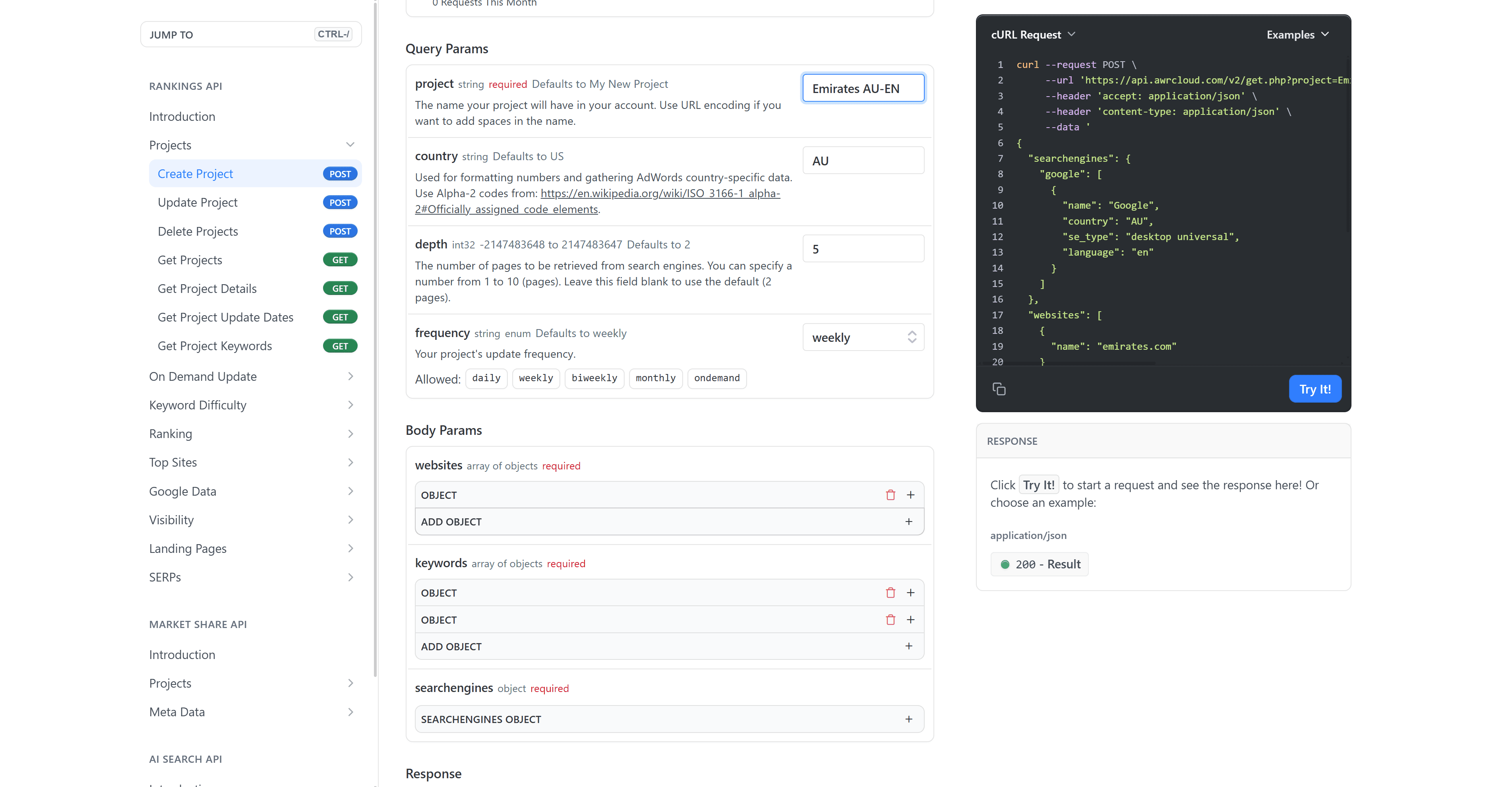
The Create Project API call allows up to 60 calls per hour, so plan for that when setting up larger accounts.
Investigate a major SERP change for a large client
A client has seen rankings move across hundreds of keywords and wants to know what happened. Position changes can tell you where they moved, but numbers alone may not mean much to a client who isn’t working with SEO every day.
Checking each keyword individually to see what the SERP looked like on a specific date can also take a lot of time.
This is where the Schedule SERPs Export endpoint can help: you can use it to pull the actual SERP data for one or multiple ranking update dates.
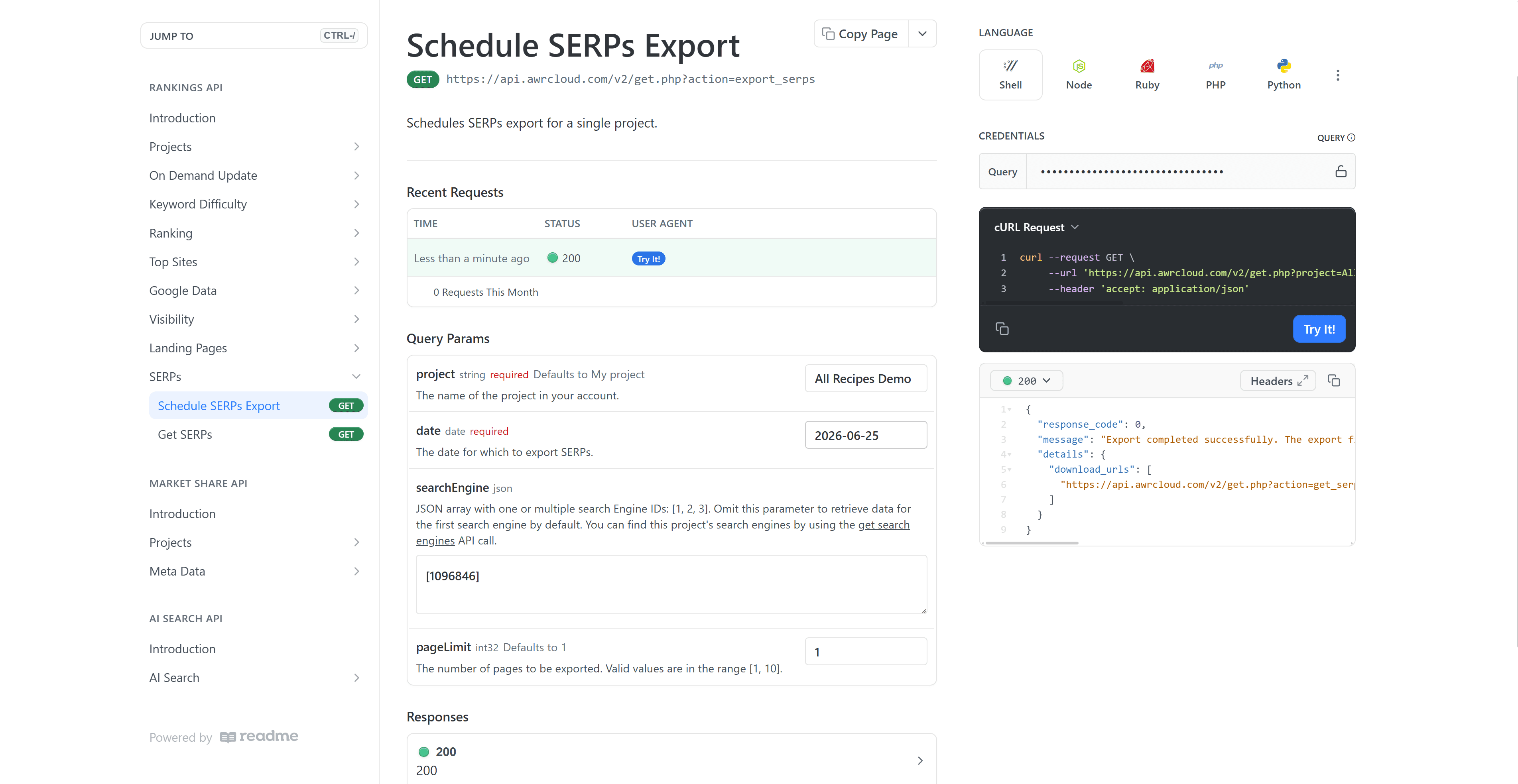
Once you’ve built and run your request, use the download URL you receive to get an archive containing the SERPs for the keywords in your project.

This gives your team more context across a large keyword set and makes it easier to show clients what was actually happening in the search results, rather than walking them through ranking numbers alone.
Do you have any questions? Don’t hesitate to get in touch and we will keep building the FAQ.
Frequently Asked Questions
When should I use FTP exports?
What’s the difference between Google Drive, FTP and BigQuery exports?
How often is my AWR data updated in BigQuery?
Do I need to know how to code to use the Developer API?
stay in the loop