

Advice and answers from the Advanced Web Ranking Team
Search for articles
>
>
Too Much Ranking Data to Navigate? Upgrade Your Workflow with Smarter Filters and Dynamic Groups
Learn how to spend less time digging through data and more time finding what you need with redesigned filters and Dynamic Groups.

You look at your ranking data and aren't sure where to start. Your clients want actionable insights, but finding them across thousands of keywords isn't always easy.
Whether you're exploring rankings, AI Search visibility, Google Ads data or Google Search Console performance, finding the insights you need is now faster and easier.
Find the data you're looking for faster, save reusable filter combinations and quickly return to the insights that matter most to your analysis.
What this article covers
The improved Filters and Dynamic Groups make it easier to organize your ranking data and switch between the analyses you run most often. Instead of rebuilding the same filter combinations every time, you can save them and come back to them whenever you need.
This article explains the updated filtering experience, how to create and manage Dynamic Groups and practical ways to use them for everyday SEO tasks. You'll also find examples of how they can help with monitoring AI visibility, investigating ranking drops, tracking brand performance, and uncovering new opportunities.
Find the metrics that match your SEO strategy
You've decided on your SEO strategy. Now the question becomes: what metrics tell you more about your website?
From ranking opportunities and AI Search visibility to Google Ads and Google Search Console data, filters are now organized into dedicated sections for:
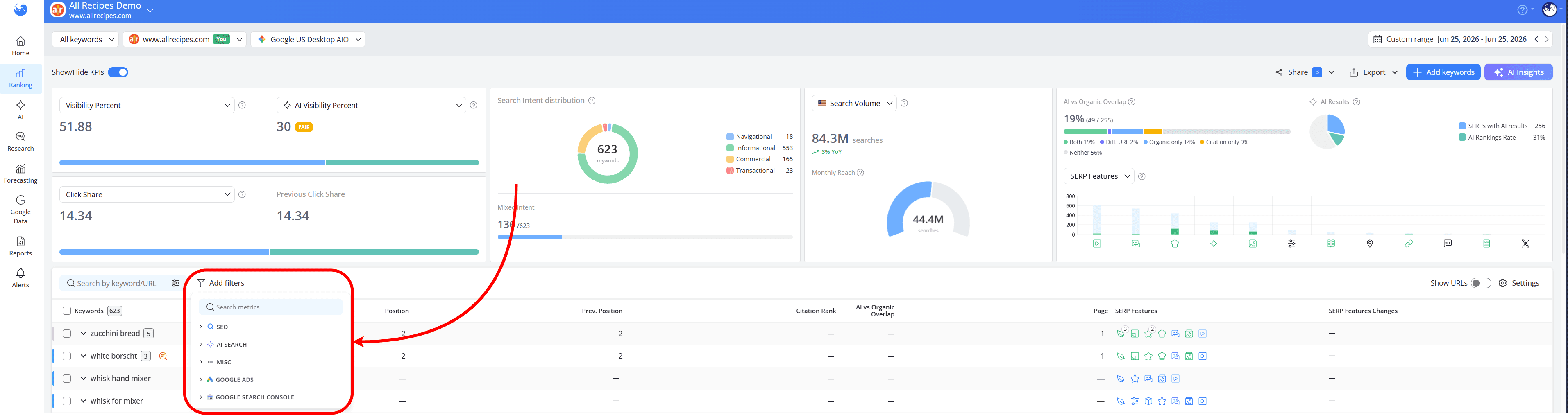
SEO: Everything related to your rankings, visibility and organic search performance.
AI Search: Insights into how your brand and website perform across AI search experiences.
Misc: Metrics focused on content opportunities, including cannibalization, branded keywords and title link changes.
Google Ads: Search volume, CPC, competition, local searches and search trends.
Google Search Console: Performance metrics pulled directly from Google Search Console.
With filters grouped by category, you don't have to scroll through one long list to find the right metric. Expand the sections you need and collapse the ones you don't to keep your workspace focused.
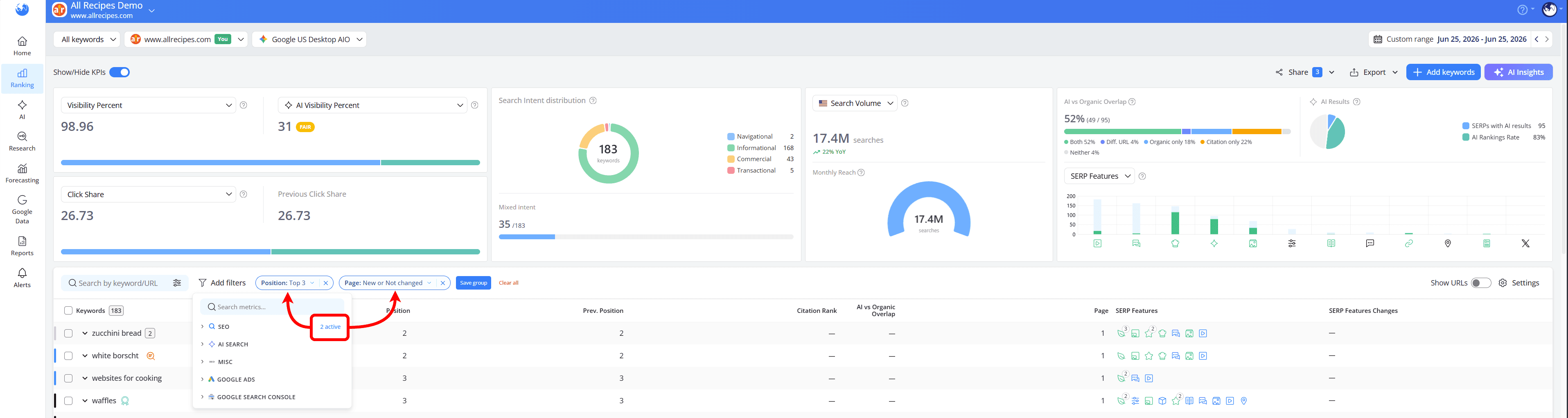
To quickly see where your analysis is focused, counters next to each category show how many filters are currently active.
Metrics also appear in the same order as they do in Table Settings, so you won't have to figure out where everything is.
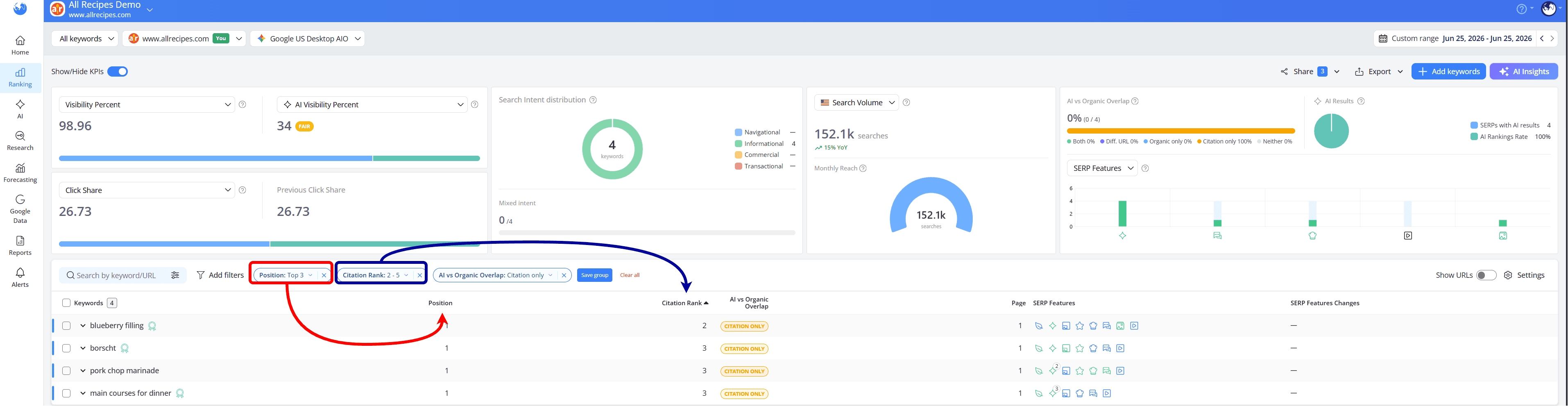
Not sure what a metric means? Click the info tooltip icon next to it for a quick explanation in plain language, without leaving the filter menu.
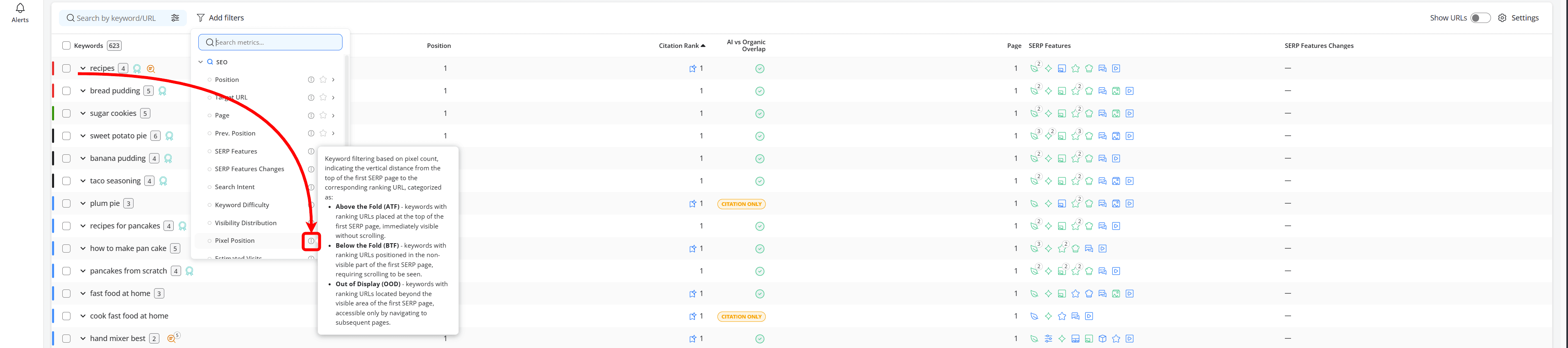
Not every client needs the same SEO strategy and that means not every project needs the same filters.
Keep coming back to the same metrics for a client? Star your most-used filters and they'll appear in a dedicated Favorites section at the top of the list, ready whenever you need them.

A quick glance is all it takes to see which filters are already active. Applied filters are marked with a blue dot:

The arrow on the right takes you straight to the filter's settings so that you can define exactly what you're looking for.
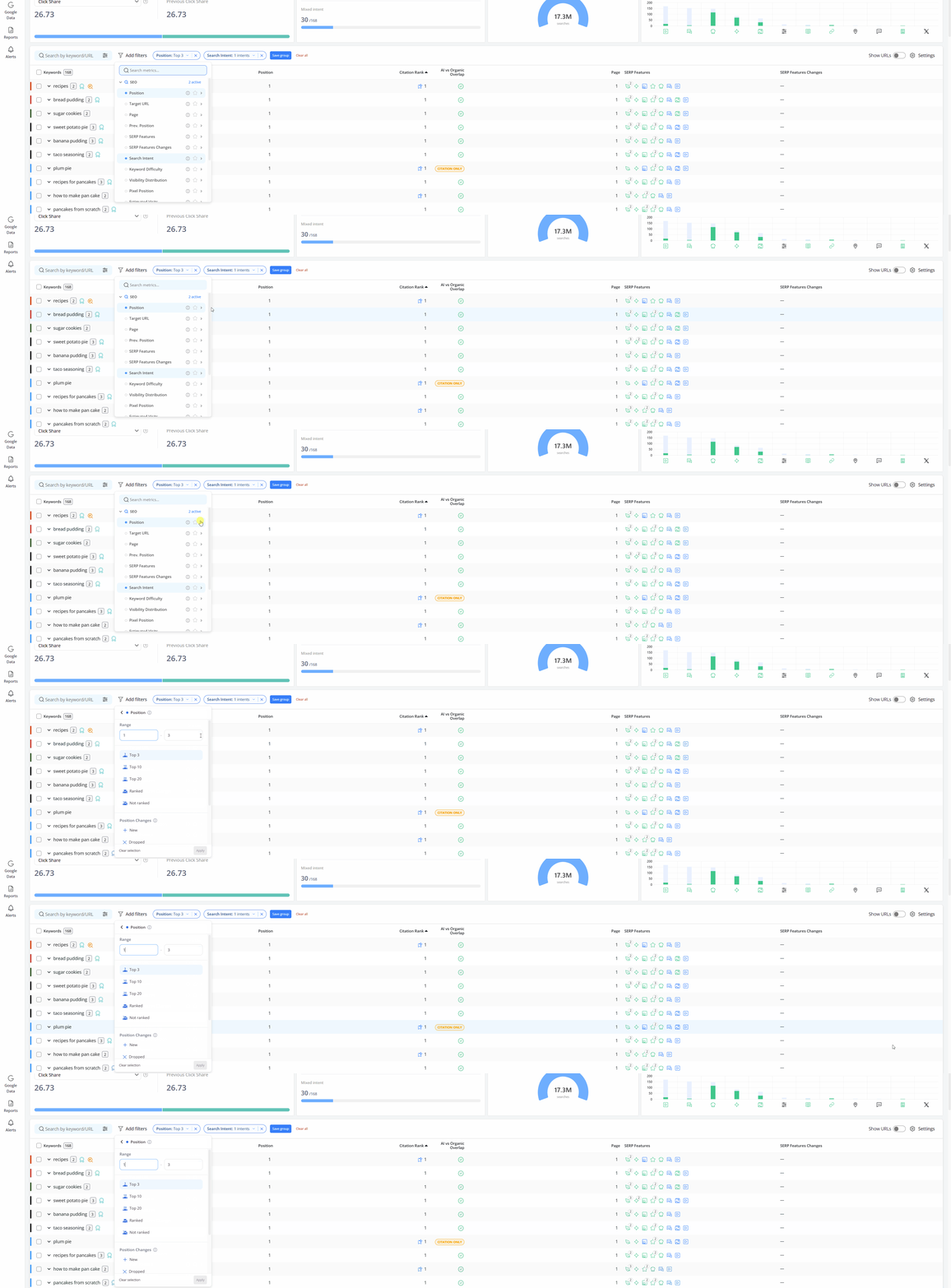
Dynamic Groups made easier to manage
Some filter combinations become part of your regular workflow. Maybe it's your AI visibility report, a cannibalization check or a set of branded keywords you revisit every week.
Instead of configuring those filters every time,you can save them as a Dynamic Group by clicking “Save group" next to the filter bar. This helps you jump straight back into the analyses you run most often, saving time and keeping your reporting consistent.
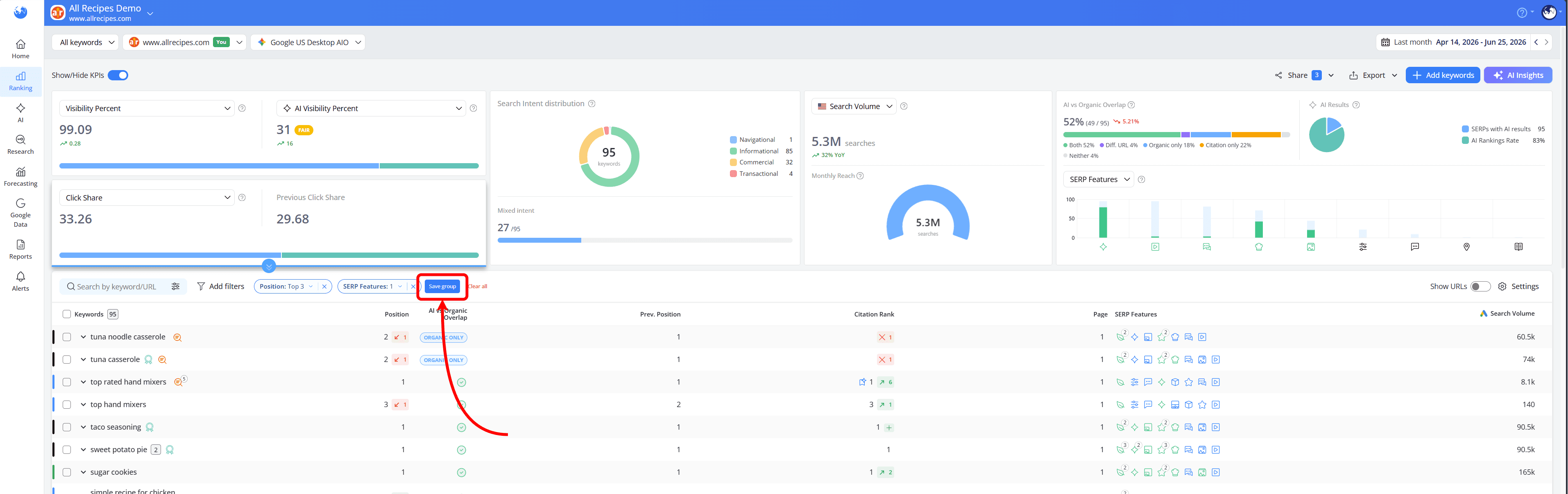
You'll then be prompted to give your Dynamic Group a name, making it easy to find and reuse later.
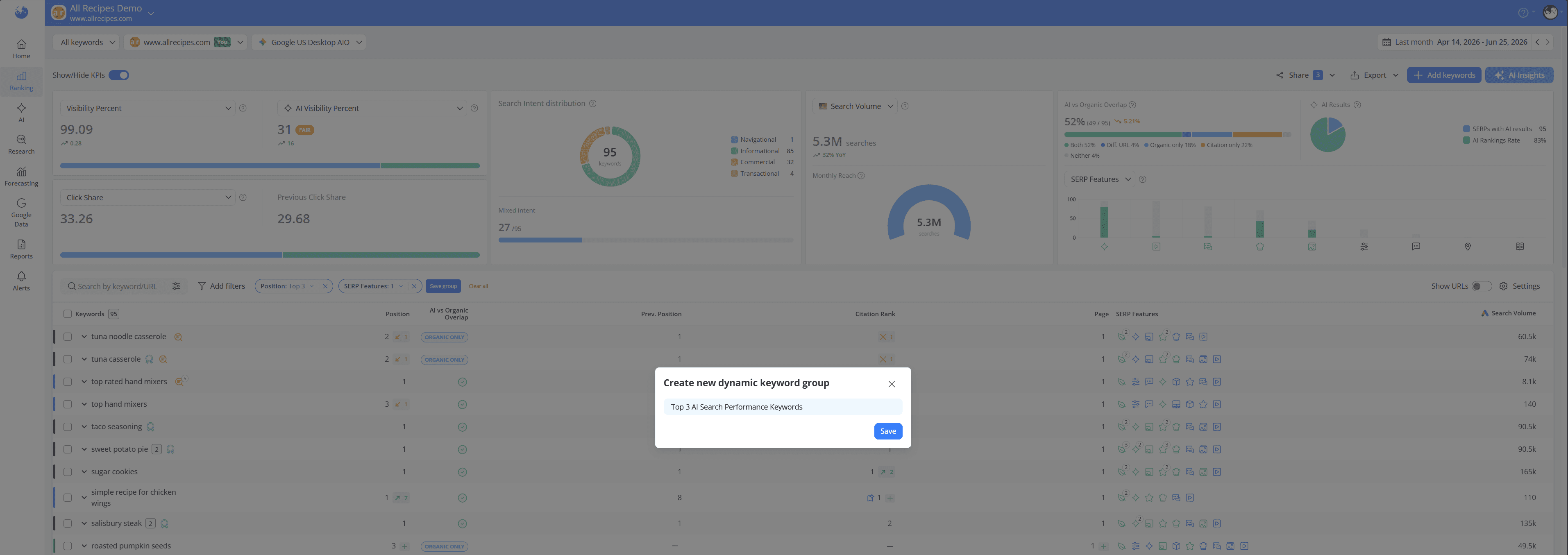
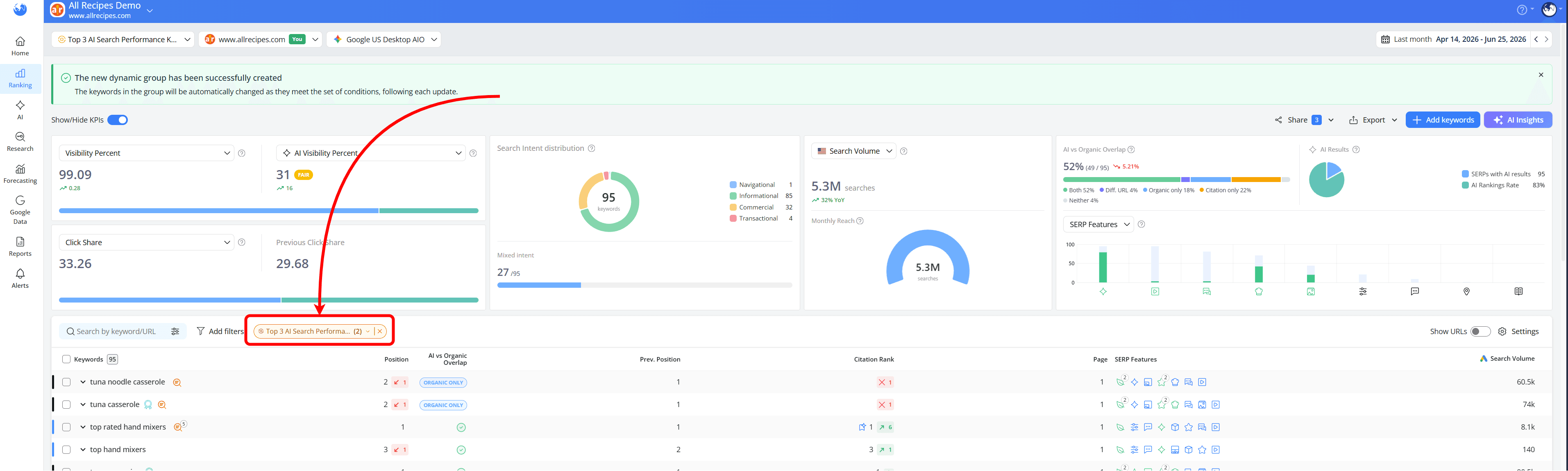
Once saved, your Dynamic Group appears as a single orange pill in the filter bar, making it easy to spot and instantly recognize as a saved setup rather than a collection of individual filters.
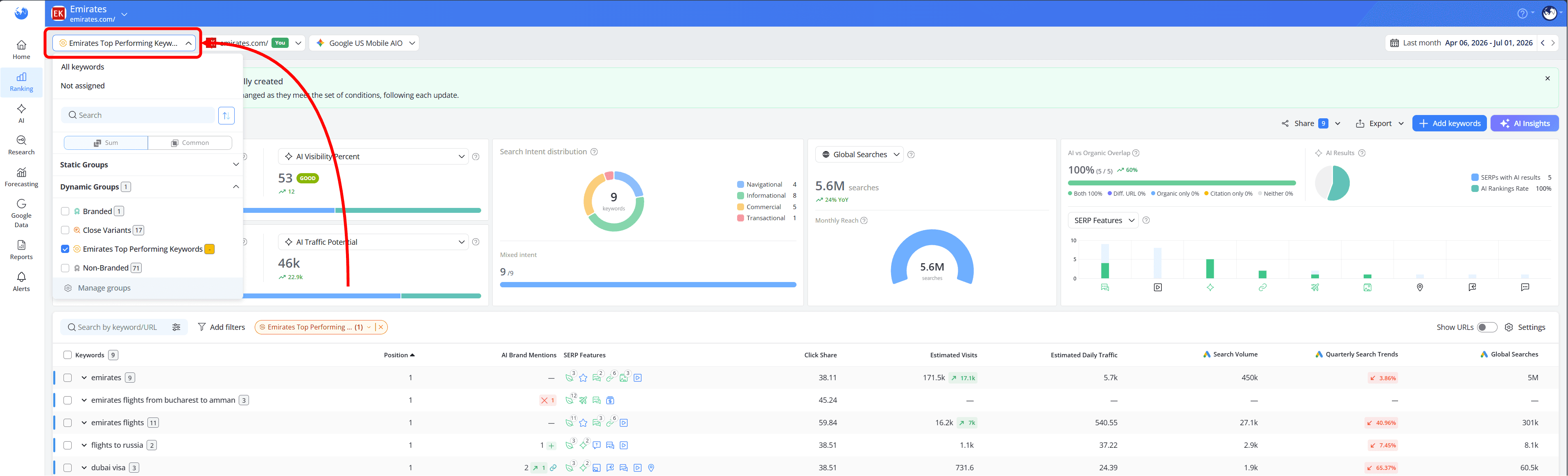
You can also access your Dynamic Groups at any time from the dropdown in the top-left corner of the report, making it easy to jump straight back into reports you run regularly.
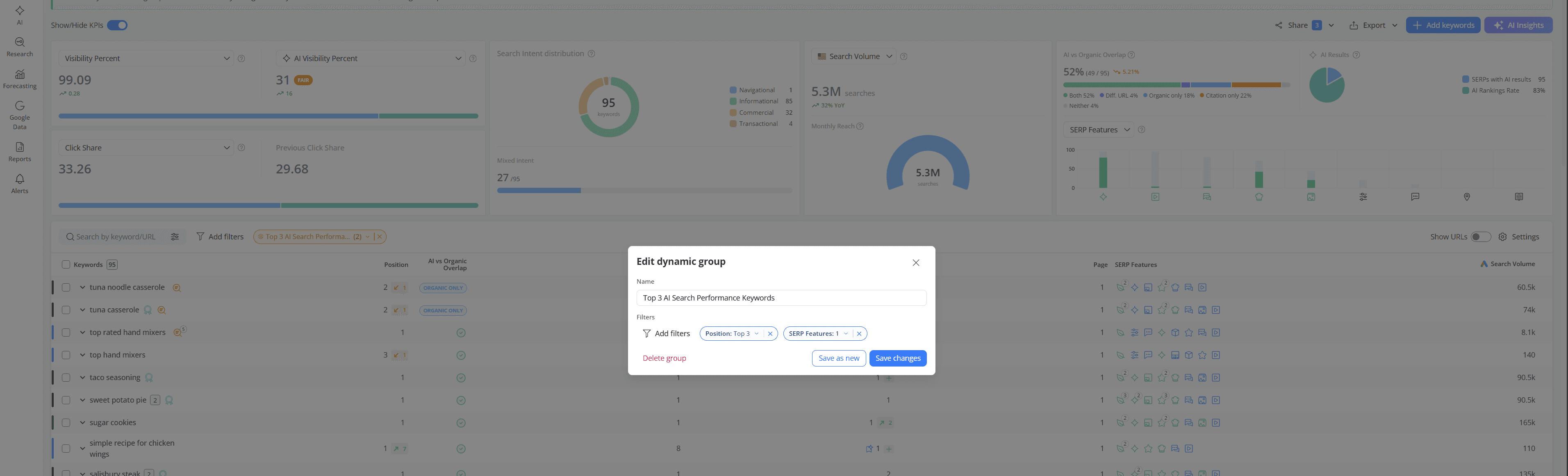
Need to make a change? Click the orange pill to open the group, update existing filters, add new ones or remove filters you no longer need.
How can Dynamic Groups help your SEO workflow?
Use Case 1: Monitor Seasonal AI Overview Opportunities
For example, for a travel recommendations website, because its content is largely informational, it's more likely to appear in AI Overviews for searches such as "best road trips in Scotland" or "best Christmas markets in Europe".

But travel trends change throughout the year. During the summer, the focus might shift to queries like "best Greek islands for couples" or "best beaches in Mallorca", while winter brings searches such as "is Prague worth visiting in winter?".
To keep track of these opportunities, you want to focus only on keywords that both trigger AI Overviews and already rank in the Top 3 positions. Applying the SERP Features > AI Overviews filter together with Position > Top 3 makes that possible.
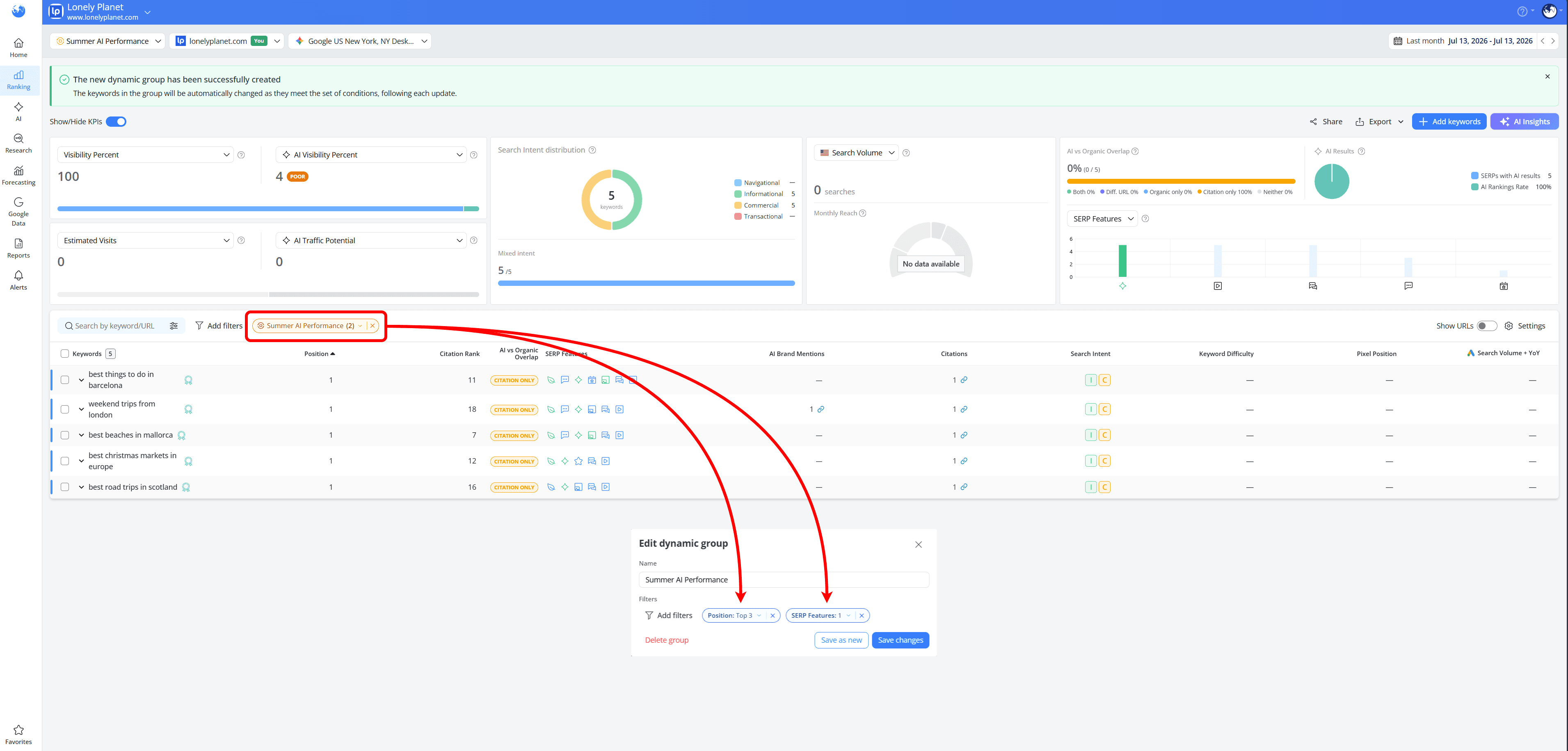
Since this is likely to become a recurring analysis, saving it as a Dynamic Group means it's always ready when search trends start shifting with the seasons.
Use Case 2: Monitor Ranking Losses After a Google Update
After a core update, one of the first questions SEO teams ask is: Why have our rankings dropped?
Instead of manually reviewing your entire dataset, you can build a Dynamic Group that focuses on the keywords most likely to need attention.
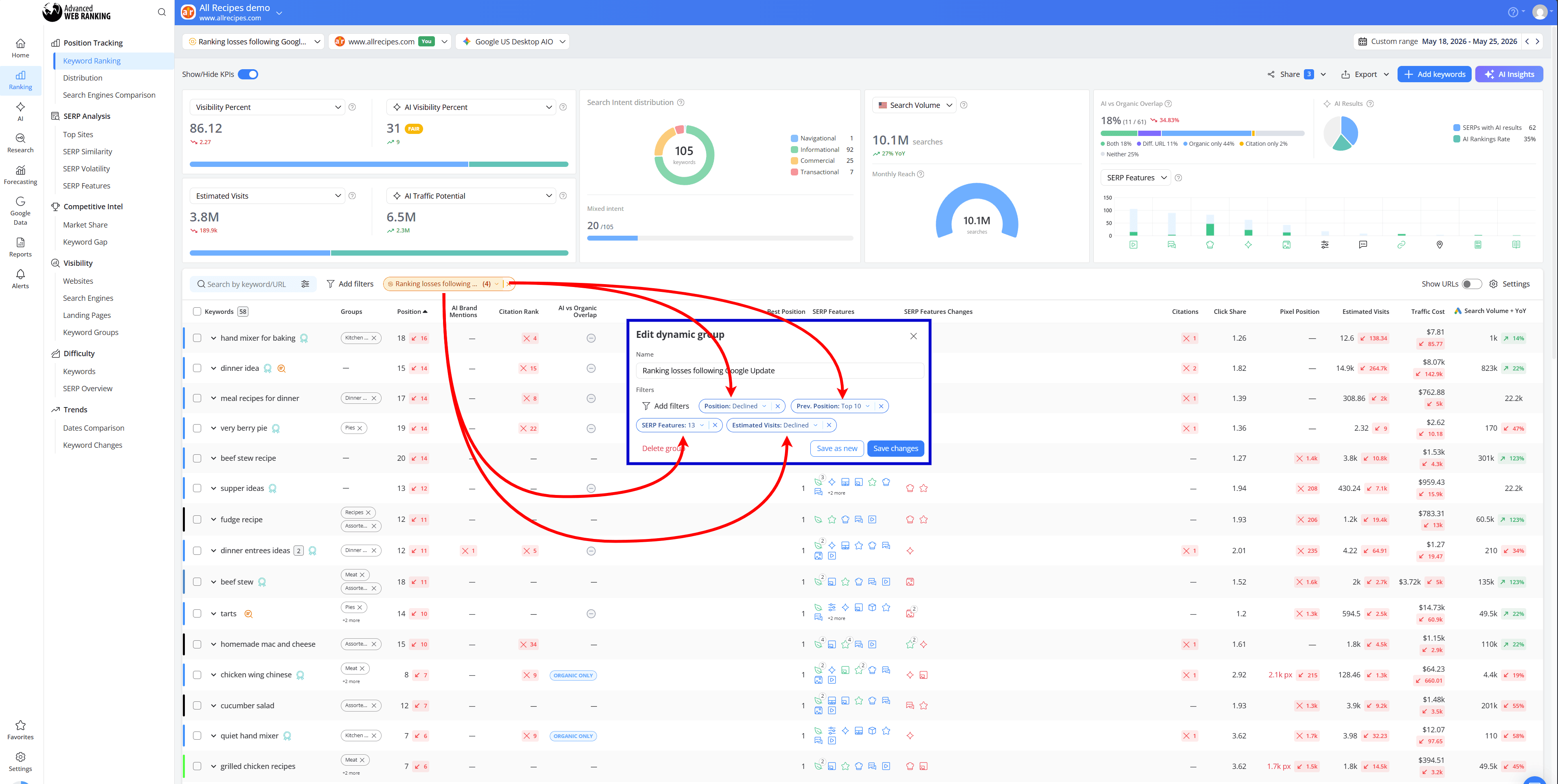
In this example, we selected Position: Declined to find keywords that have lost rankings and combined it with Prev. Position: Top 10 to focus only on keywords that used to perform well.
For SERP Features, we selected "[website name] does not rank" and enabled Select all to highlight searches where competitors are now owning valuable SERP features that your website no longer appears in.
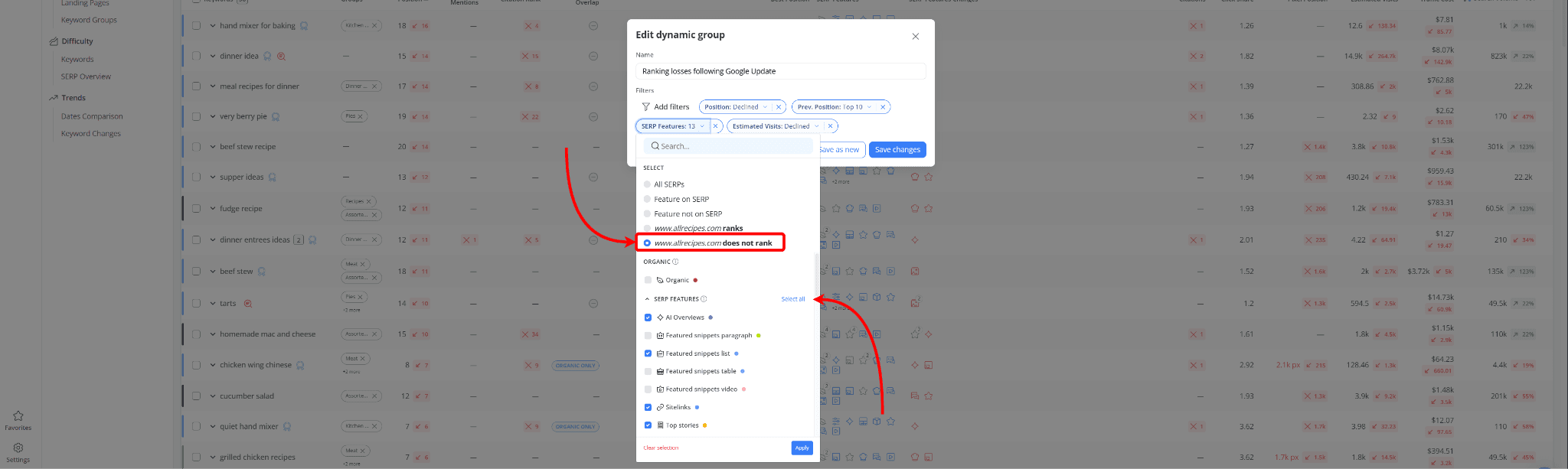
Finally, we added Estimated Visits: Declined to narrow the list down to keywords where those ranking losses are likely already affecting traffic.
Together, these filters create a focused view of keywords that were once some of your strongest performers but are now losing visibility, traffic and valuable positions across the search results.
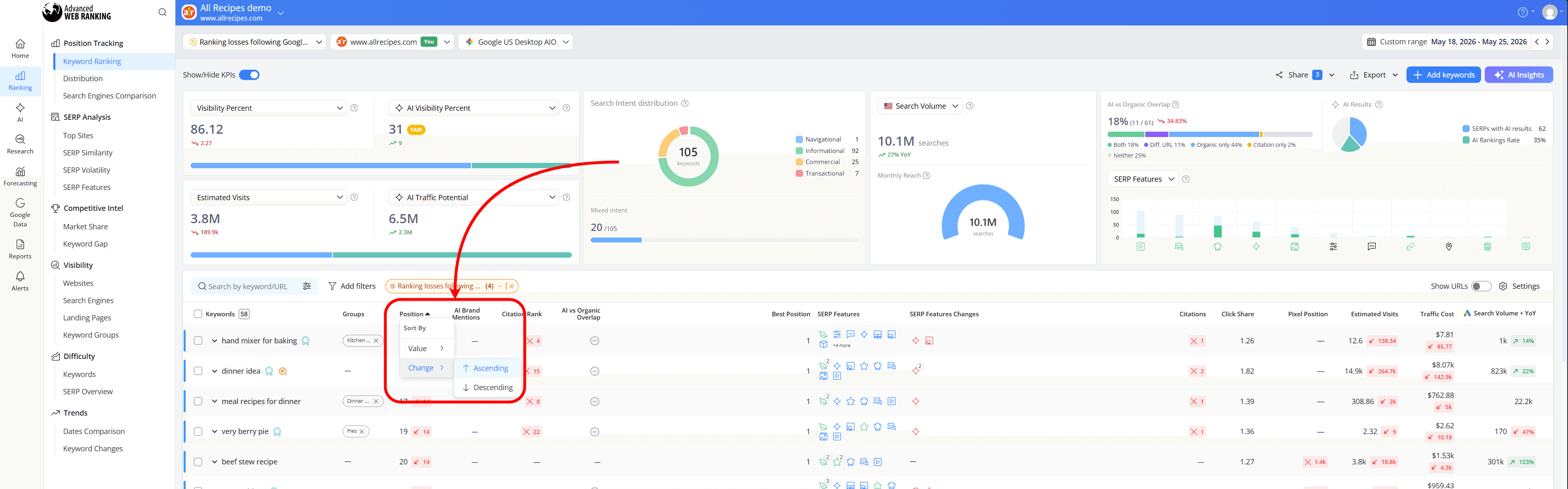
To see which keywords have been affected the most, simply sort the table by Position > Change > Ascending. This brings the biggest ranking declines to the top, making it easier to prioritize your investigation and recovery efforts.
In this example, one of the hardest-hit keywords was "hand mixer for baking", which dropped 16 positions, falling from #2 to #18 following the update.
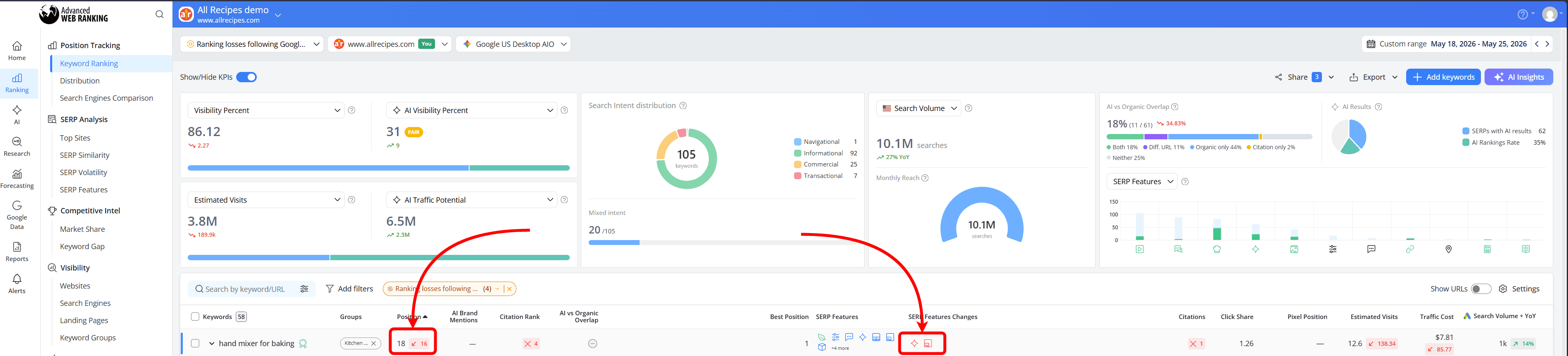
The keyword also lost visibility beyond traditional rankings, disappearing from both the AI Overview and the Images SERP feature it previously appeared in.
This suggests that the impact wasn't limited to organic rankings alone, but also affected the keyword's visibility across other SERP elements.
Use Case 3: Focus on the Opportunities That Matter Most
When you're tracking thousands of keywords, not every opportunity deserves the same amount of attention.
A keyword moving from position 45 to 30 is nice to see, but it probably won't have the same impact as a keyword climbing from position 8 to position 3 for a high-volume search term.
In this example, we set the minimum Search Volume to 1,000 to filter out low-impact queries and focus only on keywords with meaningful traffic potential.
We then combined this with Position: Ranked and Estimated Visits: New to surface keywords that are starting to gain traction and generate visits for the first time.
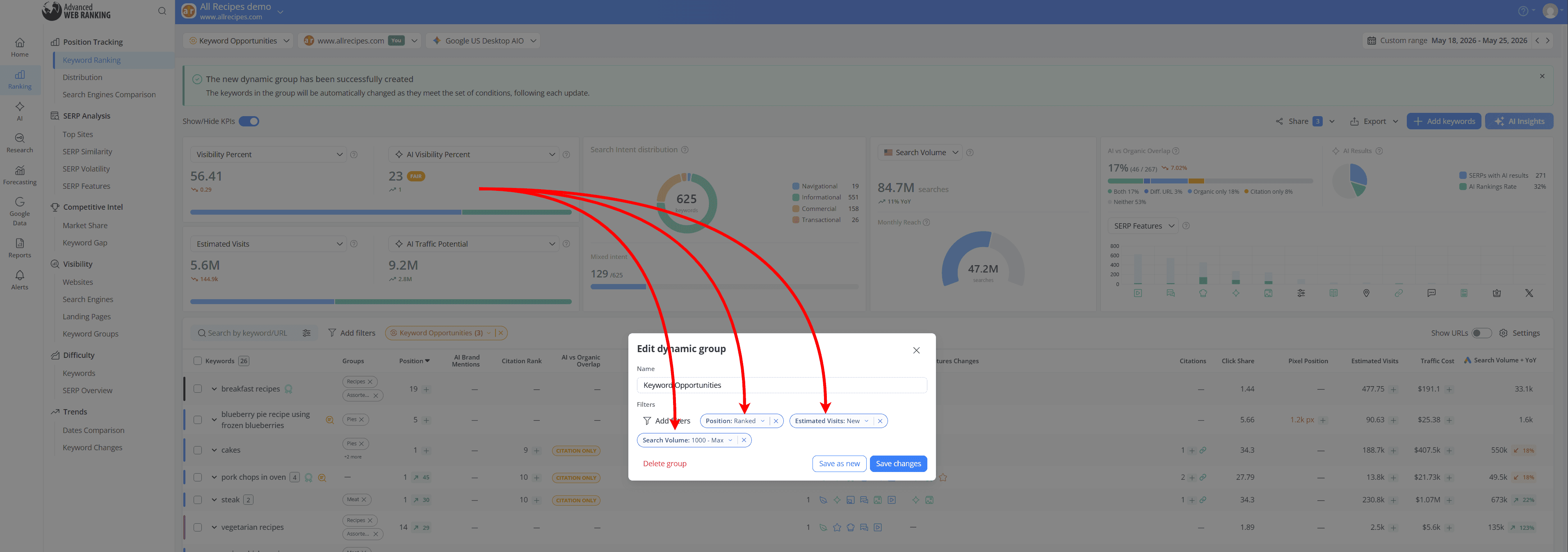
To quickly find the biggest winners, simply sort the table by Position > Change > Descending.

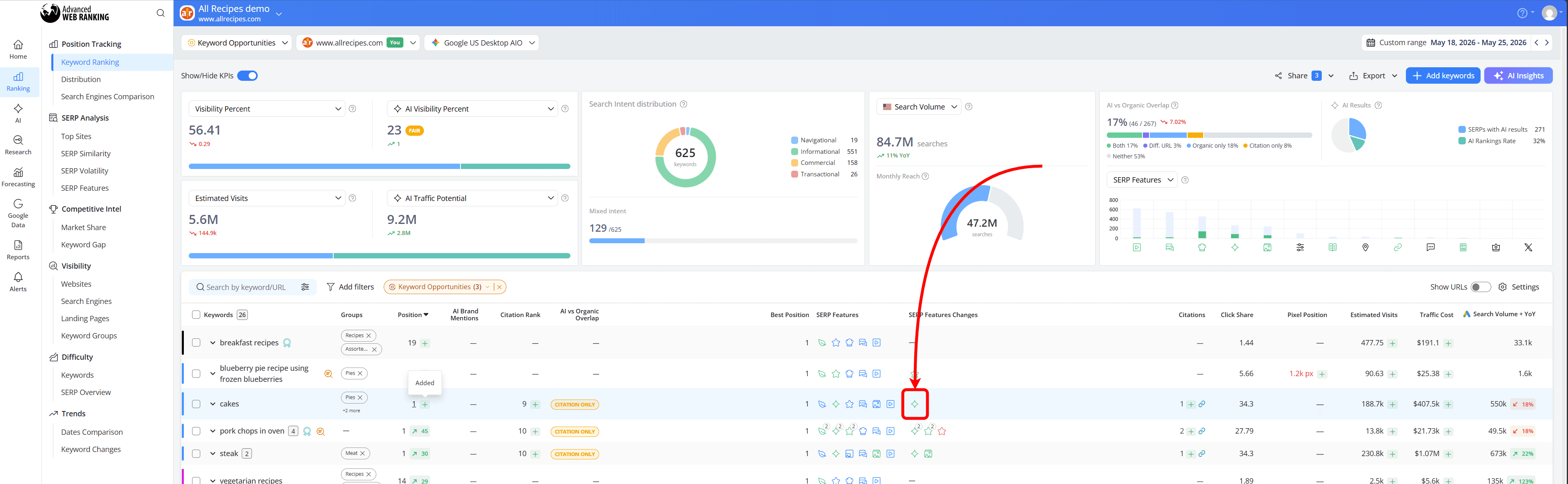
This brings the keywords with the largest ranking improvements to the top of the report, making it easier to spot pages that are gaining momentum and may benefit from additional optimization or internal links.
In our example, one of the most interesting opportunities is the keyword "cakes". Although the website wasn't previously visible for this query, it has now started appearing in the search results through a citation in the AI Overview.
Since opportunity analysis is something most SEO teams revisit regularly, saving this setup as a Dynamic Group means your next growth report is always ready when you need it.
Use Case 4: Monitor Brand vs Non-Brand Performance
As businesses grow, it becomes increasingly important to understand where growth is coming from.
Are more people finding you because they already know your brand or are you attracting new audiences through non-branded searches?
By creating separate Dynamic Groups for Branded and Non-branded keywords, you can quickly compare how your visibility, traffic and rankings differ between the two.
In this example, we combined the Branded filter with a minimum Search Volume of 1,000 and Estimated Visits of 100 to focus only on keywords that have the potential to drive meaningful traffic and business impact.
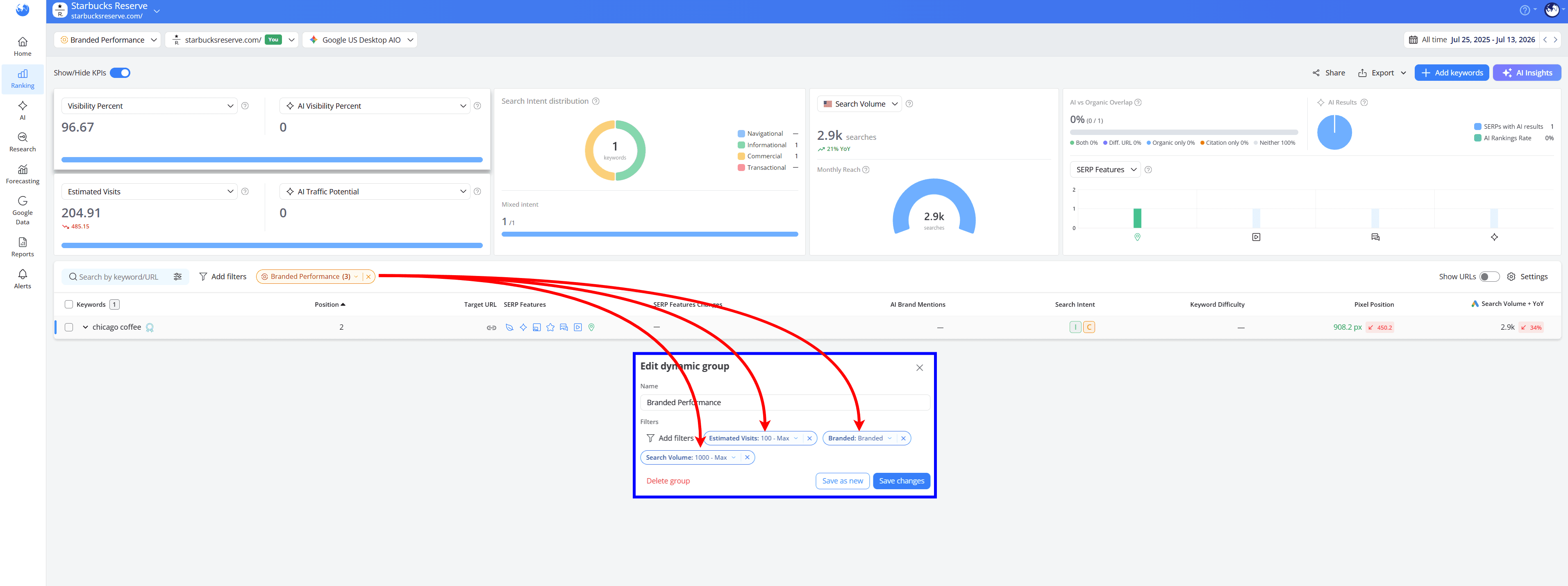
This makes it much easier to answer questions such as: Are we growing our brand awareness?
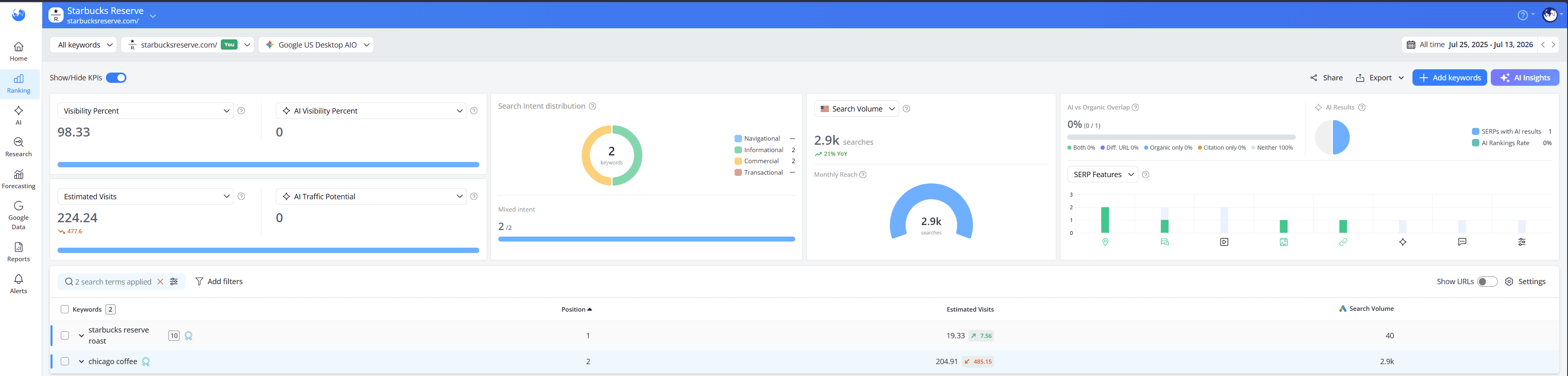
In this example, "chicago coffee" is exactly the kind of branded query worth prioritizing. The keyword ranks on Position 2, has a monthly search volume of 2.9k searches and generates over 200 estimated visits, making it a meaningful contributor to branded traffic.
Compare that with "starbucks reserve roast". Despite ranking on Position 1, the keyword only has a search volume of 40 searches per month and generates significantly fewer visits.
This shows why combining the Branded filter with minimum thresholds for Search Volume and Estimated Visits can be so useful. Not all rankings have the same business value and these filters help surface the branded keywords that are making the biggest impact.
Since this often becomes part of monthly or quarterly reporting, saving both setups as Dynamic Groups means your branded and non-branded performance reports are always ready when you need them.
Do you have any questions? Don’t hesitate to get in touch and we will keep building the FAQ.
Frequently Asked Questions
What's the difference between Favorites and Dynamic Groups?
Do Dynamic Groups update automatically?
When should a filter combination become a Dynamic Group?
How many Dynamic Groups can a project have?
stay in the loop