

Advice and answers from the Advanced Web Ranking Team
Search for articles
Troubleshooting the AWR BigQuery connector: common issues and FAQ
Troubleshooting the AWR BigQuery connector: common issues and FAQ

The AWR BigQuery connector sends your Ranking, Visibility, and Market Share data into Google BigQuery automatically, once a day, so you are not running manual exports to keep your warehouse current. When something looks off, this article covers what to check and when it is worth getting in touch with us.
If you have not connected the two apps yet, start with how to configure AWR for seamless data exports to BigQuery. This article walks through the full setup on both the Google Cloud and AWR sides. The questions below pick up once the connection is already in place.
What this article covers
Setup and availability: who can enable the BigQuery connector, which plans include it, and what you need on the Google Cloud side
Sync issues: data not showing up, the sync stopping, tables missing date, and ranking discrepancies
Data and timing: how often exports run, storage, and historical data
Specific errors and edge cases, plus a setup checklist to run through before contacting us
Setup and availability
Which AWR plans include the BigQuery connector?
The connector is available on the monthly Enterprise plan and on every yearly plan. On the monthly Pro and Agency plans, the Google BigQuery section still appears under Settings > Connectors & API in your AWR account, but you will need to upgrade to a supported plan to unlock it. You can compare plans in how to choose the right AWR plan for your SEO needs.

Who can enable the BigQuery sync in my AWR account?
By default, only the account Owner or an Administrator can configure the BigQuery connection. Team Members and Customers do not have access to this setting, so if you need it, ask your account admin to either configure it for you, grant you admin rights, or set up a Custom user role with the appropriate permissions.
What do I need to set up on the Google Cloud side before connecting with AWR?
Before configuring the connector in AWR, you need to complete two things in Google Cloud Console:
Have an existing Google Cloud project or create a new one.
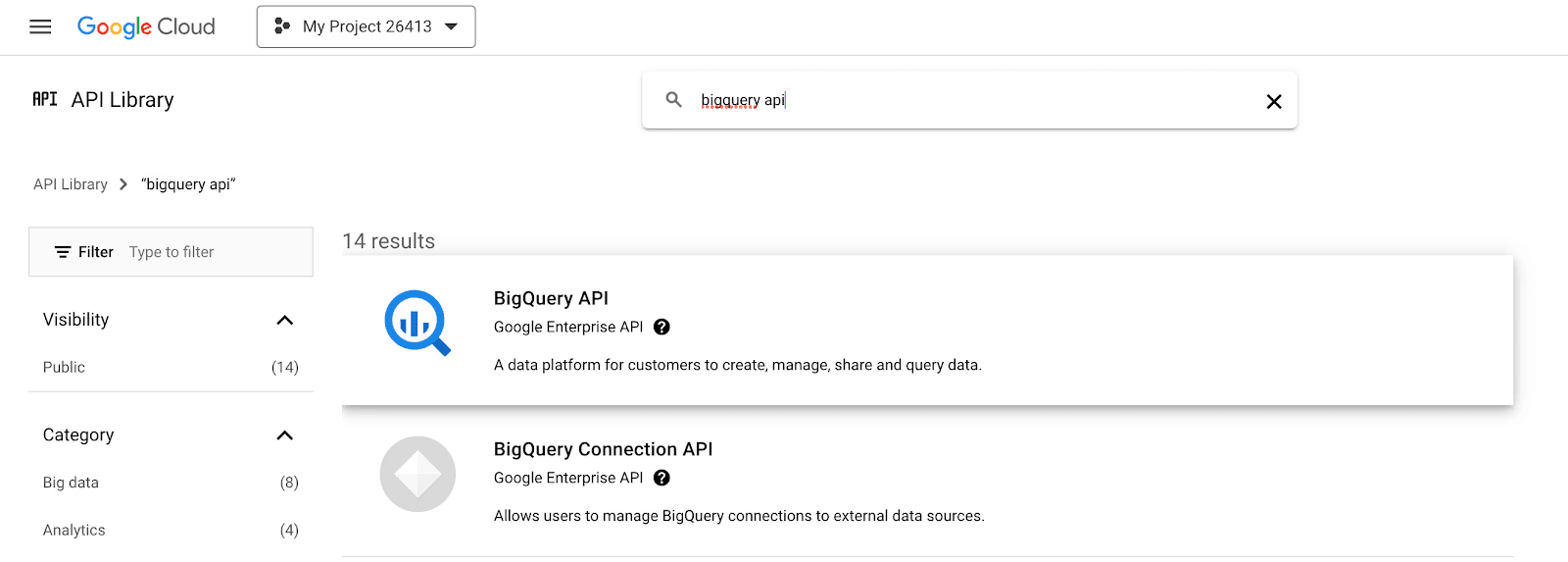
Make sure the BigQuery API is enabled for that project.
For a detailed walkthrough of both steps, see the setup guide.
💡 Use the same Google account email for both the Cloud project and the AWR sign-in step. Mismatched accounts are the most common setup mistake.
What data can I export from AWR, and what is in each table?
You can export one or more of three data types, and each one creates its own table in the awr dataset:
Ranking: keyword positions, URLs, search engines, dates, and SERP features. Best for position tracking and historical rank analysis.
Visibility: visibility scores per website, search engine, and keyword group. Best for trend reporting and competitive benchmarking.
Market Share: share of voice across your tracked competitors. Best for competitor and market position analysis.
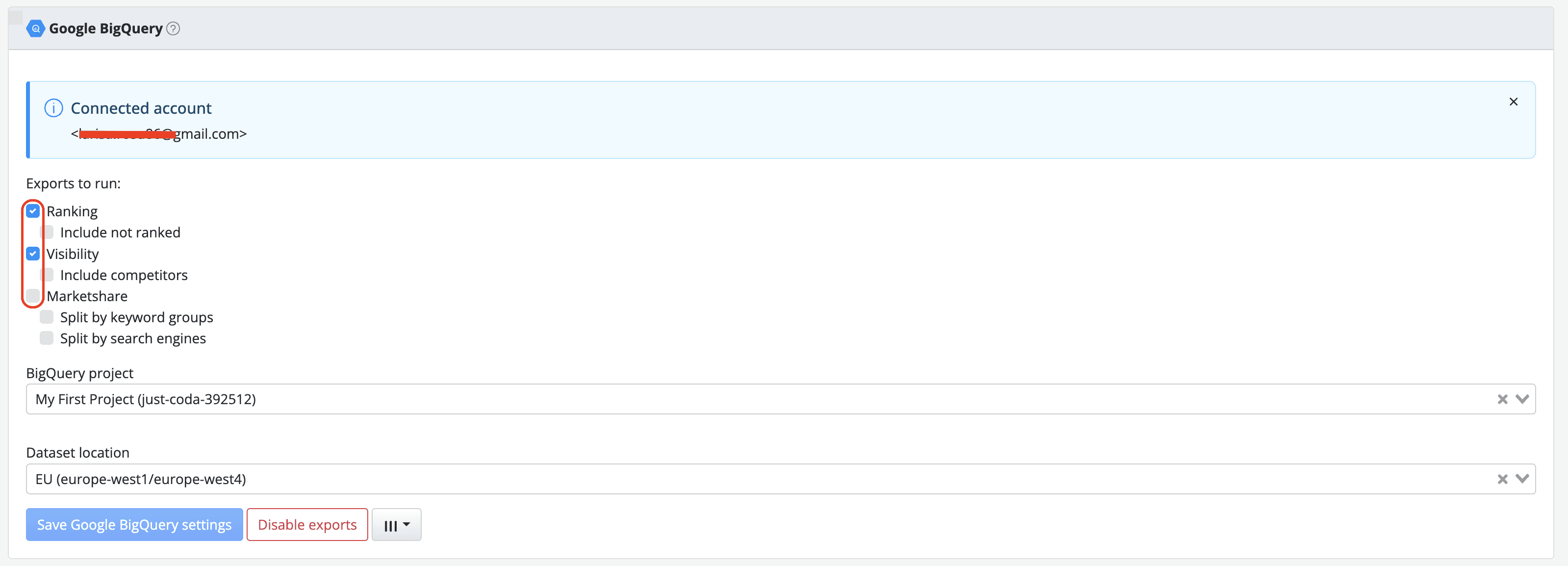
You can enable all three or just the ones you report on. For the full column-by-column breakdown of each table, see what happens after connecting AWR to BigQuery.
Sync issues
I connected AWR to BigQuery but but I don't see the dataset. Where is my data?
This is the question we get most often, and most of the time the data is simply on its way. After you save the BigQuery settings in AWR, the first data export does not happen instantly. The initial batch lands within a few hours, and it can take up to 24 hours when there is a lot of data across your selected projects.
While you wait, two things are worth confirming in BigQuery:
You are looking at the same Google Cloud project you selected in AWR. If you manage several projects, it is easy to land on the wrong one.
You are looking for a dataset named
awr. That is where your tables appear.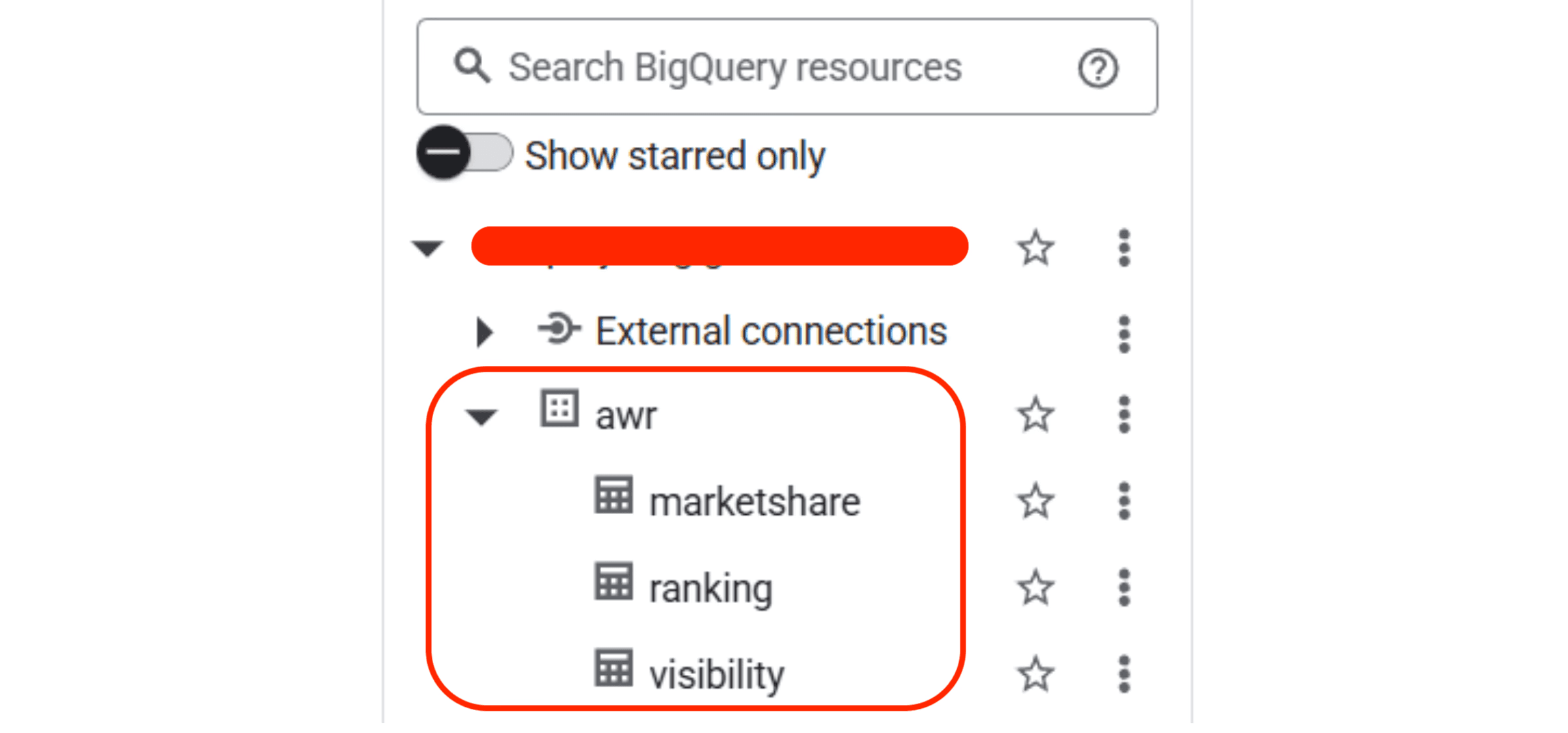
If more than 24 hours have passed and nothing has appeared, run through the setup checklist below before reaching out.
The BigQuery connector was working, then it stopped. What happened?
When data was flowing and then stopped, these are the usual causes, roughly in the order worth checking:
The Google sign-in was lost. Open Settings > Connectors & API > Google BigQuery in AWR. If you see a Sign in button instead of your email address, the authorization has expired or was revoked. Sign in again to restore it.

The BigQuery API was switched off in your Google Cloud project. Check that it is still enabled under APIs & Services in the Google Cloud Console.
Your subscription changed. If you moved off the monthly Enterprise plan, or switched from a yearly plan to a monthly one that does not include the connector, the sync is turned off automatically.
Temporary platform-side sync delay. Occasionally exports can be delayed by a few hours. If the issue persists beyond 48 hours and none of the above apply, contact support.
Only one table is missing data but the others are fine. Is this a bug?
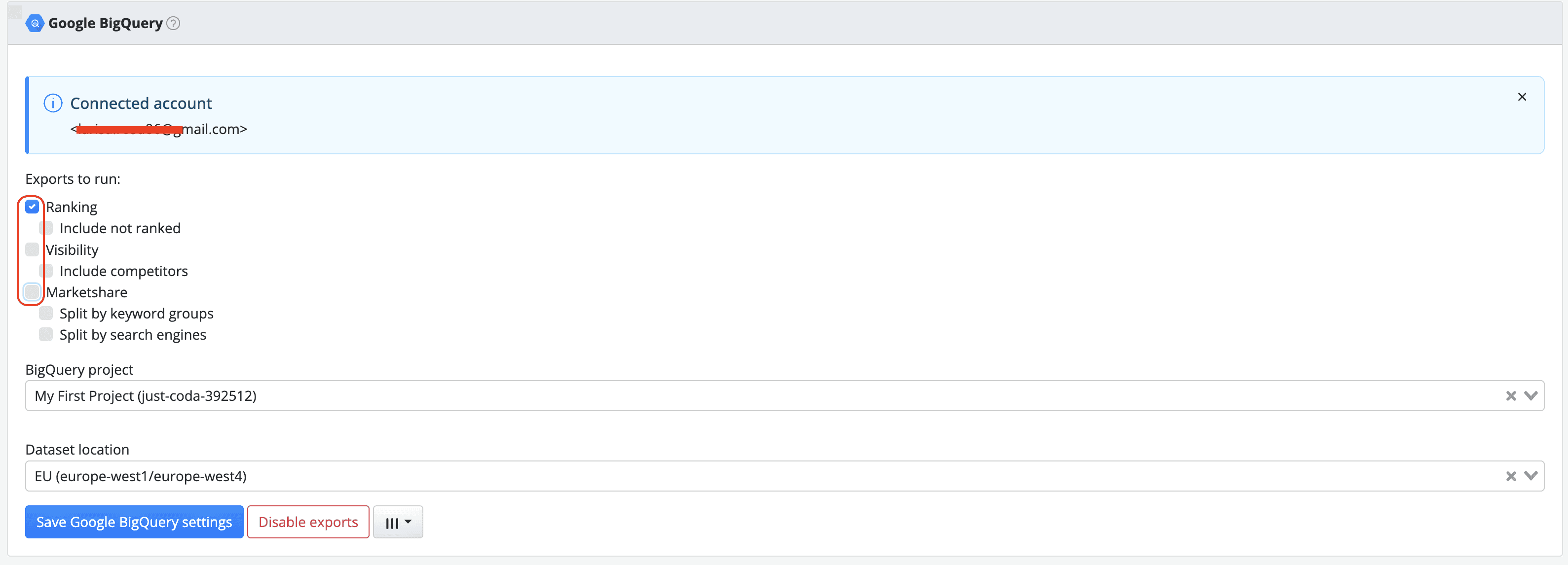
Not necessarily. Each data type (Ranking, Visibility, Market Share) syncs independently. If only one table has stopped receiving data, check the following:
That the data type is still switched on in Settings > Connectors & API > Google BigQuery. A settings change may have toggled it off.
Whether the project behind that table actually has new rankings. If no update has run, there is nothing new to export yet.
If everything looks right and a specific table has had no new rows for more than 48 hours, send us the table name and the date the rows stopped appearing, and we can look into the pipeline for your account.
AWR shows rankings, but BigQuery lists those keywords as unranked. Why?
A mismatch between what you see in AWR and what lands in BigQuery can happen when an export runs before a ranking update has fully finished, or when a record gets skipped during the sync.
If you notice the same keywords showing as unranked across several dates, that points to a sync issue rather than a setup problem. Send us the affected keywords, the date range, and the project name, and we can investigate the data pipeline on our end.
Data and timing
How often does AWR export data to BigQuery?
Exports run automatically once a day and include the latest data from your selected projects. The daily sync continues until you turn it off in Settings > Connectors & API > Google BigQuery. The setup guide covers the export schedule in more detail.
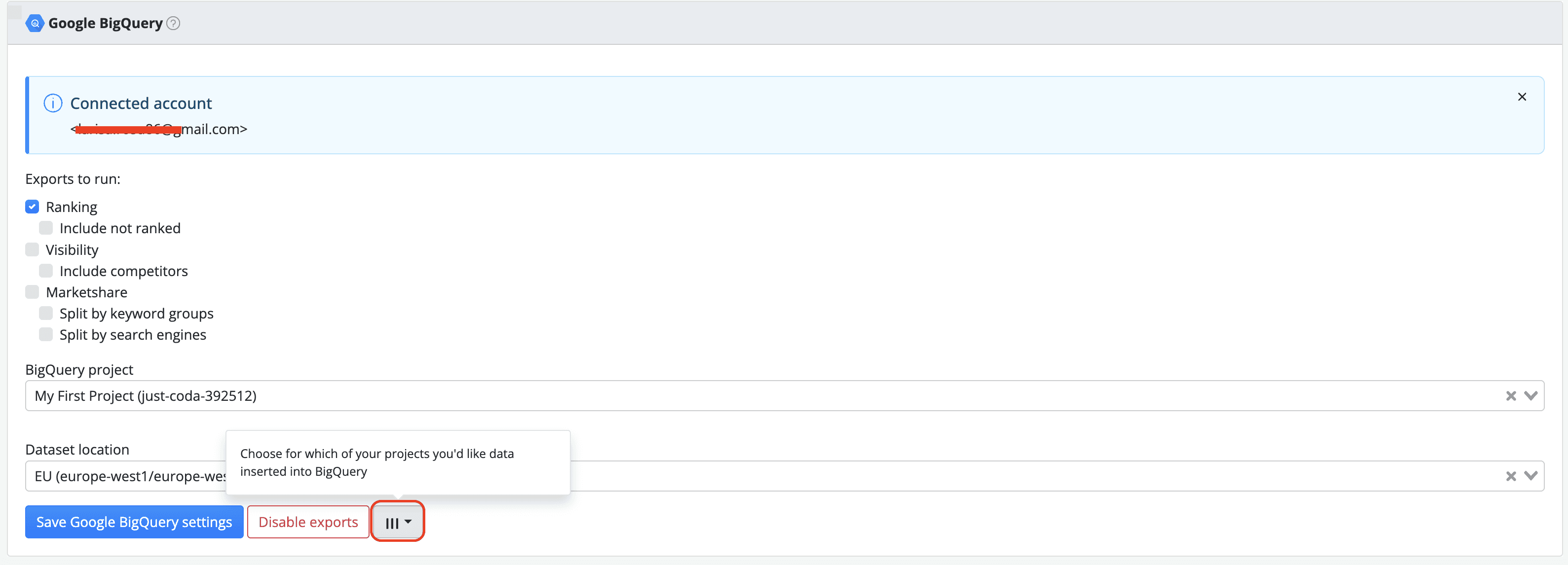
Can I trigger an immediate export instead of waiting for the daily sync?
The BigQuery connector follows the daily sync schedule and there is no manual trigger to force an export from the BigQuery settings section in AWR. However, running an on-demand update for your AWR project will generate fresh ranking data, which will then be picked up by the next BigQuery export cycle.
💡 To run an on-demand update: go to your project settings, click the Run on-demand update button, and select the update type.
Does AWR data accumulate forever in BigQuery, or is it cleaned up automatically?
AWR does not delete anything from your BigQuery project, so your data keeps accumulating until you manage it yourself. BigQuery bills for stored data, so if you are exporting rankings across many projects with thousands of keywords, the tables can grow quite a bit over time. Google lets you set partition expiration times to drop older data automatically. There is more on storage and costs in the setup guide.
Can I export historical data that was collected before I enabled the BigQuery connector?
The BigQuery connector exports data going forward from the date you enable it. It does not retroactively push historical data that was collected before activation. If you need historical data exported, you have two options:
Use the AWR Developer API to pull historical ranking and visibility data programmatically and load it into BigQuery yourself.
Use the CSV or automatic FTP exports to bulk-export historical data in a format compatible with BigQuery imports.
Specific errors and edge cases
I get strange characters or corrupted data when importing AWR CSV exports into BigQuery. What causes this?
AWR exports use UTF-8 encoding. Garbled characters almost always come from a file being re-encoded somewhere along the way, most often when a CSV is opened in Excel before being uploaded. If you are importing CSV files into BigQuery yourself, set the load job to UTF-8 and upload the raw file without opening it in a spreadsheet first.
If you are seeing corrupted characters in data that came straight through the direct BigQuery connector, rather than a manual CSV import, send us a sample of the affected rows so we can take a look.
Was the BigQuery connector previously included in the Agency plan?
Plan availability can change over time. If the Google BigQuery section is showing the note that exports are limited to Enterprise and yearly plans even though you believe your current plan qualifies, reach out to support or your account manager and we will verify your entitlements.
I set everything up correctly and it still doesn't work. What should I do?
Run through the setup checklist below one more time. If every item checks out and your data has not appeared within 24 hours, there is no need to keep troubleshooting on your own. Get in touch and we will take it from there.
Setup checklist
If your export is not working, run through these before contacting us:
# | Check | Where to look |
|---|---|---|
1 | AWR plan is monthly Enterprise or any yearly plan | Profile > Billing |
2 | BigQuery API is enabled in Google Cloud | Google Cloud Console > APIs & Services > Enabled APIs |
3 | You signed in with the Google account that owns the Cloud project | Settings > Connectors & API > Google BigQuery |
4 | At least one data type is selected (Ranking, Visibility, Market Share) in AWR | Settings > Connectors & API > Google BigQuery |
5 | At least one AWR project is selected for export | Settings > Connectors & API > Google BigQuery |
6 | You clicked "Save Google BigQuery" settings in AWR | Settings > Connectors & API > Google BigQuery If the button is grayed out, your settings are saved. If it is blue, you have unsaved changes |
7 | You are an Owner, Administrator, or Custom user with manage connections permission | Profile > Users |
If all seven check out and your data still has not appeared within 24 hours, it is time to get in touch.
Still stuck?
Use the Report an issue button in the AWR chatbot, or email our support team.
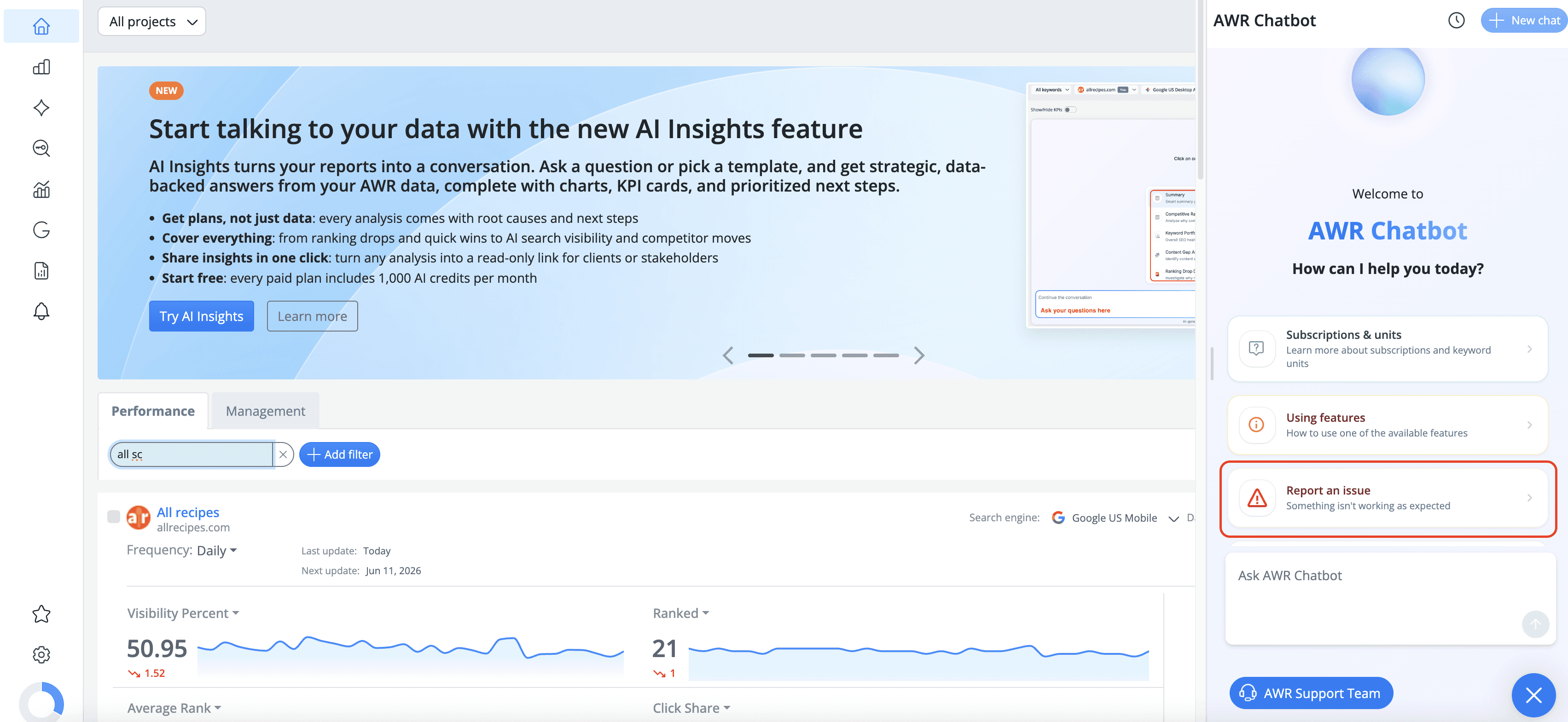
To help us get to the bottom of it quickly, include:
Your AWR account email
The Google Cloud project name or ID
The data types you enabled (Ranking, Visibility, Market Share)
Roughly when you saved your settings
What you see in BigQuery (no dataset at all, partial data, or a specific table missing)
A screenshot of your BigQuery settings page in AWR helps too. We usually reply within an hour during office hours.
stay in the loop