

Advice and answers from the Advanced Web Ranking Team
Search for articles
Why Don’t AWR Rankings Match Your Manual Searches?
Learn why AWR rankings may differ from manual Google searches and how location, personalization, timing and project settings influence results.

You check your rankings in AWR and see Position 8. Then you manually search the keyword in Google and find your website ranking #1.
So what’s happening?
Google’s search results vary constantly based on location, personalization, device type, timing and SERP configuration.
This article explains why differences between AWR rankings and manual searches happen, how AWR collects ranking data and what you can do to compare rankings more accurately.
TL;DR: Why AWR Rankings Can Differ From Manual Searches
AWR retrieves rankings using geo-located proxy IPs, non-personalized search settings and the exact search engine configuration selected in your project.
Manual Google searches, however, are influenced by factors like location, device type, cookies, search history, timing and live SERP fluctuations.
Because Google constantly adapts search results, it’s completely normal to see differences between the rankings reported in AWR and the ones you see during a live search.
Differences can also come from the way your project is configured, including location, device type, search engine setup, update timing, URL aliases, search depth or comparisons against similar metrics like Average Position in Google Search Console.
Why Manual Searches Often Show Different Rankings
You’re searching from a different location
Google’s search results change depending on where the search is performed. A keyword searched from Paris can return different rankings than the same keyword searched at the country level in France.
This usually happens when the location configured in the project doesn’t fully match the location used during manual checks. If your project tracks rankings at the country level while you manually search from a specific city, Google may display slightly different results.
To make comparisons more accurate, try aligning your AWR search engine settings as closely as possible with your manual searches.
When setting up a new project, or from the Search Engines section of an existing project, the “Add new search engines” wizard allows you to configure tracking at the country, city, address, or even ZIP code level:
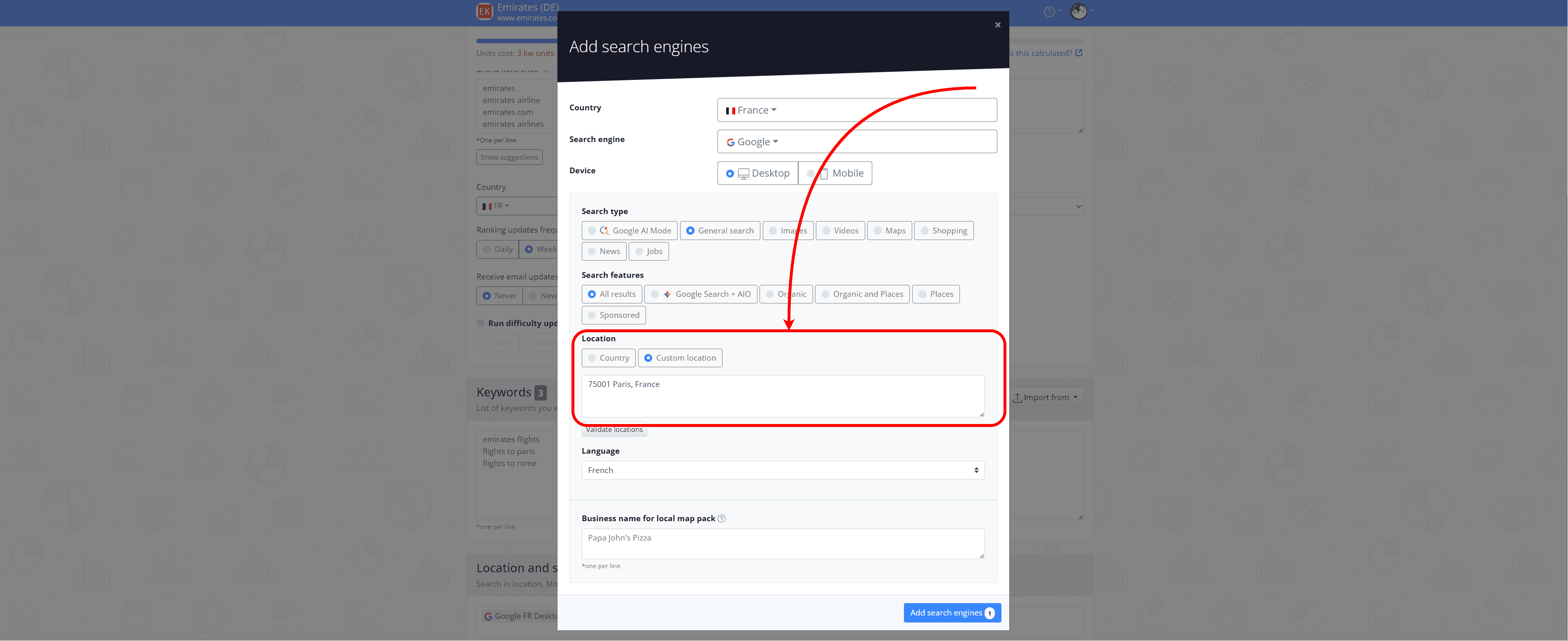
How this helps: Matching the location used in your project with the location used during manual searches ensures you’re comparing rankings from the same SERP conditions. It also helps track local visibility more accurately and identify location-based ranking changes.
You’re comparing Desktop and Mobile results
Google can show different results on desktop and mobile, even for the same keyword and location.
This happens because desktop and mobile SERPs each have their own layouts, ranking signals and SERP features, which can affect how results are displayed and ordered.
To compare rankings accurately, make sure you’re using the same device type configured for the AWR search engine in your project:
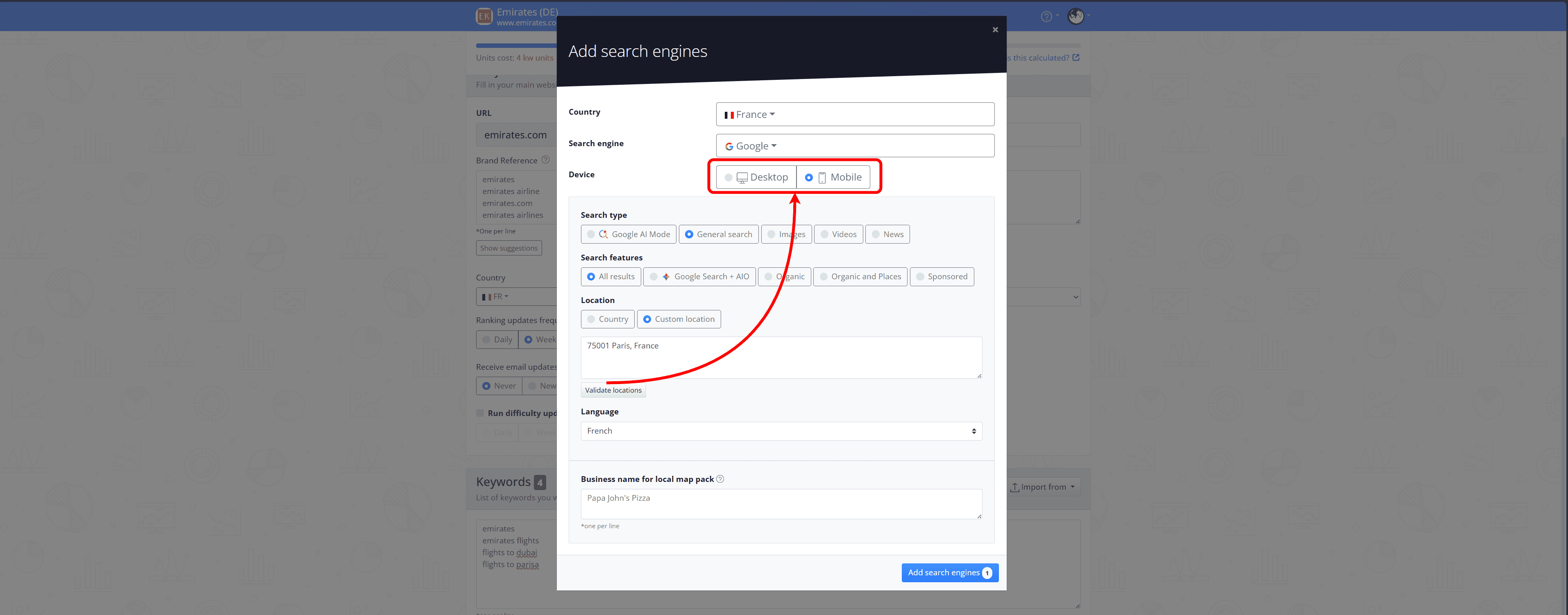
How this helps: Using the same device type for both ranking tracking and manual checks ensures you’re comparing rankings from the same type of SERP, avoiding differences caused by desktop and mobile result variations.
Your search engine setup doesn’t match the results you want to track
The results reported in AWR are based on the search type and search features selected for the search engine configured in your project. Depending on that setup, different kinds of Google results will be retrieved and reported.
This means that, for example, if your project uses an Organic search engine, but the SERP also contains AI Overviews, Places, or other non-organic results, those result types can still be detected in AWR, but rankings will only be reported for the organic listings included in that search engine type.

Because of this, when configuring your search engine, it’s important to select the search types and SERP features that match the kinds of results you actually want to track.
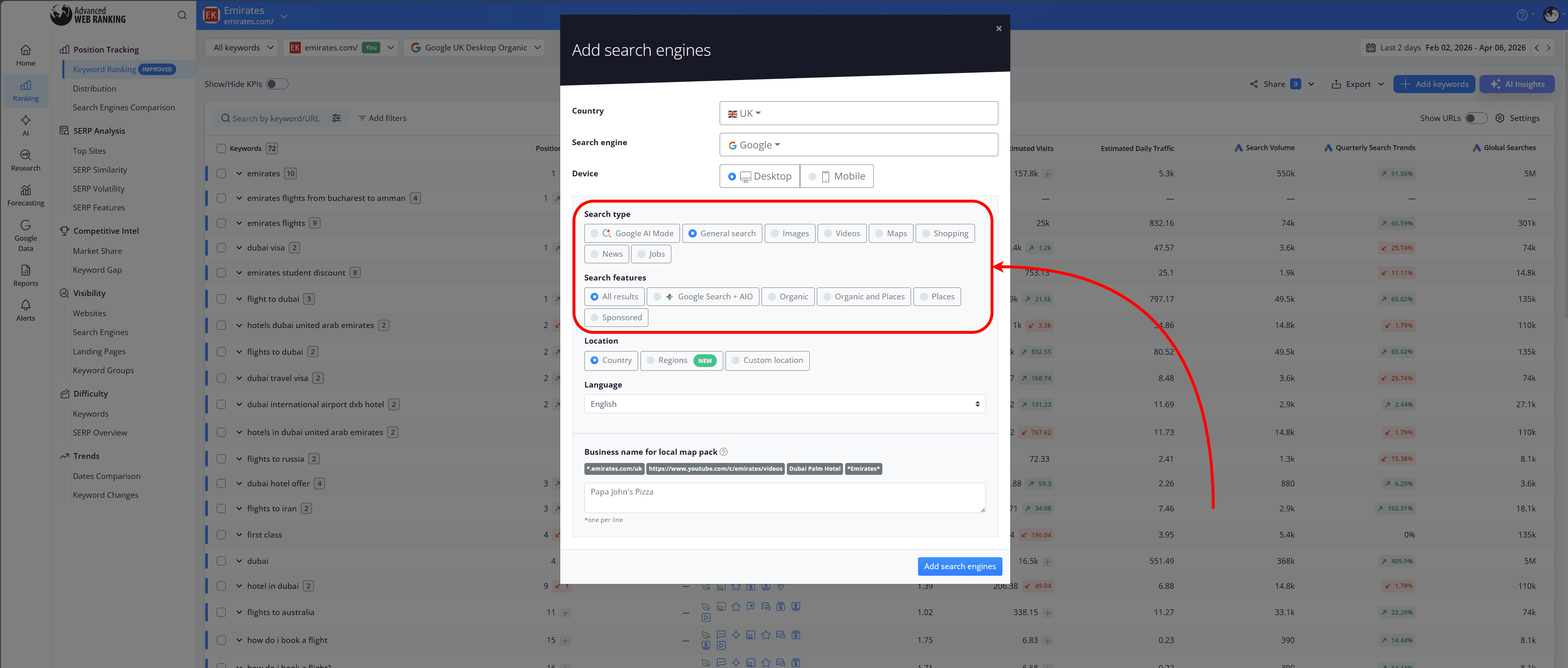
You can find more details about the types of results you can track here.
How this helps: Using the correct search engine configuration ensures AWR reports rankings for the same types of Google results you’re trying to track.
You’re comparing rankings at different times
SERP results fluctuate constantly throughout the day.
AWR retrieves the SERP at the time the ranking update occurs, while manual searches reflect live results at the exact moment of the search. Because of this, rankings can change between update cycles, a few hours later, or even minutes after the SERP was retrieved.
This is especially common during periods of high SERP volatility, such as Google algorithm updates.
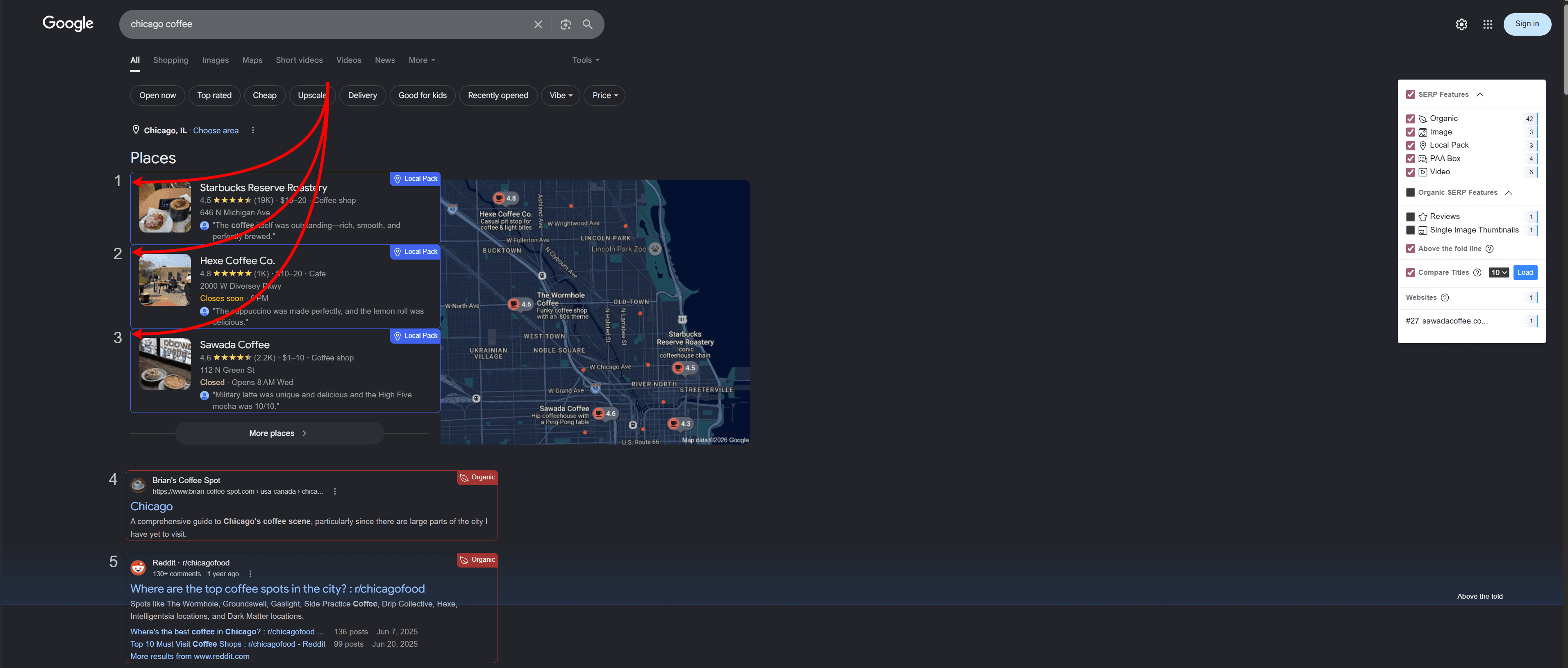
The timing of the ranking update can also affect Local Pack results. Businesses that are currently open are prioritized higher in the Local Pack, while businesses that are closed may appear lower. This means rankings can shift depending on the exact time the SERP is retrieved.
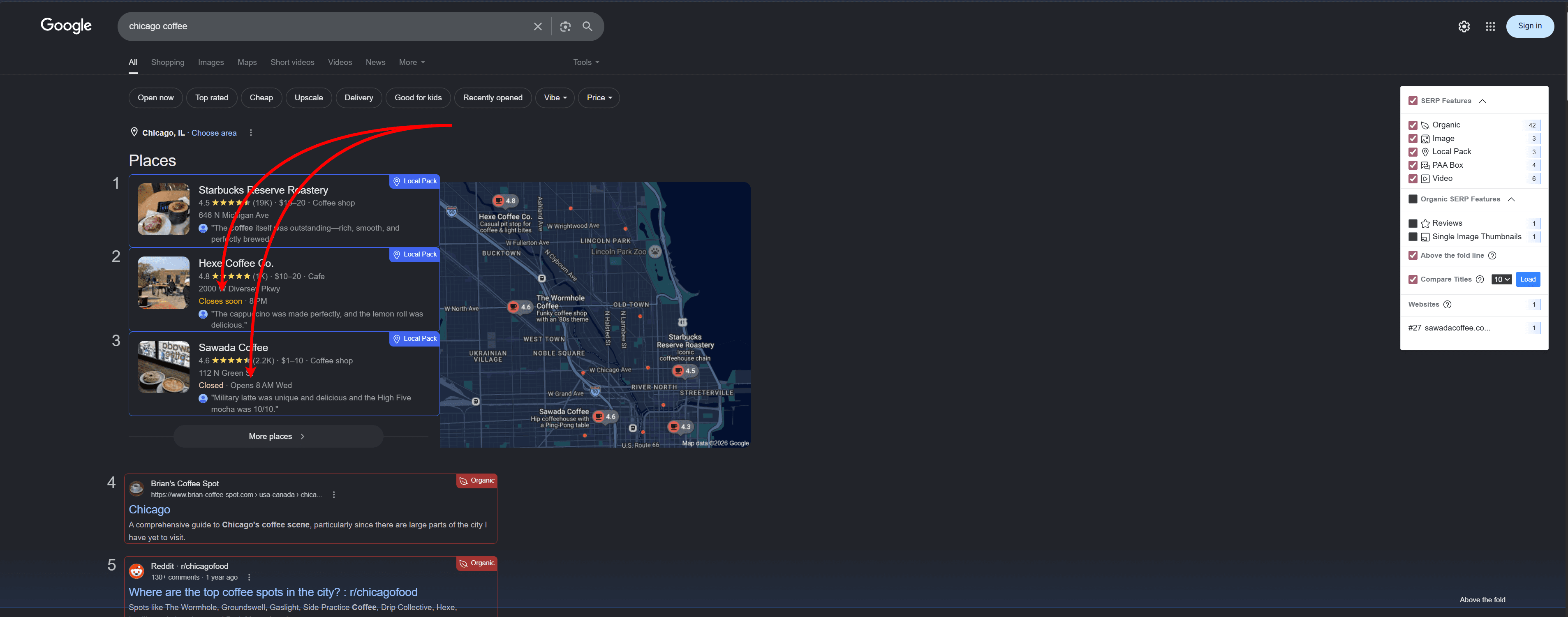
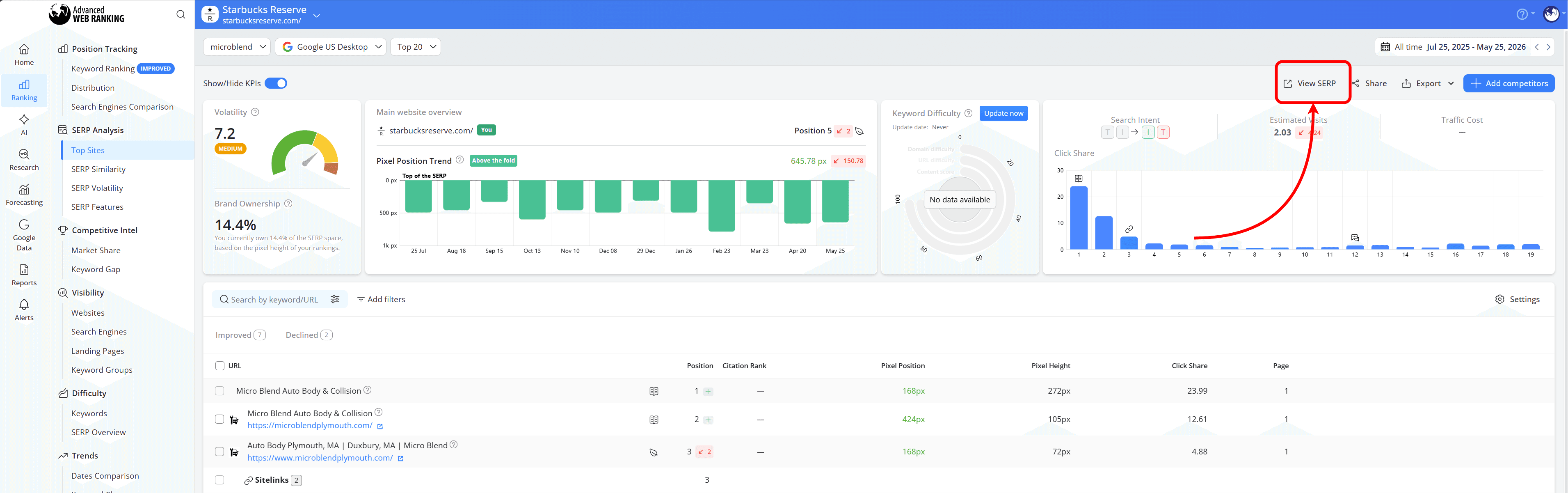
You can always check how the SERP looked at the time of the ranking update by clicking the “View SERP” button in the Top Sites report:
To make comparisons more reliable, we recommend discussing with your clients when ranking updates should be scheduled. Your project’s update frequency can be changed from Settings > Overview, under the Update Preferences subsection:
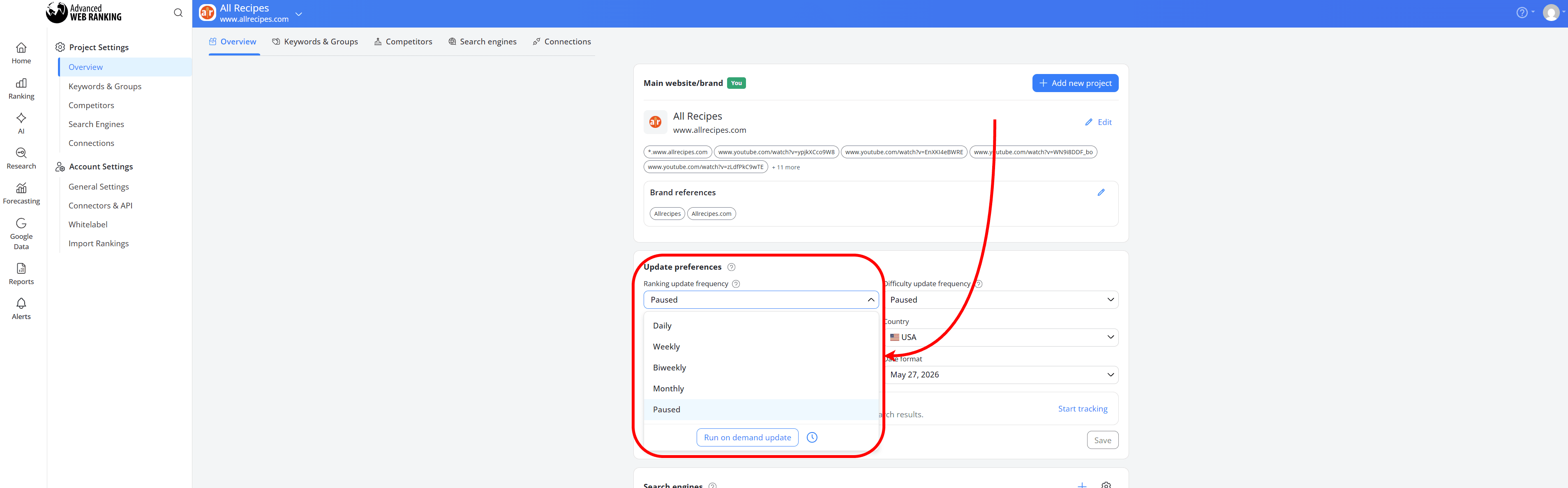
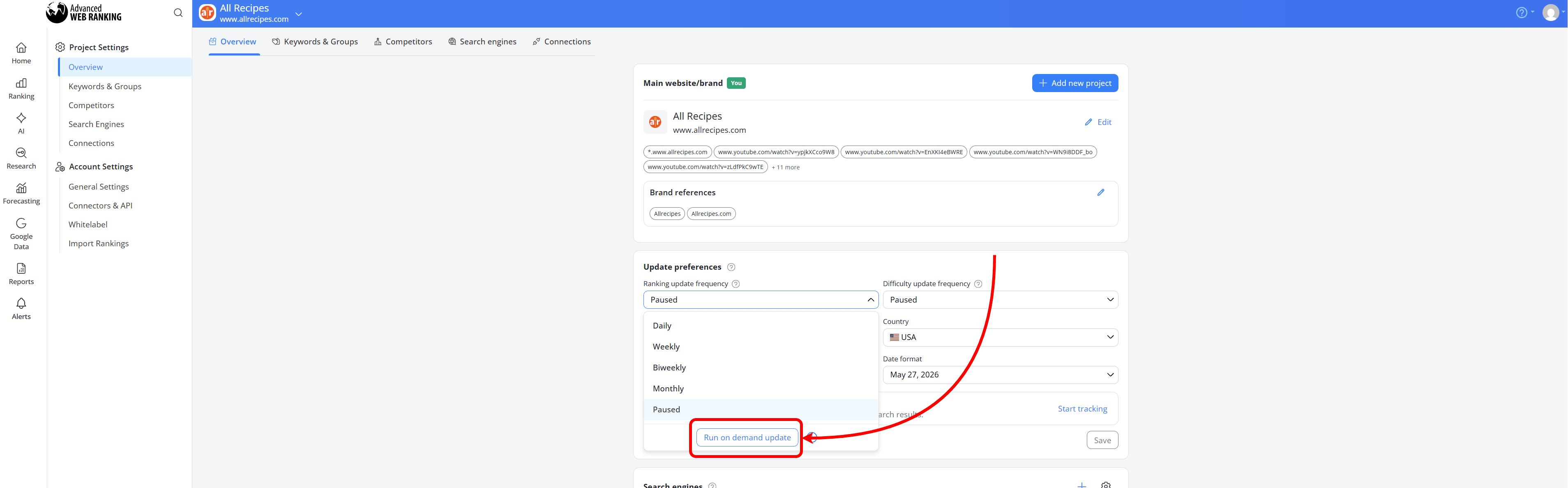
You can also manually trigger an on-demand update whenever you need fresh rankings that are as close as possible to the timing of your manual searches:
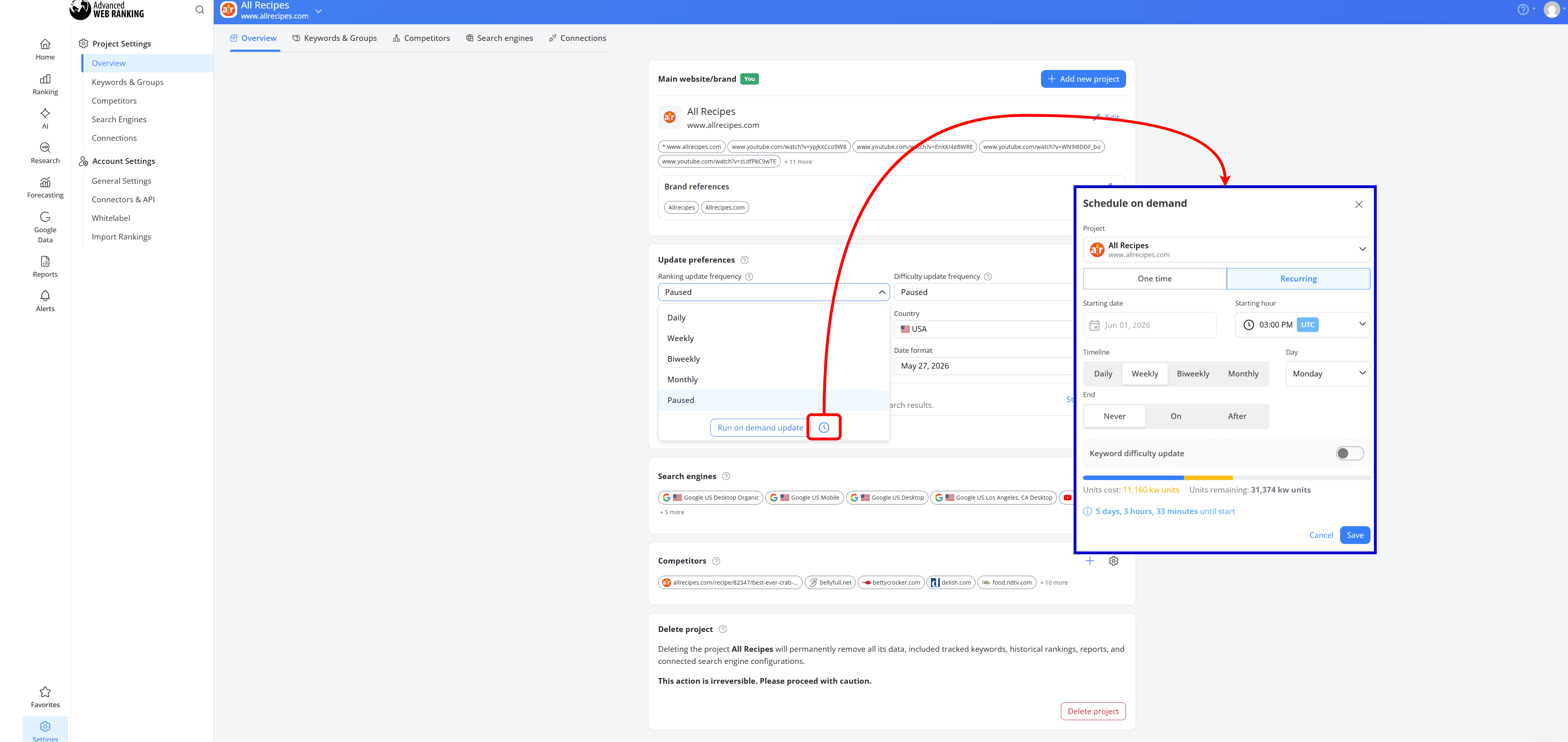
Or, for Enterprise and higher-tier plans, you can schedule one-time or recurring on-demand updates to run at a specific date and time, allowing you to capture rankings during the time intervals that matter most to your business.
To do this, open the “Ranking update frequency” dropdown, click on the clock icon and configure your on-demand update schedule:
How this helps: By scheduling ranking updates at the right time, you can capture SERPs that better reflect the search behavior and business hours that matter most to your clients.
This helps make ranking comparisons more consistent, especially for local SEO campaigns and highly volatile search results.
You’re tracking different URLs than the ones ranking in the SERP
Website aliases tell AWR which URLs, subdomains or brand references should be associated with your project during ranking updates.
For example, if your project tracks example.com but Google ranks results from shop.example.com, only the rankings from the main domain will be reported, while the rankings from the subdomain will not be associated with the project unless a matching alias is configured
To configure aliases, head to Settings > Overview and click on “Edit”, where you can configure additional matching rules to help AWR associate rankings with your project more accurately:
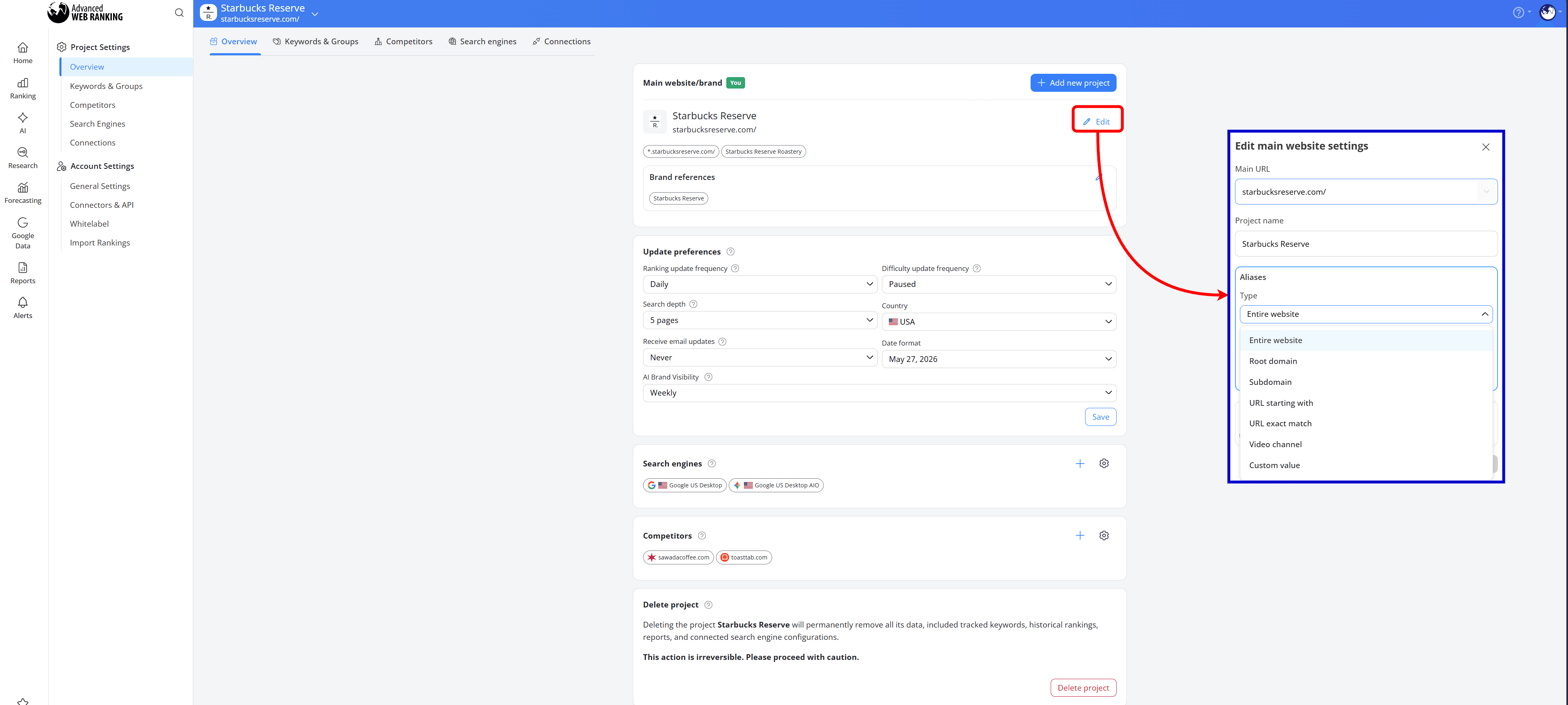
You can find more details on setting up URL aliases for your project here.
Aliases are also important for detecting rankings in Local Pack results because Google doesn’t always include a website URL in the listing. In many cases, the Local Pack only displays the business name.
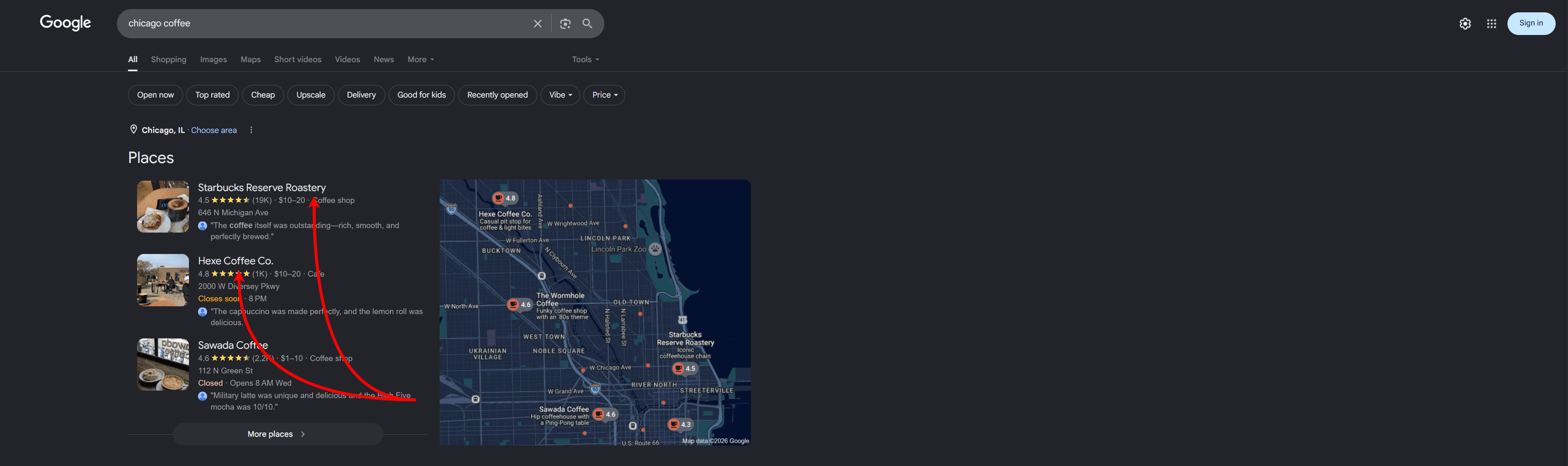
If that business name isn’t configured as an alias in the project, AWR won’t associate the Local Pack result with your website during the ranking update process.
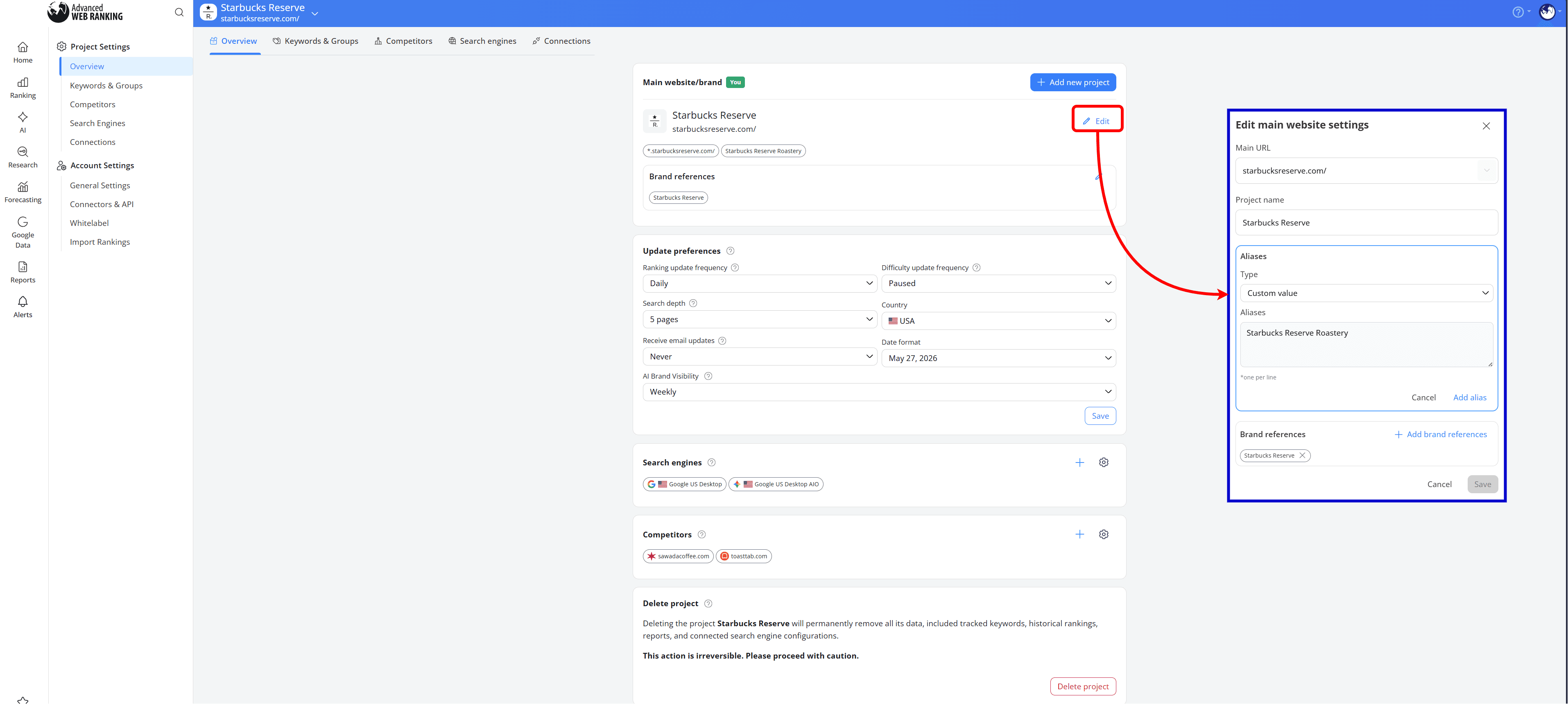
To add your Google Business Profile listing as an alias, select the “Custom value” alias type and enter the business name exactly as it appears in your Google My Business profile, otherwise the result will not be matched.
Brand references are also important when tracking visibility in AI Overviews.
AI Overviews can mention your brand without linking directly to your website. Instead of showing a URL, Google may reference only the brand name within the generated response.
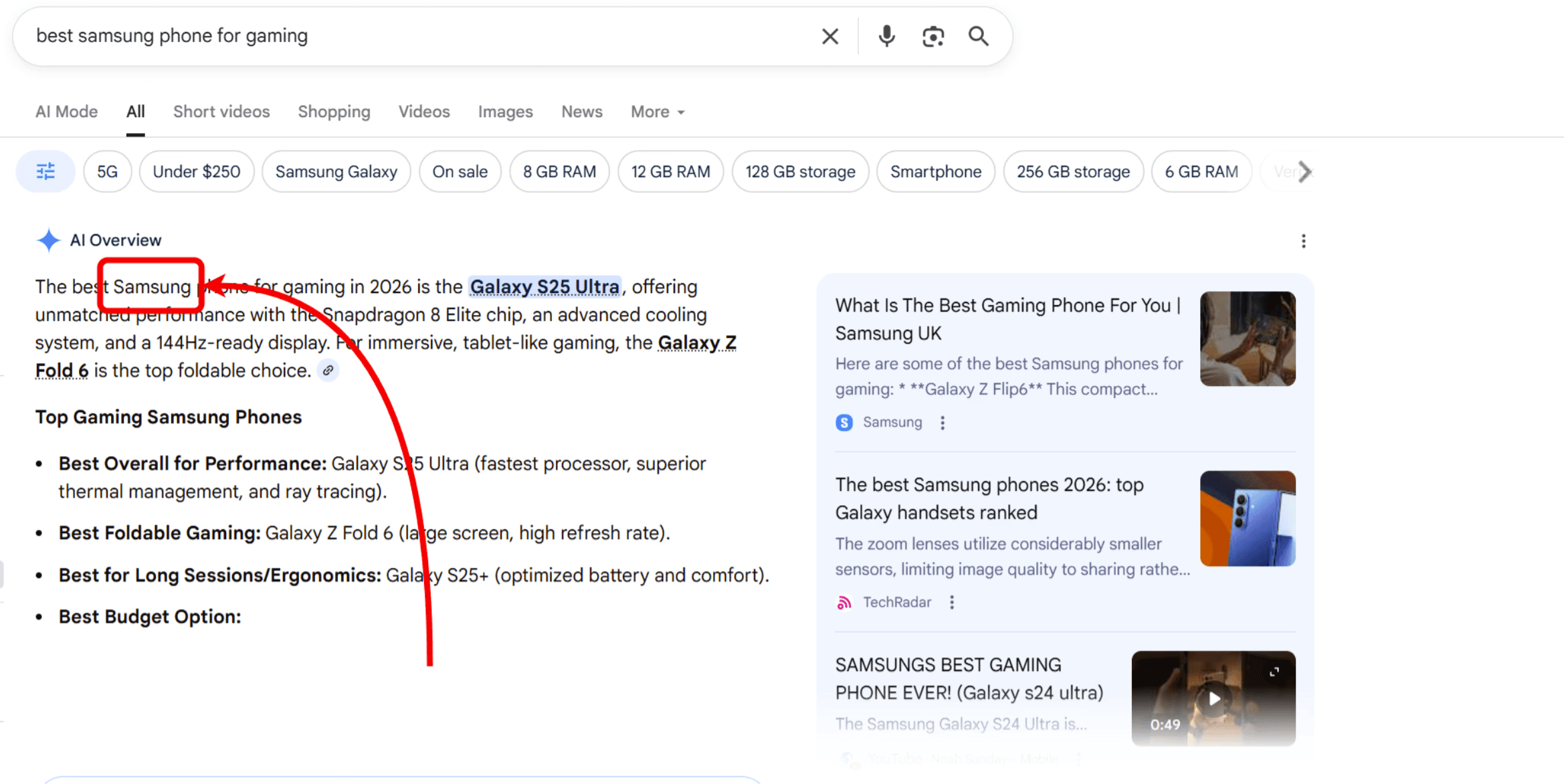
If those brand references aren’t configured in the project, AWR won’t associate those mentions with your website during the ranking update.
To have your brand mentions recognized and reported by AWR, add your brand name in the “Brand references” section:
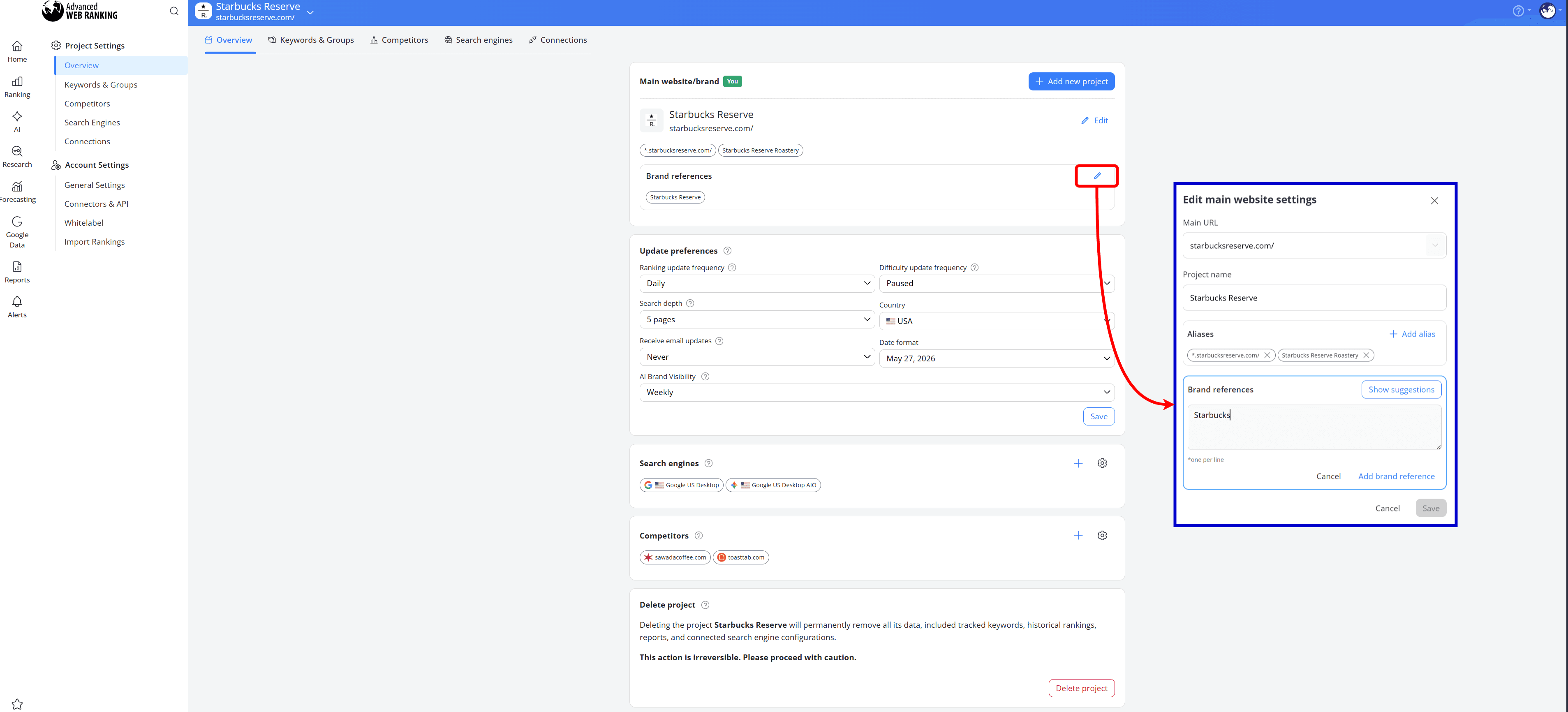
How this helps: Configuring aliases and brand references helps AWR correctly recognize and report rankings, Local Pack listings and AI Overview mentions associated with your project. It also improves tracking accuracy for branded visibility across different Google search features.
You’re not tracking enough pages of results
Sometimes rankings can appear inaccurate simply because the project isn’t collecting enough SERP pages.
For example, if your rankings are outside your project’s configured Search depth, they will not be reported. A website ranking in the Top 50 may appear missing if the project is only retrieving the first two pages of Google results.
You can adjust your project’s Search depth from Settings > Overview, under the “Update preferences” subsection:
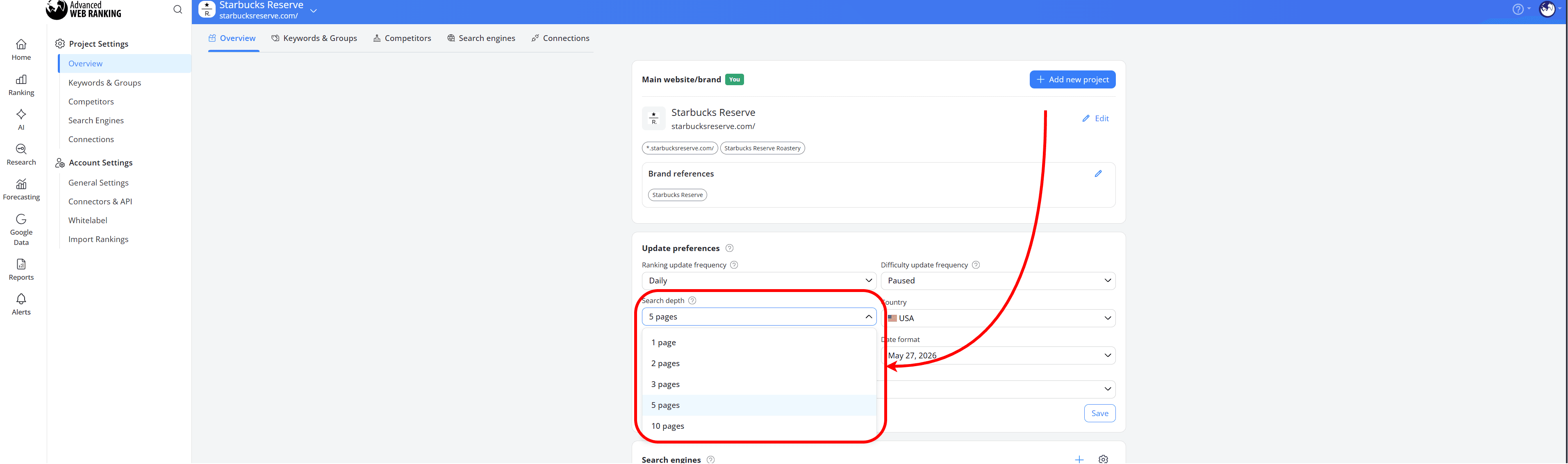
If you think that your website might rank past the first 5 pages of results, note that tracking 10 pages of results consumes twice the resources compared to tracking up to 5 pages.
How this helps: Increasing your Search depth allows AWR to report rankings that appear lower in the SERP instead of limiting tracking to only the top results.
You’re comparing AWR rankings to Average Position in Google Search Console
AWR and Google Search Console measure rankings differently, so it’s normal to see discrepancies between the two.
AWR reports the exact ranking position retrieved from the SERP at the time of the update, with rankings counted from the top to the bottom of the page based on the search engine, location and device configured in your project.
According to Google Search Console’s documentation, GSC counts the highest position your site achieved for a query each day, then averages those positions over the selected timeframe.
For example:
if your site ranks at positions 2, 4 and 6 on one day, GSC records position 2
if it ranks at positions 3, 5 and 9 the next day, GSC records position 3
The reported average position then becomes (2 + 3) / 2 = 2.5
This means GSC reports an averaged metric, not the exact ranking position retrieved from a specific SERP like AWR does.
How this helps: Knowing how each tool measures rankings helps you compare the data more accurately and avoid mistaking reporting differences for ranking changes.
How to Compare AWR Rankings With Manual Searches
To get more accurate comparisons between AWR and manual searches, you can use Incognito Mode and make sure the location matches the one configured in your AWR project.
If the location used during your manual searches doesn’t match the location tracked in AWR, you can change it directly from Google’s Settings section on Desktop or Mobile devices.
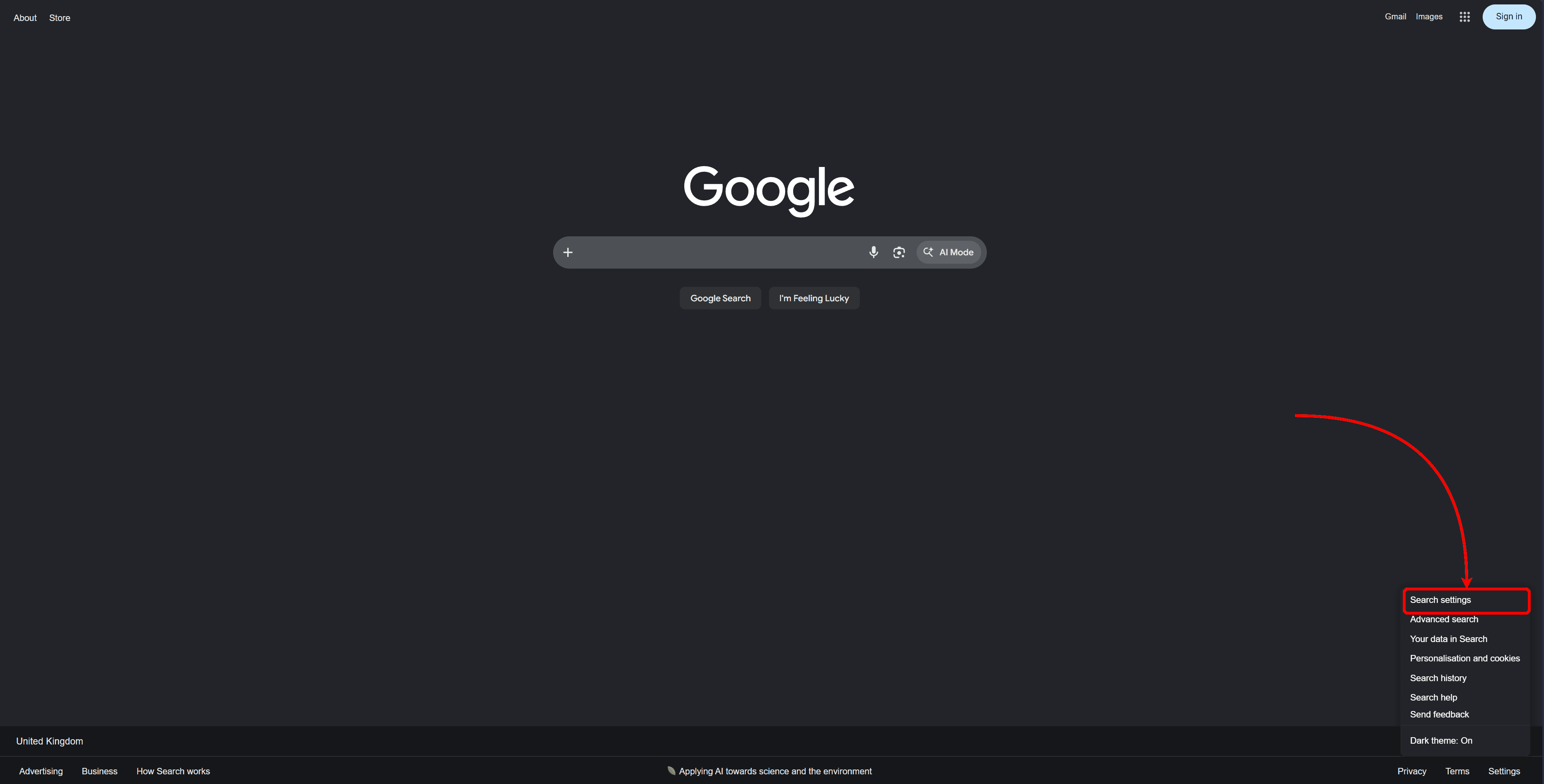
Then, from the Other settings > Language and region section, set the location to match the one configured for your AWR search engine.
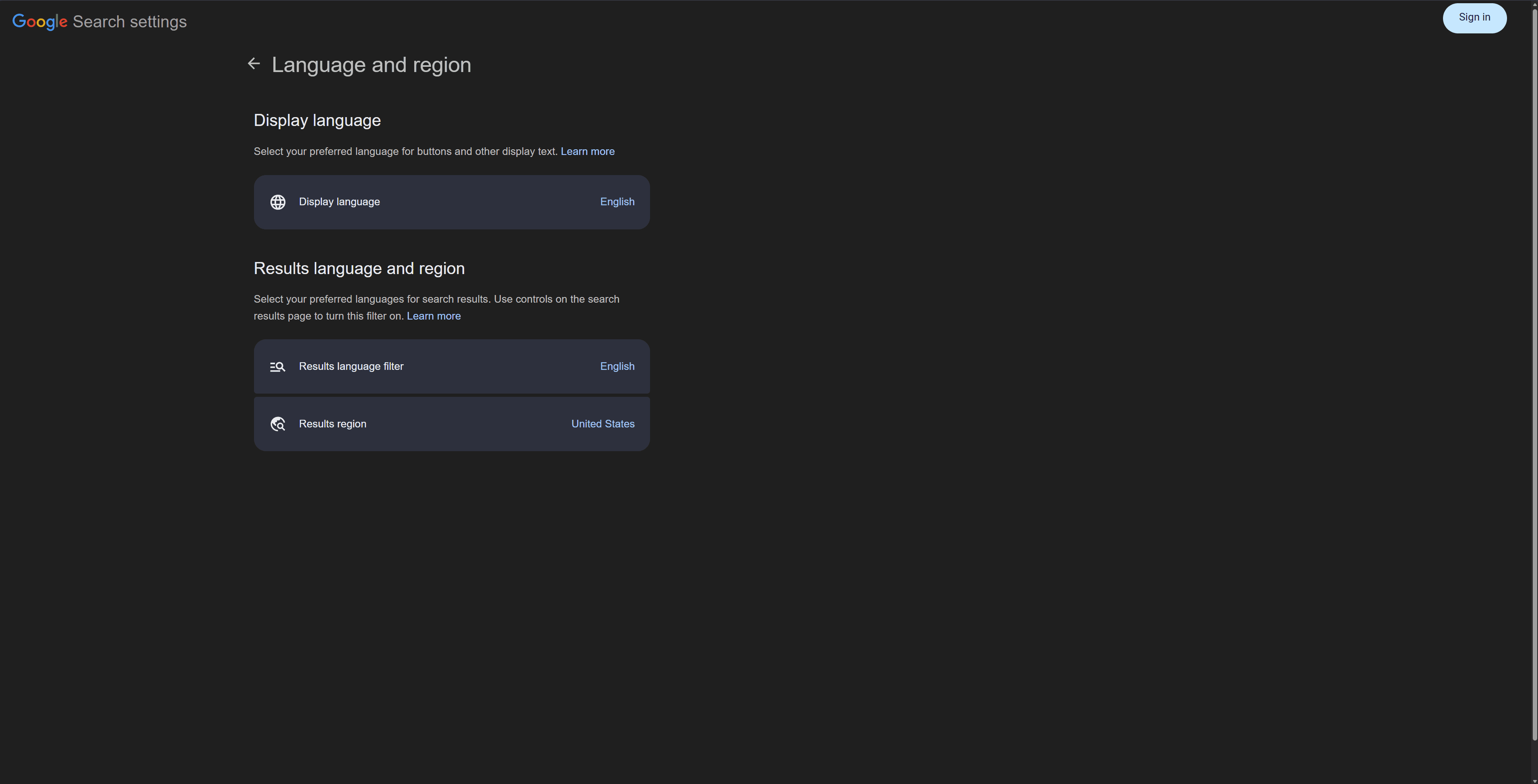
Once the location matches the one configured in AWR, you can compare the live search results against the rankings reported in the tool more accurately.

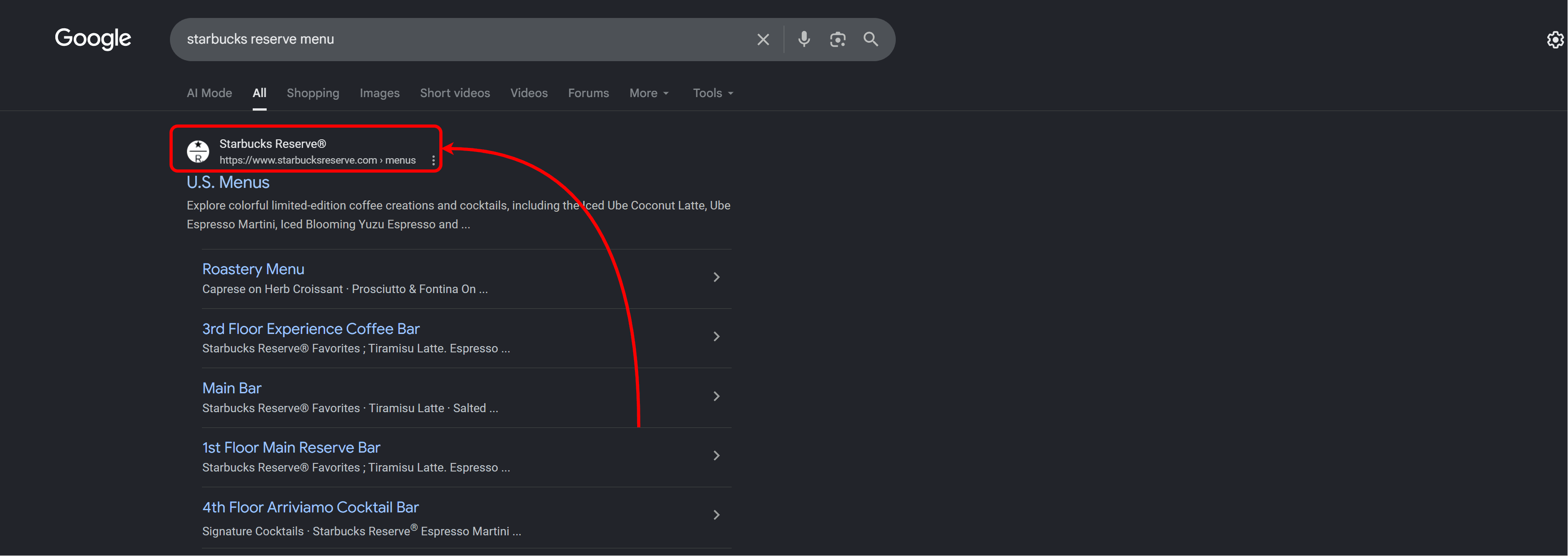
How this helps: Matching the same search location helps ensure you’re comparing rankings from the same SERP conditions as the ones retrieved by AWR.
Please note that the comparison should also be performed around the same time as the AWR ranking update, since SERP results can fluctuate throughout the day.
Do you have any questions? Don’t hesitate to get in touch and we will keep building the FAQ.
Frequently Asked Questions
Why does AWR show “Not ranked” when I can still find my website in Google?
Does AWR track personalized Google results?
Can AWR track URLs in AI Overviews?
Does changing the search language affect rankings?
stay in the loop