

Advice and answers from the Advanced Web Ranking Team
Search for articles
Traffic Down Despite Stable Rankings? AWR Helps You Understand Why
Learn why your traffic drops despite stable rankings and identify visibility issues, SERP changes, and CTR declines using Advanced Web Ranking insights.

If your rankings seem steady but your organic traffic is dropping, the issue is usually visibility rather than ranking itself.
Search results now include AI Overviews, Featured Snippets and other SERP Features that can reduce clicks even when your position stays the same.
When AI responses appear, they often answer the query directly, which means users have less reason to click through. As a result, click-through rates can fall significantly, even for pages that rank at the top.
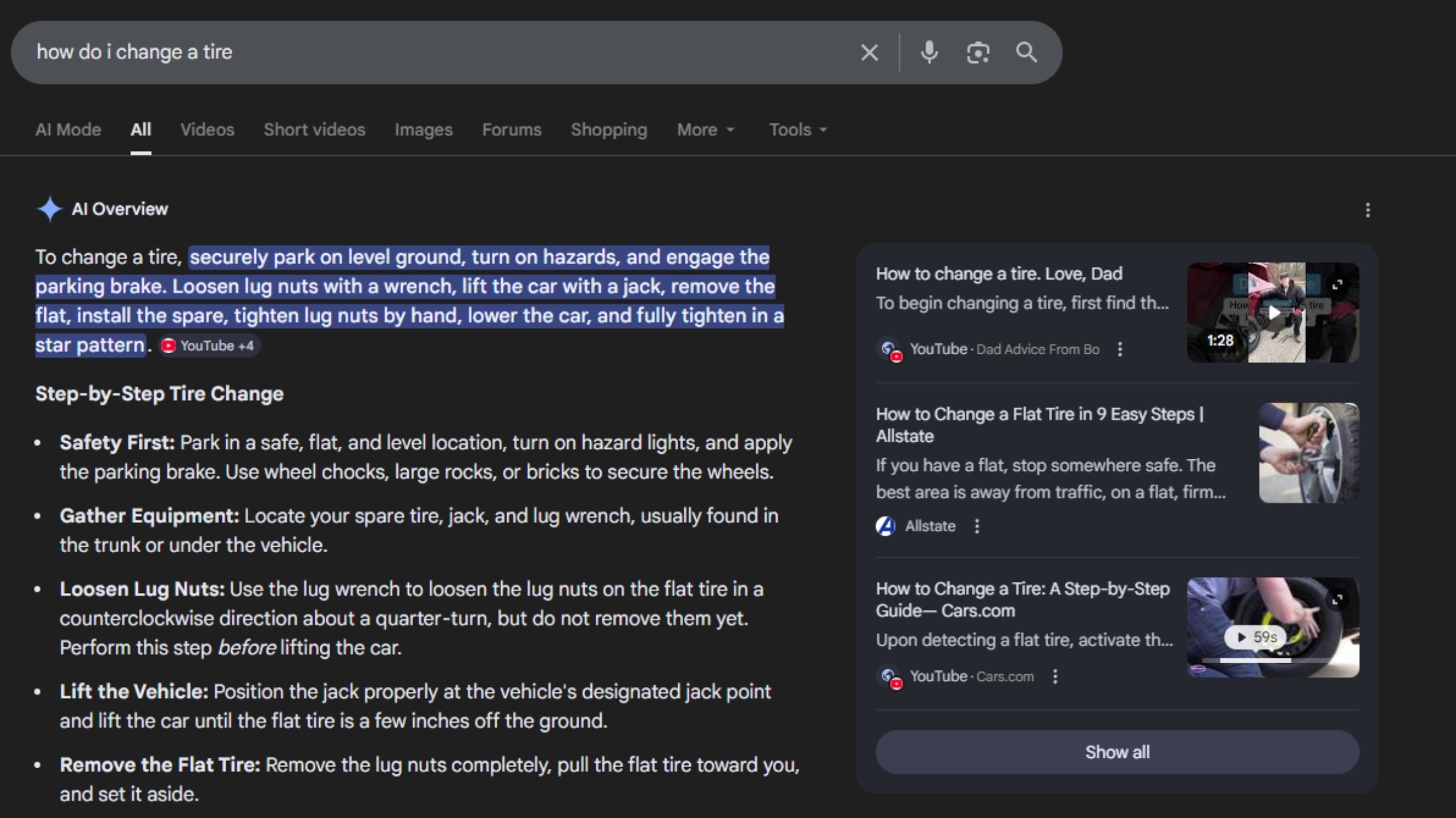
This is why holding the number one position no longer guarantees traffic. What matters more now is how visible your result is and how users interact with what they see on the page.
TL;DR: Traffic down? It’s not always your rankings
Your traffic can drop even if your rankings don’t move because people aren’t seeing or clicking your result the same way anymore. Things like AI Overviews, SERP features, changing search intent, or stronger competitors can all take attention away from your page.
With AWR, you can actually see what’s going on behind the scenes, how visible your result is, how users interact with it, and what’s changed. That way, you can figure out what to fix and get those clicks back.
Understanding your presence in the SERP
As the SERP includes features like AI Overviews, Featured Snippets, People Also Ask, Videos, and Images, these often appear at the very top of the page or take up large portions of the screen, which means traditional organic listings are pushed further down.
This means that even if your site ranks in top positions, it can still be pushed far down the page, sometimes even below the fold.
To understand how your listing actually appears in the SERP and how far it has been pushed down, you can either:
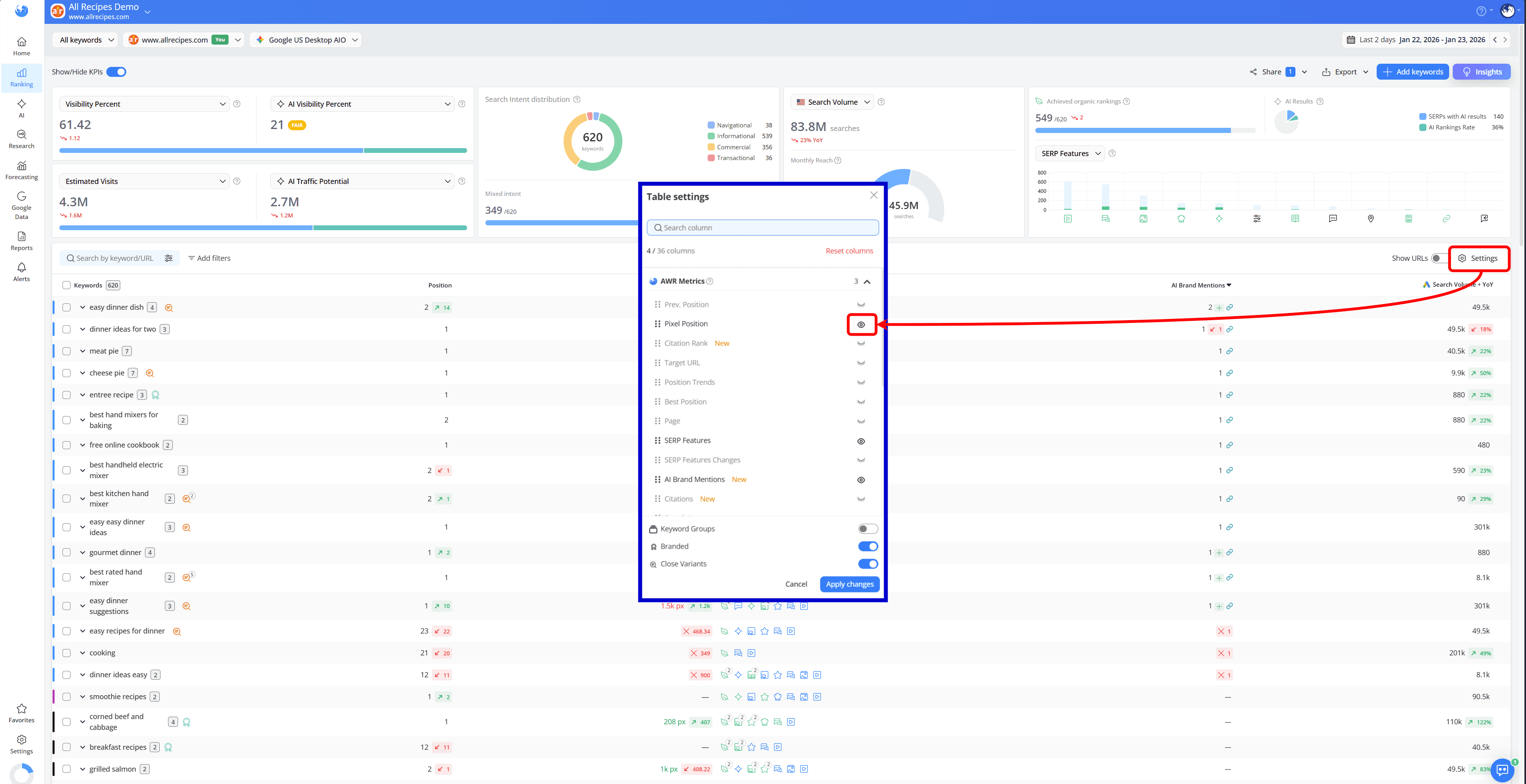
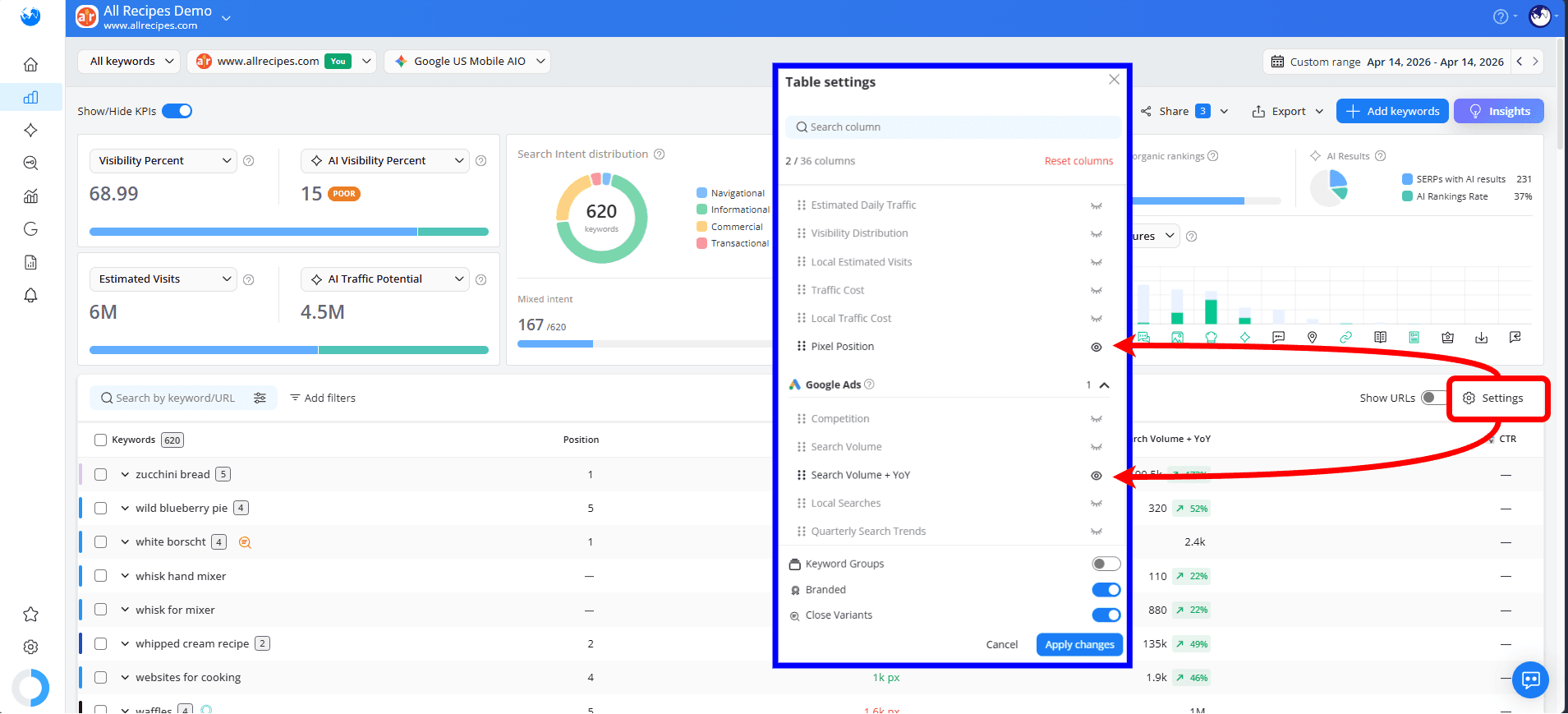
add the Pixel Position column in the Keyword Ranking report by clicking the Settings button and enabling it:
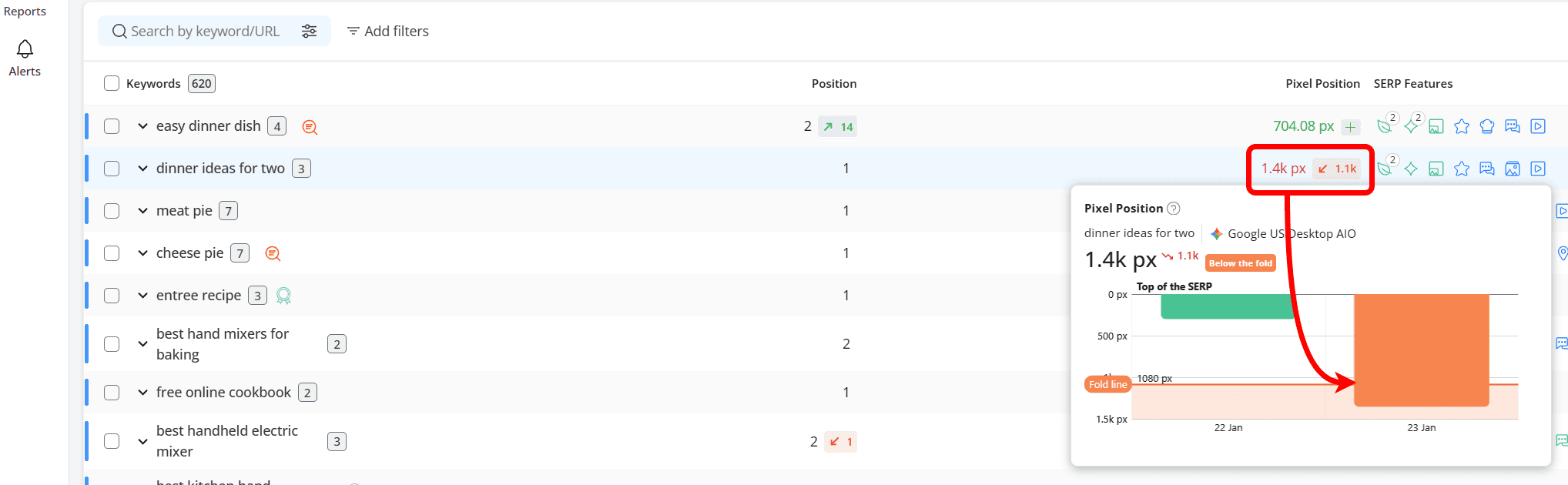
If the Pixel Position is highlighted in red, it indicates that your result is below the fold. In this case, users are more likely to interact with the SERP features displayed at the top of the page, which can lead to fewer clicks for your site.
review how the search results looked at the time of the update by using the View SERP option in the Top Sites report.
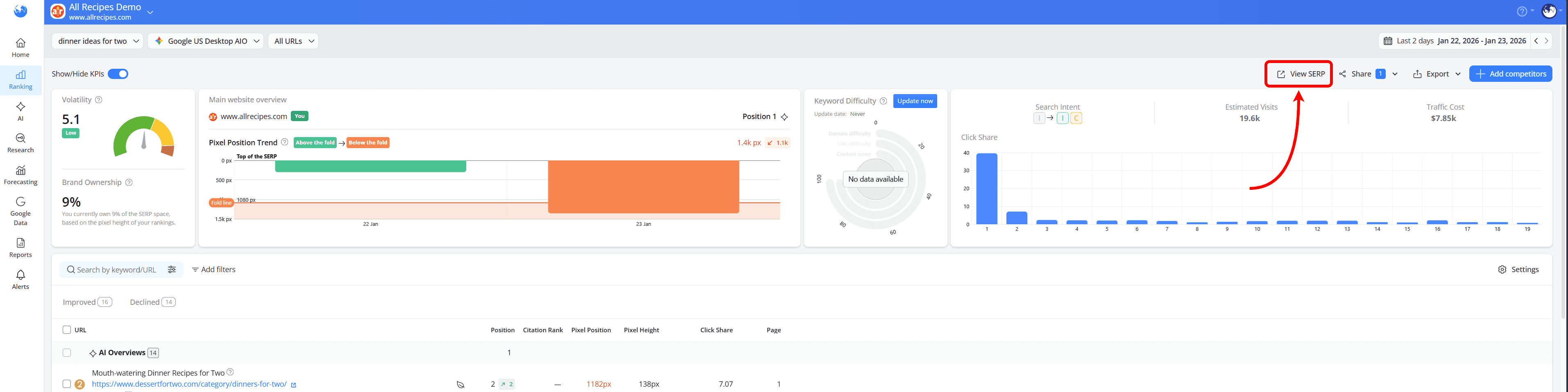
From there, simply locate the fold line to see whether your website appeared above it or was pushed below.
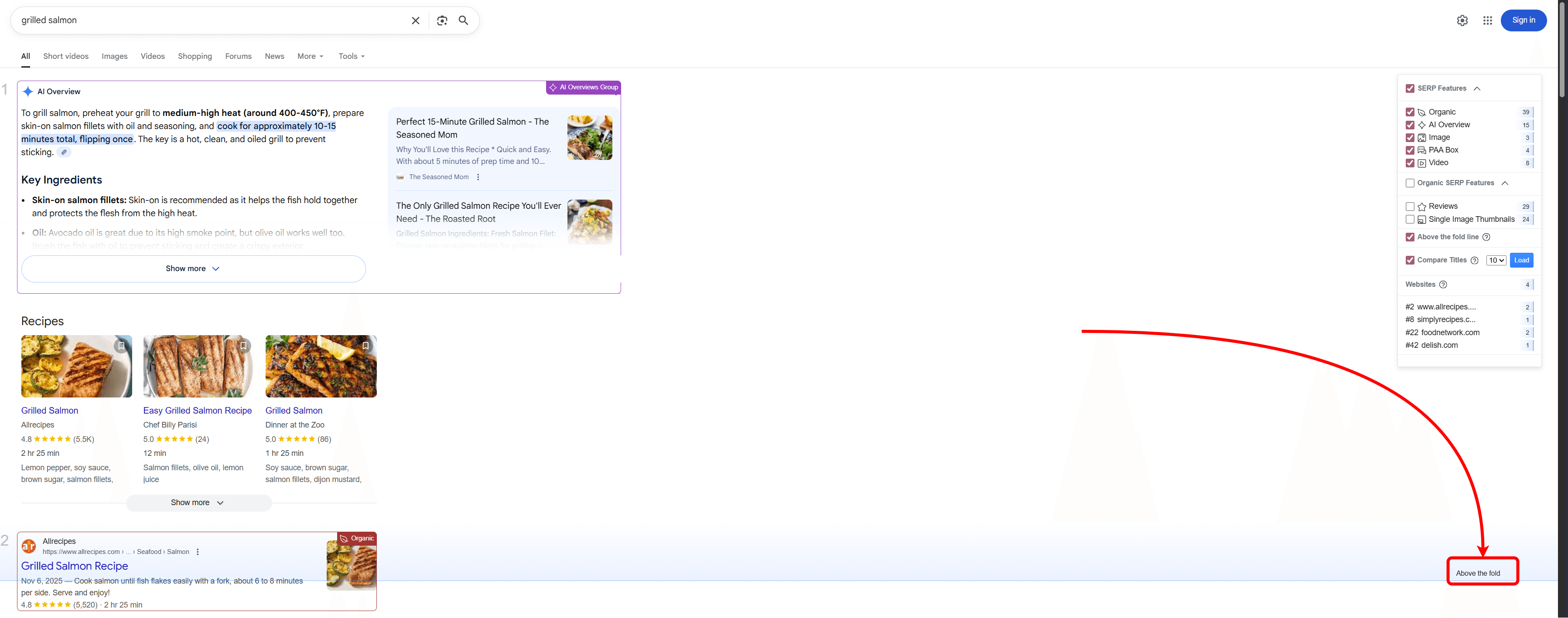
How this helps: It shows how visible your website really is to users and whether its ranking actually brings real exposure. Instead of focusing only on position, you get a clearer picture of how the entire results page looks and how other elements affect your presence.
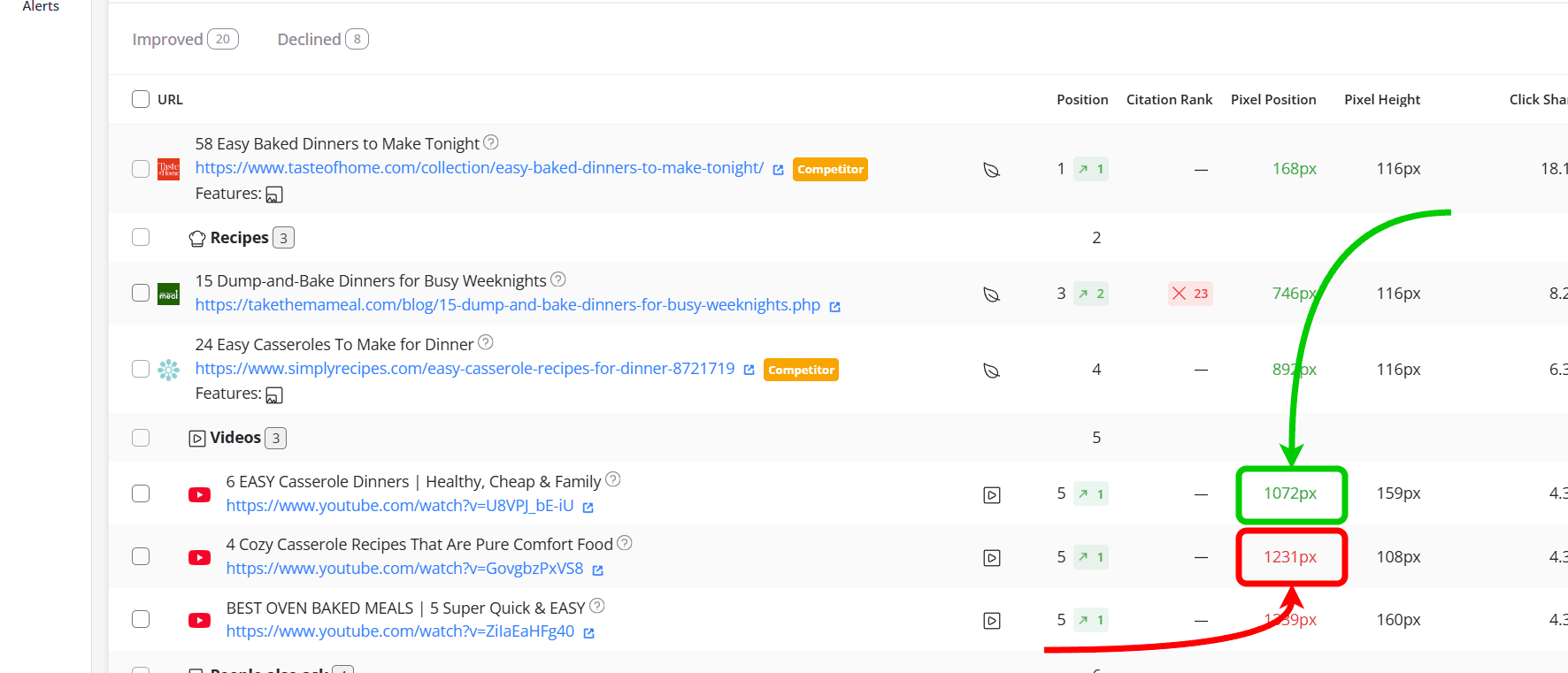
It’s also possible to show up in SERP features and still not get much visibility. For example, the Videos feature might appear above the fold, but your website could sit lower within that section, which means it still ends up below the fold.
In the Top Sites section, you can view which URLs appear in SERP features, along with each result’s Pixel Position, where green indicates above the fold and red indicates below the fold:
Beyond traditional SERP features, AI results add another layer to how your content shows up. They don’t just move things around on the page, they also change how and when people actually see your site.
Your site may be included in AI Overviews, but only after users expand the section, or it might be listed among sources that most people never scroll through.
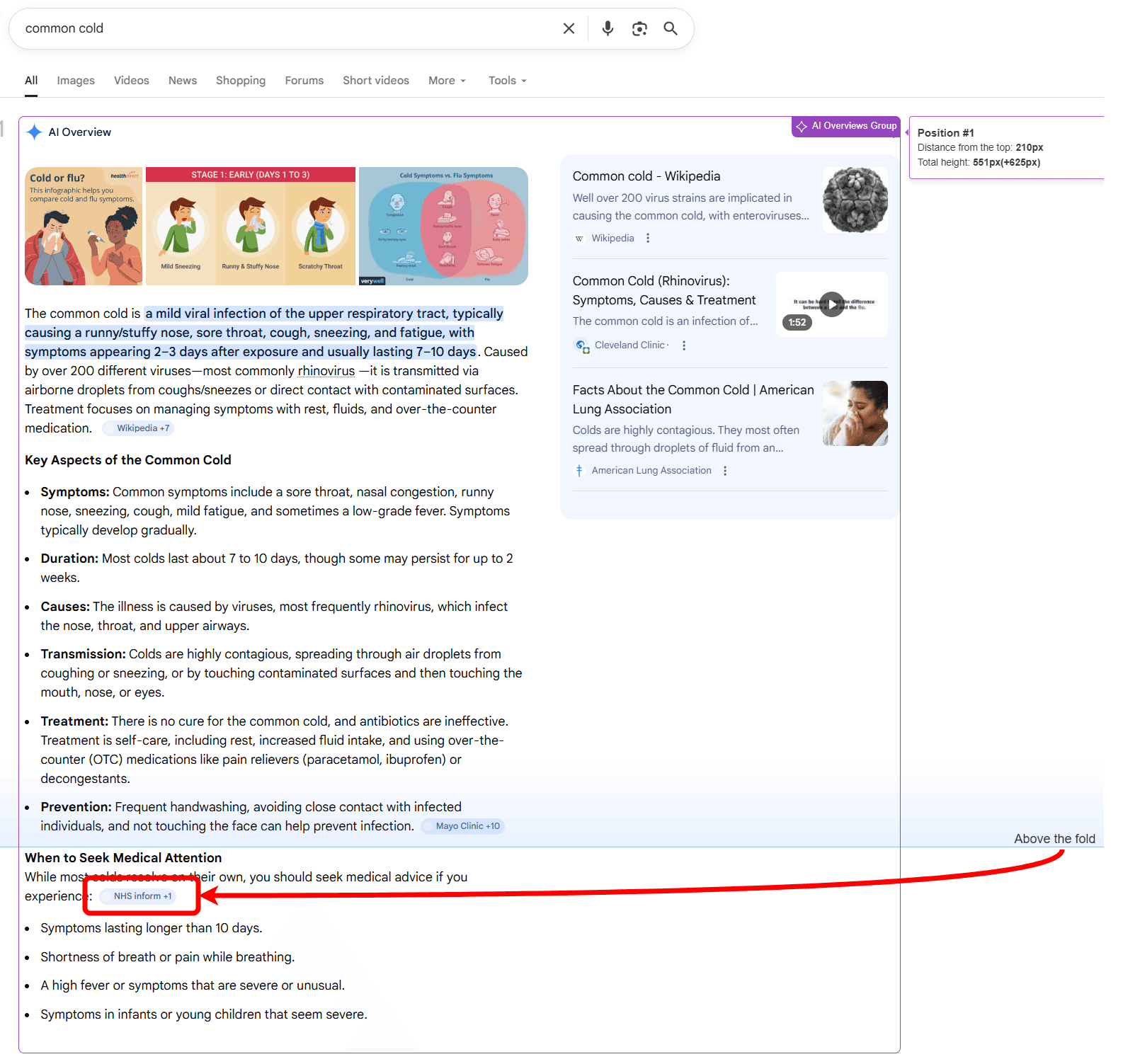
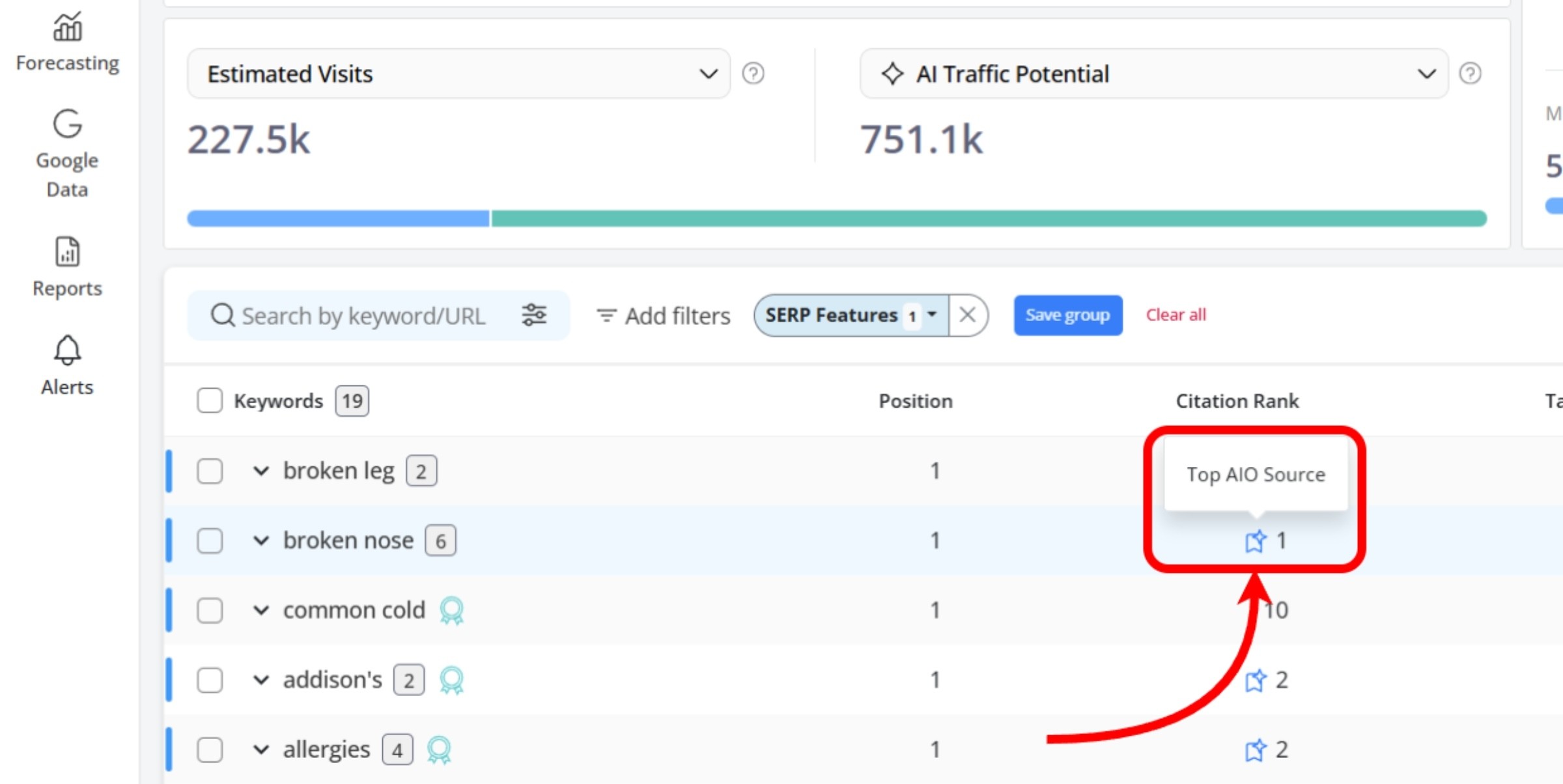
To see the actual position of your website within an AI Overview result, you can check the AIO Citation Rank metric in the Keyword Ranking report or the AI Keyword Performance report, once you’ve added an AI search engine or Google Universal to your project.
This metric shows where your URL appears based on its order in the AI Overview. If your page is visible right away in the sidebar sources, without users needing to click “Show more,” it will be marked as a Top AIO Source, meaning it gets the highest level of visibility:
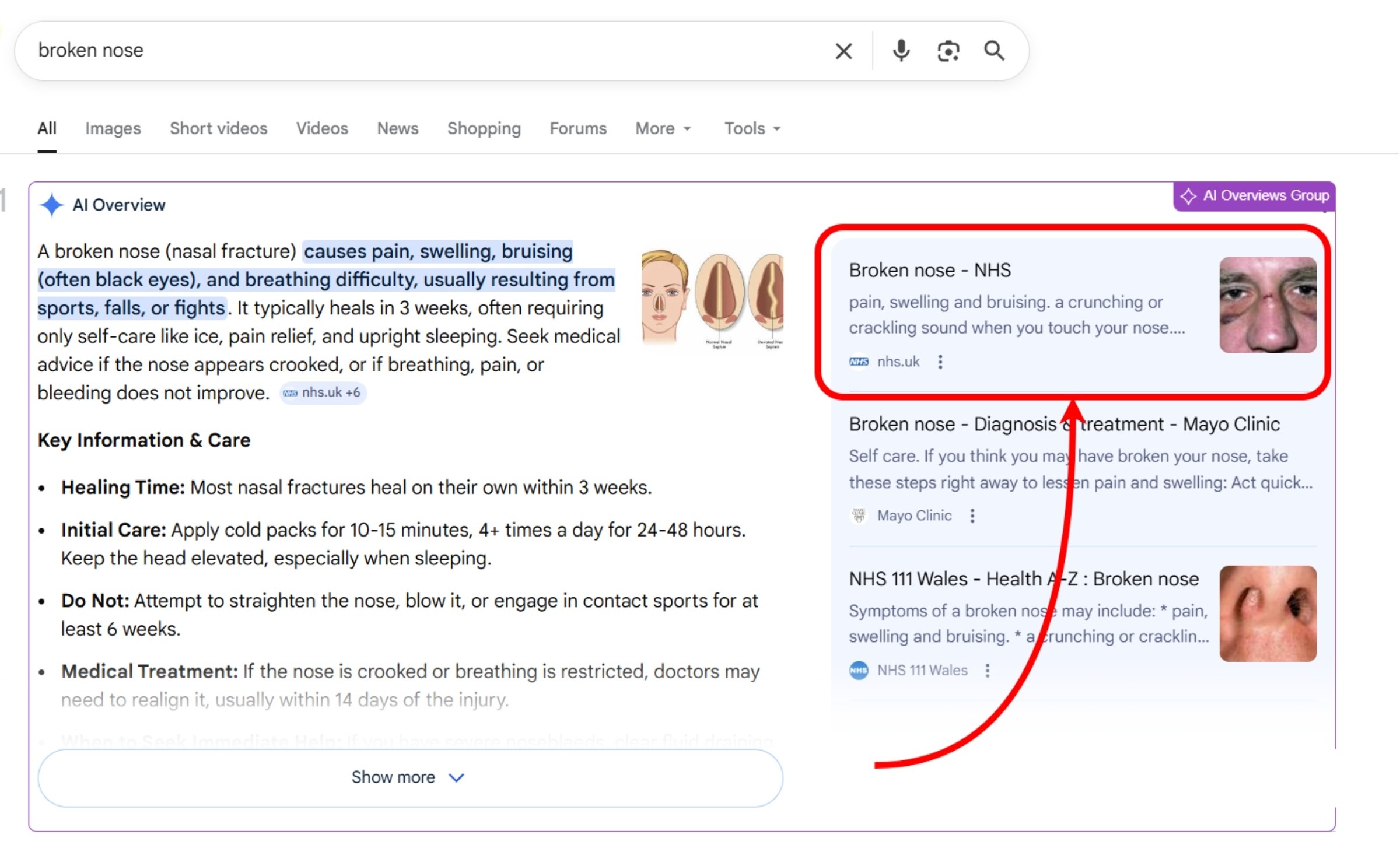
When you stop looking only at rankings and start paying attention to real visibility, it’s much easier to understand why traffic is dropping and what you can actually do about it.
Whether that means improving your placement within SERP features or making your content more noticeable, this kind of insight helps you focus on what truly brings clicks.
Why traffic can drop without ranking changes
Even if your rankings haven’t changed, your traffic still can. That’s because what people see in search results and what they choose to click keeps changing. Things like visibility, user behavior, and how the results page looks all influence how much traffic you actually get.
Here are the most common reasons why traffic can drop without any ranking changes:
Search Intent has changed
Google is always refining search results to better match what people actually want to find. So even if your rankings haven’t changed, the type of content shown in the SERP might have.
For example, a keyword that used to bring up mostly blog posts (informational intent) might now show product pages (transactional intent), videos or comparison content (commercial investigation intent). That’s a sign that Google now understands the intent behind that query differently.
If your content no longer fits that intent, people are less likely to click on it, even if it still ranks well. They’ll naturally go for results that better match what they’re looking for.
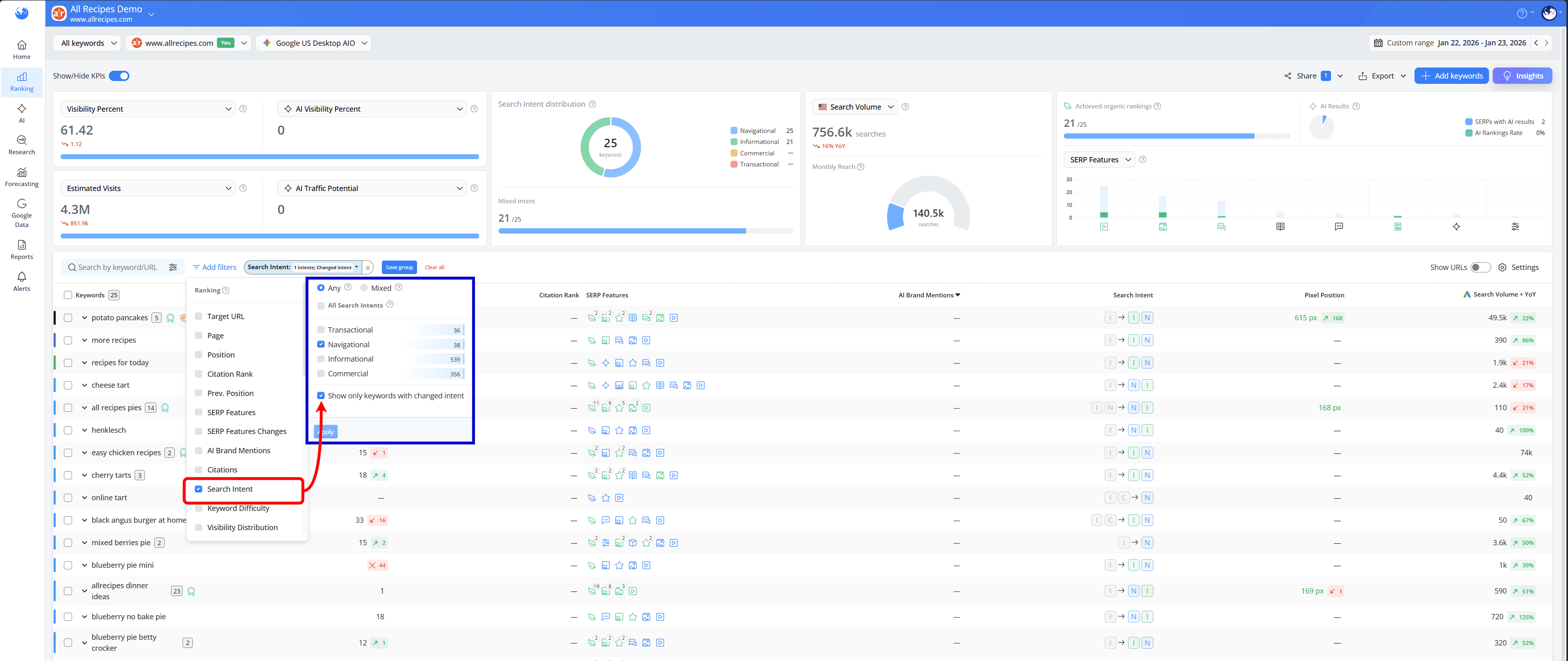
You can identify keywords with changed Search Intent in AWR by using the Add filters option, selecting the Search Intent filter, choosing the intents you want to focus on, and enabling the “Show only keywords with changed intent” option:
You’ll then be able to see how the intent has changed directly in the “Search Intent” column:
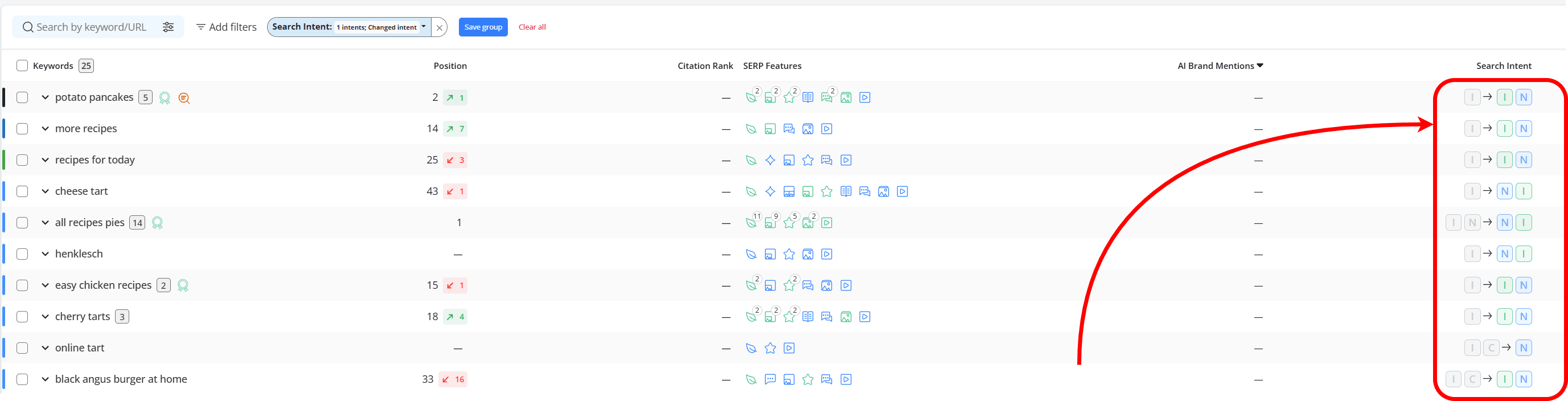
How this helps: It quickly shows why traffic is dropping even when rankings stay the same. Instead of guessing, you can understand what users expect now and adjust your content to match, making it easier to recover lost clicks and stay relevant.
Competitors are outperforming you in the SERP
Even if your rankings stay the same, you can still get fewer clicks if your result doesn’t stand out as much as others in the SERP.
This often happens when competitors improve either their:
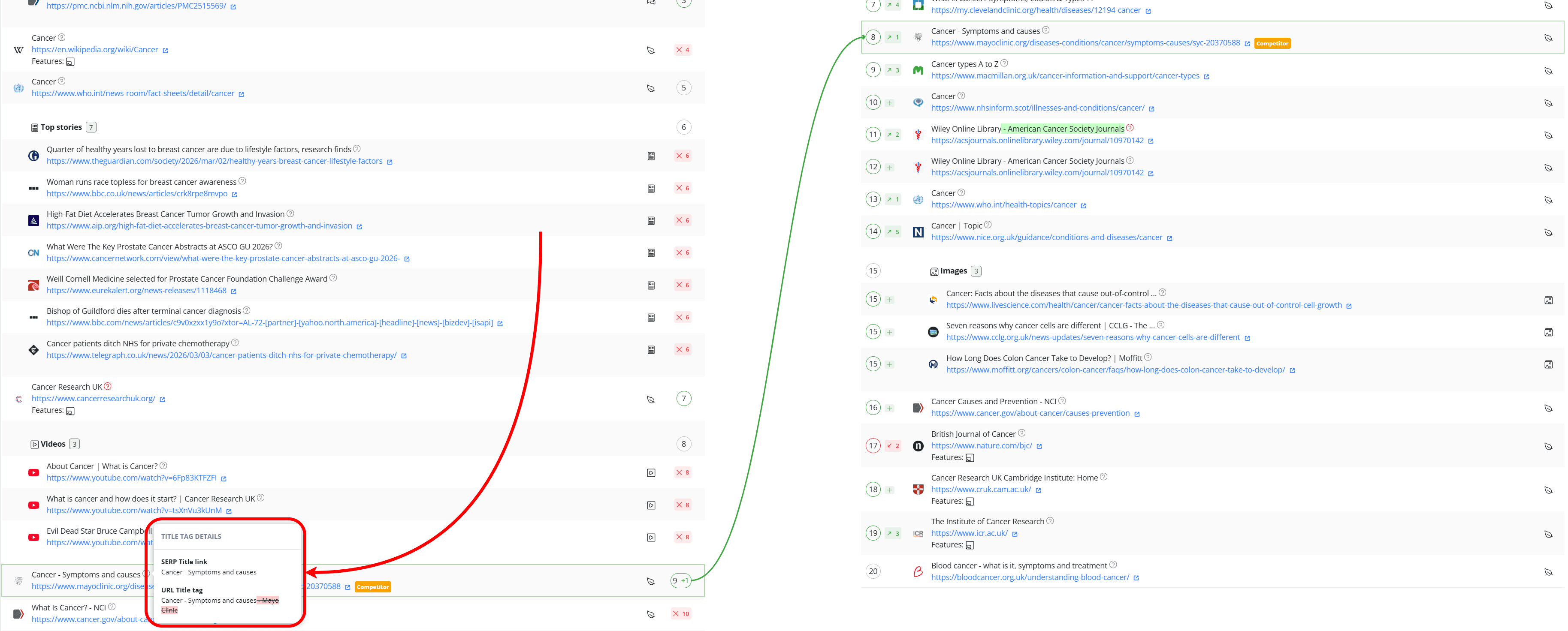
SERP Title link: the clickable headline people see on Google; it’s what convinces them to choose your result over others.
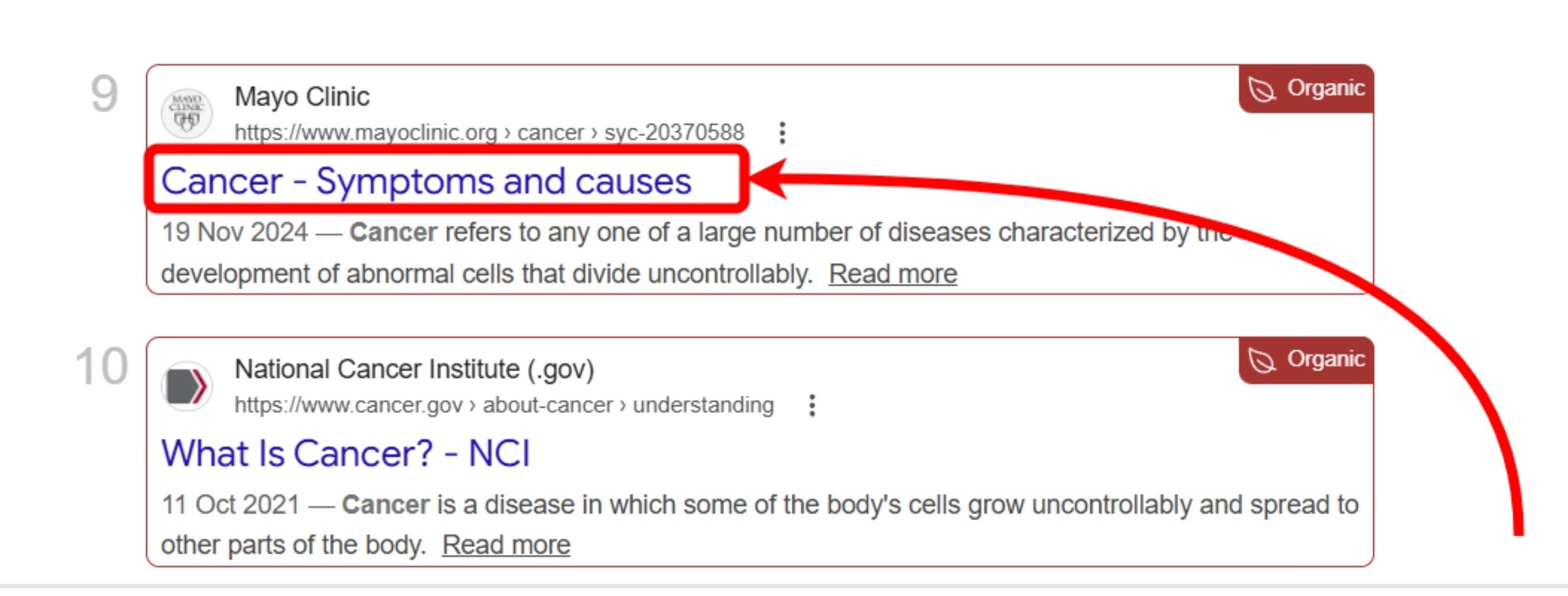
URL Title tag: the title set behind the scenes in the page’s code; it tells Google what the page is about and often becomes the SERP title.
You can check how the SERP Title link and the URL Title tag have changed between updates in the Top Sites or SERP Similarity reports; just hover over the question mark icon next to the URL to see the details.
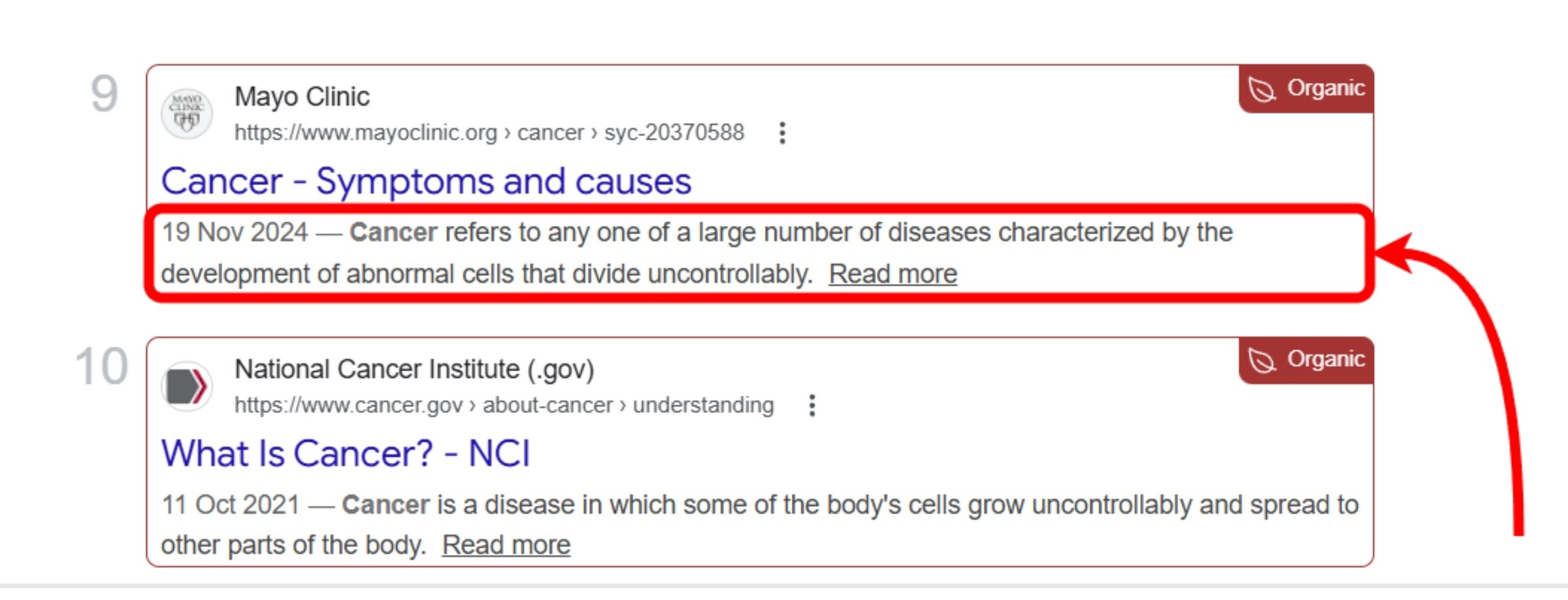
Meta descriptions: the short text under the title in search results; it gives a quick preview and helps persuade people to click
A situation you’ll run into often is competitors stepping up their game around the same keywords. They might roll out newer, more up-to-date content, refresh older pages or tweak their messaging so it matches what people are currently searching for a lot more closely.
On top of that, they may start optimizing for SERP features, which can push their visibility even higher and draw more clicks away from your pages.
To explore this further, you can use AWR’s Google Search Console integration and compare your real CTR data with the Top Sites report.
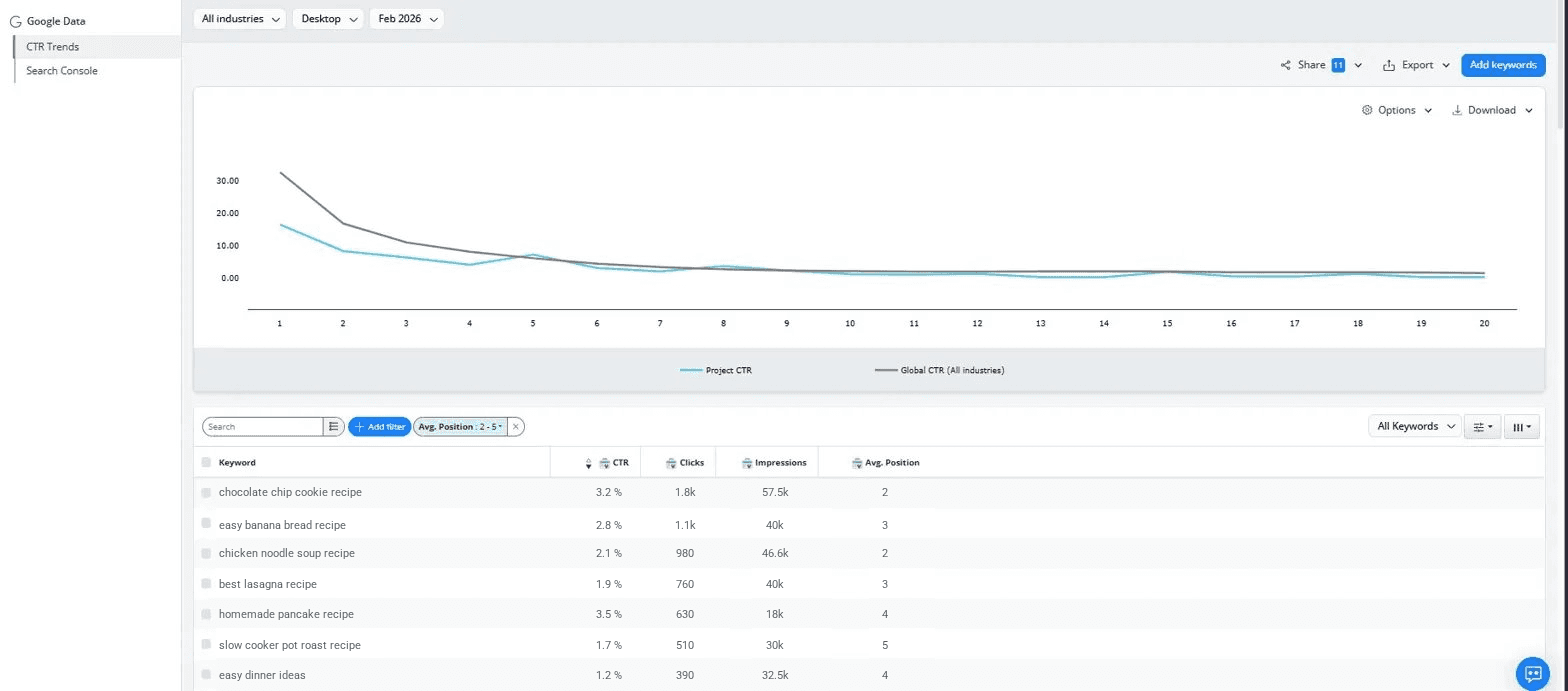
CTR shows you how users react to what they see in the SERP, not just where you rank.If your rankings stay the same but your CTR drops, it means fewer people are choosing your result. That usually happens because something in the SERP changed.
When you look at the Top Sites report, it becomes pretty clear: CTR usually drops when both SERP features and competitors start stealing attention.
If things like AI Overviews or snippets take up more space, fewer people even see your result. And among those who do, if competitors look more appealing or show up in those features, they’ll get the clicks instead.
So even if your ranking doesn’t change, you end up with fewer clicks because you’re simply getting less attention and stronger competition.
How this helps: It shows whether the drop is caused by competitors attracting more clicks rather than a ranking issue.
By comparing CTR and how results appear in the SERP, you can see what others are doing differently and adjust your titles, descriptions, or content to stay competitive.
Want to learn how to sync Google Search Console with AWR? You can find more details here.
This feature is included in all paid AWR plans.
Considering the impact of seasonality
Sometimes nothing is actually wrong; people are just searching less.
Search demand naturally rises and falls throughout the year. So even if your rankings stay exactly the same, your traffic can drop simply because interest in that topic isn’t as high right now.
For example, searches for “pumpkin recipes” spike heavily in the fall, peaking around October and November, and then drop off sharply afterward. That’s a classic seasonal pattern. Even if your rankings stay exactly the same, your traffic will follow that demand curve.
To view this in AWR, in the Keyword Ranking report, add the Search Volume + YoY column by clicking on the Settings button:
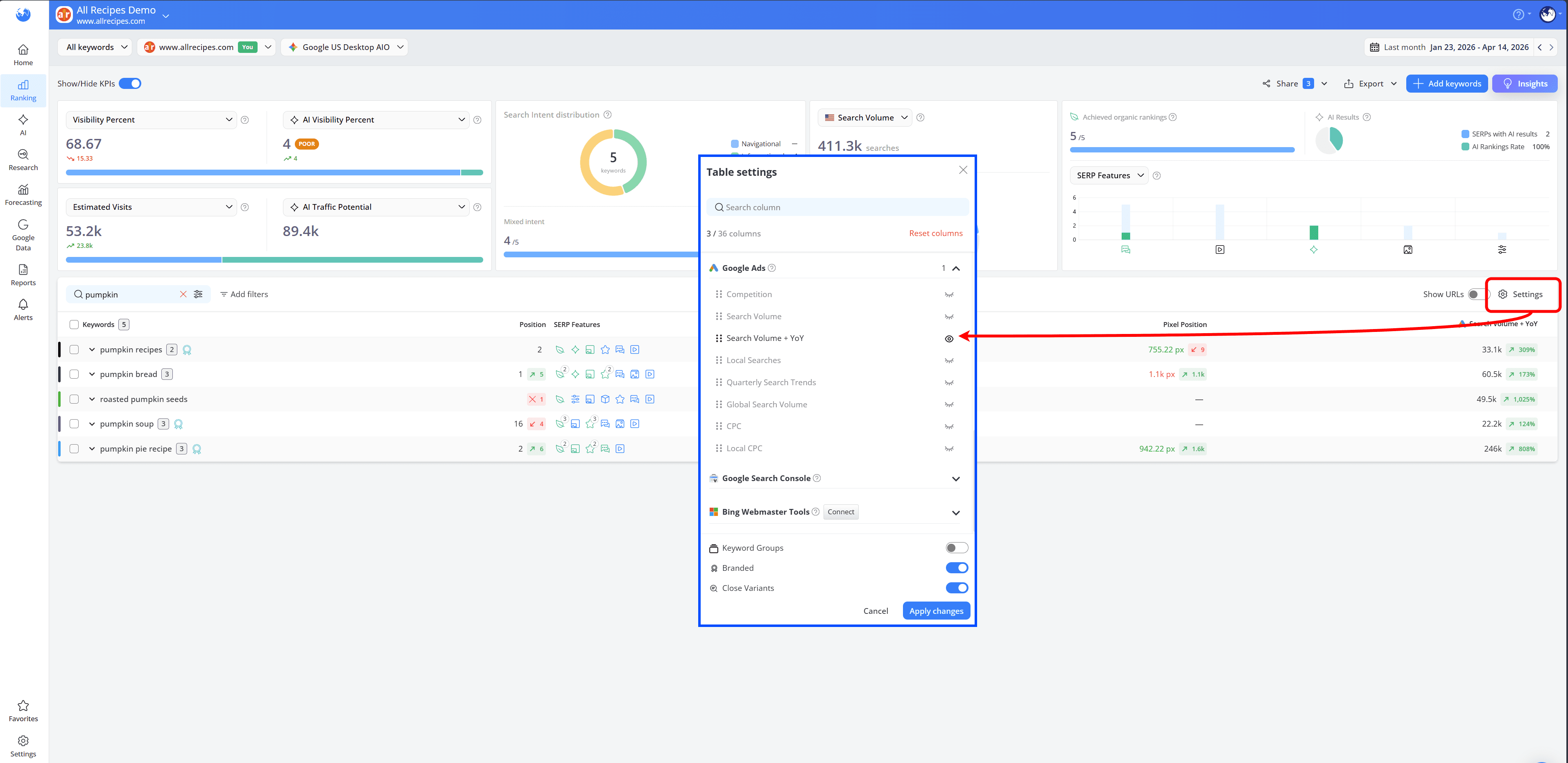
Then, by hovering over the Search Volume + YoY value, compare your traffic with the same period last year and look at how keyword search volume changes over time.

If you see the same pattern repeating, you’re dealing with seasonality.
How this helps: It shows whether the drop is simply due to lower search demand, not an actual issue with your performance. This way, you avoid making unnecessary changes and can focus on preparing your content for when interest picks up again.
Differences between Desktop and Mobile results
Search results don’t look the same on desktop and mobile. On mobile, SERP features like AI Overviews, People Also Ask and Videos often take up more space and appear earlier, which can push organic results even further down.
This means a result that performs well on desktop may get fewer clicks on mobile simply because it’s less visible.
To understand this better, compare Desktop and Mobile results in AWR’s SERP Similarity report. Disable the “Mirror selection” option, then review how rankings and SERP layouts differ between devices and adjust your strategy based on how users interact with each.
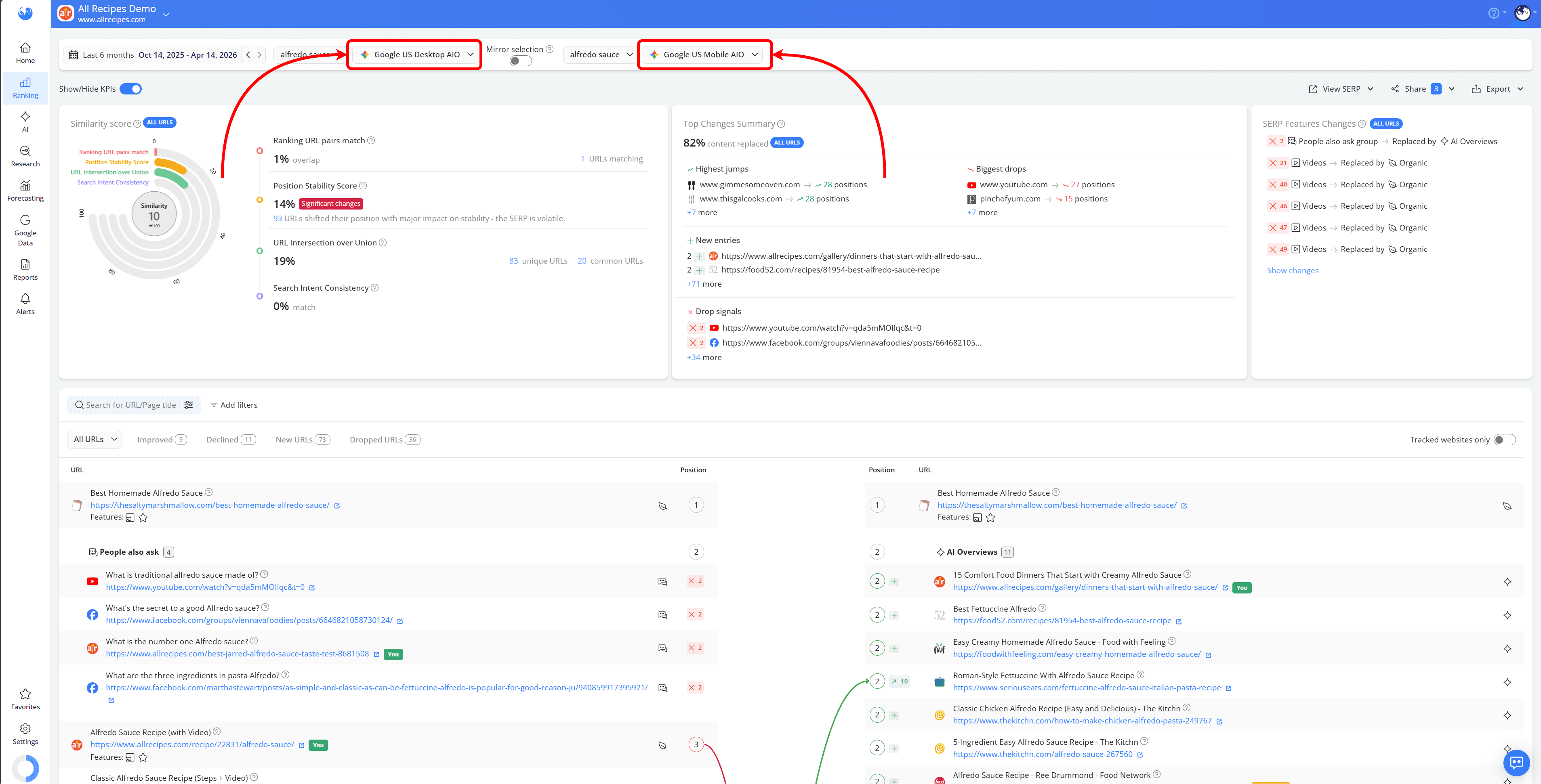
How this helps: It shows where visibility is lower and where traffic is being lost, so you can focus your efforts on the devices your audience uses most and how they interact with results there.
The impact of location on search results
Search results can also vary depending on location. Even if your rankings look stable overall, your visibility may differ across regions.
For example, local intent queries or region-specific SERP features can change which results appear and how they’re displayed. This can affect how often your page is seen and clicked.
In AWR, you can track rankings across different locations to identify where performance drops are happening and whether they are tied to specific regions.
To do this, you’ll first need to add country-based search engines by using the “Add search engines” wizard:
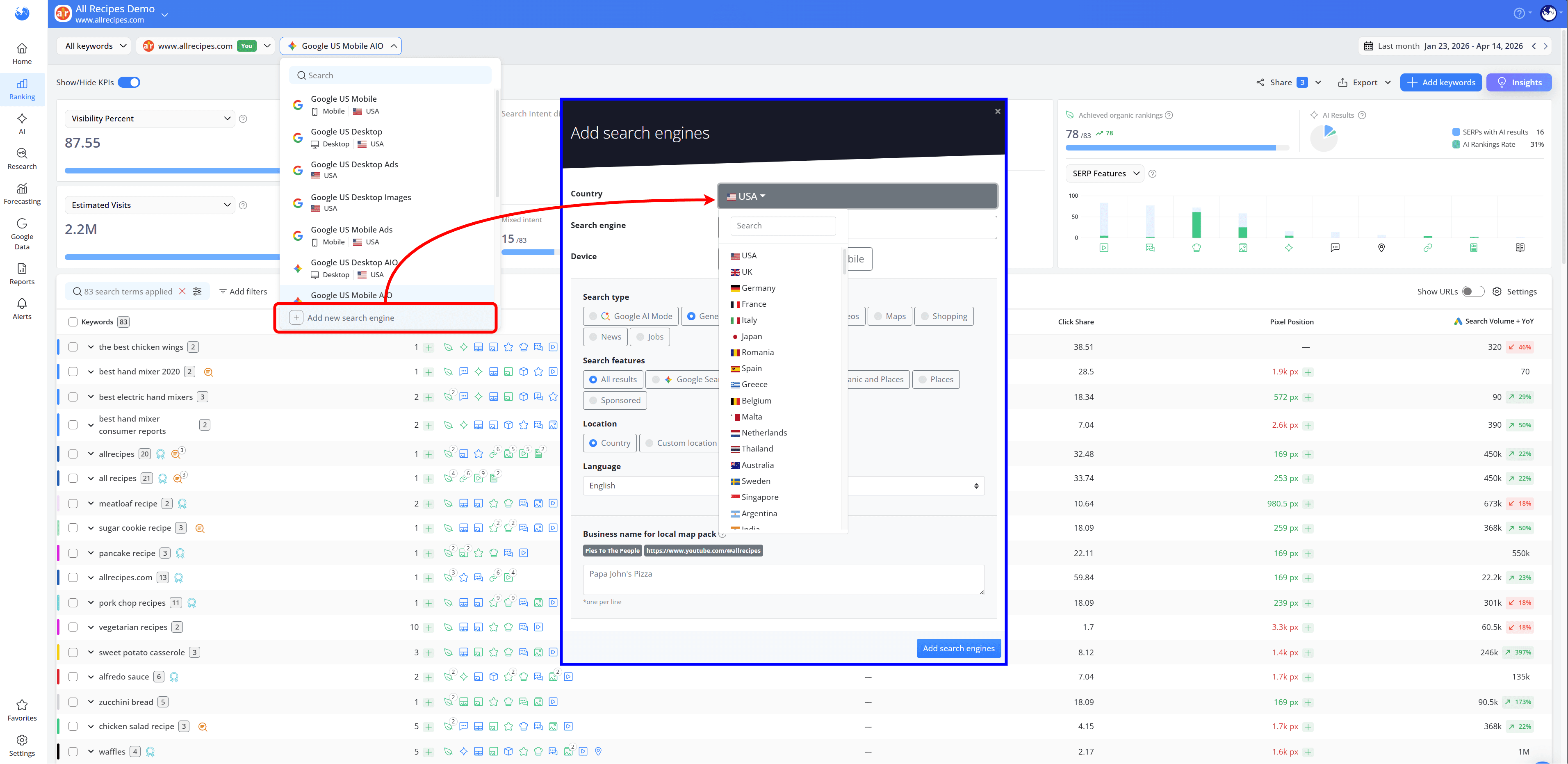
These search engines can be configured by region, state, city or even down to the zip code level.
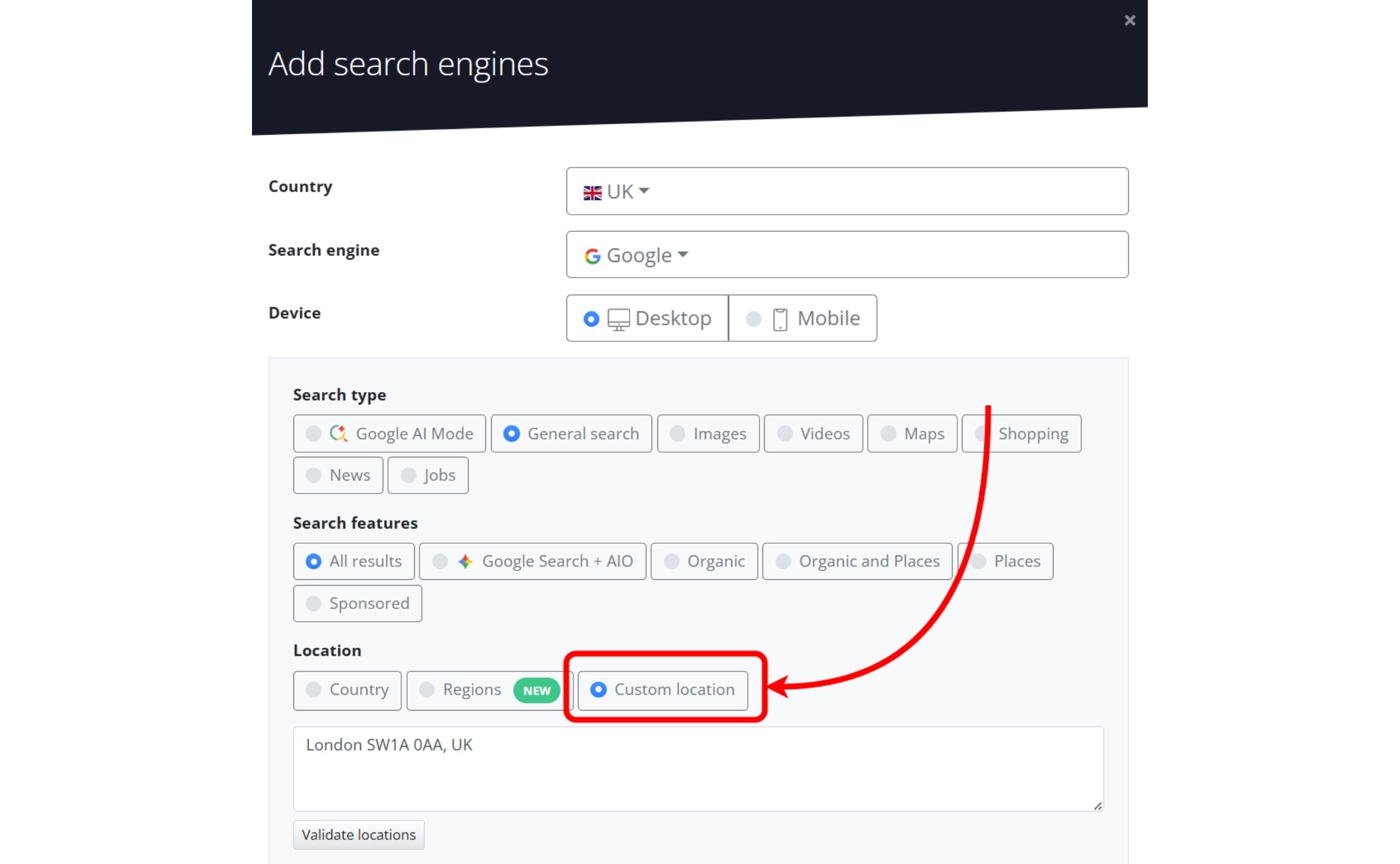
To compare how results differ across locations, you can use the SERP Similarity report here as well. Select the search engines you’ve set for different regions and review how the SERP changes between them.
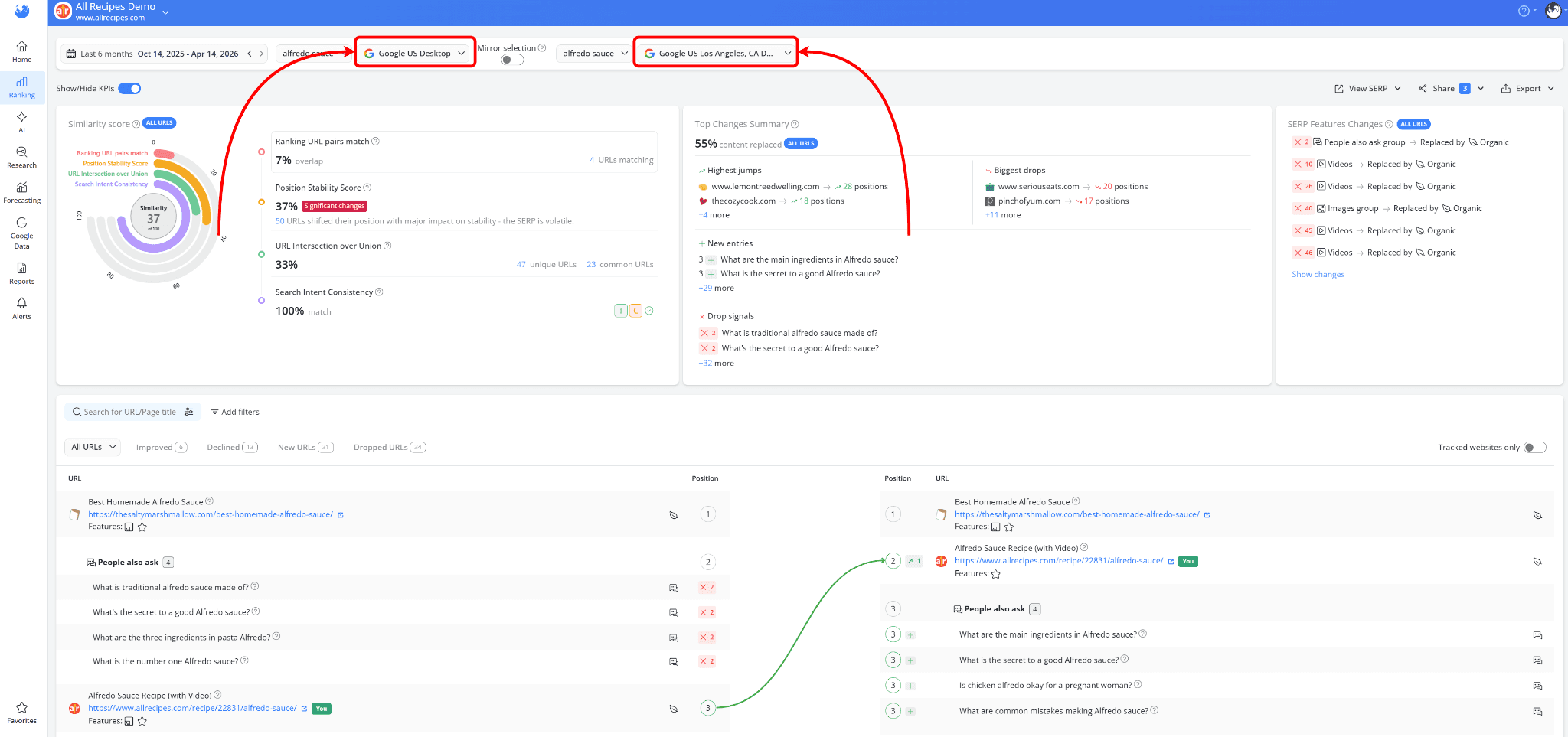
How this helps: You can see where results differ based on location and where your visibility is lower. This makes it easier to identify regions where your audience is seeing different competitors or SERP features, so you can adjust your strategy based on location-specific performance.
Tips on how to recover traffic and improve visibility using AWR
Start by understanding what actually changed
Before making changes, check what shifted in AWR. Look at your visibility in the SERP (Pixel Position), CTR and Search Intent together. This helps you identify whether the issue is lower visibility, fewer clicks, or a mismatch with what users expect.
Update your content to match what’s winning in the SERP
If the results don’t look like your page anymore, it’s probably time to make a change. Look at what’s performing well and adjust your content to match the format and type people are actually engaging with now.
Don’t rely on just one spot in the SERP
Organic rankings are only one part of visibility. SERP features often take up most of the screen. Use AWR to see which features appear and optimize your content to be included in them.
In AWR, you can check the SERP Features column to see which features are triggered for your keywords. The ones highlighted in blue show where your site is not present yet. These are clear opportunities to expand your visibility beyond standard organic results.
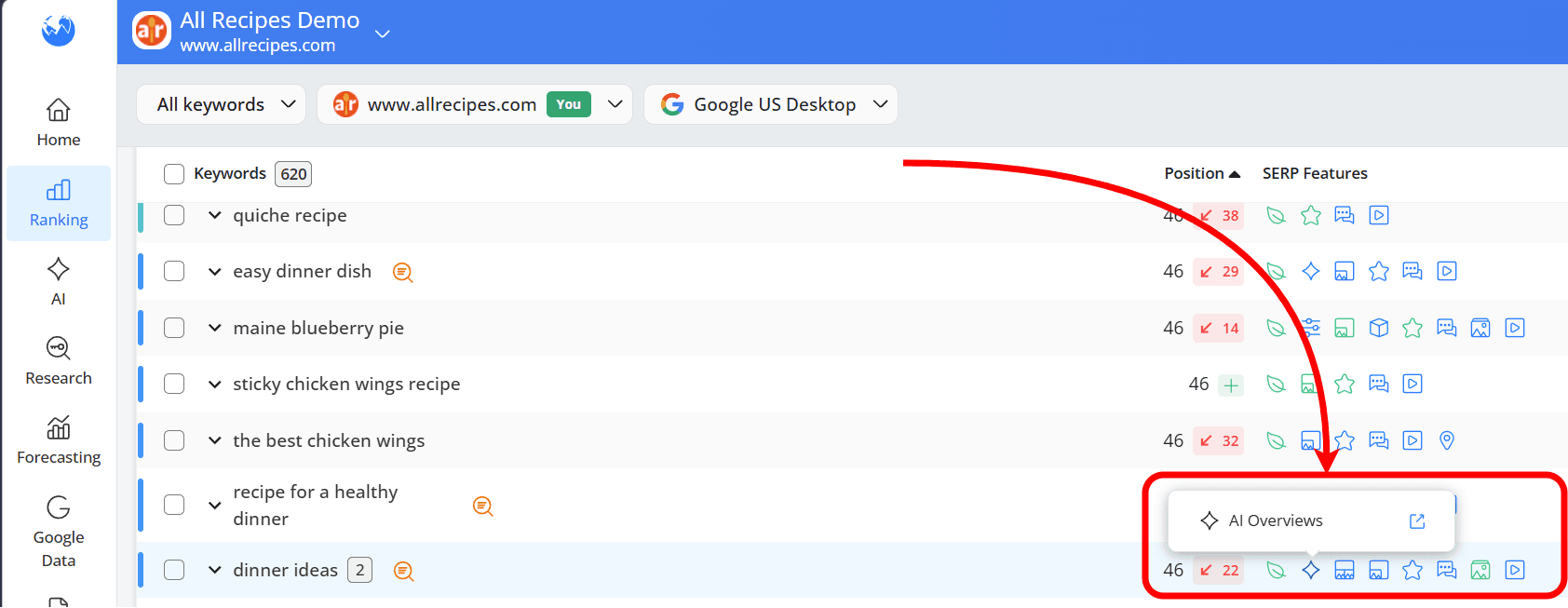
Instead of focusing only on improving your ranking, use this data to identify where you can also appear; whether that’s in snippets, FAQs, videos or other features. This way, you increase your chances of being seen in multiple places on the page, not just one.
Improve how your result looks in the SERP
If rankings are stable but CTR is dropping, start with your titles and meta descriptions. Small changes can quickly improve clicks without changing the page itself.
At the same time, check competitors in AWR. Compare how their results appear in the SERP; often they’re simply more relevant or better aligned with what users are looking for. Use that as a reference to refine your own snippet.

Prioritize the right keywords
Use the Keyword Ranking report to add columns like Pixel Position, CTR and Search Volume from the Settings menu.
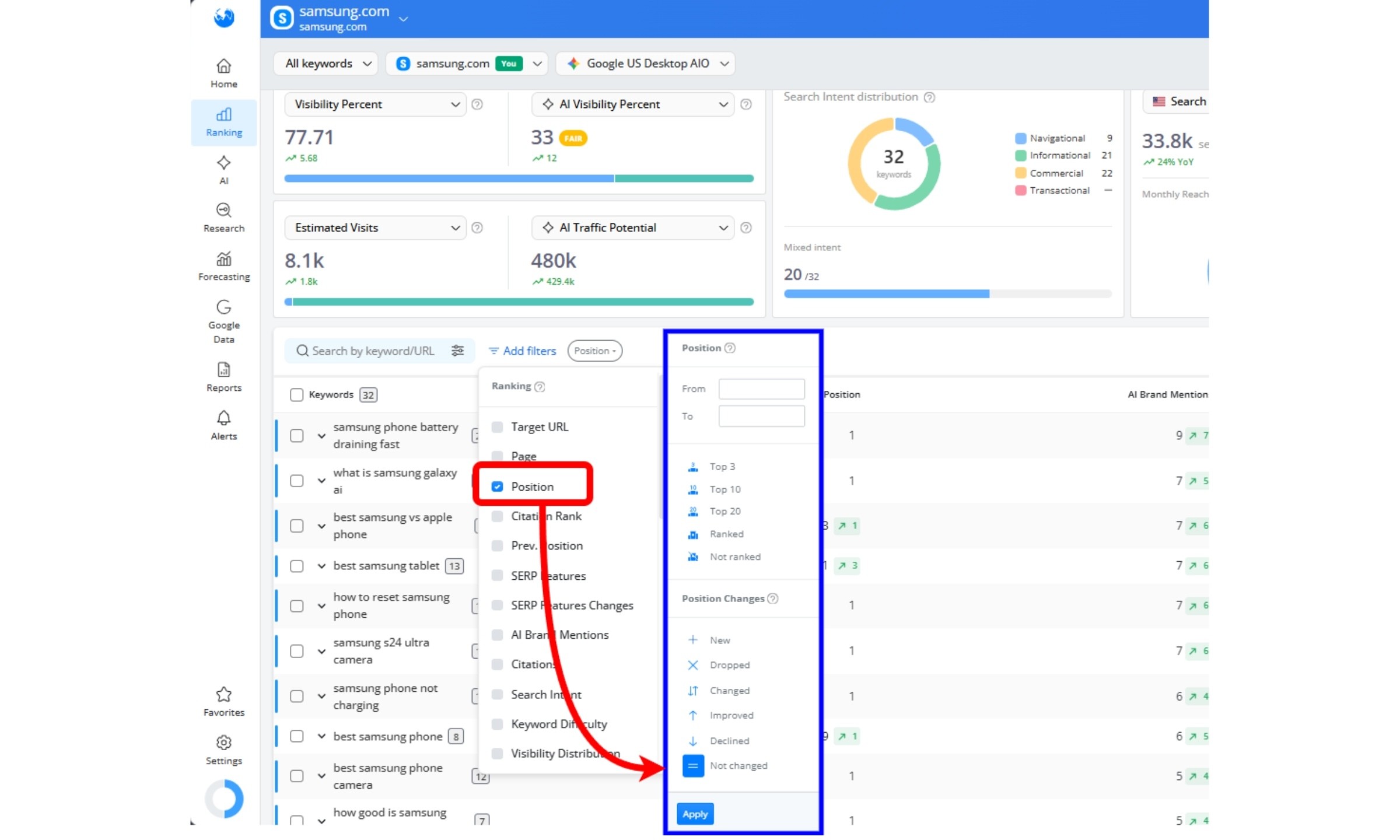
Then apply the the Position > Not changed filter to find keywords where rankings are stable:
From there, filter by Pixel Position, Search Volume or CTR to spot where visibility or clicks have dropped.
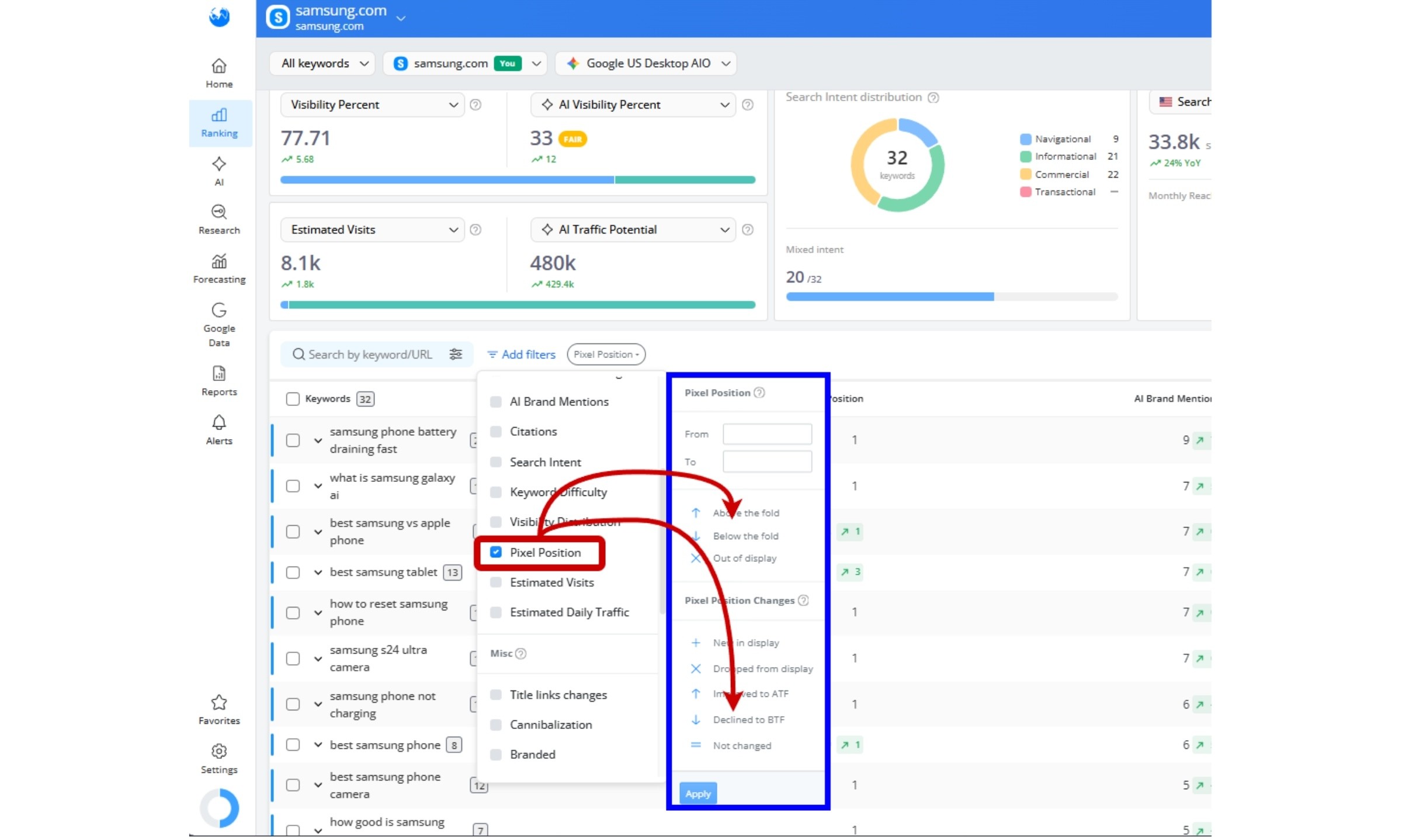
These keywords should be prioritized, as they offer the best chance to recover traffic quickly with focused changes.
Do you have any other questions? Don’t hesitate to get in touch and we will keep building the FAQ.
Frequently Asked Questions
Can I appear in SERP features and still get low traffic?
How do AI Overviews affect traffic?
What should I do first when traffic drops?
Can older content lose traffic even if it still ranks well?
Does user location affect traffic even with stable rankings?
stay in the loop