

Advice and answers from the Advanced Web Ranking Team
Search for articles
How to Set Up Whitelabel
Learn how to use the Whitelabel feature to customize reports with your domain name and logo, ensuring a branded experience for your clients.

If you manage SEO for clients, branding makes a difference.
Advanced Web Ranking’s Whitelabel feature gives you the ability to customize the tool with your own domain, logo, and email settings so clients experience your agency’s brand instead.
With a branded subdomain, custom SMTP, and your company logo, clients can log in, receive reports, and access dashboards through an experience that feels fully connected to your business.
What This Article Covers
This article walks you through everything you need to set up AWR’s Whitelabel feature, including:
Adding your company name, logo, favicon, and brand identity
Connecting your branded domain and securing it with SSL
Setting up branded email delivery through SMTP or Gmail
Customizing client email templates for reports and updates
By the end, you’ll know how to create a seamless, fully branded experience that feels like an extension of your company.
Why Whitelabeling Matters
Without whitelabeling, clients interact with third-party software instead of a fully branded agency experience.
With AWR’s Whitelabel, you can create a more professional client experience by using your own domain, branding and email across reports and dashboards. It helps build trust, strengthens your company’s identity and makes your reporting feel like a seamless part of your business.
What Clients See With Whitelabel
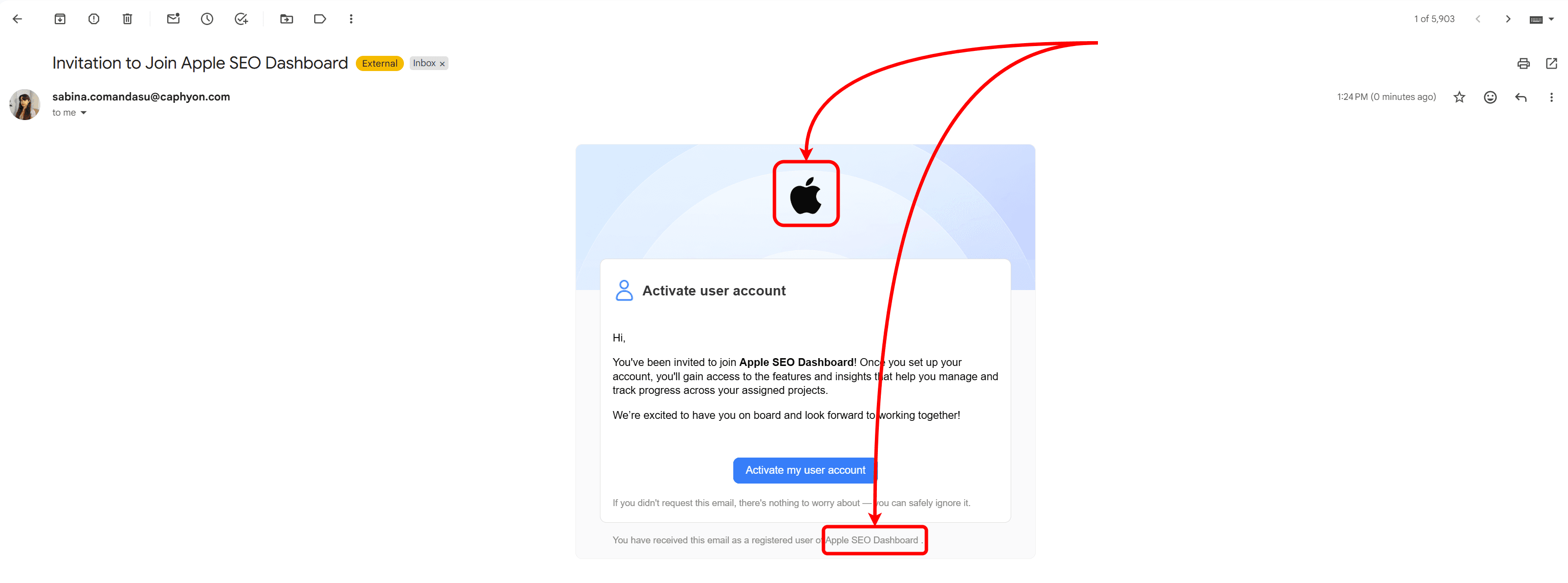
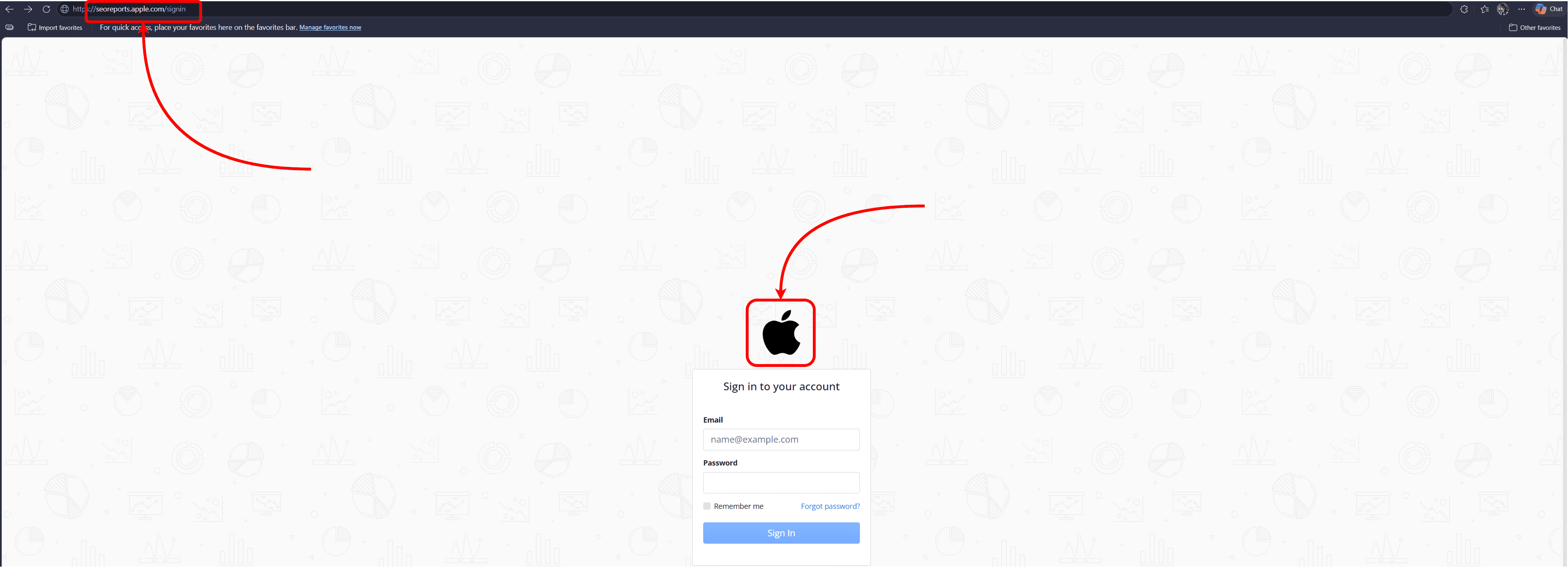
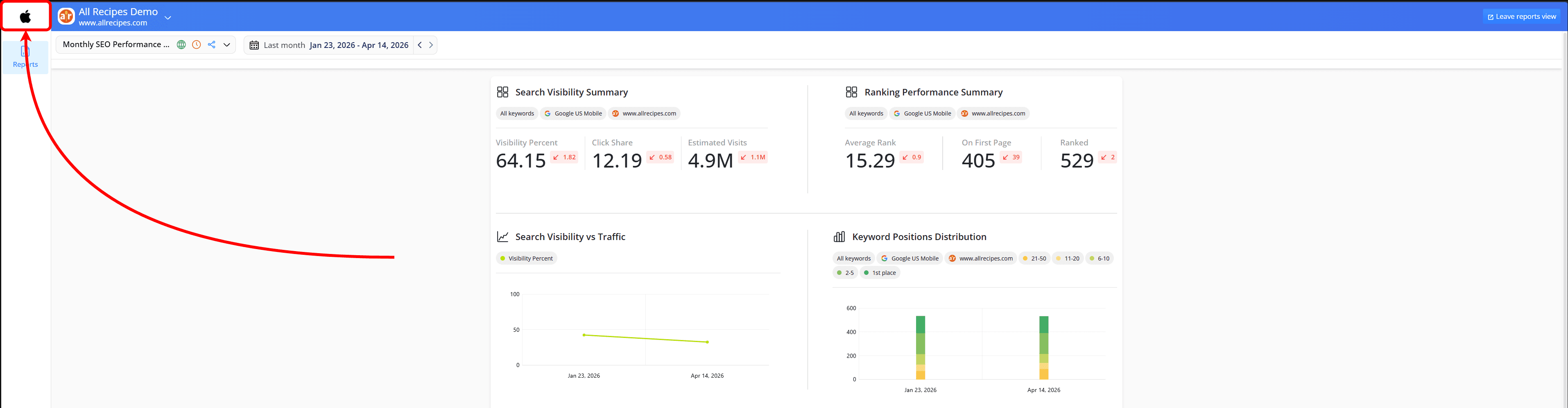
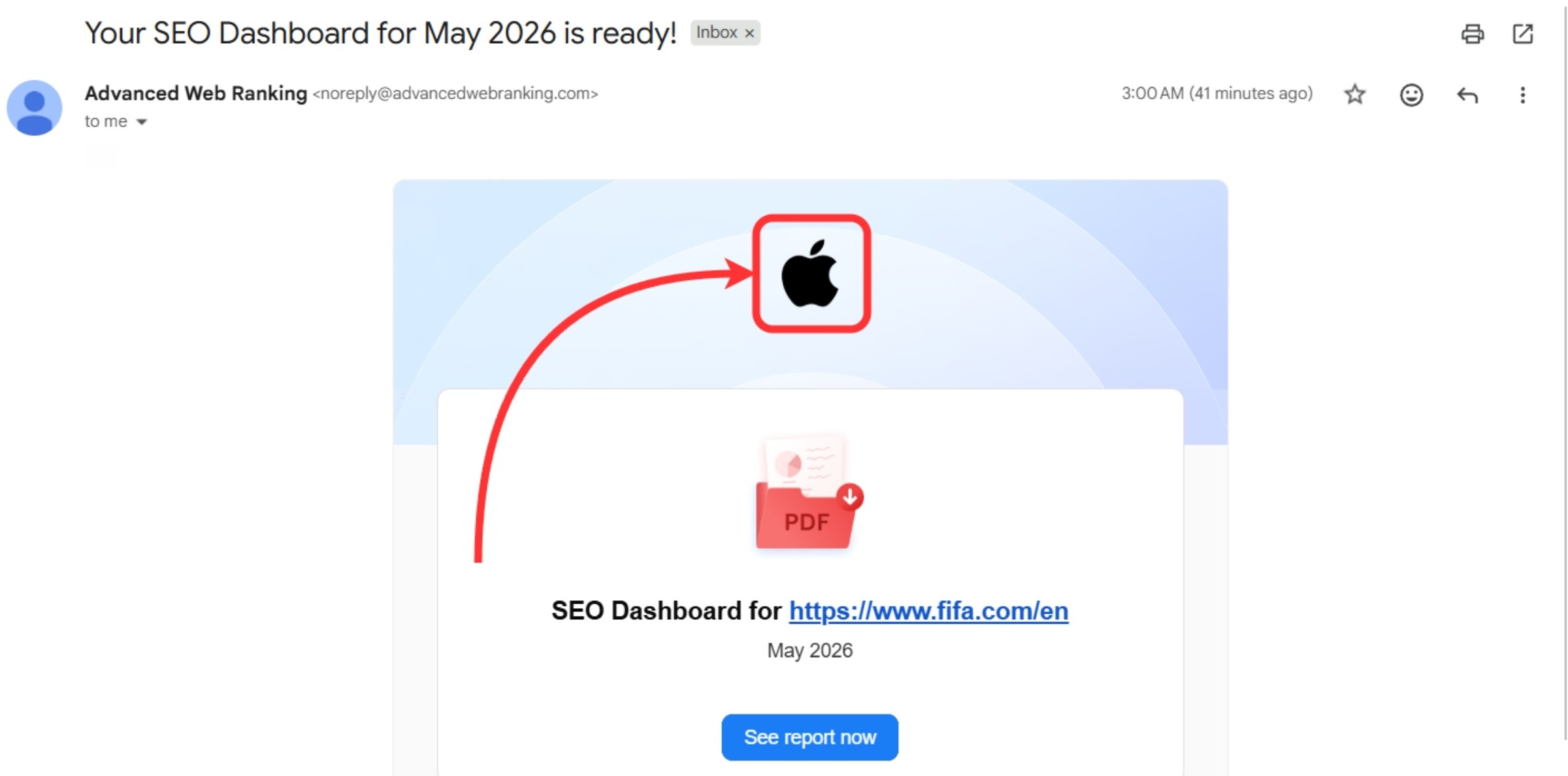
When Whitelabel is set up, clients see your brand at every step. They log in through your custom domain, view your logo on reports and dashboards, and receive emails from your business.
This means that your branding will be seen when clients:
Receive email invites to join your AWR account
Log into AWR through your branded domain
Access reports and dashboards through login or shareable links
What You Need for Full Whitelabel Setup
To create a complete Whitelabel experience in AWR, you’ll need to configure three key areas in the Account Settings > Whitelabel section of your account: branding, your custom subdomain and email settings. Let’s now explore each area in more detail:
Custom Branding
This is where you customize the tool to reflect your brand and business identity.
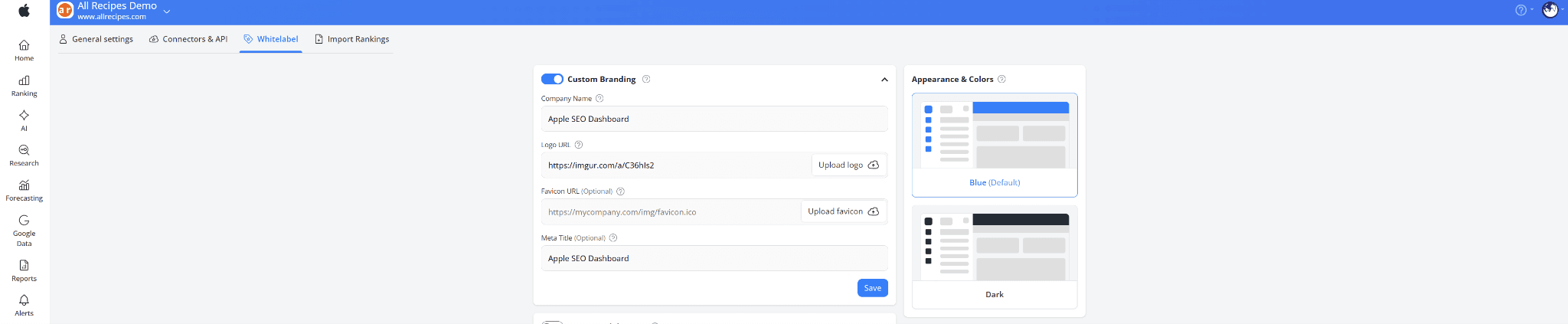
You’ll need your:
Company name: reflects your brand instead of AWR’s, so clients see your business name whenever they receive emails from you.
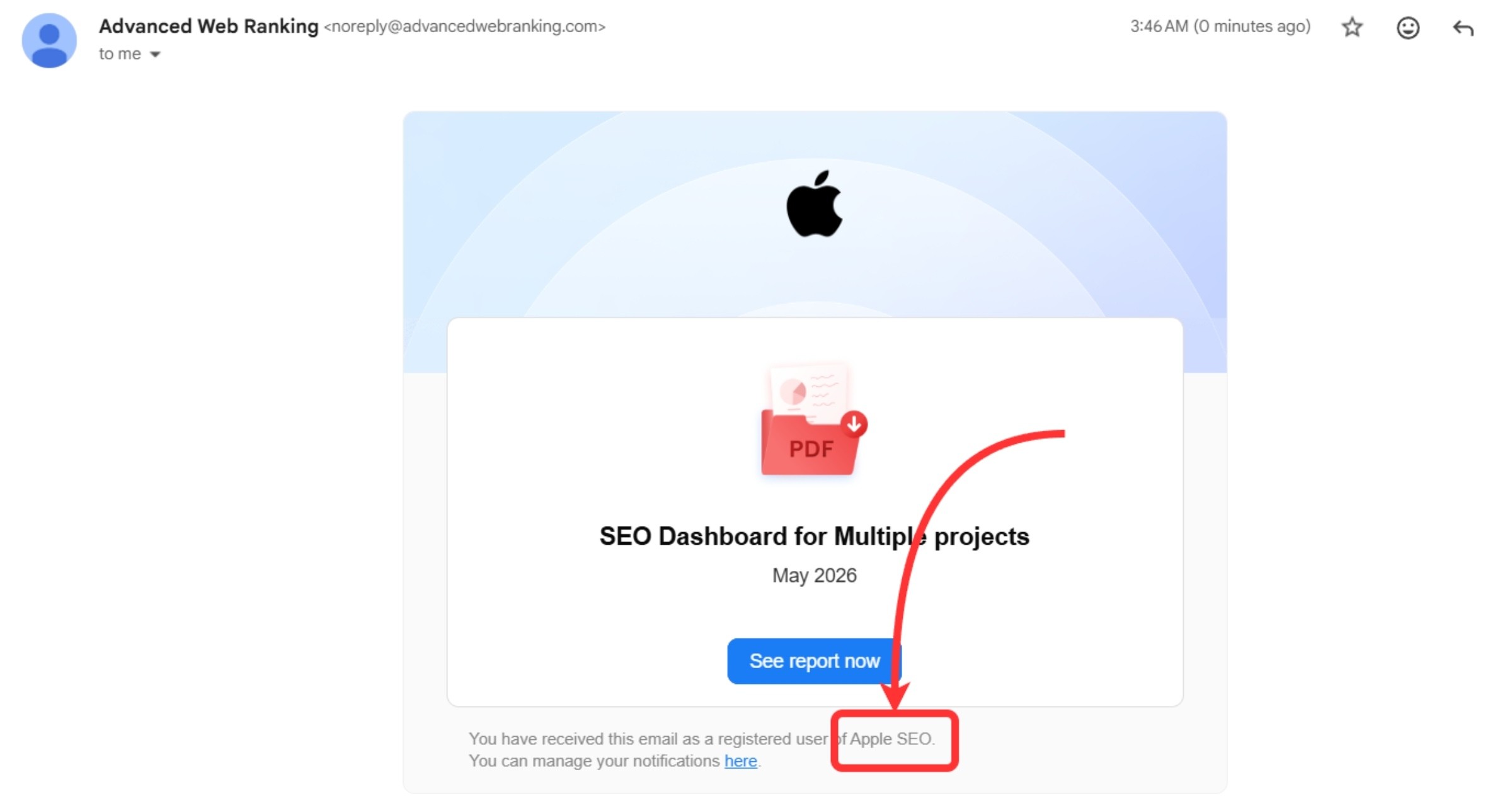
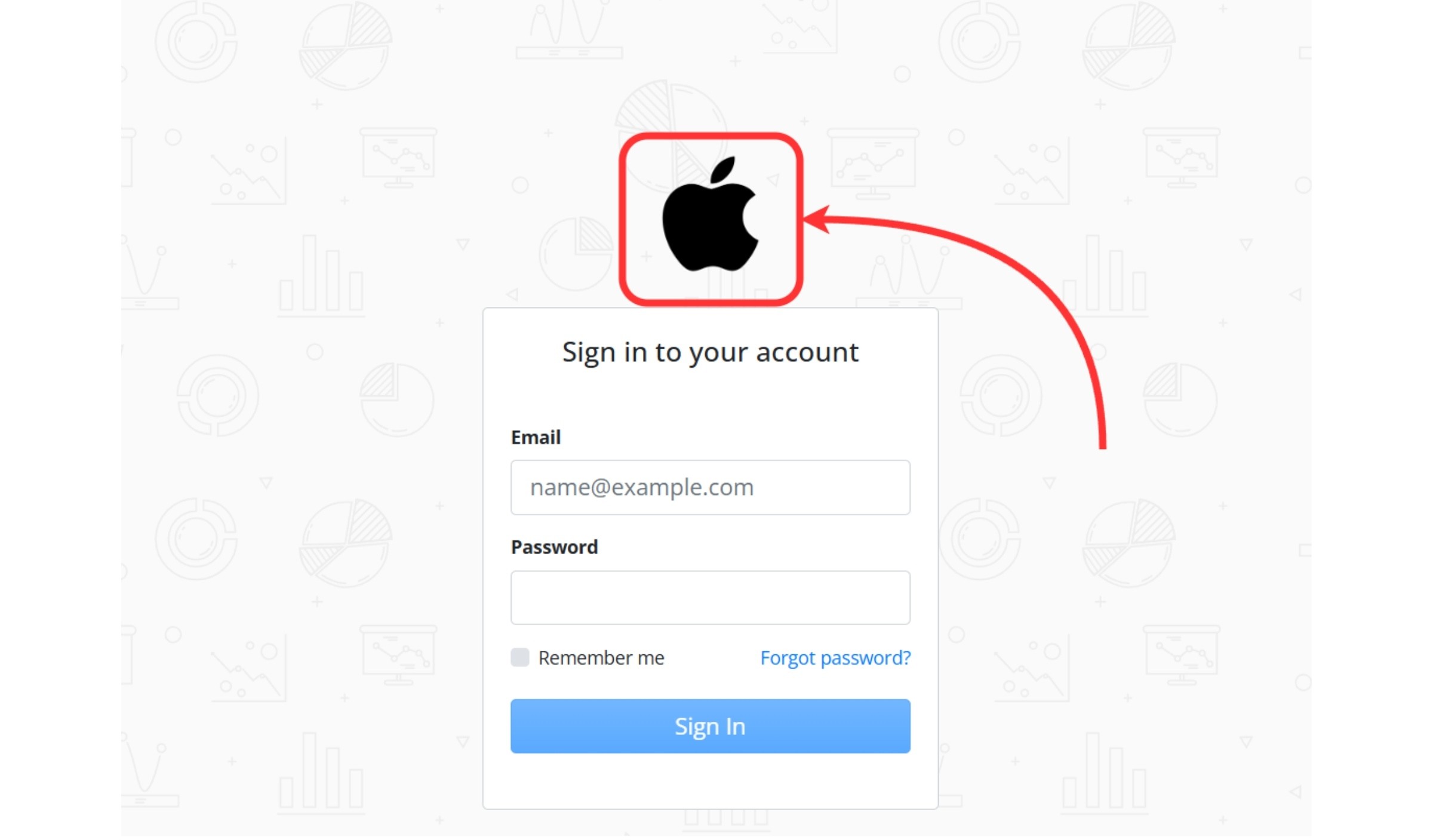
Logo: replaces the default AWR logo. You can add it by pasting the URL or uploading it directly. Once added, clients will see your logo in reports and when they log in through your custom subdomain.
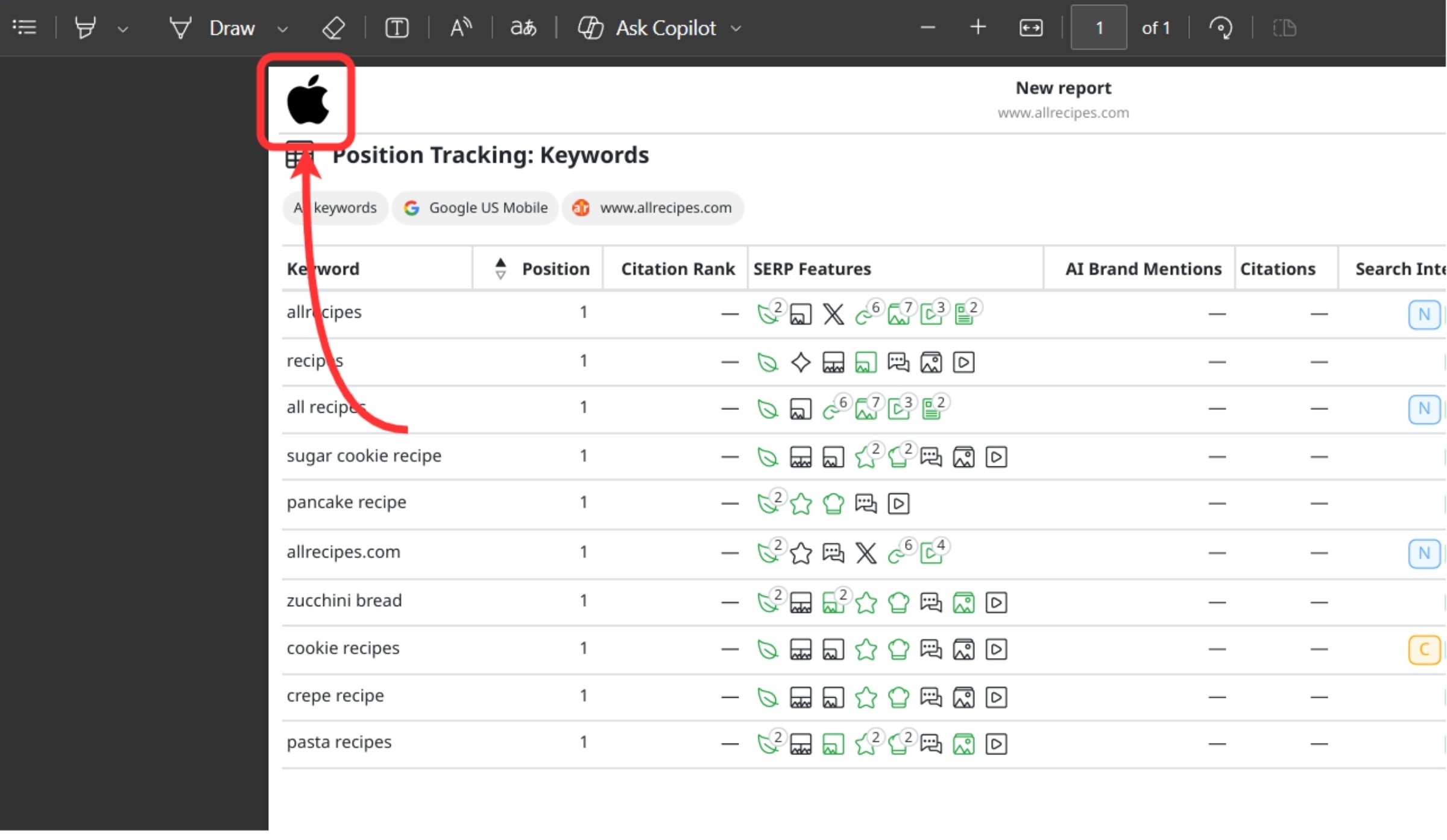
Favicon (optional): can be added by pasting the URL or uploading it directly, and will replace the default AWR favicon in reports
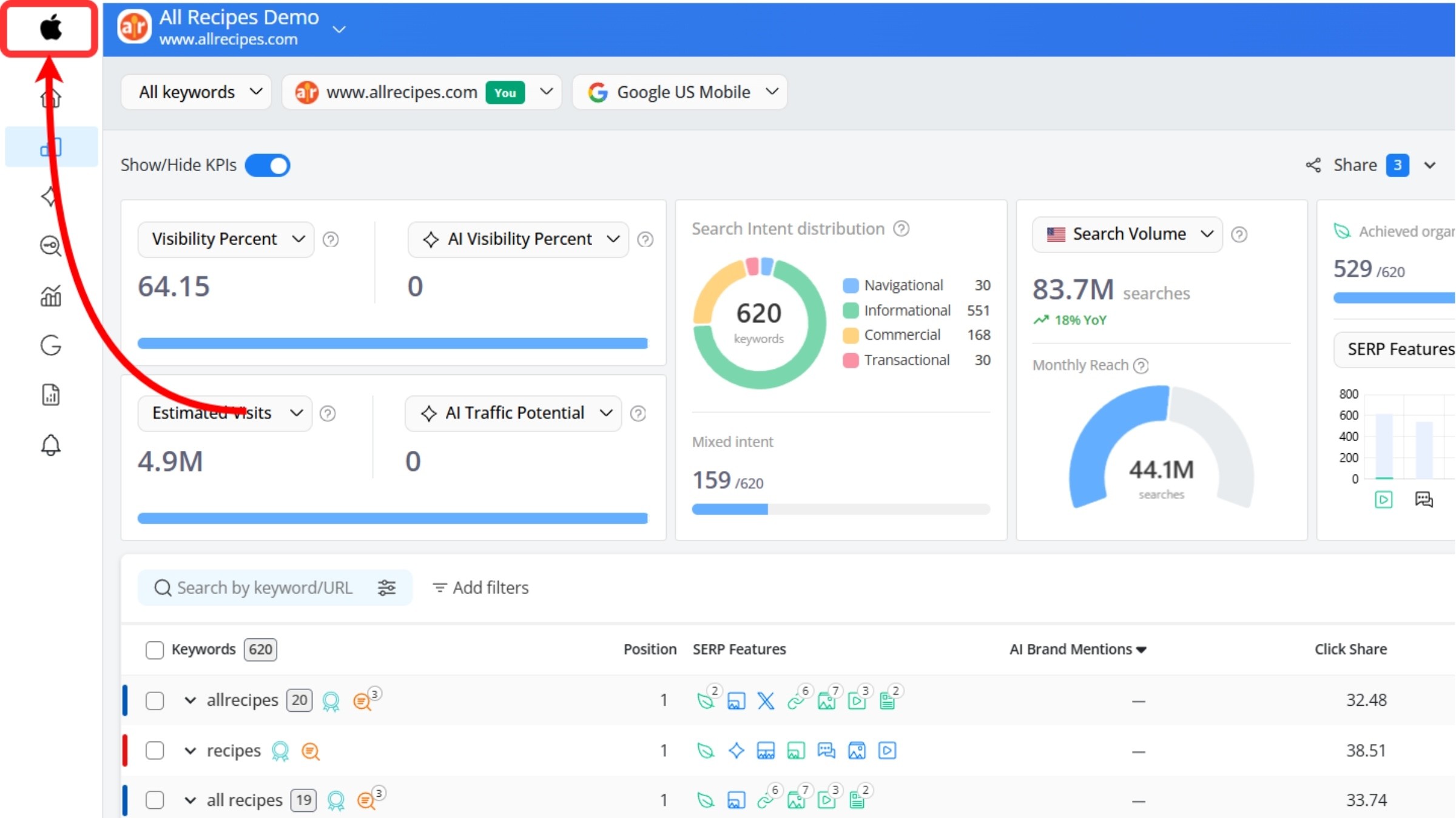
Meta title (optional): customizes the page title displayed in the browser tab.
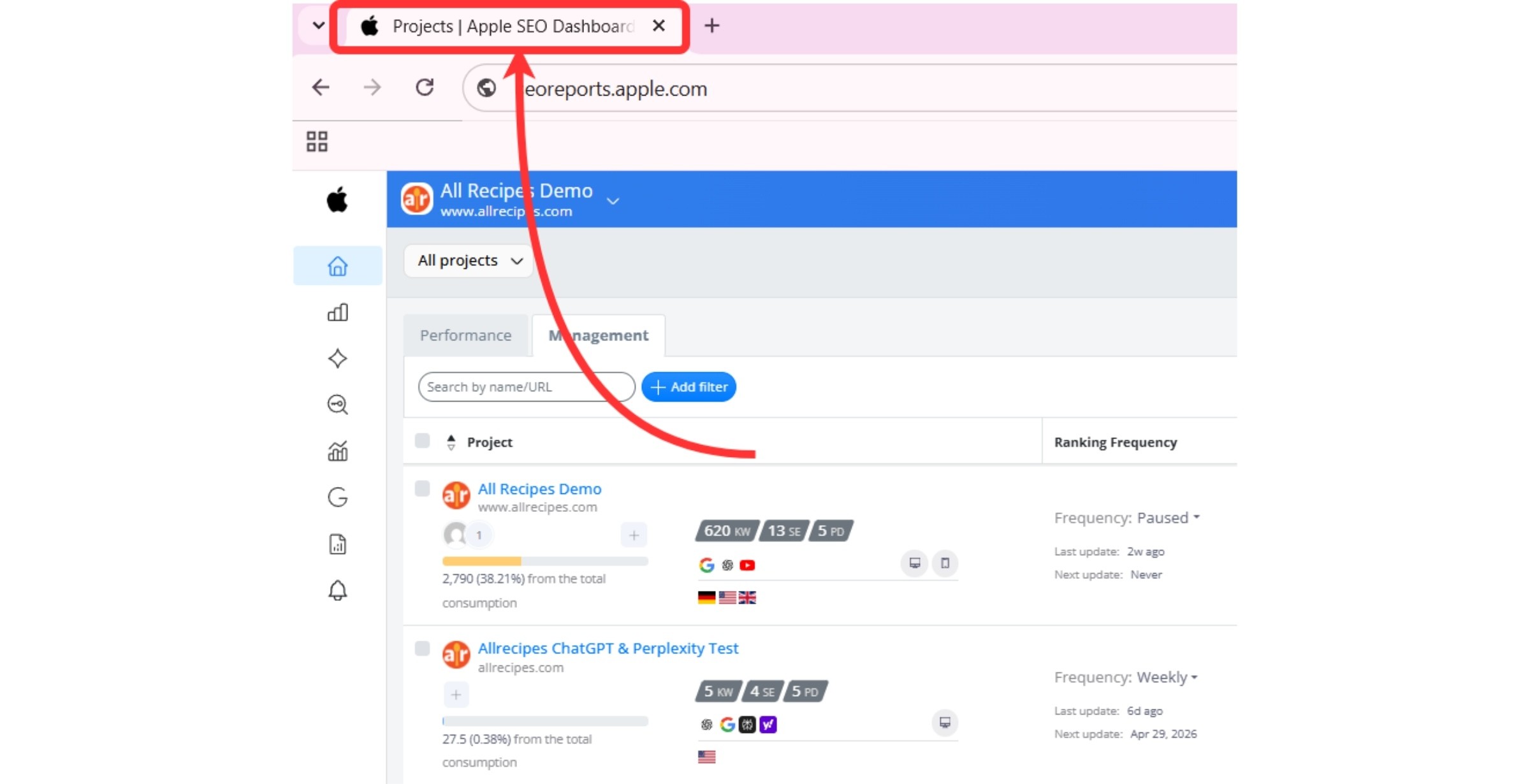
How this helps: These small branding details make the tool feel more like your own, giving clients a smoother and more professional experience every time they interact with your reports or dashboard.
Custom Subdomain
A custom subdomain gives clients access to the tool through your own branded URL, like reports.yourcompany.com, instead of a standard AWR link.
To get started, map your domain to AWR so your projects appear under your brand rather than the default AWR address.
First, create a CNAME record that points your subdomain to whitelabel.advancedwebranking.com.
To complete setup, you’ll need:
Your DNS host mapping
SSL certificate verification
A valid admin or webmaster email for approval
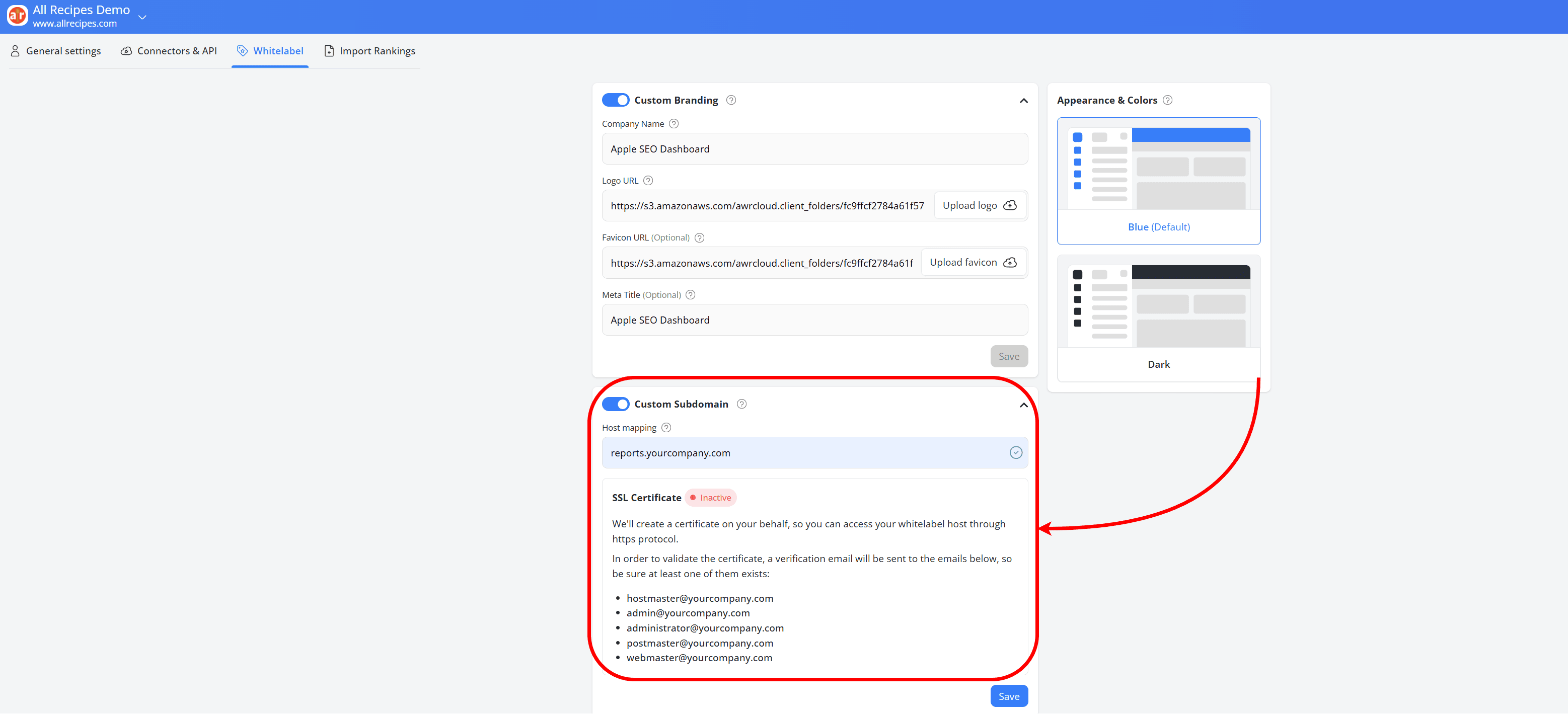
Once you enable the Custom Subdomain option, you can request an SSL certificate to secure your domain with HTTPS.
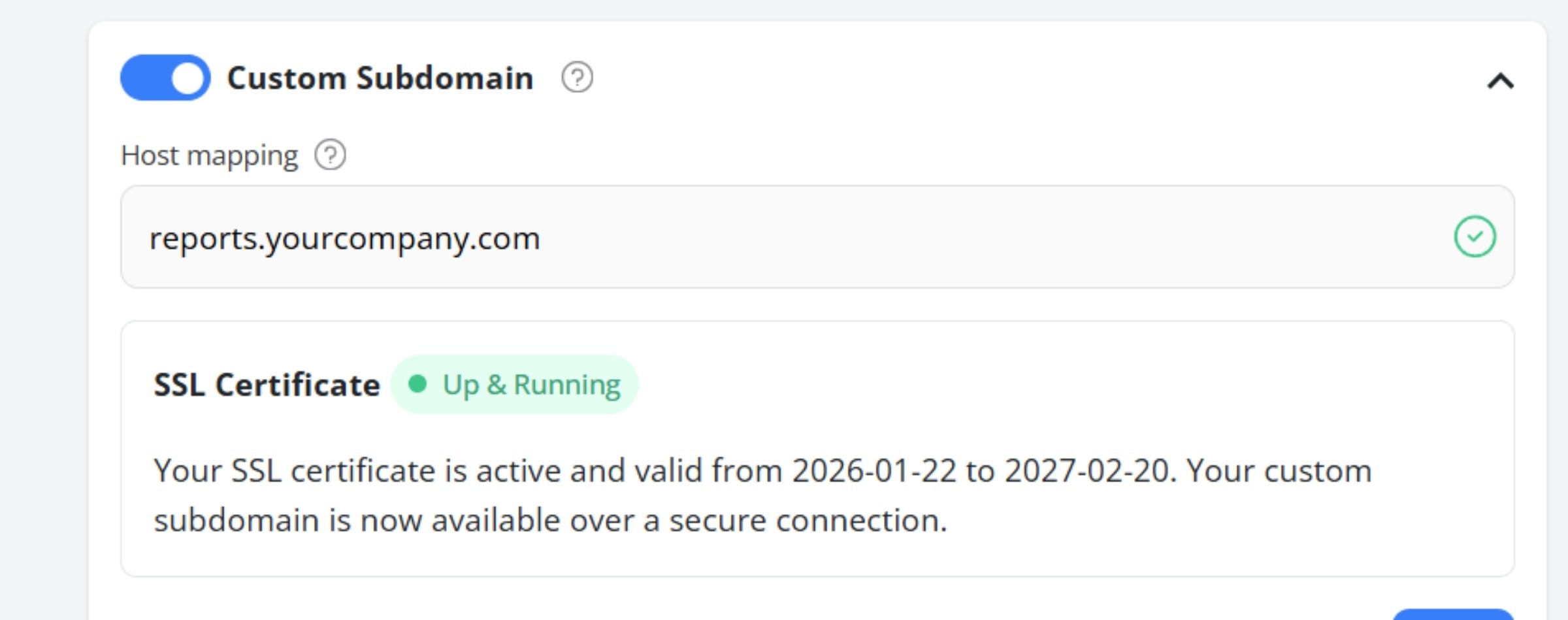
To complete SSL activation, use one of the approved default domain email addresses listed in this section, as these are supported for verification within the standard 48-hour process.
How this helps: A custom subdomain makes the experience feel more professional and connected to your brand, while SSL helps keep everything secure and running smoothly for your clients.
Custom Email Server
Your email settings help make client communication feel more professional and connected to your brand.
Instead of sending reports, invites and notifications from AWR’s default email, you can send them from your own business email address.
There are two setup options available:
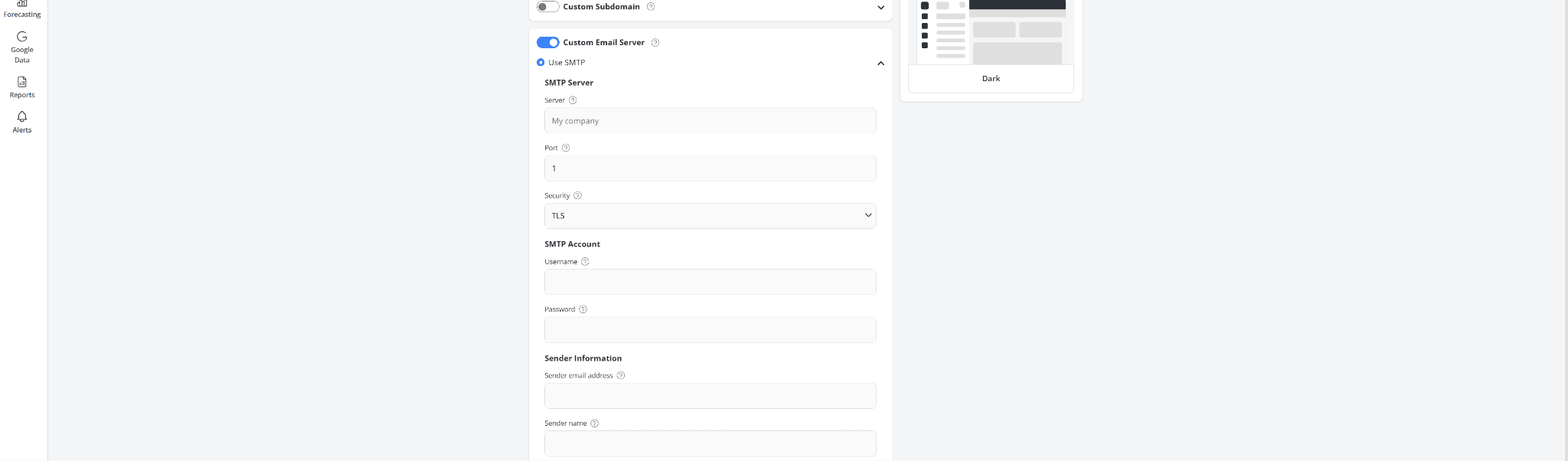
SMTP: Connect your own mail server by entering your server address, port, preferred security type (Plain Text, TLS, or SSL), username, password, sender email address, and sender name.
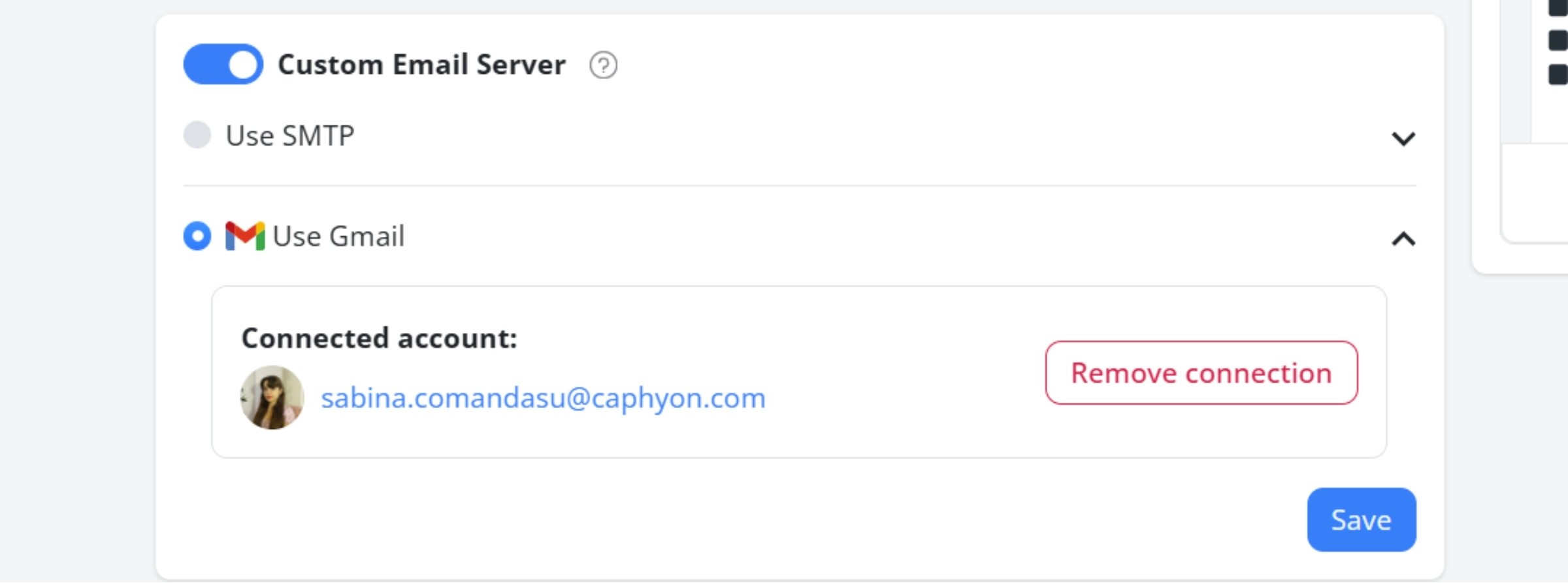
Gmail: Sign in with your Gmail account for a quicker setup.
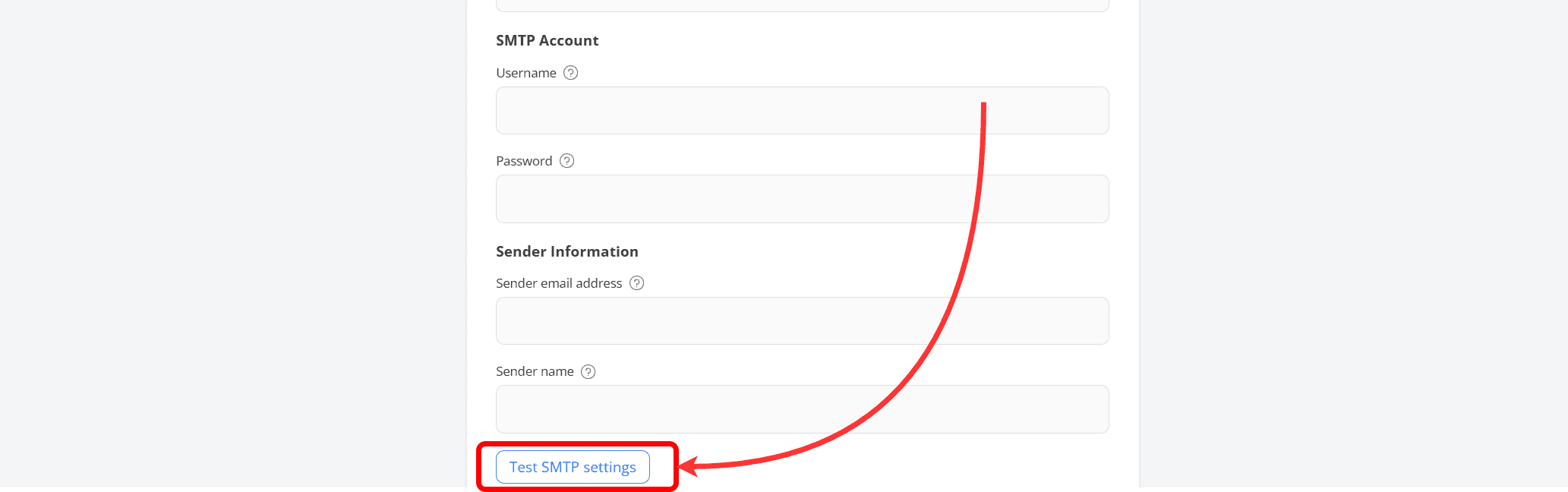
You can also test your SMTP settings before saving everything to make sure emails are working as expected.
How this helps: Sending emails from your own address keeps your branding consistent, builds trust, and creates a smoother experience for clients from the first invite to every report update.
Custom Email Templates
Custom email templates help you create a more polished and consistent experience for every client interaction.
You can customize:
Subject line: What clients see first in their inbox
Header: The main title inside the email
Body: Your message, updates, or report date
Button text: The clickable button that directs clients to their report
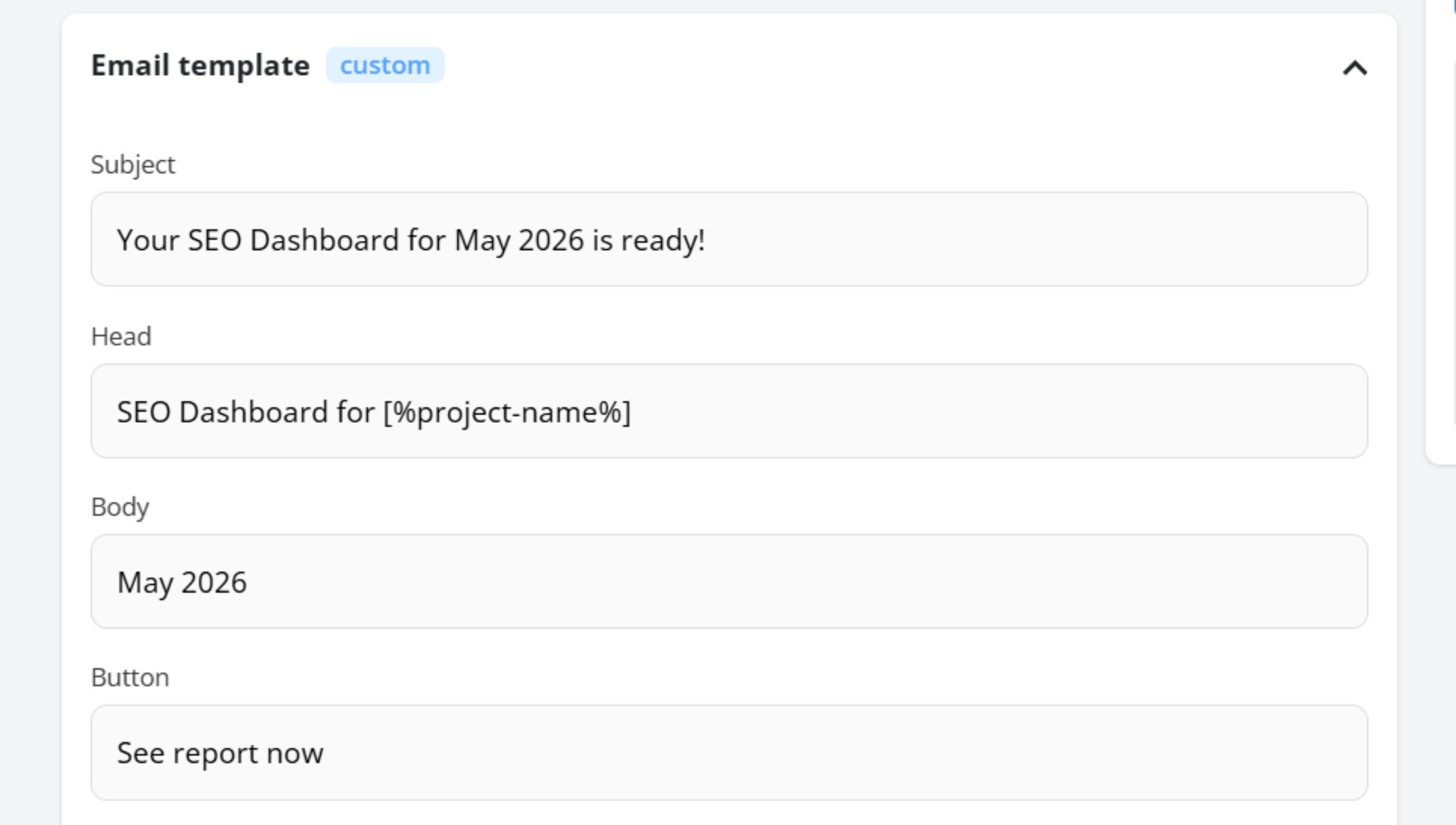
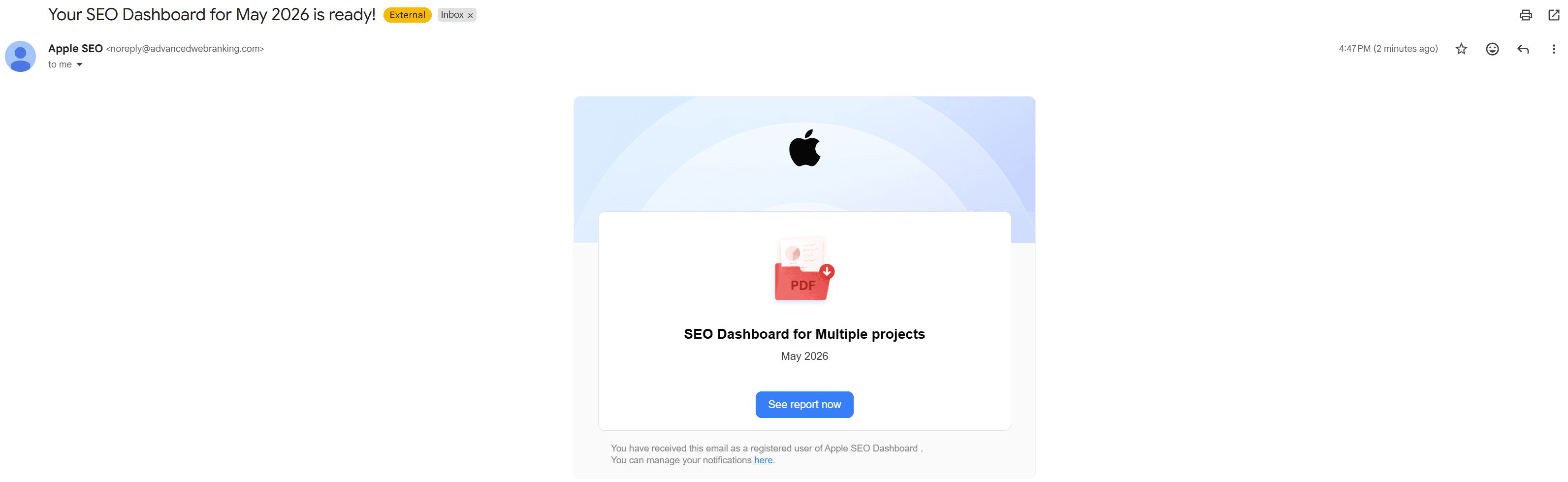
You can also use dynamic variables like [%report-name%], [%project-name%], [%generation-date%], [%firstname%] to automatically personalize each email.
Before saving, you can preview exactly how the email will look, then save your custom template to use across future reports.
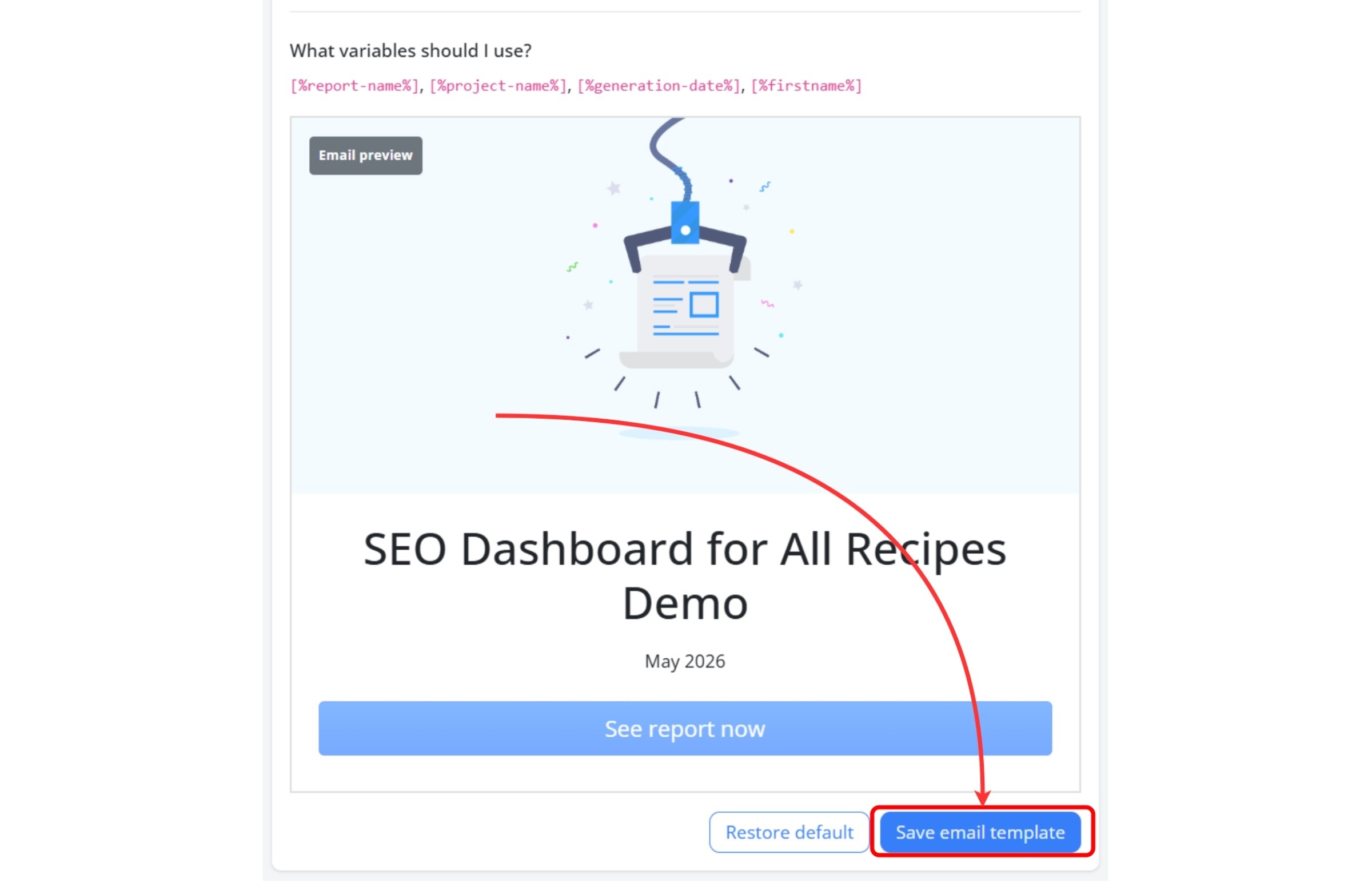
How this helps: A customized email template keeps your communication feeling more professional, personal, and connected to your brand from the moment a client opens their inbox.
Do you have any questions? Don’t hesitate to get in touch and we will keep building the FAQ.
Frequently Asked Questions
Can I test my email setup before sending client reports?
Do shareable links also use my branded domain?
Do I need technical help to set up SMTP?
Will Whitelabel change how reports are generated?
stay in the loop